Manage contracts
Once a contract is created, you can edit it or change its status.
Required permission
- Your DoiT account must have the Admin role.
Contract details
To access contract details:
-
Sign in to the DoiT console, select Customers from the top navigation mega menu.
-
Locate the customer of interest. There are two ways to open the contract configuration page:
-
Select the contracts summary on the Customers page and use the options in the pop-up.
-
Select Settings (the gear icon ) of the customer entry to open its details, then select the name of the target contract on the Contracts tab, or select the kebab menu (⋮) at the rightmost end of the contract entry and then select Edit contract.
-
-
You can update the contract configuration, change contract status, or compare contract versions on the contract details page.
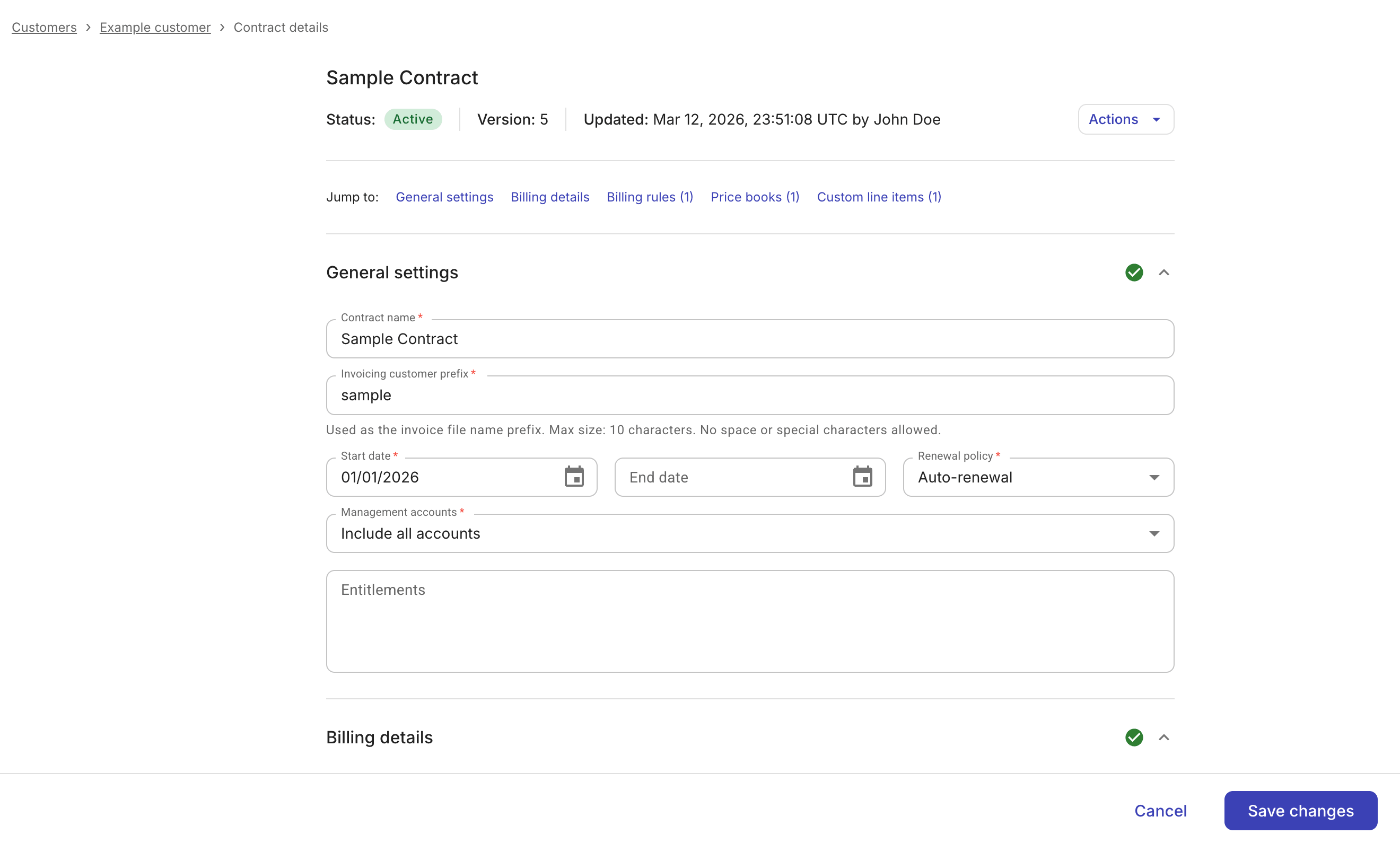
Update contract
-
Update the general settings, billing details, billing rules, price books, or custom line items as needed.
-
Save changes. The updated contract will be saved under a new version.
Change contract status
To change contract status, in the Actions dropdown, select an action to perform:
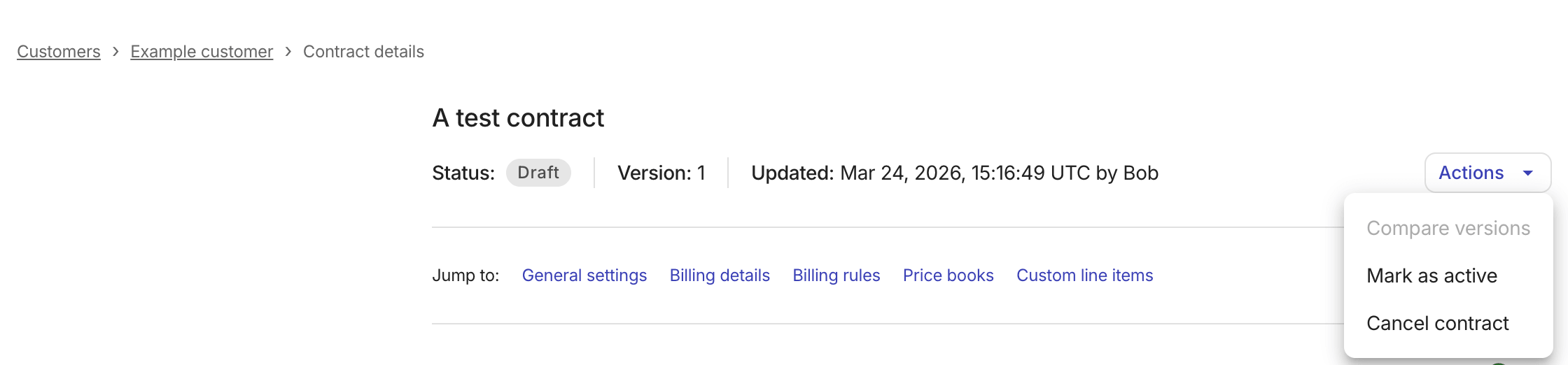
-
Mark as active: To activate the contract. If the start date of the contract is in the future, the contract status will show
scheduled, meaning it's ready but not in effect yet. -
Cancel contract: To cancel the contract. The contract status will become
Cancelled.
Note that the available options vary with the current status of the contract.
Compare contract versions
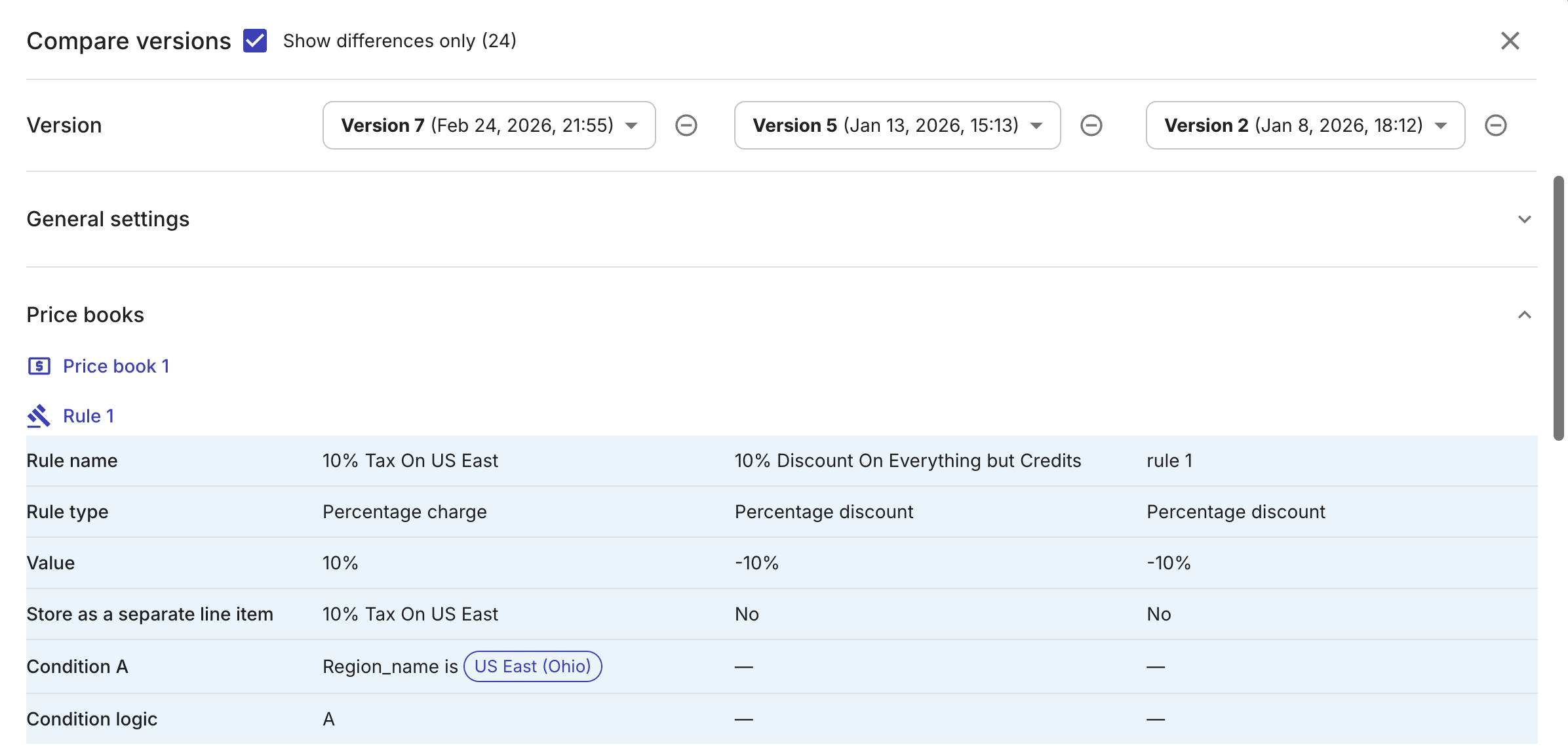
Each time a contract is updated, a new version is created. Comparing the differences between versions is often necessary when investigating invoice discrepancies or reviewing contract amendments
For a contract with two or more versions, to compare the differences:
-
In the Actions dropdown, select Compare versions.
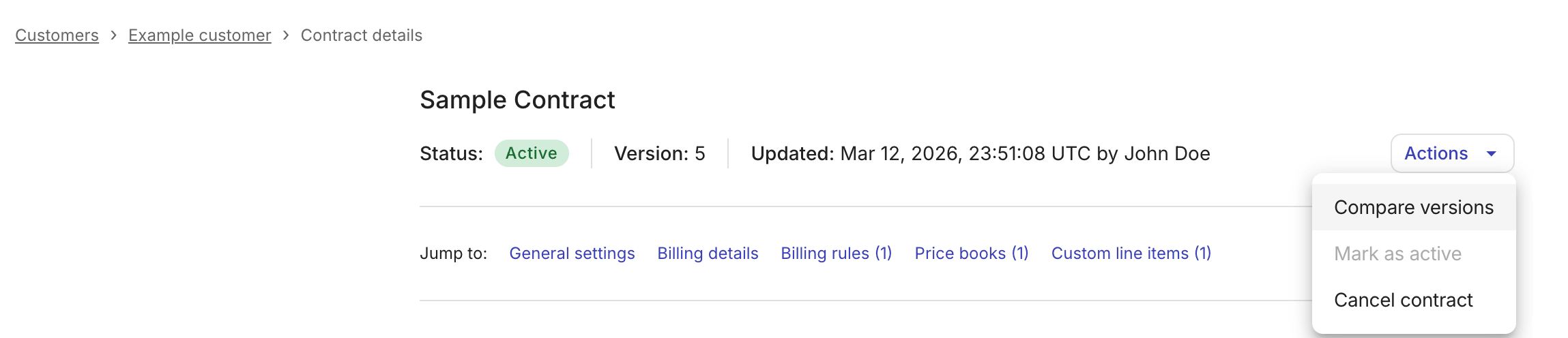
By default, the two most recent versions are displayed side by side, fields that differ are highlighted.
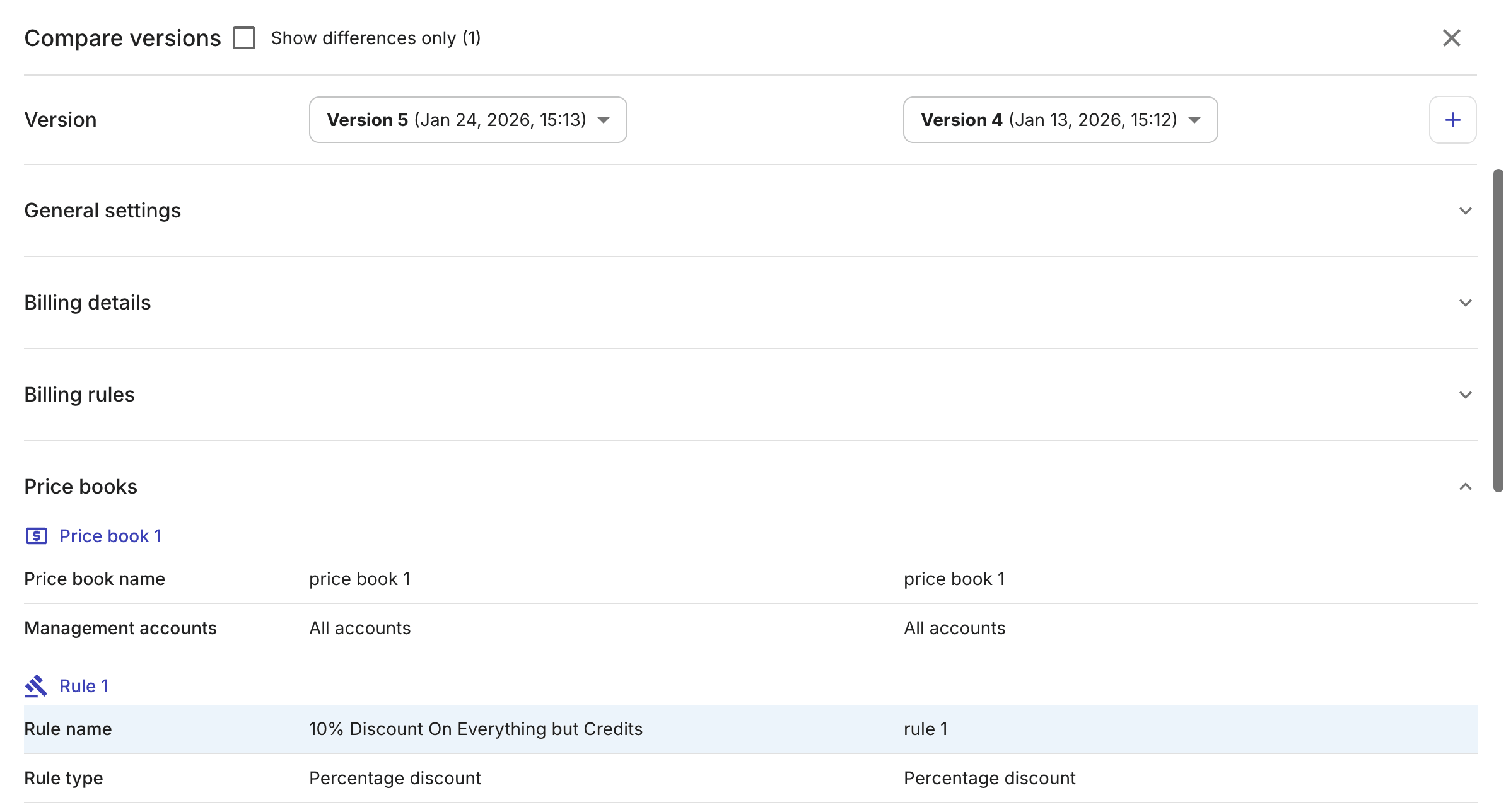
-
Adjust the comparison options as needed.
-
Select a different version from the Version dropdown.
-
Use the + icon to add another version. You can compare up to three versions side by side.
-
Select the Show differences only checkbox to focus on changes.
-