Add contracts
Distributors and resellers manage contracts as part of customer management and administration.
Required permission
- Your DoiT account must have the Admin role.
Add new contract
To add a new contract:
-
Sign in to the DoiT console, select Customers from the top navigation mega menu.
-
Locate the customer of interest. Select Settings (the gear icon ) of the entry to open its details page.
-
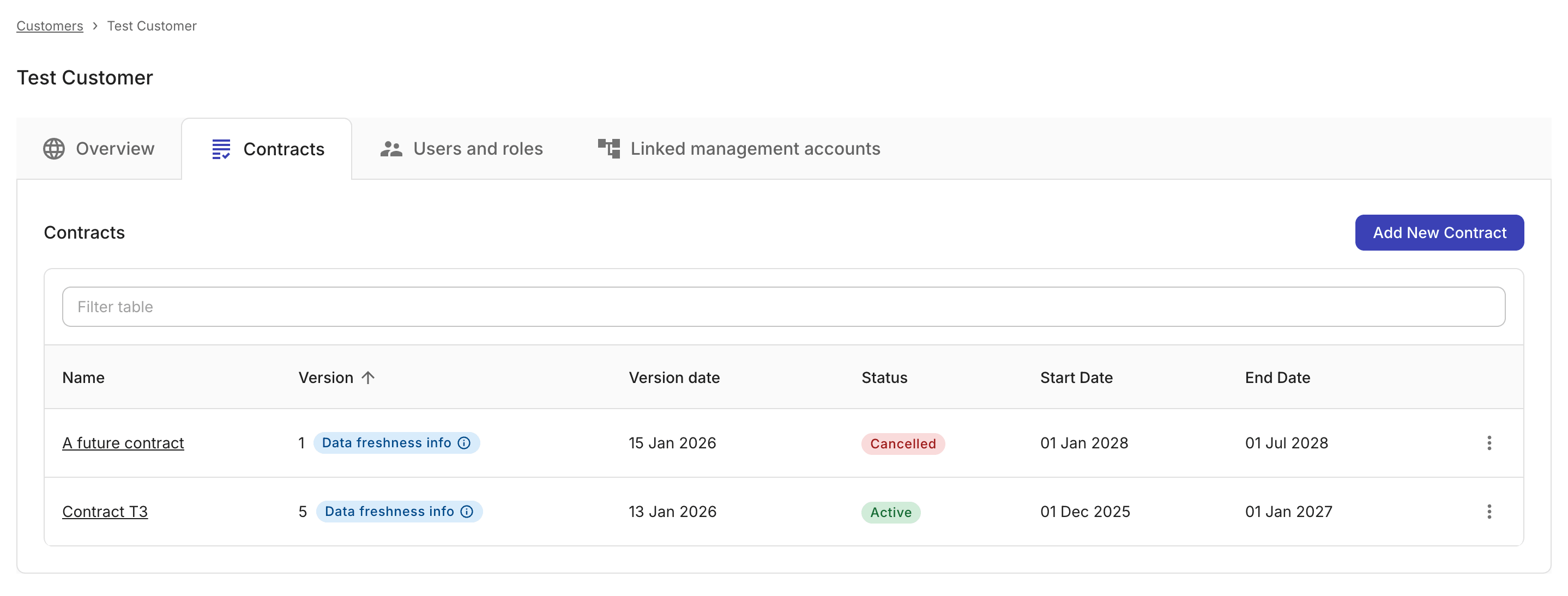
On the Contracts tab, select Add new contract.
-
Specify the different sections of the new contract. The sections available in a contract depend on the customer's tier.
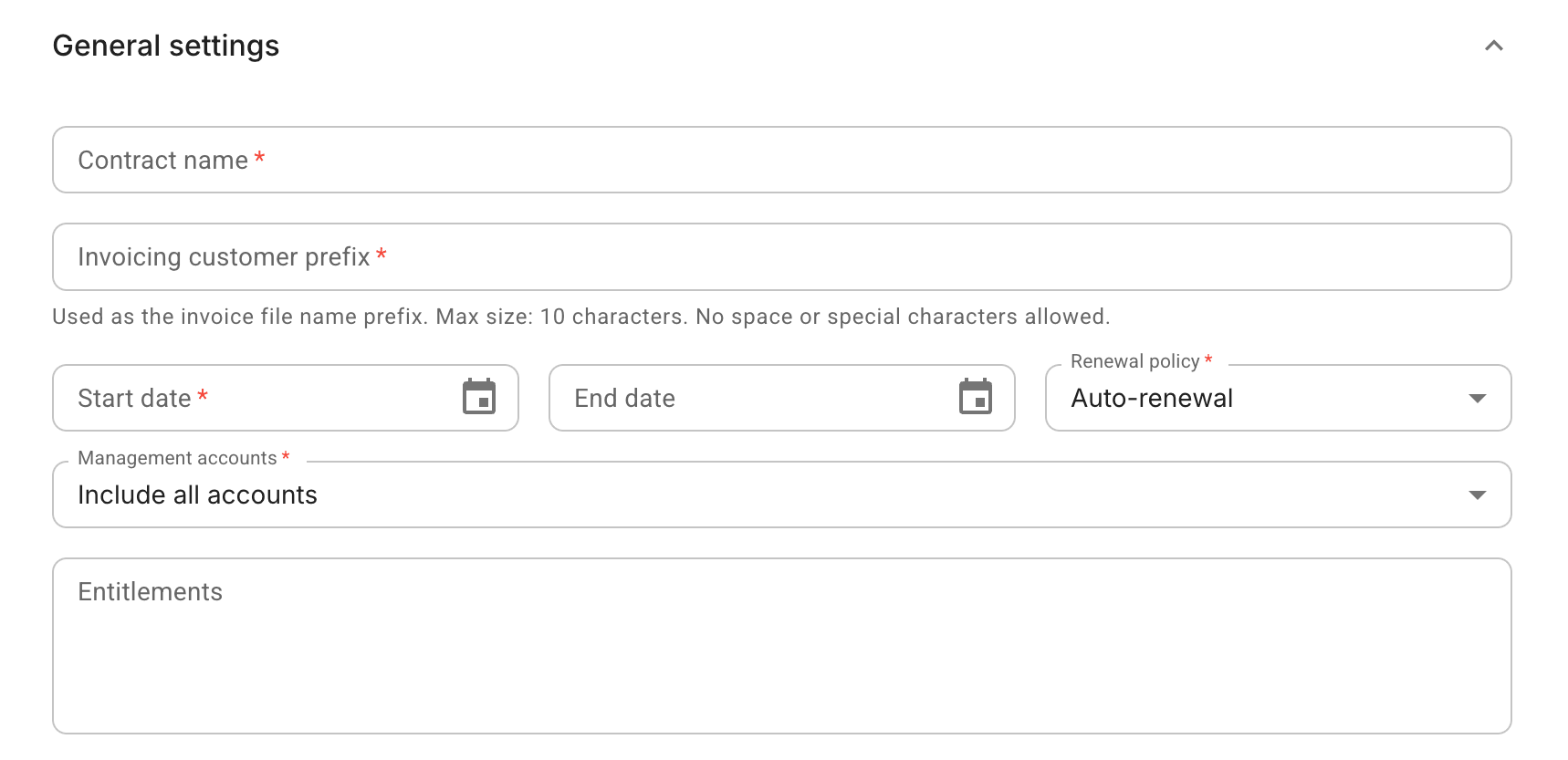
General settings
-
Contract name: Name of the contract.
-
Start date and End date: The start and end dates of the contract.
-
Management accounts:
-
Tier-1, Tier-2 contracts: Not configurable. Always set to
Include all accounts. -
Tier-3 contracts: Choose the scope of management accounts that the contract applies to. If you choose
Include only selected accounts, you need to specify at least one management account.
-
-
Renewal policy: The renewal policy of the contract. Available option:
Auto-renewal,Manual renewal, orFixed term. -
Entitlement: AWS programmatic entitlements. For example: AWS Solution Provider Program (SPP), AWS Private Pricing Addendum (PPA).
-
Invoicing customer prefix (Tier-3 contracts only): A human-friendly descriptive identifier to be added to the invoice ID to provide context or for other administrative purposes. The prefix also appears in the filenames of downloaded PDF or CSV invoices.
The prefix must be between 1 and 10 characters in length. It may consist only of alphanumeric characters, periods (
.), hyphens (-), and underscores (_). Spaces and other special characters are not allowed.For instance, if the customer name is
Example Company, you may want to specify the customer prefix asExampleCompanyorExample-Company.
Billing details
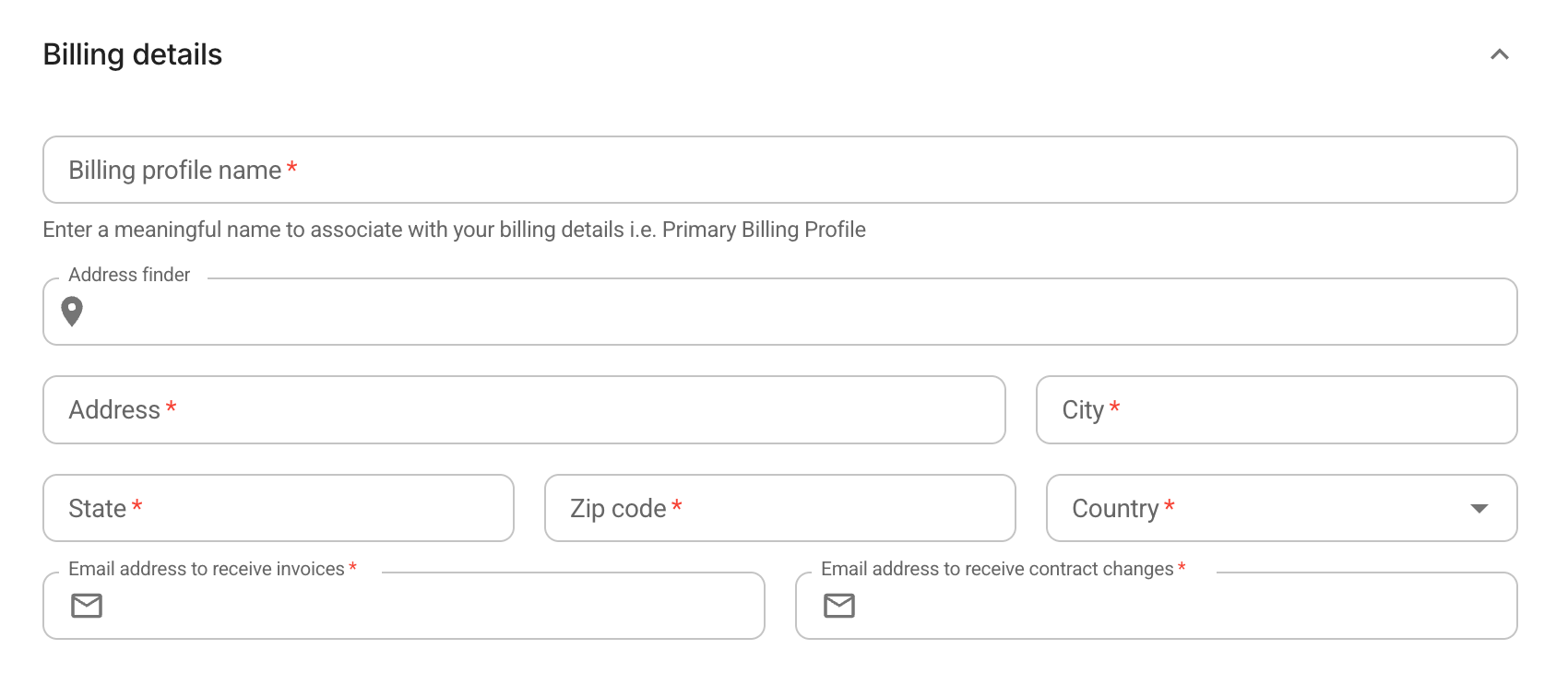
Enter billing details of the customer that is to be billed with this contract.
-
Billing profile name: A descriptive name for the billing profile.
-
Billing address: The billing address of the customer. Use the Address finder or manually specify all required fields, including Address, City, State, Zip code, and Country.
-
Contacts: Two email addresses for different purposes:
-
One email address to receive invoices. This could be an email alias for a group, for example,
[email protected]. -
Another email address to receive contract changes.
-
Billing rules
Billing rules are available in contracts of all three tiers. They are used to exclude specific cost types. For example, a distributor can define a billing rule to exclude distributor discounts such as SPP and PPA and present the Manufacturer's Suggested Retail Price (MSRP).
Price books
Price books are available in Tier-2 and Tier-3 contracts. They are used to specify custom pricing.
Custom line items
Custom line items are available in Tier-2 and Tier-3 contracts. They are billing adjustments applied sequentially after billing rules and price books.
Finalize the contract
A newly created contract is saved as a draft contract. Review each tab carefully before marking the contract as active.