Proportional split
The proportional method distributes the cost in proportion to each target item's share of the total value in the report. Use it when it's reasonable to assume that shared costs follow the same pattern as the costs you can attribute directly — larger consumers absorb a larger share.
The cost distributed to a target item is calculated as:
Source_total × (Target_origin / Sum_of_all_target_origins)
Split unallocated costs
Cloud Analytics supports splitting unallocated costs among resource groups (defined by allocation rules) using a group allocation.
Identify unallocated costs
The example below demonstrates how to find out the costs not assigned to a specific environment:
-
Create two allocation rules, one for the Production environment, the other for the Development environment. See Create allocations.
TipEnvironments are typically defined using Hierarchy groups dimensions.
-
Create a group allocation named
Environmentswith the two rules. -
Go to the main Reports screen to create a new report.
-
In the Group by section, select Allocations, and then select the newly created
Environmentsgroup allocation. -
Run the report to see how the costs are allocated.
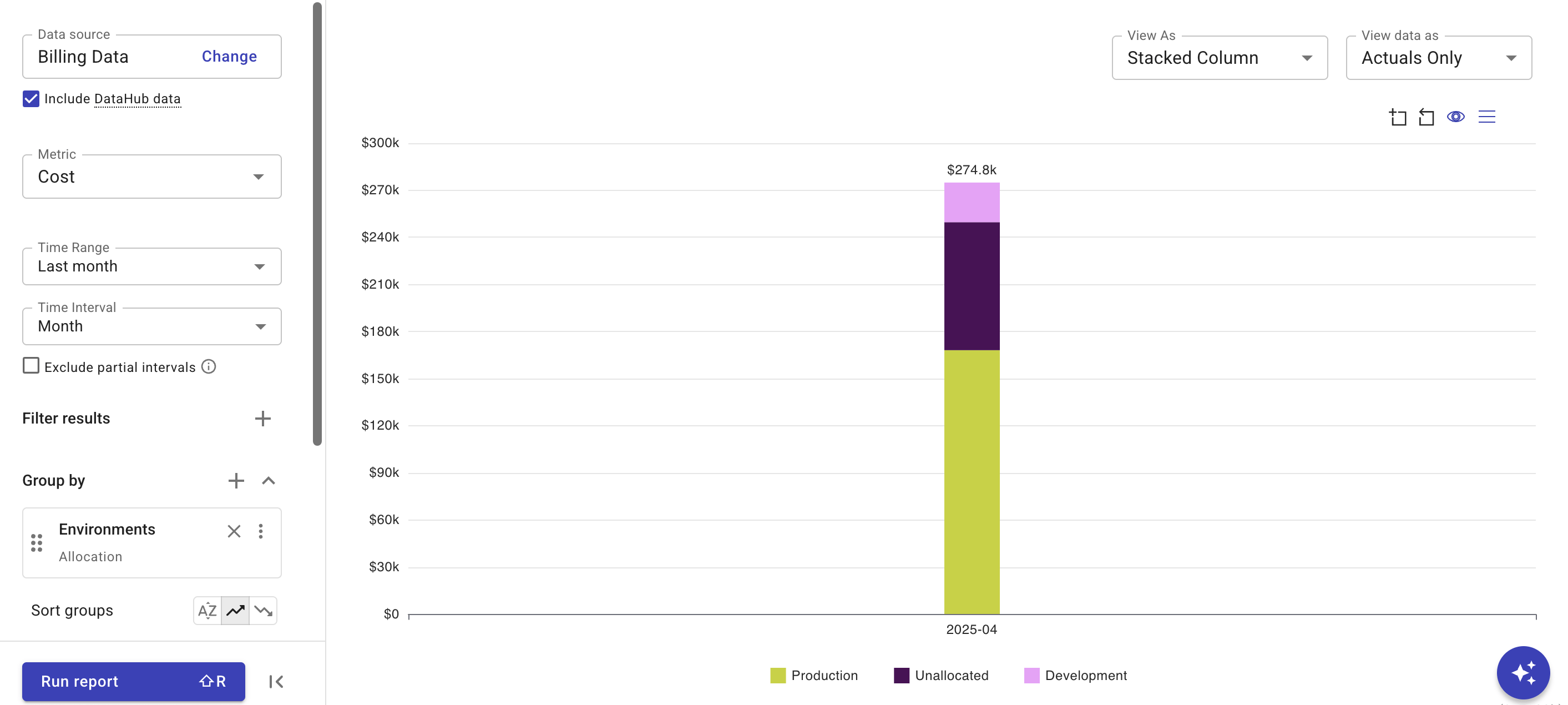
You can add other dimensions to break down the costs.
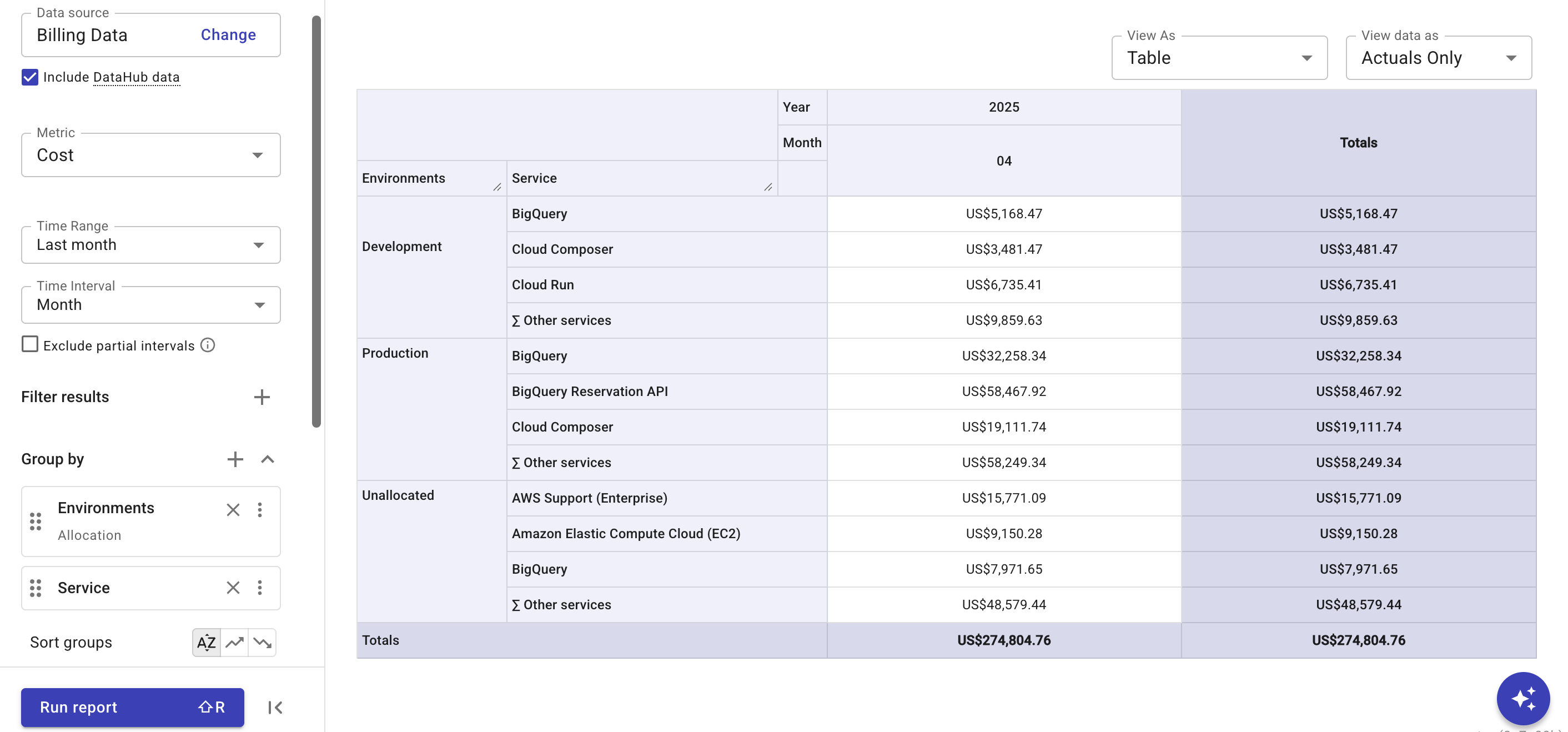
Split the unallocated costs proportionally
-
In the Group by section, select the kebab menu (⋮) at the rightmost end of the
Environmentsallocation, and then select Split cost. -
Select
Unallocatedas the source item to split. -
Select the checkboxes of the target environments, and specify the distribution method as Proportional.
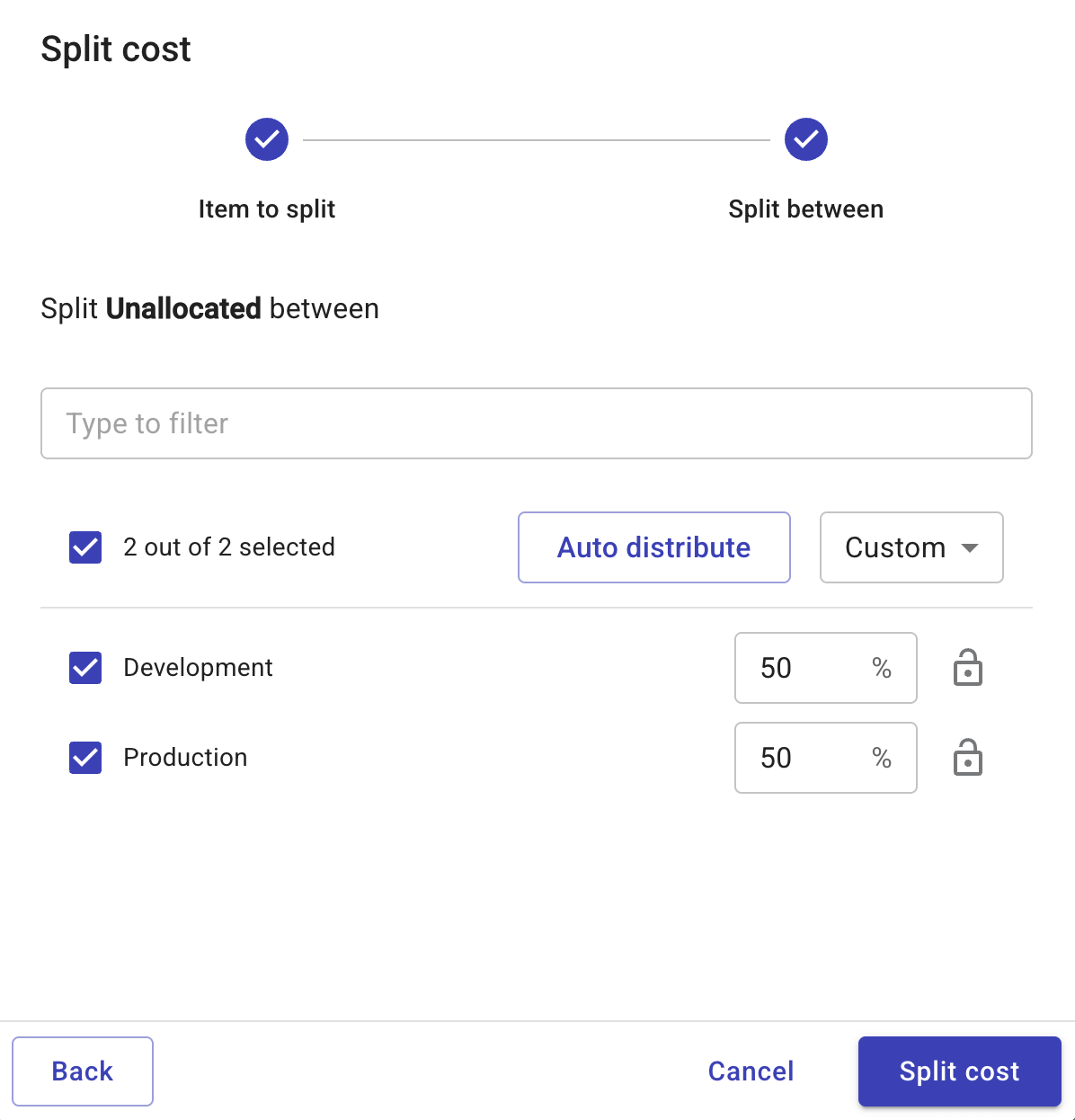
-
Select Split cost and run the report to view the results.
In the example below, the unallocated cost distributed to the Development environment is calculated as:
Unallocated_total× (Development_origin/ (Development_origin+Production_origin) )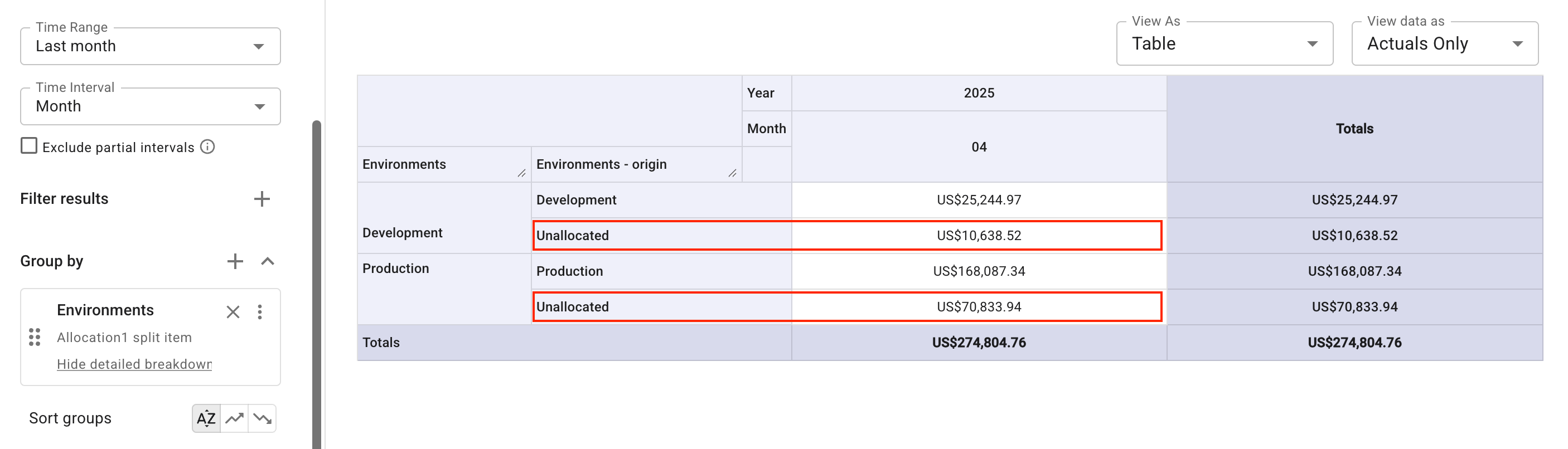 Tip
TipTo remove the column (
- origin) that breaks down the redistributed cost, click Hide detailed breakdown and rerun the report.