比例分割
比例メソッドは、レポート内の合計値に対する各ターゲットアイテムの割合に応じてコストを分配します。共通コストが、直接アトリビューションできるコストと同じパターンに従うとみなせる場合に使用してください。より多く消費しているものほど、より多くのコストを負担します。
ターゲットアイテムに分配されるコストは次のように計算されます。
Source_total × (Target_origin / Sum_of_all_target_origins)
未割り当てコストを分割する
Cloud Analytics は、グループアロケーション を使用して、リソースグループ(アロケーションルール によって定義)間で未割り当てコストを分割することをサポートします。
未割り当てコストを特定する
以下の例は、特定の環境に割り当てられていないコストを特定する方法を示しています。
-
2 つのアロケーションルールを作成します。1 つは Production 環境用、もう 1 つは Development 環境用です。アロケーションの作成を参照してください。
ヒント環境は通常、Hierarchy groups ディメンションを使用して定義します。
-
2 つのルールを含む
Environmentsという名前のグループアロケーションを作成します。 -
メインの Reports 画面に移動し、新規レポートを作成します。
-
Group by セクションで Allocations を選択し、新しく作成した
Environmentsグループアロケーションを選択します。 -
レポートを実行して、コストがどのようにアロケーションされているかを確認します。
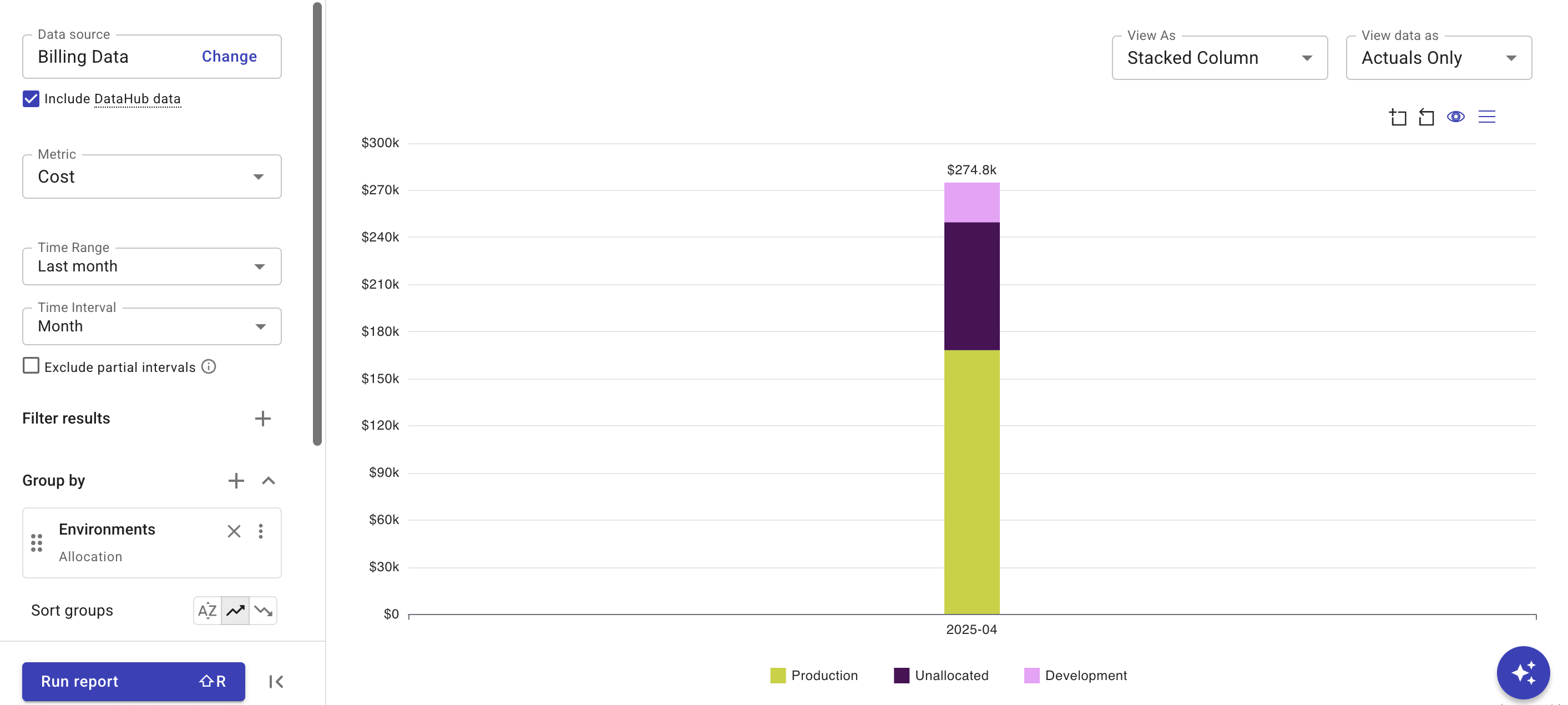
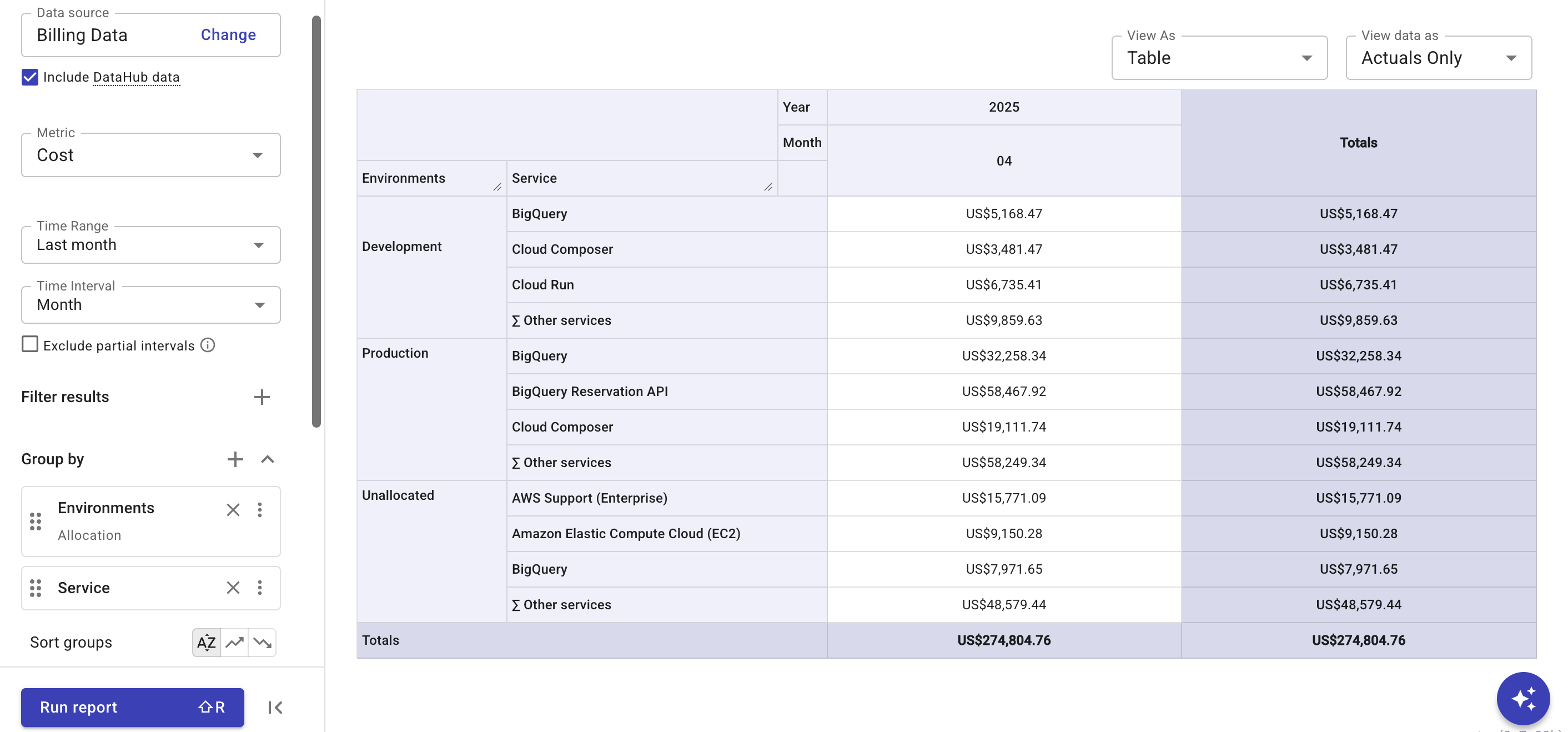
他のディメンションを追加して、コストをさらにブレイクダウンすることができます。
未割り当てコストを比例配分で分割する
-
Group by セクションで、
Environmentsアロケーションの一番右端にあるケバブメニュー(⋮)を選択し、Split cost を選択します。 -
分割元のアイテムとして
Unallocatedを選択します。 -
ターゲット環境のチェックボックスを選択し、分配メソッドとして Proportional を指定します。
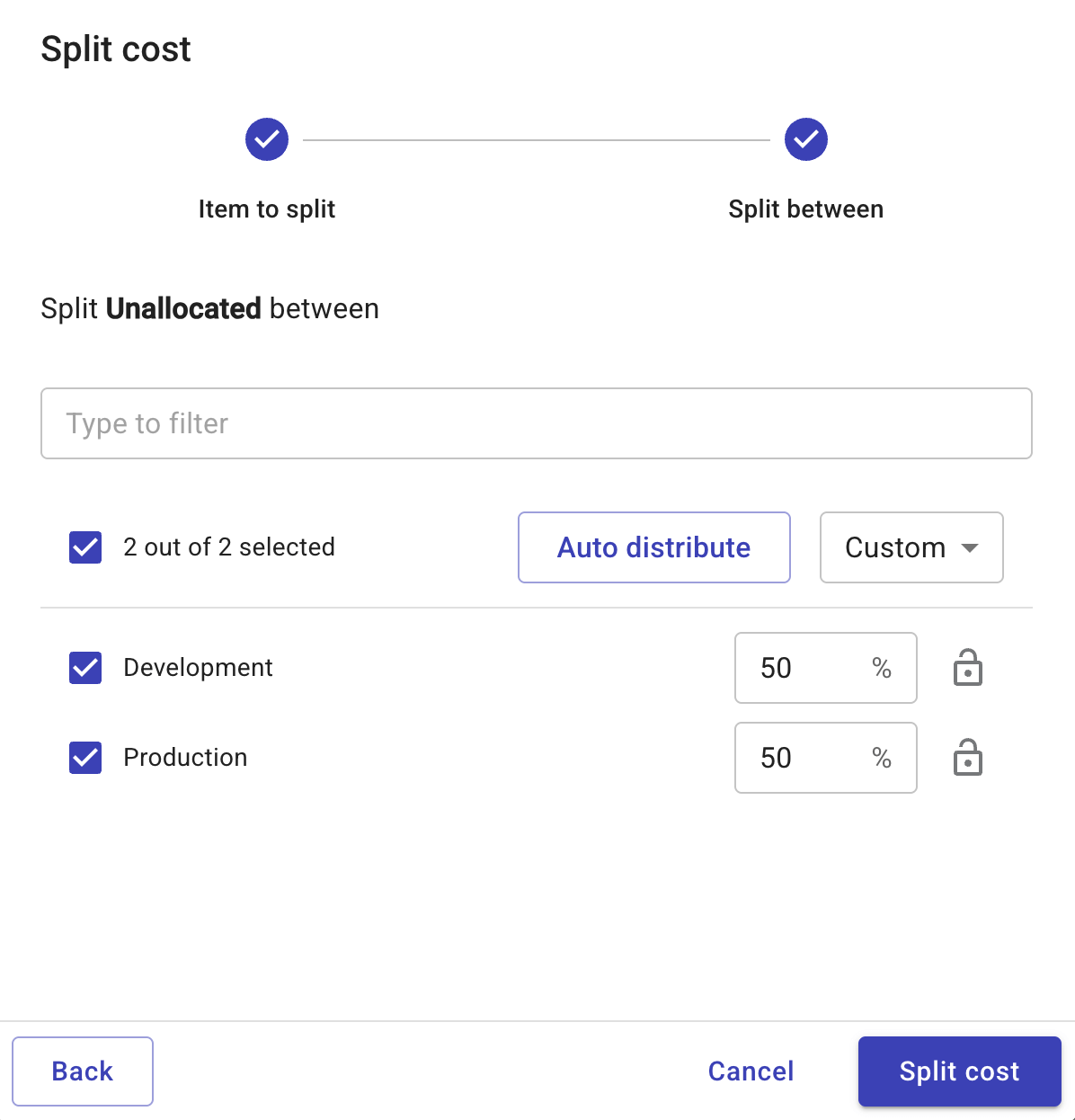
-
Split cost を選択し、レポートを実行して結果を確認します。
以下の例では、Development 環境に分配される未割り当てコストは次のように計算されます。
Unallocated_total× (Development_origin/ (Development_origin+Production_origin) )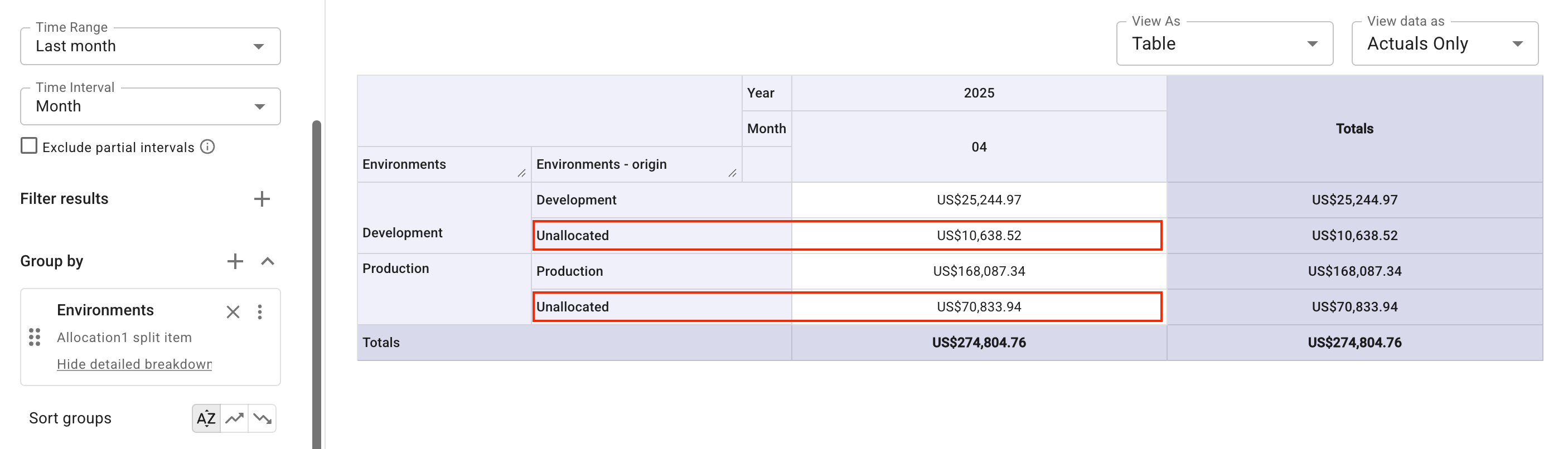 ヒント
ヒント再配分されたコストをブレイクダウンしている列(
- origin)を削除するには、Hide detailed breakdown をクリックしてレポートを再実行してください。