計画済み購入
オンボーディング 完了後は、利用状況・ポートフォリオ・料金シグナルの変化に応じて、購入計画が自動的に更新されます。1 回の大きな購入を行う代わりに、PerfectScale for Commitments は、時間をかけて段階的に購入を行うコミットメントのラダー(階段状の一連の増分購入)を構築します。このアプローチにより、過剰なコミットメントのリスクを抑えながら、コスト削減額を最大化します。
必要な権限
-
計画済み購入を表示するには: PerfectScale Commitments Read Only または PerfectScale Commitments Admin 権限が必要です。
-
購入ステータスを変更するには: PerfectScale Commitments Admin 権限が必要です。
ラダリングについて理解する
ラダリングは、1 回の大きな購入ではなく、開始日と終了日が異なる小さなコミットメントを段階的に購入していくリスク軽減戦略です。これにより、重なり合うコミットメントからなる「ラダー」が構成されます。
コミットメントのラダリングの主なポイント:
-
小さなコミットメントであれば、ワークロードが減少したときにも大きな支出に縛られません。
-
コミットメントは徐々に期限切れとなるため、一晩でカバレッジの大部分が失われるような「更新ショック」を回避できます。
-
ラダーの各ステップは、自身の利用状況を再評価し、次の購入を最適化する機会になります。
各購入ステップの前に、システムは現在の利用状況を再評価します。
-
利用の落ち込みが検出された場合、PerfectScale は不要なコミットメントに固定されることを防ぐため、次の購入を一時停止するか、その購入規模を縮小します。
-
対象となる支出が週次で大きく減少した場合、PerfectScale は過剰なコミットを避けるために次の購入を保留にします。利用が安定したら、ラダリングプランが再評価され、購入が自動的に再開されます。
計画済み購入を表示する
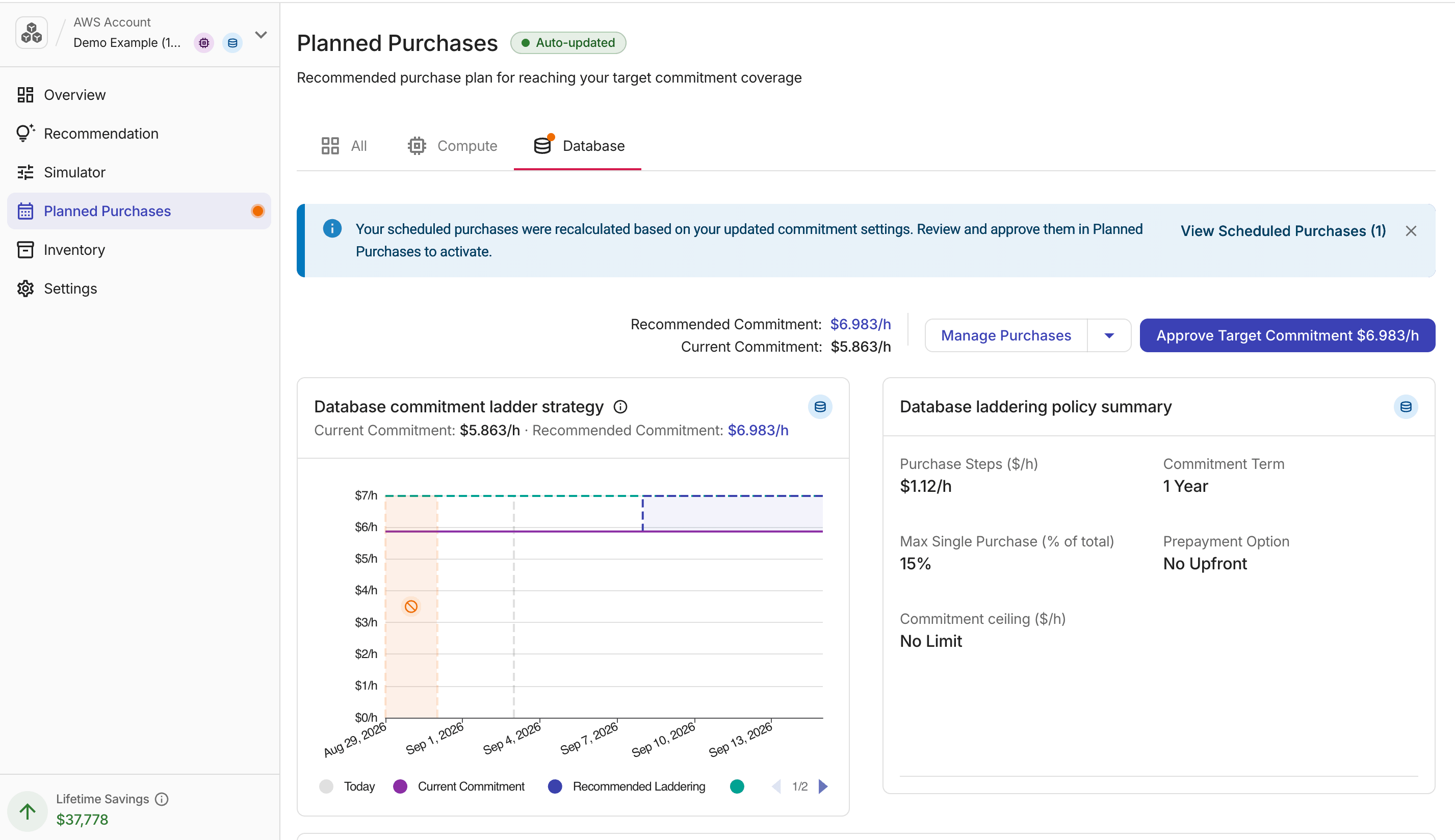
Planned Purchases ページには、現在のコミットメントポリシーに基づいて PerfectScale が生成したコミットメントのラダーが表示されます。
-
ページヘッダーには、購入ラダーが自動更新されている場合に Auto-updated インジケーターが表示されます。
-
上部のサマリーには、Recommended Commitment と Current Commitment($/h)が表示されます。ラダーチャートには各ステップで予定されている購入が可視化され、バーにカーソルを合わせると、その時点での累積コミットメントが表示されます。
チャートには No Purchase Window がハイライト表示されます。これは、Settings で設定した Latest monthly purchase date に基づき、各月末に新規購入がスケジュールされない、網掛けされた期間です。Commitment ceiling が設定されている場合、チャート上にはその $/h 値の位置に破線の Commitment ceiling 基準線が表示されます。天井設定によってラダリングプランが制限されている場合は、その旨を説明するメモがチャートのツールチップに表示されます。
Google Cloud では、Cloud SQL タブが選択されていて、請求先アカウントに複数の地域の Cloud SQL 予測が存在する場合、ラダーチャートの上部に地域タブバーが表示されます。地域タブを選択すると、その地域のコミットメントラダーとラダリングポリシーのサマリーが表示されます。Compute と Cloud SQL の両方にアクティブな購入ステップがある場合、ページには両方のコミットメントラダーチャートが並べて表示されます。
対象となる支出の週次比較で減少が検出され、購入保留がトリガーされた場合、チャートには保留期間を示す灰色の Purchasing on hold 帯が破線の境界線付きで表示されます。この帯は、琥珀色の No Purchase Window 帯と視覚的に区別されています。チャートヘッダーのコミットメントタイプアイコンの横には Purchasing on hold チップが表示されます。チップにカーソルを合わせると、前週と今週の対象支出額、および次回の評価日が表示されます。
-
Purchase Steps($/h): 各ステップで追加されるコミットメント額。
-
Commitment Term: 1 年または 3 年。
-
Max Single Purchase(合計に対する %): 各ステップでの最大購入額の上限。
-
Prepayment Option(AWS のみ): No Upfront は購入時の支払いなしで、総コストを月次払いに分割します。Partial Upfront は、より低い料金と引き換えに、総コストの少なくとも半分を前払いし、残額を月次で支払います。All Upfront は全額を購入時に支払い、最も大きな割引を受けられます。詳細は AWS Savings Plans FAQ を参照してください。
Google Cloud の CUD には前払いオプションがなく、常に月次請求(No Upfront と同等)であるため、Google Cloud アカウントでは Payment Option 列と Prepayment Option 設定は表示されません。
-
Recommended Commitment($/h): ラダーが目標として構築しているコミットメントターゲット。
-
Commitment ceiling($/h): 設定されている最大コミットメント値。上限が設定されていない場合は No Limit です。これは Settings の Commitment ceiling フィールドに対応します。
-
Total Laddering Cost($/h): すべてのステップが完了した時点での累積コミットメントコスト。
チャート下部の Scheduled purchases テーブルには、各ステップの購入日・コミットメントタイプ・コミットメント額・購入までの日数・現在のステータス・見込み月次コスト削減額が一覧表示されます。AWS では、各行に payment option も含まれます。複数のコミットメントタイプが有効になっている場合、各行にはそのステップのコミットメントタイプを示すアイコンが表示されます。Google Cloud では、Cloud SQL など地域スコープを持つコミットメントタイプがアクティブな場合、各購入ステップの対象地域を示す Region 列が表示されます。
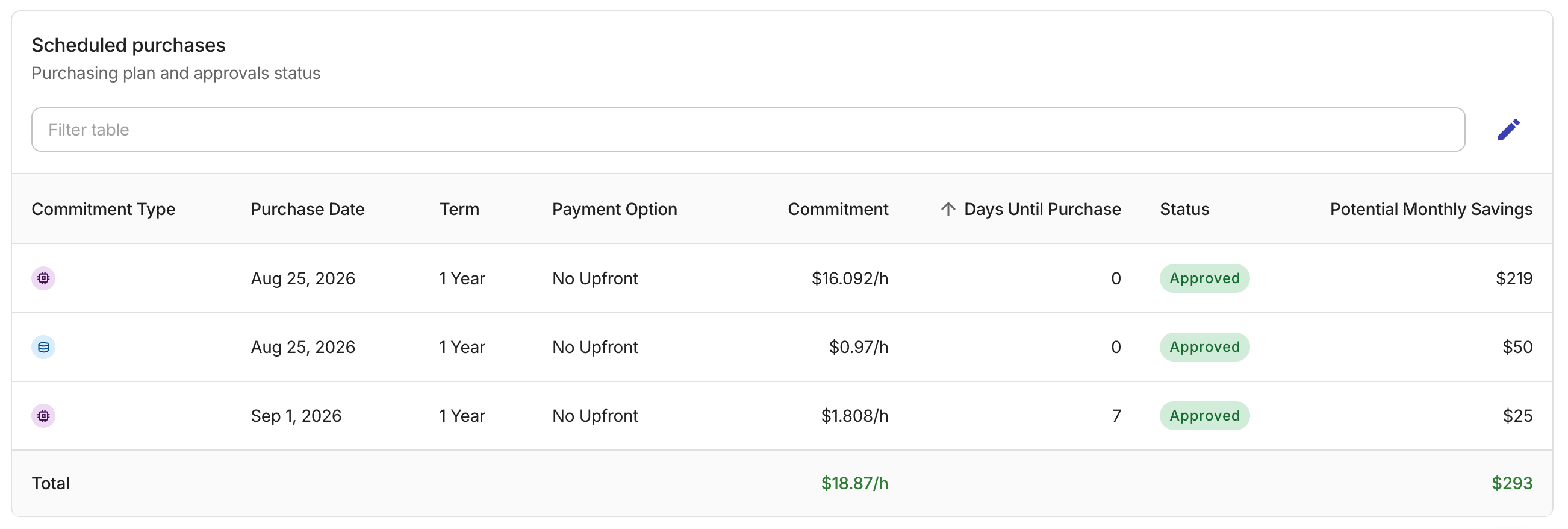
対象支出の週次比較で減少が検出されて購入保留がトリガーされた場合、最初のスケジュール済みステップには Purchasing on hold ステータスチップが表示されます。チップ上の情報アイコンにカーソルを合わせると、保留をトリガーした支出額と次回の評価日が表示されます。手動で購入を一時停止した場合は、その一時停止ステータスが自動保留よりも優先されます。
Google Cloud 組織の Cloud Connect 接続が読み取り専用アクセスのみを持つ場合、このタブには CUD の購入が無効になっていることを示すバナーが表示され、Cloud Connect で書き込みアクセスを付与するまで、Approve Target Commitment と Manage アクションは無効のままになります。
次のステップは、Commitment Execution 設定によって異なります。
Requires Approval
購入を承認すると、PerfectScale がラダリングプランに従ってコミットメントを 1 ステップずつ購入できるようになります。ただし、承認時点のラダー終了時の時間あたり合計(Total Laddering Cost, $/h)を上限とします。次の購入は、累積時間あたりコミットメントがこの承認済み合計の範囲内に収まる場合にのみ自動的に実行されます。次の購入によってこの金額を超える場合、そのステップは、より高いコストを承認するまで保留されます。
購入を承認するには:
-
コミットメントタイプのタブまたはサイドバーの Planned Purchases にオレンジ色のドットが表示されているか確認してください。これは、新しいプランの承認待ちを示します。
-
Planned Purchases タブ上部で Approve Target Commitment
$X/hを選択して、承認ダイアログを開きます。この金額は推奨ターゲットコミットメントレートです。 -
承認内容が要約された Approve target commitment ダイアログを確認します。複数のコミットメントタイプが有効な場合、各タイプごとに合計値が 1 行で表示されます。
-
Total Recommended Commitment (you are approving this rate): ラダーが目標として構築している時間あたりのコミットメント($/h)です。以前により低いレートを承認していた場合は、Previously approved も表示されます。
-
Current Commitment (Inventory): 承認時点での既存のアクティブなコミットメントです。
-
Purchase Steps: スケジュールされる個別購入のステップ数です。
-
Potential Savings (may change): ラダー完了後に見込まれる月次コスト削減額です。
コミットメントの内訳バーには、各コミットメントタイプにおける現在のインベントリと新規購入分の割合が可視化されます。
Cloud SQL のエントリには、各コミットメントの対象地域を示す Region 列が表示されます。
-
-
Approve Target Commitment
$X/hを選択して確定します。ステータスが緑色に更新され、オレンジ色のドットは消えます。
承認後は、スケジュールされた購入が日付どおりに自動実行されます。一時停止はいつでも行うことができます。AWS では、コミットメントプランの有効期限が切れた際に、その時点の Recommended Commitment に基づいてラダリングでカバレッジを更新できます。
Autonomous Execution
Autonomous Execution モードでは、PerfectScale がコミットメントポリシーと対象利用に基づき、コミットメントターゲットの設定とラダーステップの購入を自動的に行います。各ターゲットを個別に承認する必要はありません。
Planned Purchases を使用して、ラダーやスケジュール済みステップをモニタリングし、guardrails が自社のリスク許容度に引き続き合致していることを確認したり、新規コミットメントを一時的に停止する必要がある場合は購入を一時停止してください。
購入が完了すると、そのコミットメントは拘束力を持ちます。今後の購入について PerfectScale に承認待ちをさせたい場合は、Commitment Execution で Requires Approval に戻してください。
通知
PerfectScale for Commitments の通知 はデフォルトで有効です。PerfectScale がコミットメント購入を完了するたびに通知を受け取ります。各スケジュール済みステップは個別の購入であるため、ラダーステップごとに 1 件の通知が送信されます。
Requires Approval モードでは、購入に承認が必要なときにも通知が送信されます。承認に関する通知は Autonomous Execution モードには適用されません。これらの設定は 通知設定 で変更できます。
購入の一時停止と再開
今後のワークロード移行や、対象使用量を減らすディコミッションなどの理由により、いずれの自動化モードでも、いつでも実行を一時停止できます。一時停止すると、状況を確認している間、新しいコミットメントは購入されません。
一時停止と再開は、閲覧中のアカウントに対して、クラウドプロバイダーおよびコミットメントタイプ(プロダクト)単位 で適用され、すべてのタイプに一括で適用されるわけではありません。例えば、AWS の Compute や Database、または Google Cloud の Compute や Cloud SQL ごとに適用されます。Cloud SQL の場合、この操作は選択したリージョンにもスコープされます。一時停止する前に、正しいコミットメントタイプのタブを表示していることを確認してください。
一時停止するには、Planned Purchases タブのヘッダーにある Manage Purchases を開き、Pause Purchases を選択します。ダイアログで、任意で理由を説明するメモを入力できます。このメモは保存され、予約済み購入テーブルに表示されます。Pause を選択して確定してください。そのタイプの残りのスケジュール済み購入はすべて即座に停止されます。
再開するには、Manage Purchases を開き、Resume Purchases を選択します。PerfectScale は、そのタイプの次のスケジュール済みステップから再開し、残りの購入を元の日付で実行します。Requires Approval モードでは、購入は以前に承認されたターゲットの範囲内で継続されます。Autonomous Execution モードでは、現在の推奨ターゲットに向けて、設定されたガードレールの範囲内で購入が継続されます。
Purchasing on hold は手動の一時停止とは別の状態です。ホールドは、対象となる支出が前週比で減少したときに自動的にトリガーされ、使用量が安定すると自動的に解除されます。Manage Purchases から設定する手動の一時停止は、明示的に再開するまで残りの購入をすべて停止します。両方の条件が同時に当てはまる場合は、手動の一時停止が優先されます。