Filter
Instead of searching through different areas of your Cloud Diagrams, you can use filters. You can save and reuse your filters, enabling you to quickly and easily focus on the areas of a diagram or the global network layer that you are interested in. Available service types and good filter examples depend on your cloud provider (AWS, Google Cloud, or Azure).
Required permissions
To use Cloud Diagrams, your DoiT account must have the Cloud Diagram User permission.
Filter example
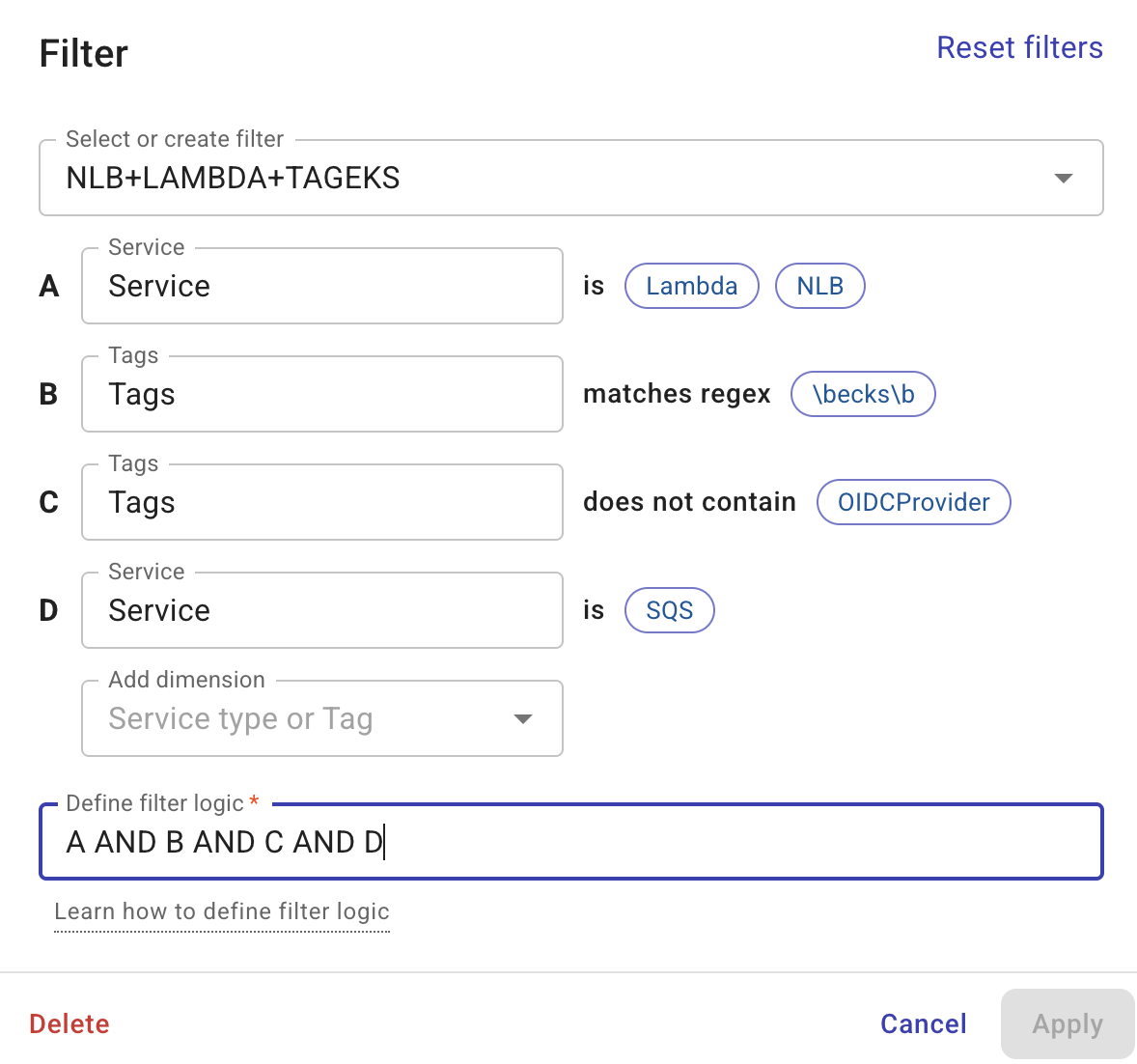
The following example filters for all Lambda, NLB, and SQS services, whose names include \becks\b and that are not tagged with OIDCProvider.
Create a filter
When creating a filter, select the services and tags you wish to include and define the filter logic. You can create a filter from scratch or base it on an existing one created by you or your team.
-
Sign in to the DoiT console, select Automation and operations from the top navigation mega menu, and then select Cloud Diagrams.
-
From the dashboard, select a diagram or open the global network layer.
-
In the sidebar, under Actions, select Filter. The Filter window is displayed.
-
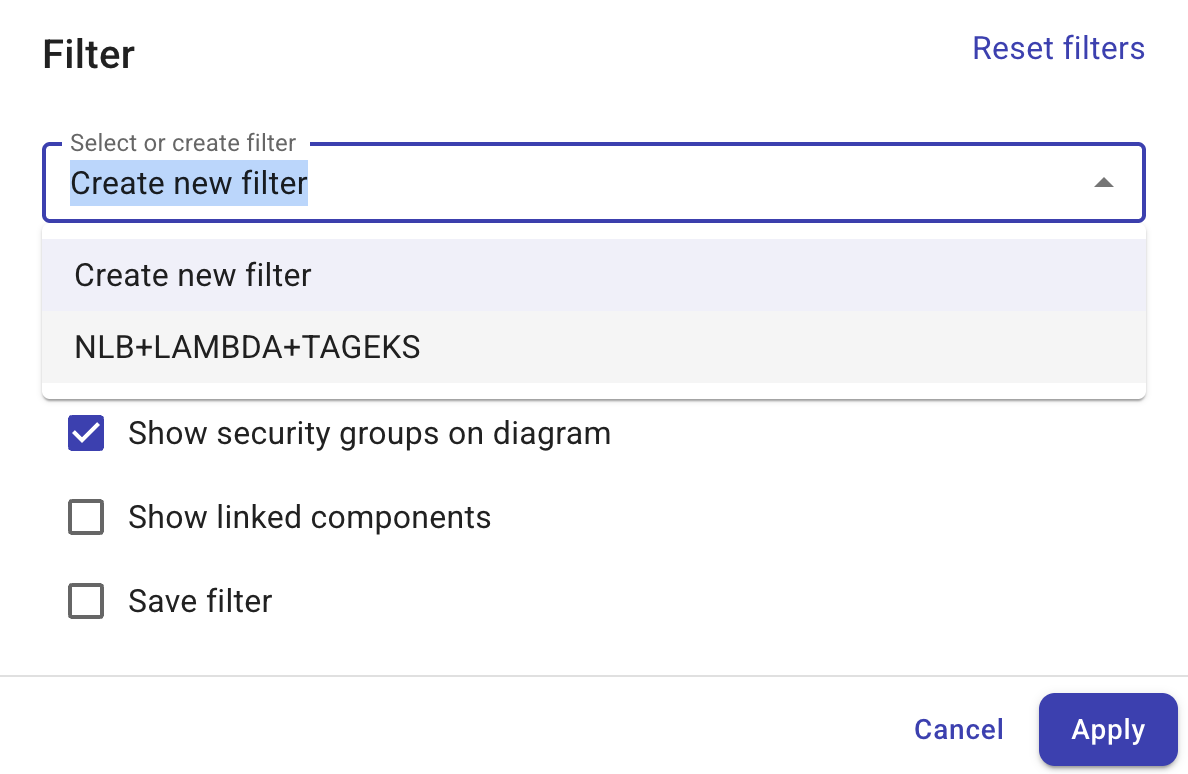
From the Select or create filter list, select either:
-
Create new filter if you are creating a new filter from scratch.
-
an existing filter if you are editing a filter that already exists.
-
-
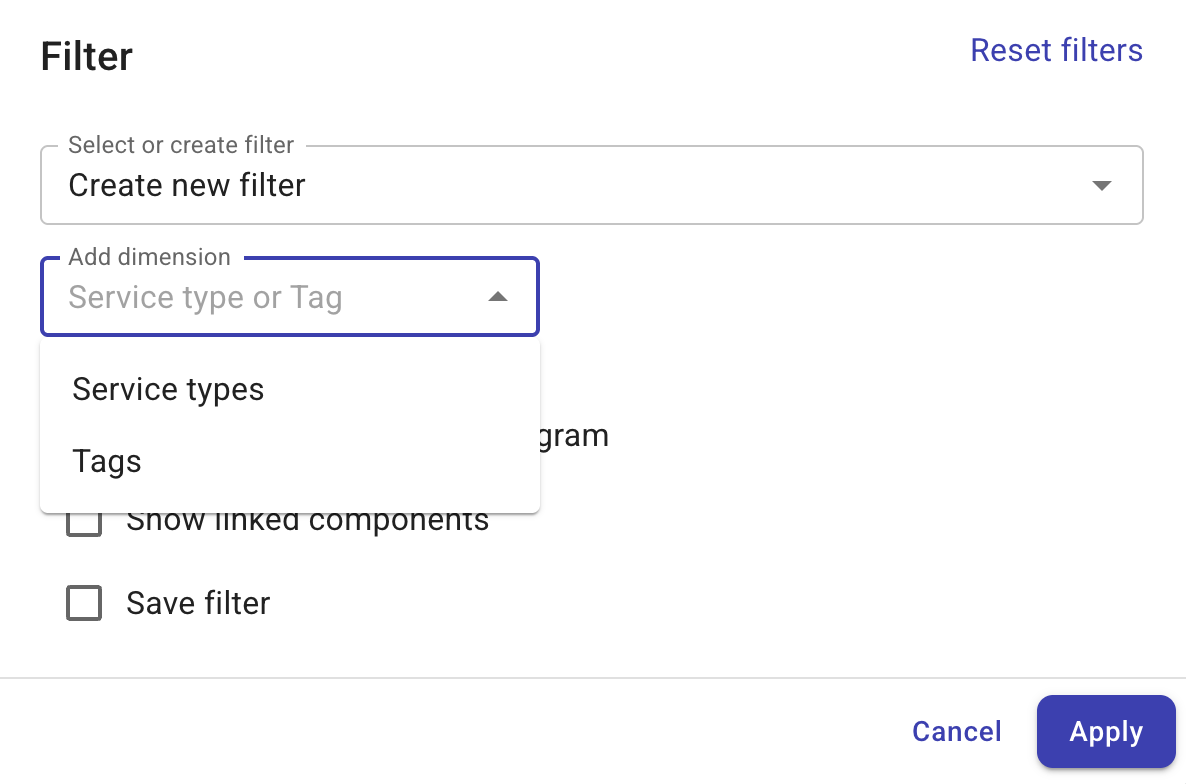
Add a filter.
-
Select Service types or Tags from the drop-down list.
-
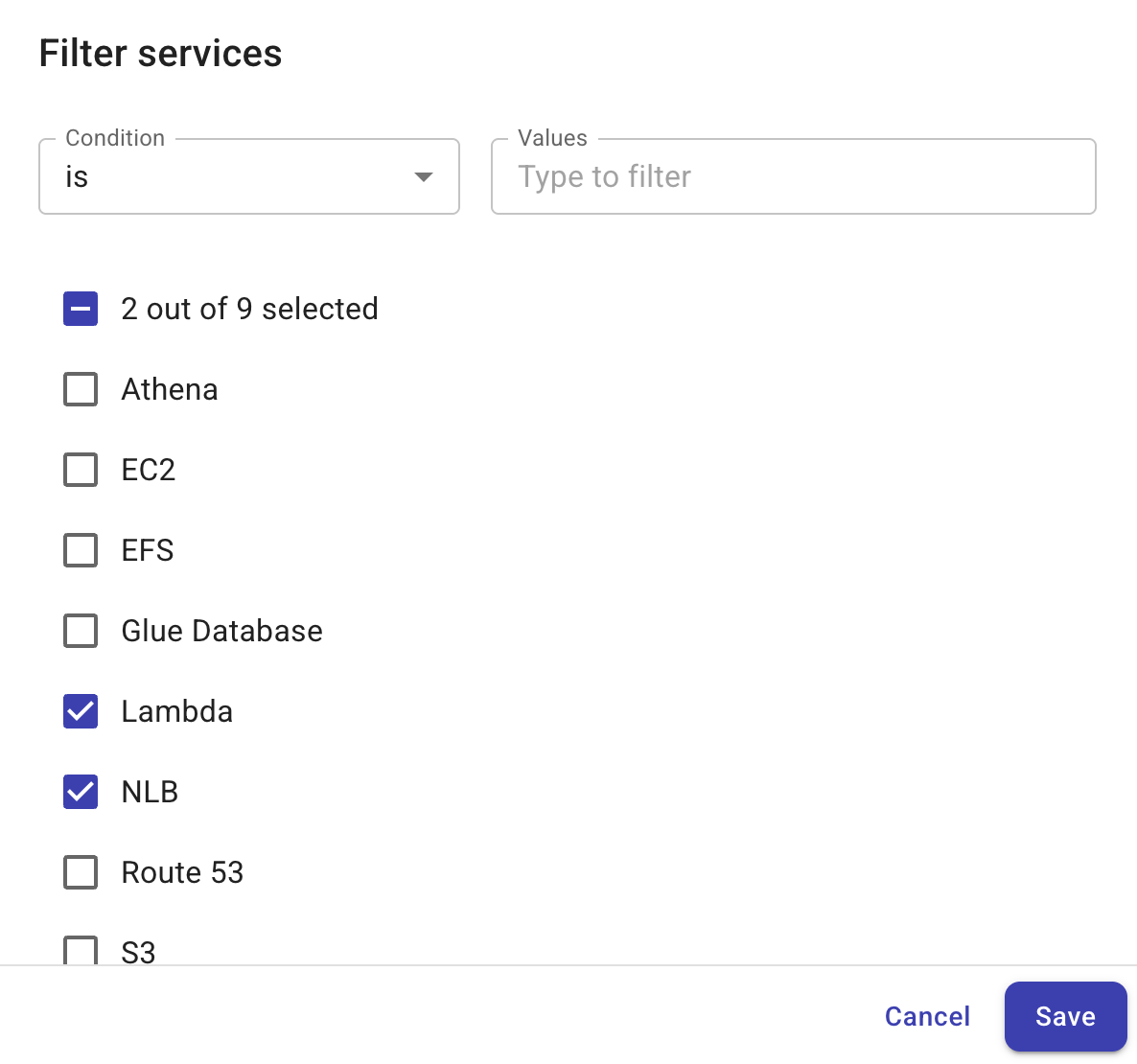
Filter the results to define the condition of the filter. You can choose a regex operator (matches regex, does not match regex) in the Condition drop-down to filter by regular expressions.
-
Select Save.
-
Repeat the steps above to add more filters if needed.
-
Define the filter logic if there is more than one filter.
-
Each filter and its condition form an operant.
-
Each operant is identified by a capital letter, which also indicates the operant's position in the sequence. If you remove an operant, the identifiers of the following operants are automatically adjusted.
-
By default, operants are joined by the AND operator. Allowed operators: AND, OR, NOT.
-
Use parentheses to group expressions.
-
-
-
(Optional) Select Show linked components if you want to include the resources that are linked to the filtered resources.
-
(Optional) Select Save filter if you want to reuse this filter. In Name your filter, enter a name that fits the usage.
-
Select Apply.
You can remove a filter at any time by editing the filter and selecting Delete.
Filter with the AI assistant
You can also apply, modify, and clear diagram filters using natural language through the AI assistant. While viewing a Cloud Diagram, open the AI assistant and describe the filter you want to apply. The AI assistant can filter by service type, region, resource type, and tags.
The AI assistant confirms each filter action and reports how many resources are visible after the filter is applied. The diagram's filter UI reflects filters applied by the AI assistant, and you can clear or modify them at any time, either manually or by asking the AI assistant.
Examples
Show only EC2 instances in us-east-1.
Filter this diagram to Lambda and SQS services.
Clear all filters.
The AI assistant can only filter using values that are present in the active diagram. If the diagram does not contain the requested service, region, resource type, or tag, the AI assistant lets you know that the filter could not be applied.