インサイト表示
インサイト表示は、インサイトダッシュボード のデフォルト表示です。
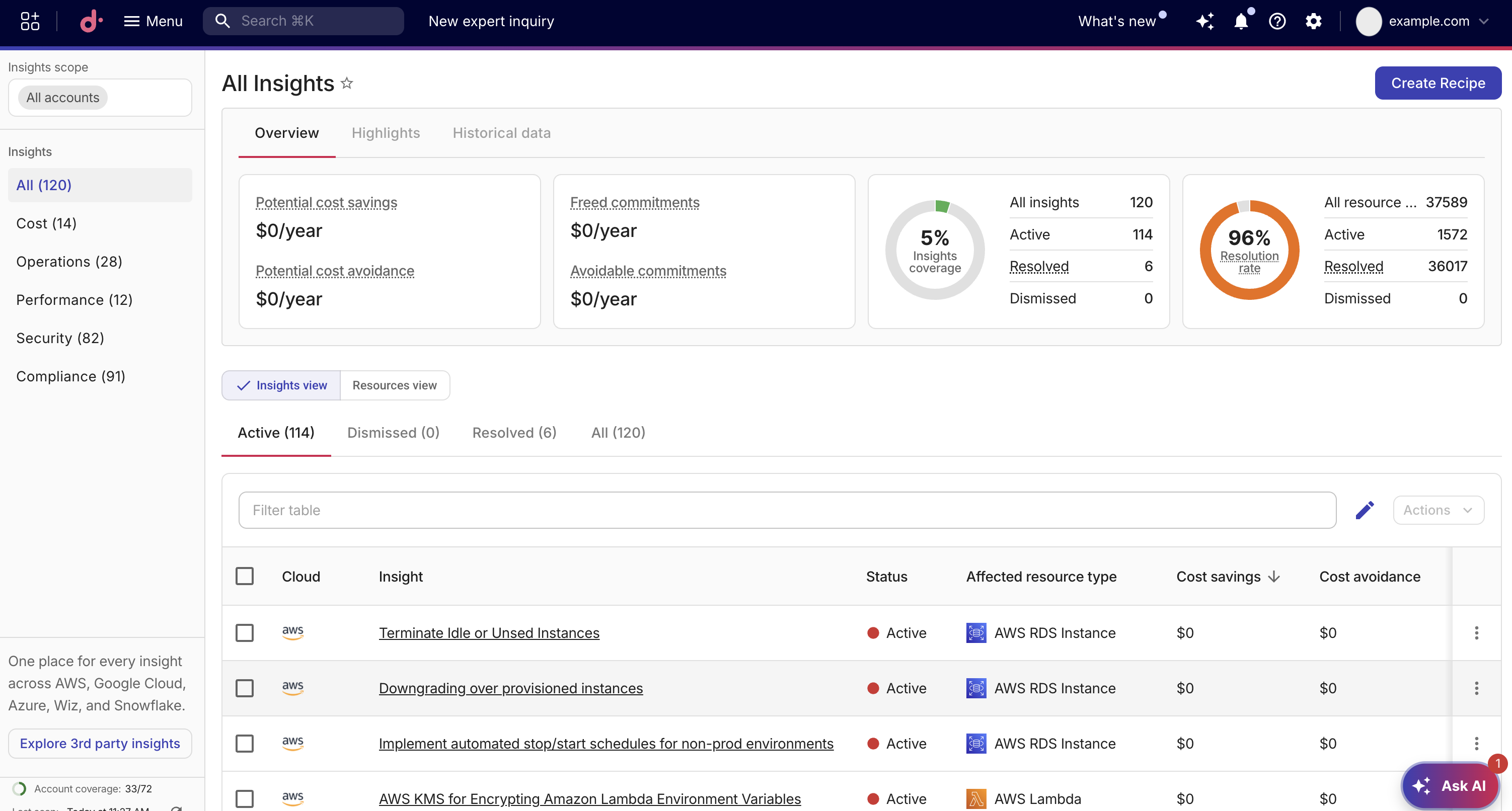
インサイトテーブル
インサイト表示では、インサイトテーブルに次の列が表示されます。
4 つのコスト削減列は、Cost または All カテゴリを表示している場合にのみ表示されます。Compliance frameworks 列は、Compliance カテゴリを表示している場合にのみ表示されます。
-
Cloud: インサイトに関連付けられているクラウドプロバイダです。たとえば、AWS、Azure、Google Cloud などです。
-
Insight: インサイト名です。名前を選択すると、インサイトの詳細 を表示できます。
-
Compliance frameworks: インサイトに関連付けられているコンプライアンスフレームワークをチップとして表示します。1 行あたり最大 3 件まで表示されます。3 件を超えるフレームワークがインサイトに関連付けられている場合、+N more リンクを選択すると、すべてのフレームワークを一覧表示するダイアログが開きます。チップ、またはオーバーフロードロップダウン内のフレームワーク名を選択すると、そのフレームワークの詳細 が開きます。ダッシュ(—)は、そのインサイトに関連付けられたフレームワークがないことを意味します。フィルターバーを使用してフレームワークでテーブルをフィルタできます。フレームワークフィルターが有効な場合、一致するフレームワークが各行の先頭に表示されます。
-
Status: インサイトの現在のステータスです。Active、Resolved、Dismissed のいずれかです。
-
Cost savings: 影響を受けるリソースを最適化することで見込まれる年間のコスト削減額です。組織の通貨で表示されます。Cost insight financial metrics を参照してください。
-
Cost avoidance: 将来のコスト増加を防ぐことで見込まれる年間のコスト削減額です。組織の通貨で表示されます。Cost insight financial metrics を参照してください。
-
Freed commitments: 対応を行った場合に解放されるコミットメントカバレッジの年間価値です。組織の通貨で表示されます。Cost insight financial metrics を参照してください。
-
Avoidable commitments: 縮小または更新しないことで回避できるコミットメントの年間価値です。組織の通貨で表示されます。Cost insight financial metrics を参照してください。
いずれかのコスト削減列に表示されるダッシュ(—)は、そのメトリックのコスト削減額を計算できなかったことを意味します。Dashes and $0 を参照してください。
-
Affected resource type: インサイトの影響を受けるクラウドリソースのタイプです。
-
Severity: 重要度レベルです。Critical、High、Medium、Low のいずれかです。
-
Active resources: 合計リソース数のうち、アクティブなリソース数です。
Cost savings、Severity、Status などの列ヘッダーを選択すると、テーブルを並べ替えることができます。デフォルトでは、Cost と All カテゴリは Cost savings の降順で並べ替えられ、Security、Compliance、Operations、Performance カテゴリは Severity の降順で並べ替えられます。カテゴリを切り替えると、そのカテゴリのデフォルトの並べ替えにリセットされます。
検索バーの横にある編集アイコンを選択すると、次のアドバイザリ情報の列を表示できます。
-
Fix complexity: インサイトを解消するための推定複雑度です。Simple、Intermediate、Complex のいずれかです。
-
Fix time: インサイトを修正するために必要な推定時間です。
インサイトのアクション
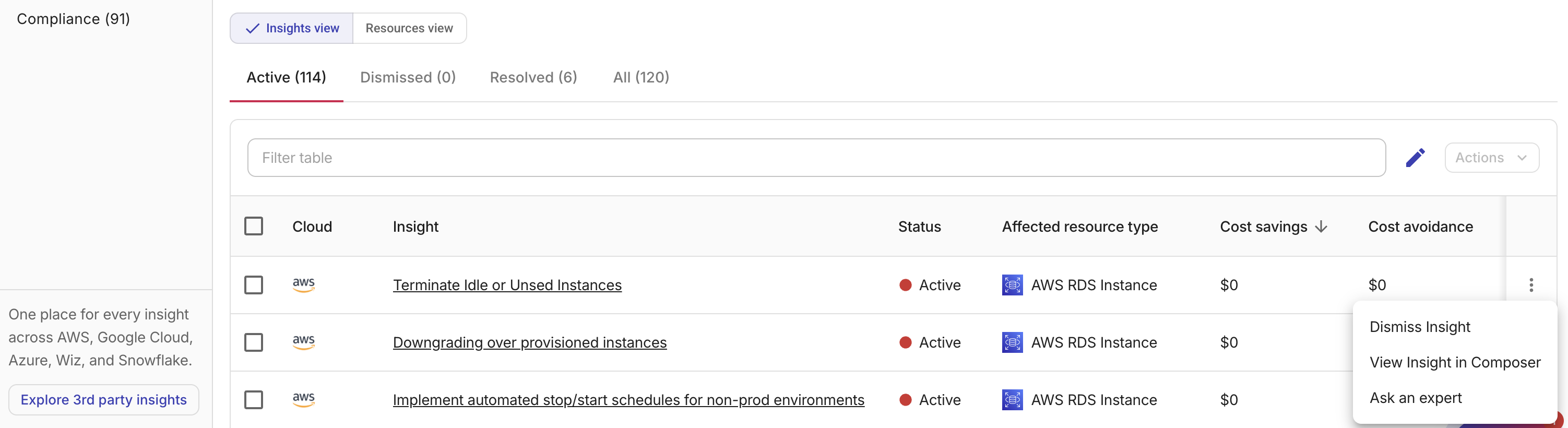
各インサイト行の一番右端にあるケバブメニュー(⋮)から、その他のオプションを利用できます。
Composer で表示
View Insight in Composer を選択すると、そのインサイトを生成した Composer レシピ が開きます。Recipe builder でレシピを表示およびカスタマイズできます。
エキスパートへ問い合わせ
Ask an expert を選択すると、さらなるガイダンスのためのエキスパートへ問い合わせ を作成できます。
インサイトの却下と有効化
インサイトを却下するには、次の手順を行ってください。
-
対象のインサイトを見つけ、行の末尾にあるケバブメニュー(⋮)を選択し、Dismiss this Insight を選択します。
または、チェックボックスを使用して 1 つ以上のインサイトを選択し、検索バーの横の Actions を選択してから、Dismiss these insights を選択します。
-
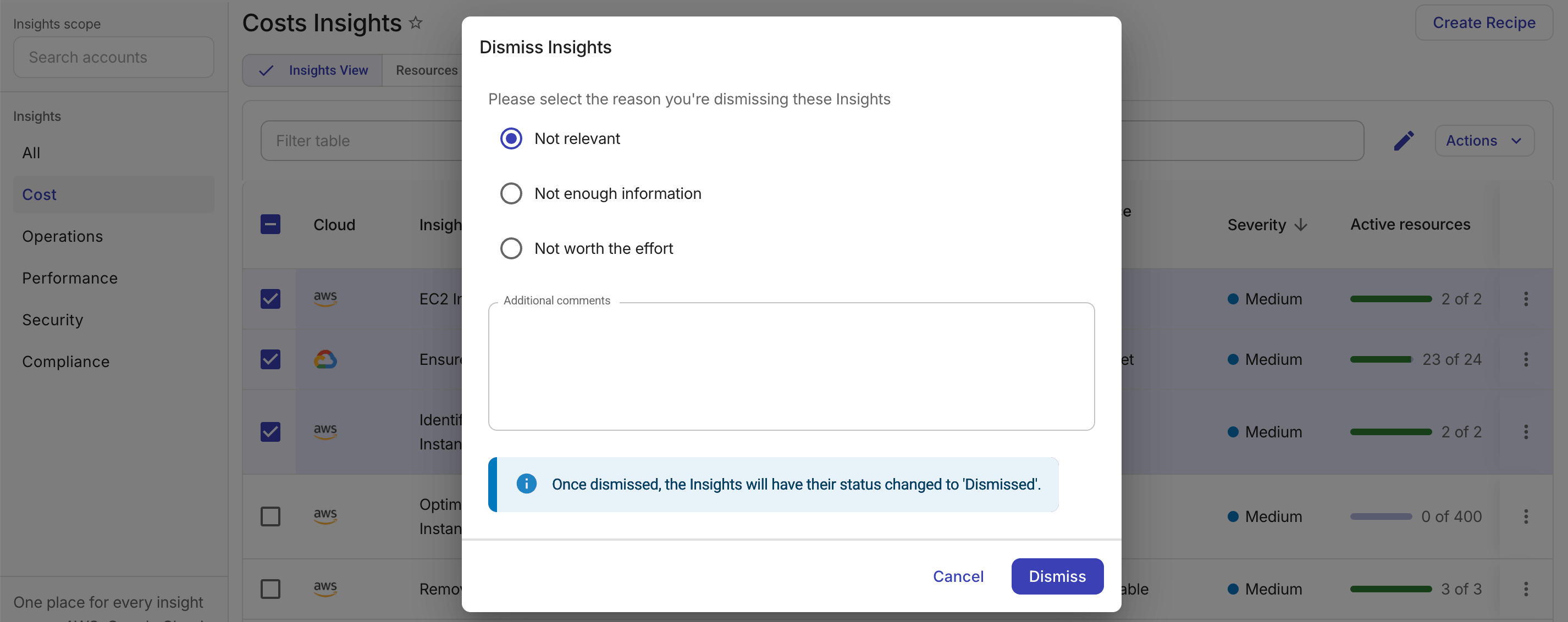
理由を選択します。Not relevant、Not enough information、Not worth the effort のいずれかです。
必要に応じて、状況を説明するその他のコメントを追加できます。
-
Dismiss を選択して確定します。
以前に却下したインサイトを再度有効にするには、インサイト行の末尾にあるケバブメニュー(⋮)から Enable this Insight を選択してください。あるいは、チェックボックスを使用して 1 つ以上の却下済みインサイトを選択し、検索バー横の Actions リストから Enable these insights を選択してください。