リソース ビュー
リソース ビューを使用すると、環境内のどの特定のリソースにアクティブなインサイトがあるか、その深刻度、および各リソースに関連付けられているイシューの数を把握できます。
リソース ビューに切り替える
Insights ダッシュボードで、ビューのトグルボタンを使用して リソース ビュー を選択します。
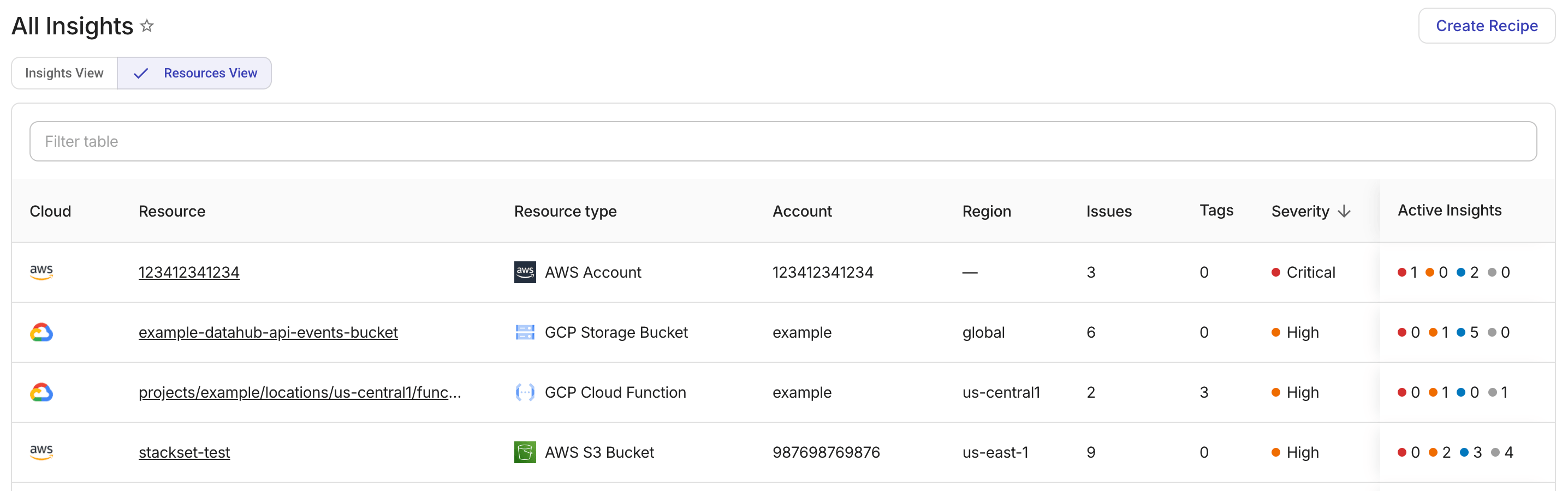
リソース テーブルには、1 件以上のアクティブなインサイトがあるクラウドリソースが表示されます。テーブルは次のプロパティでフィルターできます。
-
Cloud: リソースのクラウドプロバイダー。例: AWS、Google Cloud、Azure。
-
Resource: 影響を受けているリソース名。リソース名を選択すると、リソース詳細が表示されます。
-
Resource type: リソースタイプ。例: AWS EC2 Instance、GCP Storage bucket。
-
Account: リソースを所有しているクラウドアカウントの ID。
-
Region: リソースがデプロイされているクラウドリージョン。
-
Issues: リソースに対して検出されたイシューの数。
-
Tags: リソースに関連付けられているタグの数。
-
Severity: リソースのアクティブなインサイトの中で最も高い重要度レベル。重大・高・中・低 のいずれかです。
Active Insights 列には、重要度レベルごとのアクティブなインサイト数の内訳が表示されます。
アカウントスコープ
リソース ビューはサイドバーでのアカウント選択を反映します。サイドバーで特定のアカウントを選択すると、テーブルにはそれらのアカウントに属するリソースのみが表示されます。アカウントが明示的に選択されていない場合は、接続されているすべてのアカウントのリソースが表示されます。