Customer management
The Customers page is the centralized place for customer management.
Required permissions
Distributor/reseller:
-
Admin role: Full access. This role allows you to view, add, and edit customers.
-
View Only role: This role allows you to view customers but not add or modify customers.
Access customers
To view customers, sign in to the DoiT console, select Customers from the top navigation mega menu.
-
A distributor will see the full three-tier hierarchy.
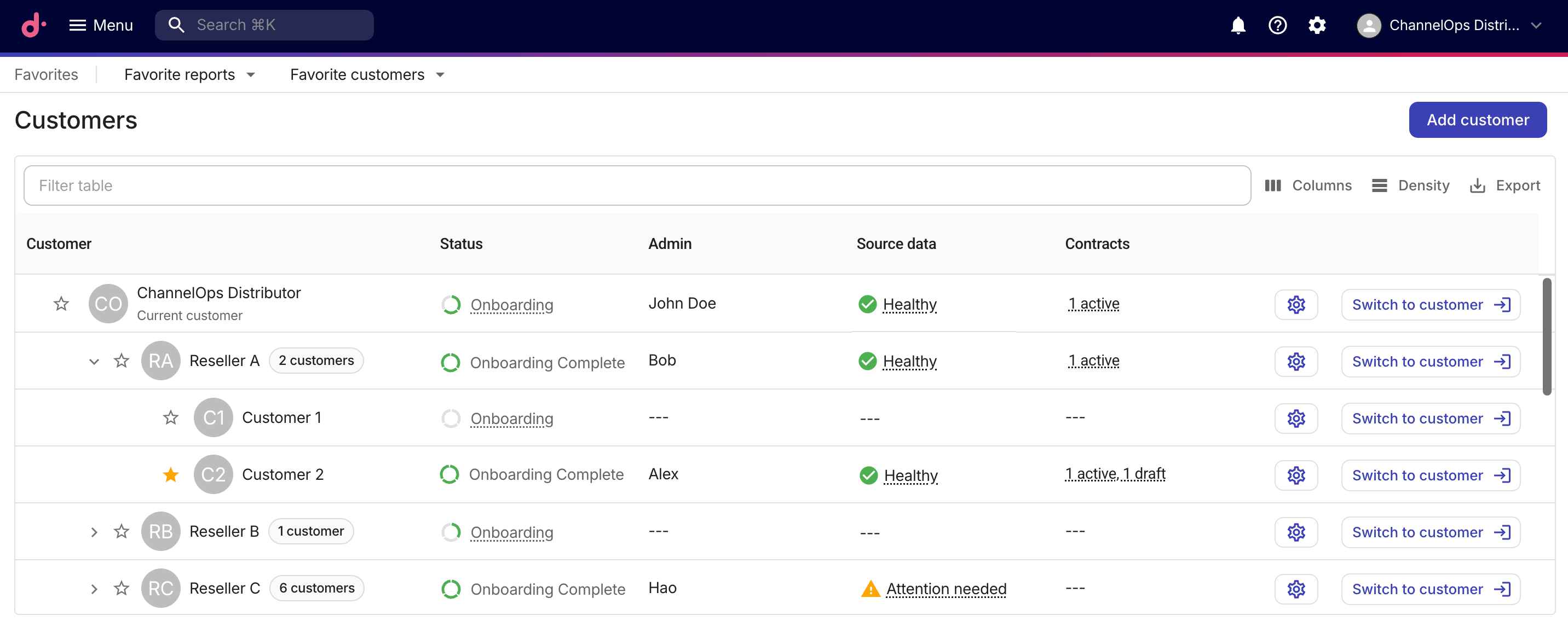
-
A reseller will see a two-tier hierarchy with its own account and end customers assigned to it, but not the distributor or other resellers. A reseller will also see an Invoices column for end customers.
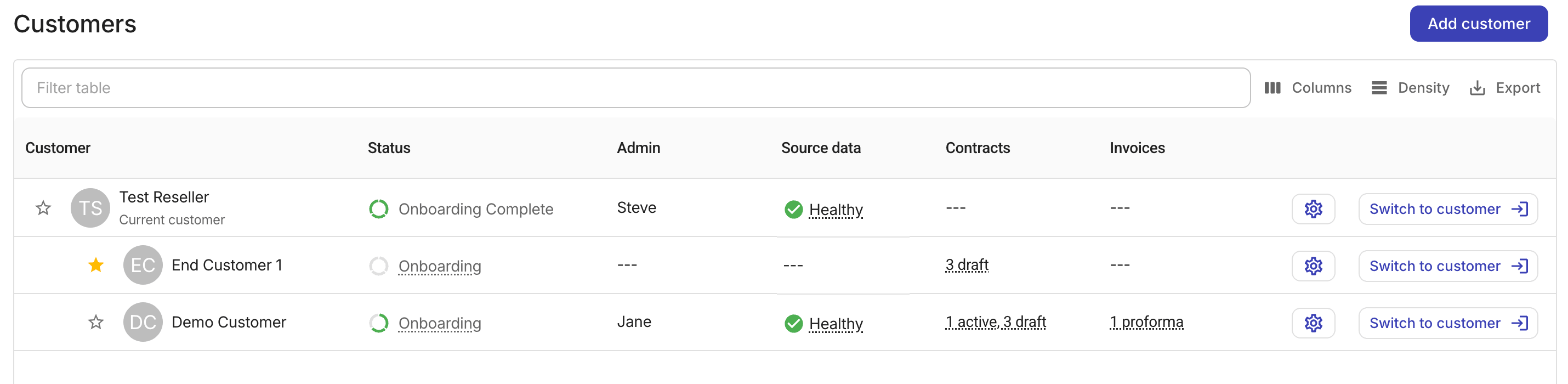
General options
-
Filter: Filters the list by matching properties, such as customer name, status, favorite, and more. Note that if a child account appears in the result, its parent account is also listed even if the parent account doesn't match the filter.
-
Columns: Specifies columns to show or hide.
-
Density: Adjusts the line spacing of the list: Compact, Standard, or Comfortable.
-
Export: Downloads the customer list as a CSV file. The export always includes partner hierarchy columns, regardless of whether those columns are visible in the grid.
-
Admin: This column displays the name of the admin user of the customer. If there are multiple admin users, it shows the first invited one. Users with the Admin role can add new customers or update the configurations of downstream tenants.
-
Settings (the gear icon
): Opens the details page of the customer.
Favorite customers
To quickly access your most important customers, select the star icon (☆) next to a customer's name to mark it as a favorite. Favorites are user-specific and persist across tenant contexts.
Starred customers also appear in the Favorite customers folder in the favorites bar. Selecting a customer from the favorite folder switches directly to that customer's context.
Status
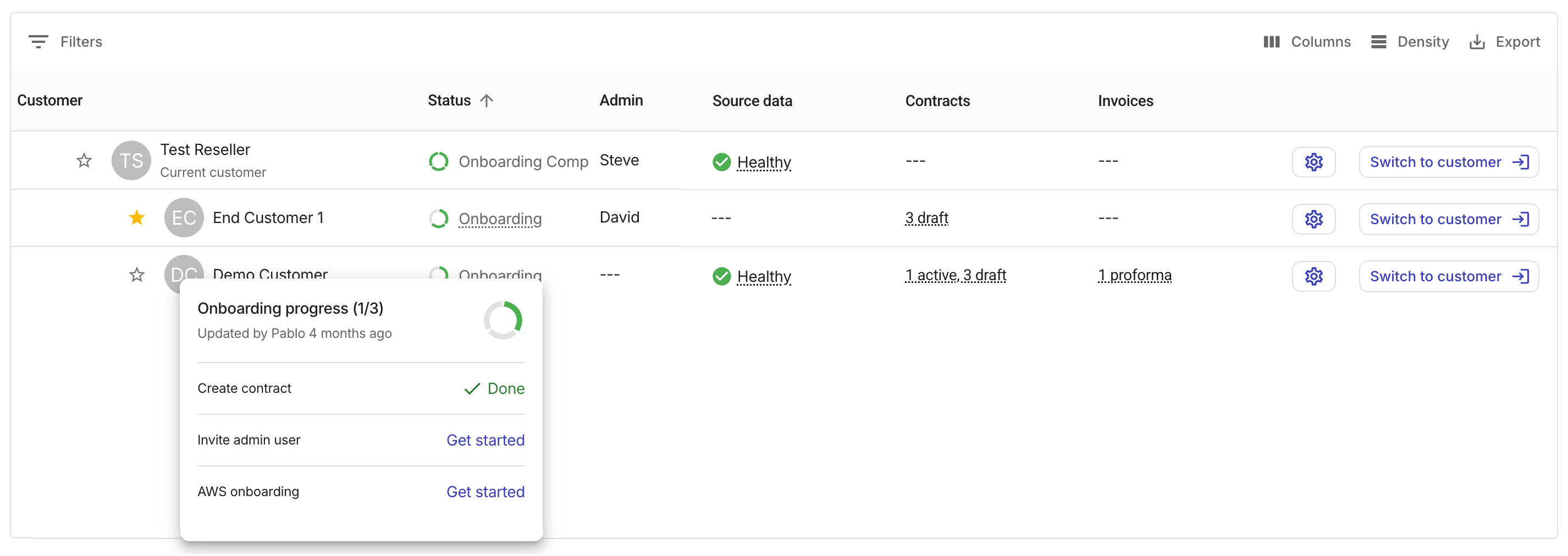
The status field indicates a customer's position in the onboarding process.
-
A distributor has access to the onboarding statuses of all downstream tenants, including both resellers and end customers.
-
A reseller has access to the onboarding statuses of its own end customers.
Each customer that is still in the onboarding process displays a circular progress bar. You can select the progress bar to check the status of each onboarding task. Users with the Admin role can also start an onboarding task directly.
Source data
The Source data field shows the aggregated health of billing data (CUR) ingestion for the customer and its downstream tenants:
-
Healthy: All billing data pipelines are operating normally. -
Attention needed: One or more pipelines report a warning that may require review. -
Error detected: One or more pipelines have failed and need attention. -
Syncing: Data ingestion is currently in progress. -
Not available: No billing data pipelines are configured for this customer.
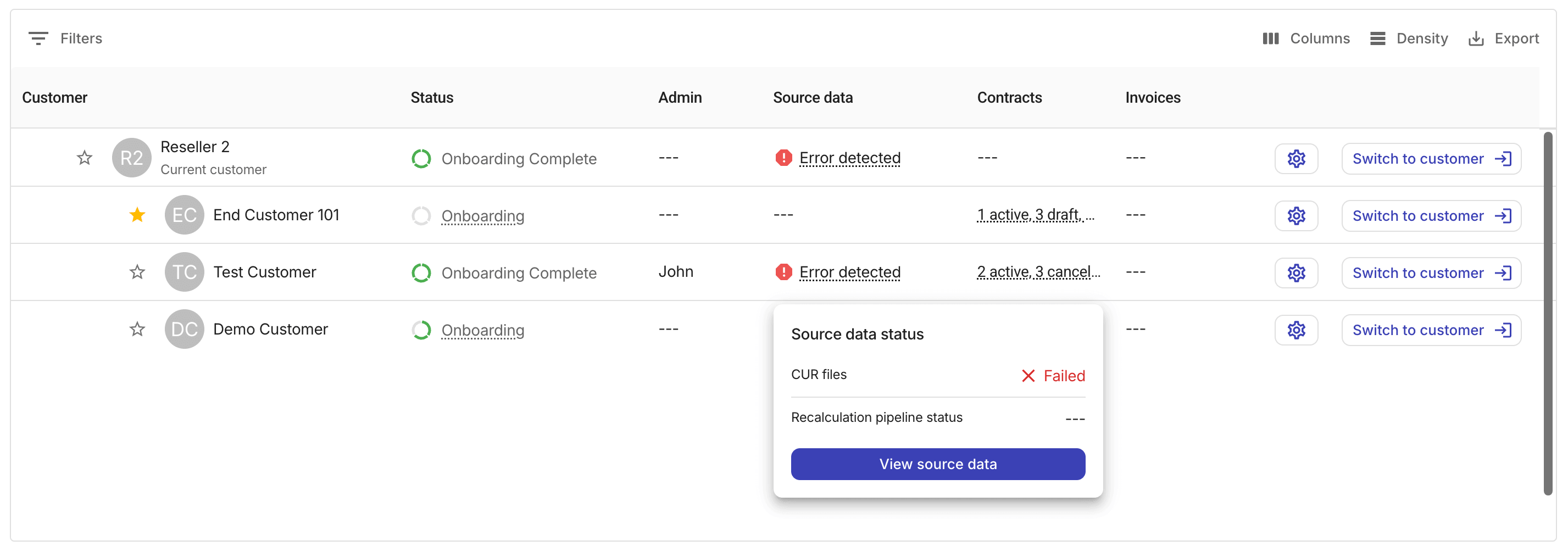
Selecting a customer's source data status will open a pop-up with the following options and information:
-
CUR files: The status of Cost and Usage Report file ingestion, along with a timestamp showing when data was last refreshed.
-
Recalculation pipeline status: The status of the billing recalculation pipeline.
-
View source data: A link to the customer's linked AWS accounts page.
Contracts
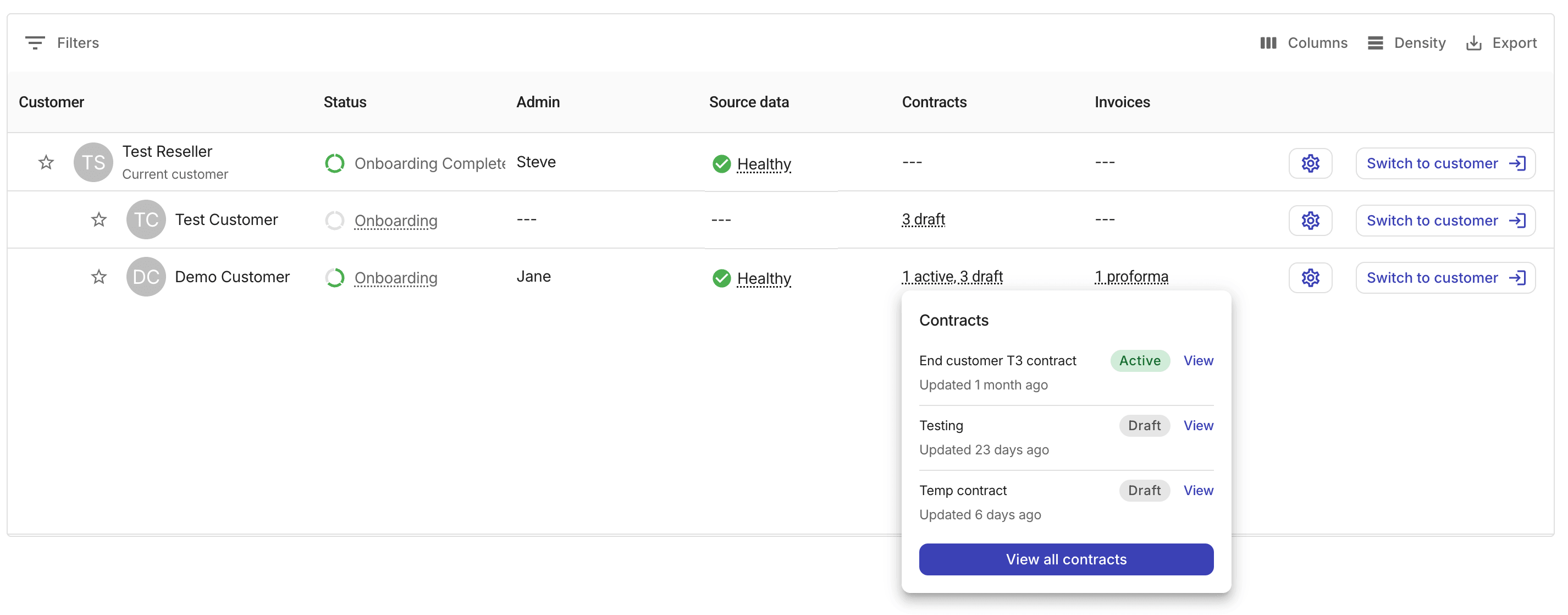
The Contracts field displays the number of contracts associated with each customer, grouped by contract status.
Selecting the contracts summary will open a pop-up, which shows up to three contracts with their status and a View option to open the contract details page. If the customer has more than three contracts, select View all contracts to navigate to the full list of Contracts.
Domain, Country Code, and External ID
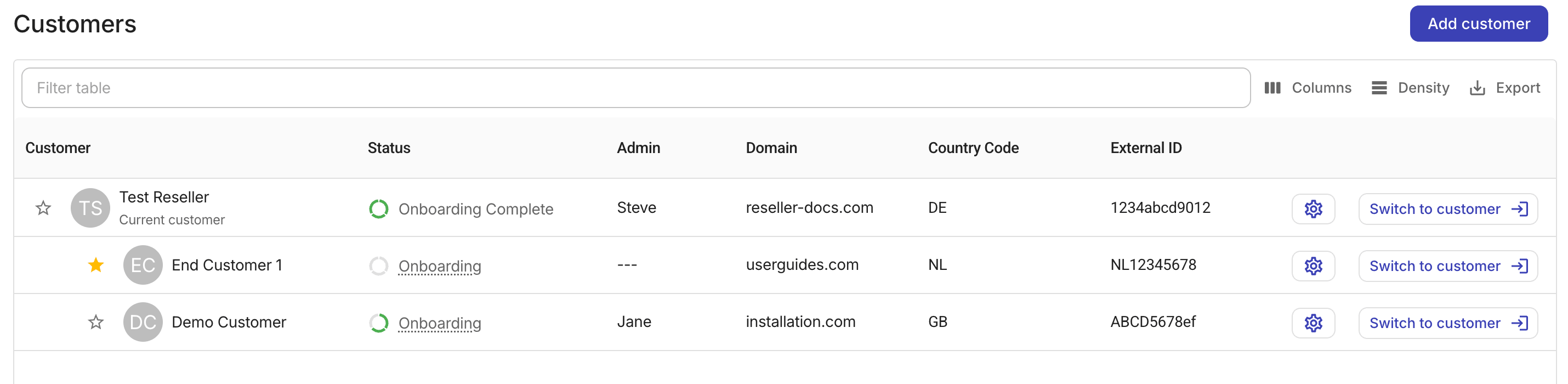
The domain name, country code, and external ID are configured during customer onboarding.
-
The Domain column displays the primary domain associated with each tenant. This column is hidden by default. To show it, select Columns and then select the Domain checkbox.
-
The Country Code column displays the ISO 3166-1 country code associated with each reseller or end-customer tenant.
-
The External ID column displays the identifier assigned to each reseller or end-customer tenant from an external system.
Partner hierarchy columns
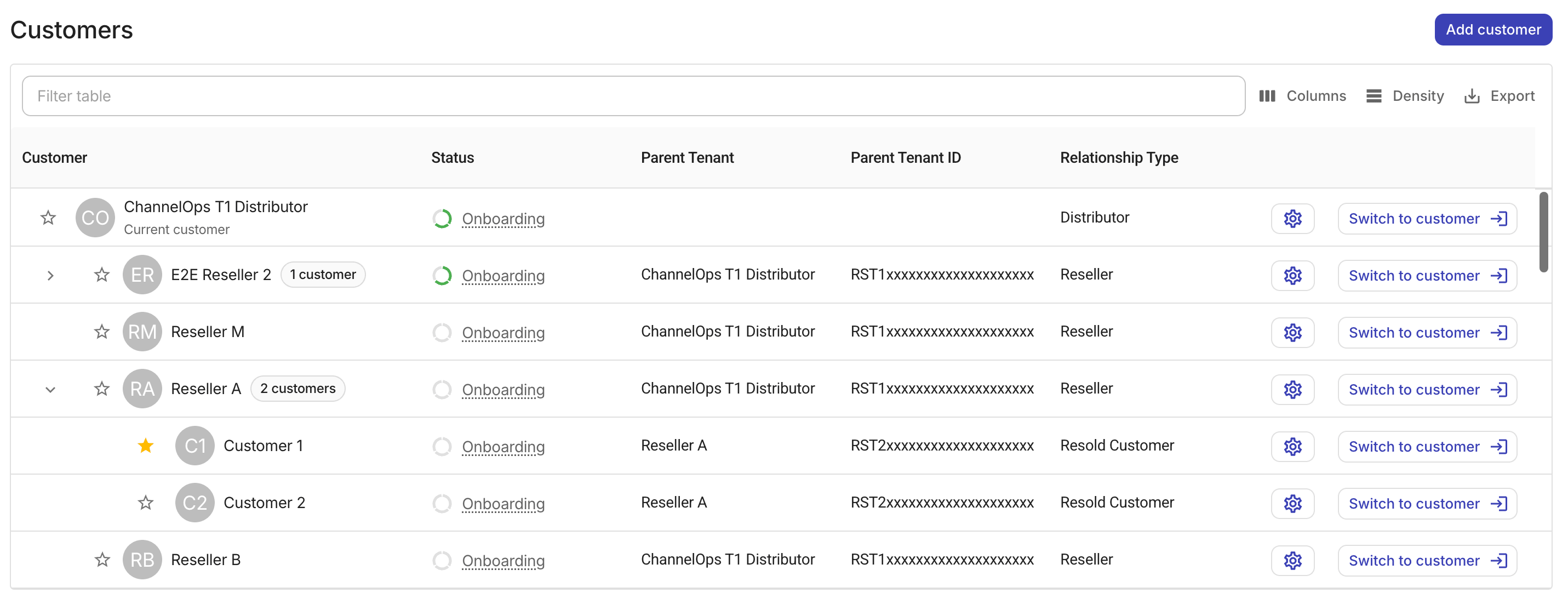
The following columns display each customer's position in the partner hierarchy. These columns are hidden by default. To show them, select Columns and enable the desired column.
-
Parent Tenant: The display name of the customer's parent tenant.
-
Parent Tenant ID: The unique identifier of the parent tenant.
-
Relationship Type: The role of the tenant in the partner hierarchy:
Distributor,Reseller, orResold Customer.
Invoices (Reseller only)
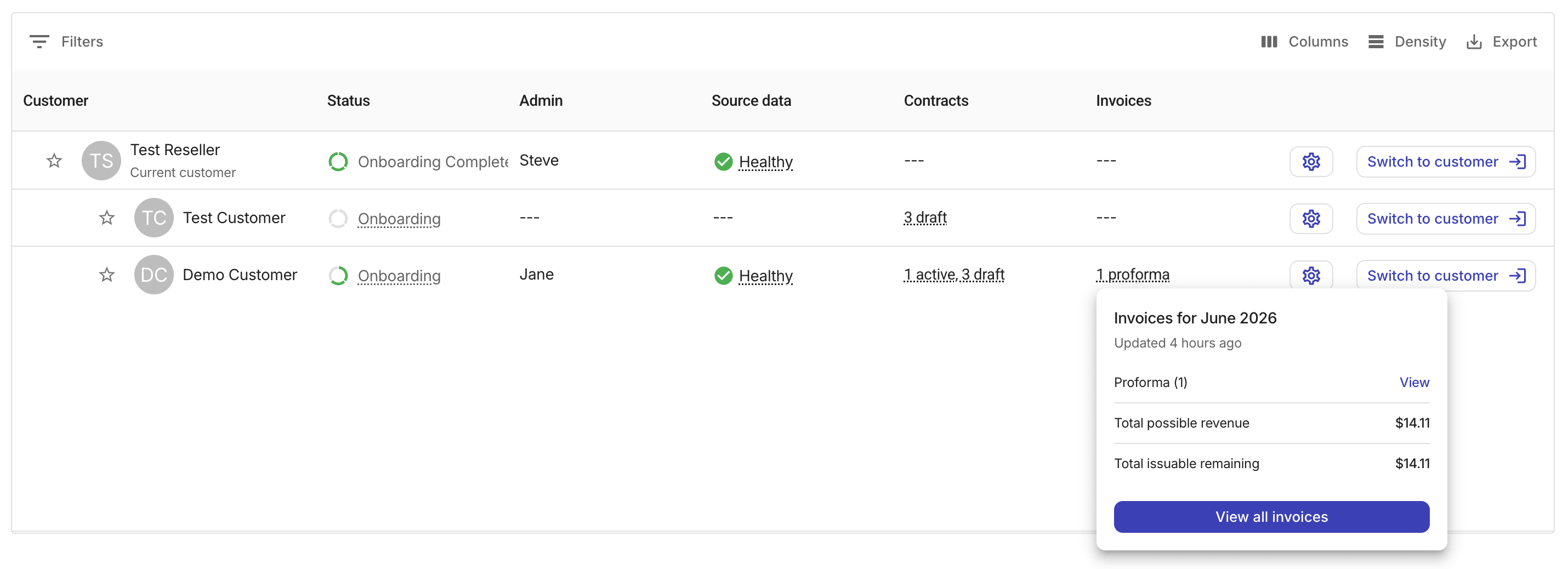
The Invoices column is visible only to reseller tenants. It displays the number of invoices for each end customer during the current billing month, grouped by invoice status.
Selecting an invoice summary will open a pop-up with the following options and information:
-
View/Review: Each status row includes a link to the specific invoice on the Invoices page.
-
Total possible revenue: The combined total across all invoice statuses.
-
Total issuable remaining: The combined total of invoices that have not yet been issued (proforma, ready, and issuable).
-
View all invoices: Opens the full Invoices list filtered by the customer name and billing period, without a status filter.
Switch customer
Distributor or reseller admins can switch to the perspective of a downstream tenant for a context-aware customer view.
Customers page
On the Customers page, select the Switch to customer option at a customer entry to switch to the customer view.
For example, when a distributor admin switches into a reseller, the Customers page automatically scopes its view to match that reseller's context, displaying only the reseller and its own end customers, and adjusts all other features accordingly to reflect what a native admin of that reseller tenant would see.
Navigation bar
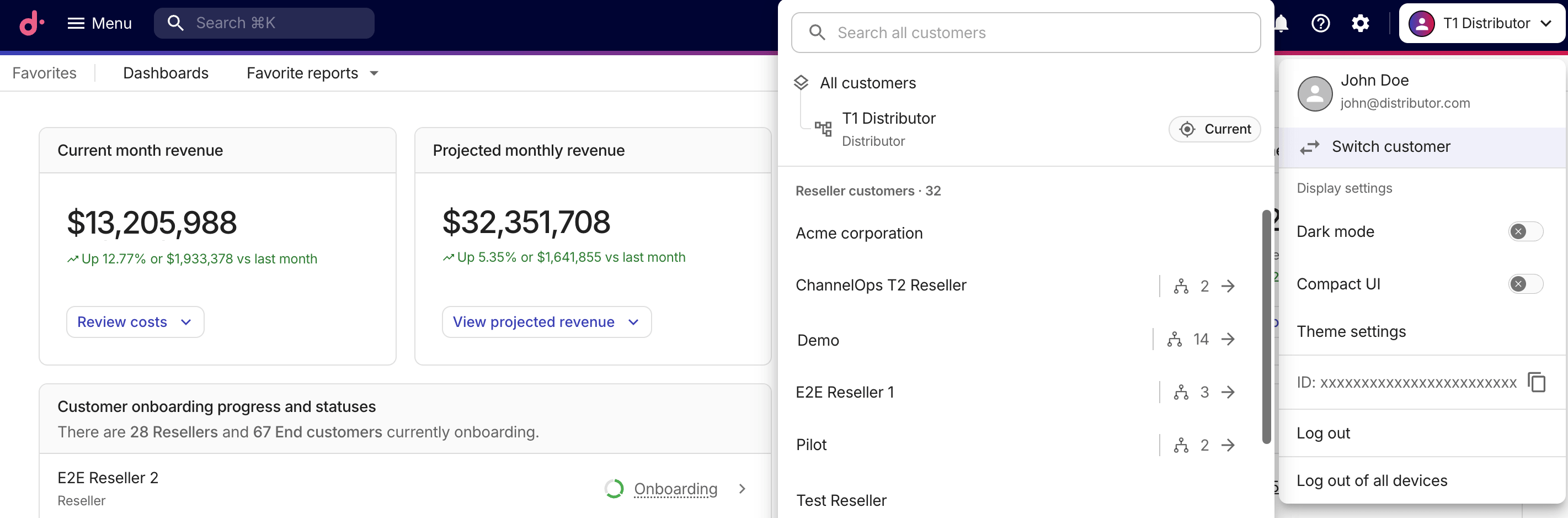
To navigate between tenants from anywhere in the console, select your avatar in the upper-right corner of the top navigation bar and then select Switch customer.
-
The search bar at the top lets you search all customers across the hierarchy.
-
A path below the search bar shows your current position in the hierarchy.
-
Below the path, a list shows the child tenants at the current level.