Users and roles
Distributors and resellers can manage users of their downstream tenants.
Required permissions
Distributor/reseller:
-
Admin role: Full access. This role allows you to view, add, and edit customers.
-
View Only role: This role allows you to view the user list but not invite, edit, or delete users.
Invite a new user
To invite a new user:
-
Sign in to the DoiT console, select Customers from the top navigation mega menu.
-
Locate the customer of interest, select Settings (the gear icon
) of the entry. -
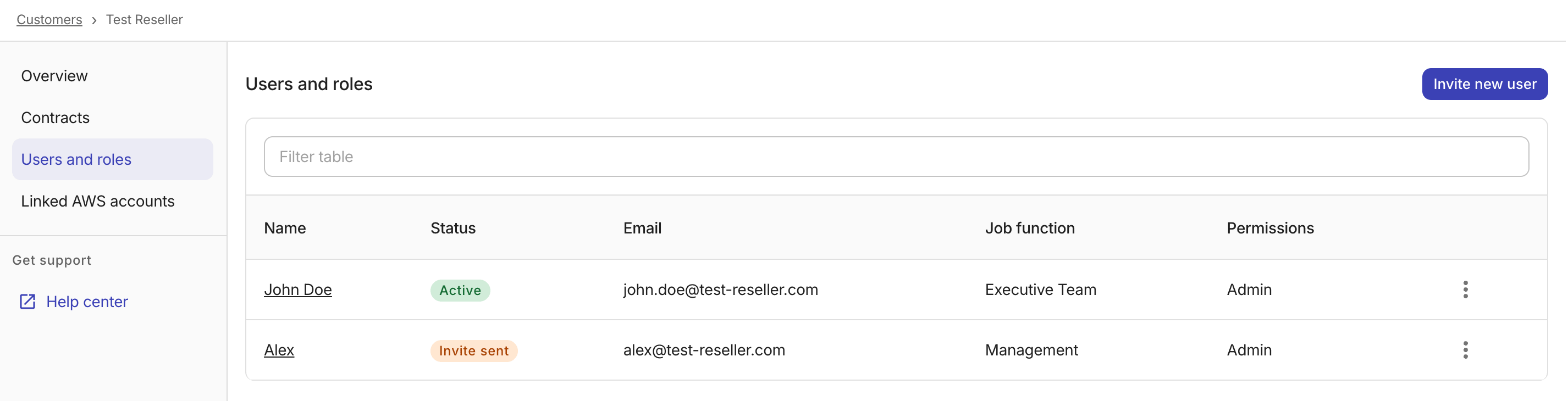
Select Users and roles from the left-hand sidebar, and then select Invite new user.
-
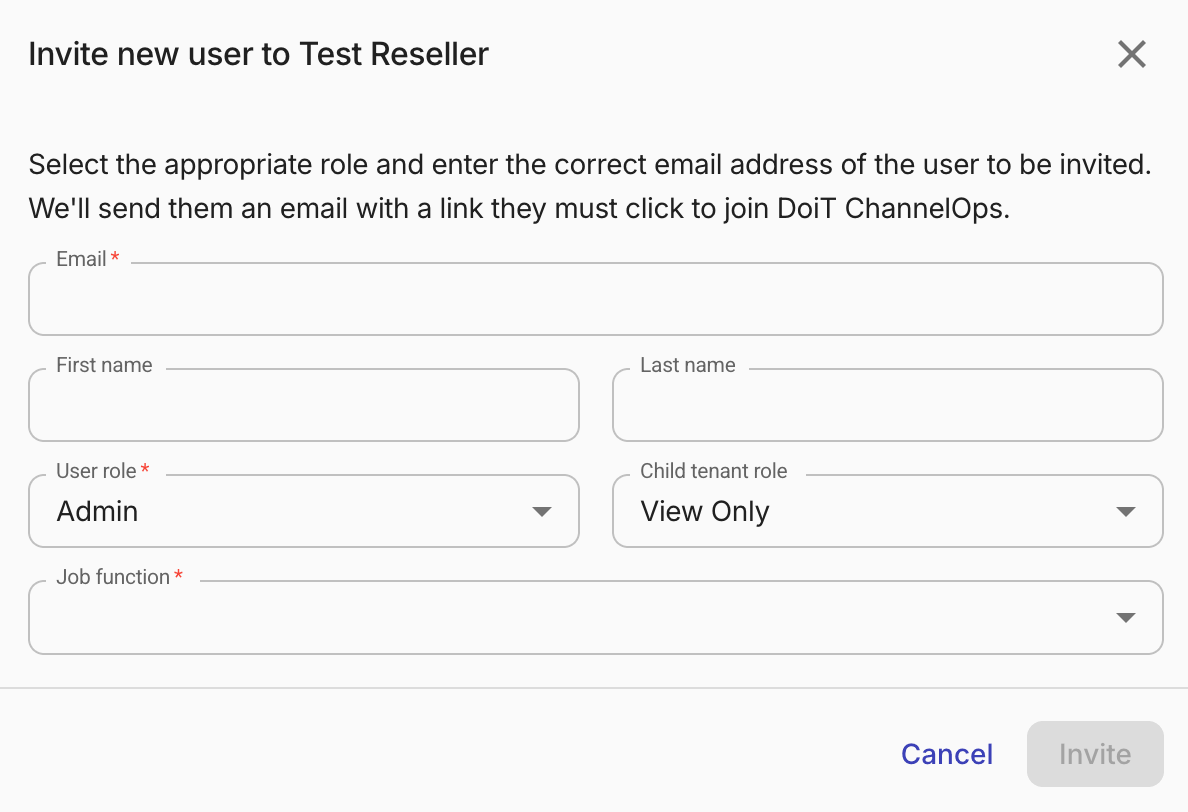
Fill in the required information for the new user.
-
Email, First name, Last name: The email address and the name of the user to invite.
-
User role: Specify the role of the invited user in the current tenant. (For the full list of supported permissions and pre-built roles, see Roles and permissions.)
-
Child tenant role (available when inviting a user into a distributor/reseller tenant): Specify the role a user gets when accessing downstream tenants. Select None to explicitly deny child tenant access to the new user. See Child tenant role.
-
Job function: The user's job function.
-
-
Select Invite. The invited user will receive an email to activate the account in the console.
Manage users
To edit or delete a user:
-
Select Customers from the top navigation mega menu.
-
Navigate to the Users and roles page of the target customer.
-
Locate the user of interest.
-
Select the kebab menu (⋮) at the rightmost end of the entry, and then choose an action:
-
Edit: To update the user information. Select Save changes when you finish editing.
-
Delete: To delete the user. You'll be prompted to confirm the deletion before it's executed.
-
Child tenant role
Assigning a child tenant role allows permission cascading through the multi-tenant hierarchy without having to invite a user to each child tenant.
-
Distributor admin: Can assign child tenant roles to users in their own organization or in any of their reseller tenants.
-
Reseller admin: Can assign child tenant roles to users in their own organization only.
For example, if a distributor admin invites a user at the distributor level and assigns them a child tenant View Only role, then that role automatically applies when the user navigates into a downstream tenant, regardless of the depth in the tenant hierarchy.
Below are the allowed child tenant roles:
-
Pre-built roles: Admin, IaaS Admin, and View Only
-
Custom roles that have been made available to child tenants by the owning tenant.
-
None: Explicitly denies child tenant access to the user.