My tasks
The My tasks page is your personalized task view.
Evidence task queue
The evidence task queue includes tasks assigned to you across all controls.
To access the queue in the MSP Workspace, select My tasks under Evidence workspace in the sidebar.
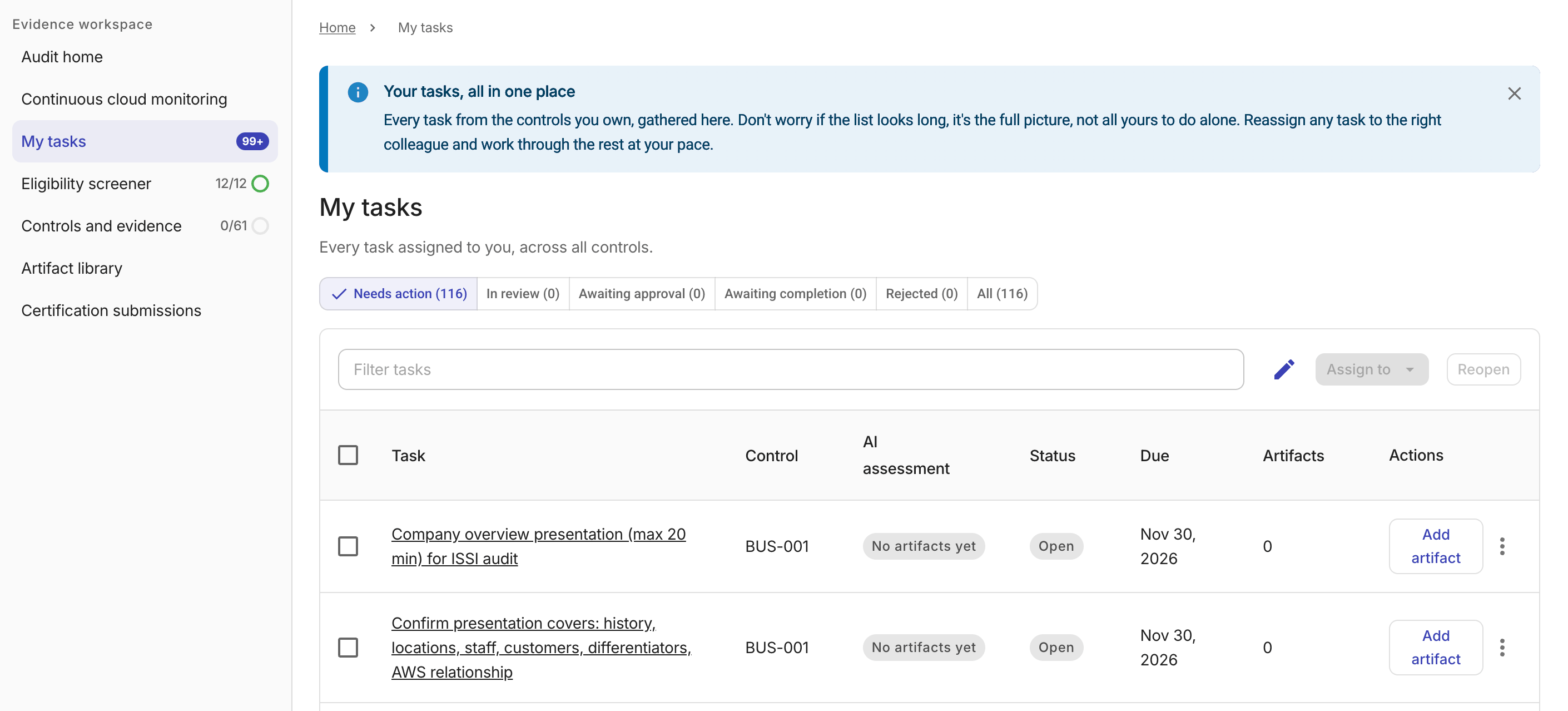
Use the filter tabs to narrow the task list:
-
Needs action: Tasks that require your attention, including your own open tasks and, if you are a reviewer, tasks with artifacts awaiting your approval.
-
In review: Your own tasks whose artifacts are currently being reviewed by an approver.
-
Awaiting approval: Artifacts submitted by others that need your review.
-
This tab is visible only if you have permission to review artifacts (Workspace Admins, Section Owners, and Approvers).
-
Select an artifact name to open the review side panel where you can approve or reject it.
-
-
Awaiting completion: Controls whose evidence tasks are all approved and that are ready to be marked complete.
-
This tab is visible only if you have permission to complete controls (Workspace Admin or Section Owner).
-
To complete a control, select Mark complete in the row's action column. While the completion is in progress, all other Mark complete buttons are disabled to prevent overlapping actions.
-
-
Complete: Tasks that have been approved and marked as done.
-
Rejected: Tasks whose artifacts were rejected and need to be re-uploaded.
-
All: All tasks in your queue, including your own tasks and tasks you can review.
Task actions
Each task row has an action button and a kebab menu (⋮) for additional options.
-
The action button can have one of the following actions:
-
Add artifact: Upload an artifact for an open task.
-
Re-upload: Re-upload artifacts for a rejected task.
-
Complete task: Approve the task and mark it as complete. Available to workspace admins and members with a Section Owner, Approver, or Contributor role in the task's domain.
-
-
The kebab menu (⋮) presents the following options:
-
Reassign: Reassign the task to another member with an optional handover note. Available to workspace admins and members with a Section Owner, Approver, or Contributor role in the task's domain
-
Change due date: Update the task's due date.
-
Reopen task: Reopen a completed task.
-
-
Bulk actions: Select multiple tasks using the checkboxes in the task table to enable bulk actions:
-
Assign to: Reassign the selected tasks to a workspace member. Hover over a member to see their workspace roles. Tasks that are already completed cannot be reassigned.
-
Reopen: Reopen the selected tasks at once. This option is available only when all selected tasks have a
Donestatus.
-
For more information about RACI roles, see Assign owners.
Task details
Select a task name to open the task side panel with full task details, artifacts, and AI assessment information.
You can also view the parent control or inspect individual artifacts from the task side panel.
The Comments and activity section displays a unified feed of comments and activity events. Any active workspace member can post a comment using the text composer at the bottom of the section.
Remediation task
When an auditor flags a control as partially compliant during a certification package review, MSP Workspace creates a remediation task with the auditor's comment and an AI-generated remediation criteria.
Auditor comment
The auditor comment panel shows the following:
-
The source certification package code. For example,
AP-0042. -
The date the auditor recorded the decision, if available.
-
The auditor's verbatim comment, displayed as a blockquote.
Use this comment as the primary reference for understanding what the auditor expects you to address.
Remediation checklist
The checklist of remediation criteria is generated automatically from the auditor's feedback. Each criterion includes a label and a description.
The remediation criteria section can be in one of three states:
-
Generating: The AI is analyzing the auditor's comment and building the checklist. -
Ready: The checklist is available. Each criterion has a checkbox you can select to mark it as satisfied. -
Failed: The AI could not generate criteria from the auditor's comment. You can continue working from the auditor's comment directly or select Regenerate criteria to try again.
Regenerate criteria
If the checklist does not accurately reflect the auditor's intent, select Regenerate criteria to request a new checklist. This option is available when the checklist is in the Ready or Failed state.
Regenerating criteria when one or more criteria are already marked as satisfied will remove the satisfied criteria and replace the current checklist. This action cannot be undone.
Required permissions
Remediation criteria actions are governed by your section role within the MSP Workspace:
-
Update criteria (mark as satisfied or unsatisfied): Requires the Workspace Admin role, or a section role that allows task actions (such as Section owner or Contributor).
-
Regenerate criteria: Requires the Workspace Admin role, or a section role that allows artifact authoring (such as Section owner or Contributor).
Users without the required permissions can view the checklist and auditor comment but cannot modify criteria or trigger regeneration.
Limitations
-
Frozen checklist: After a task is submitted for approval or marked as done, the remediation criteria checklist is locked.
-
Generation availability: AI-generated criteria depend on the content of the auditor's comment. If the comment is too brief or ambiguous, generation may fail. In that case, use the auditor's comment directly to guide your remediation work.