Certification submissions
The Certification submissions page is the last step in the certification journey. Workspace Admins can export a single read-only package that bundles controls, evidence tasks, artifacts, and signatures and deliver it to the ISSI auditor.
Access the dashboard
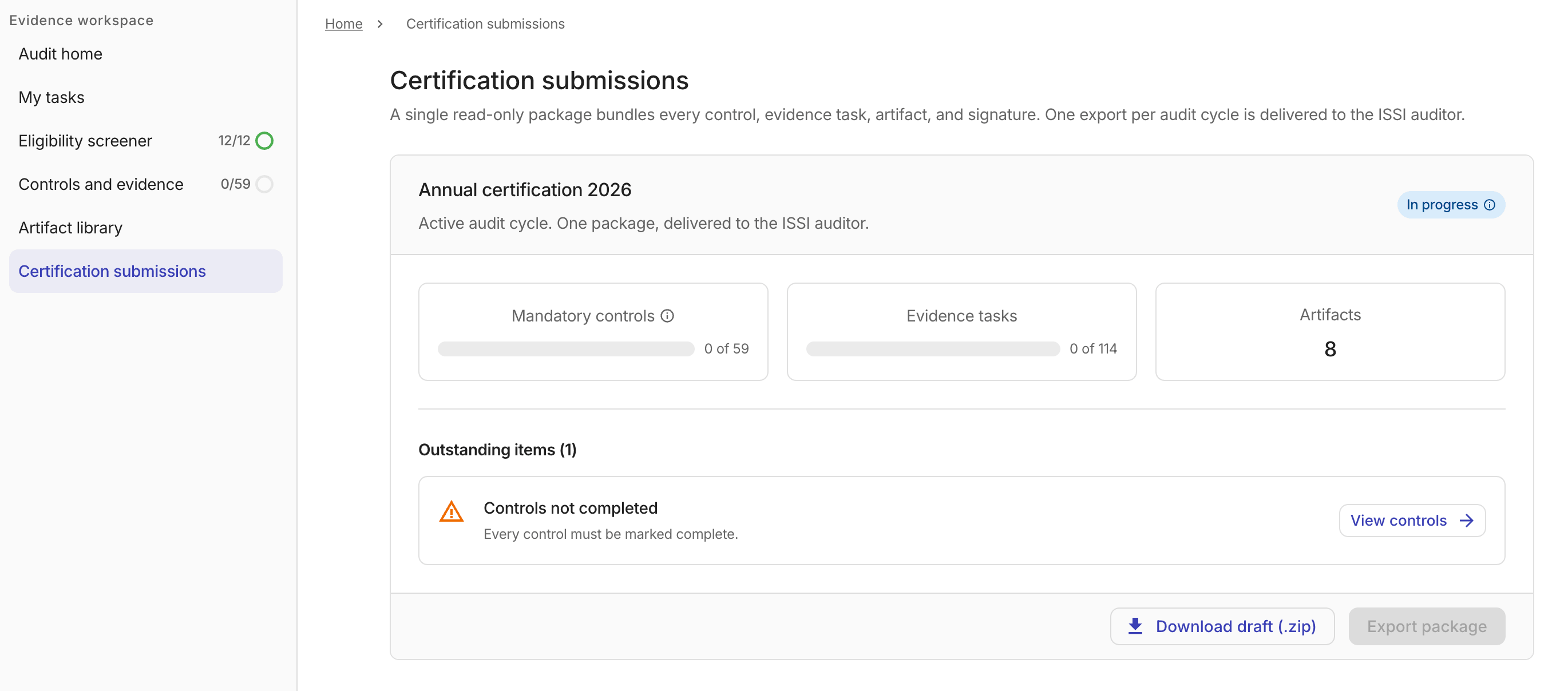
To access the Certification submissions page, navigate to the MSP Workspace, select Certification submissions in the sidebar.
-
Audit cycle status: The current status of the audit cycle.
In progress: Work is underway; not all controls and evidence tasks are complete.Ready for submission: All controls are marked complete and approved artifacts are in the draft package.Submitted: The package has been delivered to the ISSI auditor and is now immutable.
-
Audit metric cards: The progress of the current annual certification cycle. It shows three metric categories:
- Mandatory controls: The number of completed mandatory controls out of the total required.
- Evidence tasks: The number of completed evidence tasks out of the total required.
- Artifacts: The total number of captured artifacts.
Outstanding items
The Outstanding items section is present when there are issues blocking the submission:
-
Eligibility screener not completed: Select Complete Screener to open the Eligibility screener page.
-
Prerequisite controls still open: Select View controls to open the Controls and evidence page.
Export a certification package
There are two options to export a certification package:
-
Download draft (.zip): Downloads a draft copy of the package at any time, regardless of completion status.
-
Export ISSI package: Creates a versioned, immutable package for delivery to the ISSI auditor.
This option is enabled only when the cycle status is Ready for submission and no package has already been submitted for the current cycle.
The exported package can no longer be edited. The package is not transmitted externally from the platform; you deliver it to your auditor through your agreed process.
Certification submissions exports
The Certification submissions exports section lists previously exported packages in reverse chronological order.
Each row in the exports table shows:
-
Package and details: The package display name and package code.
-
Export date: The date the package was exported.
-
Status: The current auditor decision status.
-
Download: A button to download the exported package.
Each exported package has one of the following statuses:
-
In review: The package is currently being reviewed by the ISSI auditor.
-
Approved: The package was approved by the ISSI auditor.
-
Partially compliant: The ISSI auditor identified gaps that need to be fixed before resubmission.
-
Failed review: The package failed the ISSI audit.
Record an auditor decision
To record the auditor's decision for an In review package, select the desired status from the status dropdown on the package row. A decision-specific dialog opens where you confirm or provide additional details before the status is applied.
Once a decision is recorded, the package becomes read-only and cannot be edited.
-
Mark as approved: Select Approved from the status dropdown to open the approval confirmation dialog. Review the package details and select Mark as approved to confirm.
-
Mark as partially complete: Select Partially compliant from the status dropdown. Use this option when the ISSI auditor identified specific controls that need remediation before resubmission.
-
Complete the following fields:
-
Flagged controls: Search and select one or more controls that the auditor flagged. Only mandatory controls with a complete status are available for selection. Optional controls are excluded.
-
Remediation deadline: The date by which flagged controls must be remediated. Defaults to 10 business days after the package submission date.
-
Auditor's comment: Enter the auditor's comment describing the required remediation. This field is required for every flagged control.
-
-
Select Mark as partially complete to record the decision.
-
-
Mark as failed review: Select Failed review from the status dropdown.
-
Select the flagged controls, set the remediation deadline, and enter the auditor's comment for each control.
-
Select Mark as failed review to record the decision.
-