Contract templates
Contract templates let resellers and distributors define reusable billing configurations and apply them when creating contracts. Resellers assign templates to end customers, and distributors assign templates to reseller tenants.
Required permissions
- Your DoiT account must have the Contract Templates Admin permission.
Access contract templates
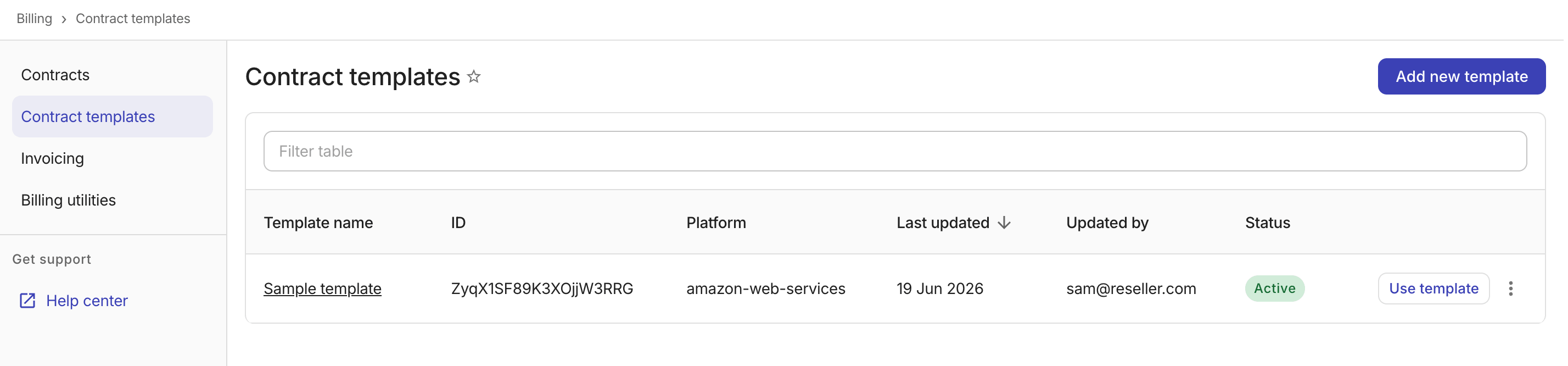
To view contract templates, sign in to the DoiT console and select Billing > Contract templates from the top navigation mega menu.
-
Template name: The name assigned to the template.
-
ID: The unique template identifier.
-
Platform: The cloud platform associated with the template.
-
Last updated: The date the template was last modified.
-
Updated by: The email address of the user who last modified the template.
-
Status: The status of the template,
ActiveorArchived.
Create a template
To create a new contract template:
-
On the Contract templates page, select Add new template.
-
Choose a contract template structure. This determines which billing components are available to configure and cannot be changed after the template is saved.
NoteResellers can choose any predefined structure; distributors are limited to the Blank template.
-
AWS Vendor Commitment: Pre-configured with two billing rules to exclude credits and marketplace charges, an EDP discount price book, and a custom line item of management fee.
-
AWS Support Plan: Pre-configured with a custom line item of tiered AWS support charges based on qualified spend (10% up to $10,000, 7% up to $80,000, 5% up to $250,000, and 3% above $250,000).
-
Partner Led Support: Pre-configured with a custom line item of a percentage-based partner support fee.
-
Service Plan: Pre-configured with a billing rule to exclude credits and a custom line item of a fixed-rate monthly service fee.
-
Blank template: An empty template with no pre-configured billing components.
-
-
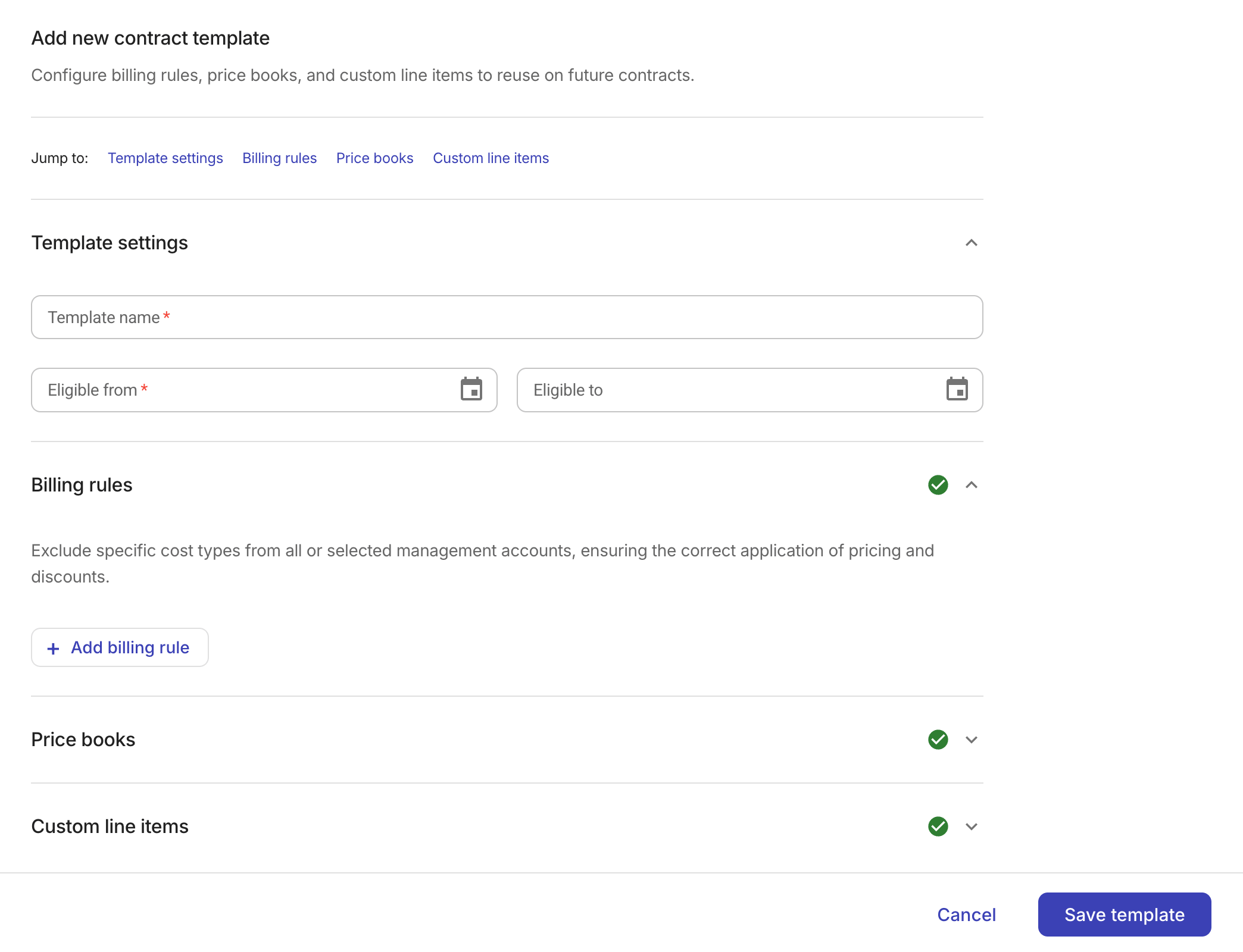
Configure the template.
Selecting a predefined structure pre-fills the template with billing components available on your subscription tier. You can update these components in this step.
-
Template settings:
-
Template name: Enter a descriptive name for the template.
-
Eligible from, Eligible to (optional): Define the eligibility window of the template.
-
A template can only be used to create contracts while the current date falls within the eligibility window. Templates outside their eligibility window appear disabled in the interface.
-
A template with no end date remains eligible indefinitely after its start date.
-
-
-
Billing rules: Exclude specific cost types from billing. See Billing rules.
-
Price books: Define custom pricing rules. See Price books.
-
Custom line items: Add manual billing adjustments. See Custom line items.
-
-
Select Save template.
Use a template
For an active template within its eligibility window, you can assign it to one or more customers at once. (You can also choose a template as the base when adding a new contract for a specific customer.)
Assigning a template creates a draft contract for each selected customer.
-
On the Contract templates page, locate the template of interest.
-
Select Use template on the template row, or select the kebab menu (⋮) and then select Use template.
-
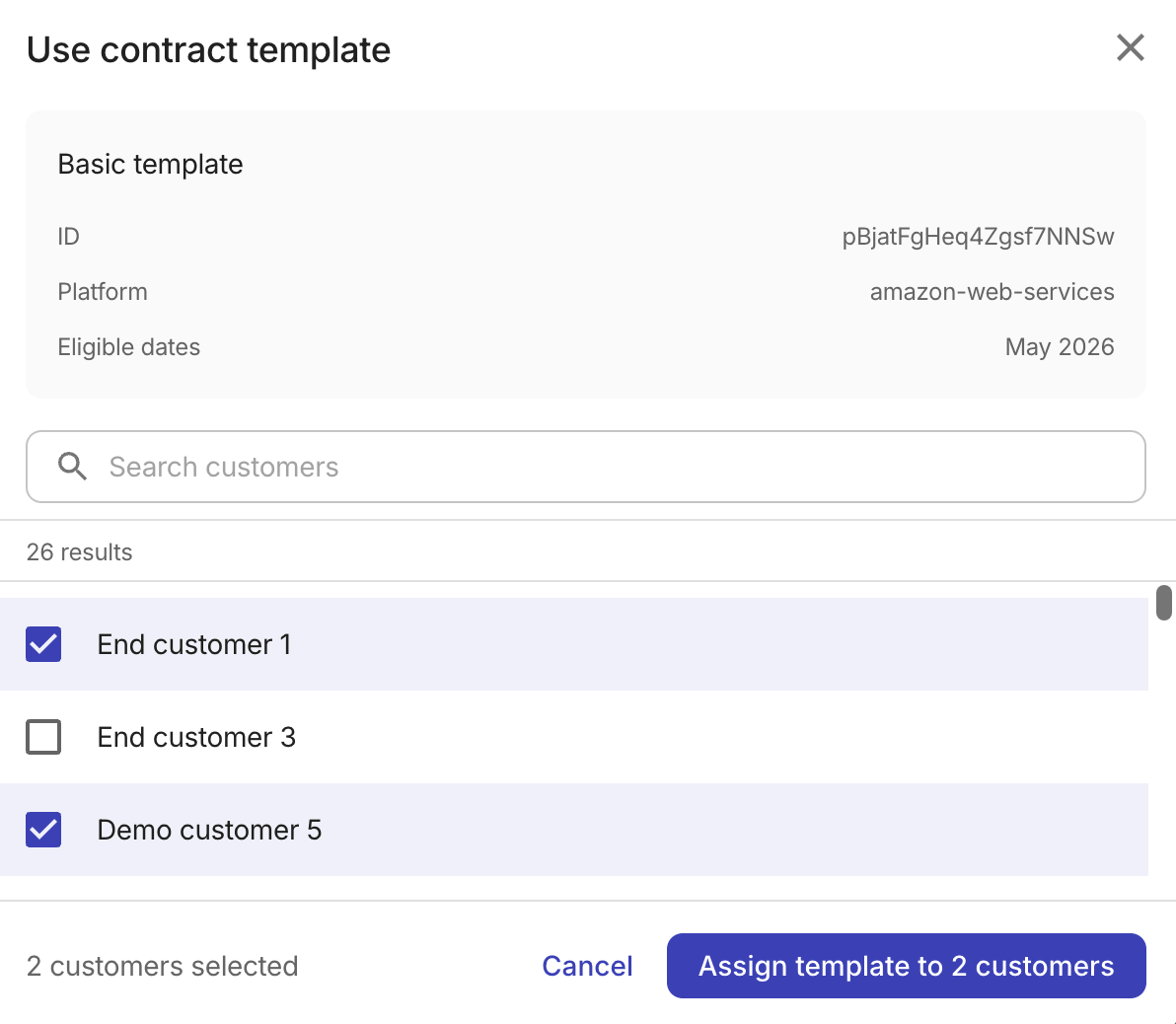
Review the template details (name, ID, platform, and eligible dates).
-
Search for or browse the list of assignable customers (resellers see their end customers in this list; distributors see their resellers). Select the checkbox of each you want to assign the template to. You can select up to 250 customers.
-
Select Assign template to n customers (or Assign template to n resellers for distributors).
You can review the resulting draft contracts and activate them from each customer's Contracts page. See Manage contracts for details.
Edit, duplicate, and archive a template
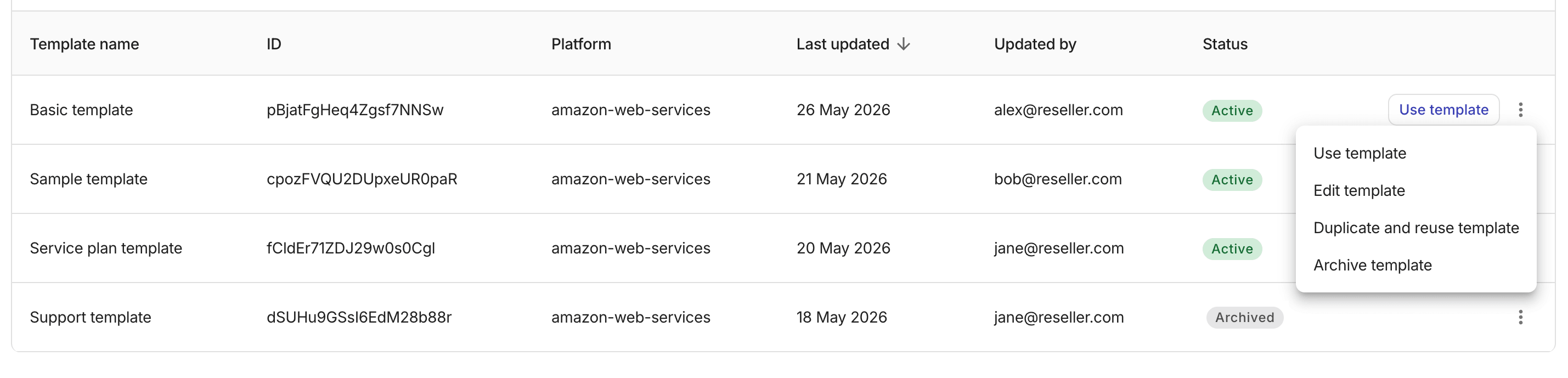
Management options for individual templates are accessible from the kebab menu (⋮) at the rightmost end of each template row.
-
Use template: To assign the template to customers. You can select the Use template button for the same purpose.
-
Edit template: To update the template settings or billing components. Updating a template does not affect existing contracts created from it.
-
Duplicate and reuse template: To create a copy of the template.
-
Archive template: To archive an
Activetemplate. Archived templates are preserved in the list for reference but cannot be used to create new contracts or assigned to customers.