契約テンプレート
契約テンプレートを使用すると、リセラーおよびディストリビューターは再利用可能な請求設定を定義し、契約を作成する際に適用できます。リセラーはエンドカスタマーにテンプレートを割り当て、ディストリビューターはリセラーテナントにテンプレートを割り当てます。
必要な権限
- ご利用の DoiT アカウントには Contract Templates Admin 権限が必要です。
契約テンプレートへのアクセス
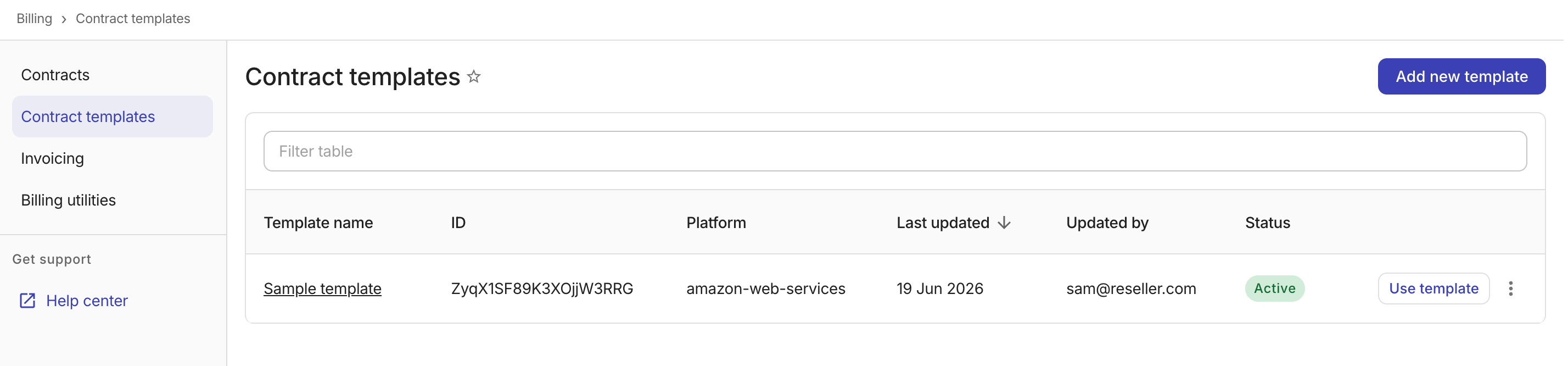
契約テンプレートを表示するには、DoiT コンソールにサインインし、上部ナビゲーションのメガメニューから Billing > Contract templates を選択します。
-
Template name: テンプレートに付与された名前。
-
ID: テンプレートの一意の識別子。
-
Platform: テンプレートに関連付けられているクラウドプラットフォーム。
-
Last updated: テンプレートが最後に更新された日付。
-
Updated by: テンプレートを最後に更新したユーザーのメールアドレス。
-
Status: テンプレートのステータス。
ActiveまたはArchived。
テンプレートを作成する
新しい契約テンプレートを作成するには、次の手順に従ってください。
-
Contract templates ページで Add new template を選択します。
-
契約テンプレートの構造を選択します。これは、設定可能な請求コンポーネントを決定するものであり、テンプレートを保存した後は変更できません。
注意リセラーは任意の事前定義済み構造を選択できますが、ディストリビューターは Blank template のみに制限されます。
-
AWS Vendor Commitment: クレジットとマーケットプレイスの料金を除外する 2 つの請求ルール、EDP 割引の価格表、および管理手数料のカスタムラインアイテムがあらかじめ設定されています。
-
AWS Support Plan: 対象利用額に基づく段階的な AWS サポート料金のカスタムラインアイテムがあらかじめ設定されています (10,000 ドルまで 10%、80,000 ドルまで 7%、250,000 ドルまで 5%、250,000 ドル超は 3%)。
-
Partner Led Support: パーセンテージベースのパートナーサポート料金のカスタムラインアイテムがあらかじめ設定されています。
-
Service Plan: クレジットを除外する請求ルールと、固定料金の月額サービス料金のカスタムラインアイテムがあらかじめ設定されています。
-
Blank template: 事前設定済みの請求コンポーネントを持たない空のテンプレートです。
-
-
テンプレートを設定します。
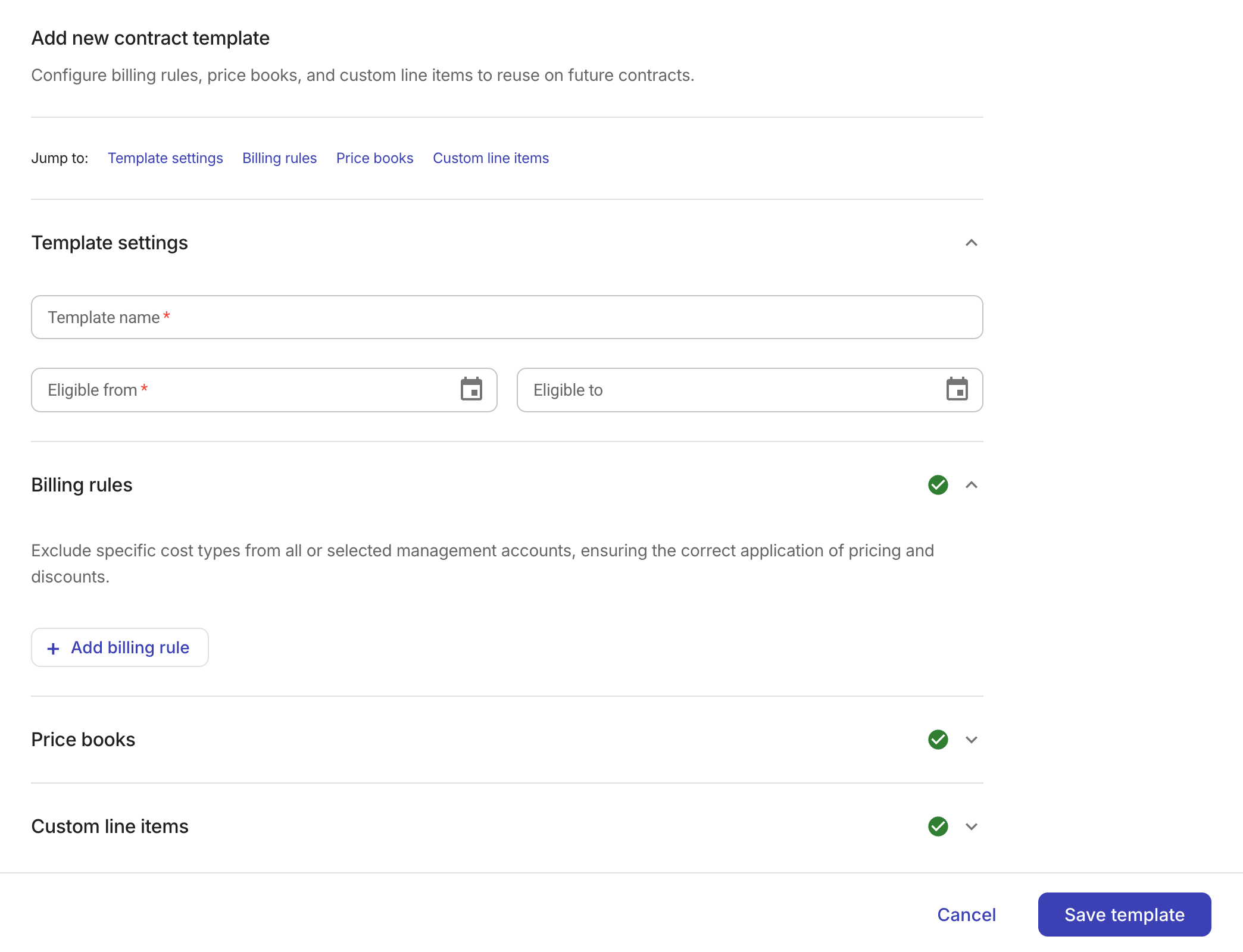
事前定義済み構造を選択すると、契約中のサブスクリプション階層で利用可能な請求コンポーネントがテンプレートにあらかじめ入力されます。これらのコンポーネントはこのステップで更新できます。
-
Template settings:
-
Template name: テンプレートのわかりやすい名前を入力します。
-
Eligible from、Eligible to (任意): テンプレートの有効期間を定義します。
-
現在日付が有効期間内にある場合にのみ、そのテンプレートを使用して契約を作成できます。有効期間外のテンプレートは、インターフェース上で無効化された状態で表示されます。
-
終了日なしのテンプレートは、開始日以降は無期限で有効な状態のままになります。
-
-
-
Billing rules: 特定のコストタイプを請求対象から除外します。Billing rulesを参照してください。
-
Price books: カスタムの価格ルールを定義します。Price booksを参照してください。
-
Custom line items: 手動の請求調整を追加します。Custom line itemsを参照してください。
-
-
Save template を選択します。
テンプレートを使用する
有効期間内のアクティブなテンプレートは、一度に 1 社以上の顧客へ割り当てることができます。(特定の顧客向けに新しい契約を追加する際、そのベースとしてテンプレートを選択することもできます)。
テンプレートを割り当てると、選択した各顧客に対してドラフト契約が作成されます。
-
Contract templates ページで、対象のテンプレートを探します。
-
テンプレート行の Use template を選択するか、ケバブメニュー (⋮) を選択してから Use template を選択します。
-
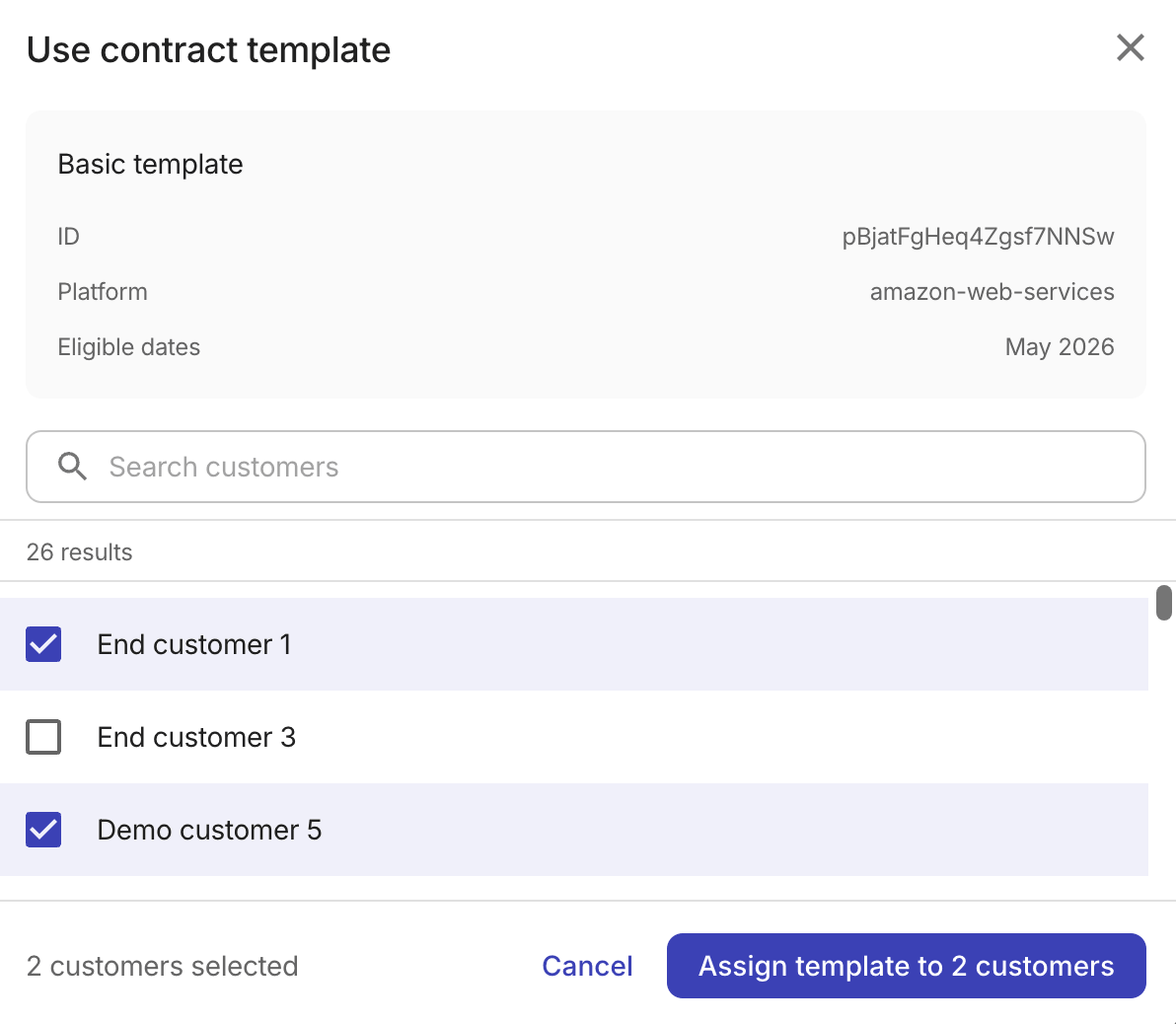
テンプレートの詳細 (名前、ID、プラットフォーム、有効日) を確認します。
-
割り当て可能な顧客の一覧を検索または参照します (リセラーは自社のエンドカスタマーを、ディストリビューターは自社のリセラーを一覧で確認できます)。テンプレートを割り当てたい顧客ごとにチェックボックスを選択します。最大 250 社の顧客を選択できます。
-
Assign template to n customers (ディストリビューターの場合は Assign template to n resellers) を選択します。
結果として作成されたドラフト契約は、各顧客の Contracts ページから確認し、有効化できます。詳細については、Manage contractsを参照してください。
テンプレートの編集・複製・アーカイブ
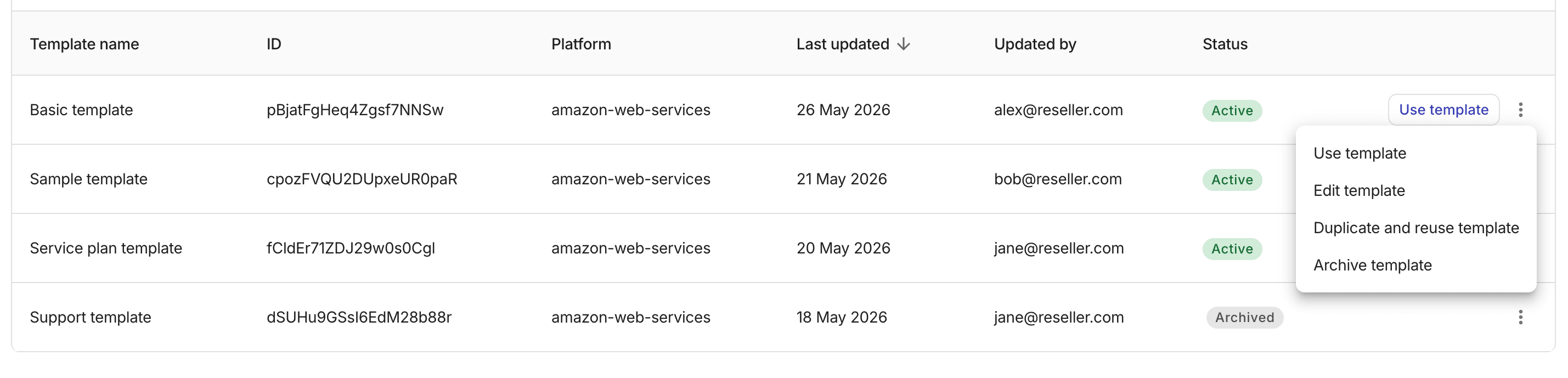
個々のテンプレートに対する管理オプションには、各テンプレート行の一番右端にあるケバブメニュー (⋮) からアクセスできます。
-
Use template: テンプレートを顧客に割り当てるためのオプションです。同じ目的で Use template ボタンを選択することもできます。
-
Edit template: テンプレートの設定または請求コンポーネントを更新します。テンプレートを更新しても、そのテンプレートからすでに作成されている既存の契約には影響しません。
-
Duplicate and reuse template: テンプレートのコピーを作成します。
-
Archive template:
Activeテンプレートをアーカイブします。アーカイブされたテンプレートは参照用として一覧に保持されますが、新しい契約の作成や顧客への割り当てには使用できません。