Review and classify anomalies
Reviewing and classifying cost anomalies helps your team track and resolve them faster. It also provides data that improves future anomaly detection.
Review status
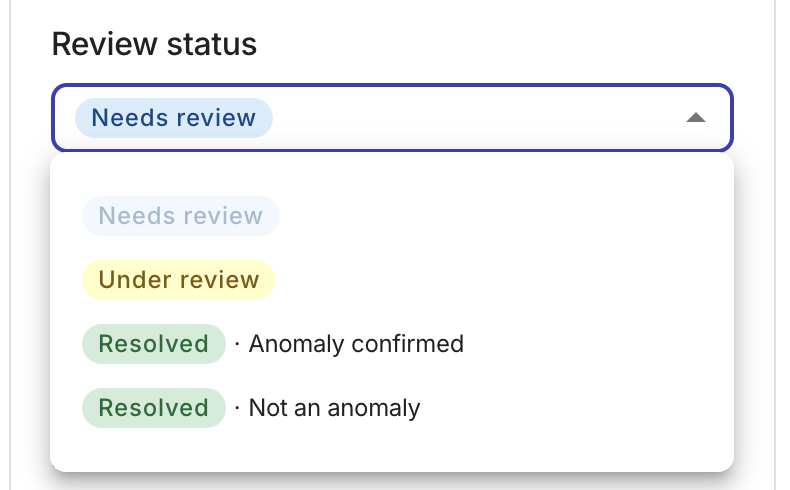
Each anomaly can have one of the following review statuses:
| Status | Description |
|---|---|
| Needs review | The anomaly has not been reviewed yet. This is the default status for all new anomalies. |
| Under review | The anomaly is being investigated by your team. |
| Resolved · Anomaly confirmed | The investigation is complete and the anomaly is confirmed as a genuine cost spike. |
| Resolved · Not an anomaly | The investigation is complete and the detected spike is expected behavior. |
Set the review status
There are two ways to set an anomaly's review status:
In the console
-
Navigate to the Cost anomalies page, find the anomaly of interest, and then select View at the rightmost end of the anomaly entry to open its details page.
-
In the side panel, open the Review status dropdown and select a new status.
-
Complete the status change:
-
If you select Under review, the status is saved immediately.
-
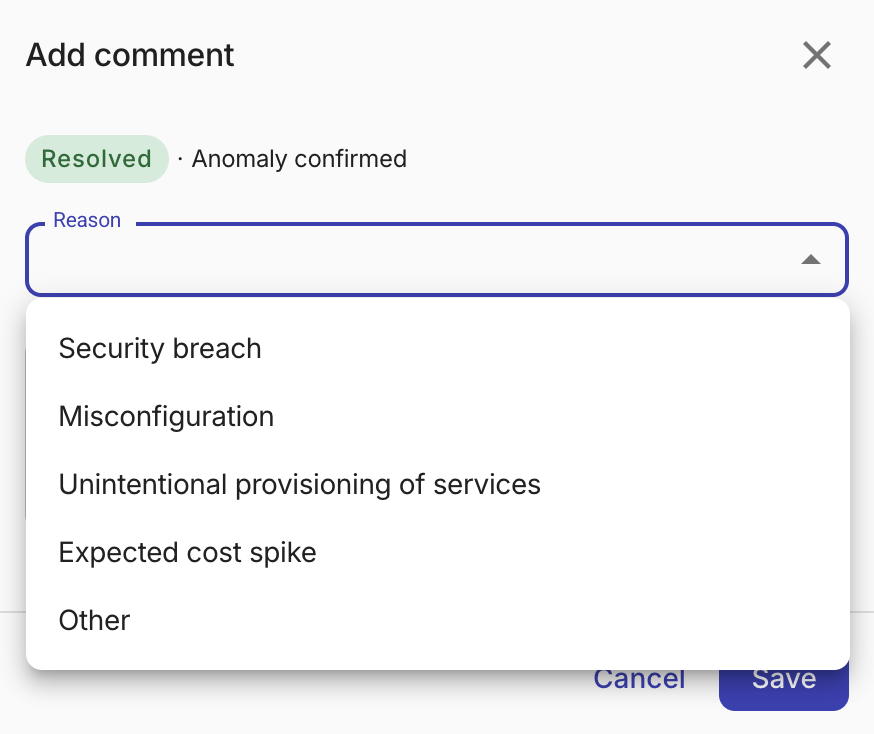
If you select Resolved · Anomaly confirmed (example below) or Resolved · Not an anomaly, a dialog opens where you can optionally select a reason and add a comment. Select Save to save the resolution.
-
In Slack
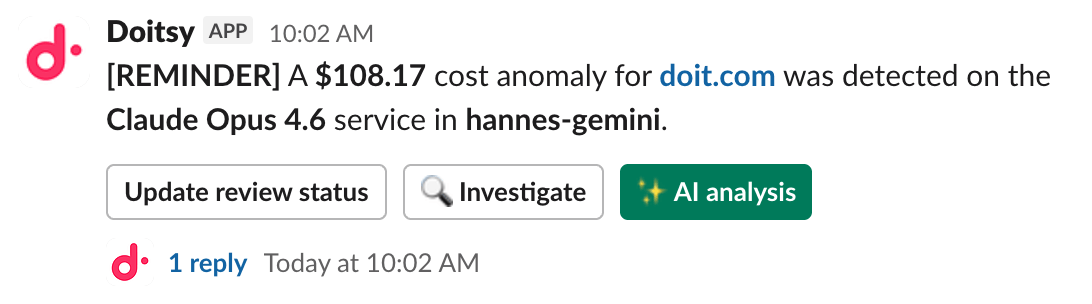
If you have configured to receive anomaly notifications via Slack, you can set the review status directly in Slack without opening the console.
To set a review status from Slack, users must have an account in the console.
-
Go to the Slack channel you've configured to receive notifications.
-
Locate the cost anomaly notification.
-
Select Update review status.
 Tip
TipSelect Investigate if you want to view this anomaly in the console.
-
In the Update review status modal that opens, select a review status:
- Under review: Someone is actively investigating the anomaly.
- Resolved · Anomaly confirmed: The anomaly represents a genuine cost spike.
- Resolved · Not an anomaly: The anomaly is a false alarm.
-
If you selected a resolved status, select a Reason from the dropdown and optionally add a Comment.
-
Select Save to save your changes. A confirmation message is posted in the Slack thread.
Update the review status
You can change the review status of an anomaly at any time, from either the console or Slack. Use the same steps as when you set the review status.
Once an anomaly moves past Needs review, you cannot reset it back to that status. You can still move between Under review and either resolved status.
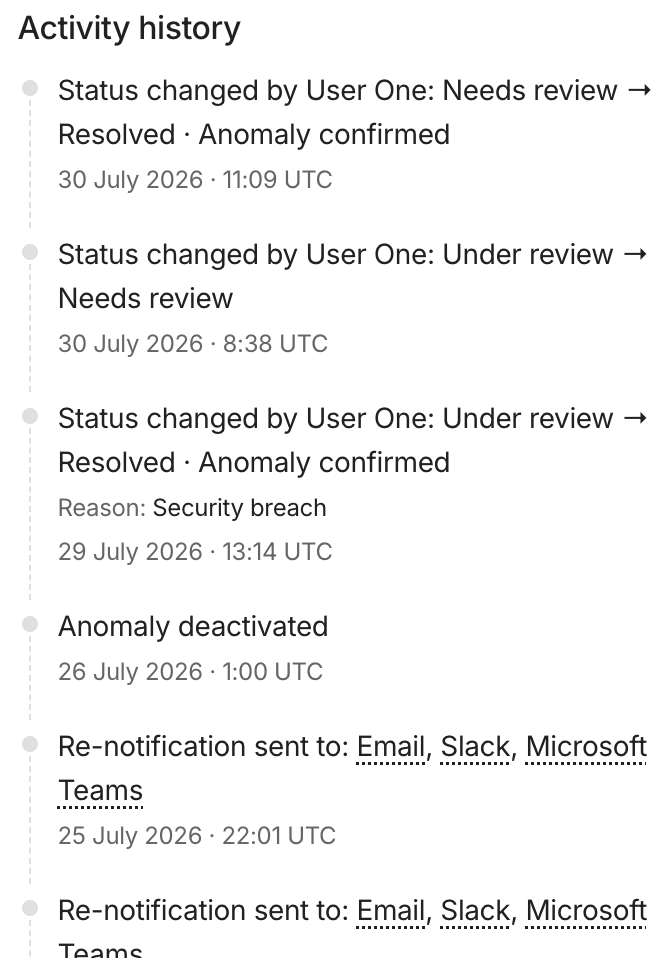
Comments and activity history
Use Comments and Activity history on the anomaly details page to share investigation context and see how an anomaly was handled over time.
Comments appear in the Comments section. A comment you add when resolving an anomaly is tagged with that resolved status. You can also add comments at any time with + Add comment; those comments are not linked to a status change.
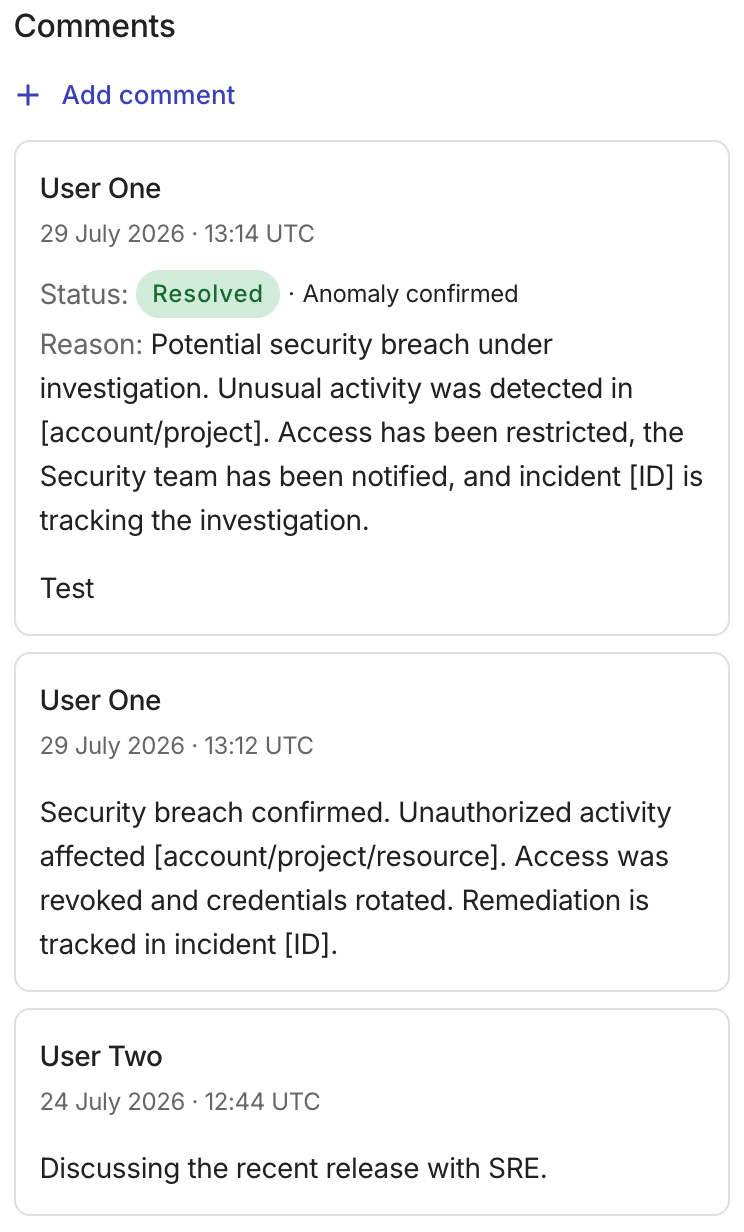
Status changes are recorded in Activity history. For resolved anomalies, the history also shows any reason you selected.