Commitment Simulator dashboard
This page explains how to interact with the Commitment Simulator dashboard for Amazon Web Services (AWS) and Google Cloud, including selecting data, reading the summary table, interpreting charts, and understanding page states.
Prerequisites
Before you can view analysis in Commitment Simulator, your cloud accounts must be connected to Cloud Intelligence so billing data can be imported:
-
AWS: Management (payer) accounts with hourly Cost and Usage Report (CUR) data.
-
Google Cloud: Billing accounts with billing export data ingested by DoiT.
No PerfectScale for Commitments contract is required for Commitment Simulator.
After you connect an account, allow time for DoiT to import and process your billing data. Commitment Simulator is available for all connected GCP billing accounts. If analysis is not ready yet, the dashboard shows status messages such as We're compiling your data. Commitment Simulator data is updated monthly on the 5th day of each month. See the FAQ for details.
To unlock Overview, Recommendation, Planned Purchases, Inventory, and Settings, set up PerfectScale for Commitments for the payer or billing accounts you want to manage.
Commitment Simulator dashboard
To access the Commitment Simulator dashboard:
-
Sign in to the DoiT console.
-
Select Rate optimization > PerfectScale for Commitments from the top navigation mega menu.
-
Select Commitment Simulator to launch the dashboard.
-
In the left drawer, select the Management Account to analyze an AWS payer account or a Google Cloud billing account. Each account is analyzed independently.
Selectors
Use the dropdowns at the top of the page to define the scope to analyze. Available selectors depend on the cloud provider of the Management Account you selected in the drawer.
AWS selectors
| Selector | Description |
|---|---|
| Management Account | The AWS payer account name and ID shown for the account selected in the drawer. |
| Linked account | AWS linked accounts under the payer selected in the sidebar. Analyze Savings Plans across all linked accounts (All under payer name) or for a single linked account. Long account names truncate with an ellipsis; hover to see the full name. |
| Month | The billing month to analyze. The most recent month is shown by default. |
Google Cloud selectors
| Selector | Description |
|---|---|
| Management Account | The Google Cloud billing account name and ID shown for the account selected in the drawer. |
| Month | The billing month to analyze. The most recent month is shown by default. |
| Region | For Cloud SQL and BigQuery Editions, select the region to analyze. Other spend-based CUD products apply across all regions and show All regions (not editable). |
Commitment types
Select a tab to choose the commitment type to analyze. On AWS, tabs are Savings Plan types. On Google Cloud, tabs are Google Cloud products that spend-based CUDs can apply to. A disabled tab means the selected account had no eligible usage for that type during the selected month.
AWS Savings Plan types
| Savings Plan type | Covered usage |
|---|---|
| Compute | Amazon EC2, AWS Fargate (ECS and EKS), AWS Lambda |
| Machine Learning | AWS SageMaker: Unified Studio Notebooks, Studio JupyterLab, Studio Code Editor, On-Demand Notebooks, RStudio, Processing, Data Wrangler, Training, Real-Time Inference, Async Inference, Batch Transform, HyperPod Clusters |
| Database | Aurora (RDS Instances, Serverless v2, DSQL), DynamoDB (On-Demand & Provisioned), ElastiCache for Valkey (Instances & Serverless), DocumentDB (Instances & Serverless), Neptune (Instances, Serverless, Analytics), Keyspaces, Timestream, DMS (Instances & Serverless), OpenSearch |
-
Compute and Machine Learning Savings Plans support all combinations of term (1-year, 3-year) and payment option (No Upfront, Partial Upfront, All Upfront).
-
Database Savings Plans only support 1-year term with No Upfront payment.
Google Cloud spend-based CUD products
| Product | Covered usage |
|---|---|
| Compute | Compute Engine |
| Cloud SQL | Cloud SQL (per region) |
| BigQuery Editions | BigQuery Editions (per region) |
| AlloyDB | AlloyDB |
| Spanner | Cloud Spanner |
| Firestore | Cloud Firestore |
| Dataflow | Dataflow |
| Memorystore | Memorystore |
| Bigtable | Cloud Bigtable |
| Kafka | Managed Service for Apache Kafka |
-
Each product supports 1-year and 3-year spend-based CUD terms. Google Cloud CUDs in Commitment Simulator do not include separate payment options.
-
Cloud SQL and BigQuery Editions are analyzed per region. Select a region in the Region dropdown before reading the summary table and charts.
Summary table
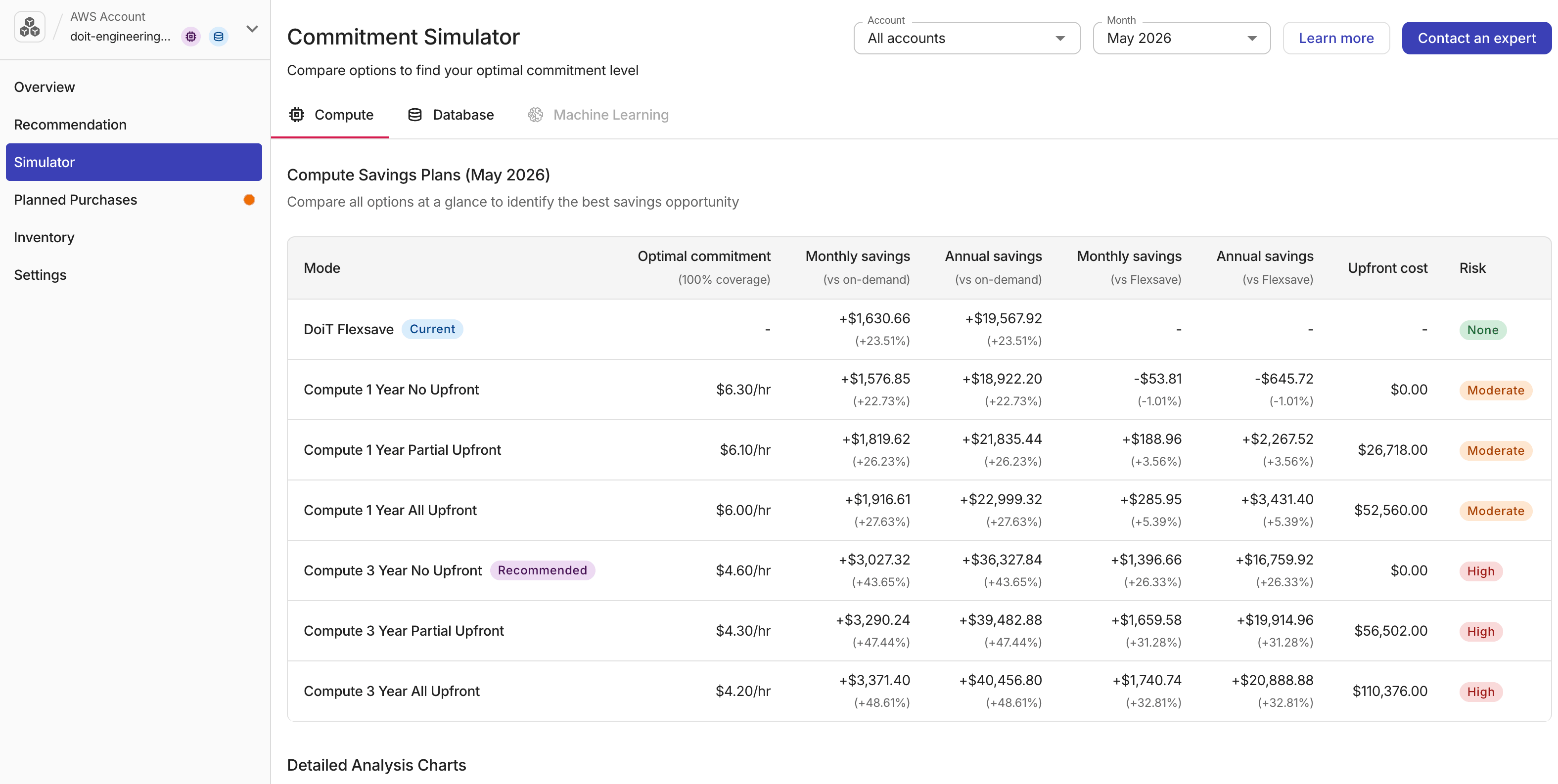
The summary table compares commitment options for the selected payer or billing account, month, and commitment type.
| Column | Description |
|---|---|
| Mode | Term (and, on AWS, payment option). The best option is marked Recommended (green). |
| Optimal commitment | The $/hr commitment that would have produced the greatest savings for that mode and billing month, based on actual past usage. See Optimal commitment. |
| Monthly savings | Monthly savings at the optimal commitment point, compared with on-demand (and with Flexsave on AWS when applicable). |
| Annual savings | Annualized savings (monthly savings × 12). |
| Upfront cost | One-time payment at purchase (AWS only). See Payment options. |
| Risk | Risk levels for the commitment term. |
AWS summary table
-
Each row represents a term and payment combination — for example, Compute 3 Year No Upfront.
-
A row for Flexsave is included when Flexsave for Compute is active.
-
The default Recommended option is typically 3 Year No Upfront, except for Database Savings Plans (1 Year No Upfront).
Google Cloud summary table
-
Each resource type shows two rows: 1 Year Spend-based CUDs and 3 Year Spend-based CUDs.
-
There is no Flexsave row and no Upfront cost column.
-
The default Recommended option is the 3-year term.
Payment options
Payment options apply to AWS Savings Plans only:
| Payment option | Upfront payment | Best for |
|---|---|---|
| No Upfront | $0 | Preserving cash flow |
| Partial Upfront | Half of total commitment cost | Balancing savings with cash flow |
| All Upfront | Full commitment cost | Maximizing discount when capital is available |
Risk levels
| Risk | Applies to | Description |
|---|---|---|
| No risk | AWS Flexsave | Fully managed by DoiT; no long-term commitment. |
| Moderate | 1-year AWS Savings Plans or Google Cloud CUDs | One year of commitment. Easier to adjust if usage changes. |
| High | 3-year AWS Savings Plans or Google Cloud CUDs | Deeper discounts with a three-year lock-in. |
Once purchased:
-
AWS Savings Plans cannot be canceled or modified, charge the committed hourly rate regardless of actual usage, and remain in effect for the full term.
-
Google Cloud spend-based CUDs are binding for the selected term; review Google Cloud CUD documentation before purchasing.
Analysis charts
Below the summary table, charts plot the full cost curve for each commitment option — how total monthly cost changes as the hourly commitment increases from $0/hr to the point where the commitment costs more than on-demand.
The ideal commitment maximizes covered spend while keeping uncovered and wasted spend as low as possible. In practice, a small amount of uncovered spend is preferable to wasted spend.
AWS charts
For each term and payment option, one chart answers: What would I have paid in the selected month if I had committed $X/hr on a Savings Plan?
Cost metrics
| Metric | Description |
|---|---|
| On-Demand Cost | Baseline monthly cost at full on-demand rates (without Flexsave). |
| Flexsave Cost | Monthly cost under Flexsave (visible only if Flexsave is active). |
| SP Cost | Total monthly cost at a given hourly commitment (SP Covered + SP Uncovered + SP Wasted). |
| SP Covered Cost | Usage billed at discounted Savings Plan rates within the commitment budget. |
| SP Uncovered Cost | Usage beyond the commitment budget, billed at on-demand rates. |
| SP Wasted Cost | Commitment budget with no usage to cover. |
| Upfront Cost | One-time payment at purchase. See Payment options. |
Cost curve
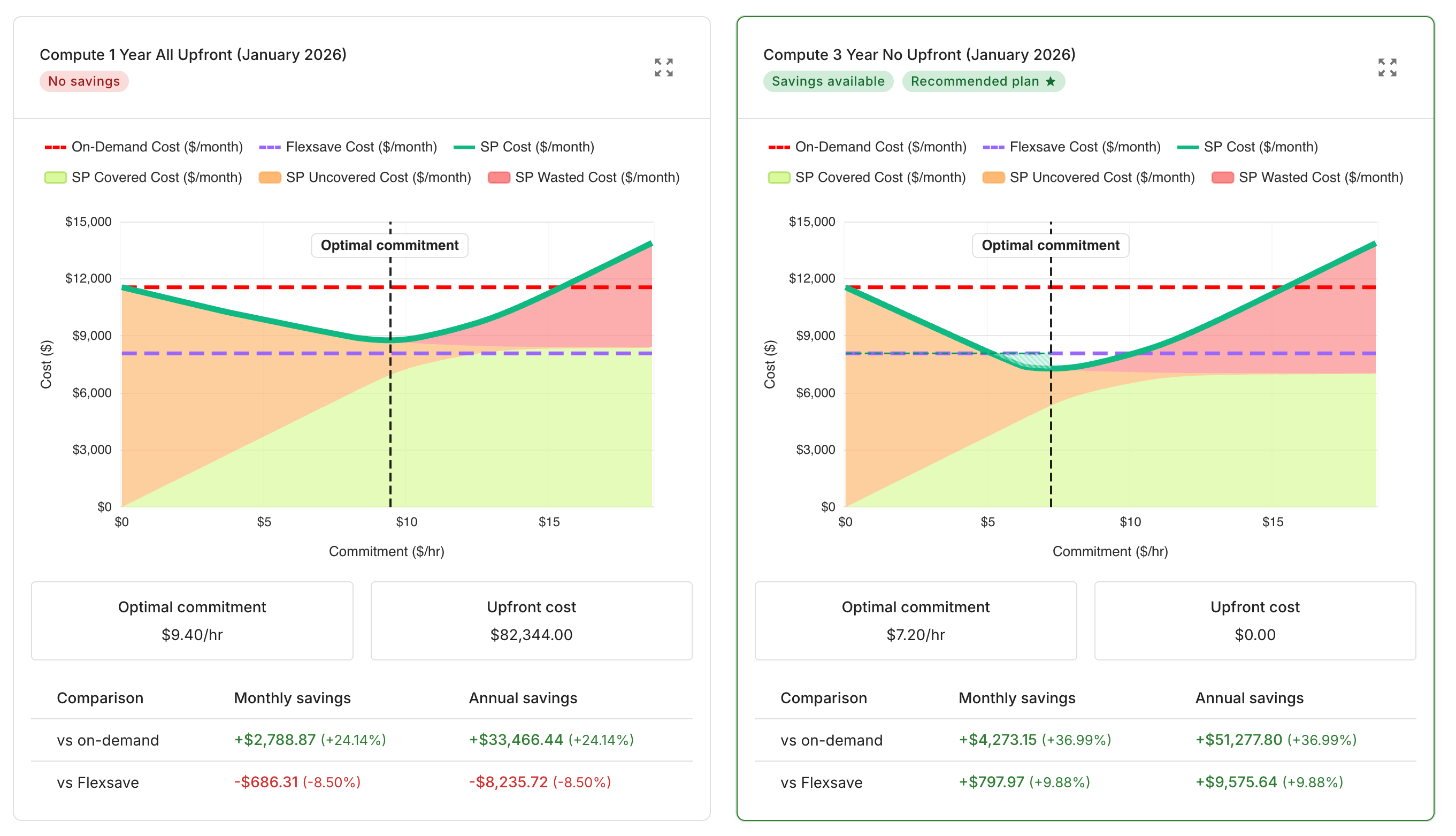
-
The X-axis is the hourly commitment; the Y-axis is the total monthly cost.
-
Green line: SP Cost — lowest point is the optimal commitment.
-
Red dashed line: On-Demand Cost — full on-demand baseline.
-
Purple dashed line: Flexsave Cost — visible only if Flexsave is enabled.
-
Vertical dashed line: Marks the optimal commitment.
Follow the green line from left to right:
-
At $0/hr, it starts at the on-demand baseline.
-
As commitment increases, the line drops while discounted usage grows.
-
At the vertical dashed line, total cost is lowest.
-
Past that point, additional commitment is mostly wasted.
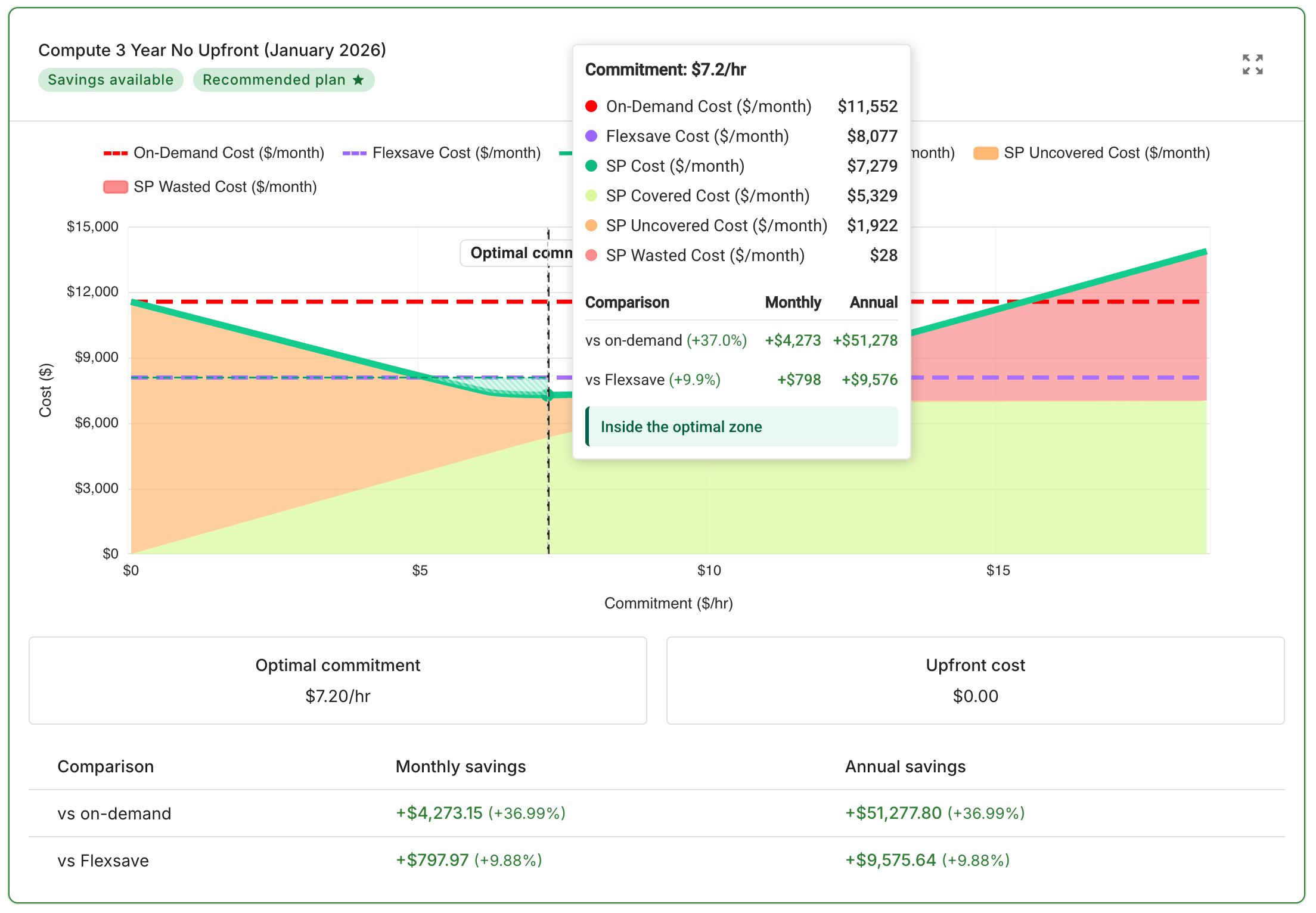
Chart tooltip
Hovering over any point on a chart reveals the cost breakdown at that hourly commitment:
-
Dollar and percentage savings versus on-demand
-
Dollar and percentage savings versus Flexsave (if applicable)
-
Individual components: SP Covered, SP Uncovered, SP Wasted
Google Cloud charts
For each 1-year and 3-year term, one chart answers: What would I have paid in the selected month if I had committed $X/hr on a spend-based CUD?
Chart labels use CUD terminology (for example, CUD Cost, CUD Covered Cost) instead of SP. The curve mechanics are the same as on AWS:
-
Green line: Total monthly commitment cost at each $/hr level.
-
Red dashed line: On-Demand Cost baseline.
-
There is no Flexsave baseline and no upfront cost in the chart summary.
-
Vertical dashed line: Optimal commitment for that term and region (if applicable).
The optimal commitment shows what would have been best for the selected month. It is not a purchase recommendation.
Usage patterns might change from month to month, and commitments generally cannot be canceled. Committing slightly below the optimal captures most of the savings with much less risk. See Optimal commitment for practical guidance.
Status messages and page states
Commitment Simulator displays a status page instead of the normal analysis when certain conditions apply. Wording references Savings Plans on AWS and Spend-based CUDs on Google Cloud.
| State | Condition | What to do |
|---|---|---|
| We're compiling your data | Billing data has not been processed yet. | Wait a few hours and check again. The processing is automatic. |
| Your Savings Plans / Spend-based CUDs are fully optimized | No hourly commitment would reduce costs for the selected payer. | No action needed. Existing commitments already cover eligible usage, or usage is too low for an additional commitment. |
| No optimal commitments found | For the selected account and month, no hourly commitment would reduce costs below on-demand pricing. | Try a different month, region (Google Cloud), or payer or billing account. If usage is consistently low, a new commitment may not be cost-effective. |