Manage invoices
Required permission
-
Admin role: Full access.
-
Sales role: View-only access.
View an invoice
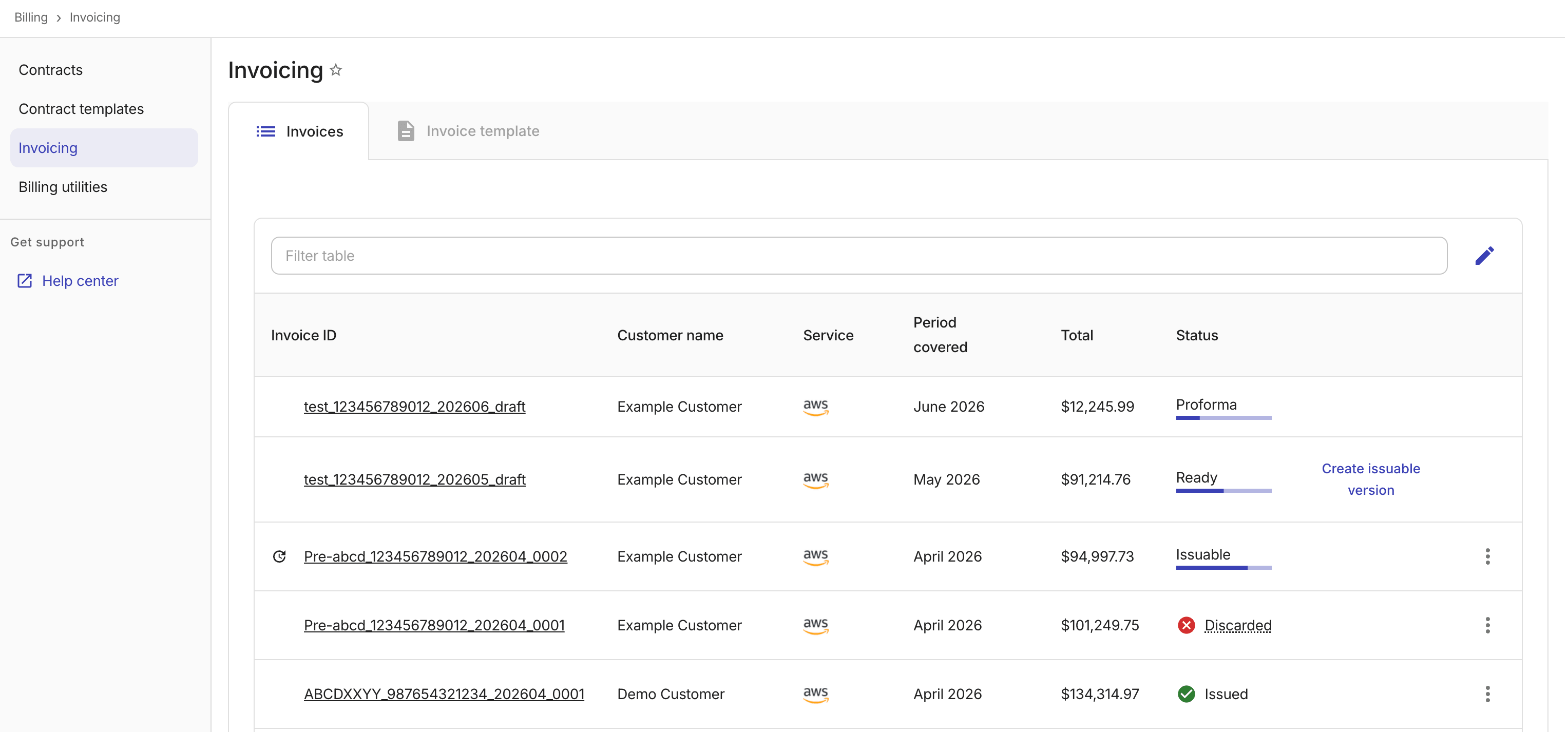
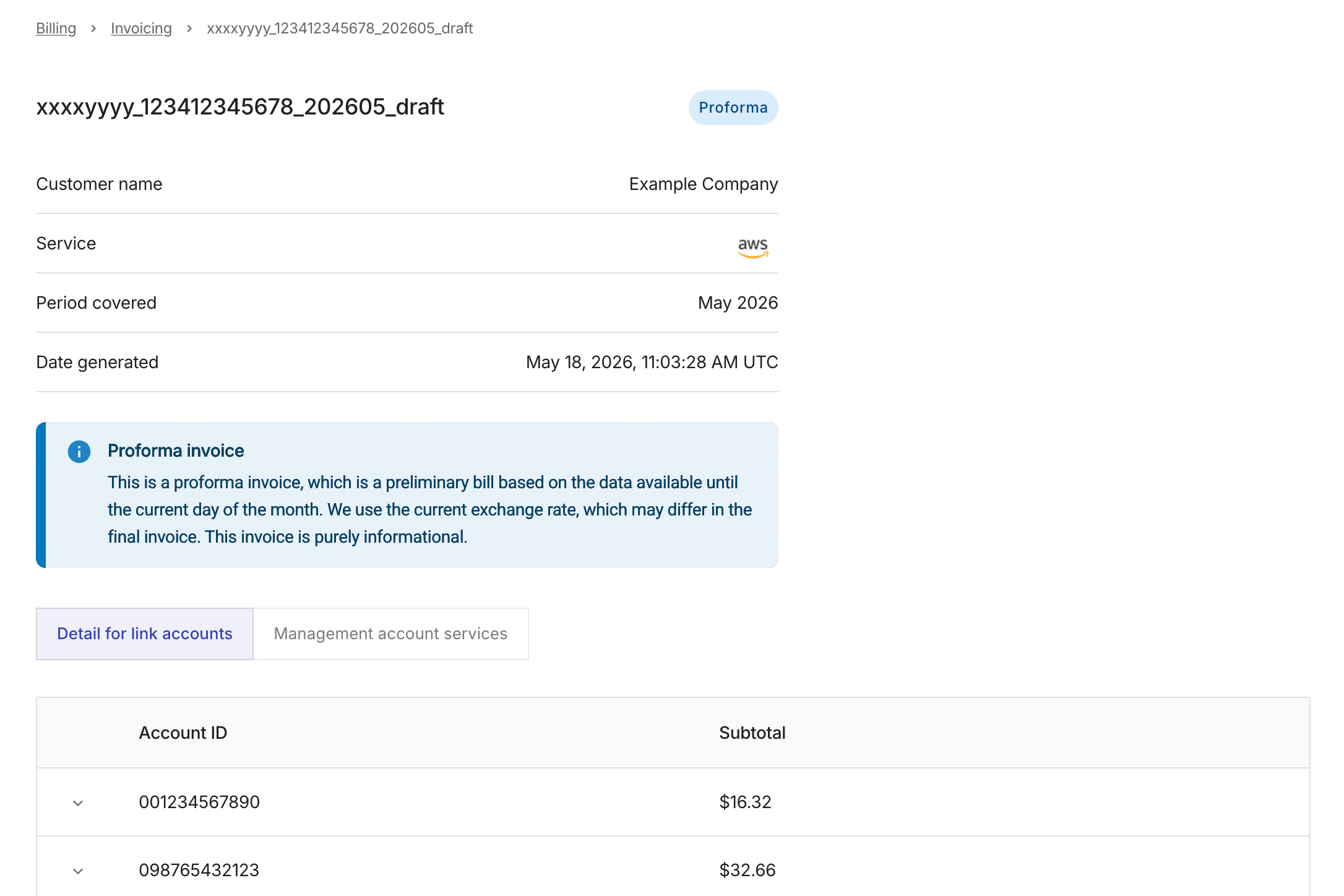
Regardless of an invoice's status, you can always view the invoice details in the console by selecting its Invoice ID.
Below is an example proforma invoice.
Download an invoice
Download options are found in the kebab menu (⋮) at the rightmost end of the invoice entry:
-
Issuable or Issued invoices: You can choose Download as PDF or Download as CSV.
-
Cancelled or Discarded invoices: You can choose Download as PDF.
Cancel an invoice
To cancel an Issued invoice:
-
Select Cancel invoice in the kebab menu (⋮) at the rightmost end of the invoice entry.
-
Enter a reason for cancelling the invoice.
-
Select Cancel invoice.
If successful, the invoice status changes to Cancelled, and the underlying draft surfaces as a new entry with a status of Ready.

Discard an invoice
To discard an Issuable invoice:
-
Select Discard invoice in the kebab menu (⋮) at the rightmost end of the invoice entry.
-
Enter a reason for discarding the invoice.
-
Select Discard invoice.
If successful, the invoice status becomes Discarded, and the underlying draft surfaces as a new entry with a status of Ready.
Recalculate or refresh invoices
To manually trigger data recalculation or invoice refresh, see Billing utilities.