EC mapping
The end customer mapping feature helps resellers manage end customer AWS accounts via the console so that billing transfer data flows through to the correct tenant. It allows resellers to add new mappings, remap existing ones, and track handshake status for each linked account.
End customer mapping is a mapping-only operation. It does not trigger any AWS-side actions such as account invitations or acceptance, CloudFormation deployment, or IAM role configuration.
For an end customer with multiple AWS payer accounts, each is independently mapped under the same RPMA.
Required permissions
- Reseller: Your DoiT account must have the Billing Transfer Admin permission.
Distributors viewing a reseller's page can see mappings but cannot add or change them.
Access EC mapping
To access the EC mapping page in the DoiT console, select Billing transfer > EC mapping from the top navigation mega menu.
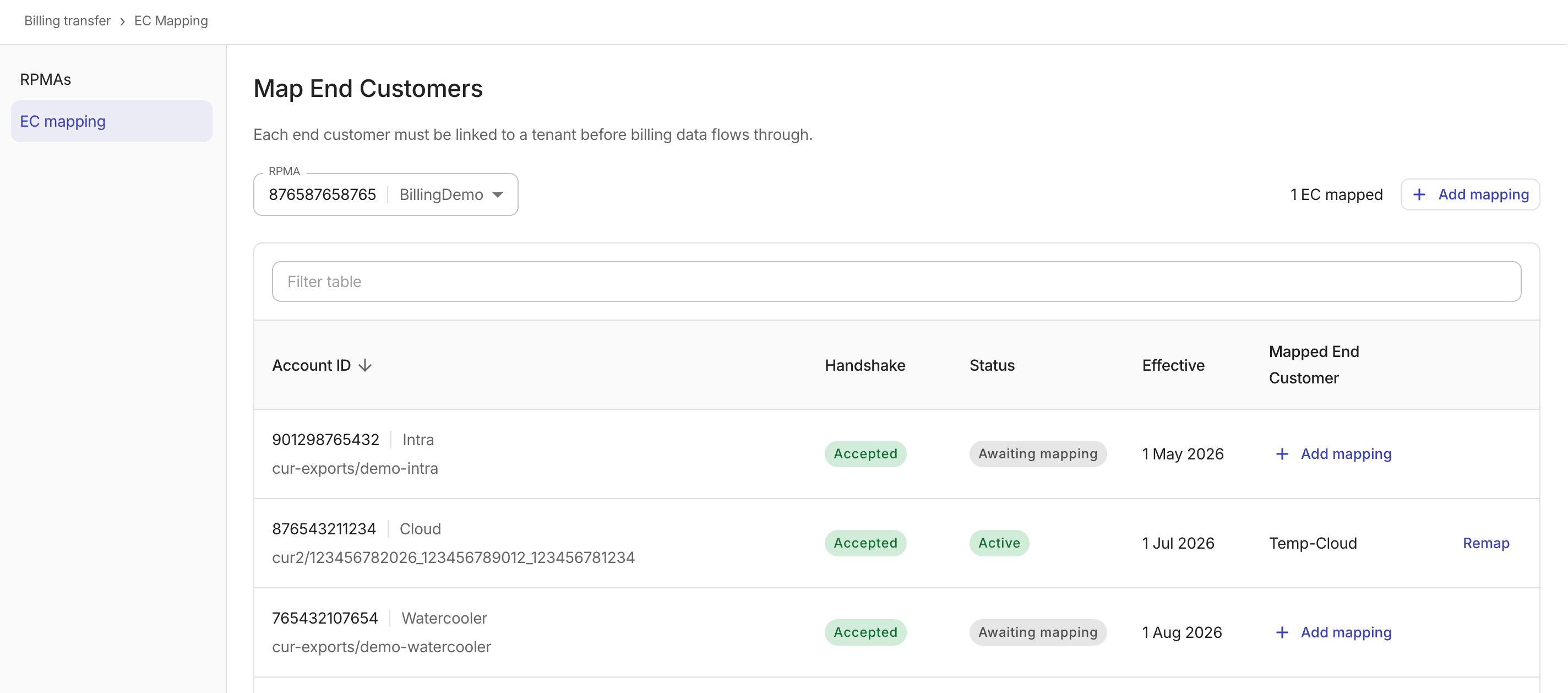
Use the RPMA dropdown at the top of the page to choose which Reseller PMA to work with. The counter next to the dropdown shows how many end customers are currently mapped for the selected RPMA.
The end-customer mapping table lists all end customers for the selected RPMA, including both mapped accounts and accepted transfers that have not yet been mapped:
-
Account ID: The 12-digit AWS account ID and account name. For accounts with an associated CUR path, the path appears below the account ID.
-
Handshake: The handshake status:
Accepted: The handshake has been accepted.Pending: The handshake is awaiting acceptance.Declined: The handshake was declined.Expired: The handshake has expired.Canceled: The handshake was canceled.
-
Status: The overall billing-transfer status of the end customer:
Awaiting mapping: The end customer has an accepted handshake but has not been mapped to a tenant yet.Active: The end customer is active and billing data is flowing.Handshake pending: The handshake is awaiting acceptance.CUR export waiting: The end customer is waiting for CUR export data.Cancelled: The billing transfer was cancelled.Declined: The billing transfer was declined.Expired: The billing transfer has expired.
-
Effective: The date from which the mapping is effective.
-
Mapped End Customer:
-
For a mapped account, this field displays the customer name of the Cloud Intelligence tenant linked to this AWS account.
-
For an unmapped account, this field displays the + Add mapping option. If the account matches an existing Cloud Intelligence tenant and has a CUR path, a suggested mapping appears; select the confirm icon (✓) to accept the mapping or the dismiss icon (✗) to decline it.
-
-
Remap: For mapped accounts, select this button to change the linked tenant.
Add a mapping
-
Select Add mapping in the table toolbar, or select + Add mapping on an unmapped row to pre-fill the account ID and CUR path.
-
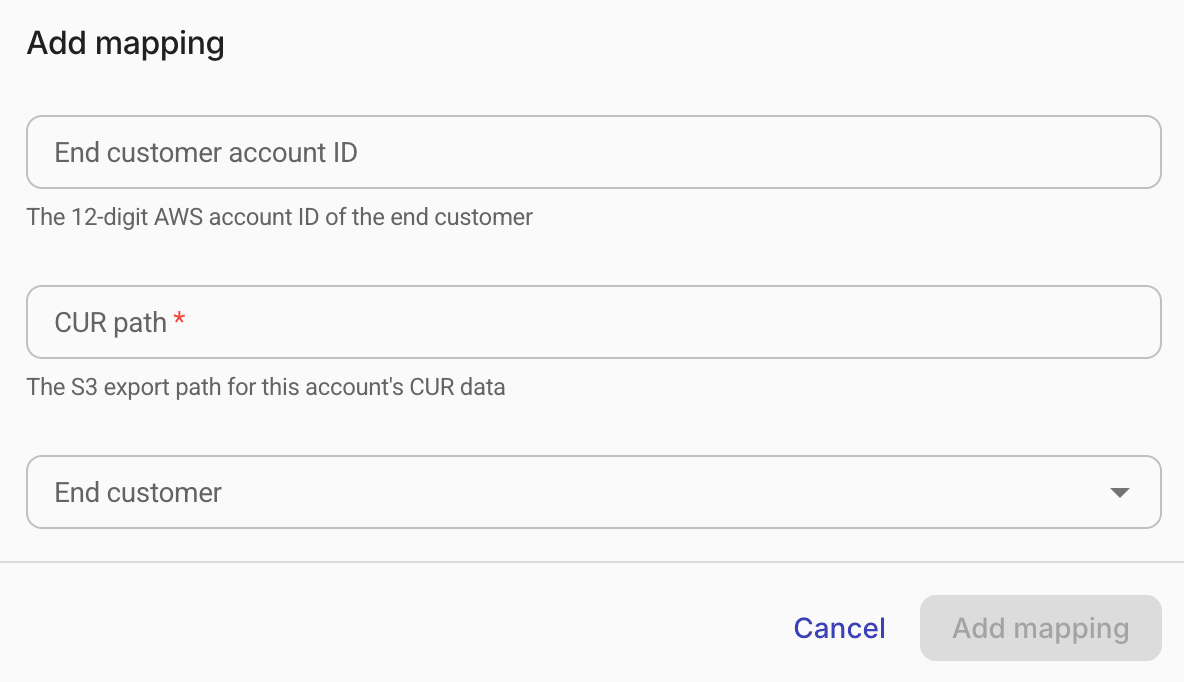
Configure the mapping.
-
End customer account ID: Select the end-customer account from the dropdown. Each option displays the 12-digit AWS account ID and the account name. Only unmapped accounts with an accepted handshake can be selected.
-
CUR path: The S3 export path for this account's CUR data. If the platform detects an S3 prefix for the selected account, the field is automatically populated. If no prefix is detected, enter the path manually.
-
End customer: Select the end customer to link.
-
-
Select Add mapping. The button is disabled until all required fields, including CUR path, are filled in.
-
For an end customer with multiple AWS payer accounts, repeat the steps above for each account.
Remap an end customer
To change the tenant linked to an end customer:
-
In the end-customer mapping table, select Remap on the row you want to change.
-
In the dialog, select a new tenant in the End customer dropdown. The account ID and CUR path are pre-filled and cannot be edited.
-
Select Remap.
What's next
Once your end customer mappings are completed:
-
For end customers with an active contract, the DoiT pipeline automatically ingests the mapping data for downstream billing processing.
-
The end customer management accounts are populated into the console and the end customer can manage them via the integrations catalog.
For questions or issues with your mappings, contact DoiT Support.