EC マッピング
エンドカスタマー・マッピング機能は、リセラーがコンソール経由でエンドカスタマーの AWS アカウントを管理し、請求トランスファーデータが正しいテナントに流れるようにするための機能です。これにより、リセラーは新しいマッピングの追加、既存マッピングの再マッピング、および各アカウントに対するハンドシェイクのステータスの追跡を行うことができます。
エンドカスタマー・マッピングはマッピングのみを行う操作です。アカウント招待や承認、CloudFormation のデプロイ、IAM ロール設定などの AWS 側のアクションは一切トリガーされません。
複数の AWS 支払アカウントを持つエンドカスタマーについては、それぞれが同一の RPMA の下で個別にマッピングされます。
必要な権限
- リセラー: お使いの DoiT アカウントには Billing Transfer Admin 権限が必要です。
リセラーのページを閲覧しているディストリビューターは、マッピングを参照することはできますが、追加や変更はできません。
EC マッピングへのアクセス
DoiT コンソールで EC マッピングページにアクセスするには、上部ナビゲーションのメガメニューから Billing transfer > EC mapping を選択してください。
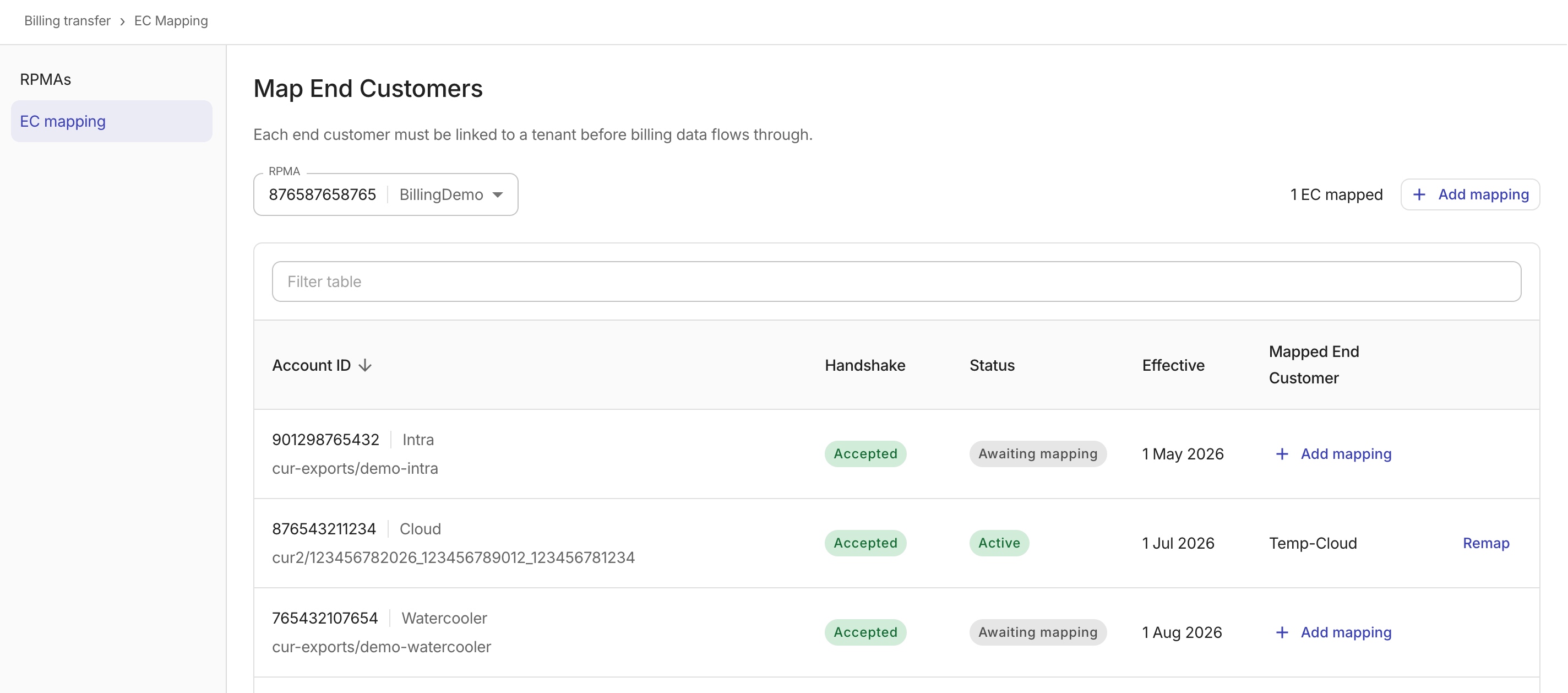
ページ上部の RPMA ドロップダウンを使用して、操作対象とする Reseller PMA を選択します。ドロップダウン横のカウンターには、選択した RPMA に対して現在マッピングされているエンドカスタマー数が表示されます。
エンドカスタマー・マッピングテーブルには、選択した RPMA に対するすべてのエンドカスタマーが表示され、マッピング済みアカウントと、まだマッピングされていない承諾済みトランスファーの両方が含まれます。
-
Account ID: 12 桁の AWS アカウント ID とアカウント名です。CUR パスが関連付けられているアカウントの場合、アカウント ID の下にパスが表示されます。
-
Handshake: ハンドシェイクのステータスです。
Accepted: ハンドシェイクが承認済みです。Pending: ハンドシェイクが承認待ちです。Declined: ハンドシェイクが拒否されました。Expired: ハンドシェイクの有効期限が切れました。Canceled: ハンドシェイクがキャンセルされました。
-
Status: エンドカスタマーの全体的な請求トランスファーのステータスです。
Awaiting mapping: エンドカスタマーには承認済みのハンドシェイクがありますが、まだテナントにマッピングされていません。Active: エンドカスタマーは有効で、請求データが流れています。Handshake pending: ハンドシェイクが承認待ちです。CUR export waiting: エンドカスタマーが CUR エクスポートデータを待っています。Cancelled: 請求トランスファーがキャンセルされました。Declined: 請求トランスファーが拒否されました。Expired: 請求トランスファーの有効期限が切れました。
-
Effective: マッピングが有効になる日付です。
-
Mapped End Customer:
-
マッピング済みアカウントの場合、このフィールドには、この AWS アカウントにリンクされている Cloud Intelligence テナントの顧客名が表示されます。
-
未マッピングアカウントの場合、このフィールドには + Add mapping オプションが表示されます。アカウントが既存の Cloud Intelligence テナントと一致し、CUR パスを持つ場合、推奨マッピングが表示されます。マッピングを受け入れるには確認アイコン (✓) を、却下するには却下アイコン (✗) を選択してください。
-
-
Remap: マッピング済みアカウントに対して、リンクされているテナントを変更する際にこのボタンを選択します。
マッピングを追加する
-
テーブルツールバーで Add mapping を選択するか、未マッピングの行で + Add mapping を選択して、アカウント ID と CUR パスを事前入力します。
-
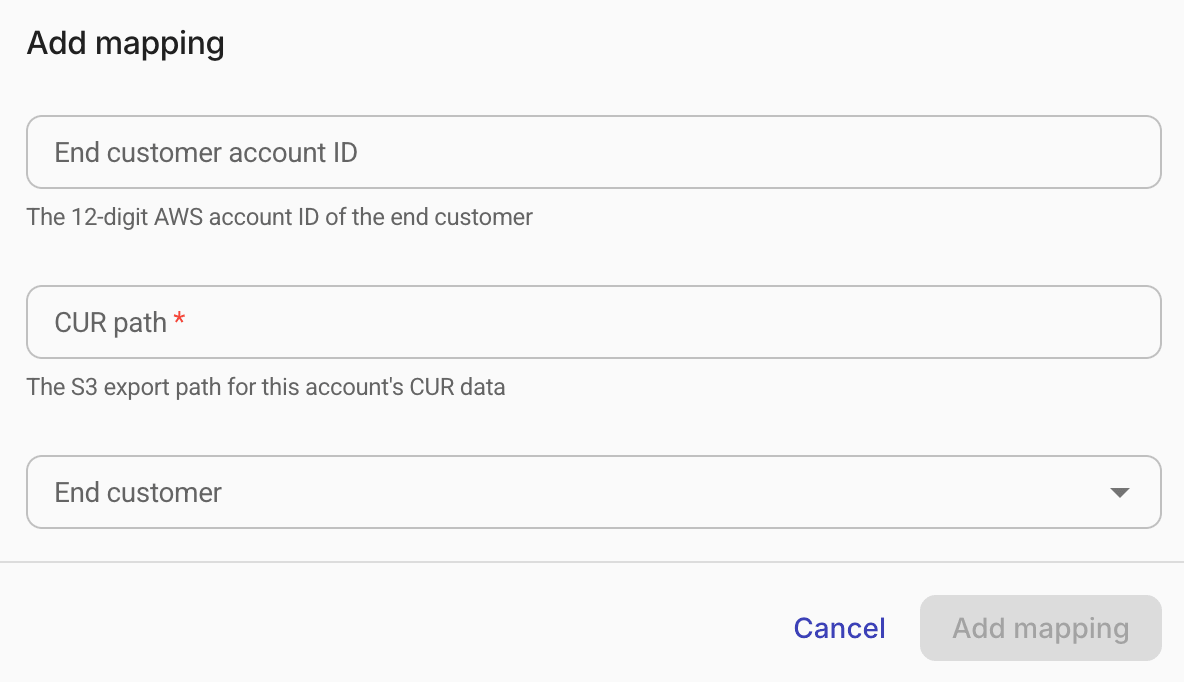
マッピングを設定します。
-
End customer account ID: ドロップダウンからエンドカスタマー・アカウントを選択します。各オプションには 12 桁の AWS アカウント ID とアカウント名が表示されます。承認済みハンドシェイクを持つ未マッピングアカウントのみ選択できます。
-
CUR path: このアカウントの CUR データの S3 エクスポートパスです。プラットフォームが選択したアカウントの S3 プレフィックスを検出した場合、このフィールドは自動入力されます。プレフィックスが検出されない場合は、パスを手動で入力してください。
-
End customer: リンクするエンドカスタマーを選択します。
-
-
Add mapping を選択します。CUR path を含むすべての必須フィールドが入力されるまで、このボタンは無効です。
-
複数の AWS 支払アカウントを持つエンドカスタマーの場合は、各アカウントについて上記の手順を繰り返してください。
エンドカスタマーを再マッピングする
エンドカスタマーにリンクされているテナントを変更するには、次の手順を実行してください。
-
エンドカスタマー・マッピングテーブルで、変更したい行の Remap を選択します。
-
ダイアログで End customer ドロップダウンから新しいテナントを選択します。アカウント ID と CUR パスは事前入力されており、編集はできません。
-
Remap を選択します。
次のステップ
エンドカスタマー・マッピングが完了すると、次のことが行われます。
-
DoiT のパイプラインがマッピングデータを自動的に取り込み、後続の請求処理に使用します。
-
エンドカスタマーの管理アカウントがコンソールに追加され、エンドカスタマーは integrations catalog を介してそれらを管理できます。
マッピングに関する質問や問題がある場合は、DoiT Support にお問い合わせください。