Onboard new DPMA
As a distributor, you onboard your DPMAs once and then map each Reseller PMA (RPMA) to the corresponding DoiT reseller tenant. Resellers and end customers can then onboard without requiring access to the EC's AWS management account.
Launch the wizard
The DPMA onboarding wizard walks you through deploying an AWS CloudFormation stack for each Distributor Program Management Account (DPMA) you operate, then registering each one with Cloud Intelligence.
To launch the onboarding wizard:
-
Sign in to the DoiT console.
-
From the top navigation mega menu, select Billing transfer > Onboard new DPMA.
Alternatively, select Onboard new DPMA from the DPMAs page.
The wizard contains two steps, as explained below.
Step 1: Deploy the DPMA stack
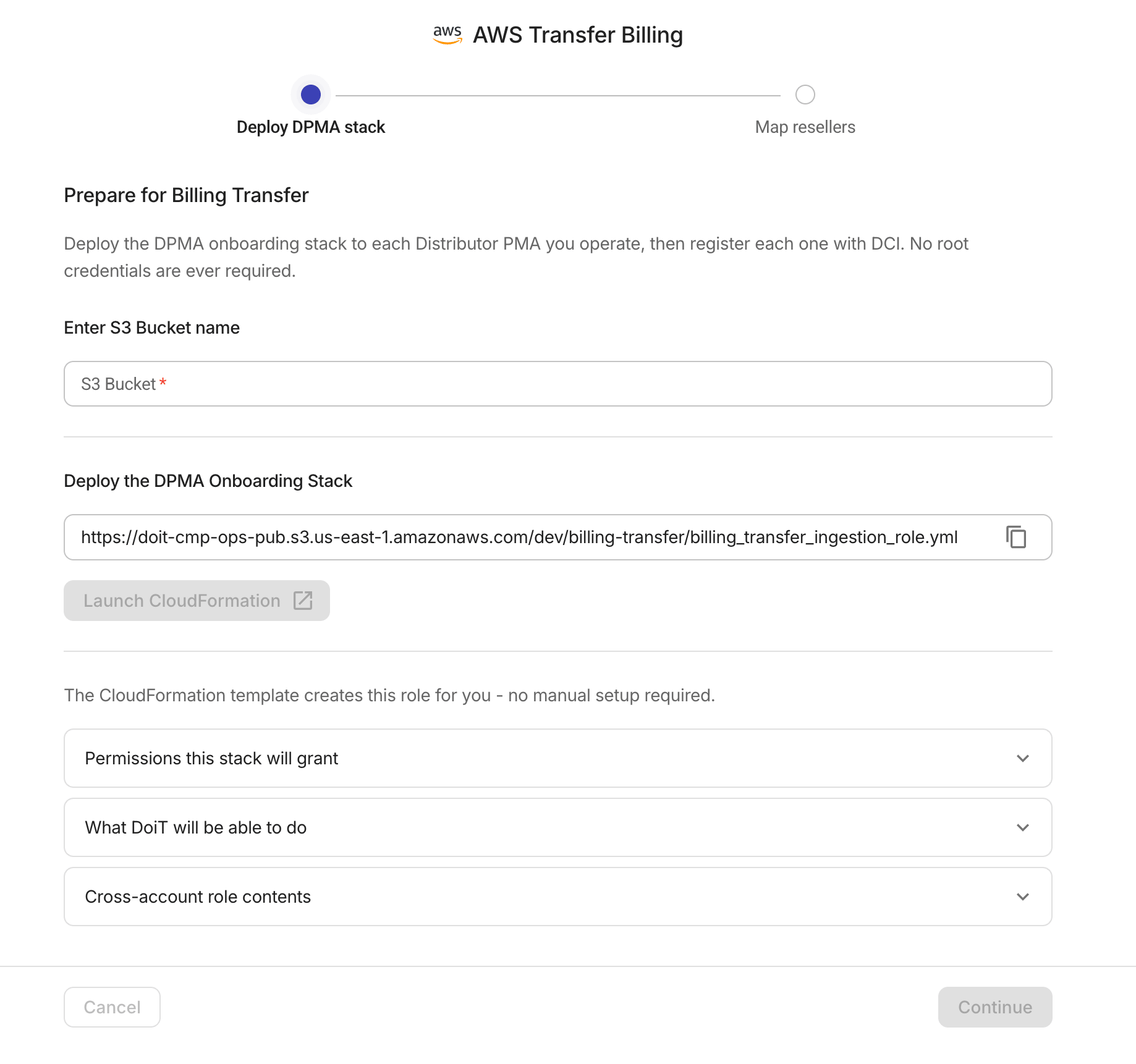
In this step, you provide the Amazon S3 bucket that holds your CUR data and deploy the DPMA onboarding Stack on each DPMA you operate.
-
Enter the name of the S3 bucket (bucket name should follow AWS general-purpose bucket naming rules).
-
Select Launch CloudFormation to open the AWS CloudFormation console in a new tab with the template URL, stack name, and S3 bucket pre-filled.
You can use the CloudFormation template URL displayed in the console to download a copy for reference.
The stack will create a cross-account IAM role (
doitintl_billing_transfer) with a trust policy that DoiT assumes to read CUR data and discover Billing Transfer relationships. Read the information provided in the DoiT console for details. -
In the AWS CloudFormation console, review the stack parameters and create the stack.
Cloud Intelligence detects the deployment automatically.
-
If the IAM role created by the stack is missing a required permission or contains extra permissions, the wizard displays an error with troubleshooting steps:
-
Make sure you deployed the latest version of the CloudFormation template; it may have been updated recently.
-
If you customized the template, restore the role policy from the original template.
-
-
When the deployment succeeds, usually within two to three minutes, the wizard confirms the DPMA is registered and displays the DPMA AWS account ID.
-
-
Select Continue to proceed to the next step.
Step 2: Map resellers
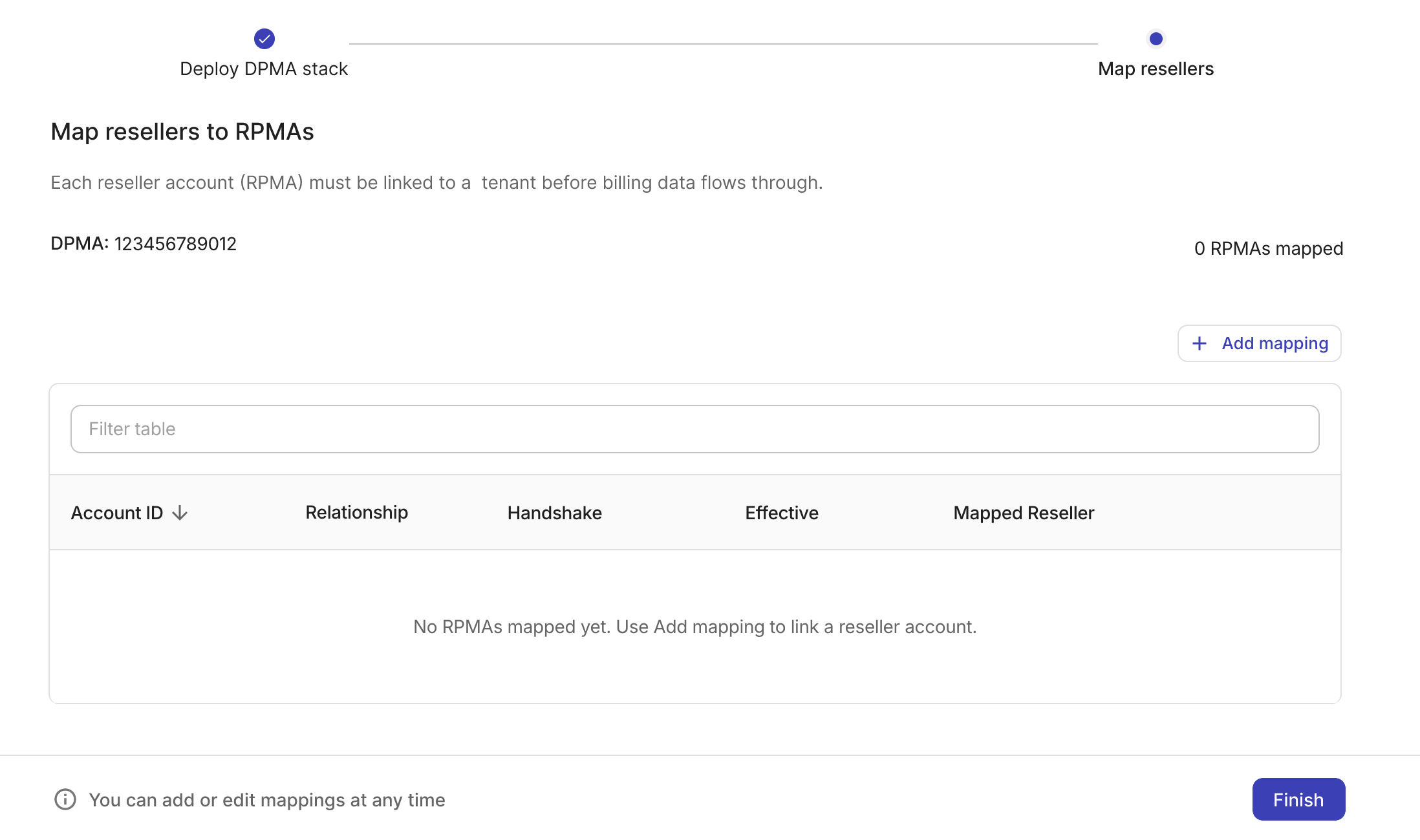
Each reseller Program Management Account (RPMA) must be linked to a DoiT reseller tenant before billing data flows through.
Select Add mapping in the table toolbar to add an RPMA mapping. You can also select Finish to exit the wizard and add the mappings later via the RPMA mapping page.
Cancel onboarding
Select Cancel in the wizard footer to reset the wizard to its initial state. The Cancel button is available while the wizard is waiting for deployment or after a validation failure.
Canceling resets your local session only. If you already deployed the CloudFormation stack in AWS, you may need to delete it manually from the AWS CloudFormation console before starting over.
IAM permissions reference
The following table lists all IAM actions included in the role policy. The stack validates this exact set; any missing or extra actions would fail the deployment.
| AWS service | Actions |
|---|---|
bcm-data-exports | CreateExport, GetExport, ListExports |
cur | DescribeReportDefinitions |
s3 | ListBucket, GetObject (CUR S3 bucket only) |
billingconductor | CreateBillingGroup, ListBillingGroups, ListAccountAssociations, ListPricingPlans |
organizations | ListHandshakesForOrganization, DescribeHandshake, InviteOrganizationToTransferResponsibility, ListChildren, DescribeOrganizationalUnit |
iam | GetRole, SimulatePrincipalPolicy, ListAttachedRolePolicies, GetPolicy, GetPolicyVersion (own role only) |