Work with recommendations
PerfectScale for Commitments analyzes your usage and generates updated commitment recommendations throughout the month. Instead of one large purchase, PerfectScale for Commitments builds a commitment ladder, a sequence of incremental purchases spread over time. This approach maximizes savings while reducing the risk of over commitment.
Once your payer accounts are onboarded, it takes about 90 minutes for PerfectScale to generate recommendations. This page describes how to select your recommendation strategy and work with purchase plans.
If your account has both Compute and Database Savings Plans enabled, use the Compute and Database tabs at the top of the page to view recommendations for a specific service type.
Required permissions
- To view recommendations, queued purchases, inventory, and settings you must have the PerfectScale Commitments Read Only permission or PerfectScale Commitments Admin.
- To change settings, policy, or purchase state, you must have the PerfectScale Commitments Admin permission.
Review current savings
The Commitment Recommendation tab shows your current coverage against the PerfectScale recommendations. To generate recommendations, PerfectScale analyzes the current inventory, taking into account expired commitments, queued purchases, your configured preferences, and cloud provider APIs to produce optimal recommendations and calculate potential savings.

-
Current Commitment ($/hour): your total active hourly commitment across all commitments.
-
Recommended Commitment ($/hour): the target hourly commitment calculated based on your usage patterns.
-
Potential Additional Savings ($/month): estimated monthly savings if you reach the recommended commitment.
The Current savings coverage chart shows your usage trends compared to current and recommended commitment levels, including daily high, median, and daily low usage bands.
Hover over the chart to reveal exact values for each series at that point in time, so you can assess how much of your actual usage range the recommended commitment would cover.
If your account uses Flexsave, select the Include Flexsave checkbox to include DoiT Flexsave commitments in the coverage chart and metrics alongside your customer-purchased commitments.
Preview and apply commitment policy
The Commitment policy dropdown lets you simulate how a different risk profile would affect the recommendation.

-
Conservative (Low risk): Commits only to your most stable usage, reducing the risk of underutilization. Reaches the target commitment more gradually.
-
Balanced (Recommended): Balances savings with a healthy buffer to absorb usage dips. Suitable for most workloads.
-
Max Savings: Targets higher coverage faster with the highest savings potential, but uses a smaller buffer that may increase underutilization risk if your usage decreases.
Selecting a different policy puts the page into Preview Mode. The metric cards and chart update immediately to reflect the new policy.
To review the full impact and apply the change, select Review Changes. This opens the confirmation dialog.
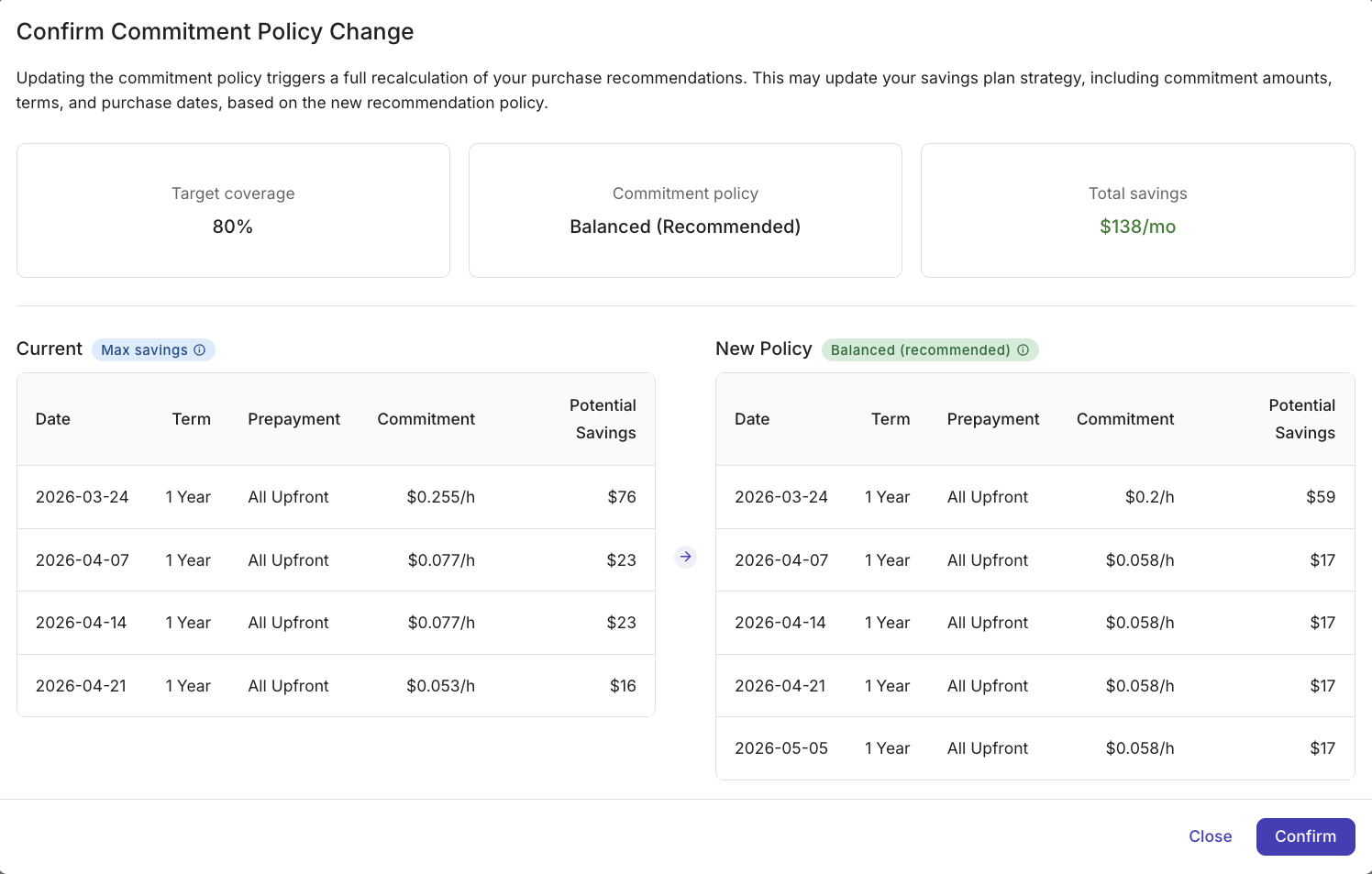
The confirmation dialog summarizes your Target coverage, Commitment policy, and Total savings and compares your current purchase ladder against the proposed new ladder, with each step's date, term, payment option, commitment amount, and potential savings.
Select Confirm to apply the policy change. This triggers a full recalculation of your purchase recommendations, which updates commitment amounts, terms, and purchase dates.
Understanding laddering
Laddering is a risk-mitigation strategy where commitments are purchased in smaller, staggered chunks with different start and end dates, rather than one large lump sum. This creates a "ladder" of overlapping commitments.
Several key principles of laddering commitments:
-
Smaller commitments do not lock you into a massive spend if your workload decreases.
-
Commitments expire gradually and avoid "renewal shock" where a large portion of your coverage drops overnight.
-
Each step of the ladder is an opportunity to re-evaluate your usage and optimize the next purchase.
Before every purchase step, the system re-evaluates your current usage. If a dip is detected, it will naturally pause or reduce the size of the next purchase to prevent locking you into unneeded commitments.
Approve purchases
The Queued Purchases tab shows the commitment ladder that PerfectScale has generated based on your current commitment policy. A ladder visualizes each scheduled step, hover over a bar to see the cumulative commitment at that point.
The Laddering Policy Summary panel shows the parameters driving the current plan.

-
Purchase Steps ($/h): the commitment amount added at each step.
-
Commitment Term: 1 Year or 3 Years.
-
Max Single Purchase (% of total): the ceiling on how large any single step can be.
-
Prepayment Option: No Upfront spreads the full cost across monthly payments with no money due at purchase. Partial Upfront requires at least half the total cost upfront and bills the rest monthly, in exchange for a lower rate. All Upfront charges the entire amount at purchase and offers the deepest discount. For more information, see AWS Savings Plans FAQ.
-
Recommended Commitment: the target commitment the ladder is building toward.
-
Total Laddering Cost ($/h): the cumulative commitment cost once all steps are complete.
The table below the chart lists every step with its purchase date, commitment type, commitment amount, payment option, days until purchase, and current status. When multiple service types are enabled, each row also shows a Compute or Database icon indicating the commitment type for that step. Select Edit Settings to adjust these parameters in the Settings tab.
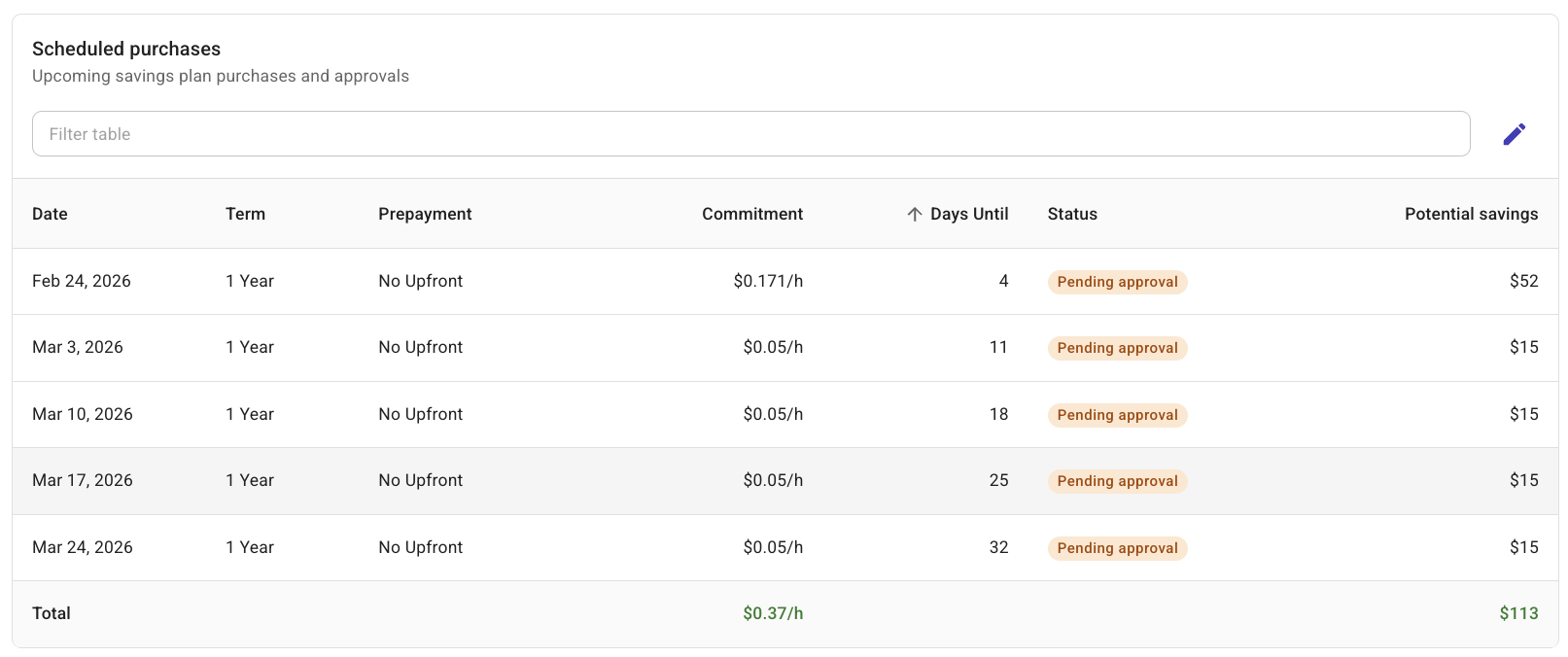
When you approve purchases, you allow PerfectScale to buy commitments one step at a time following the laddering plan, up to the ladder’s ending hourly total (Total Laddering Cost, $/h) at the time of approval. The next purchase runs automatically only if it keeps your cumulative hourly commitment within that approved total. If the next purchase would push you above this amount, that step waits until you approve the higher cost.
To approve purchases:
-
Look for the orange dot on the service-type tab or Queued Purchases in the sidebar, this indicates a new plan is waiting for your approval.
-
At the top of the Queued Purchases tab, select Approve Purchases to open the approval dialog.
-
Review the approval dialog, which summarizes what you are approving. When you have both Compute and Database enabled, the dialog shows a row for each service type with an aggregated total:
-
Recommended Commitment (you are approving this rate): the target hourly commitment ($/h) the ladder is building toward.
-
Current SP (Inventory): your existing active commitment at the time of approval.
-
Purchase Steps: the number of individual purchases that will be scheduled.
-
Potential Savings (may change): estimated monthly savings once the ladder is complete.
A commitment breakdown bar visualizes the proportion of your current inventory versus new purchases for each service type.
-
-
Select Approve to confirm. The button label shows the total commitment rate ($/h) across all service types you are approving. The status updates to green and the orange dot disappears.
After approval, scheduled purchases execute automatically on their dates. You can pause at any time. When a commitment plan expires, it is automatically renewed based on your Recommended Commitment at that time.
Notifications
Enable PerfectScale for Commitments notifications to be notified when purchases need approval and each time PerfectScale completes a commitment purchase. As each scheduled step is its own purchase, you will get one notification per ladder step.
Pause and resume purchases
After approving a laddering plan, you can pause execution at any time, for example, due to an upcoming workload migration, or a decommission that will reduce eligible usage. Pausing prevents new commitments from being purchased while you review the situation.
To pause, select Pause Purchases in the header of the Queued Purchases tab. In the dialog, optionally enter a note explaining the reason — the note is saved and visible in the scheduled purchases table. Select Pause to confirm. All remaining scheduled purchases are stopped immediately.
To resume, select Resume Purchases in the same header. PerfectScale continues from the next scheduled step, executing remaining purchases on their original dates.
Monitor commitments
The Commitments Inventory tab shows all Savings Plans (SP) and Reserved Instances (RI) associated with the selected payer account. It shows plans you purchased manually and those bought automatically by PerfectScale through the laddering process. Auto-purchased plans appear here as each step runs.
In addition to checking this tab, you can enable PerfectScale for commitments notifications to receive a notification each time a ladder purchase completes.

-
Current Total Commitments: total hourly commitment ($/h) across all active plans in the account.
-
Commitment Utilization: average utilization rate across all active commitments. Higher utilization means commitments are being applied effectively to eligible usage.
-
Next Commitment Expiration: the date and hourly commitment rate of the next commitment to expire, with days remaining.
The Commitments Timeline chart shows each active commitment as a stacked area over time. Each layer represents one plan, and the x-axis spans the full timeline of active commitments. This makes the ladder structure visible — you can see how individual plans overlap, when each one starts and ends, and how the total commitment level builds up as new steps are purchased.
The commitments table provides a row-by-row view of every plan. If the Include Flexsave checkbox is selected, DoiT Flexsave commitments are shown alongside your customer-purchased plans.

-
Use the tabs at the top to switch between Active, Expired, and All commitments.
-
If you are in the Compute tab, a default filter shows only Compute Savings Plans, and if you are in the Database tab, a default filter shows only Database Savings Plans. To display Reserved Instances, remove the filter.
-
Each row shows the plan ID, status, commitment type (such as Compute Savings Plan, Database Savings Plan, or Reserved Instance), term (1 Year or 3 Years), payment option, hourly commitment ($/h), month-to-date savings, month-to-date utilization, purchaser, whether it was auto-purchased by PerfectScale, and its start and end dates.
Configure settings
The Settings tab lets you configure PerfectScale for Commitments recommendations and manage payer accounts. When Database Savings Plans are enabled, Settings is organized into three tabs:
-
Accounts: manage payer accounts and commitment purchase accounts.
-
Compute: manage commitment settings and preferences for compute.
-
Database: configure recommendation and automation settings for Database Savings Plans.
If you have unsaved changes when switching between tabs, a dialog prompts you to discard or continue editing.
Accounts tab

The Accounts tab lets you choose cloud providers, enable supported service types, and configure payer accounts used for commitment purchases.
Cloud selection controls which provider configurations are available:
-
Amazon Web Services: currently supported for commitments management.
-
Google Cloud: marked Coming Soon and not yet configurable.
Select services defines which Savings Plan categories are included in recommendations for the selected cloud:
-
Compute: covered by AWS Compute Savings Plans, which apply to compute-oriented services such as EC2, Fargate, and Lambda.
-
Database: covered by AWS Database Savings Plans, which apply to database-oriented services such as RDS, Aurora, DynamoDB, and ElastiCache and other services.
Payer accounts lists onboarded payer accounts and lets you choose the Commitments purchasing account for each selected payer. This account is used as the purchase destination when new commitment steps are scheduled. See Set up PerfectScale for Commitments for more information.
Compute and Database tabs

Each service-type tab (Compute and Database) contains the following settings.
Recommendation Settings define the target and constraints for what PerfectScale for Commitments will recommend:
-
Commitment policy: how conservative the system is with commitments. Choose Conservative (Low risk) for smaller, more steps; Balanced (Recommended) for a moderate pace; or Max Savings for larger steps that reach the target faster. See Preview and apply policy.
-
Maximum commitment ($/h): PerfectScale will not recommend commitments above this amount. Set to
0to apply no ceiling. -
Prepayment option: the payment structure for purchased Savings Plans: No Upfront, Partial Upfront, or All Upfront. See Approve purchases for explanations.
-
Preferred commitment period: 1 Year or 3 Years. PerfectScale uses this as the default term when generating purchase recommendations.
Automation Settings control when and how purchases are executed.
The current automation mode is Requires Approval: PerfectScale for Commitments prepares commitment purchases automatically, then waits for your approval before execution. Autonomous Purchasing (coming soon) will purchase commitments automatically based on your commitment policy without requiring approval.
-
Purchase decision intervals: how often PerfectScale for Commitments evaluates whether a new purchase step should be scheduled. Choose Weekly if your usage is growing or fluctuating. Choose Monthly if your usage is stable and you prefer purchase decisions to align with your billing cycle.
-
Minimum commitment purchase ($/h): the minimum step size in the purchase ladder. Purchases below this threshold are skipped.
-
Latest monthly purchase date: the cutoff day of the month after which no new purchases are scheduled until the following month.
NoteBy default the 25th of the month is set as the last purchase date. The latest configurable day is the 28th, leaving a buffer before month-end to avoid scheduling conflicts with billing cycles.
To apply changes, select Save changes. This triggers a full recalculation of the recommendations and purchase ladder for the selected service type.