Subscribe to commitment updates
Commitment subscriptions let you deliver a summary of your commitment's progress on a schedule via email or Slack, including a snapshot chart of the commitment, period details, period commitment, and a link to view the commitment in the console.
Required permissions
-
To create, edit, or delete a commitment subscription, you must have the Cloud Analytics Admin permission.
-
You can subscribe or unsubscribe yourself from email notifications of any scheduled commitment visible to you.
Create a subscription
To create a new subscription:
-
Sign in to the DoiT console, select Rate optimization > Commitment manager from the top navigation mega menu.
-
Locate the commitment of interest.
-
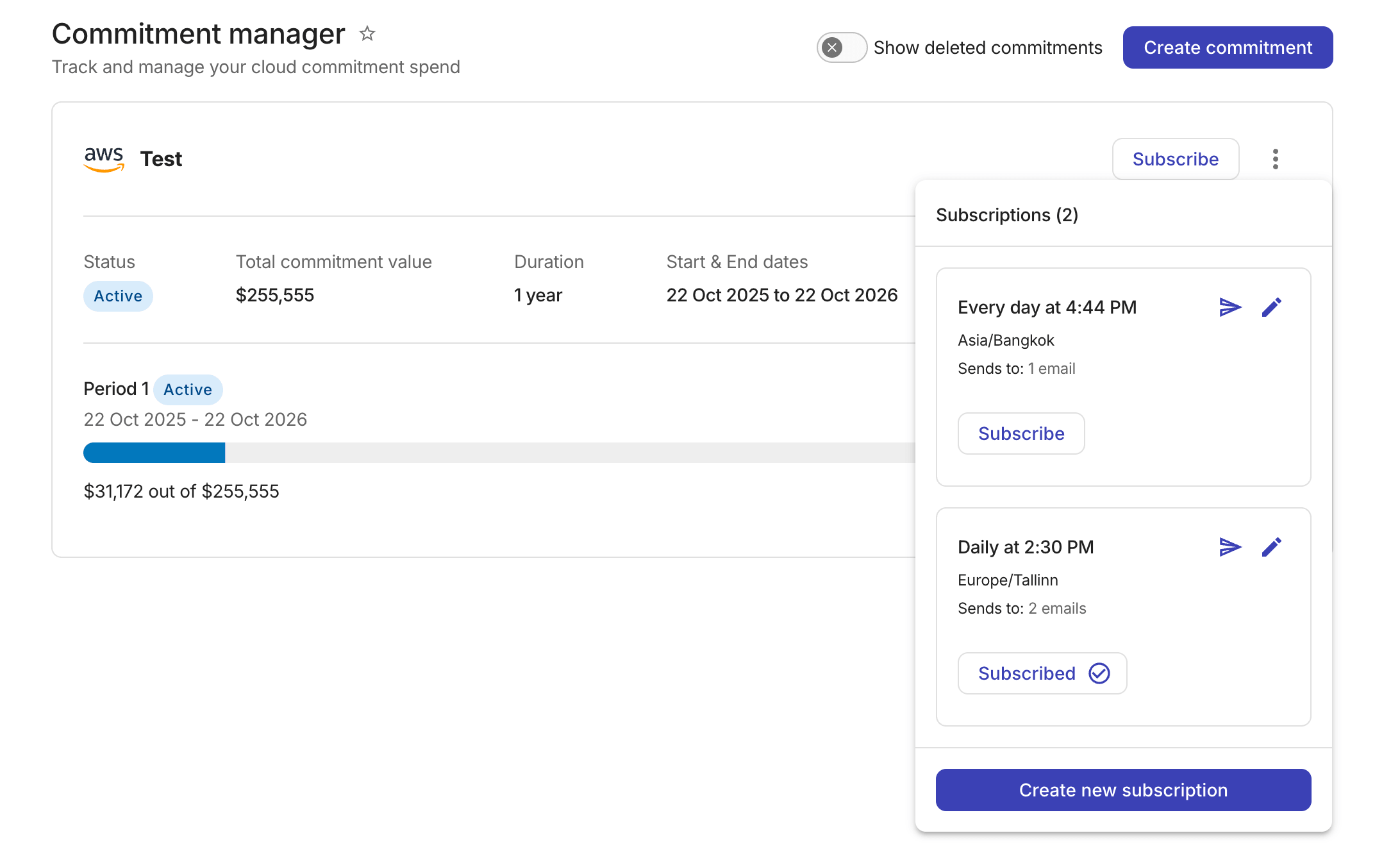
Select Subscribe in the top-right corner of the commitment card. You'll see the list of current subscriptions and the option to create a new one.
-
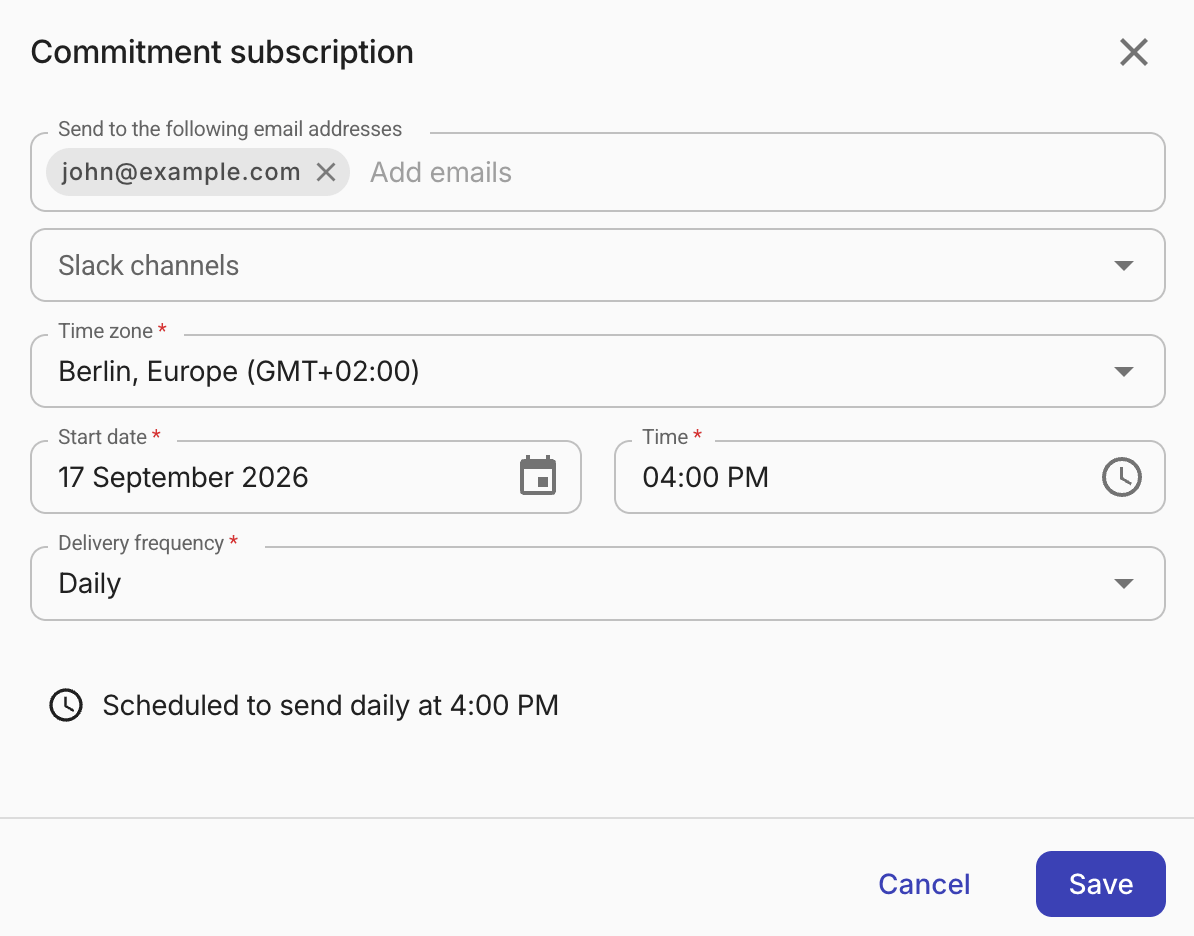
Select Create new subscription and configure it.
-
Email addresses: Email addresses of the intended recipients. The email addresses must belong to your organization's approved domains (see General settings) and must have been invited to the organization (see Create a new user).
-
Slack channels: If you have created a shared Slack channel with DoiT or installed the DoiT app for Slack in your workspace, you can choose one or more Slack channels to receive the subscriptions.
-
Time zone, Start date, Time: The start date of the subscription and the time (hour:minute, timezone) of delivery.
-
Delivery frequency: The frequency of delivery:
Daily,Weekly,Monthly,Annually, orCustom.
-
-
Save the configuration.
Processing new subscriptions can take up to an hour. During this period, there is no automatic delivery. To verify that a subscription produces the expected content right away, send a test delivery.
Edit a subscription
To edit a commitment subscription:
-
In the DoiT console, navigate to the Commitment manager page, locate the commitment of interest, and then select Subscribe.
-
Find the target subscription from the list.
-
Select the pencil icon for editing, update the configuration, and save your changes.
Send a test delivery
To verify that a subscription produces the expected content without waiting for the scheduled run, send a test delivery:
-
In the DoiT console, navigate to the Commitment manager page, locate the commitment of interest, and then select Subscribe.
-
Locate the target subscription from the list.
-
Select the Send test now icon (
) next to the subscription name, or open the subscription for editing and select Send test now. -
Choose who receives the test:
-
By default, the test is sent only to your email address.
-
If you're the subscription owner, you can select Everyone subscribed to send the test to all email recipients and Slack channels on the subscription.
-
-
Select Send test. The test delivery arrives within a few minutes.
You can send up to three test deliveries per hour.
Delete a subscription
Deleting a subscription removes it for all email recipients and Slack channels in your organization.
To delete a commitment subscription:
-
In the DoiT console, navigate to the Commitment manager page, locate the commitment of interest, and then select Subscribe.
-
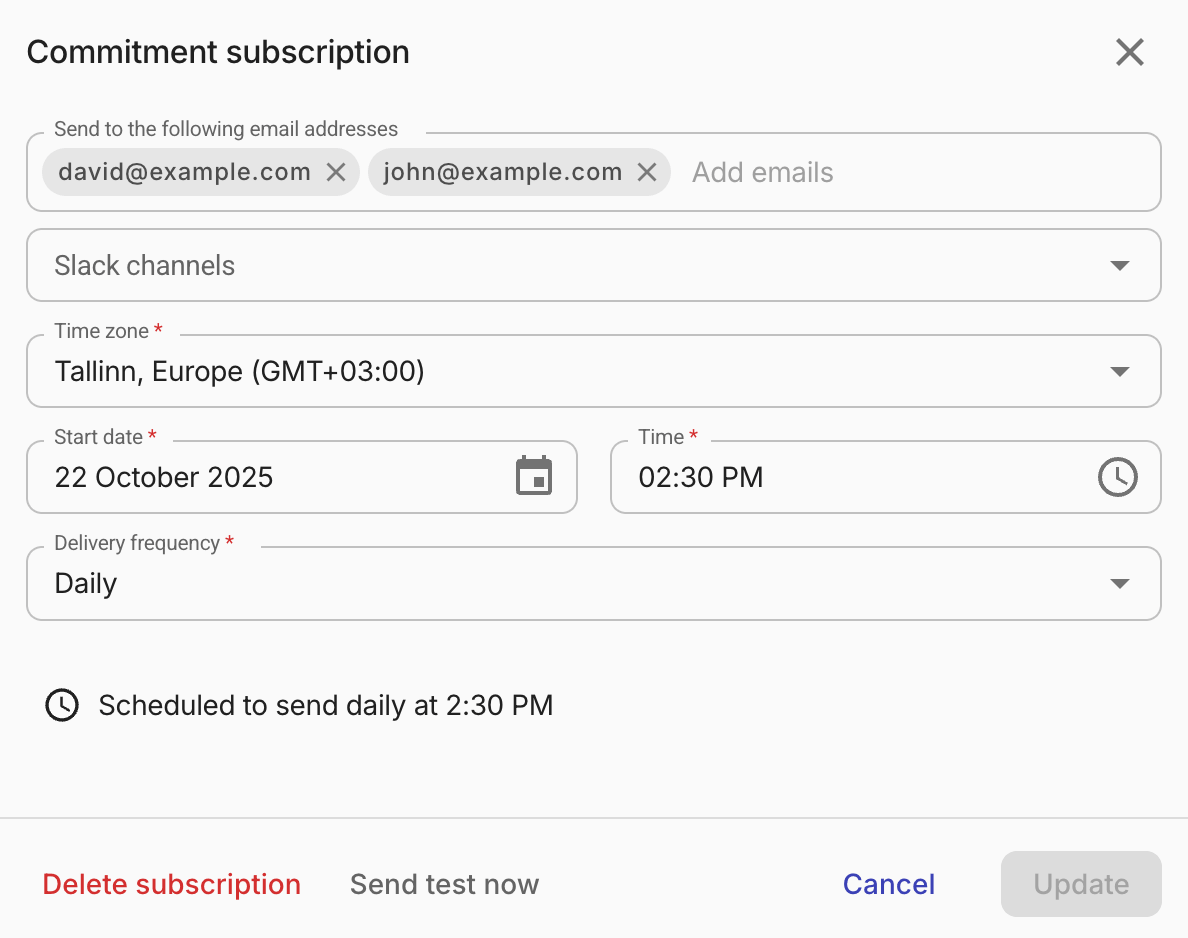
Locate the target subscription from the list and select the pencil icon for editing.
-
In the Commitment subscription dialog, select Delete subscription.
Subscribe and unsubscribe for email notifications
Users in your organization who have access to a scheduled commitment can subscribe or unsubscribe themselves for email notifications anytime.
To subscribe for email notifications:
-
In the DoiT console, navigate to the Commitment manager page, locate the commitment of interest, and then select Subscribe.
-
Find the target subscription from the list and select Subscribe.
If successful, the Subscribe button becomes Subscribed.
To unsubscribe, follow the same process above. The only difference is that you select the Subscribed button for unsubscribing.