AI Hub connectors
The Connectors page in AI Hub shows the status of your AI provider data connections in one place. Each row represents an AI integration from the DoiT integrations catalog, with its live connection status, and a link to connect or manage it.
To open the Connectors page, go to Manage > Connectors in the AI Hub sidebar.
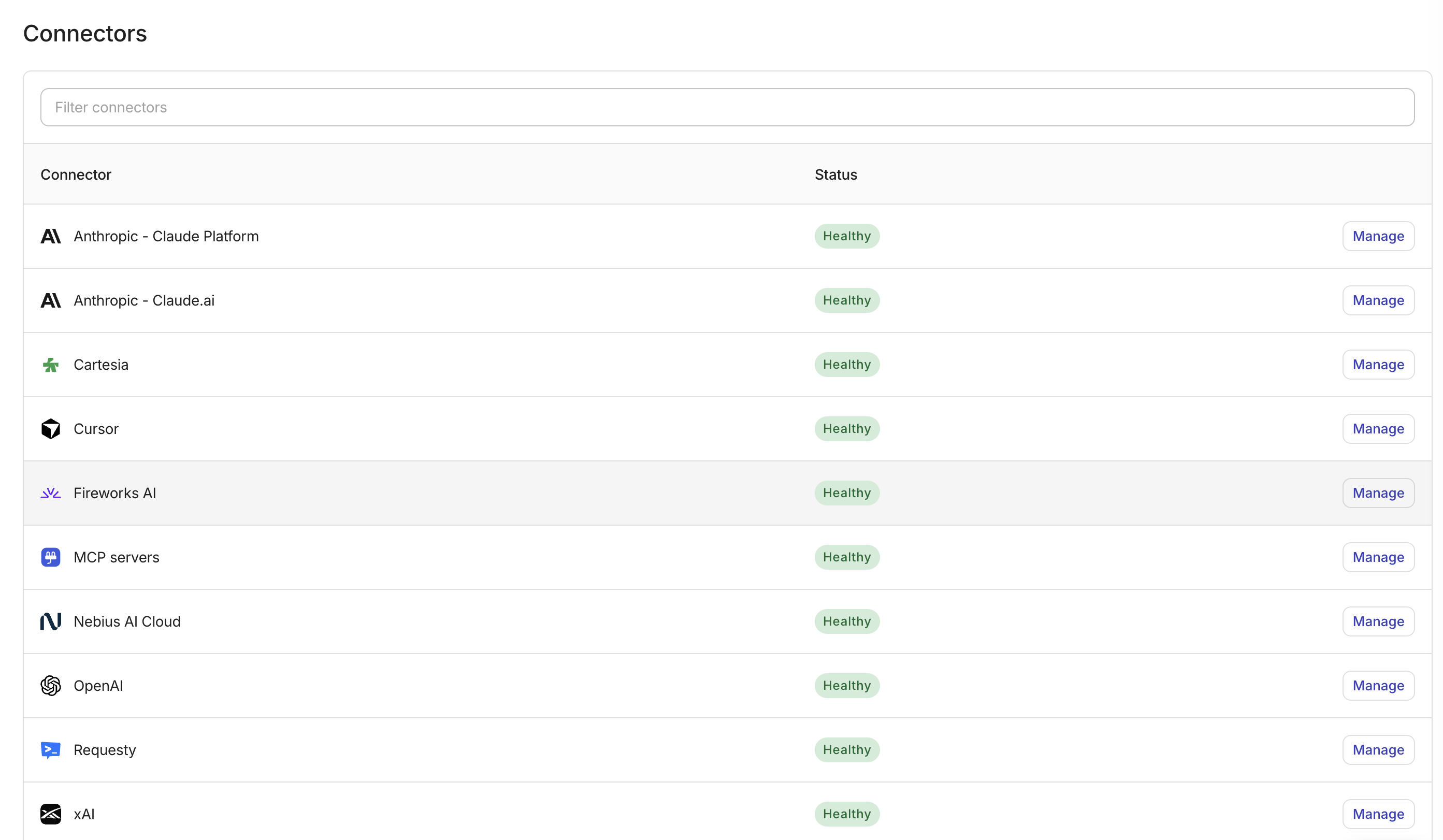
Supported connectors
The Connectors page displays all AI integrations available in the DoiT integrations catalog. These include:
- Anthropic (Claude Platform)
- Anthropic (Claude.ai)
- Anyscale
- Cartesia
- Cursor
- Databricks
- Fireworks AI
- MCP servers
- Nebius AI Cloud
- OpenAI
- Requesty
- Snowflake
- xAI
Connector statuses
Each connector displays a status badge that reflects its current connection health. The possible statuses are:
| Status | Description |
|---|---|
| Healthy | The connector is active and importing data normally. |
| Importing | The connector is connected and an initial data import is in progress. |
| Paused | The connector is connected but data imports are paused. |
| Unhealthy | The connector is connected but one or more connections have errors, such as expired credentials or failed syncs. Hover over the badge to see details. |
| Not connected | The connector has not been set up for your organization. |
Connectors are sorted by status severity by default. Connected connectors appear first (starting with Healthy), followed by those that need attention (Importing, Paused, Unhealthy), and then connectors that are Not connected. Connectors with the same status are sorted alphabetically by name.
Connect or manage a connector
Each connector row includes an action button on the right side of the table:
-
Connect: Displayed for connectors with a Not connected status. Select Connect to open the onboarding flow for that provider, where you can set up the data connection.
-
Manage: Displayed for connectors that are already connected (any status other than Not connected). Select Manage to open the management page for that connector, where you can review connection details, troubleshoot issues, or update credentials.
Filter connectors
Use the filter bar above the table to narrow the list. You can filter by connector name or by status.
Presentation mode
When your organization is in Presentation mode, the Connectors page does not display connector data. Because connector statuses reflect your own account rather than the demo customer, the page shows an explanatory message instead of the table. This prevents exposing your organization's connection details during screenshares.