カルーセルウィジェット
カルーセルウィジェットは、ダッシュボード上でレポートのプレイリストを順番に表示し、1 つのウィジェットスペースに複数のレポートを表示できるようにします。
カルーセルウィジェットを追加する
カルーセルウィジェットは、空ではないダッシュボードに追加できます。
-
対象のダッシュボードに移動します。
-
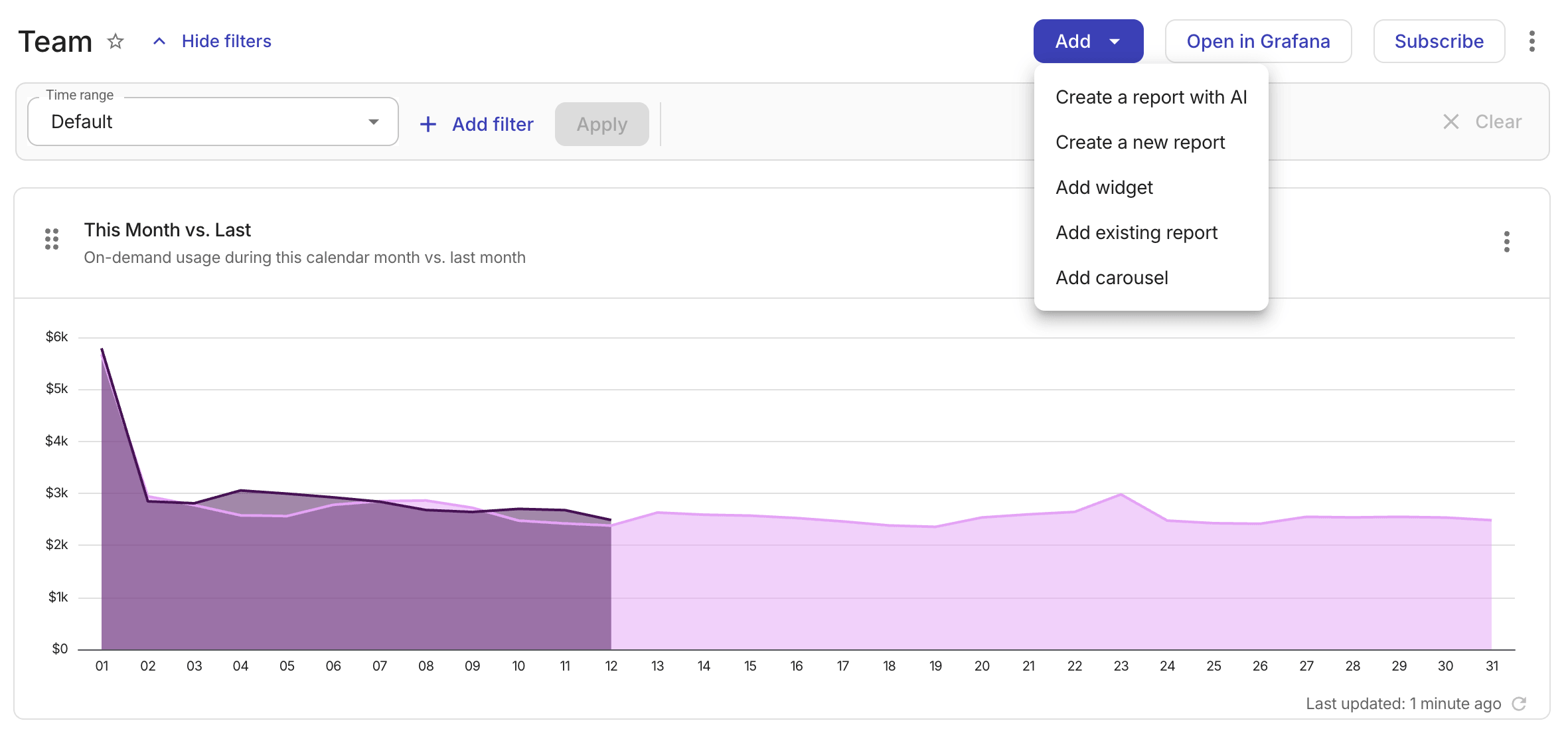
Add > カルーセルを追加 を選択します。
-
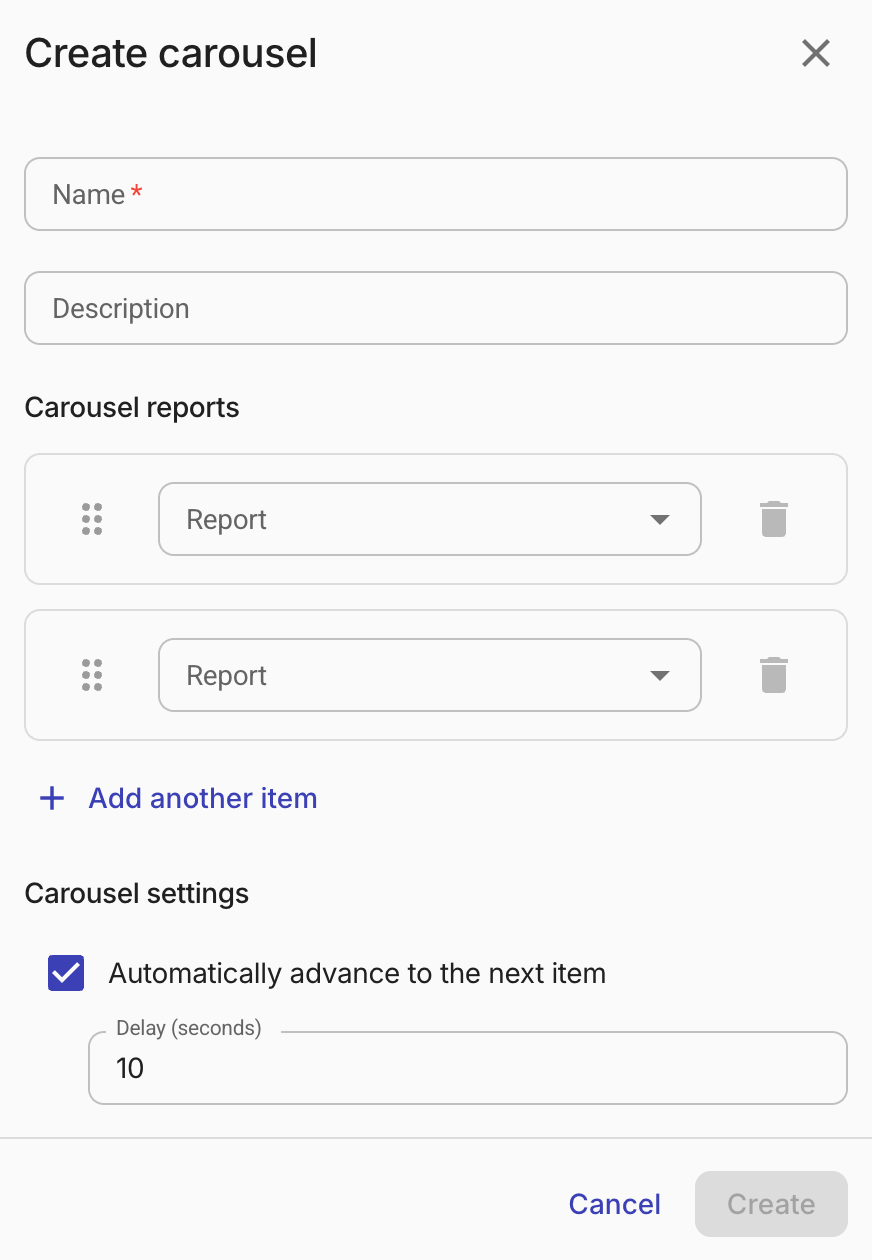
Create carousel ダイアログで、カルーセルを設定します。
-
ウィジェットの Name を入力します。必要に応じて Description を入力します。
-
Carousel reports で、各行にレポートを選択します。カルーセルには少なくとも 2 つのレポートが必要です。
-
レポートを追加するには、別のアイテムを追加 を選択します。カルーセルには最大 5 つのレポートを追加できます。
-
レポートの順序を変更するには、各行の左側にあるハンドルをドラッグします。
-
レポートを削除するには、行の右側にあるゴミ箱アイコンを選択します。
-
-
カルーセル設定 で、自動送りの動作を設定します。
-
次のアイテムに自動的に進む:デフォルトで選択されています。自動送りを有効にします。無効にすると、レポートは手動で操作します。
-
Delay(seconds):自動送りが有効な場合に利用できます。カルーセルが進む前に各レポートを表示する時間を設定します。値は 5~300 秒の範囲で指定する必要があります。デフォルトは 10 秒です。
-
-
-
Create を選択します。
カルーセルを操作する
自動送りが有効な場合、カルーセルウィジェットは選択されたレポートを順番に切り替え表示します。
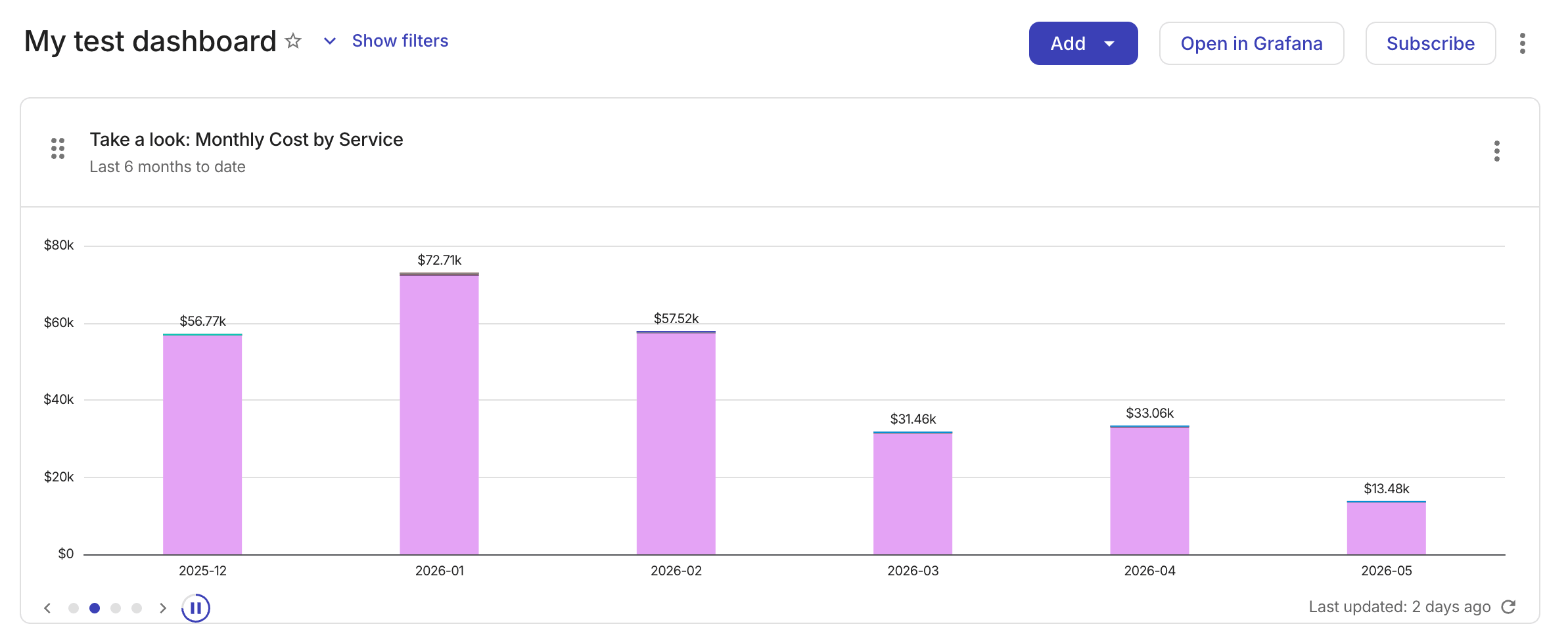
カルーセルウィジェットの下部では、次の操作ができます。
- Previous または Next の矢印を選択して、レポートを順番に表示する。
- ドットインジケーターを選択して、特定のレポートに直接移動する。
- 自動送りを一時停止または再開する。
カルーセルを編集する
カルーセル設定を更新するには、次のようにします。
-
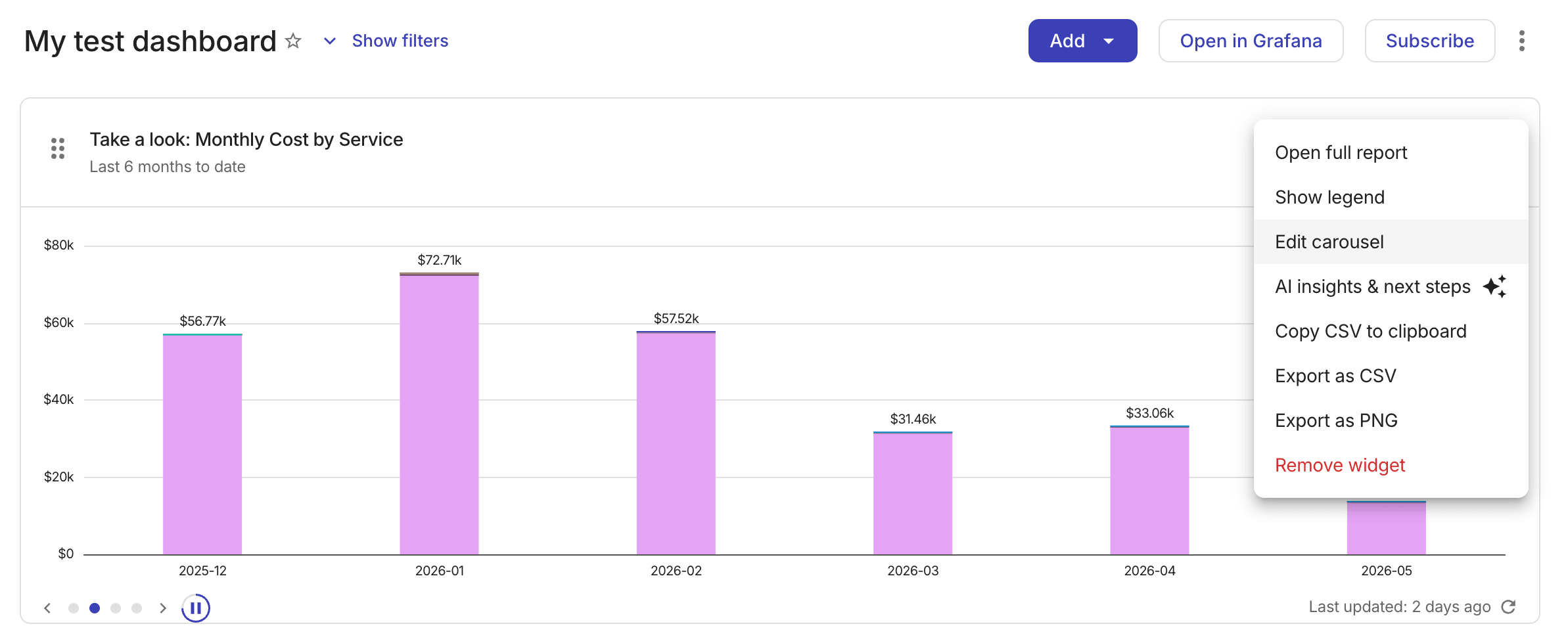
カルーセルウィジェットで、右上のケバブメニュー(⋮)を選択します。
-
カルーセルを編集 を選択します。
注意カルーセルを編集 と ウィジェットを削除 のオプションはカルーセルウィジェット全体に適用され、それ以外のオプションはアクティブなレポートのみに適用されます。
-
必要に応じて、レポート、順序、自動送り設定を更新します。
-
変更を保存します。
カルーセルを削除する
カルーセルを削除するには、次のようにします。
-
カルーセルウィジェットで、右上のケバブメニュー(⋮)を選択します。
-
ウィジェットを削除 を選択します。