Link AWS accounts via DoiT console
When linking new AWS accounts via the DoiT console, choose an approach based on your setup:
-
Individual AWS accounts: For each account, create a CloudFormation stack or Create a role manually.
-
Multiple accounts in an AWS Organization OU or organization root: Create a CloudFormation StackSet with service-managed permissions in your management account.
CloudFormation StackSet prerequisites
To use CloudFormation StackSets:
- You must have access to your management account (not available if you're on a DoiT consolidated billing account).
Using StackSets lets you automate the deployment of required permissions across all member accounts within your deployment target with a single setup. It also automates the account lifecycle management.
-
If you add a new member account to your AWS Organization, the StackSet deploys the required permissions, and DoiT discovers the account automatically.
-
If you move an account out of the linked OU or root, the stack is automatically deleted from that account, and the features are no longer available for it.
For accounts already connected using CloudFormation stacks, to switch to the CloudFormation StackSet approach, you must first unlink each account or delete the CloudFormation stack in the AWS console.
Link a new account
To link new AWS accounts:
-
In the DoiT console, select Data ingestion and integrations > AWS from the top navigation mega menu.
-
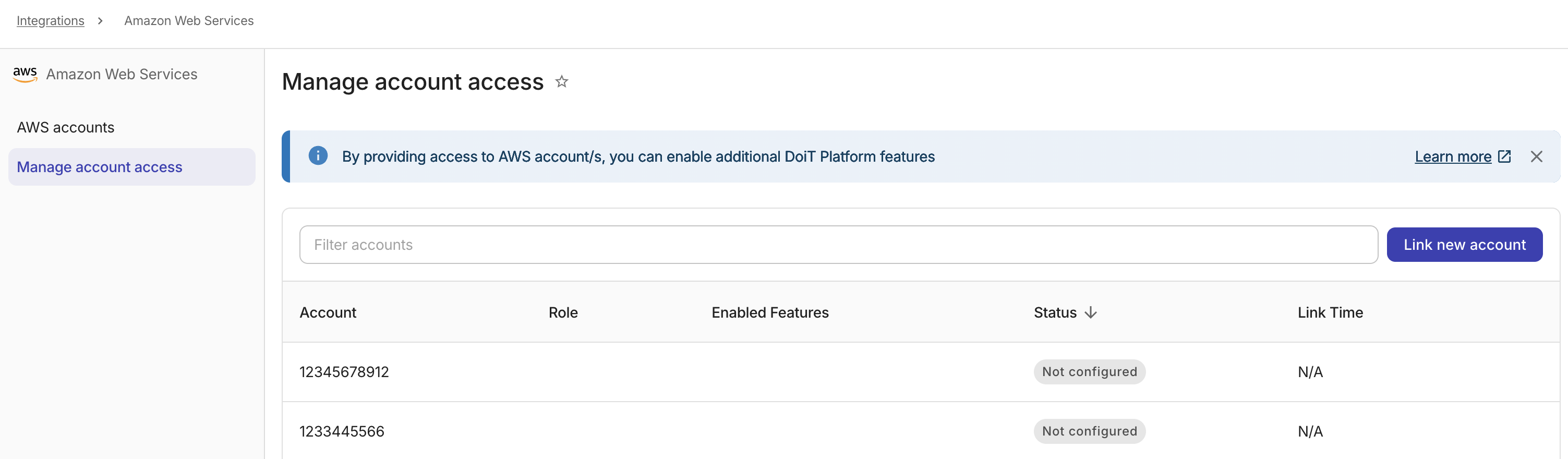
On the Connect Amazon Web Services page, select Link new account.
-
Choose an option to create a cross-account AWS IAM Role with the required policies.

-
Create a role automatically (recommended): DoiT launches a CloudFormation stack or StackSet that deploys the required policies.
-
Create a role manually: You create the IAM role in the AWS console and paste the role ARN back into the DoiT console.
-
Create a role automatically
-
Select Create a role automatically.
-
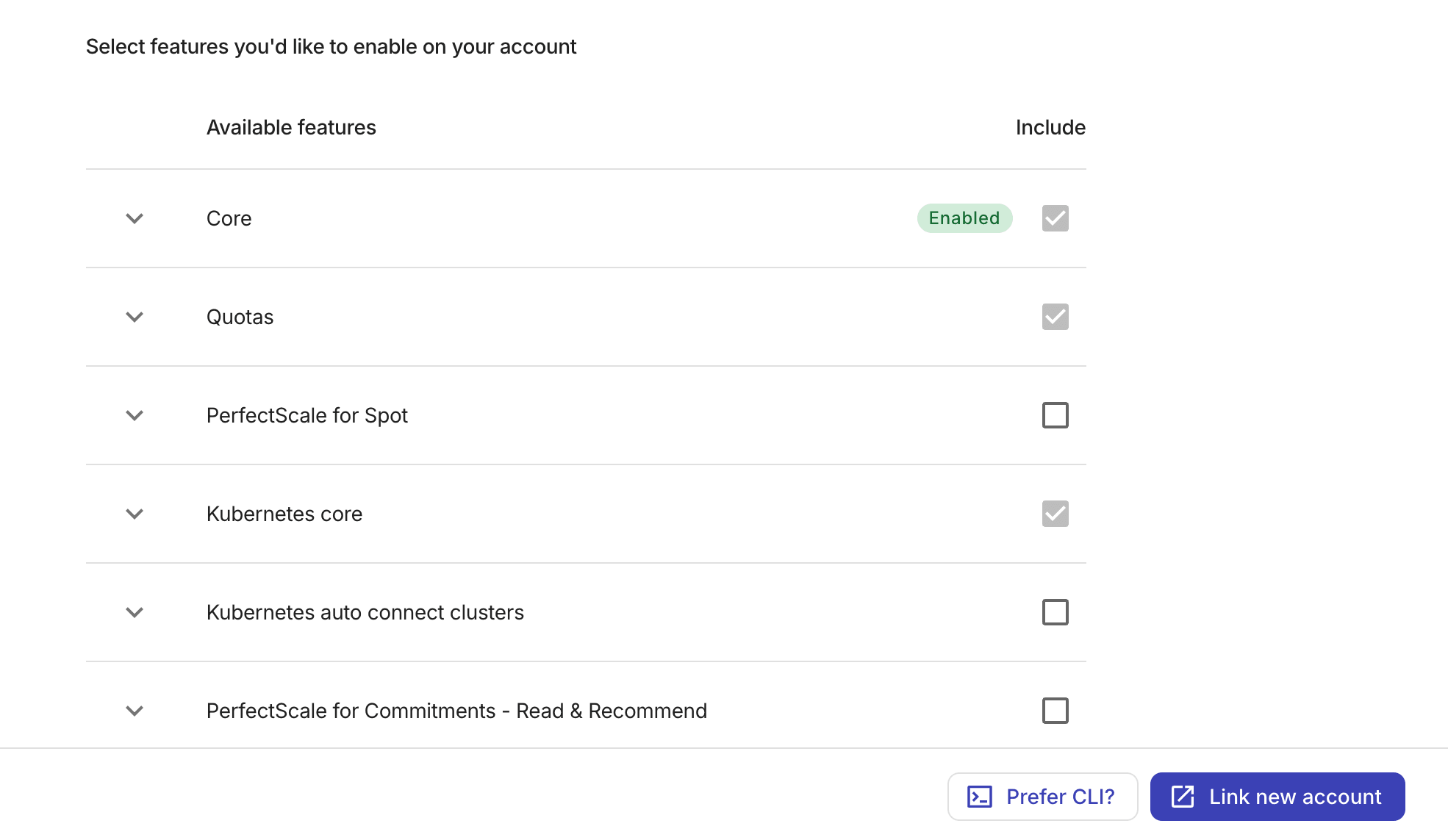
Select features to enable on your AWS account. You can expand a feature to review its required AWS policies.
-
Read-only permissions: Features requiring only Read-only access are included by default; you do not have to manually select them.
-
Write permissions: Features requiring Write access must be manually added by selecting the corresponding checkboxes.
-
If you select Real-time anomalies, you must provide an S3 bucket that contains CloudTrail event files. See Enable real-time anomaly on AWS accounts for more information.
-
-
Select Link new account.
-
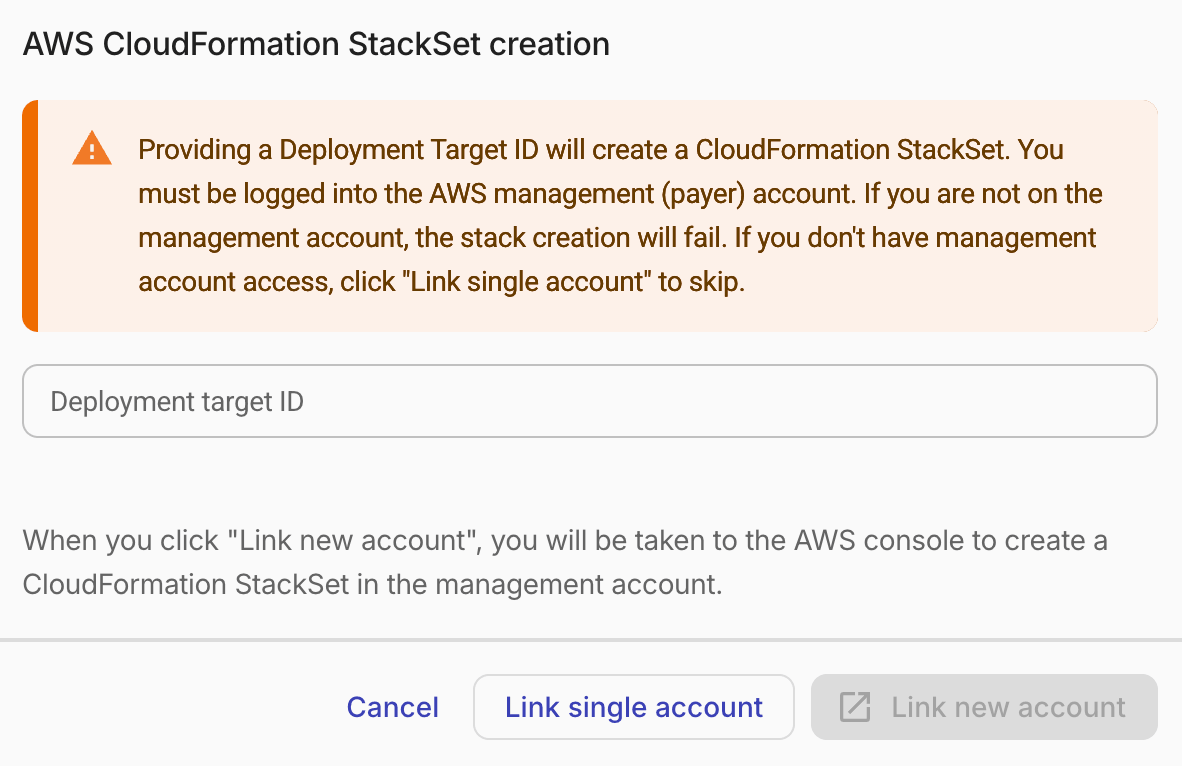
Choose the way to create the cross-account IAM role.
-
Deployment target ID: This field is required to create a CloudFormation StackSet with service-managed permissions in your management account.
-
Link single account: Select this option to create a CloudFormation stack for an individual account.
-
CloudFormation StackSets
For this approach, you need to provide the Deployment target ID (see also CloudFormation StackSet prerequisites).
-
Open the AWS Organizations console and locate the Organizational Unit (OU) or organization root whose member accounts should receive the selected features.
-
Copy the OU ID (for example,
ou-abcd-12345678) or the root ID (for example,r-abcd). -
Return to the DoiT console and paste the OU ID or root ID into the Deployment target ID field.
-
Read the message in the dialog and select Link new account.
-
You are redirected to the AWS CloudFormation Quick create stack page to create a CloudFormation StackSet with service-managed permissions.
If this is the first time you create a StackSet with service-managed permissions, AWS prompts you to activate trusted access for StackSets with AWS Organizations.
-
Review parameters. The stack name and required parameters (including your deployment target ID and External ID) will be pre-filled.
-
Adjust the following thresholds if necessary:
-
FailureTolerancePercentage: The percentage of accounts that can fail before the StackSet operation halts. The DoiT template sets this value to 20.
-
Max Concurrent Percentage: Maximum percentage of target accounts to deploy to concurrently. The DoiT template sets this value to 100.
-
-
Scroll to the bottom and select the checkboxes to acknowledge that AWS CloudFormation might create IAM resources with custom names and require the
CAPABILITY_AUTO_EXPANDcapability. -
Select Create stack.
The process can take several minutes. If successful, your linked AWS accounts will show a Healthy status.
CloudFormation stack
You will be taken to the AWS console to create a CloudFormation stack template.
-
Create a CloudFormation stack for the IAM role, using AWS CloudFormation console or AWS CloudShell.
- AWS CloudFormation console
- AWS CloudShell
-
Select Link New account to launch the DoiT stack template in the AWS CloudFormation console.
-
Make sure that you are in the
US East (N. Virginia) us-east-1region.
-
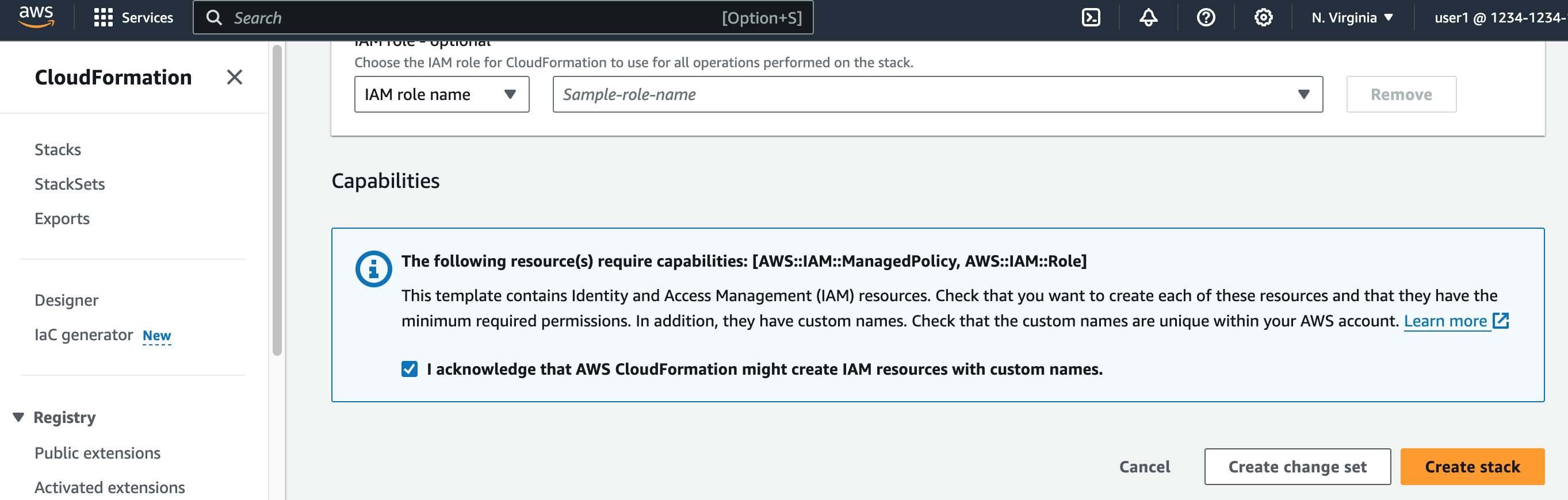
Select the checkbox at the bottom of the page to acknowledge that AWS CloudFormation might create IAM resources with custom names.
-
Create the stack. (See also cross-account AWS IAM Role.)
-
Select Prefer CLI.
-
Copy the command from the pop-up window.
CautionIf you edit the CLI command before execution, you must keep the region to
us-east-1. -
Run the command in AWS CloudShell to create the specified CloudFormation stack.
After creating the stack, it can take up to 30 seconds for the account to link to the platform. If successful, your linked AWS account will show a Healthy status.
Create a role manually
This option applies to all types of AWS accounts.
-
Select Create a role manually.
-
Note down the values of
Our AWS AccountandYour External IDdisplayed in the DoiT console.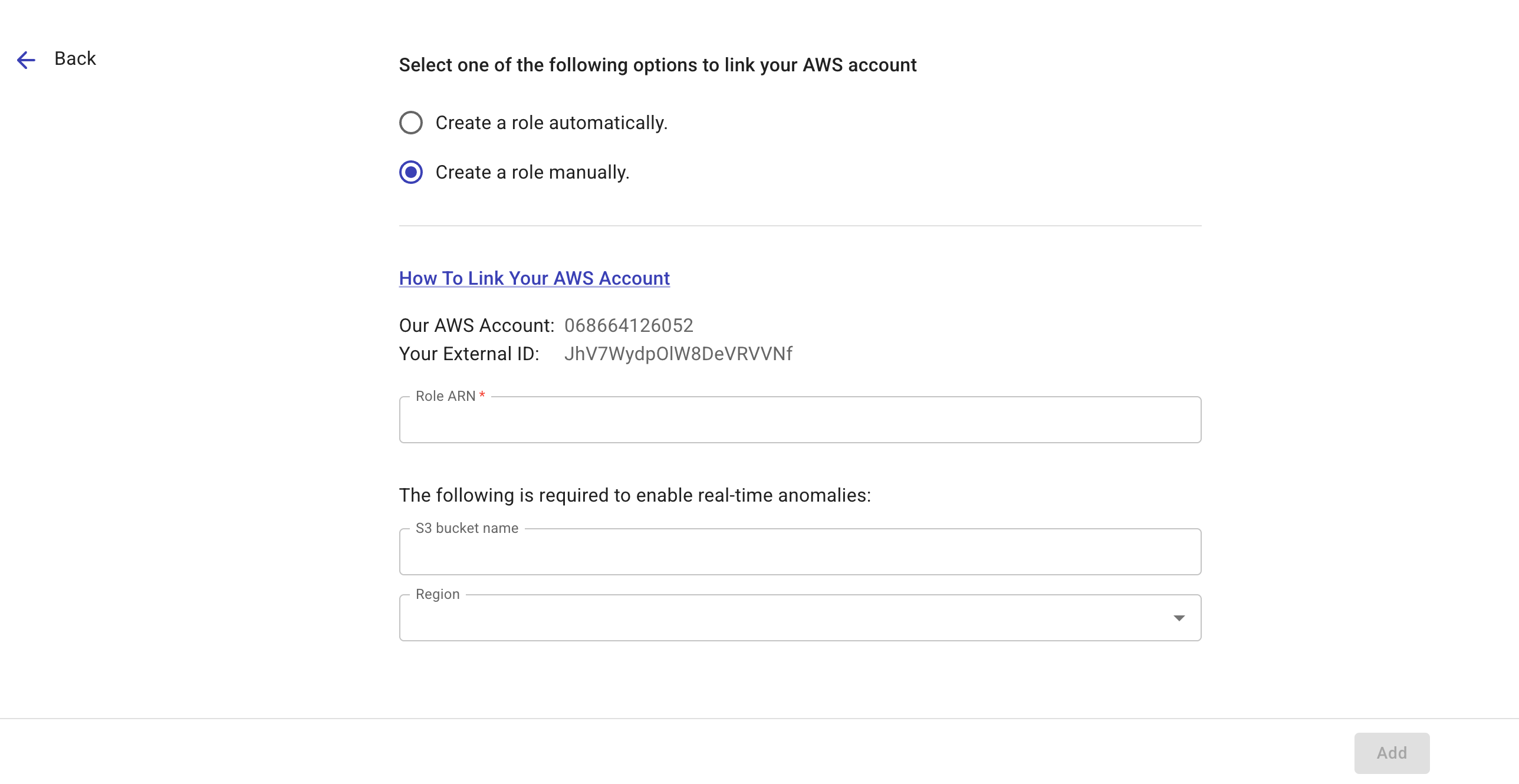
-
(Optional) If you want to enable real-time anomaly detection on the account, enter the AWS CloudTrail S3 bucket name and specify the region where the bucket resides (the bucket must reside in one of the supported regions).
-
Create an AWS IAM Role in the AWS Management Console. (See also Creating an IAM role (console).)
-
Navigate to the AWS IAM console, select Roles in the left-hand side navigation pane, and then select Create role.
-
Select AWS account as the trusted entity.
-
Select Another AWS account, enter the DoiT AWS account ID (the
Our AWS Accountprovided in the DoiT console). -
Select the checkbox
Require external ID, enter your external ID. -
Select Next to add permissions.
Choose policies in accordance with the features to enable:
-
For Core, add specific AWS managed policies to your role.
-
For other features, create custom policies by selecting Create policy, switching to the JSON tab, and then pasting the relevant feature permissions.
See alsoAWS Documentation: Creating IAM policies (console)
-
-
Once the policies are created, go back to your original tab. You may need to refresh to see the new policies in the search list.
-
Select all the new policies for the features you want to enable in addition to the three built-in policies required for Core features.
-
Select Next, give the Role a name, review the selected policies, and then select Create role.
-
-
After creating the role, select the role name to open its summary page, copy the value of the role's ARN, and paste the Role ARN to the DoiT console.
-
Select Add to link your AWS account.
If successful, the status of your AWS account will show as Healthy in the DoiT console.
Manage linked accounts
This section applies only to AWS accounts that are not linked via CloudFormation StackSets. To unlink a member account of an OU, you have to remove the account from the OU. To modify a member account's feature access, move the account to a different OU with the desired feature set.
Unlink an account
To unlink an account:
-
Navigate to the Link Amazon Web Services page.
-
Locate the account of interest.
-
Select the kebab menu (⋮) at the rightmost end of the account entry.
-
Select Unlink account.
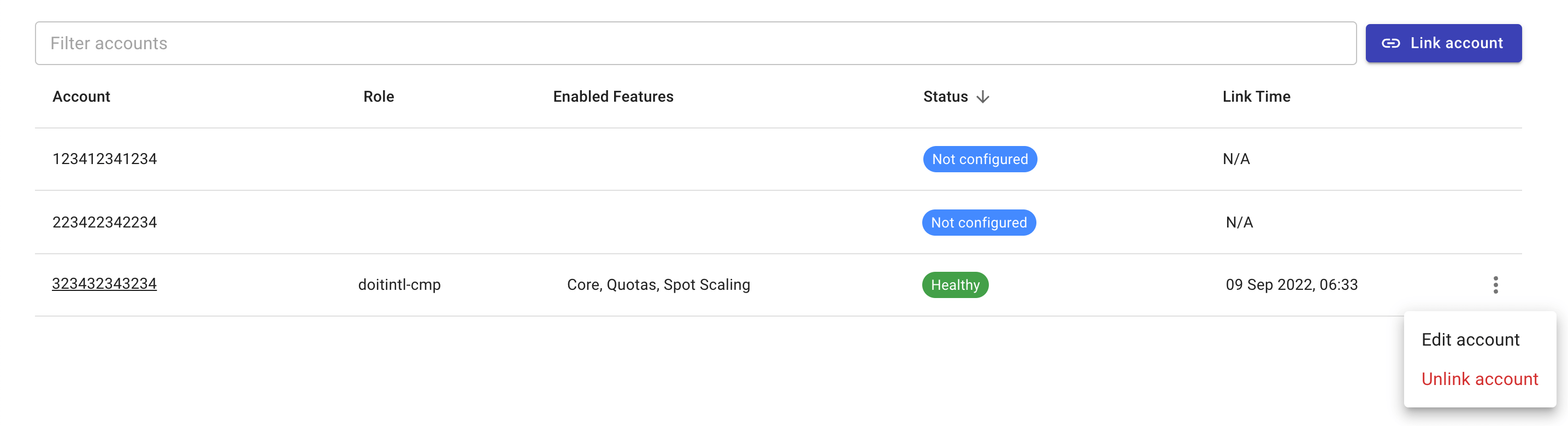
Modify feature access
Add a feature
To add a new feature, you need to update the IAM role of the linked account with additional permissions:
-
Select the kebab menu (⋮) at the rightmost end of the account entry.
-
Select Edit account.
-
Select the checkbox of the new feature.
For DoiT PartnerOps end customers, the feature list is curated and some features are selected by default. For example, on an AWS management account without AWS Billing Transfer, CloudFlow is selected by default and is required for creating an AWS connection in CloudFlow. See Enable features for which features appear and their defaults.
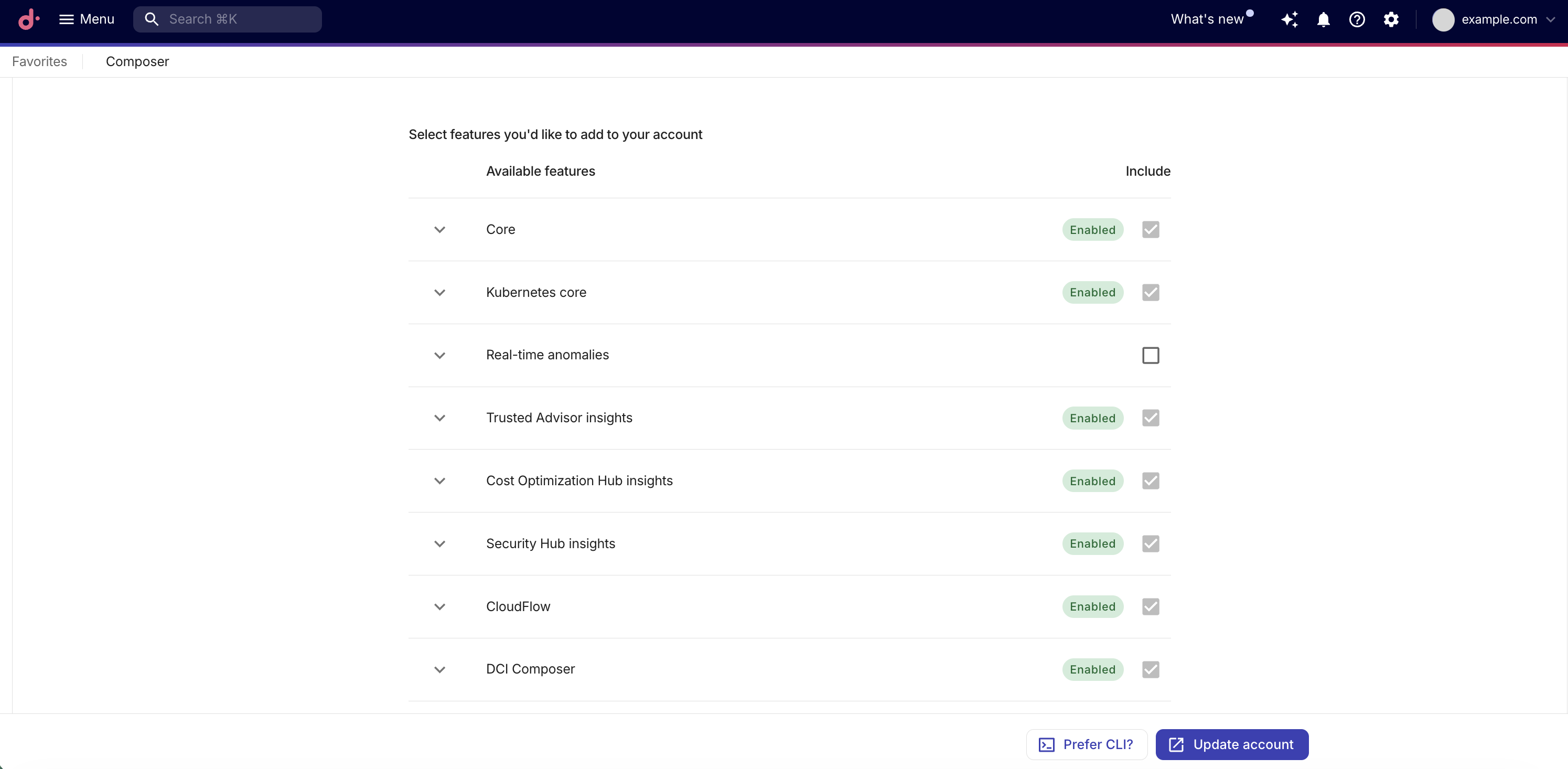
-
Update the IAM role with the new permissions by using one of the following options.
-
Select Update account to create a CloudFormation stack in the AWS console.
-
Select Prefer CLI to get the command to create the CloudFormation stack via AWS CloudShell.
See Create a role automatically for more information.
-
Remove a feature
To remove a feature:
-
Open the IAM page in the AWS console.
-
Detach the policies associated with the feature in the linked account's role.
Feature permissions
Below are the required permissions of the core functionality and some features you can enable on a linked account. See Security and data access policy: Amazon Web Services for the full list of available features.
Core, Quota Monitoring, and more:
- Core
- PerfectScale for Spot
- Quota Monitoring
- Kubernetes core
- Real-time anomalies
Core permissions consist of three AWS managed policies. If you choose to create the IAM role automatically, read-only permissions required by other DoiT features in your Cloud Intelligence plan are also included in core permissions.
| AWS managed policy | Description |
|---|---|
SecurityAudit | Grants access to read security configuration metadata. |
AWSSavingsPlansReadOnlyAccess | Provides read-only access to Savings Plans service. |
Billing | Grants permissions for billing and cost management. |
{
  "Version": "2012-10-17",
  "Statement": [
    {
      "Action": [
        "ec2:Describe*",
        "ec2:CreateLaunchTemplate",
        "ec2:CreateLaunchTemplateVersion",
        "ec2:ModifyLaunchTemplate",
        "ec2:RunInstances",
        "ec2:TerminateInstances",
        "ec2:CreateTags",
        "ec2:DeleteTags",
        "ec2:CreateLaunchTemplateVersion",
        "ec2:CancelSpotInstanceRequests",
        "autoscaling:CreateOrUpdateTags",
        "autoscaling:UpdateAutoScalingGroup",
        "autoscaling:Describe*",
        "autoscaling:AttachInstances",
        "autoscaling:BatchDeleteScheduledAction",
        "autoscaling:BatchPutScheduledUpdateGroupAction",
        "cloudformation:ListStacks",
        "cloudformation:Describe*",
        "iam:PassRole",
        "events:PutRule",
        "events:PutTargets",
        "events:PutEvents"
      ],
      "Resource": "*",
      "Effect": "Allow"
    }
  ]
}
{
  "Version": "2012-10-17",
  "Statement": [
    {
      "Effect": "Allow",
      "Action": [
        "support:DescribeTrustedAdvisorCheckSummaries",
        "support:DescribeTrustedAdvisorCheckRefreshStatuses",
        "support:DescribeTrustedAdvisorChecks",
        "support:DescribeSeverityLevels",
        "support:RefreshTrustedAdvisorCheck",
        "support:DescribeSupportLevel",
        "support:DescribeCommunications",
        "support:DescribeServices",
        "support:DescribeIssueTypes",
        "support:DescribeTrustedAdvisorCheckResult",
        "trustedadvisor:DescribeNotificationPreferences",
        "trustedadvisor:DescribeCheckRefreshStatuses",
        "trustedadvisor:DescribeCheckItems",
        "trustedadvisor:DescribeAccount",
        "trustedadvisor:DescribeAccountAccess",
        "trustedadvisor:DescribeChecks",
        "trustedadvisor:DescribeCheckSummaries"
      ],
      "Resource": "*"
    }
  ]
}
{
  "Version": "2012-10-17",
  "Statement": [
    {
      "Effect": "Allow",
      "Action": [
        "eks:ListAccessPolicies",
        "eks:ListAccessEntries",
        "eks:DescribeCluster",
        "eks:ListClusters"
      ],
      "Resource": "*"
    }
  ]
}
For real-time anomalies, in addition to the IAM policy, you also need to configure an Amazon S3 event notification for the CloudTrail bucket, targeting the real-time anomaly SNS topic.
IAM Policy
This policy allows the cross-account role to describe EC2 AMIs, decrypt KMS-encrypted data, and access the S3 bucket that hosts the CloudTrail logs.
{
  "Version": "2012-10-17",
  "Statement": [
    {
      "Sid": "AllowDescribeImagesForRealtimeData",
      "Effect": "Allow",
      "Action": "ec2:DescribeImages",
      "Resource": "*"
    },
    {
      "Sid": "AllowAccessToEncryptedS3Buckets",
      "Effect": "Allow",
      "Action": "kms:Decrypt",
      "Resource": "*"
    },
    {
      "Sid": "AllowCloudTrailBucketLevelAccess",
      "Effect": "Allow",
      "Action": [
        "s3:ListBucket",
        "s3:GetBucketNotification"
      ],
      "Resource": "arn:aws:s3:::YOUR_CLOUDTRAIL_BUCKET_NAME"
    },
    {
      "Sid": "AllowCloudTrailObjectLevelAccess",
      "Effect": "Allow",
      "Action": "s3:GetObject",
      "Resource": "arn:aws:s3:::YOUR_CLOUDTRAIL_BUCKET_NAME/*"
    }
  ]
}
CloudTrail S3 bucket notification
See Configure S3 bucket event notification for detailed instructions.
Note that AWS supports only a single destination for each event notification type. Ensure that the CloudTrail S3 bucket does not already have the s3:ObjectCreated:* event type configured for another destination.
Insights:
- Trusted Advisor insights
- Cost Optimization Hub insights
- Security Hub insights
{
  "Version": "2012-10-17",
  "Statement": [
    {
      "Effect": "Allow",
      "Action": [
        "trustedadvisor:GetRecommendation",
        "trustedadvisor:ListRecommendations",
        "trustedadvisor:ListRecommendationResources"
      ],
      "Resource": "*"
    }
  ]
}
{
  "Version": "2012-10-17",
  "Statement": [
    {
      "Effect": "Allow",
      "Action": [
        "cost-optimization-hub:ListRecommendations"
      ],
      "Resource": "*"
    }
  ]
}
{
  "Version": "2012-10-17",
  "Statement": [
    {
      "Effect": "Allow",
      "Action": [
        "securityhub:GetFindings"
      ],
      "Resource": "*"
    }
  ]
}