Connect Azure Tenants
Connect your Azure tenants to enable advanced features.
Required permissions
-
Your DoiT account must have the Manage Settings permission.
-
You must have a Microsoft Entra role with the following permissions:
-
permission to create a service principal to allow DoiT to access resources in your Azure environment
-
permission to assign a service principal the Reader role on a management group
-
Connect a tenant
To connect an Azure tenant:
-
Sign in to the DoiT console, select Data ingestion and integrations > Integrations from the top navigation mega menu.
-
On the Microsoft Azure integration card, select Manage.
-
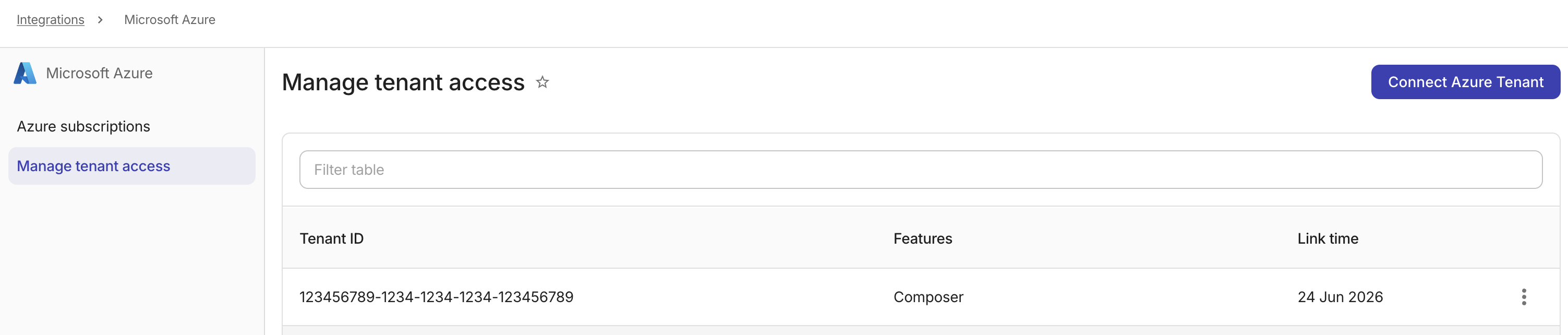
Select Connect Azure Tenant.
-
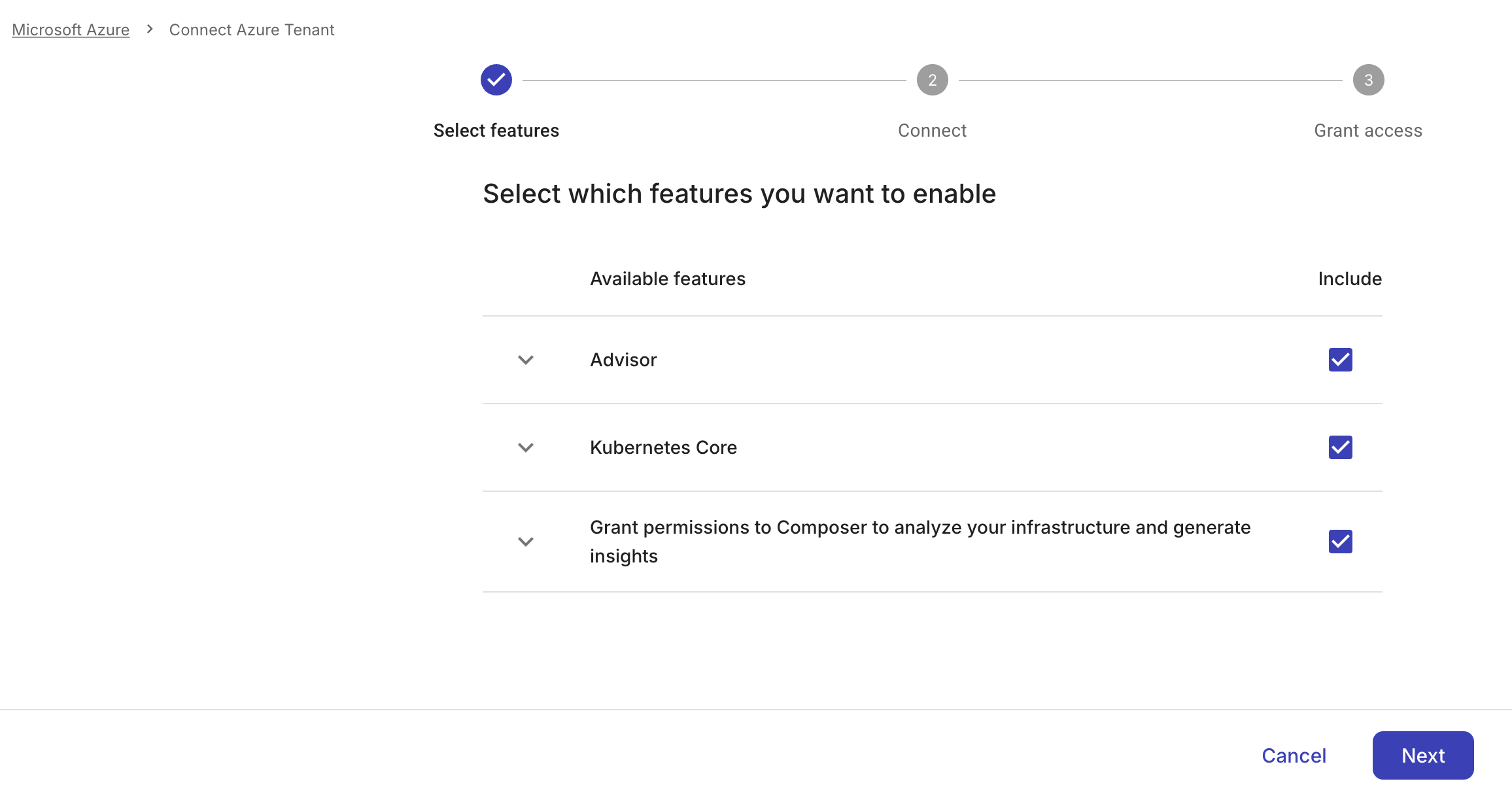
Select features that you want to enable. You can expand the feature to review the required permissions.
-
Select Next to continue.
-
Follow the instructions displayed in the DoiT console to connect your Azure tenant.
-
Enter your tenant ID. See also Get subscription and tenant IDs in the Azure portal.
-
Copy the Azure CLI command and run it in Azure Cloud Shell to create a service principal, using the ID of the DoiT International enterprise application (see also
az ad sp create).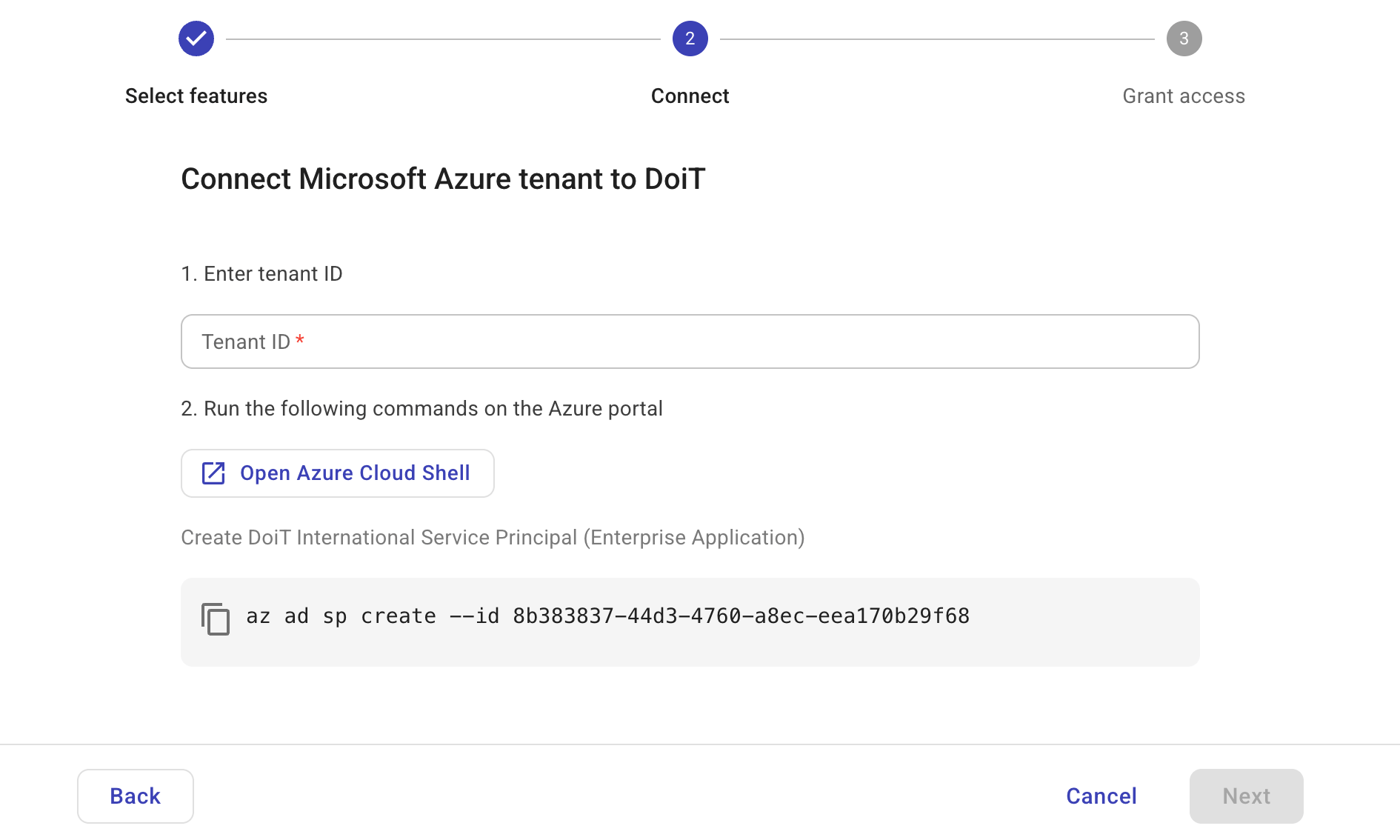
-
-
Select Next to continue.
-
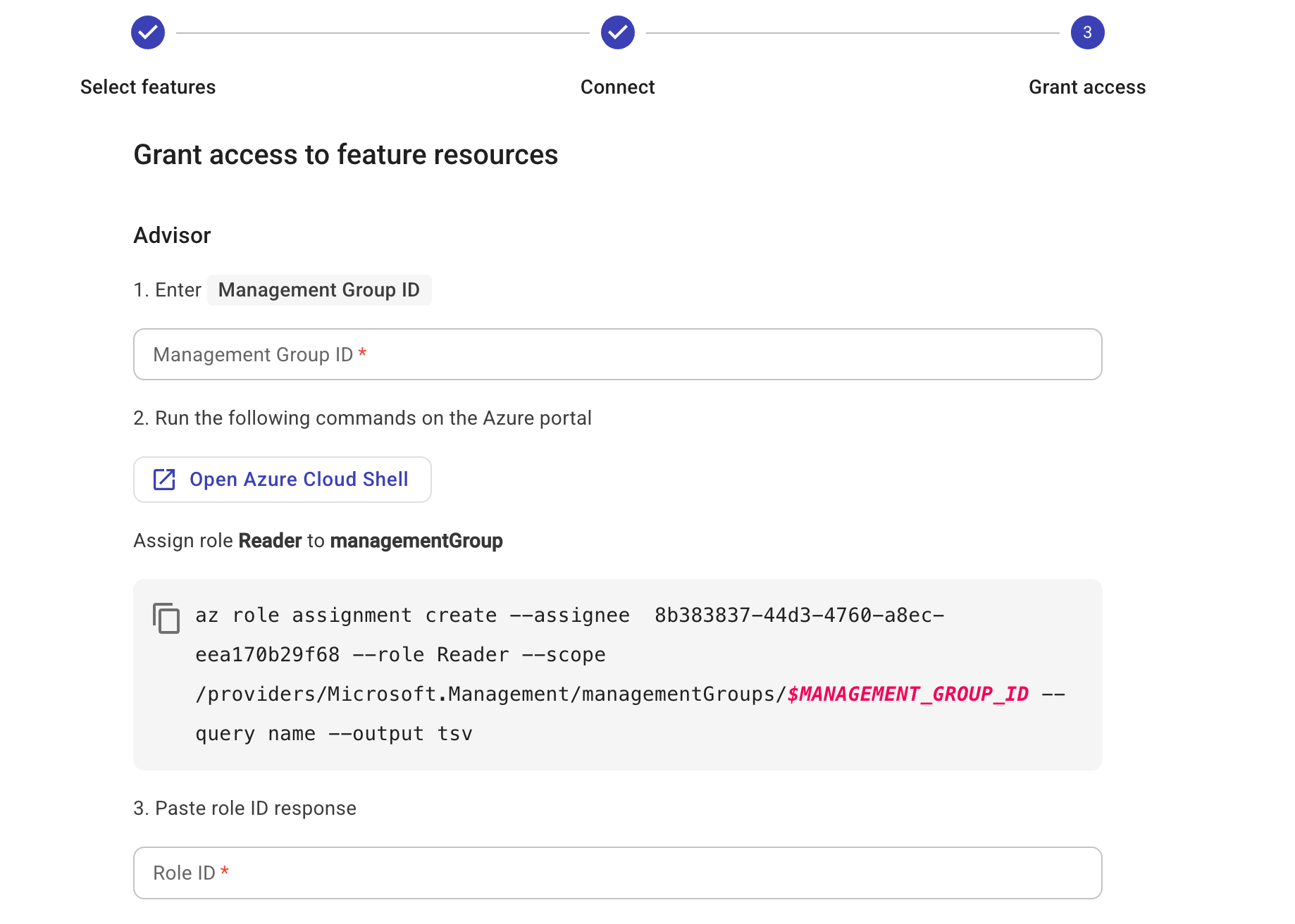
Grant the DoiT service principal the
Readerrole on the management group. If you've selected more than one feature, you'll see multiple sections here, each for one feature.-
Enter the management group ID. See View management groups for how to find the ID.
-
Copy the Azure CLI command and run it in Azure Cloud Shell to grant the DoiT service principal the
Readerrole on the management group (see alsoaz role assignment create).NoteIf the command fails with
AuthorizationFailed, your user account needs Azure RBAC permissions at the management-group scope. See Elevate access to manage all Azure subscriptions and management groups. -
Copy the output role ID in the Cloud Shell and paste it to the DoiT console.
-
Repeat the steps above for each feature you've selected.
-
Select Test connection to validate the configuration and make updates if necessary.
-
-
If the connection test is successful, select Done to complete the setup.
Unlink a tenant
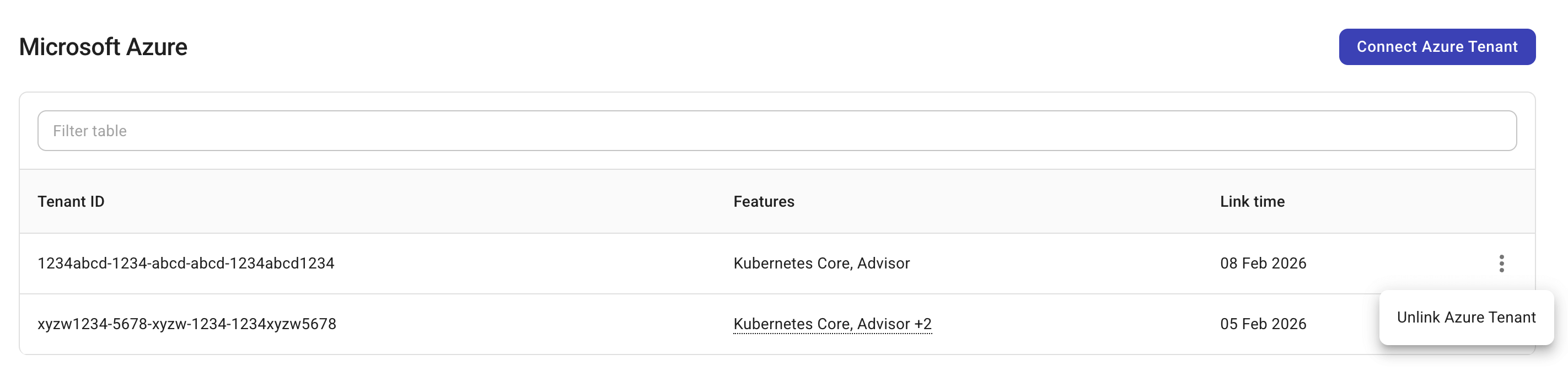
To unlink an Azure tenant, select the kebab menu (⋮) at the rightmost end of the tenant entry, and then select Unlink Azure Tenant.