チーム設定
チーム設定は、AWS MSP パートナー認定までの最初のフェーズです。
必要な権限
- ワークスペース管理者
ウィザードを起動する
チーム設定ウィザードを起動するには:
- DoiT コンソール で、MSP ワークスペースに移動します。
- チーム設定を開始 を選択します。
ステップ 1: ワークスペースプロファイル
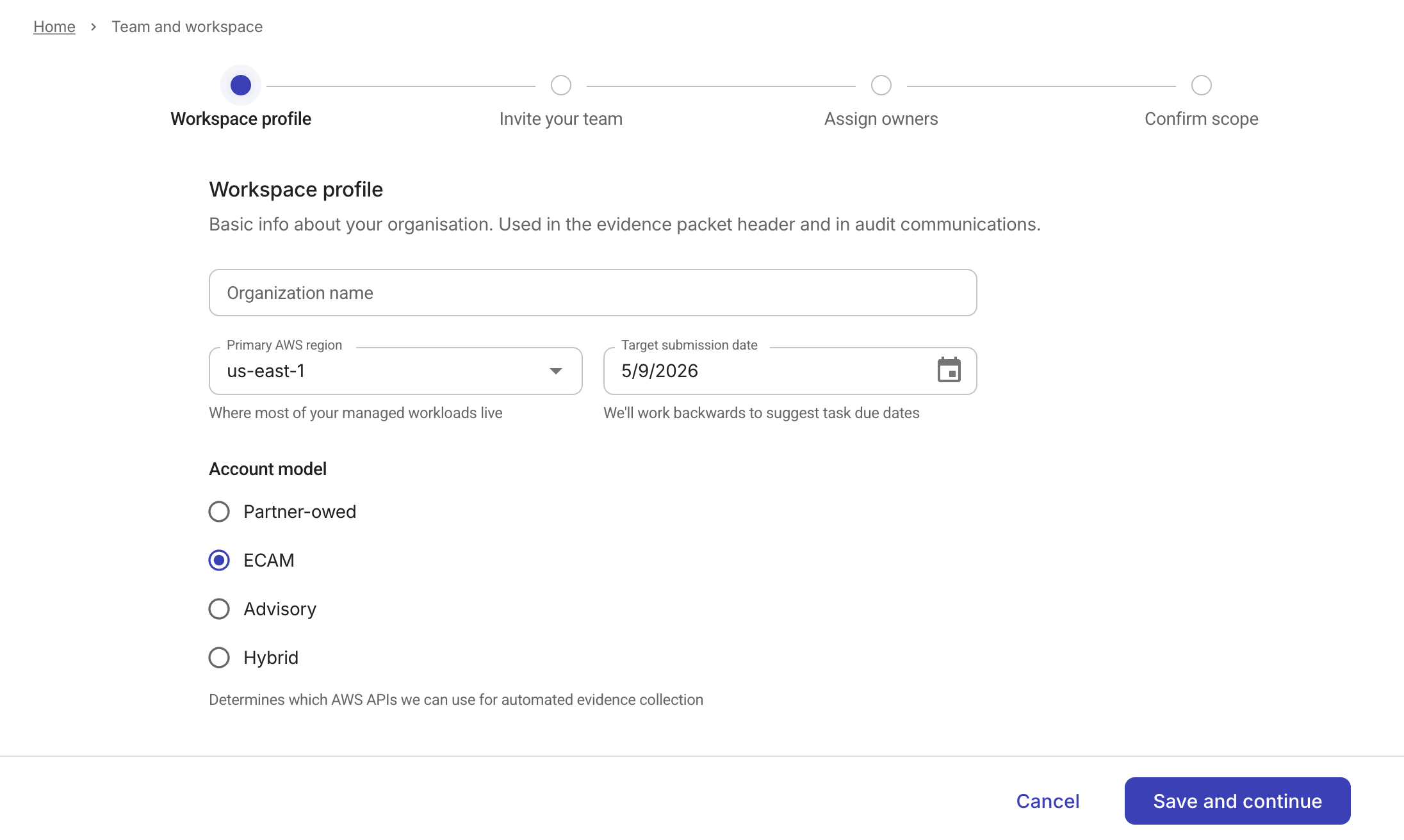
ワークスペースプロファイルには、組織の基本情報が含まれます。
-
Organization name: 組織の正式名称または商号
-
Primary AWS region: 管理対象ワークロードの大半が稼働している AWS リージョン
-
Target submission date: エビデンスパケットを提出する目標日。プラットフォームはこの日付から逆算して、各タスクの期日を提案します。
-
Account model: 顧客インフラストラクチャをどのように管理しているかを示す AWS アカウントモデル。このオプションにより、プラットフォームが自動エビデンス収集に使用できる AWS API が決まります。
利用可能なモデル: Partner-owed、ECAM、Advisory、Hybrid
次のステップに進むには 保存して続行 を選択します。
ステップ 2: チームを招待
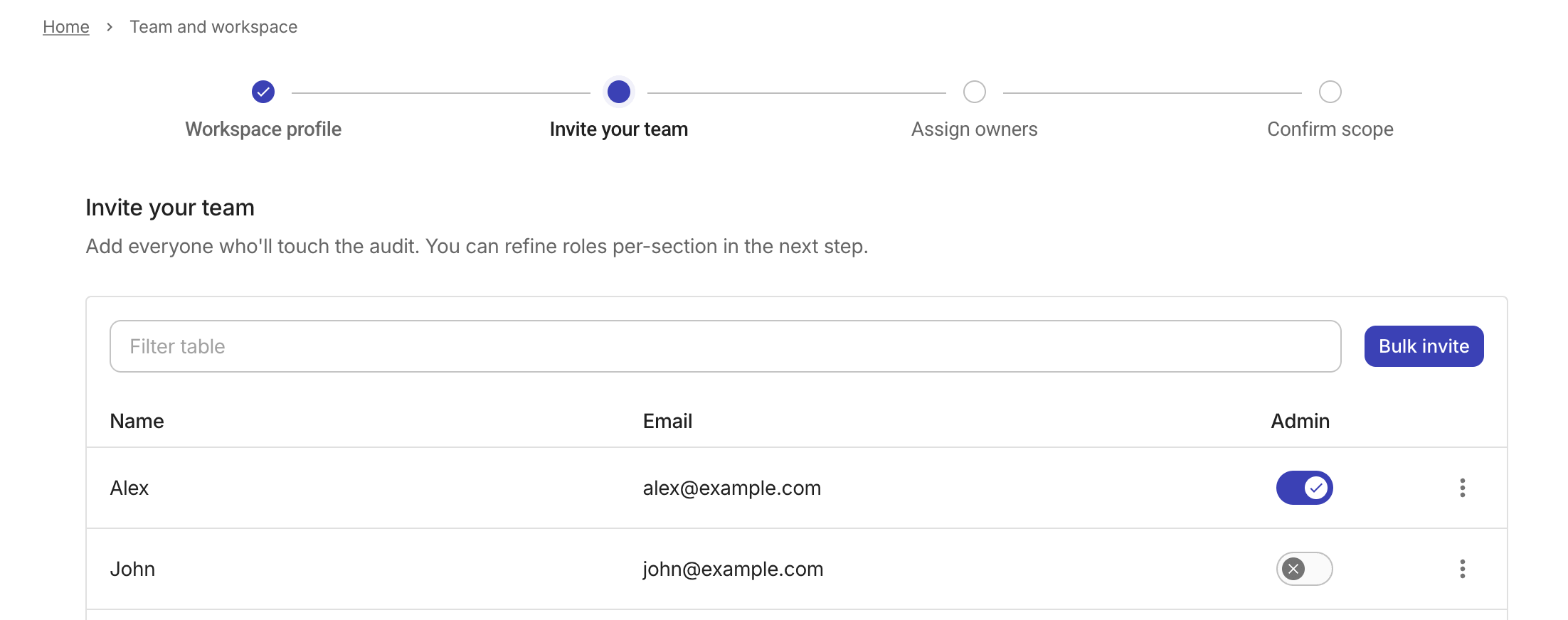
監査に参加するチームメンバーを追加します。
オプション:
- Bulk invite を選択して、1 人以上のユーザーを招待します。
- Admin 列のトグルを使用して、ワークスペース管理者権限を付与または削除します。
- エントリの一番右端にあるケバブメニュー(⋮)を選択し、該当するアクションを選択して、招待メールを再送信するかメンバーを削除します。
- 招待メールの配信に失敗した場合、名簿の行にメンバー名の下に invite failed ラベルが表示されます。ラベル上の Delete user を選択してそのエントリを削除し、再度招待を送信します。
詳細については、Team を参照してください。
ステップ 3: 所有者を割り当て
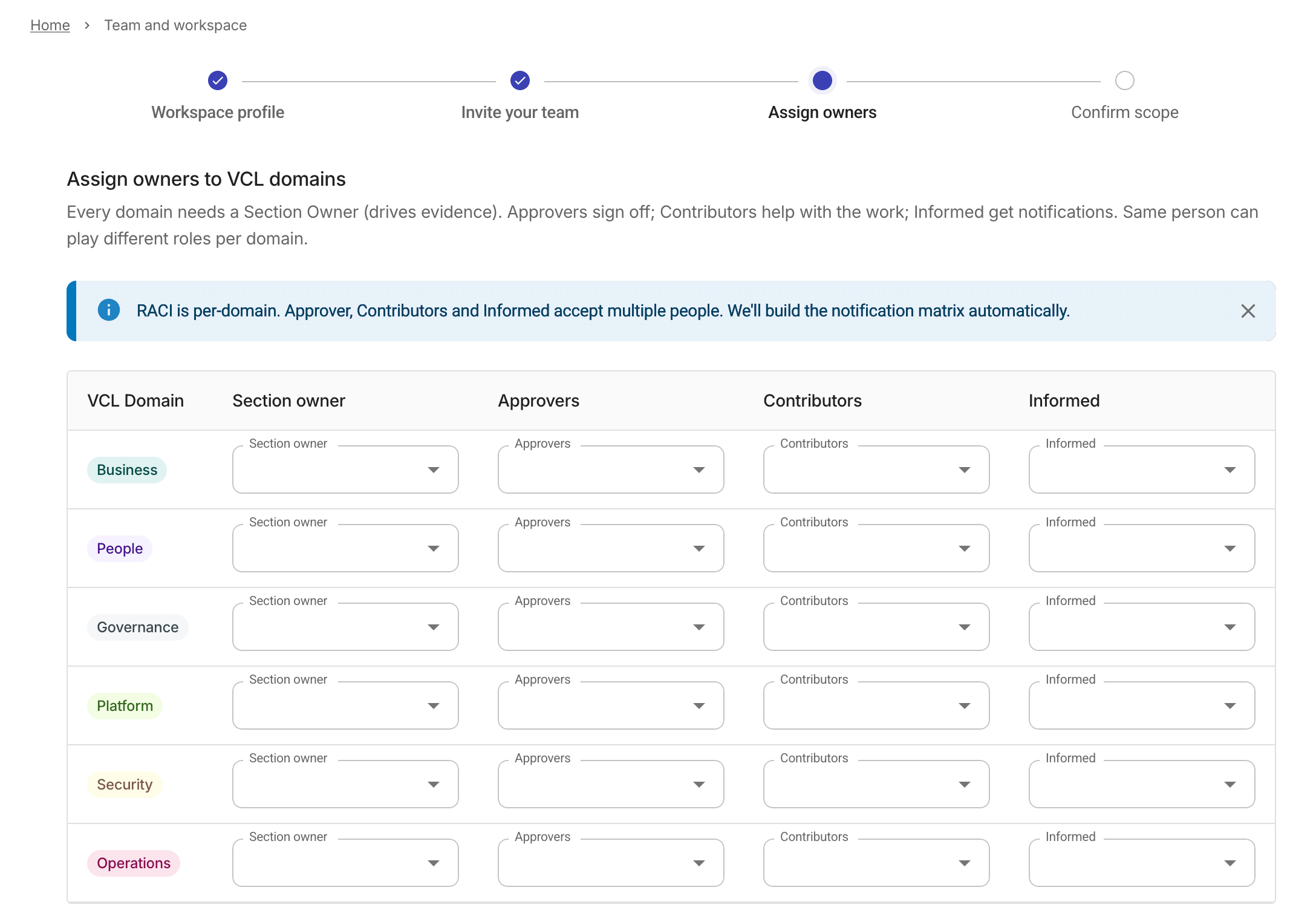
次のドメインについて、誰が所有し、承認し、貢献し、情報を受け取るかを定義するために RACI ロールを割り当てます:Business、People、Governance、Platform、Security、Operations
同じ人物がドメインごとに異なるロールを持つことができます。
RACI ロール:
- Section owner: ドメインのエビデンス収集を主導します。必須であり、各ドメインには Section owner は 1 名のみです。
- Approvers: 成果物をレビューし、完了したコントロールにサインオフします。必須であり、各ドメインに少なくとも 1 名必要です。
- Contributors: 証拠タスクをサポートします。任意であり、複数設定できます。
- Informed: ドメインの進捗に関する通知を受け取ります。任意であり、複数設定できます。
ステップ 4: 監査範囲の確認
最後のステップでは、ワークスペースを作成する前に監査範囲を確認して確定します。
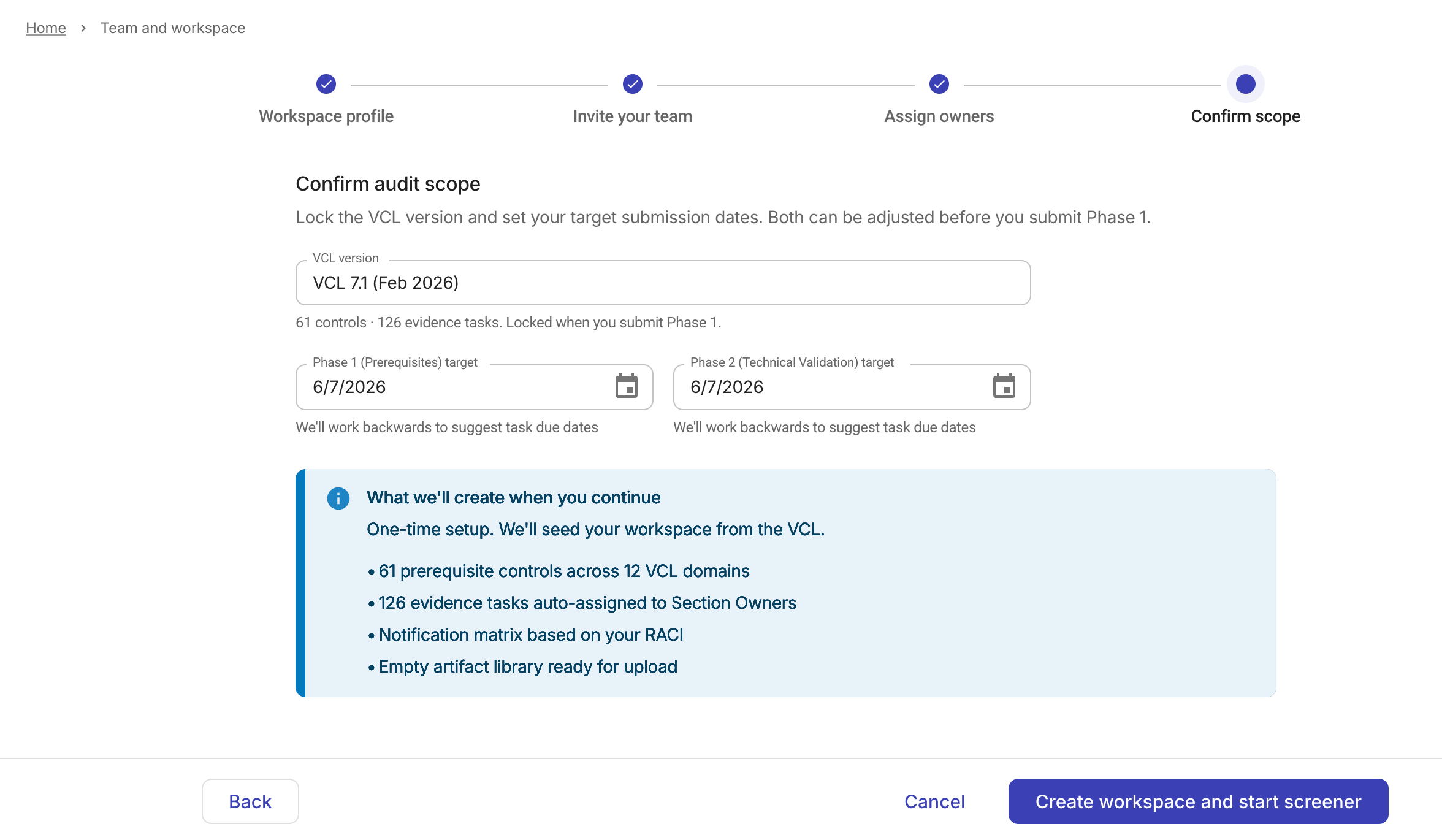
- VCL version: アクティブな VCL バージョンと、その中に含まれるコントロールと証拠タスクの数
- Phase 1 (Prerequisites) target: 前提条件コントロールの目標完了日
- Phase 2 (Technical Validation) target: テクニカルバリデーションフェーズの目標完了日
サマリーパネルには、セットアップを完了した際にプラットフォームが作成する内容が表示されます:
- すべての VCL ドメインにまたがる前提条件コントロール
- Section owner に自動割り当てされた証拠タスク
- あなたの RACI に基づく通知マトリックス
- アップロード用に準備された空の成果物ライブラリ
次のステップ
チーム設定を完了すると、ワークスペースには残りの認定フェーズ向けのコントロールと証拠タスクが投入されます。
Team and RACI ページから、チームメンバーとドメイン割り当てを更新できます。