Artifact library
Artifact library は、MSP ワークスペース全体のすべての証跡アーティファクトを一元的に表示します。
Required permission
- MSP ワークスペース アカウントに Workspace Admin ロールが付与されている必要があります。
Access artifact library
Artifact library にアクセスするには、MSP ワークスペースに移動し、サイドバーの Evidence workspace の配下にある Artifact library を選択してください。
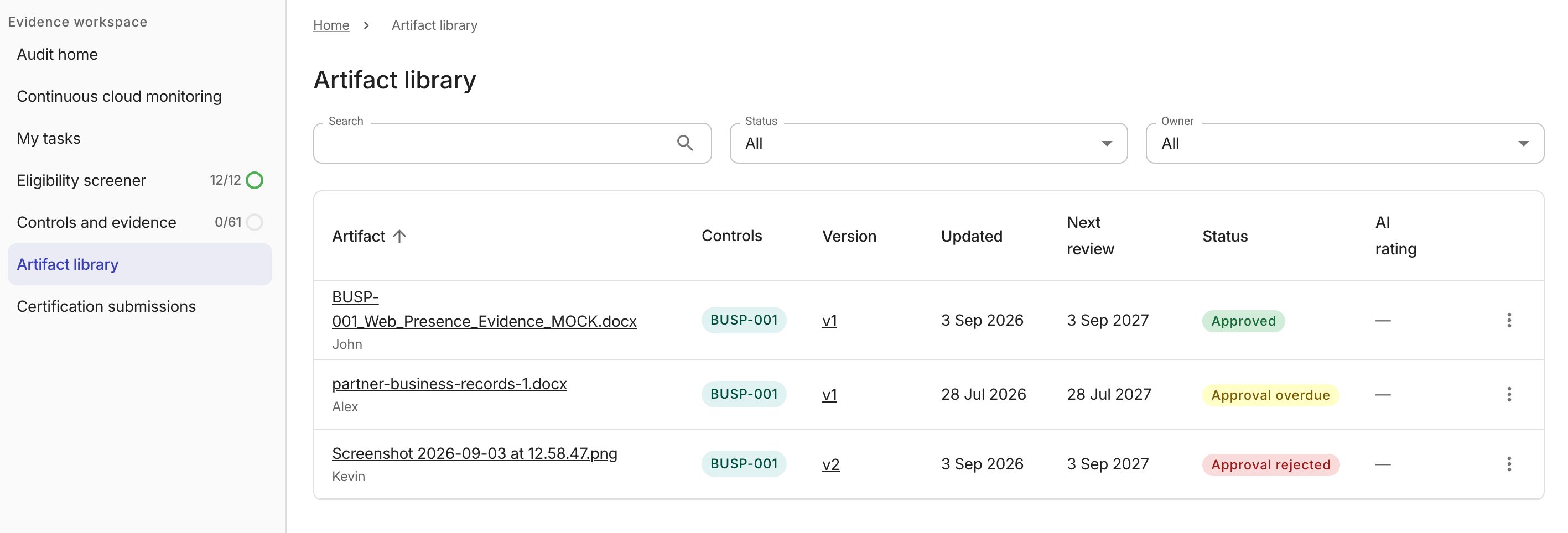
テーブル上部のフィルターバーを使用して結果を絞り込むことができます。
-
Artifact: アーティファクト名
-
Controls: このアーティファクトに関連付けられているコンプライアンス コントロール
-
Version: アーティファクトの現在のバージョン番号
-
Updated: アーティファクトが最後に更新された日付
-
Next review: 次回のレビュー予定日
-
Status: 現在の承認ステータス
Not started: アーティファクトに対してまだ作業が行われていません。Draft: アーティファクトがドラフト状態です。Awaiting approval: アーティファクトがレビューのために提出されています。Approval overdue: 承認期限が過ぎています。Approved: アーティファクトが承認されています。Approval rejected: レビュー中にアーティファクトが却下されました。
-
AI rating: 各アーティファクトには、証跡コンテンツの自動評価に基づき、
High・Medium・Lowのいずれかの AI 生成の品質評価が付与される場合があります。
Management options
各アーティファクト行の一番右端にあるケバブメニュー(⋮)から管理オプションを利用できます。
-
View document: artifact detail panel でアーティファクトを開きます。詳細は Artifacts を参照してください。
-
Download document: アーティファクト文書を Word 文書としてダウンロードします。
-
Assess doc with AI: アーティファクトがアップロードされると、AI assessments が自動的に実行されます。
-
View version history: 記録されているすべてのバージョンを表示するサイドパネルを開きます。
-
View activity log: Activity log タブを表示するサイドパネルを開きます。
-
Delete artifact: アーティファクトを完全に削除します。削除の実行前に確認ダイアログが表示されます。アーティファクトを削除すると、親タスクおよびコントロールに対して AI assessment の再実行がトリガーされます。
アーティファクトを承認または却下する方法については、review an artifact を参照してください。
Artifact detail panel
ライブラリからアーティファクトを選択するか、ケバブメニューから View document を選択すると、Artifact detail panel が開きます。
-
Document viewer toolbar: パネル上部に Document viewer ラベルを表示します。PDF アーティファクトの場合、ツールバーには総ページ数も表示されます。
-
Show or hide the document: ドキュメントプレビューの表示・非表示を切り替えます。
-
Ava AI assistant: アーティファクトや認証の進捗について質問するには、メインナビゲーションから Ava を開いてください。
-
Upload new version: Upload a new artifact version を参照してください。
-
Version history: Version history タブには、アーティファクトのすべての記録済みバージョンが表示されます。各エントリには、バージョン番号と日付、作成者、および最新バージョンをそれ以前のバージョンと区別するための Current マーカーが表示されます。
このセクションからバージョン間を直接移動できます。
-
過去バージョンを表示: 過去バージョンのエントリ横の View を選択すると、そのバージョンが Artifact detail panel で開きます。過去バージョンでは Download のみ利用可能です。
-
現在のバージョンに戻る: 現在のバージョンのエントリ横の View current を選択すると、最新バージョンに戻ることができます。
-
アーティファクトのレビューおよびアーティファクトオプションの管理についての詳細は、Artifacts を参照してください。
Upload a new artifact version
Artifact detail panel から、既存アーティファクトの新しいバージョンをアップロードできます。各新バージョンは、前のバージョンに取って代わる不変の記録を生成し、過去すべてのバージョンは Version history に保持されます。
新しいアーティファクトバージョンをアップロードするには、次の手順に従ってください。
- artifact detail panel でアーティファクトを開きます。
- オプションメニューを選択し、Upload new version を選択します。
- アップロードダイアログで、ドラッグ&ドロップするか、参照して、サポートされているドキュメントまたは画像ファイルを 1 件選択します。
- Update artifact を選択してアップロードを開始します。新しいバージョンは、アップロード完了後に自動的に AI assessment を開始します。
選択したアーティファクトのステータスが Approved の場合、新しいバージョンをアップロードすると、そのアーティファクトのステータスは Awaiting approval にリセットされ、新しい AI assessment がトリガーされます。
アップロードが正常に完了すると、Artifact library と Version history が更新され、新しいバージョンが表示されます。
AI assessments
MSP ワークスペースでは、関連する証跡タスクおよびコントロールの受け入れ基準に対して、AI を使用してアーティファクトを評価します。
Evidence task detail side panel または artifact side panel を使用して証跡タスクにアーティファクトをアップロードすると、AI assessments が自動的にトリガーされます。
システムはまず、アーティファクトの評価結果に基づいてタスクレベルの評価結果を更新し、その後、そのコントロール内のタスクに基づいてコントロールレベルの評価結果を更新します。
各アップロード後、ワークスペース全体で評価結果が自動的に更新されます。結果には、各アーティファクトに対する AI の評価の確からしさを示す信頼度スコア(High confidence、Low confidence)が含まれます。最終的な承認判断は、人間のレビュアーが review artifacts ワークフローを通じて行う必要があります。