コントロールとエビデンス
Controls and evidence ページは、MSP ワークスペースにおける中央のコンプライアンス管理ツールです。MSP 認定のための証拠タスクを追跡し、完了させるのに役立ちます。
ダッシュボード
MSP ワークスペースで、サイドバーの Evidence workspace 配下にある Controls and evidence を選択してダッシュボードを開きます。
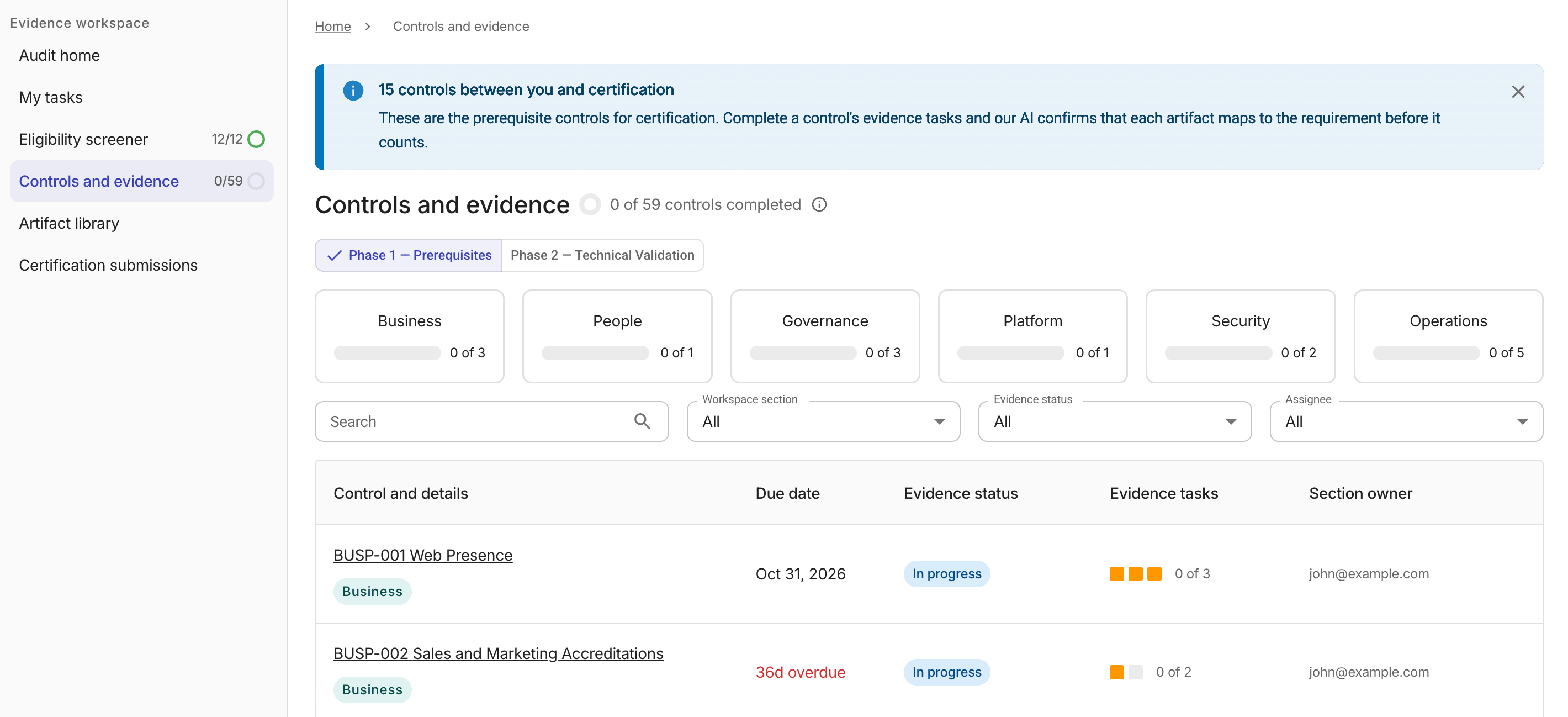
ダッシュボードは次の要素で構成されています。
-
フェーズタブ: 認定フェーズごとにコントロールをフィルターします。Phase one – Prerequisites または Phase two – Technical Validation を選択します。
-
ドメインサマリーカード: 各ドメインで完了しているコントロール数を表示します。
-
フィルター: 検索語句・ワークスペースセクション(ドメイン)・コントロールステータス・担当者でテーブルを絞り込みます。
-
コントロール内訳テーブル: 各コントロールの基本情報を表示します。
-
Evidence status: 各コントロールは次のステータスを順にたどります。
-
Not started: コントロールに紐づく証拠タスクに着手していません。 -
In progress: 少なくとも 1 つの証拠タスクがアクティブ状態に遷移しています。この遷移は自動で行われます。 -
Awaiting completion: すべての証拠タスクが「完了」状態になっています。セクション所有者による確認と完了処理が可能な状態です。この遷移は自動で行われます。 -
Complete: セクション所有者がコントロールを確認し、完了としてマークしています。
-
認定パッケージのレビュー中に監査人がコントロールにフラグを付けた場合、そのコントロールには Auditor flagged バッジが表示され、先に進む前に是正対応が必要になります。
-
コントロール詳細
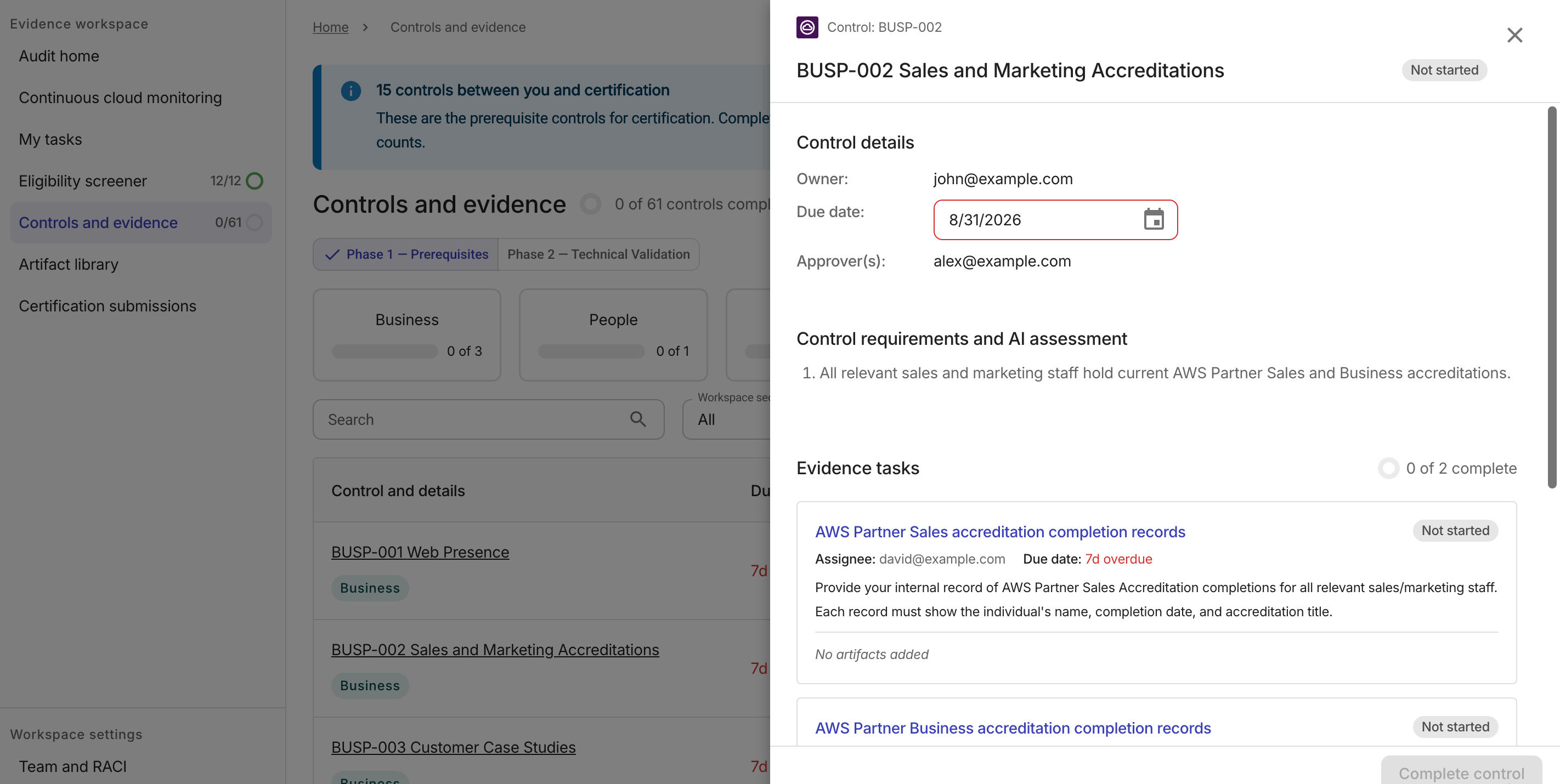
内訳テーブルからコントロールを選択すると、サイドパネルにそのコントロールの詳細が表示されます。
-
Control details: コントロールの基本情報を表示します。所有者 (Owner)、支払期日 (Due date)(目標完了日または経過日数)、およびすべての証拠タスクが完了した後にコントロールを承認する承認者 (Approver) が含まれます。
- セクション所有者またはワークスペース管理者は、コントロールの支払期日を編集できます。
-
Control requirements and AI assessment: コントロールで満たす必要がある基準を表示します。
コントロールに AI 評価が利用可能な場合、パネルに評価結果が表示され、ギャップの特定に役立ちます。AI 評価は助言目的のみであり、コントロールを完了としてマークする前には必ず人による承認が必要です。
-
Auditor feedback: コントロールが
Auditor flaggedステータスの場合、監査人からのフィードバックを表示するバナーが表示されます。コントロールに複数回フラグが付けられた場合は、View earlier feedback を選択して、過去のコメント一覧を展開します。 -
Evidence tasks: コントロールに紐づくすべてのタスクを表示します。証拠タスク名を選択するとタスク詳細サイドパネルが開き、関連するアーティファクト名を選択すると、そのアーティファクトの全画面プレビューが開きます。
-
Comments and activity: コントロールに対するコメントとアクティビティイベントの統合フィードを表示します。アクティビティイベントには、アーティファクトのアップロードといったユーザー操作や、ギャップの特定といった AI のアクションが含まれます。アクティブなワークスペースメンバーであれば、セクション下部のテキスト入力欄からコメントを投稿できます。
-
Complete control: コントロールに紐づくすべての証拠タスクが完了したときに利用できます。コントロールは
Awaiting completionとなり、セクション所有者が完了としてマークできます。
証拠タスクの詳細
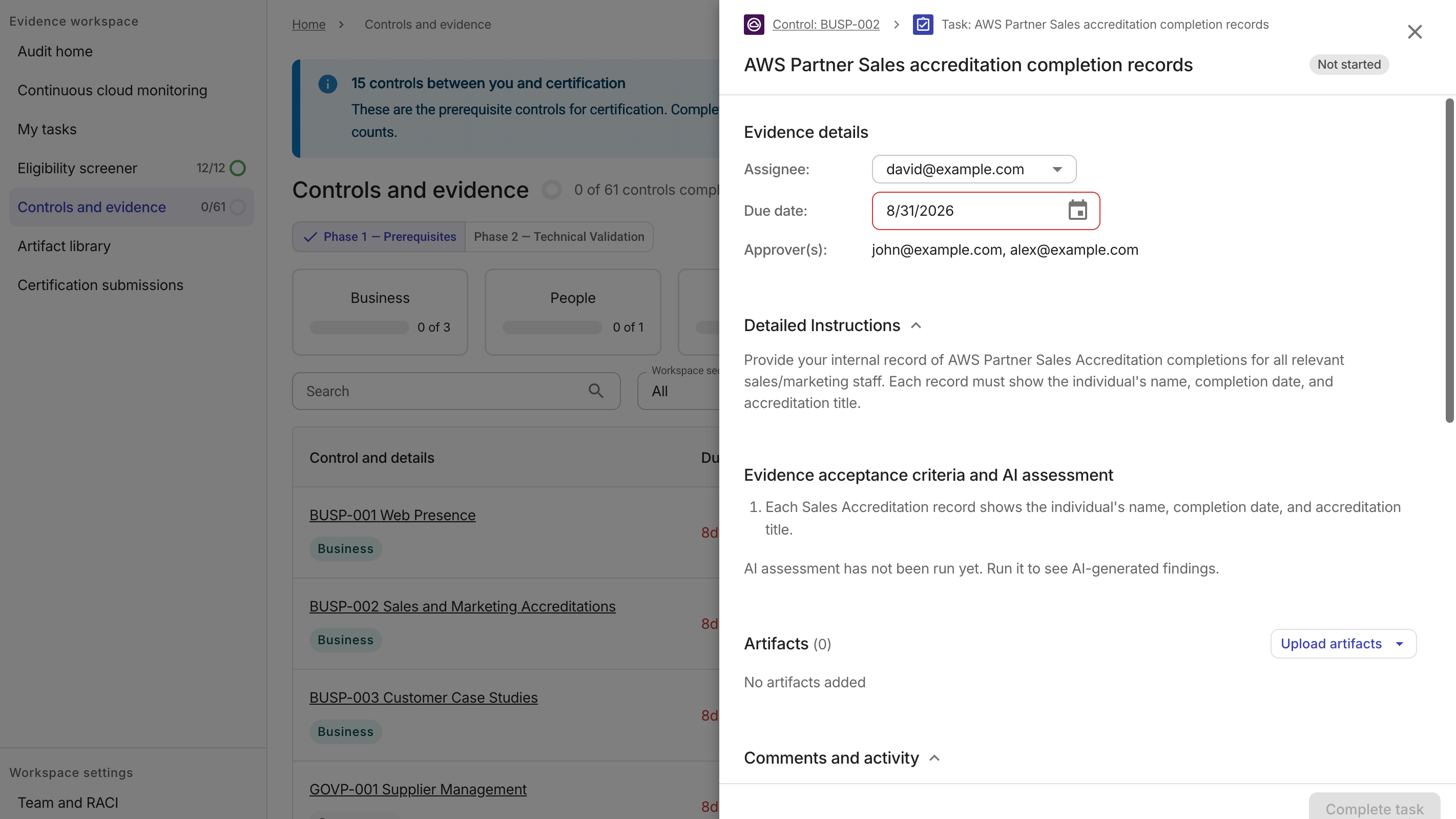
タスク詳細サイドパネルには、そのタスクに関するすべての詳細が表示されます。
-
Evidence details: 証拠タスクの基本情報を表示します。
-
Assignee: タスクの担当者です。
-
Due date: 目標完了日または経過日数です。セクション所有者、ワークスペース管理者、およびタスクの再割り当てと同様にタスク操作を管理できるロールは、証拠タスクの支払期日を編集できます。
-
Approver: すべてのアーティファクトが承認された後に証拠タスクを承認するワークスペースメンバーです。
-
-
Evidence acceptance criteria and AI assessment: 満たす必要がある受け入れ基準と AI 評価の結果を表示します。
-
関連するアーティファクトがある場合は、アーティファクト名を選択して、その全画面プレビューを開きます。
-
アーティファクトのアップロードも参照してください。
-
-
Comments and activity: 証拠タスクに対するコメントとアクティビティイベントの統合フィードを表示します。アクティブなワークスペースメンバーであれば、セクション下部のテキスト入力欄からコメントを投稿できます。
完了済みタスクを再オープンする
証拠タスクのステータスが Done の場合、タスクビュー画面またはタスク詳細サイドパネルから直接再オープンできます。
タスクを再オープンできるかどうかは、ワークスペースロールによって異なります。
-
Workspace Admin と Section Owner: 常にタスクを再オープンできます。
-
Contributor: 自分が現在の担当者である場合に限り、タスクを再オープンできます。
-
Approver と Informed: タスクを再オープンできません。
再オープンされると、タスクは In progress に戻ります。
アーティファクト
アップロードされたアーティファクトは、コントロールの詳細サイドパネルと、関連する証拠タスクの両方に表示されます。
アーティファクト名を選択するか、ケバブメニュー (⋮) を選択してから View artifact を選択すると、そのアーティファクトの全画面プレビューが開きます。インラインプレビューに対応していないファイルの場合は、代わりにダウンロードボタンが表示されます。
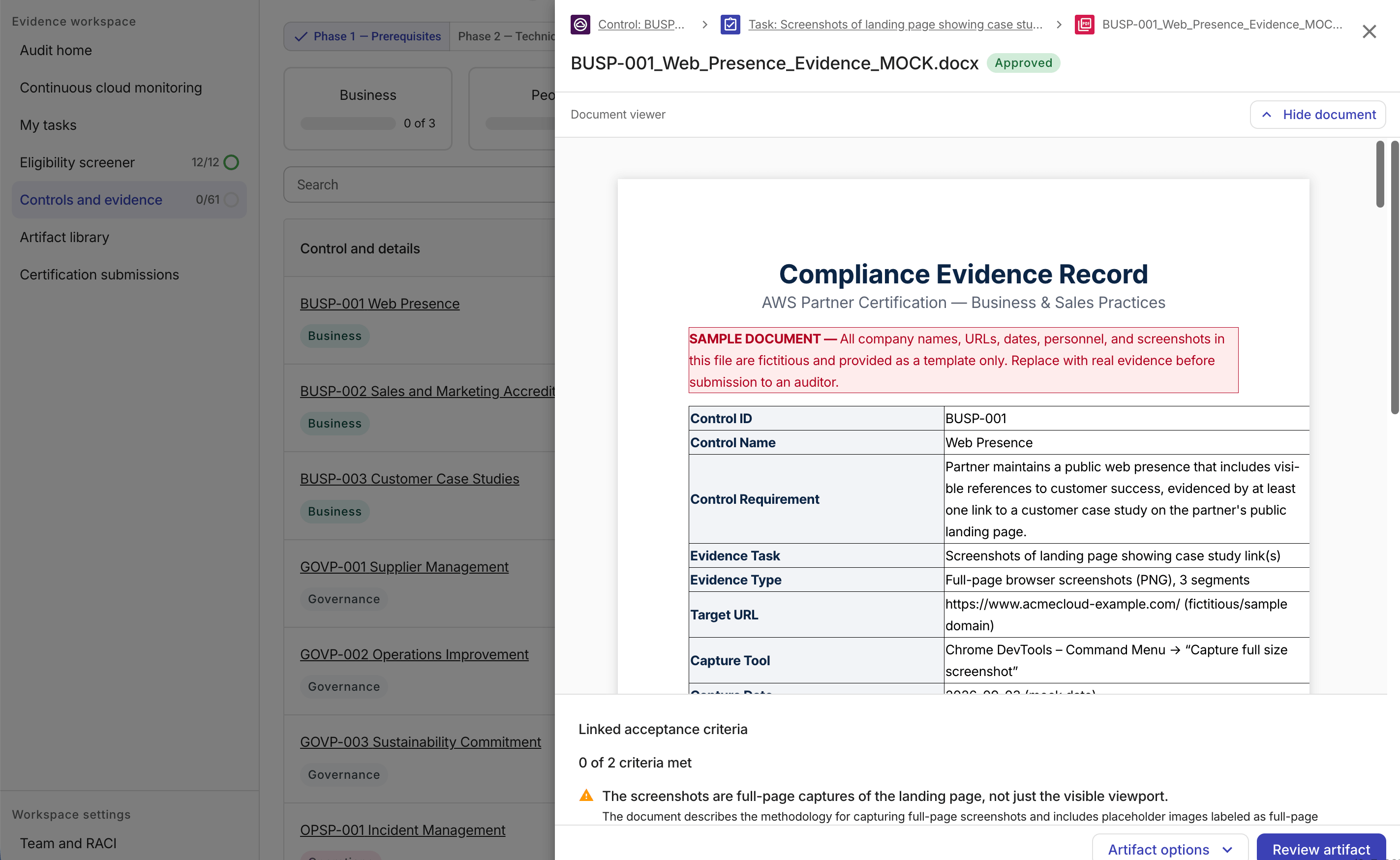
Artifact options ドロップダウンから操作を選択します。
-
Download artifact: アーティファクトをダウンロードします。
-
Upload new version: アーティファクトの新しいバージョンをアップロードします。Upload artifacts を参照してください。
-
Delete artifact: アーティファクトを完全に削除します。削除を実行する前に、確認メッセージが表示されます。
アーティファクトをレビューする
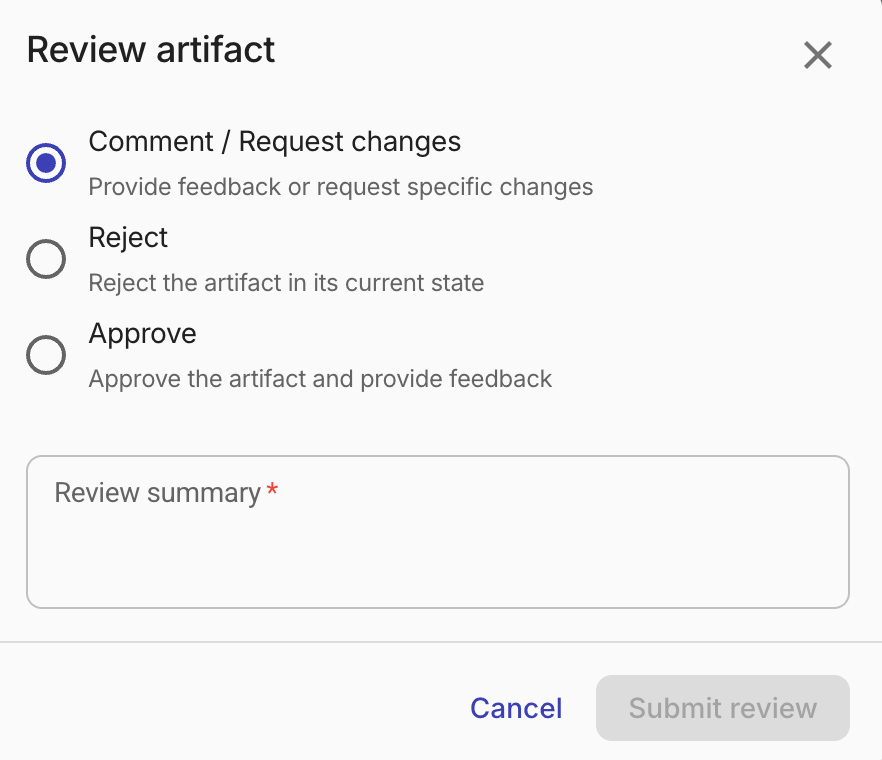
承認者は、アーティファクトを承認・変更依頼・却下できます。
-
アーティファクトのサイドパネルで Review artifact を選択します。
-
レビュータイプを選択します。Comment / Request changes または Reject を選択した場合は、レビューサマリーの入力が必須です。
-
Submit review を選択します。
アーティファクトをアップロードする
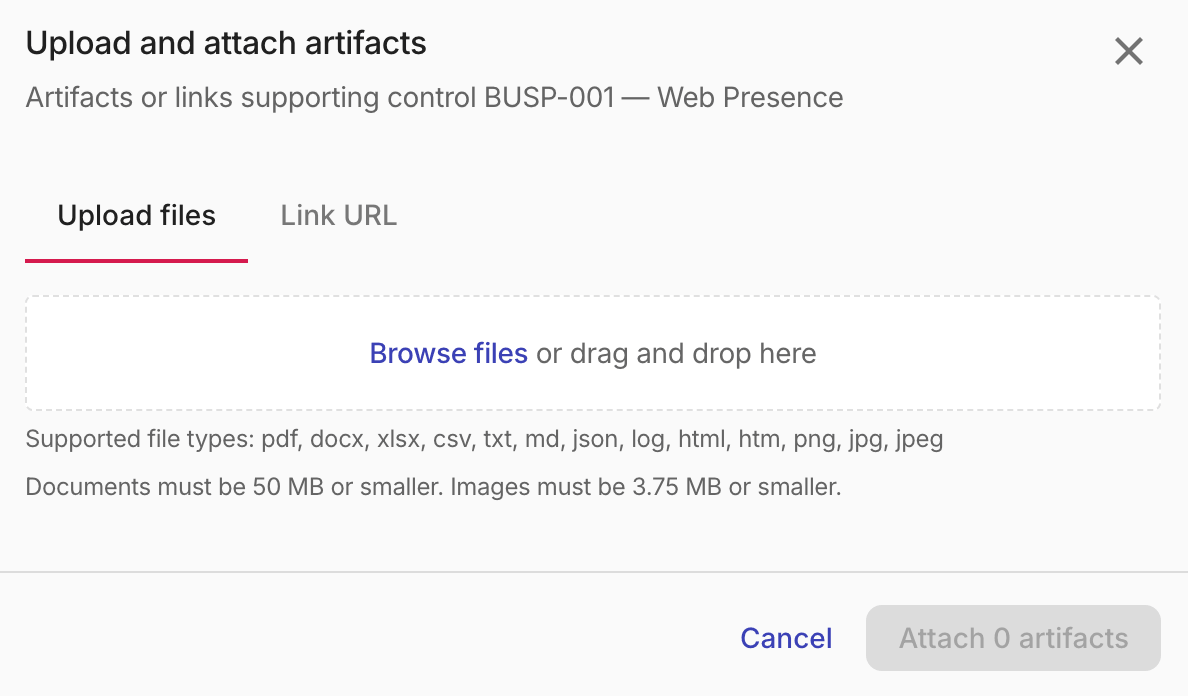
コンプライアンスコントロールのエビデンスとして、ファイル(ドキュメントや画像)を添付するか、公開 Web ページを指すリンク URL を追加してアーティファクトをアップロードします。
-
各証拠タスクには、最大 5 件のドキュメントと 20 件の画像を登録できます。
-
個々のファイルサイズの上限はファイルタイプによって異なります。ドキュメントの最大サイズは 50 MB、画像の最大サイズは 3.75 MB です。
-
リンク URL アーティファクトにはファイルサイズ制限はありません。
タスク詳細サイドパネルの Upload artifacts ドロップダウンには、次の 2 つのオプションがあります。
-
Upload new artifact: 新しい証拠ファイルまたはリンク URL を 1 件以上タスクに添付します。
リンクアーティファクトは、そのまま保存され、AI 評価を行わずに直接人によるレビューに回されます。ログインなしでアクセス可能な公開 URL のみサポートされています。
-
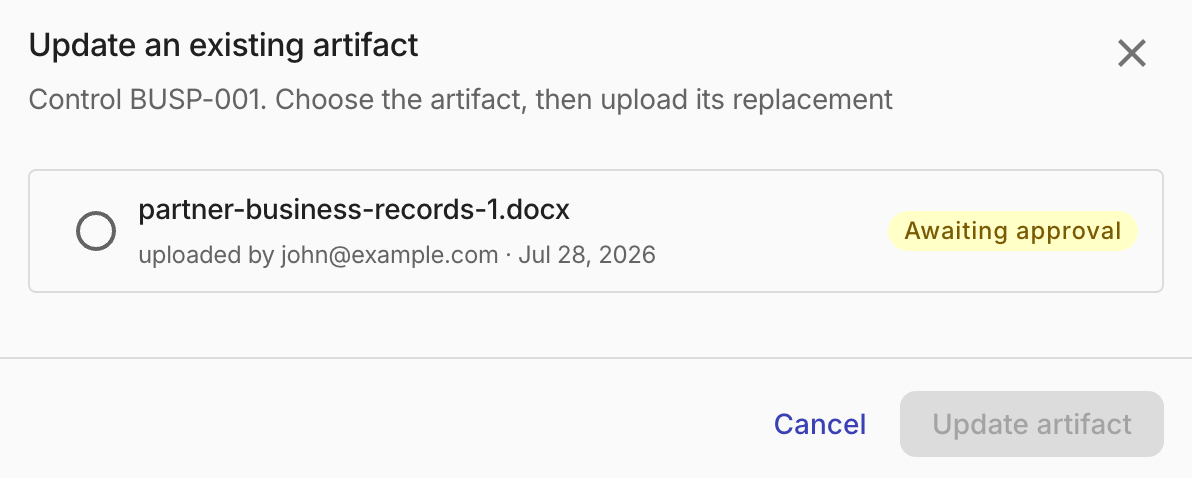
Update an existing artifact: タスクに少なくとも 1 つのアーティファクトがある場合に利用できます。
このオプションには、現在タスクに添付されているすべてのアーティファクトが一覧表示されます。置き換えたいアーティファクトを選択し、差し替え用ファイルをアップロードします。Upload a new artifact version も参照してください。
AI 評価
システムは、アップロードされたドキュメントをコントロール要件に照らして評価する AI 評価を実行します。
-
AI 評価はファイルベースのドキュメントにのみ適用されます。画像やリンク URL アーティファクトは AI による評価は行われず、人によるレビューに回されます。
-
AI 評価には、4.5 MB の別個のサイズ閾値があります。4.5 MB を超えるドキュメントでもアップロードは許可され、人によるレビュー向けのエビデンスとして利用できます。
AI 評価結果は 3 種類あります。
-
Pass: ドキュメントがコントロール要件を満たしています。
-
Gaps detected: ドキュメントとコントロール要件の間にギャップがあると AI が判断しました。
-
Not assessed: 通常はドキュメントがサイズ制限を超えているなどの理由で、AI 評価がスキップされました。人によるレビューであれば、引き続きエビデンスとして評価できます。
評価結果を選択すると、評価の詳細が表示されます。