Credit rules
The Credit rules page lists all credit rules.
Required permissions
Your DoiT account must have one of the following permissions:
-
Credit Viewer: View credits and credit rules (read-only).
-
Credit Manager: Enable or disable credit management, view credits and credit rules, save decisions, and create credit rules.
Access credit rules
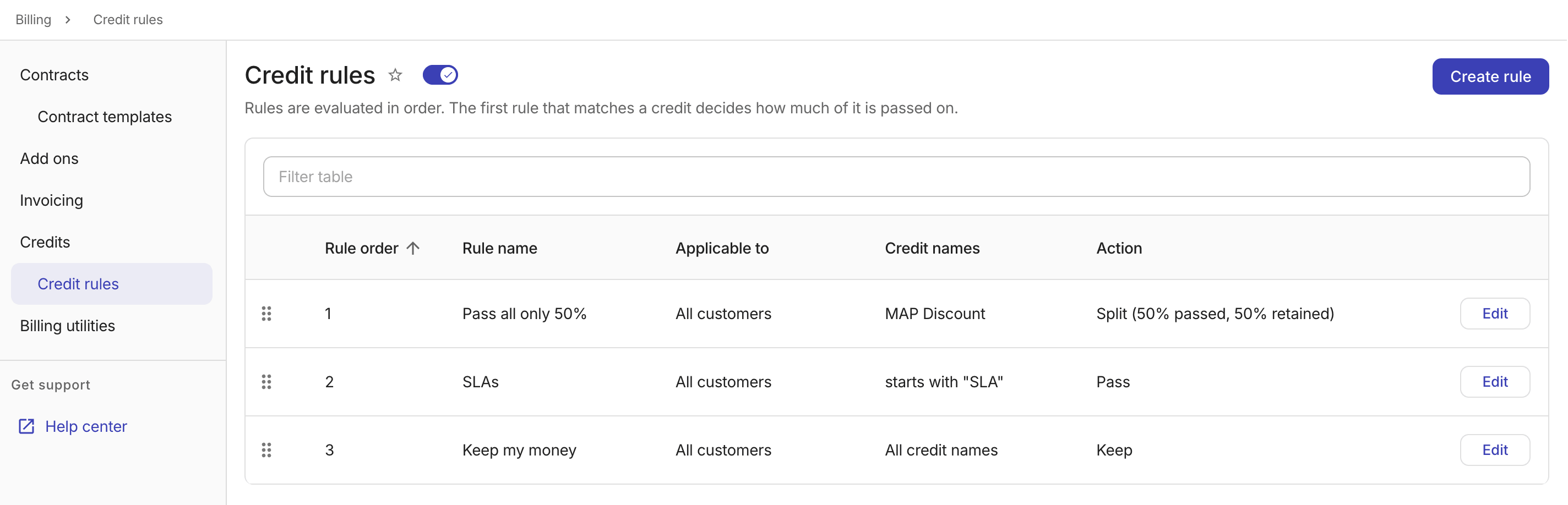
To access the Credit rules page in the DoiT console, select Billing > Credit rules from the top navigation mega menu (make sure you've enabled credit management).
-
Rule order: The position in the evaluation sequence. Rules are evaluated from top to bottom — the first rule that matches a credit determines how much of it is passed on. See also Reorder credit rules.
-
Rule name: The name assigned to the rule.
-
Applicable to: The end customers this rule applies to, or
All customersif unrestricted. -
Credit names: The credit names or pattern summaries this rule matches, or
All credit namesif unrestricted. -
Action: The action taken when the rule matches:
Keep,Pass, orSplit(with the percentage or fixed amount).
Create a credit rule
To create a credit rule:
-
On the Credit rules page, select Create rule.
-
Enter a unique name for the credit rule.
-
In the Applicable to dropdown, select end customers this rule applies to, or leave it to
All customers. -
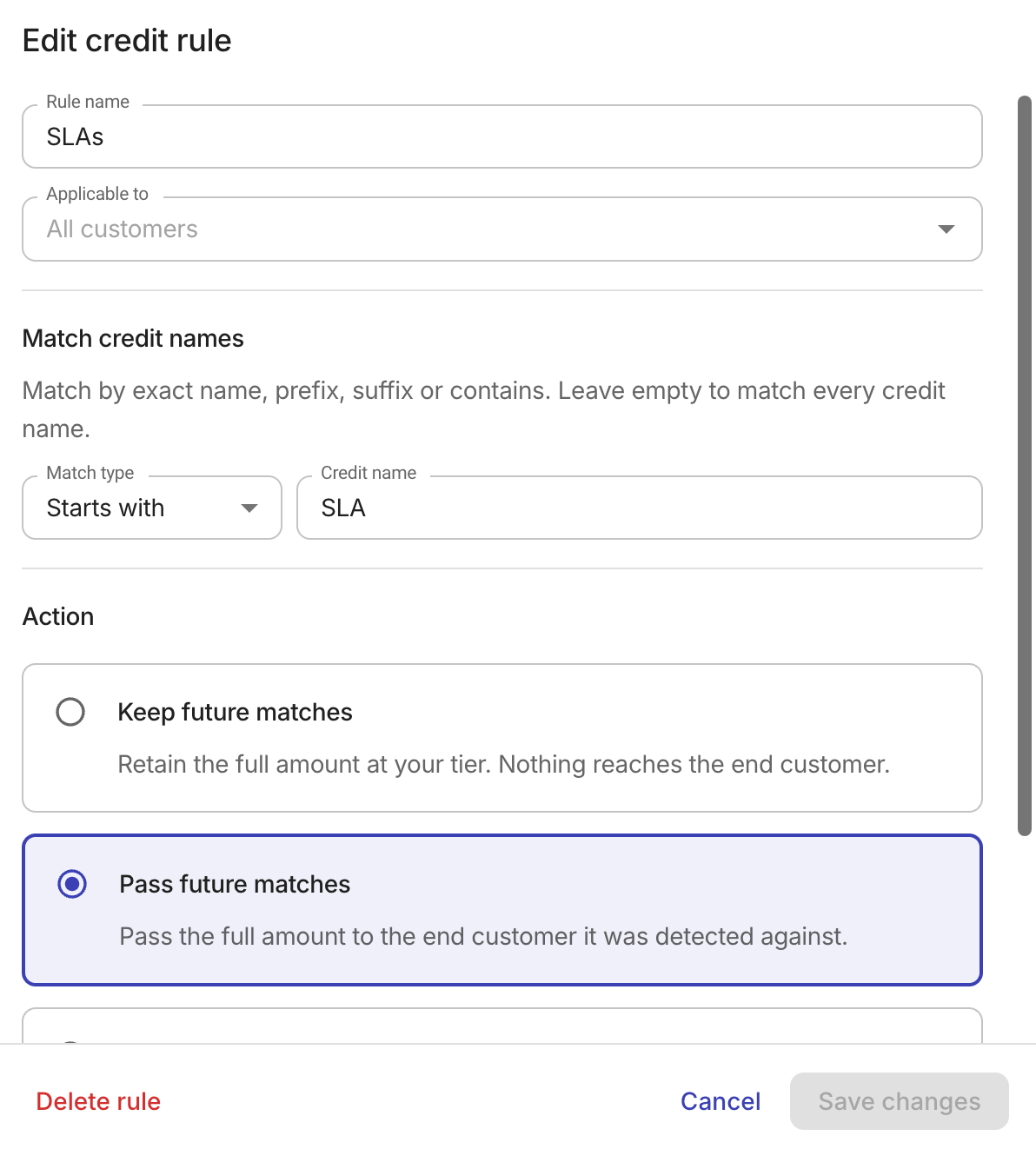
Under Match credit names, select a match type and enter a credit name value to define the credits this rule should match.
Available match types:
-
Exact: Matches credits whose name is identical to the value (case-sensitive). -
Starts with: Matches credits whose name begins with the value (case-insensitive). -
Ends with: Matches credits whose name ends with the value (case-insensitive). -
Contains: Matches credits whose name includes the value anywhere (case-insensitive).
Each rule can match at most one credit name or pattern. Leave the value empty to match every credit name.
-
-
Choose an Action for the rule: Keep future matches, Pass future matches, or Split future matches. See Decide on a credit for more information.
-
Select Create rule.
New rules take effect after the next billing recalculation.
Manage credit rules
With the Credit Manager permission, you can edit or delete a credit rule, or reorder the rules:
-
Editing a rule does not trigger a billing recalculation. Credits keep their current status until the next scheduled recalculation runs.
-
Deleting a rule does not trigger a billing recalculation. Credits that were matched by the deleted rule keep their current status until the next scheduled recalculation runs. At that point, the remaining rules are evaluated.
-
Reordering does not trigger a billing recalculation. Credits keep their current status until the next scheduled recalculation runs.
Edit a credit rule
To edit an existing credit rule:
-
On the Credit rules page, locate the rule of interest.
-
Select the rule row or select Edit.
-
Update the settings as needed. The options are the same as when you create a rule.
-
Save your changes.
Delete a rule
Deleting a rule removes it permanently from the evaluation order and cannot be undone. If you need the same rule later, you must create it again.
-
Open the Edit credit rule dialog of the target rule.
-
Select Delete rule at the bottom of the dialog.
-
Confirm the deletion.
Reorder credit rules
Credit rules are evaluated from top to bottom. Changing the order of the rules lets you control which rule takes effect for a given credit.
To reorder credit rules:
-
Navigate to the Credit rules page.
-
Drag the handle on the left of the target rule to reposition it.
The new order is saved automatically.