Credit management
Credit management lets resellers decide how to handle credits for their end customers: keep a credit, pass it on to the customer, split it, or defer it to the next billing month. You can also create credit rules that apply the same decision to matching credits.
Required permissions
Your DoiT account must have one of the following permissions:
-
Credit Viewer: View credits and credit rules (read-only).
-
Credit Manager: Enable or disable credit management, view credits and credit rules, save decisions, and create credit rules.
Access credits page
To access the Credits page, sign in to the DoiT console and select Billing > Credit management from the top navigation mega menu.
You must enable credit management before you can view or manage credits and rules.
Enable credit management
To enable credit management, select Enable credit management, or use the toggle switch next to the page title.
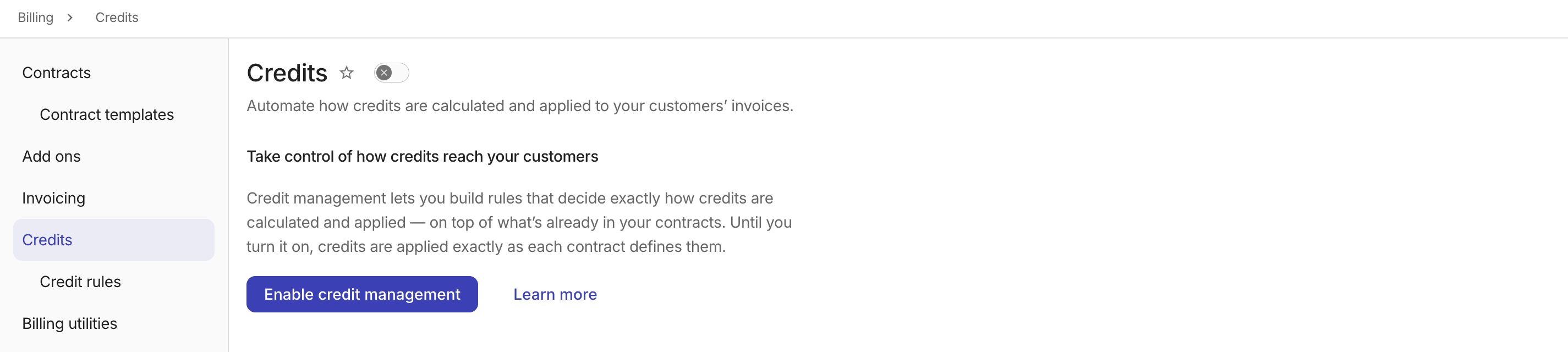
In the confirmation dialog, review the details and select Enable credit management.
Credits table
The Credits table lists all credits for a selected billing month, including those still waiting on a decision.
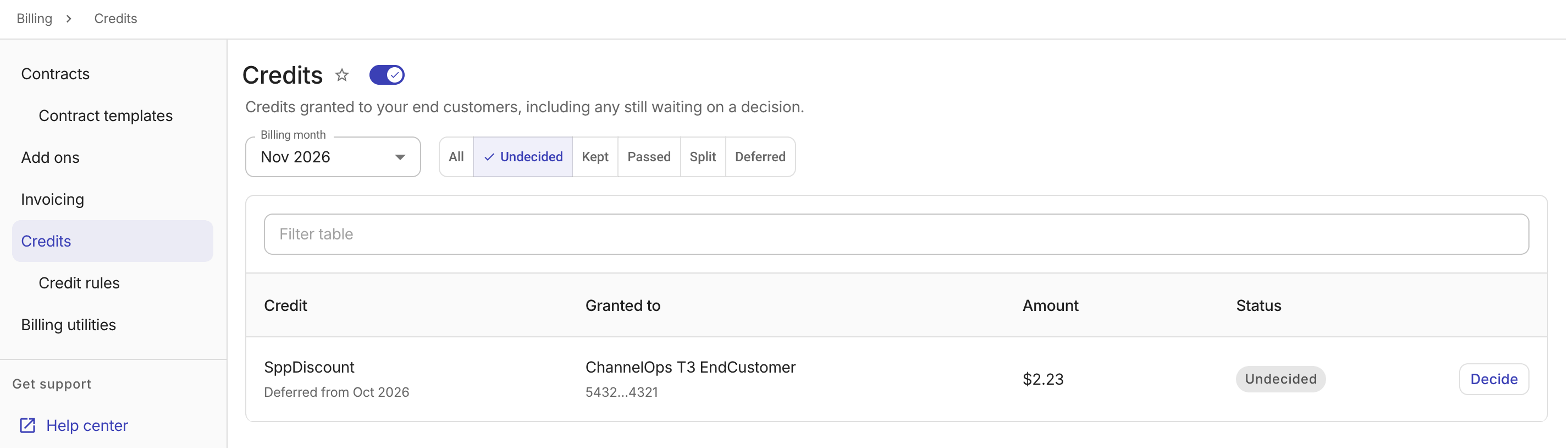
Each row shows the credit name, the end customer it was granted to, the amount, and its current status. Credits that were deferred from an earlier billing month display a Deferred from <month> label.
The Credits page lists all credits for a selected billing month. You can:
-
Select a different month from the dropdown.
-
Select a status toggle to show only credits with a specific status.
-
Use the table filters to search by credit name or customer name.
Credit statuses
Each credit has one of the following statuses:
-
Undecided: No decision or credit rule applies yet. The credit stays with you until you make a decision.
-
Kept: The full credit is retained at your tier. Nothing reaches the end customer.
-
Passed: The full credit is passed on to the end customer.
-
Split: Part of the credit is passed on and the rest is retained.
-
Deferred: The credit is carried forward to the next billing month. In the next month the credit appears again and a new decision can be applied.
When a decision has been saved but billing has not yet recalculated, the status chip indicates that the outcome is awaiting recalculation.
Decide on a credit
You need the Credit Manager permission to make a decision for a credit:
-
Select the credit row or the Decide button to open a side panel with the credit details.
-
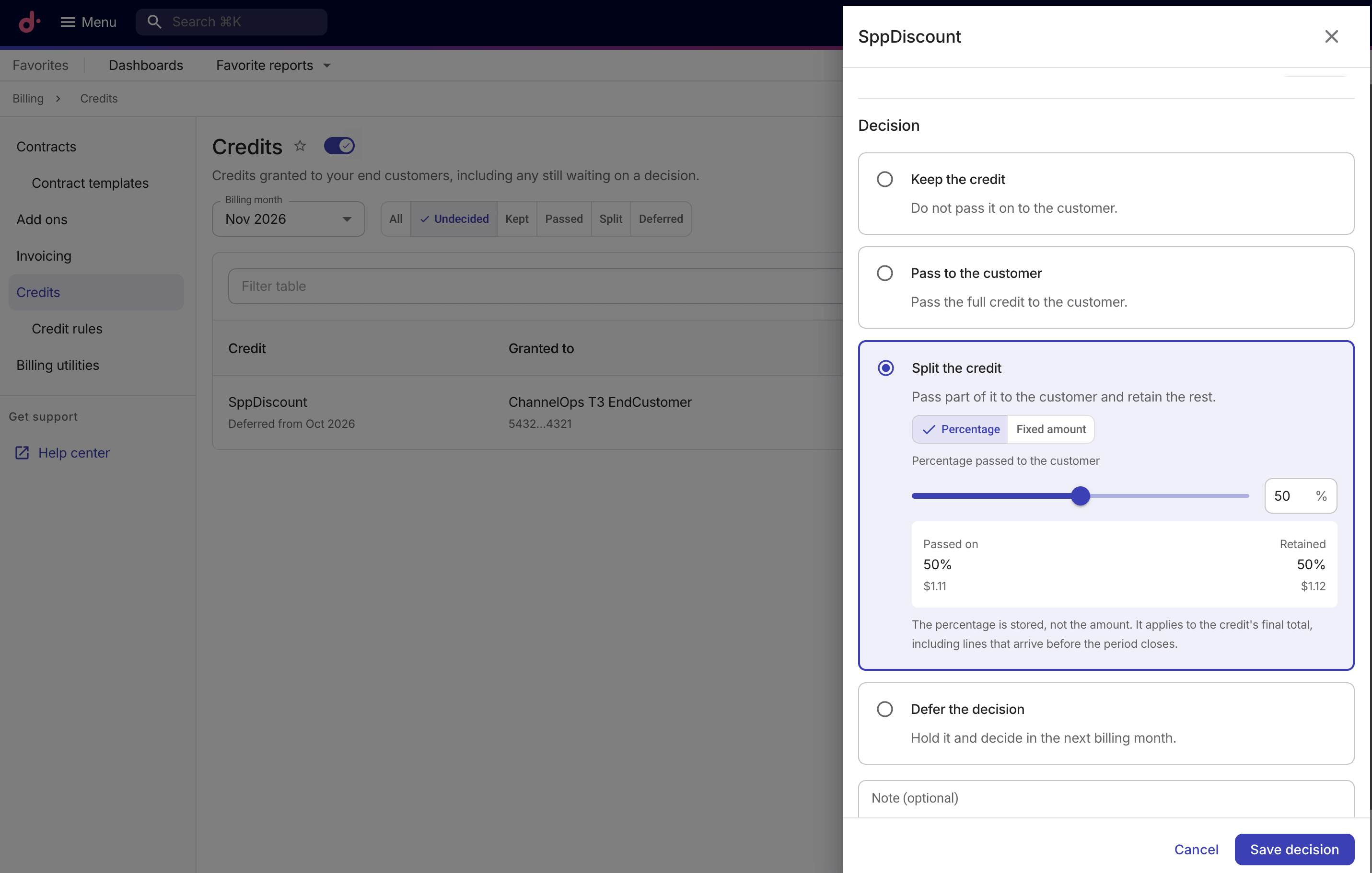
Choose a decision for the credit:
-
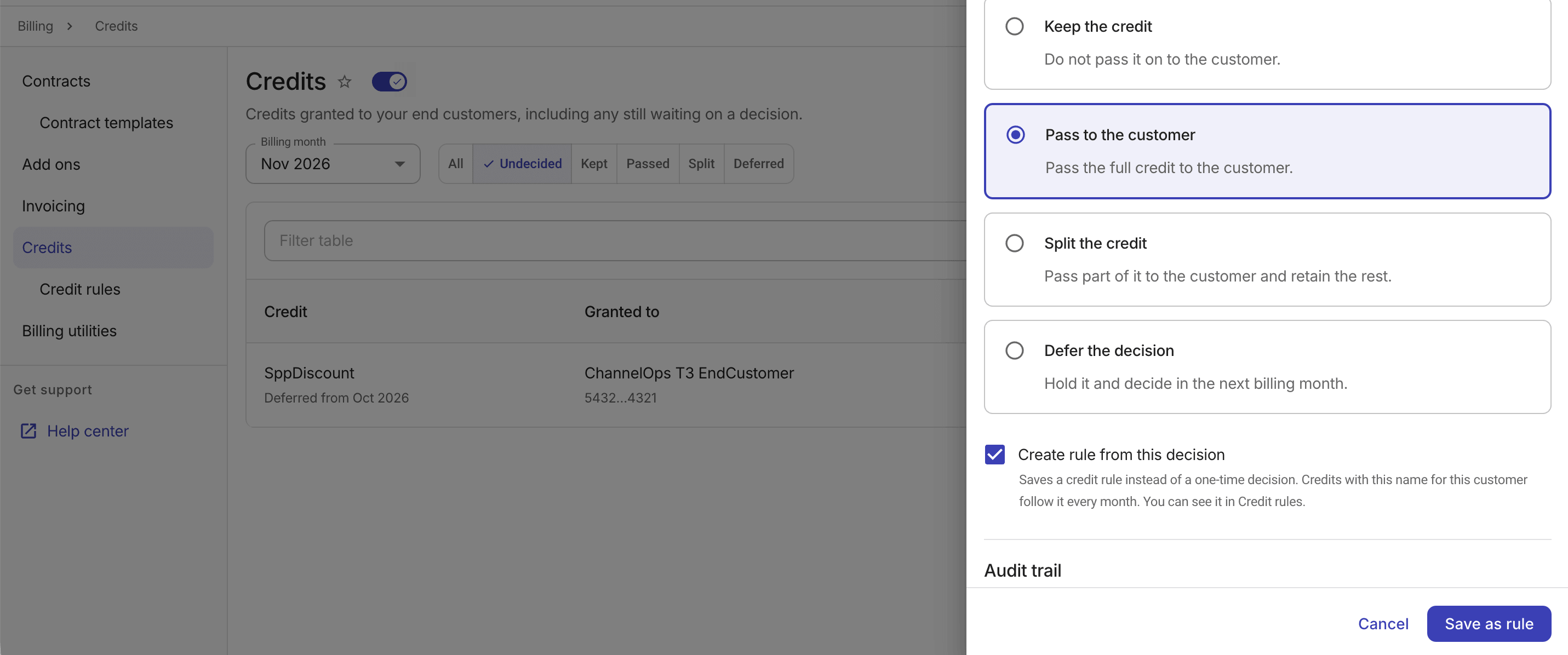
Keep the credit: Retain the full amount at your tier and do not pass it on to the end customer.
-
Pass to the customer: Pass the full credit to the end customer.
-
Split the credit: Pass part of the credit to the customer and retain the rest.
-
Percentage: Use the slider or enter a value to set the percentage. The percentage applies to the credit's final total. -
Fixed amount: Enter a dollar amount to pass to the customer. The rest is retained.
-
-
Defer the decision: Carry the full credit forward to the next billing month. The credit appears in that month's recalculation, where you can choose to keep, pass, split, or defer it again.
-
-
Optionally, enter a note to record why this decision was made.
-
To create a rule instead of making a one-time choice, continue with the section on creating a rule from a decision; otherwise, select Save decision:
-
The decision takes effect after the next billing recalculation.
-
If the customer's billing month has already been invoiced, saving a decision applies the credit as an adjustment on the next month's invoice.
-
Create a rule from a decision
You can save a decision as a reusable credit rule:
-
Select the Create rule from this decision checkbox.
-
Select Save as rule.
-
In the confirmation dialog, review the rule details and select Confirm.
-
The rule is created with the credit name and customer from the current credit.
-
It appears on the Credit rules page and applies to matching credits every month, starting with the next billing recalculation.
-
View or update a decision
For a credit that already has a decision, a View button replaces the Decide button in the credit row.
-
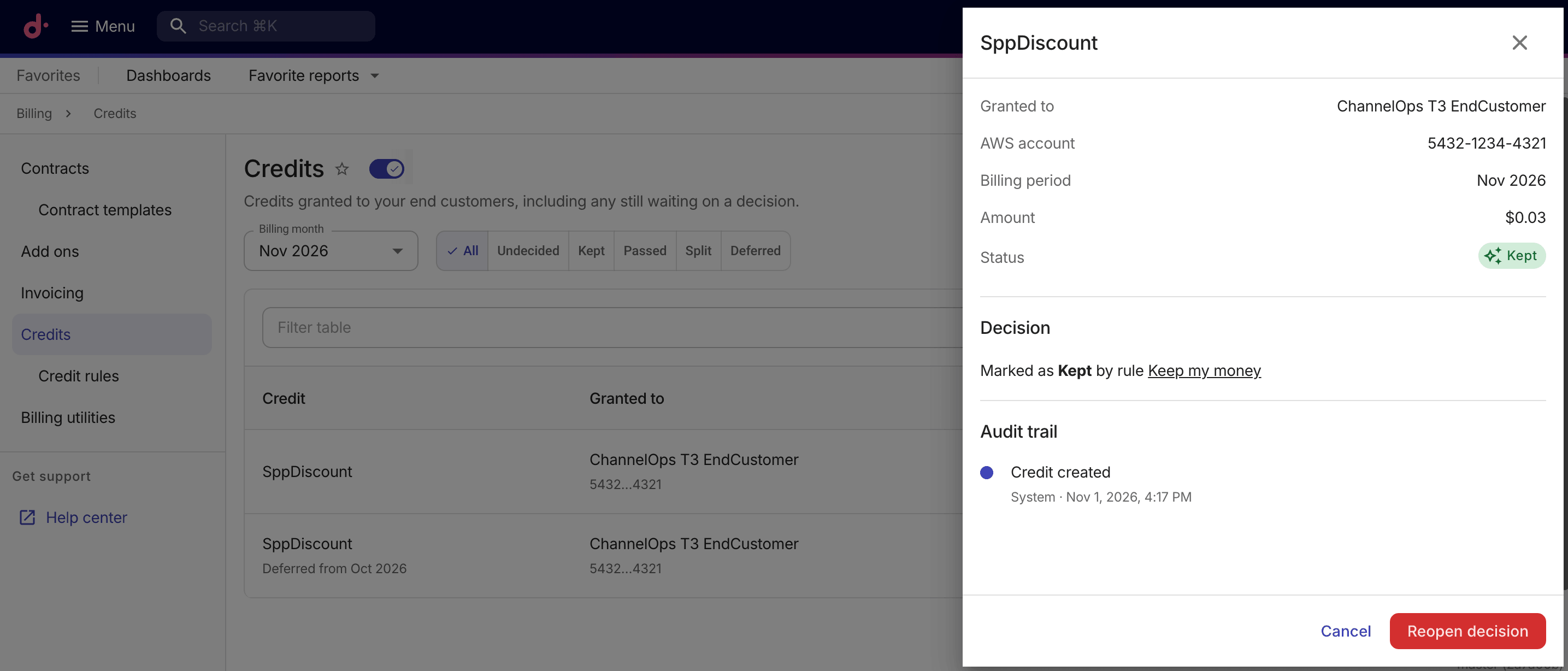
Select the credit row or select View to open a side panel with a decision summary.
-
For a manual decision, the summary shows the status and the note if available.
-
For a decision made by a credit rule, the summary shows the status and the name of the matching rule. You can select the rule name to open it on the Credit rules page for reviewing or editing.
-
-
If you have the Credit Manager permission, you can update the decision:
-
Select Reopen decision.
-
Choose a different action and save a new decision.
-
Audit trail
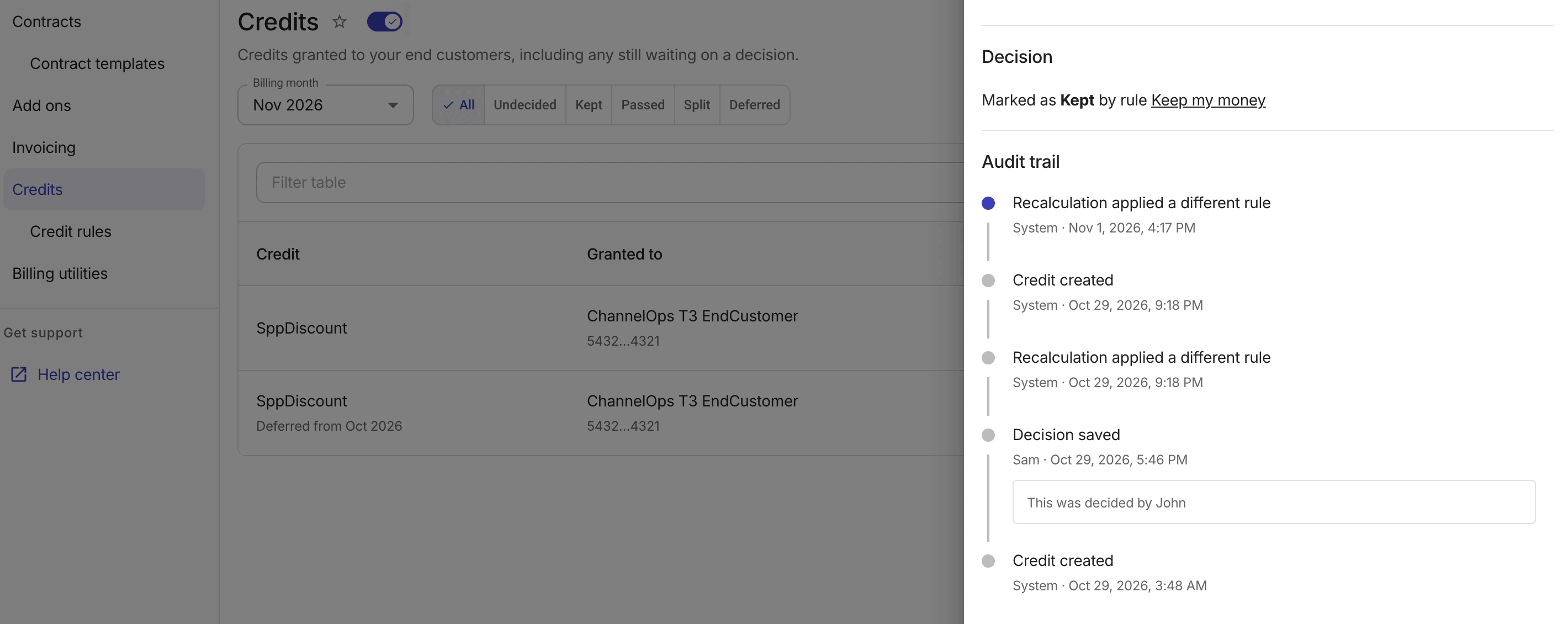
The credit side panel includes an Audit trail section with a timeline of all changes made to the credit, newest first.
Disable credit management
To disable credit management, use the toggle switch next to the page title, then confirm in the dialog.
Disabling credit management takes effect immediately. Existing credit rules stop being applied, and customers move back to contract-only credits. This can change what's on their next invoice.
Existing credit rules are preserved. If you re-enable credit management later, the rules resume from the next billing recalculation.
Example: Verify in reports
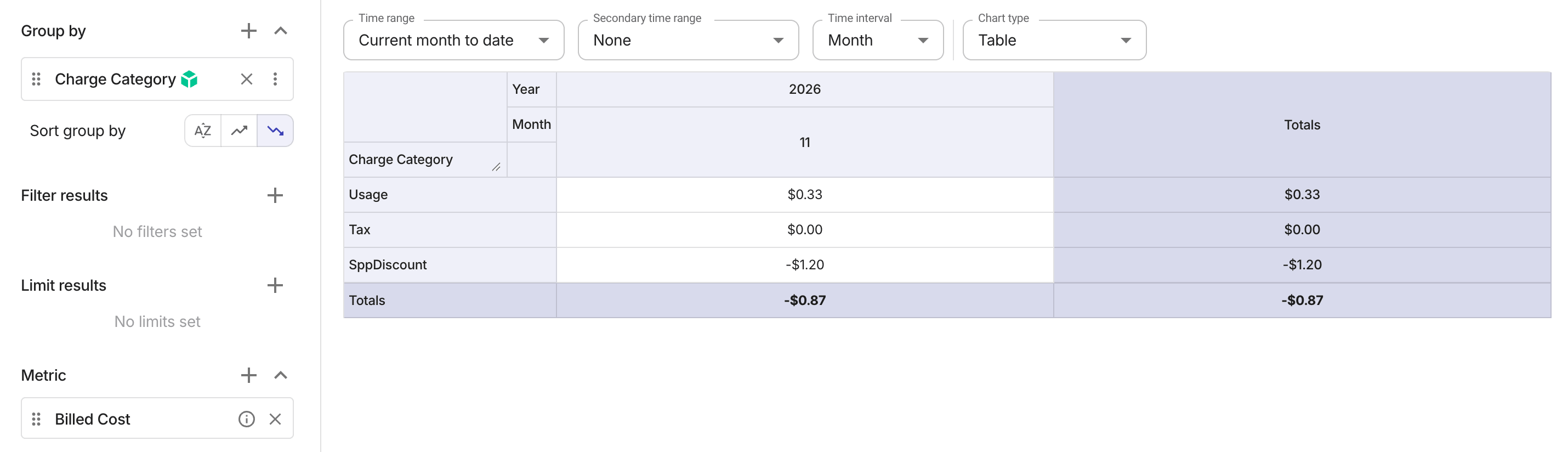
In the following example, a reseller has a credit rule to pass 50% of the SppDiscount deferred from a previous month to an end customer.
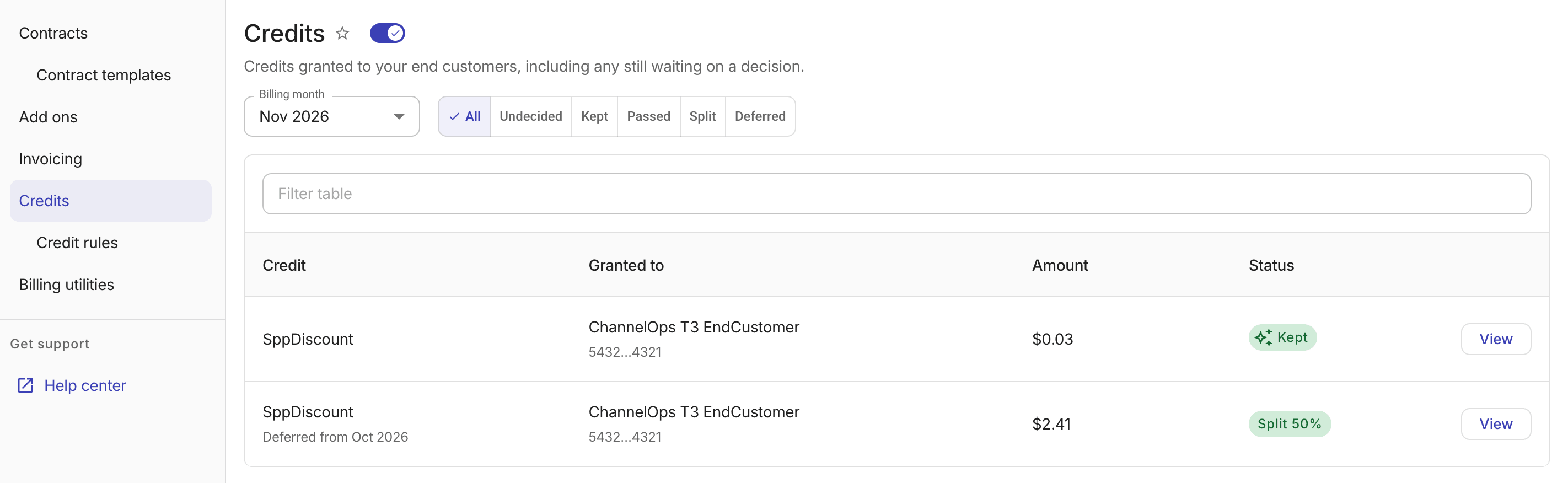
Once the next recalculation completes (either scheduled or manually triggered), the application of the credit rule can be verified by running a Cloud Analytics report from the end customer's perspective.