Import a PDF invoice
Some of what you pay for has no billing API: niche SaaS tools, agencies, data providers, on-premises licenses. You can bring that spend into Cloud Intelligence™ by uploading the vendor's PDF invoice. DoiT reads the invoice automatically, you check the result against the PDF, and one click adds the cost to a DataHub dataset. From there it appears in reports, budgets, and allocations like any other DataHub source.
Required permission
- DataHub Admin
Your organization must also be entitled to DataHub. There is no setting to turn the feature on.
Before you begin
- Use the PDF the vendor sent you. The file must be a PDF of up to 4.5 MB and 20 pages, and must not be password-protected.
- Upload one invoice per file. To import several invoices, upload them one after another.
- You can import up to 50 invoices per day.
Import an invoice
-
Sign in to the DoiT console.
-
Select Data ingestion and integrations > DataHub from the top navigation mega menu.
-
Select Upload invoice. The arrow next to it opens a menu with the same option, Upload invoice (PDF), and Other ways to import data…, which opens the Import data dialog.
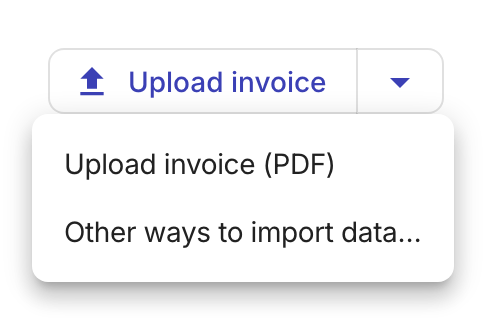
The Upload invoice button is also on a dataset's details page, where it imports into that dataset. For a dataset that has no data yet, select Import data on its details page, select Upload PDF invoice, and then select Continue.
-
Drop the PDF in the upload area, or select Choose PDF.
DoiT shows Reading your invoice with AI while it extracts the invoice.
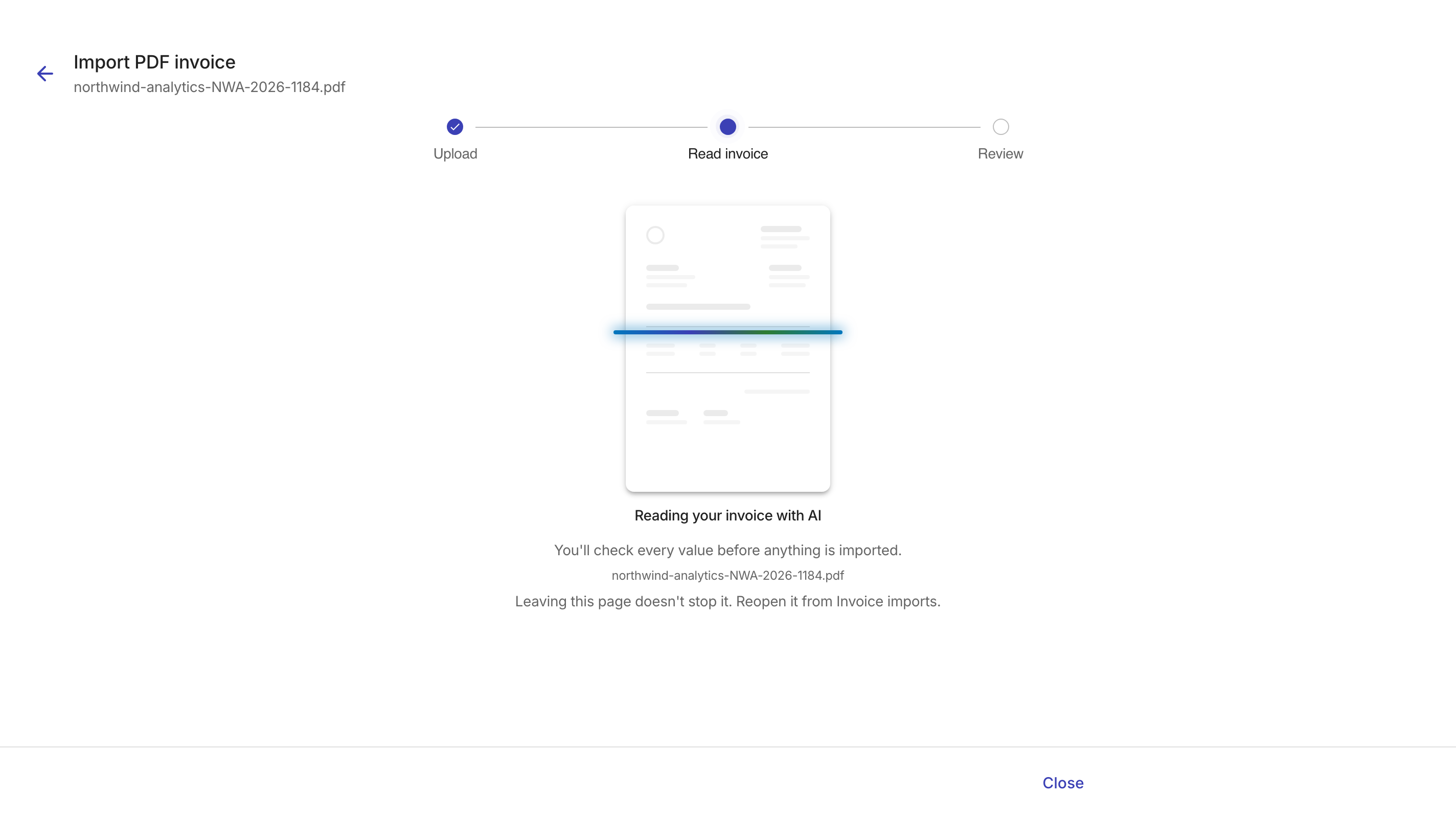
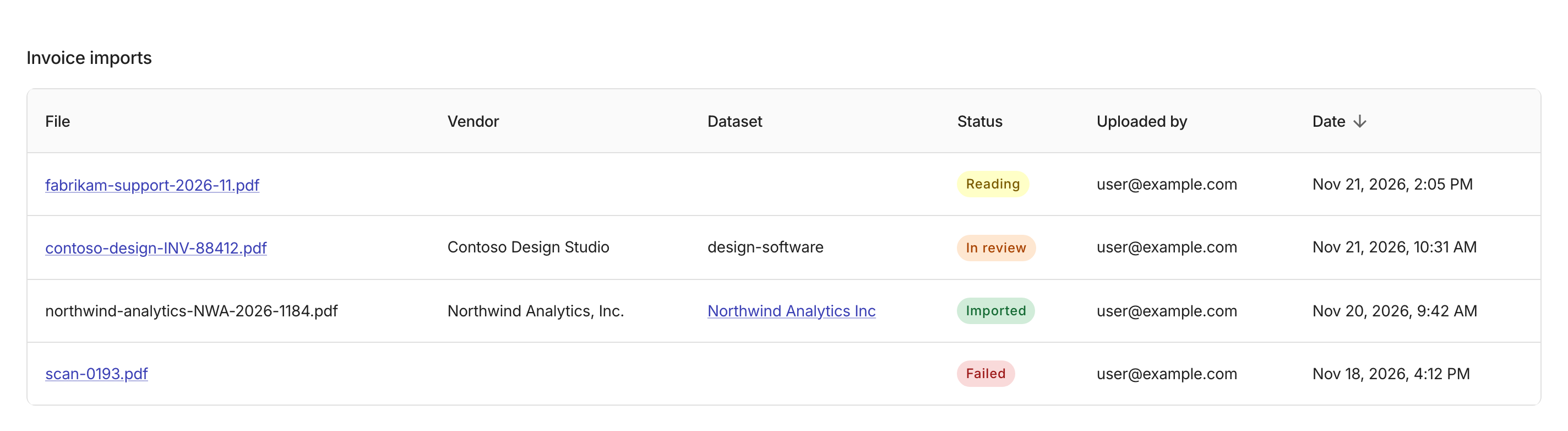
You can leave the page: the import continues and appears in the Invoice imports list on the DataHub page with the status Reading, and then In review. Select its file name to open it when you're ready.
-
If DoiT has an integration for the vendor that issued the invoice, a banner above the invoice details says so:
- DoiT integrates with integration name: connecting the integration imports the vendor's costs automatically every day, with more detail and features than an invoice. Select Connect to set it up in a new tab.
- Integration name is already connected: importing the invoice may count the same costs twice. Select Manage to check the connection in a new tab.

You can still import the invoice in both cases.
-
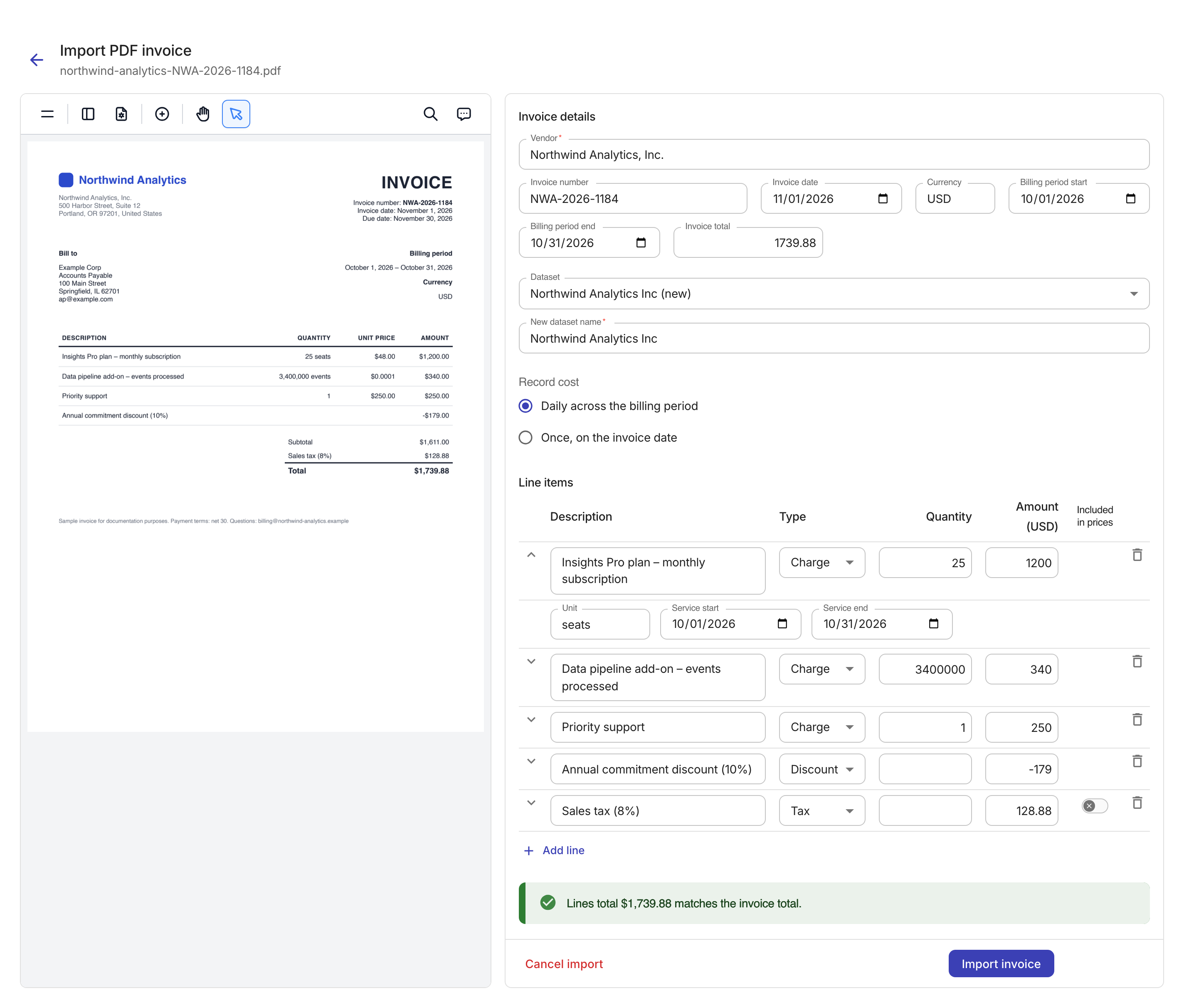
Check the invoice details beside the PDF. Review the vendor, invoice number, invoice date, currency, invoice total, and billing period. The invoice total is the amount charged, before any payments; on a paid invoice it is not the amount due. Fields that DoiT isn't sure about carry a Check this value marker, and lines a Check this line marker. All fields are editable.
-
Check the line items. Each line has a description, a type (Charge, Discount, Credit, or Tax), a quantity, and an amount. Select Add line to add a line, or remove a line you don't want. Discounts and credits are negative amounts. Expand a line to set its unit and service period.
A line whose amount is 0 isn't imported and is marked Not imported (amount is 0). If it has a quantity, it's marked Usage only (amount is 0) and imports the quantity without a cost.
-
Choose the dataset and how to record the cost, as described in the next sections.
-
When the lines total matches the invoice total, select Import invoice.
The success page offers View dataset, Open in Reports, and Back to DataHub.
Edits you make on the review page aren't saved when you leave it. If you leave with unsaved edits, the console asks you to confirm. The extracted invoice stays in Invoice imports, so you can open it again and start the review over. Select Cancel import to discard the import; the console asks you to confirm first.
Choose the dataset
In the Dataset field you can choose from:
- A suggested existing dataset, marked Suggested. DoiT suggests a dataset only when it clearly matches the vendor. If you imported an invoice from the same vendor before, that import's dataset is suggested.
- Any other existing dataset in the list.
- Create new dataset, marked (new). The name is filled in from the vendor, and you can change it. This is preselected only when no existing dataset matches. Dataset names can contain letters, numbers, spaces, hyphens, and underscores.
You always have the final say.
Choose how to record the cost
In Record cost, choose:
- Daily across the billing period. The cost of each line is split evenly across the days of the billing period, or of the line's own service period if it has one. This is the default when the invoice states a billing period.
- Once, on the invoice date. The cost of each line is recorded as one record on the invoice date. This is the default when no billing period was found.
When an invoice can't be imported
DoiT blocks the import until the invoice is consistent, so a misread amount doesn't reach your reports.
- The lines must add up to the invoice total. The comparison is to the cent. If they don't match, the page shows both figures and the difference. Correct a line or the total.
- Tax already included in prices. Many invoices print tax-inclusive prices and then an "of which VAT" line. Counting that line again would add the tax twice, so DoiT shows it greyed out with an Included in prices toggle, leaves it out of the sum, and doesn't import it. Turn the toggle off if the line isn't actually included in the other prices.
- Amounts far larger than the invoice total. A line amount more than ten times the invoice total is usually a quantity read as money, so DoiT marks the line. Check it against the PDF. If the amount is right, for example a large charge offset by a credit, you can still import the invoice. An invoice uploaded through the API with such a line isn't imported automatically; it waits in Invoice imports for you to check and import it.
- No exchange rate. Amounts in a currency other than USD are converted to USD at the rate for the invoice date, and the page shows the rate and date. If no rate exists for that currency and date, the invoice can't be imported.
What is stored in DataHub
DataHub gets one record per line per day with Daily across the billing period, or one record per line with Once, on the invoice date.
| Field | Value |
|---|---|
| Dataset | The dataset you chose |
| Date | Each day of the service period, or the invoice date |
| Cost | The line amount in USD, split evenly across the days. The last day absorbs any rounding remainder |
| Usage | The quantity, when the invoice states one (on the first day only with daily records) |
| Service | The vendor product or plan the line belongs to |
| SKU | The line description |
| Labels | Vendor, invoice number, invoice date, line type, original currency, original amount, exchange rate, and import ID |
Tax, discount, and credit lines are imported and distinguished by the line type label, so you can include or exclude them in reports. A tax line that is already included in other prices isn't imported. A line whose amount is 0 isn't imported either, unless it states a quantity: then it creates one record on the first day with the usage only.
Duplicate invoices
DoiT doesn't import the same invoice twice. An invoice counts as already imported when you upload a byte-identical file, or when the vendor and invoice number match an invoice you imported earlier. A duplicate is not imported. The page shows who imported the original and when, and offers:
- View existing import
- Overwrite existing data, which removes the earlier records and writes the new ones. This also works when you chose a different dataset or a different way of recording the cost. The earlier records are removed only after the new ones are written, so an overwrite that fails before then leaves the earlier import as it was.
DataHub can't remove records during their first 90 minutes. Within 90 minutes of the earlier import, Overwrite existing data is disabled and the page says when you can overwrite it. The extracted invoice stays in Invoice imports, so you can return later and confirm.
If you delete the earlier import from the dataset page, its data is gone and the invoice no longer counts as a duplicate.
Delete an import
Each invoice import appears as one batch on the dataset's details page. To delete it, select the batch and then Delete, as you would for a CSV upload. See Manage datasets via the UI. As with other batches, you can delete data 90 minutes after its ingestion.
Limits
| Limit | Value |
|---|---|
| File | One PDF, up to 4.5 MB and 20 pages |
| Line items per invoice | 500 |
| Records created by one invoice | 20,000. For a long billing period with many lines, record the cost once on the invoice date or shorten the service periods |
| Invoices per day | 50 |
Import through the API
You can also import invoices with the DataHub API. One call uploads and imports; there is no confirm step. Because no person reviews an API import, DoiT applies the same checks automatically: if the lines don't add up to the invoice total, no exchange rate exists, the vendor, invoice date, currency, or total was read with low confidence, or a line amount is more than ten times the invoice total, nothing is written and the import ends as needsReview. A DataHub Admin can then open it from Invoice imports in the console, correct it, and import it. API imports appear in that list like any other.
The API uses the same permission and entitlement as the console.
| Endpoint | Purpose |
|---|---|
POST /datahub/v1/invoice-imports | Upload a PDF and import it. Returns an import ID immediately. |
GET /datahub/v1/invoice-imports/{id} | Get the status and result of an import. |
GET /datahub/v1/invoice-imports | List imports, newest first. |
Optional fields of the upload call: dataset (an existing dataset), newDatasetName (create a dataset; not allowed together with dataset), costDating (daily or invoiceDate), and force (overwrite an earlier import of the same invoice, subject to the 90-minute rule). Without dataset or newDatasetName, DoiT uses the suggested dataset, or creates one named after the vendor.
curl --request POST "https://api.doit.com/datahub/v1/invoice-imports" \
--header "Authorization: Bearer $DOIT_API_TOKEN" \
--form "newDatasetName=Example Vendor" \
--form "costDating=invoiceDate"
When the invoice was issued by a vendor DoiT has an integration for, the result includes suggestedIntegration, the integration's key (for example xai). It doesn't change the import. Check whether that integration is already connected before you import invoices from the same vendor, so the same costs aren't counted twice.
Poll the import until its status is no longer processing:
| Status | Meaning |
|---|---|
processing | DoiT is reading or importing the invoice. |
imported | The records were written. The response includes the dataset, the record count, and the extracted invoice. |
duplicate | The invoice was already imported and force wasn't set. Nothing was written. The response names the earlier import. |
needsReview | The extraction succeeded, but an automatic check failed. Nothing was written. Finish it in the console. |
failed | The document isn't an invoice or couldn't be read, or force was used within 90 minutes of the earlier import. The response has an errorCode. |
Troubleshooting
| Message | What to do |
|---|---|
| This file isn't a PDF. Choose a PDF invoice. | Upload a file in PDF format. |
| This file is larger than 4.5 MB. Choose a smaller PDF. | Reduce the file size, or export the invoice again from the vendor's portal. |
| This PDF has more than 20 pages. | Upload only the pages of the invoice. |
| This PDF is password-protected. Upload a copy without a password. | Remove the password and upload the file again. |
| You've reached today's limit of 50 invoices. Try again tomorrow. | Wait until the next day (UTC). |
| This document doesn't look like an invoice. | Check that you uploaded the invoice itself and not a statement, receipt, or cover letter. |
| No line items could be read from this invoice. | Try again. If it keeps failing, use the CSV import instead. |
| This PDF couldn't be read. | Download the invoice again, or export it from the vendor's portal as a new PDF. |
| The service is temporarily unavailable. Try again in a few minutes. | Select Try again. |
| The lines don't add up to the invoice total. | Correct the lines or the total. Check whether an "of which tax" line needs the Included in prices toggle. |
| No exchange rate exists for this currency on the invoice date, so the invoice can't be imported. | Check the currency and the invoice date. |
| Some key values may have been read incorrectly. Check them against the PDF. | Compare the fields marked Check this value with the PDF. |
| This invoice is already imported. | Select View existing import, or Overwrite existing data to replace it. |
| This import can't be overwritten yet. DataHub can't remove records in their first 90 minutes. | Return after the time shown and overwrite then. |
| This invoice is already being imported. Wait for that import to finish. | Wait for the earlier import to finish. |
| Another import of this invoice was only partly written. Open it and finish that import first. | Select Open that import, finish that import, then overwrite it from this one if this file should replace it. |
| Some records are already written, so this import can't be canceled. Finish it to complete the invoice. | Open the import from Invoice imports and select Import invoice to finish it. Other imports of this invoice are refused until it is finished. Once it is finished, overwriting it from another upload is possible 90 minutes later. |
| Far above the invoice total (under a line amount) | The line amount is more than ten times the invoice total; hover over the note for details. Compare it with the PDF. Correct it if it's a quantity; otherwise import as is. |
| A line amount is much larger than the invoice total. Check that it's money, not a quantity. | Open the import, compare the marked line with the PDF, then import it. |
| This would create more than 20,000 records. Record cost once on the invoice date, or shorten the service periods. | Switch Record cost to Once, on the invoice date, or shorten the service periods. |
| This invoice couldn't be processed. | Try a different copy of the invoice. |