メインコンテンツへスキップ

Slack Integration

Introduction

The Attribute platform can be integrated with various notification channels in order to provide productive integration with our customers' regular business notification workflows.

The Attribute platform currently supports two options for Slack integration: Slack Webhooks, or the full Attribute for Slack app.

注意

Triggering actions from Slack is only available with the Attribute for Slack app.

Integration Using Attribute for Slack

The following steps complete the Slack integration using Attribute for Slack:

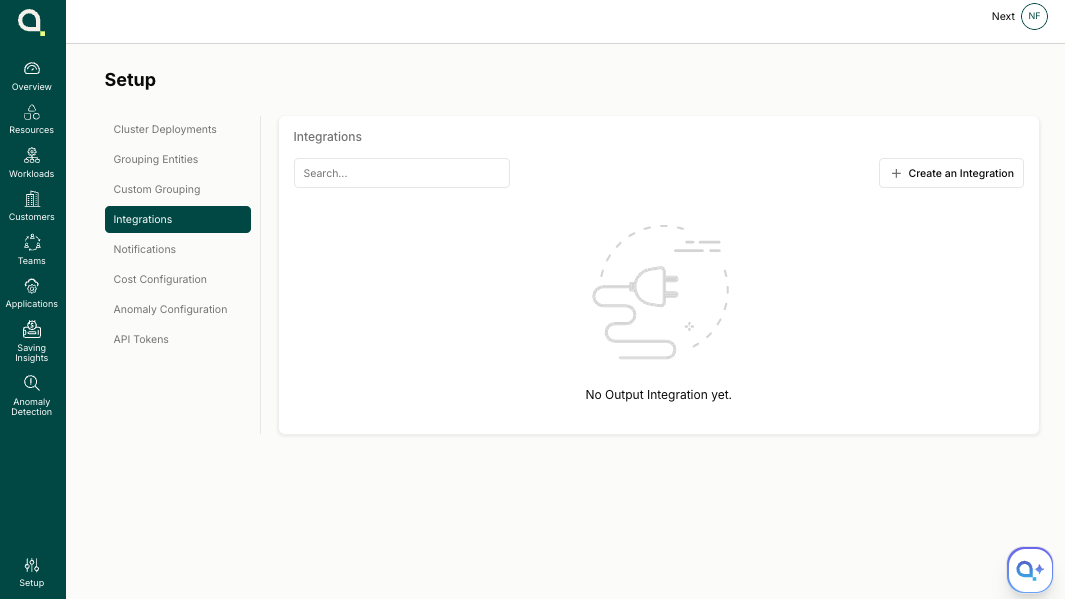
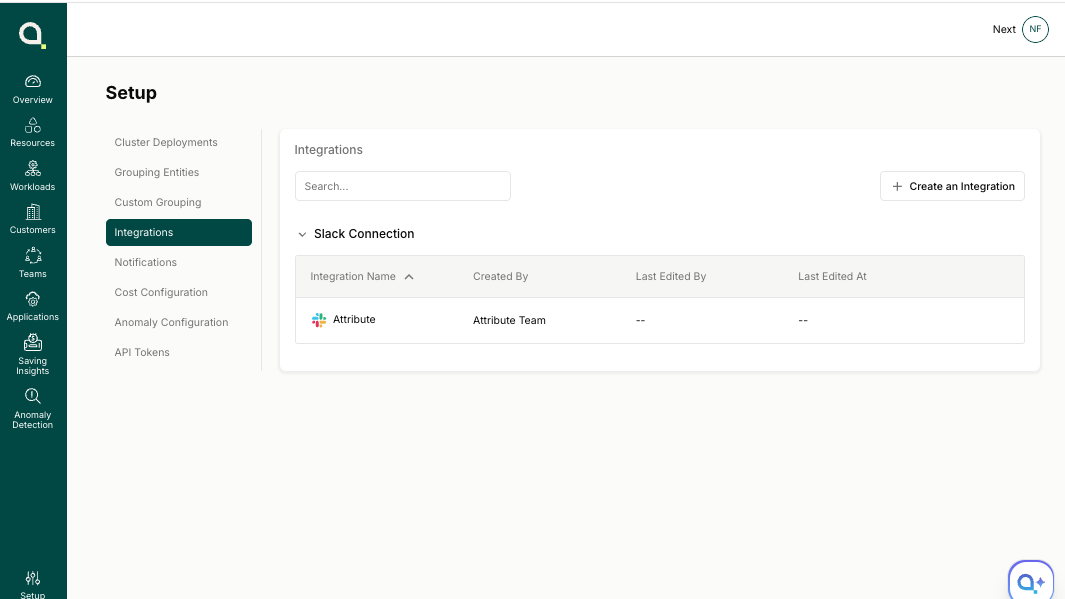
  1. Navigate to the Setup section in the Attribute Dashboard and click Integrations in the left sidebar.

    Attribute Setup → Integrations page showing the empty "No Output Integration yet" state

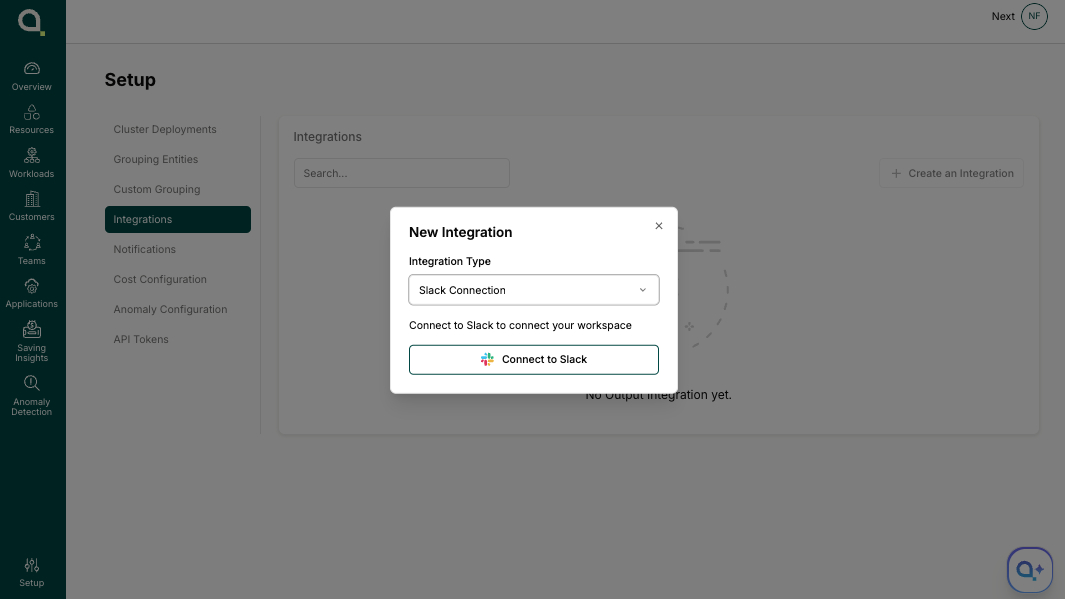
  2. Click Create an Integration, choose Slack Connection as the integration type, then click Connect to Slack.

    New Integration dialog with Slack Connection selected and the Connect to Slack button visible

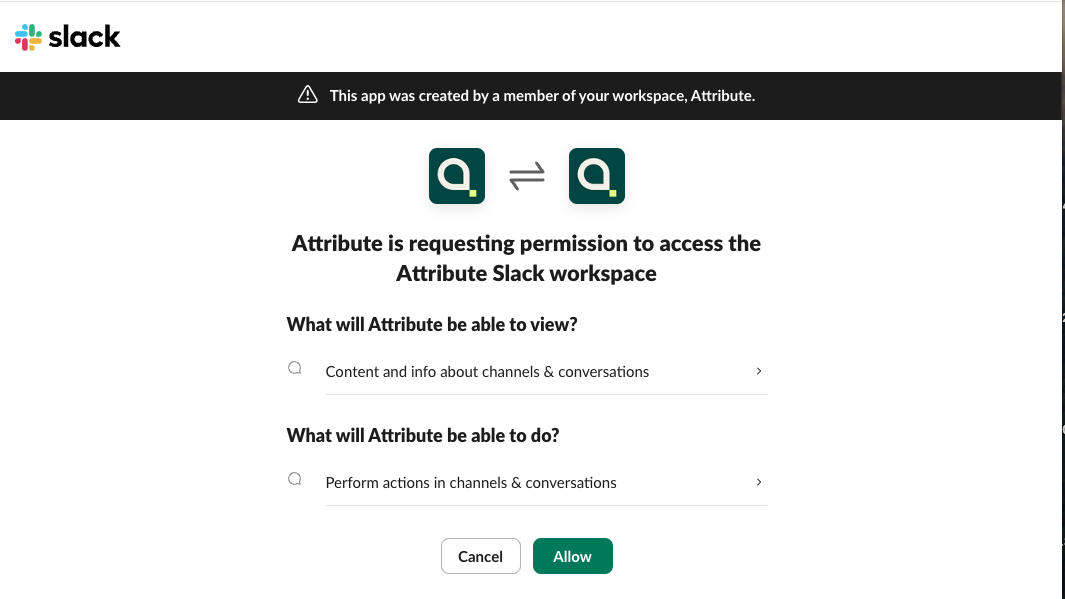
  3. You will be redirected to the Slack integration page to grant Attribute permission to access channels and conversations and perform actions in them. Click Allow.

    Slack permissions screen: "Attribute is requesting permission to access the Attribute Slack workspace" with Cancel and Allow buttons

  4. If you don't have permission to authorize the application, send the link https://slack.app.attrb.io/slack/install to an admin who can complete the integration:

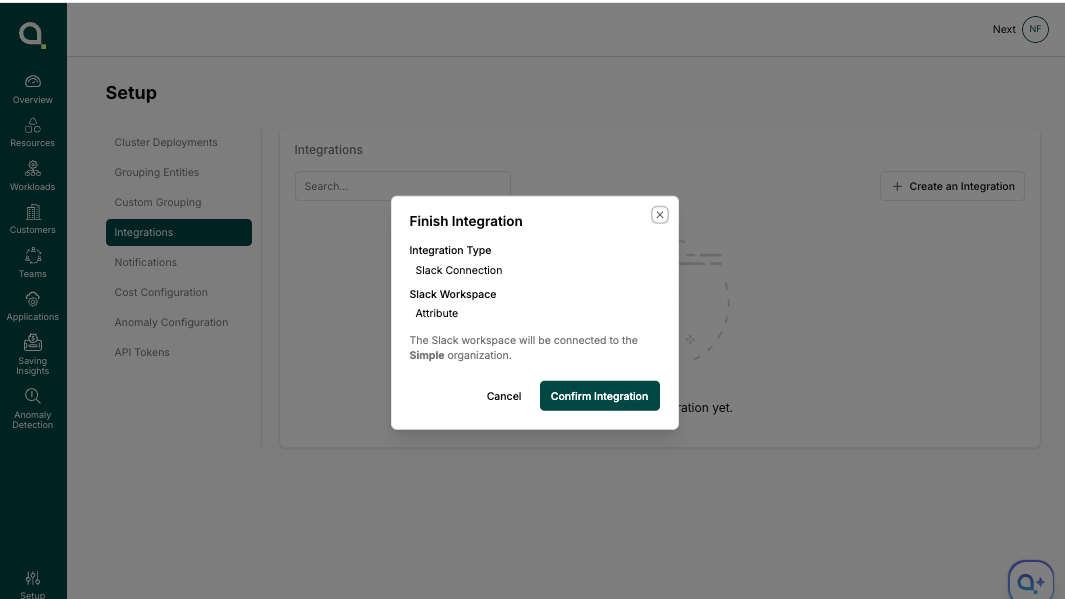
  5. Click Confirm Integration to finish.

    Finish Integration dialog confirming the Slack Connection to the Attribute workspace

  6. The new integration now appears in your Slack connections list.

    Integrations list showing the Slack Connection with "Attribute" integration created by Attribute Team

Integration Using Slack Webhook

The following steps complete the Slack integration using a Slack Webhook:

  1. Navigate to the Setup section in the Attribute Dashboard and click Integrations in the left sidebar.

    Attribute Setup → Integrations page showing the empty "No Output Integration yet" state

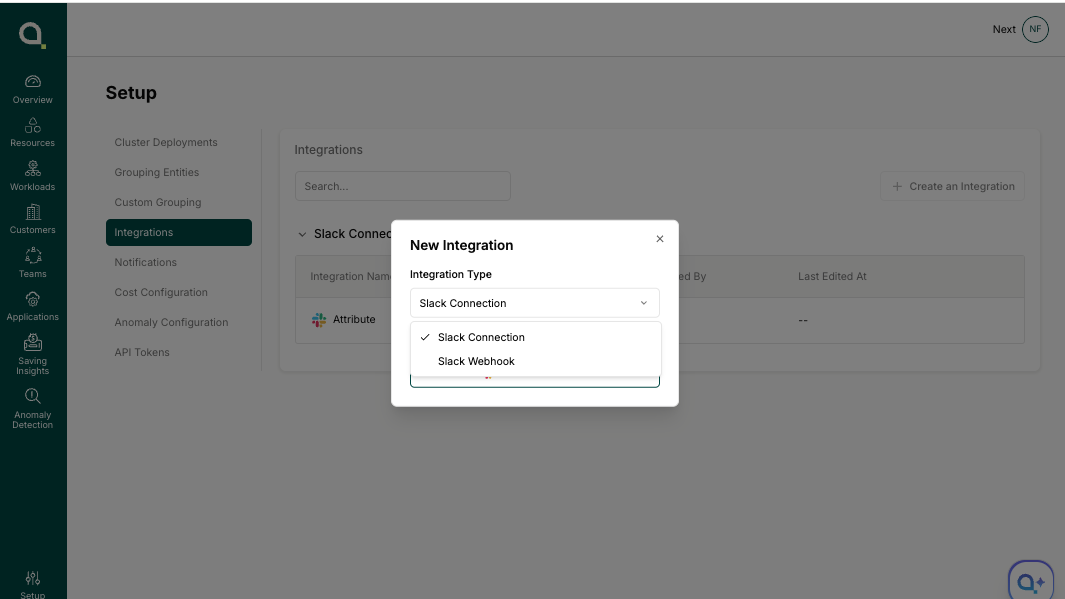
  2. Click Create an Integration and choose Slack Webhook as the integration type.

    New Integration dialog with the Integration Type dropdown open, showing both Slack Connection and Slack Webhook options

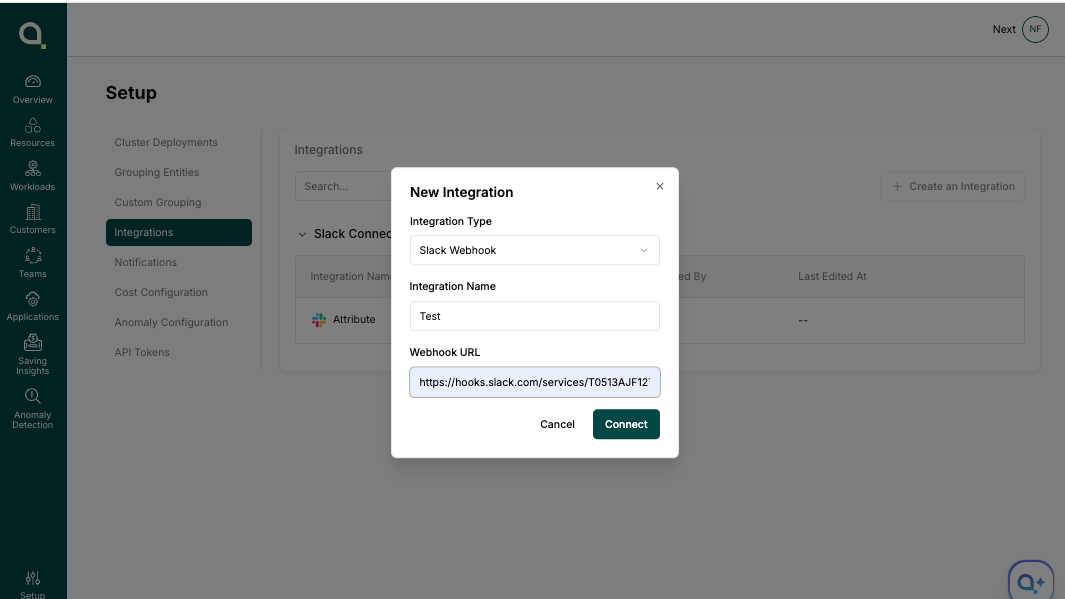
  3. Enter an Integration Name of your choosing and the Webhook URL from Slack, then click Connect.

    New Integration dialog filled in with integration name "Test" and a Slack webhook URL

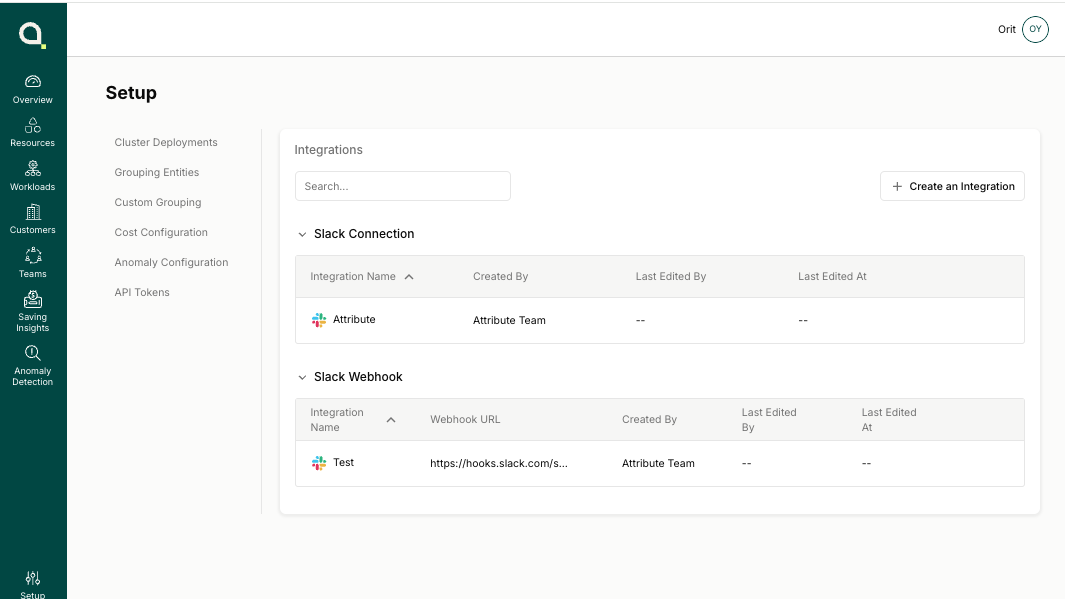
  4. The new integration now appears in your Slack connections list.

    Integrations list showing both a Slack Connection and a Slack Webhook entry

Create a Notification

Now that the integration is set up, you can start creating notifications.

  1. Navigate to Setup → Notifications.

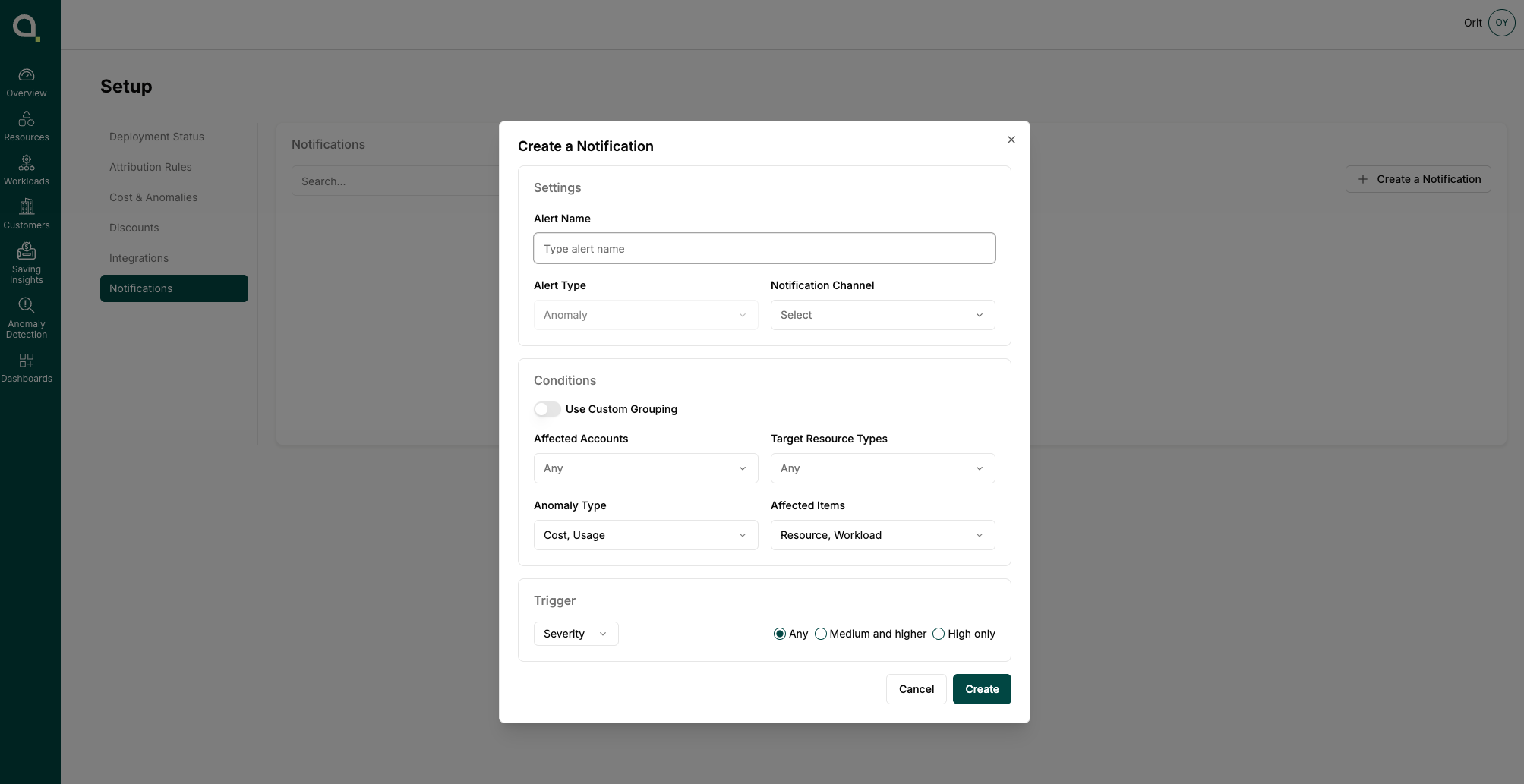
  2. Click Create a Notification. From here, you can create a new alert, choose the notification channel, set conditions, and configure the trigger.

    Create a Notification dialog with sections for Settings (alert name, type, channel), Conditions (accounts, resource types, anomaly type, affected items), and Trigger (severity)

Contact

If you require any additional assistance, please contact Attribute's support at [email protected].

Alternatively, you can request to join a shared Slack channel for support. To request access, email [email protected] with your details.


Trademarks: Slack is a trademark of Slack Technologies, LLC, a Salesforce company. All other trademarks are the property of their respective owners.