MongoDB® Atlas 統合
MongoDB Atlas を正常に統合するには、API キーが 1 つあれば十分です。
このページでは次の内容を説明します。
- MongoDB Atlas のユーザーインターフェースを使用して API キーを生成する方法
- Attribute の自動 CLI ツールを使用して API キーを生成する方法
- API キー用の Atlas の API Access List の扱い方
API キーを作成する際は、次の点に注意してください。
- 組織レベルの認証を使用すること。 Atlas は、組織レベルとプロジェクトレベルの両方の認証をサポートしています。MongoDB Atlas のデプロイ全体を可視化するために、API キーは 組織(organization) レベルで作成する必要があります。
- 必要な権限。 API キーには Organization Billing Viewer と Organization Read Only の両方を含める必要があります。
- 必要なロール。 API キーを生成するには、Organization Owner ロールが必要です。
Generating an API Key
Using the MongoDB Atlas UI
-
MongoDB Cloud にアクセスしてサインインします。
-
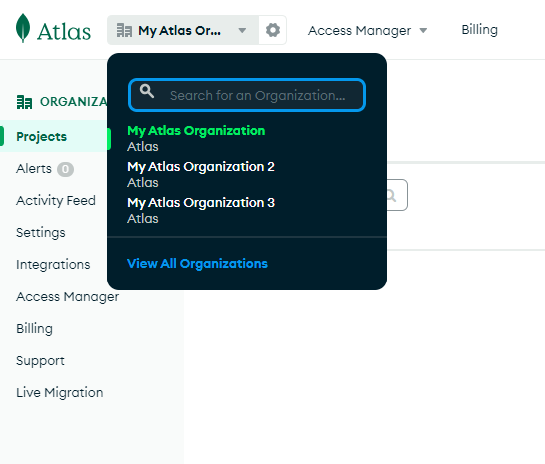
画面左上のドロップダウン式の組織セレクターを使用して、デプロイを作成したい Atlas 組織を選択します。
-
左サイドバーで Access Manager を選択します。見つからない場合は、組織名の右側(組織セレクターの横)にある 歯車アイコン をクリックしてください。
-
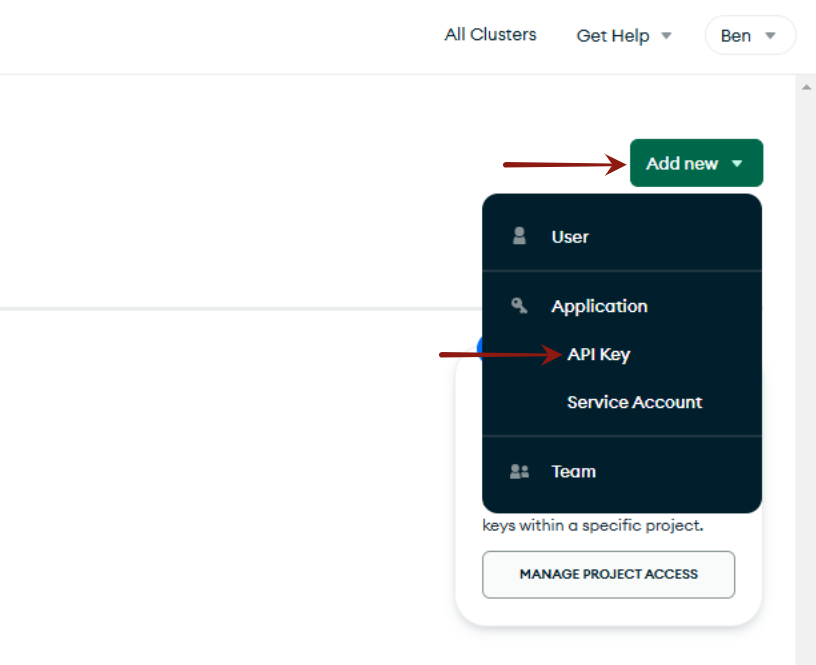
Access Manager ページの右上にある Add new ボタンを探し、API Key を選択します。
-
Attributeなどの説明を入力し、Organization Billing Viewer と Organization Read Only の両方の権限を選択します。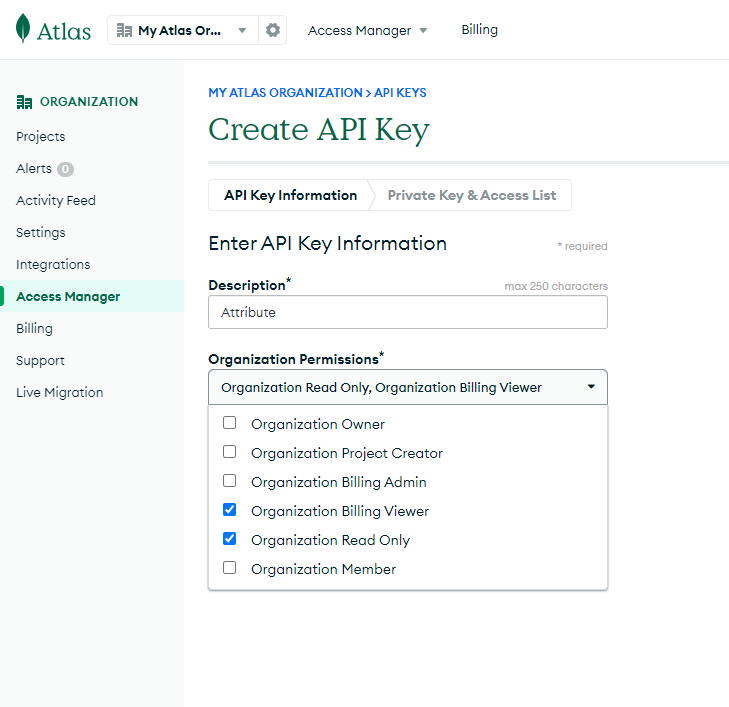
-
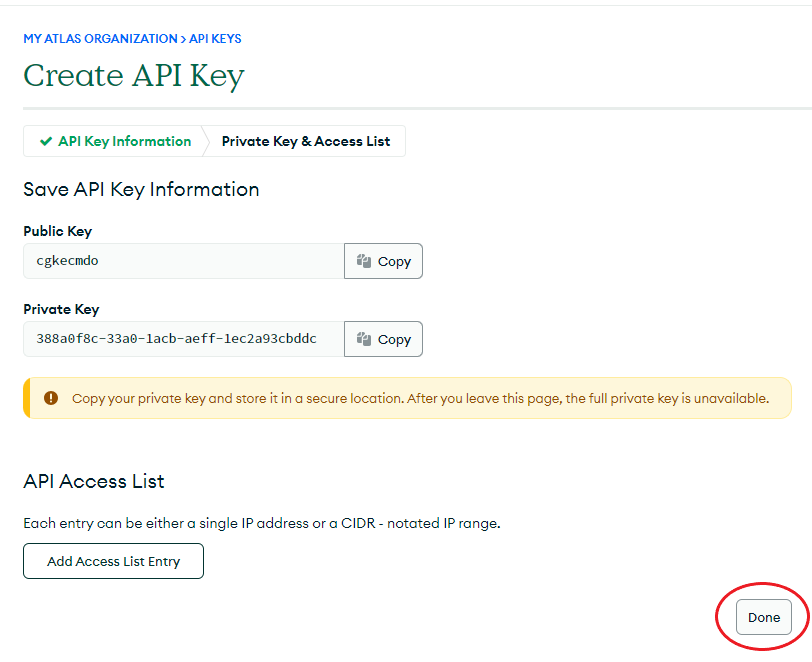
Next をクリックし、Public Key と Private Key の両方をコピーします。
 注意
注意Private Key は一度しか表示されません。すぐに Attribute に送信し、あわせて Organization ID も共有してください。すぐに共有できない場合は、安全な場所に保管してください。
-
Atlas 組織で Atlas API に対して IP Access List が必須となっている場合は、新しいキー用にアクセスリストエントリを追加する必要があります。組織でこの設定が必須かどうか、またエントリの追加方法については、以下のAPI Access List を参照してください。
Using Attribute's Automated Tool
-
Atlas CLI がインストールされていることを確認します。インストールが必要な場合は、Atlas CLI ドキュメント を参照してください。
-
スクリプトを実行し、画面の指示に従ってください。
このツールでは、Atlas CLI でのログインから始まり、キーを作成する対象の組織の選択、キーの作成、そして Attribute の IP アドレスを新しいキーの IP Access List に自動的に適用するまでを順番に案内します。
ツールに表示される手順やメッセージをよく確認してください。
API Access List
Check API Access List Status
Atlas 組織で Atlas Administration API に対して IP Access List が必須かどうかを確認するには、左メニューから組織の Settings に移動してください。
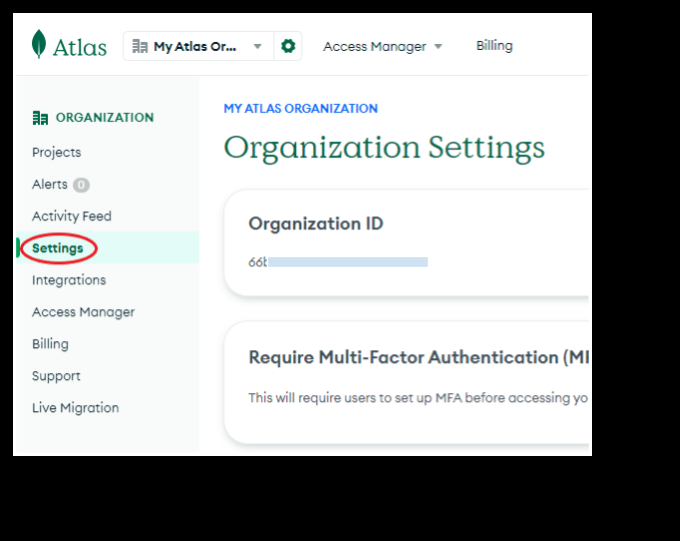
次に、Require IP Access List for the Atlas Administration API トグルを確認します。
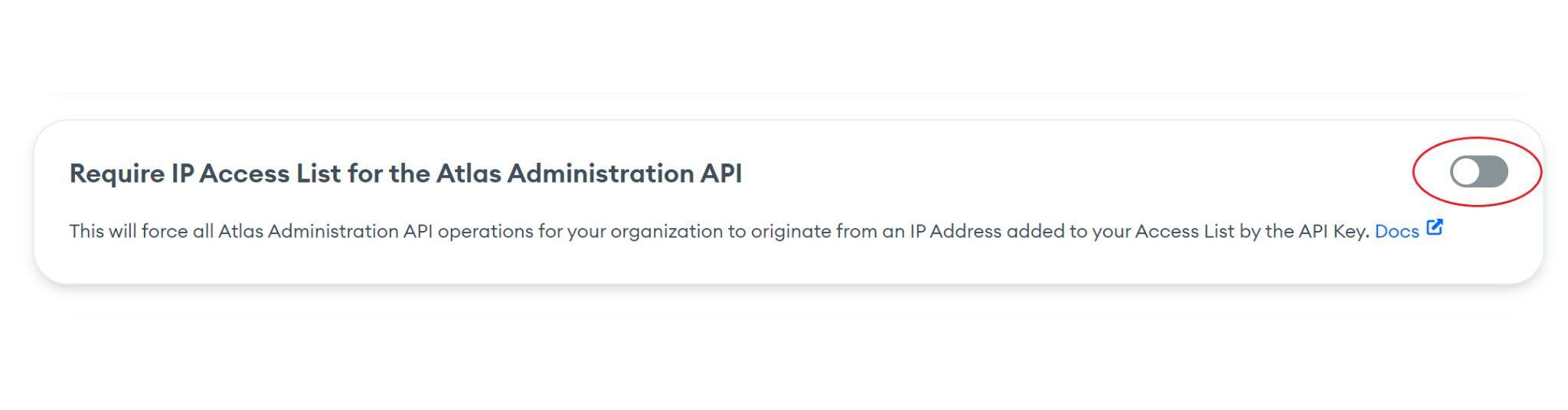
- トグルが off(上の例のような状態)の場合、追加の操作は不要です。キーを Attribute に送信してください。
- トグルが on の場合は、次のセクションに進み、IP アクセスエントリを追加してください。
Adding IP Access Entries
-
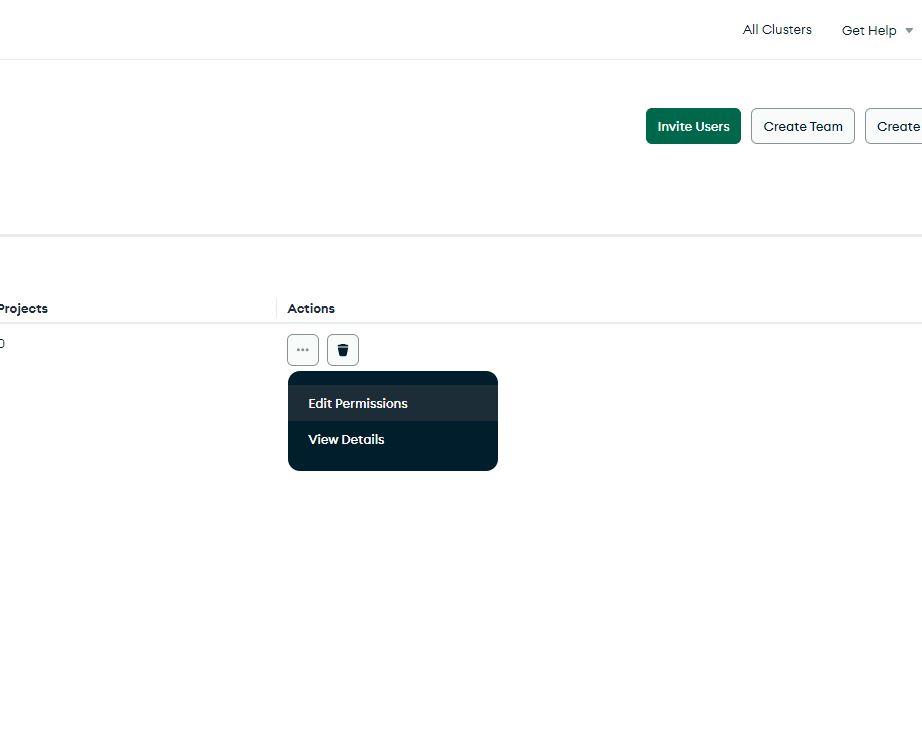
Access Manager ページに戻り、新しい API キーの横にある三点リーダーをクリックして、Edit Permissions を選択します。
-
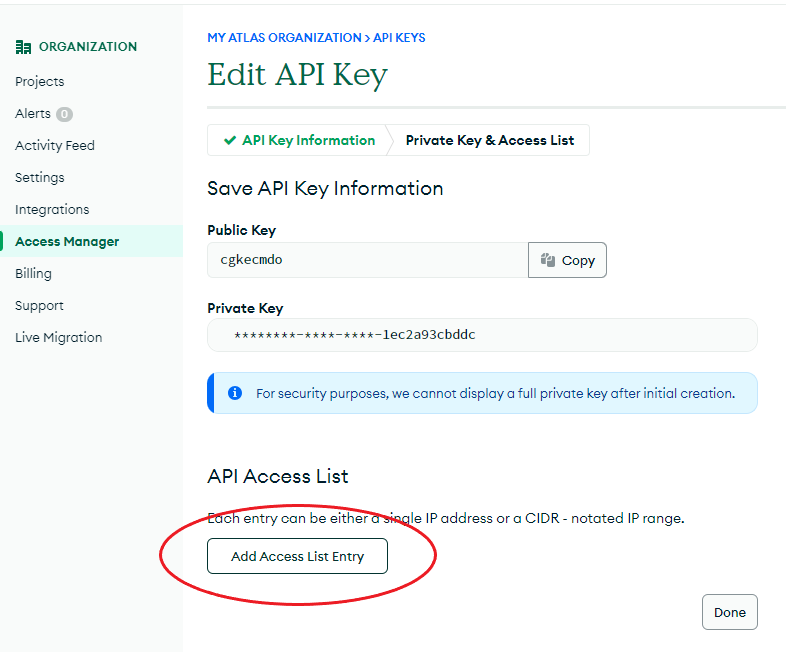
Next をクリックし、続いて Add Access List Entry をクリックします。
-
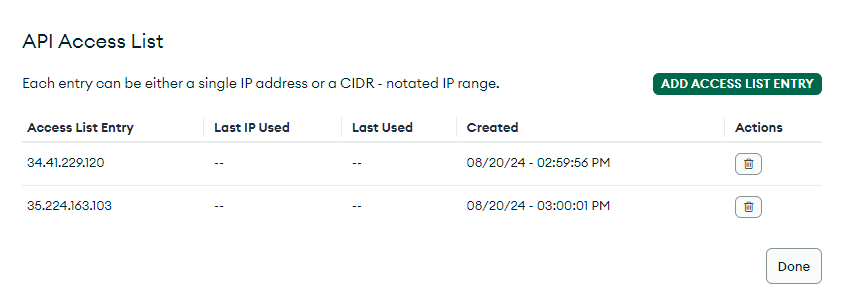
次の IP アドレスを追加します。
34.41.229.12035.224.163.103
-
Done をクリックします。これで完了です。キーを Attribute に送信してください。
Contact
追加のサポートが必要な場合は、Attribute のサポート([email protected])までご連絡ください。
また、サポート用の共有 Slack チャンネルへの参加を依頼することもできます。アクセスを希望する場合は、必要事項を記載のうえ [email protected] 宛にメールを送信してください。
商標: MongoDB は MongoDB, Inc. の登録商標です。その他の商標は、それぞれの所有者に帰属します。