Connect ChatGPT
The steps below demonstrate how to connect to the MCP server using ChatGPT on the web. Before you connect, confirm you meet the Required permissions.
Prerequisites
-
You must enable ChatGPT developer mode.
-
A supported web browser to sign in to your DoiT account when the connector prompts for authorization.
Supported connection methods
ChatGPT on the web supports Streamable HTTP only. It cannot launch a local stdio process. Enter https://mcp.doit.com/mcp as the MCP server URL. See Connection methods for authentication details.
ChatGPT desktop and Codex share local MCP configuration and can use stdio or Streamable HTTP. For those hosts, see Connect Codex.
Configure the MCP server
Use a connector to link ChatGPT to the MCP server.
-
Open a web browser and type https://chat.com and press Enter.
-
Select Log in. Enter your log in details and select Continue.
-
Once you are logged in, select your name and then select Settings.
-
Select Apps & Connectors and then select Create. The New Connector window is displayed.
-
In Name, type a name that fits the usage, for example, DoiT MCP server.
-
(Optional) In Description, enter a description for the connection.
-
In MCP Server URL, enter
https://mcp.doit.com/mcp. -
In Auth, select OAuth from the list.
-
To accept ChatGPT's terms of service, select the I understand and want to continue checkbox and select Create. The Authorization Request window is displayed.
-
If you are not already signed in to your DoiT account, your browser opens the DoiT sign-in page. Sign in with your DoiT account.
-
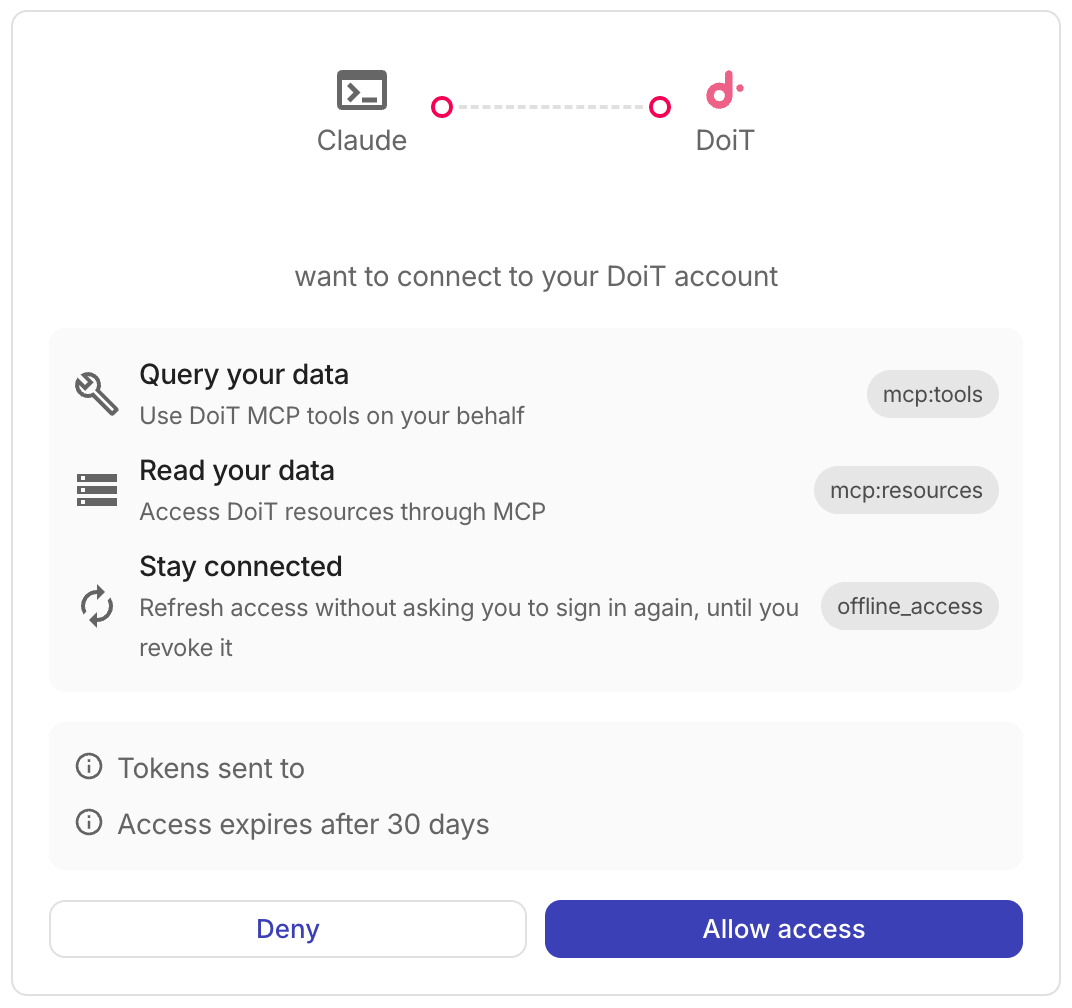
On the DoiT consent screen, select Allow access.
 Note
NoteIf authorization fails with an
ofid_reference code, confirm your organization's plan includes DoiT API access and that your DoiT account has the permissions required for the tools you need. See Troubleshooting for more details. -
When the MCP server is successfully connected, ChatGPT automatically detects and connects to the MCP server. You can now open a new chat to start asking questions or make requests related to Cloud Intelligence data.