Azure テナントを接続
高度な機能を有効にするには、Azure テナントを接続します。
必要な権限
-
DoiT アカウントに Manage Settings 権限が必要です。
-
次の権限を含む Microsoft Entra ロールが必要です。
-
DoiT がお客様の Azure 環境内のリソースへアクセスできるようにするための service principal を作成する権限
-
management group に対して、その service principal に Reader ロールを割り当てる権限
-
テナントを接続する
Azure テナントを接続するには、次の手順に従ってください。
-
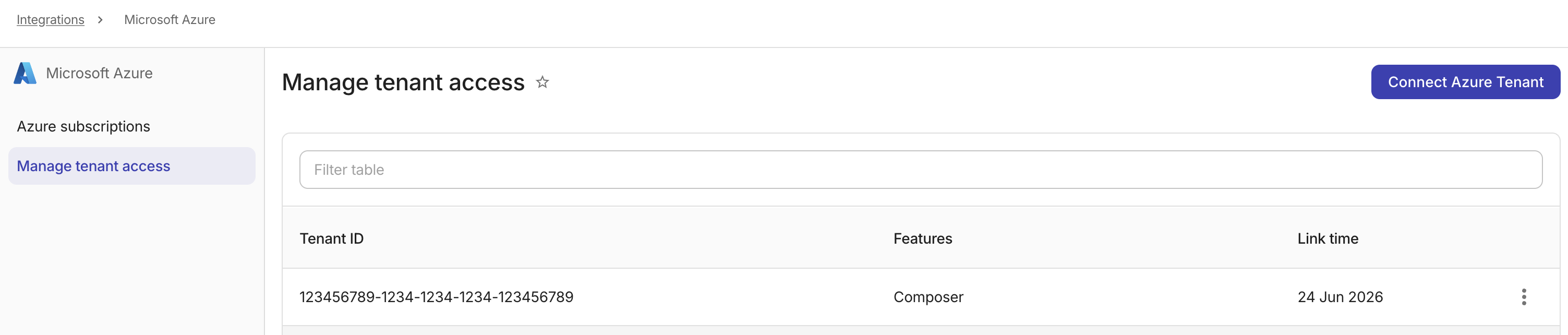
DoiT コンソール にサインインし、上部ナビゲーションのメガメニューから データ取り込みとインテグレーション > Integrations を選択してください。
-
Microsoft Azure integration カードで Manage を選択してください。
-
Azure テナントを接続 を選択してください。
-
有効にしたい機能を選択してください。機能を展開すると、必要な権限を確認できます。

-
Next を選択して続行してください。
-
DoiT コンソールに表示される手順に従って、Azure テナントを接続してください。
-
テナント ID を入力してください。詳細については、Azure portal でサブスクリプション ID とテナント ID を取得するを参照してください。
-
DoiT インターナショナルの enterprise application の ID を使用して service principal を作成するための Azure CLI コマンドをコピーし、Azure Cloud Shell で実行してください(
az ad sp createも参照してください)。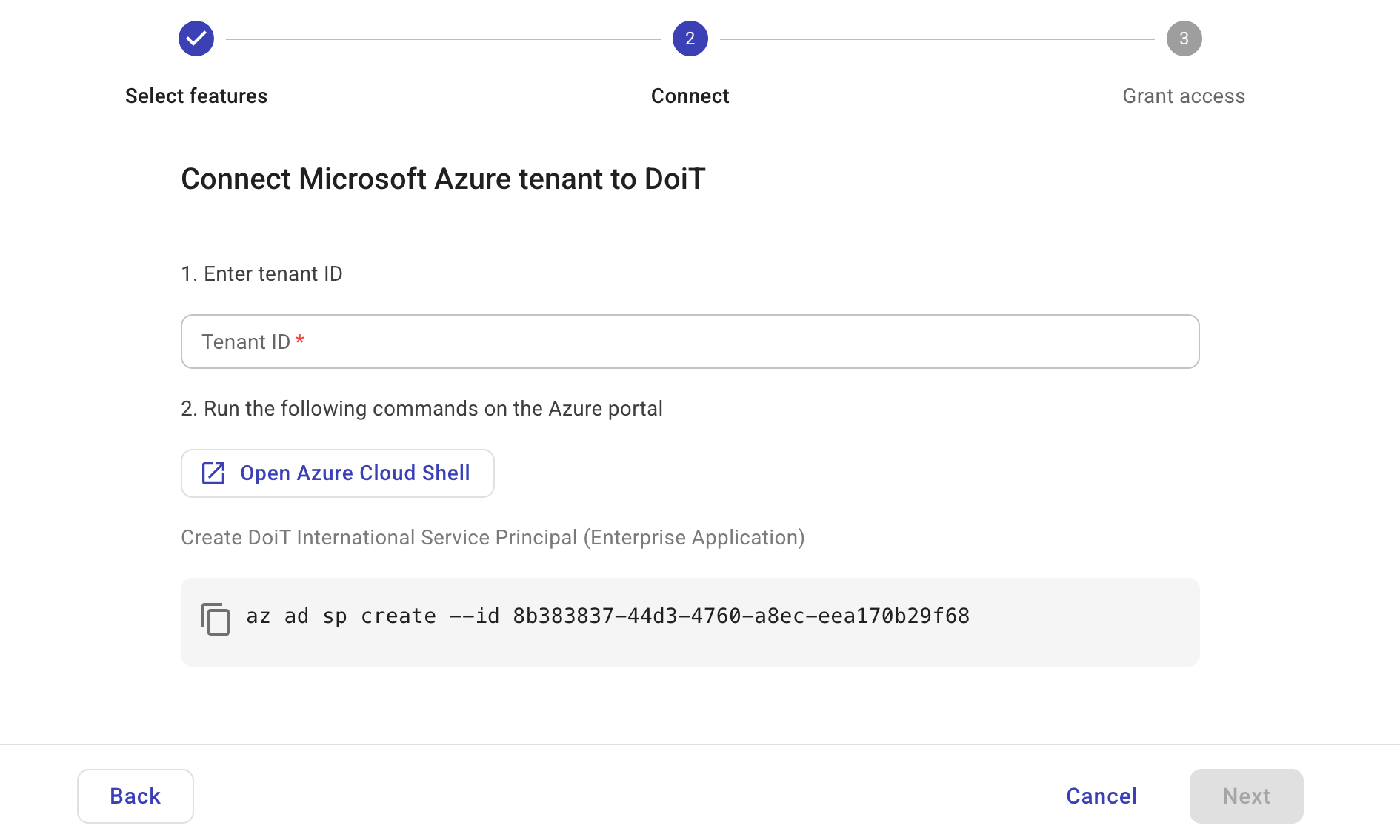
-
-
Next を選択して続行してください。
-
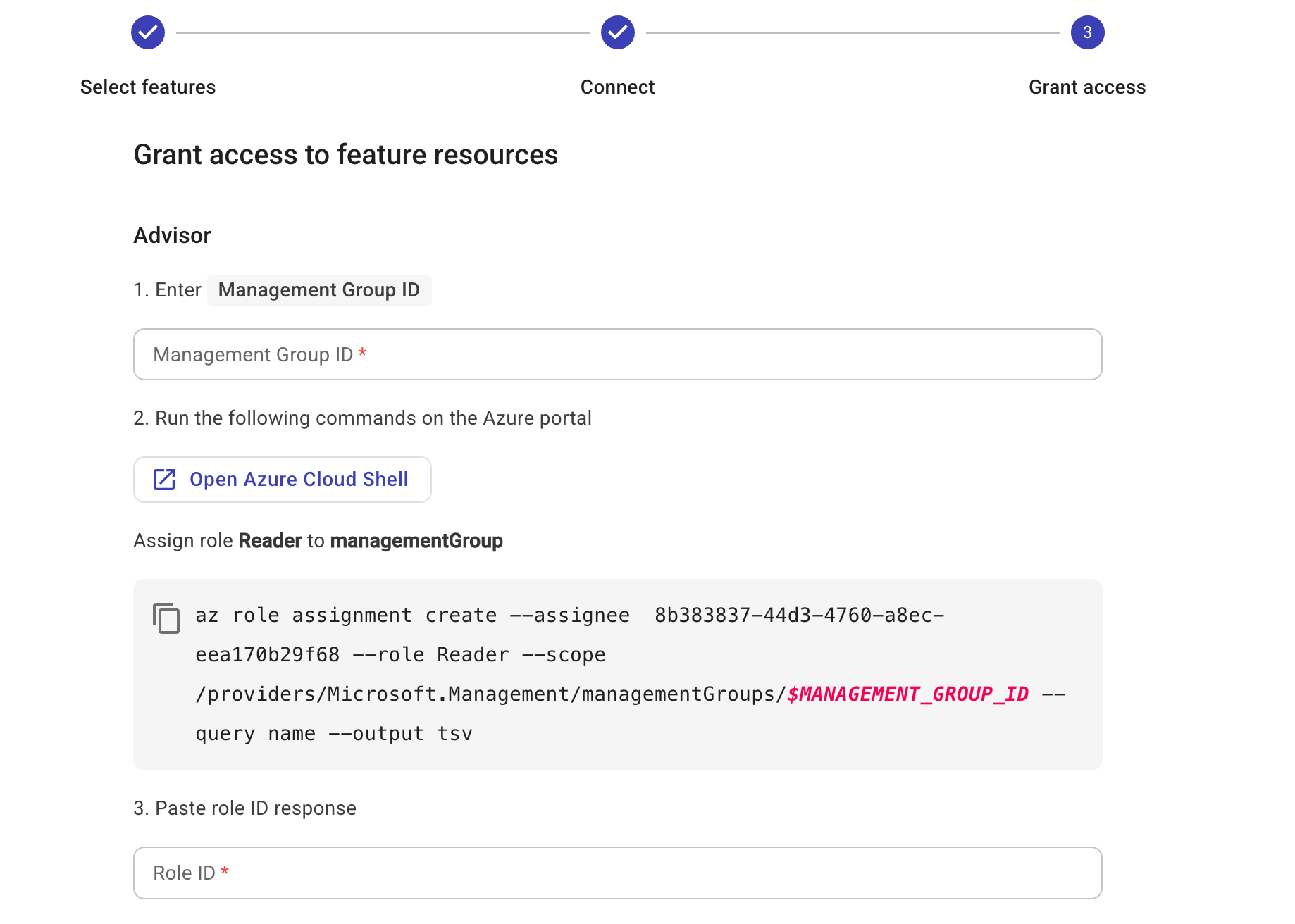
DoiT の service principal に management group 上で
Readerロールを付与してください。複数の機能を選択した場合は、ここに各機能ごとの複数のセクションが表示されます。-
management group ID を入力してください。ID の確認方法については、management groups を表示するを参照してください。
-
Azure CLI コマンドをコピーし、Azure Cloud Shell で実行して、DoiT の service principal に対し management group 上で
Readerロールを付与してください(az role assignment createも参照してください)。注意コマンドが
AuthorizationFailedで失敗する場合は、お使いのユーザーアカウントに management-group スコープでの Azure RBAC 権限が必要です。すべての Azure サブスクリプションと management groups を管理するためにアクセス権を昇格するを参照してください。 -
Cloud Shell に表示されたロール ID をコピーし、DoiT コンソールに貼り付けてください。
-
選択した各機能について、上記の手順を繰り返してください。
-
接続テスト を選択して設定を検証し、必要に応じて更新してください。
-
-
接続テストが成功したら、Done を選択してセットアップを完了してください。
テナントのリンクを解除する
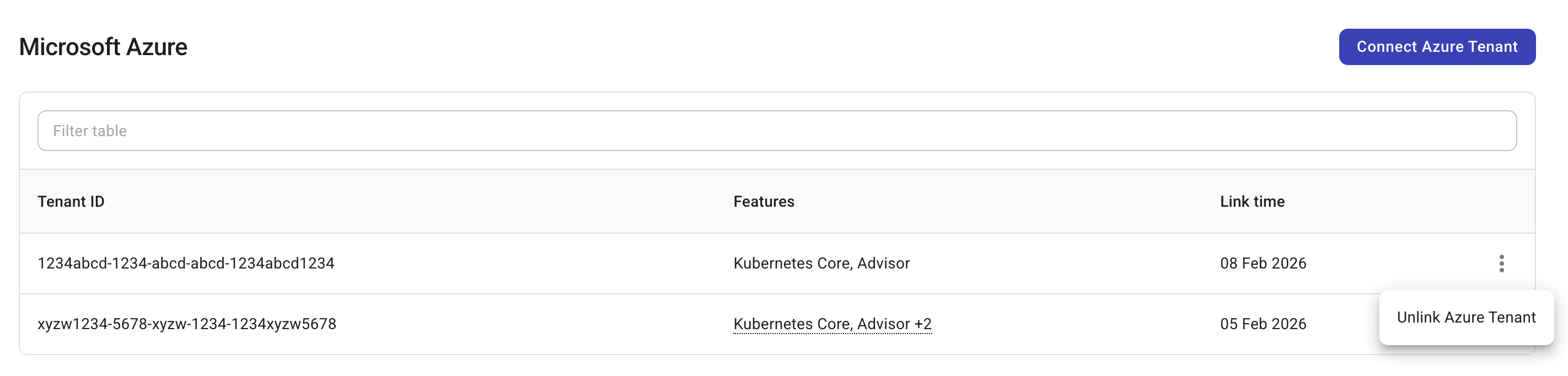
Azure テナントのリンクを解除するには、テナントエントリの一番右側にあるケバブメニュー(⋮)を選択し、Unlink Azure Tenant を選択してください。