Group allocations
When creating a group allocation, you add rules to the group and define how to distribute shared and unallocated costs among groupings.
-
New rules defined while creating the group allocation also become available as individual single allocations.
-
Existing rules updated during the process retain the changes and affect other group allocations that use them.
Add rules
-
In the DoiT console, select Allocation > Allocations from the top navigation mega menu, and then select Create allocation.
-
Define the first rule. You can either create a new rule or use an existing one.
-
Select + Add rule to add a second rule (or select Add unallocated rule to convert the current single rule into a group).
Once you add a second rule, you can name the allocation group, and an Unallocated rule is automatically added if not already there.
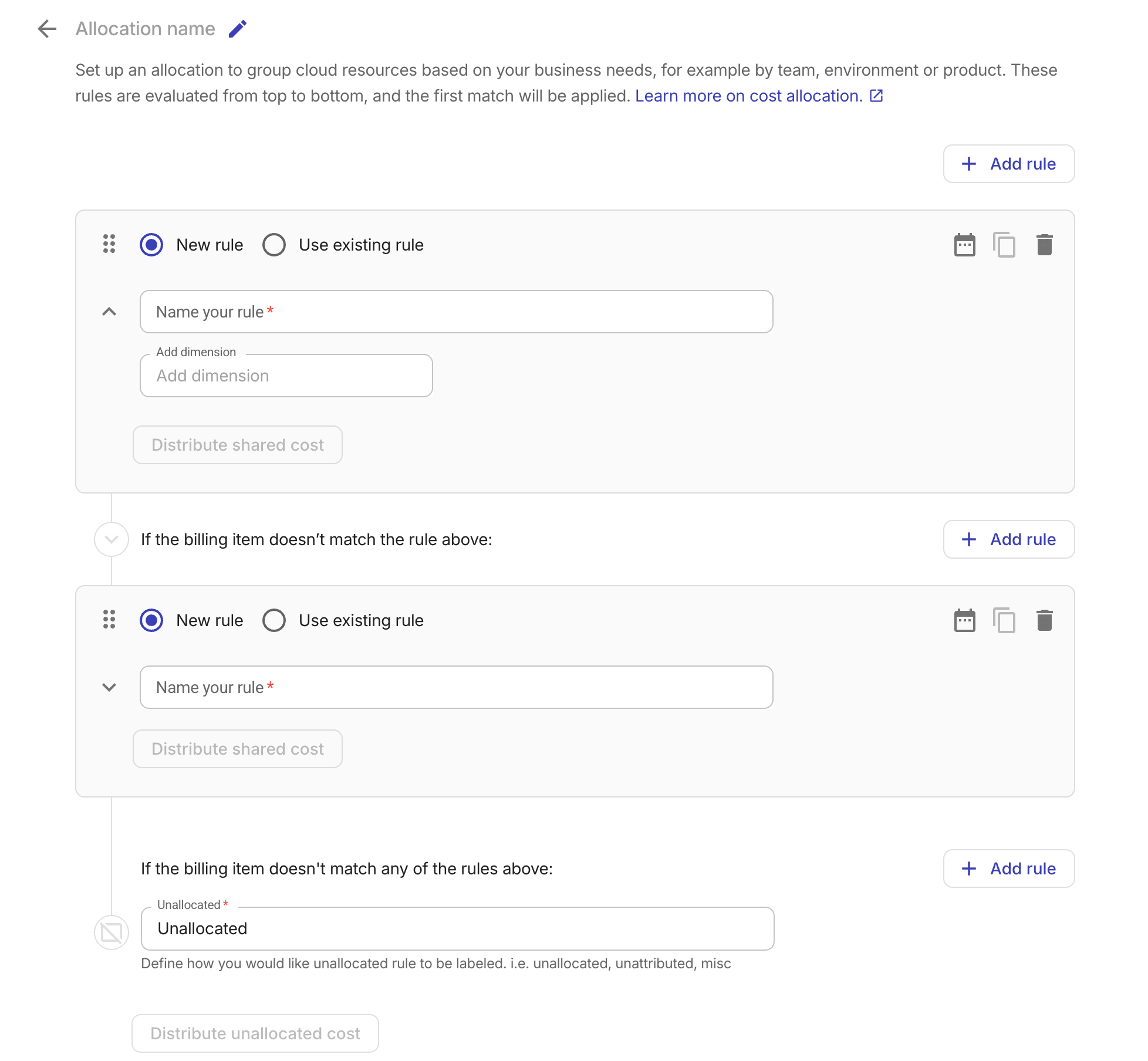
-
Repeat the step above to add more rules. Adjust the order using the Drag handle icon
if needed.-
Shared data is assigned to the allocation rule that appears earlier in the list.
-
The Unallocated rule stays at the bottom. You can rename it but not change its position or remove it.
-
-
Save the configuration to create the allocation group.
Distribute costs
When creating or editing a group allocation, you can define allocation-level cost splitting to redistribute costs in the group.
-
A rule must be saved before it can distribute its cost or receive cost from a split. Unsaved rules are not eligible.
-
Chain splits are not allowed: a rule or bucket that receives cost from another split cannot distribute its own cost, and vice versa.
-
The source of a split cannot be its target.
-
When you duplicate a group allocation, allocation-level cost splits are carried over. Duplicating a single allocation rule does not carry over cost splits.
-
Cost splitting is defined and effective only within the group allocation.
Distribute shared cost
To distribute a specific rule's cost:
-
Select Distribute shared cost on the rule's card.
-
A rule must be saved before it can distribute cost.
-
A rule that already receives cost from another split cannot distribute its own cost.
-
-
Select the target rules that should receive a share of the cost.
-
A rule must be saved before it can receive cost.
-
A rule that already distributes its own cost cannot receive cost from another split.
-
-
Choose a distribution method.
- Fixed percentages
- Proportional
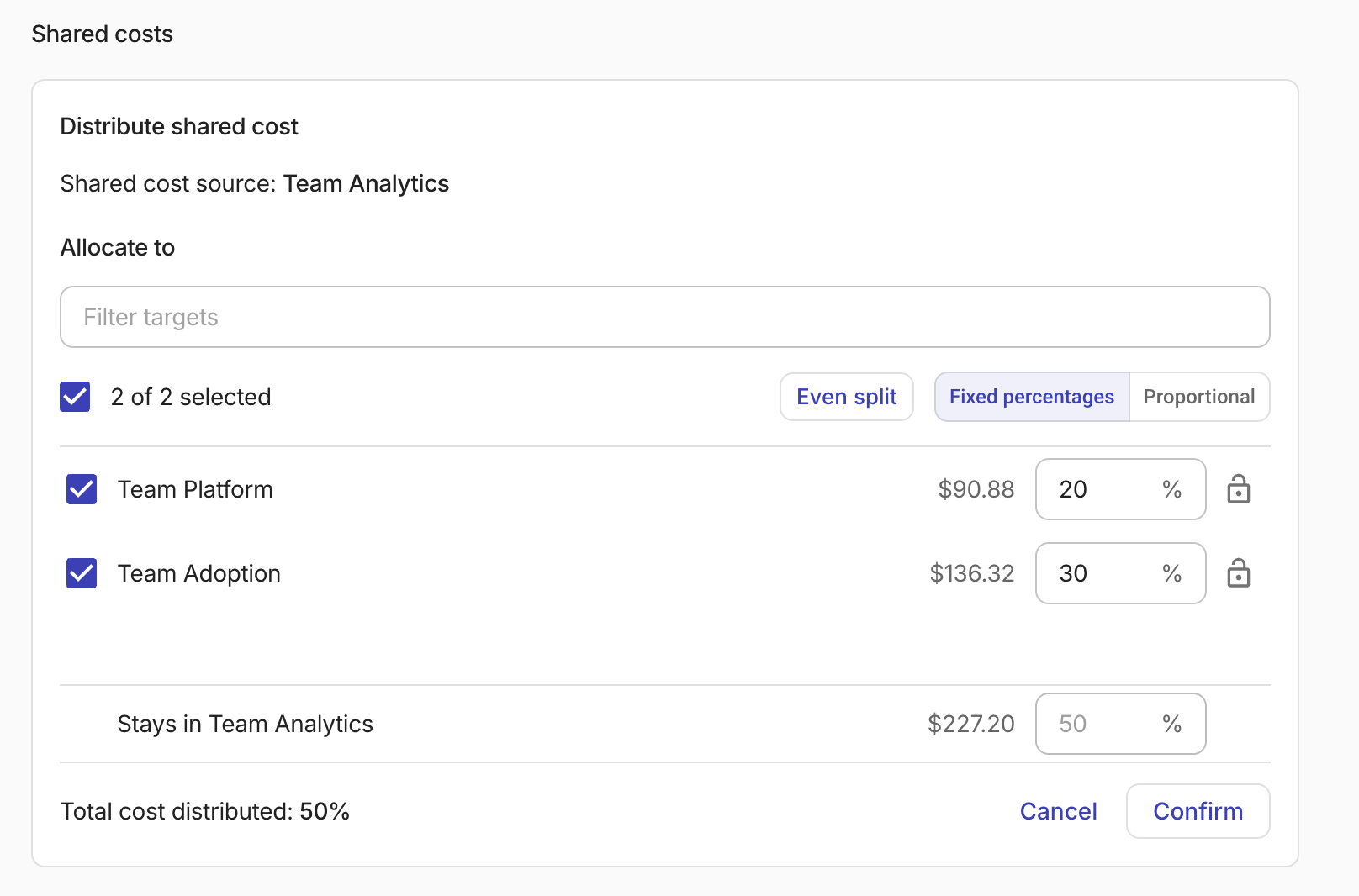
For Fixed percentages, you can adjust the share of each target as needed, or select Even split to distribute equally among selected targets.
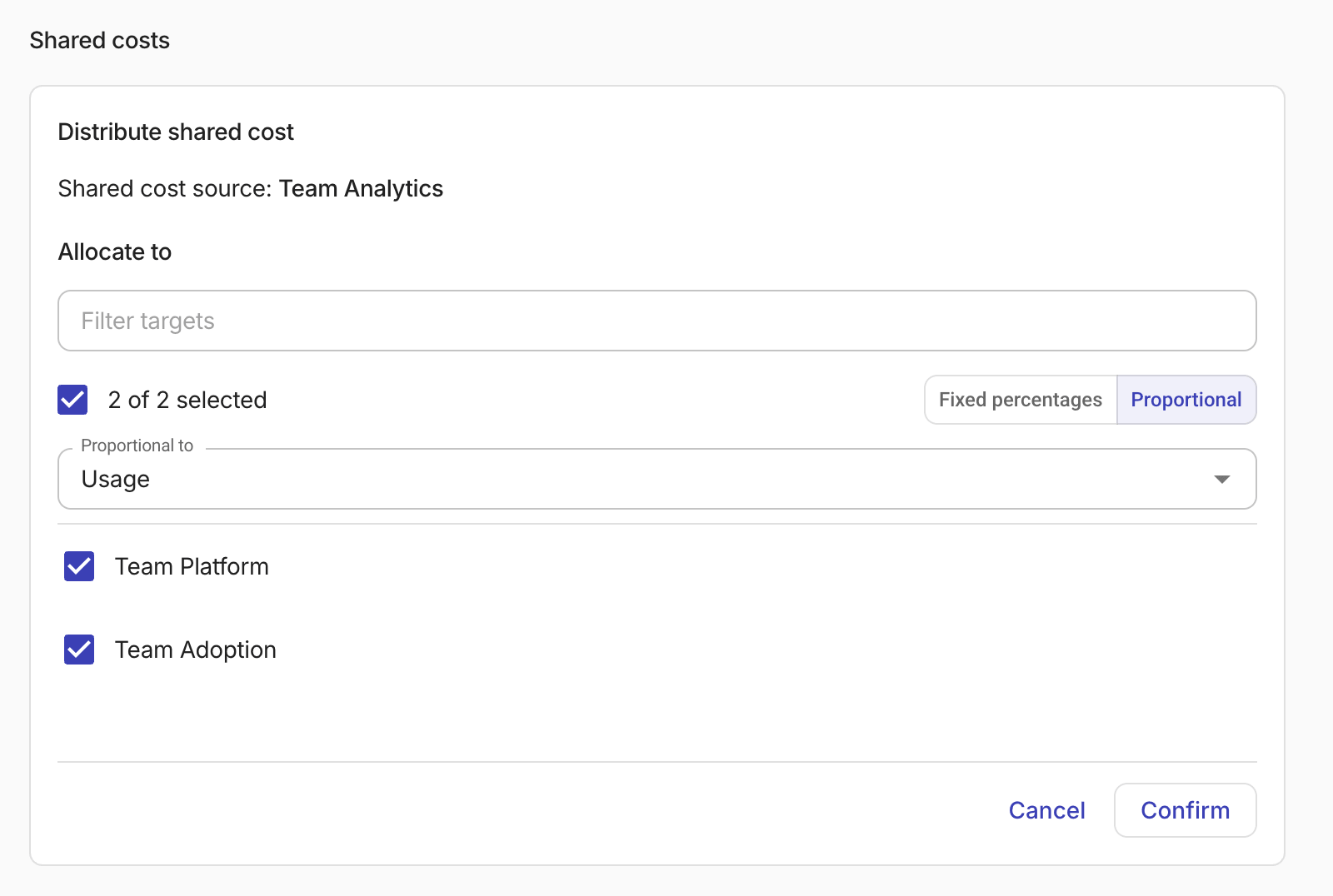
For Proportional, you can choose a metric as the base for the split from the Proportional to dropdown.
-
Select Confirm.
-
Select Save to save the split to the allocation group.
Once saved, next time you open the allocation group, you can expand the rule to modify or delete the split.
Distribute unallocated cost
To distribute unallocated cost:
-
Below the Unallocated rule at the bottom of the rule list, select Distribute unallocated cost.
-
In the Allocate to section, select the target rules that should receive a share of the unallocated cost.
A rule that already distributes its own cost cannot be the target of the unallocated cost.
-
Choose a distribution method.
-
For Fixed percentages, you can adjust the share of each target as needed, or select Even split to distribute equally among selected targets.
-
For Proportional, you can choose a metric as the base for the split from the Proportional to dropdown.
-
-
Select Confirm to save the split, then save the allocation group.