Claude を接続する
以下の手順では、リモートの Streamable HTTP コネクタを使って Claude 経由で接続する方法を説明します。接続する前に、必要な権限を満たしていることを確認してください。
前提条件
-
カスタムコネクタを追加する権限を持つ Claude アカウント
-
ウェブ版 Claude の利用および、コネクタから認可を求められた際に DoiT アカウントへサインインするための、サポート対象ウェブブラウザ
サポートされている接続方法
Claude(Desktop・Code・web コネクタ)は Streamable HTTP とローカルの stdio をサポートしています。以下の例では Streamable HTTP を使用します。stdio を利用する場合は、Local (stdio) で説明されているとおりに DOIT_API_KEY を設定してください。
MCP サーバーを設定する
Claude Cowork(Anthropic のデスクトップアプリ)で MCP サーバーを使用する場合、データクエリとツール呼び出しは正しく動作します。インラインのウィジェット表示(Cloud Analytics のチャートなど)は、ホスト型リモート MCP サーバー経由で接続している場合にのみ利用できます。ウィジェットがインライン表示されない場合は、リモートの Streamable HTTP 接続を使用していることを確認してください。ツールの結果は、ウィジェット対応の有無にかかわらず常にテキストとして返されます。
-
claude.ai にサインインします。
-
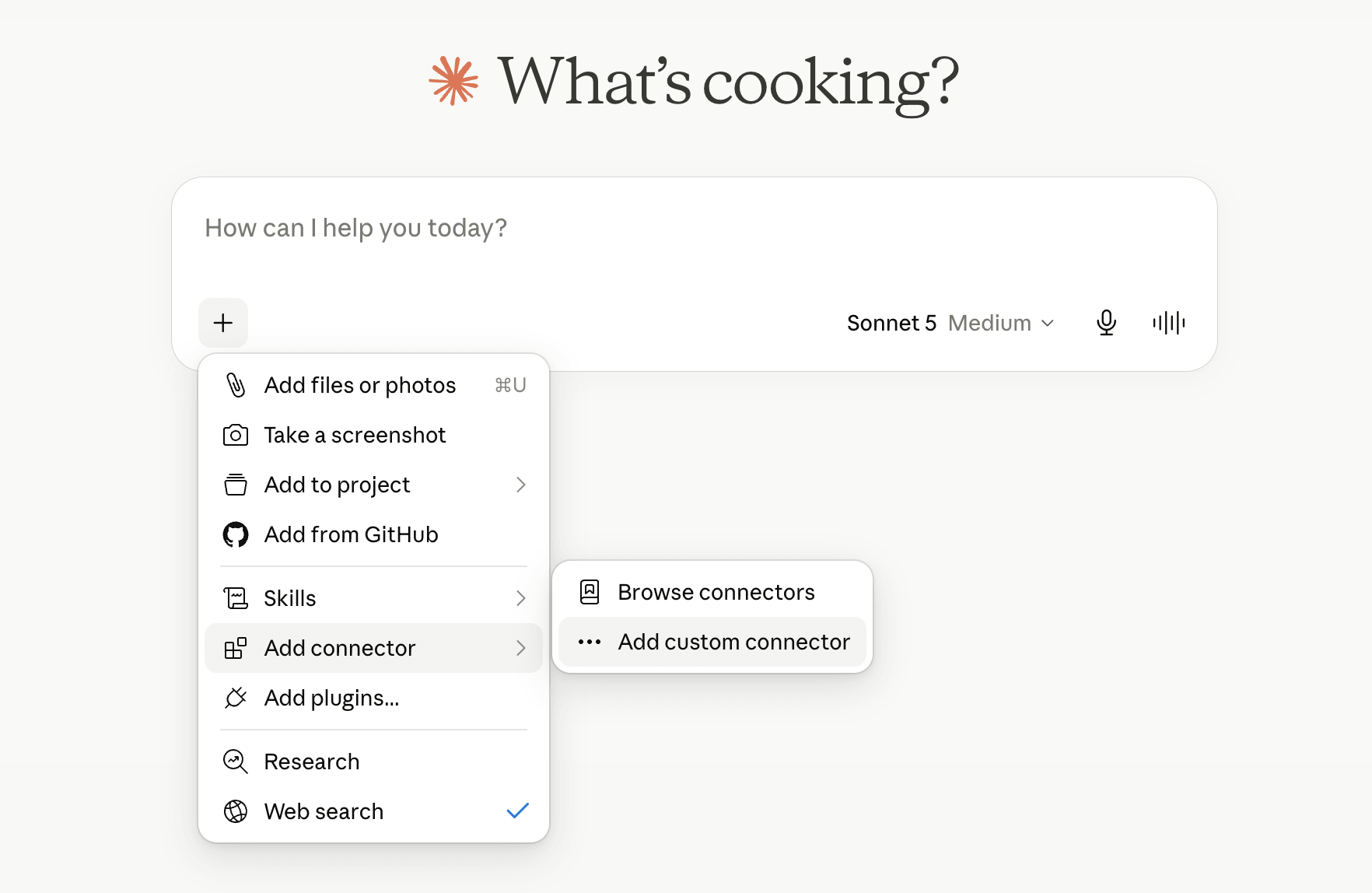
プロンプトボックスで + > Add connector > Add custom connector を選択します。
注意コネクタを追加するには、適切な有料の Anthropic プランまたは API アクセスティアが必要です。Anthropic pricing page を参照してください。
-
Add custom connector で、用途に合った名前を入力します(例:
DoiT MCP)。 -
Remote MCP server URL に
https://mcp.doit.com/mcpと入力します。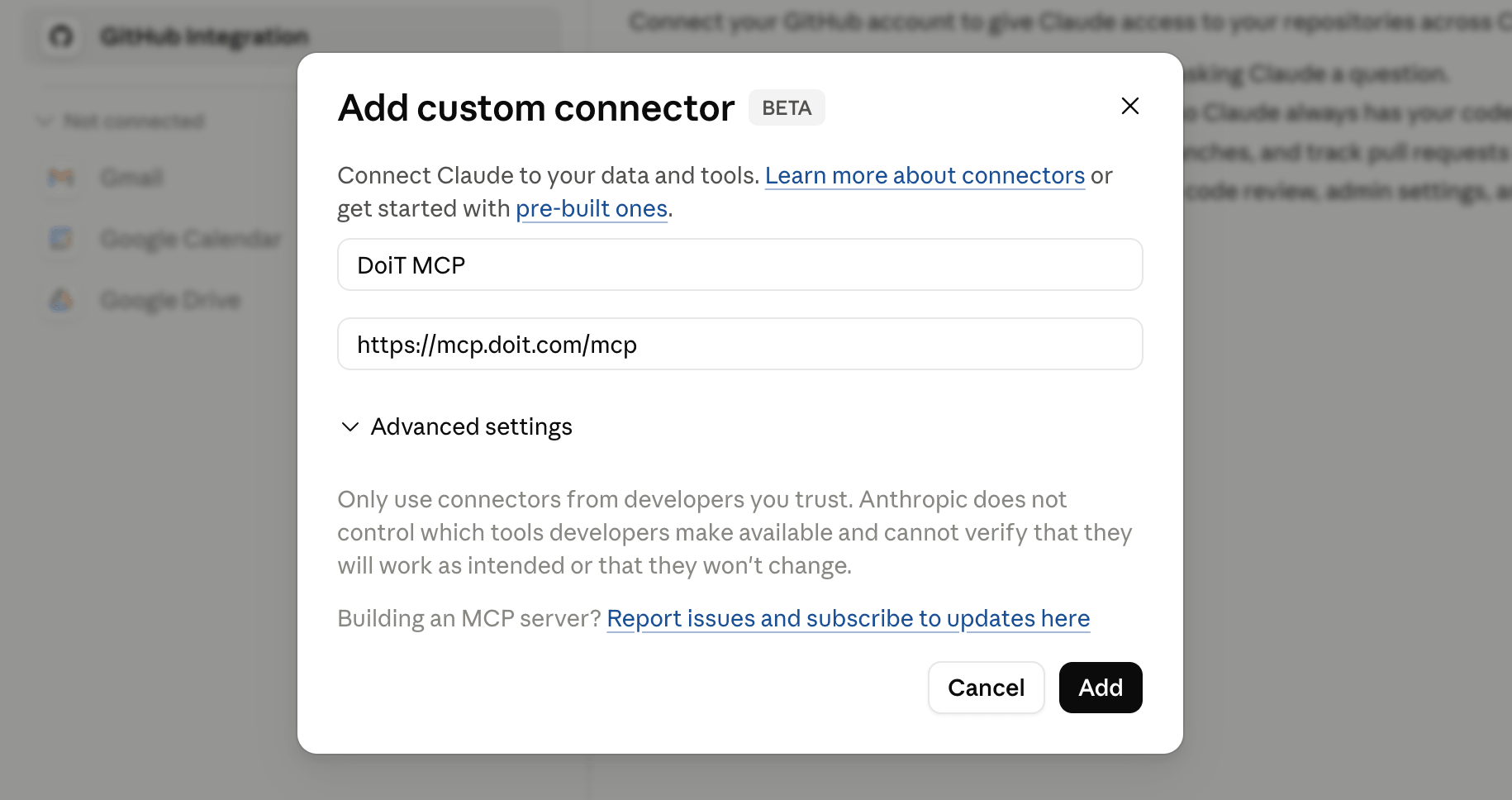
-
Add を選択します。
-
コネクタが追加されたら、Connect を選択して MCP サーバーに接続します。
-
まだ DoiT アカウントにサインインしていない場合は、ブラウザで DoiT のサインインページが開きます。DoiT アカウントでサインインしてください。
-
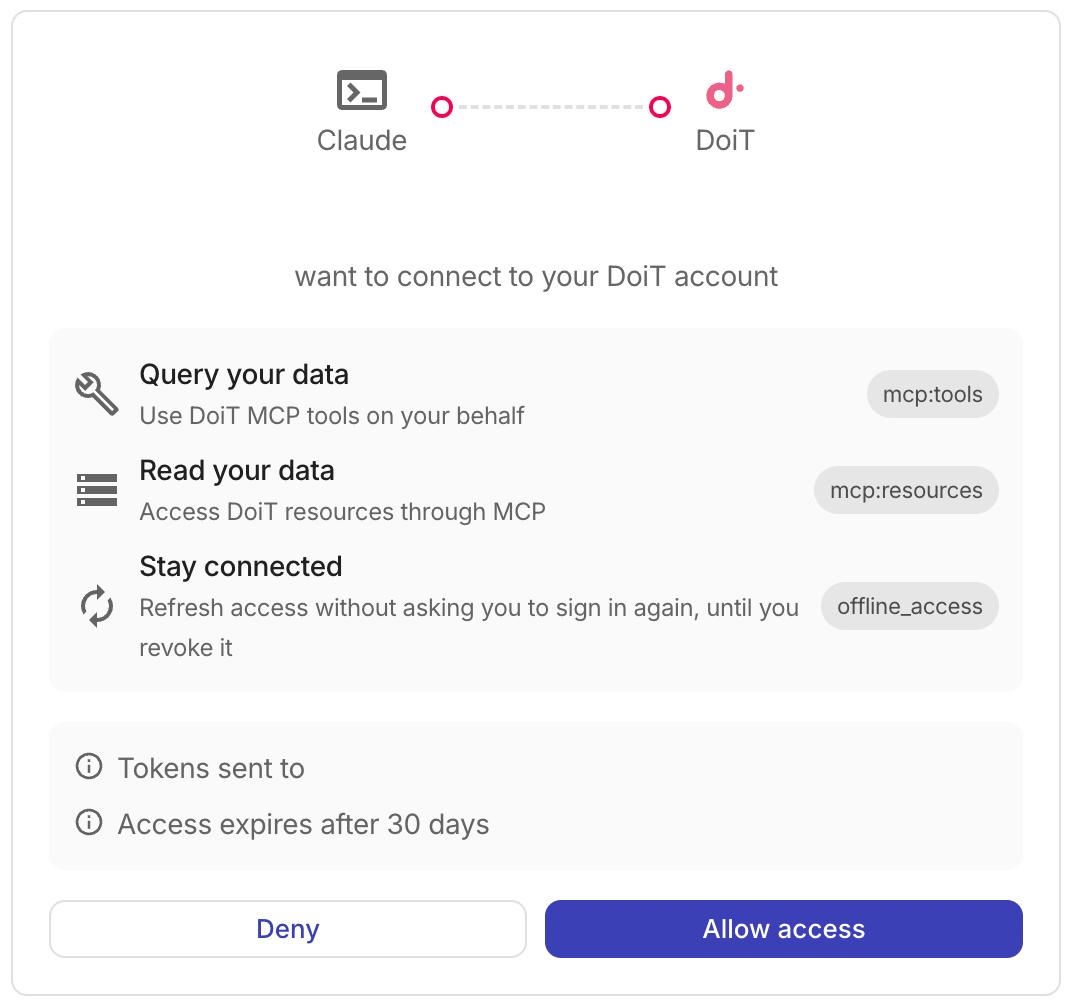
DoiT の同意画面で Allow access を選択します。
 注意
注意認可が
ofid_から始まる参照コードとともに失敗する場合は、組織のプランに DoiT API アクセスが含まれていること、およびお使いの DoiT アカウントに必要なツールの権限が付与されていることを確認してください。詳細については Troubleshooting を参照してください。 -
セットアップが完了すると、MCP サーバーに接続されていることを確認できます。
これで、新しいチャットを開いて Cloud Intelligence データに関する質問やリクエストを開始できます。