Billing utilities (Reseller only)
DoiT PartnerOps allows resellers to manually trigger data recalculation for an end customer using the latest contract rates and price book, and to monitor the status of billing and recalculation jobs.
Required permission
- Billing Utilities Admin
Data recalculation
Data recalculation reruns the billing pipeline using the latest contract rules and price book. Run a recalculation when:
-
A billing rule or price book rule was updated after billing ran for that period.
-
A custom line item was added or modified retroactively.
-
Data inaccuracies in a past billing period are identified and need to be corrected.
Data recalculation is a lengthy operation and typically takes two or more hours to complete. Contract rules from the currently active contract are applied to the selected billing periods, and recalculation is performed for all available management accounts under that customer.
To run a recalculation:
-
Sign in to the DoiT console, select Billing > Billing Utilities from the top navigation mega menu.
-
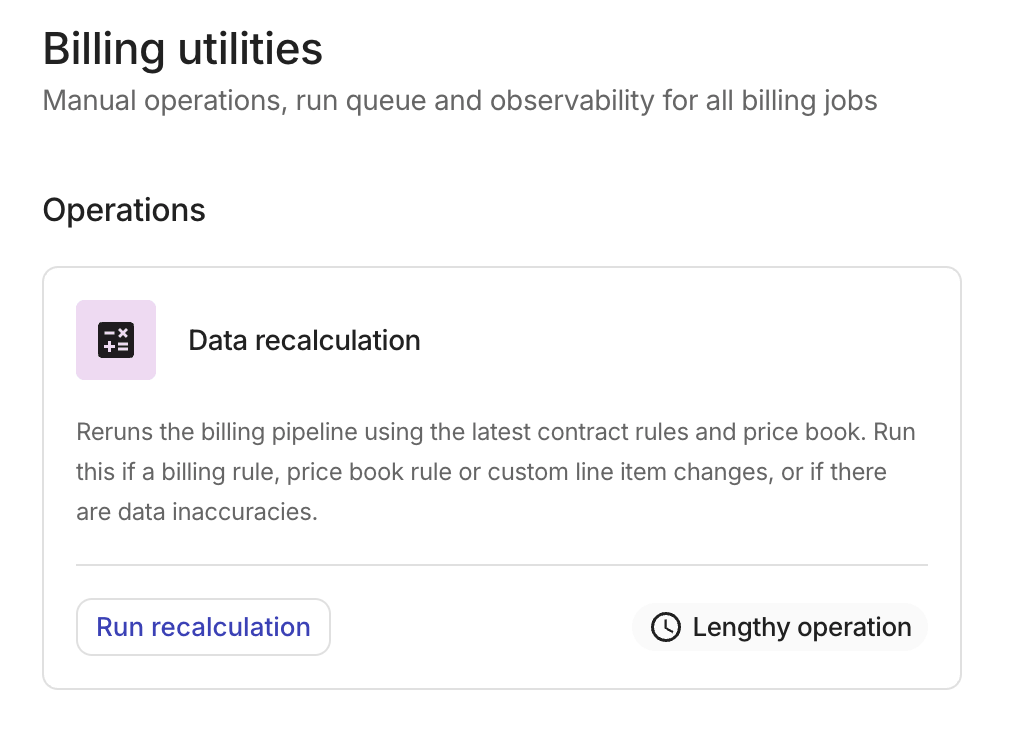
In the Operations section, select Run recalculation on the Data recalculation card.
-
In the Data recalculation dialog, fill in the required fields:
-
Customer: Select the customer. The list shows only customers with an active contract and a linked management account affected by that contract.
-
Billing period(s): Select one or more past billing periods. Available periods are based on the customer's contract coverage.
-
Reason: Select a reason for the recalculation. For example:
Credit and adjustment issues,Incorrect Charges, orOther. If you choose Other, optionally provide an explanation.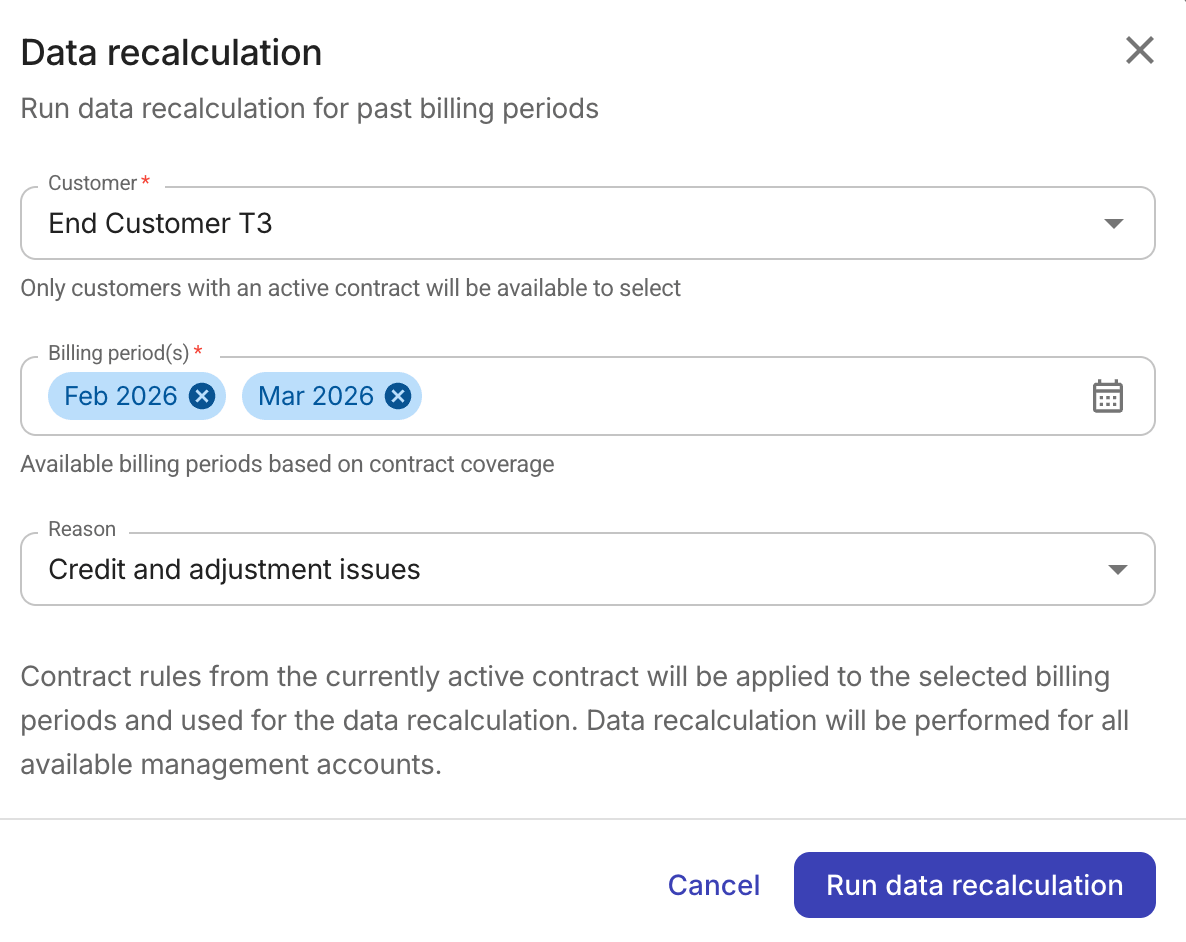
-
-
Select Run data recalculation.
Monitor progress
Once submitted, the job appears in the Run queue & log table, which displays all recalculation jobs and their status.
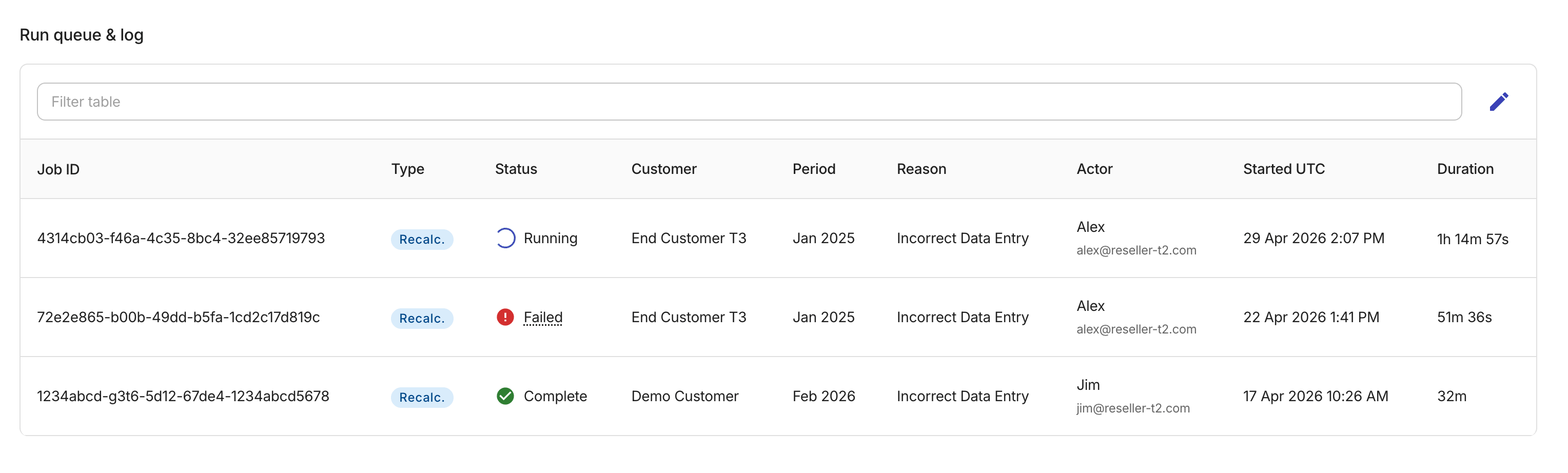
Each job entry includes the following details:
-
Job ID: Unique identifier for the recalculation job.
-
Type: The type of operation. For example,
Recalcfor data recalculation jobs. -
Status: Current state of the job:
Running,Complete, orFailed.-
Running: The recalculation is in progress. The table continues to refresh while any job is in this state. No action needed.
-
Complete: The recalculation finished successfully.
-
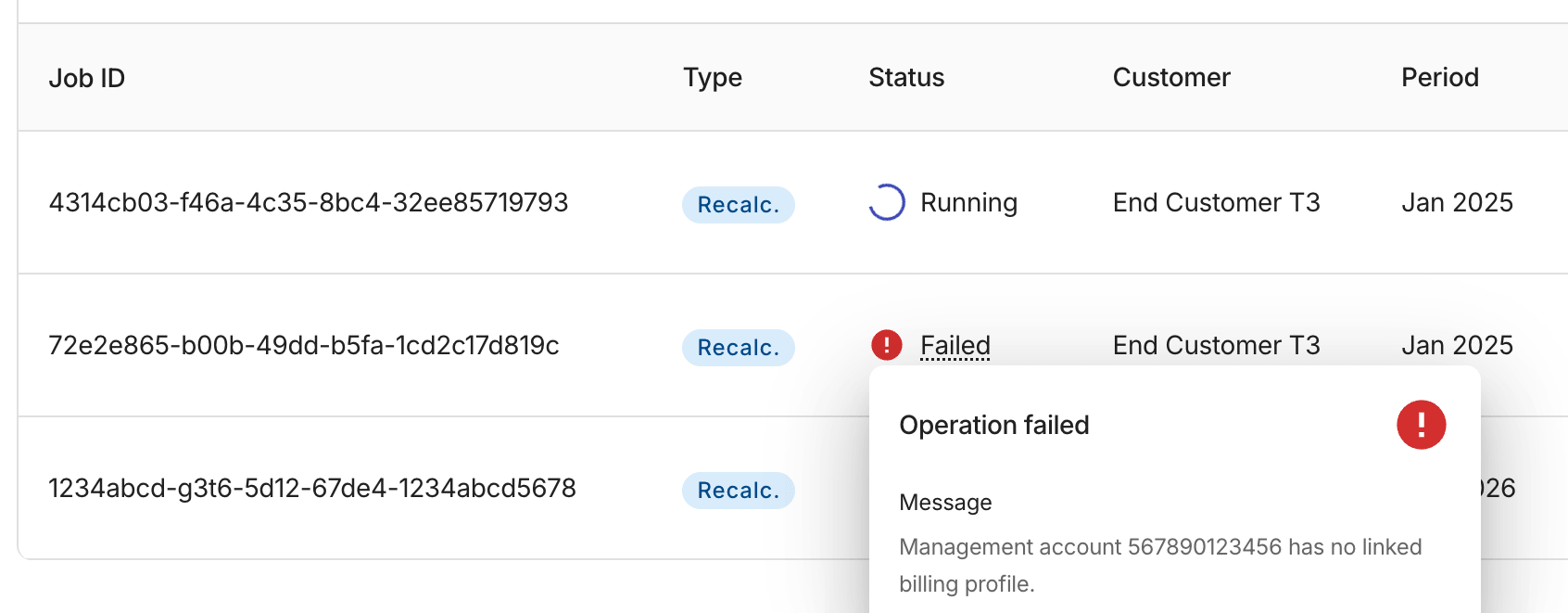
Failed: The recalculation encountered an error. Select the Failed badge to review the error message.
-
-
Customer: The customer the recalculation applies to.
-
Period: The billing period being recalculated.
-
Reason: Why the recalculation was triggered. If the reason is Other, select it to view the full explanation.
-
Actor: The user who initiated the job.
-
Started UTC: The date and time (UTC) when the job started. By default, jobs are sorted by start time with the most recent jobs first.
-
Duration: How long the job ran or has been running.