Resiliency alerts — Self-hosted 2.0
What are resiliency alerts
Alerts are designed to quickly identify and notify of relevant indicator changes, ensuring they can be eliminated before impacting the system.
For faster updates, utilize Slack, MS Teams, or DataDog Alerts Integrations to receive notifications when an Alert is generated.
By default, PerfectScale generates alerts for every cluster where a resilience indicator with a min_risk_level: high was identified.
In order to customize your alerts, an Alerts Profile must be set up and applied to the cluster. It will override the default alert generation process, ensuring identification and notification about relevant indicator changes.
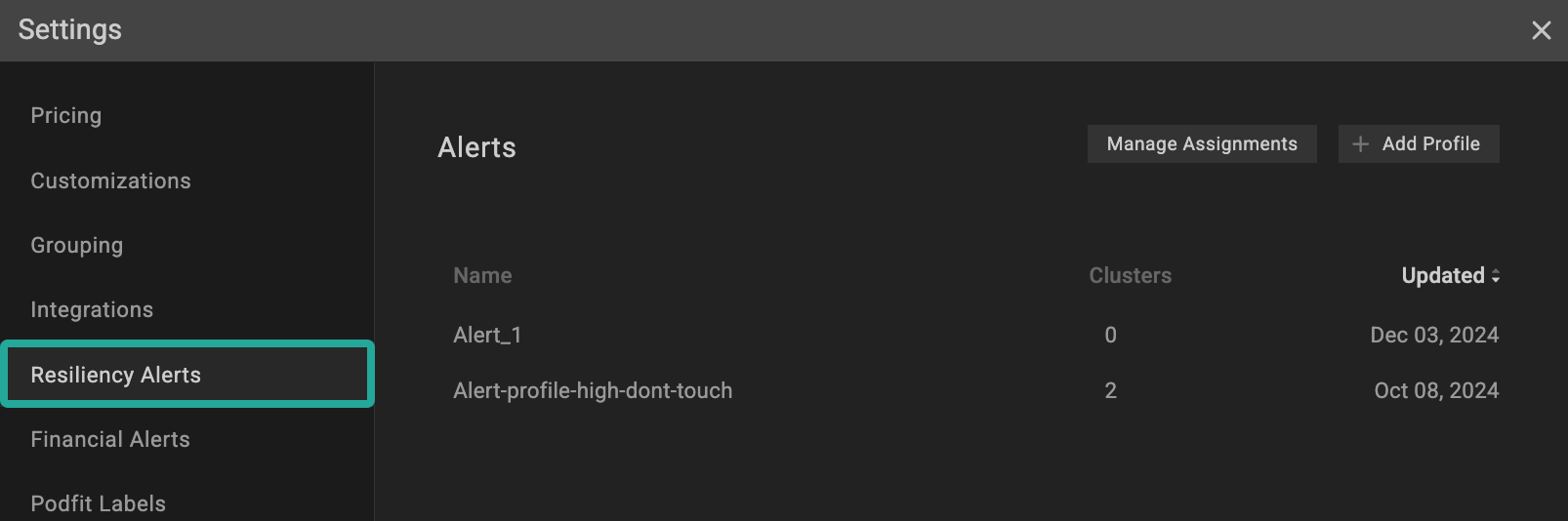
Resiliency alerts profile
You can apply only one Resiliency Alert Profile per cluster.
A cluster that transmits data is required to start receiving alerts configured with an Alert Profile.
Configuring resiliency alerts with Alerts Profile
:tools: How to create Alerts Profile
There are two options for creating a Profile: from the Settings tab or directly from the Overview.
From the Settings tab.
Go to the Settings tab on the left panel -> select Alerts -> click the +Add Profile button -> name the profile in the corresponding row -> specify the min_risk_level (low, medium, high) and ignored entities (if needed) -> click Save button.
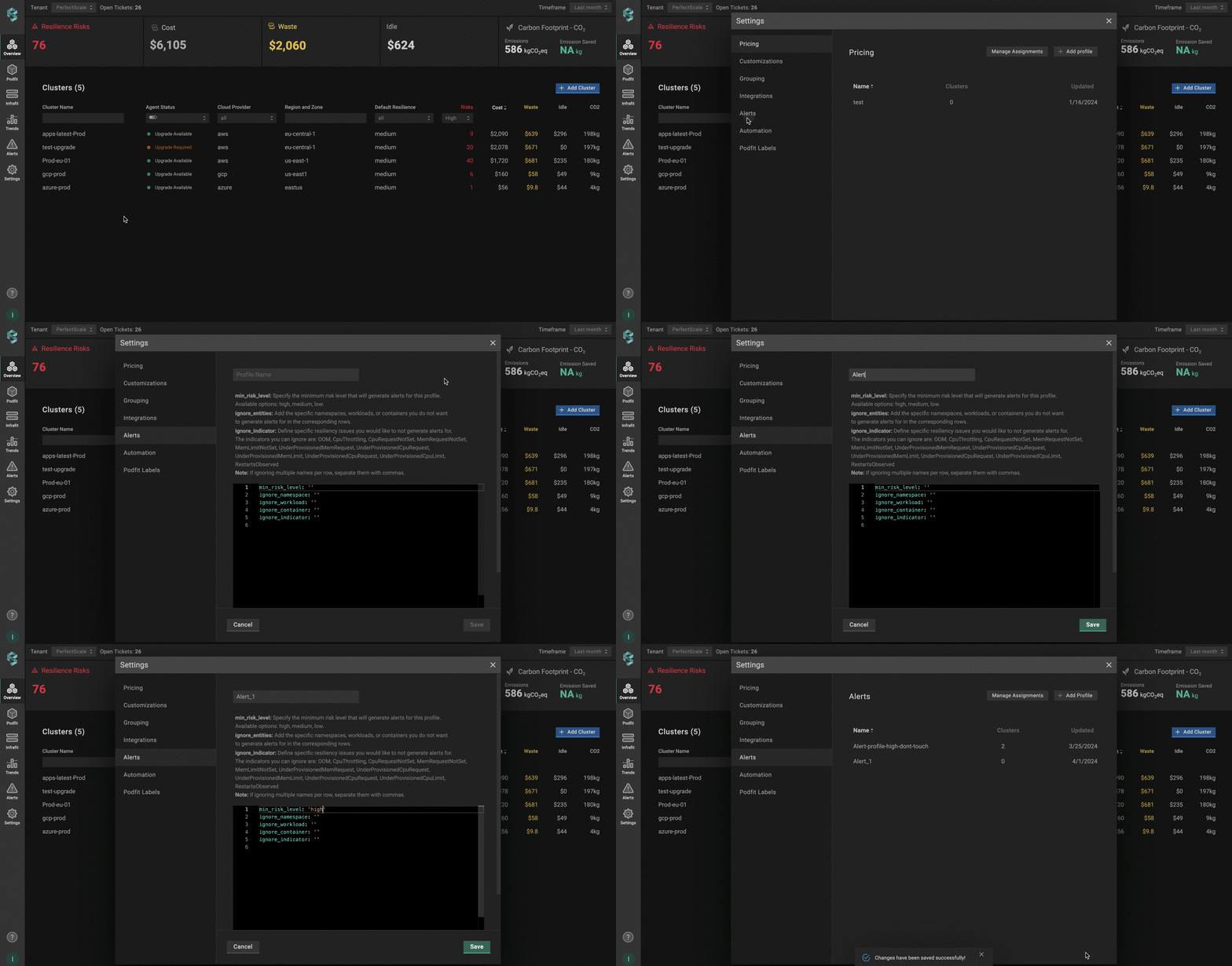
Resiliency alerts profile from settings
If the min_risk_level is set to medium, only indicators with high or medium severity will trigger alerts.
From the Overview tab
Go to the Overview tab on the left panel -> find the cluster to which you want to apply the Alert Profile and click gear button -> go to Customizations -> click on Add New Profile in the Alerts drop-down list -> name the profile in the corresponding row -> specify the min_risk_level (low, medium, high) and ignored entities (if needed) -> click the Save And Apply button.
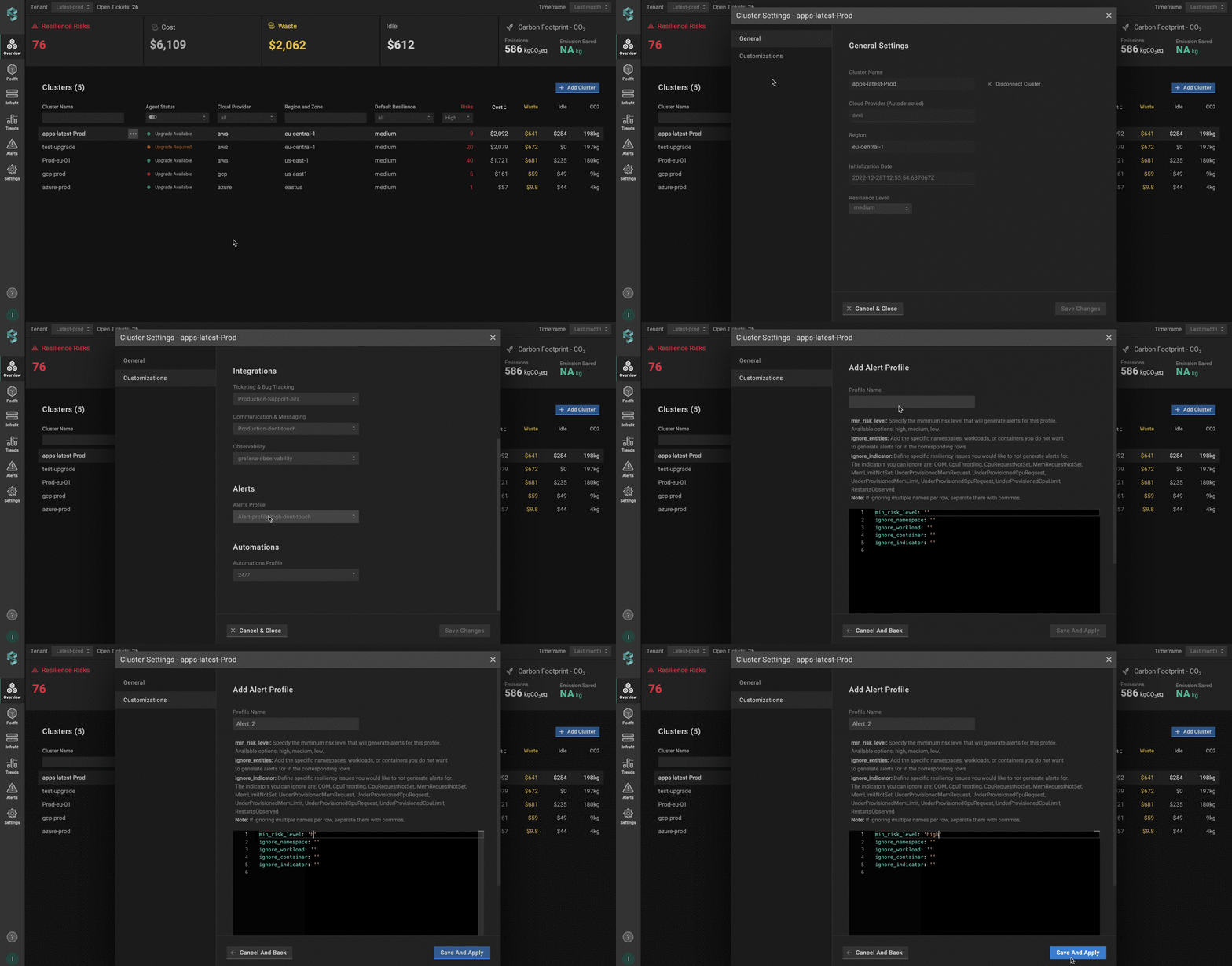
Resiliency alerts profile from overview
Alerts Profile Configuration
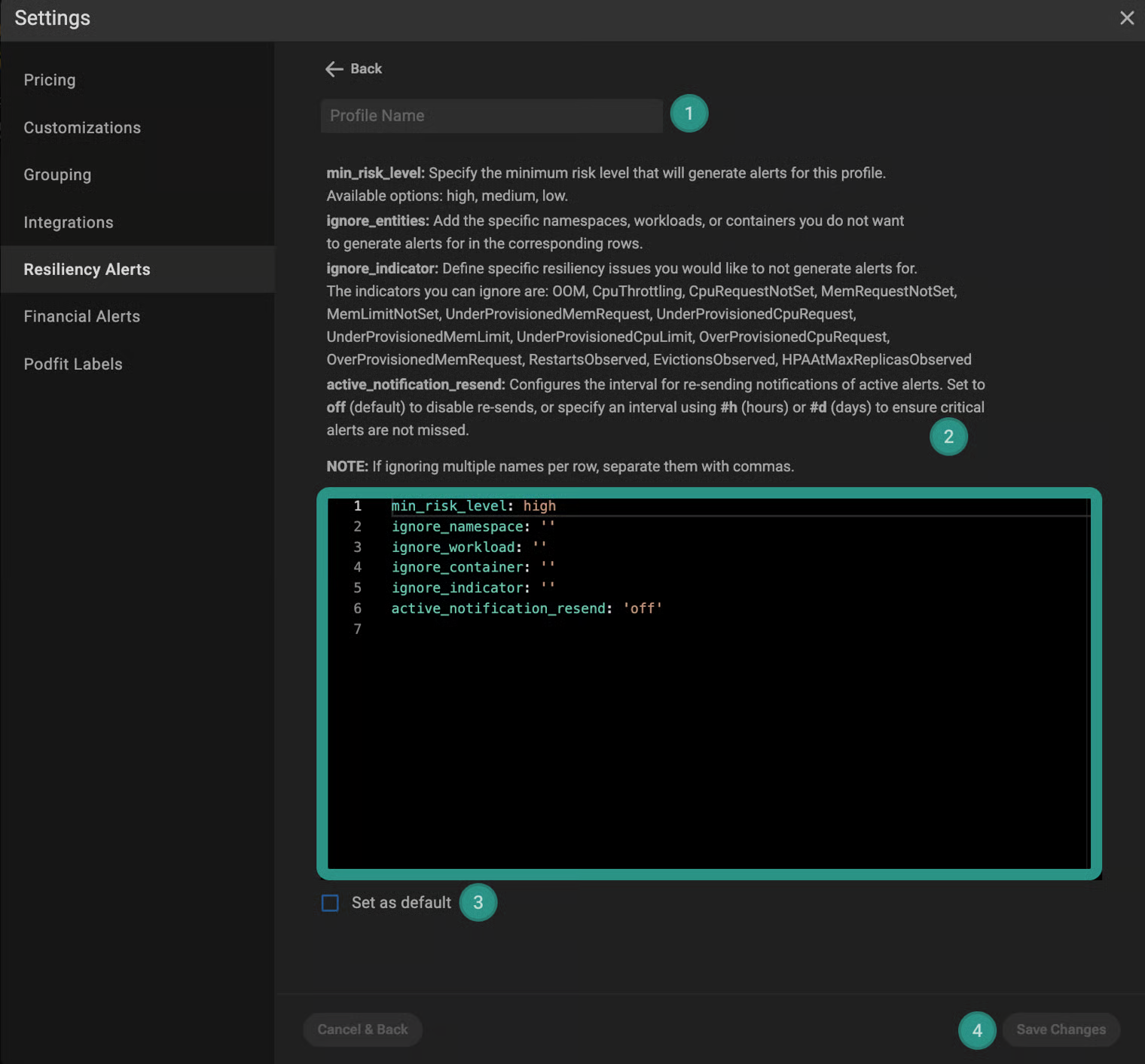
Resiliency alerts profile configuration
- Name the profile.
- Configure the profile:
min_risk_level- the minimum risk level of the issue to trigger the alert.
💡NOTE: if themin_risk_levelis set to medium, only indicators withhighormediumseverity will trigger alerts.ignore_namespace- excludes specific namespaces from triggering resiliency alerts.ignore_workload- excludes specific workloads from triggering resiliency alerts.ignore_container- excludes specific containers from triggering resiliency alerts.ignore_indicator- excludes specific resiliency issues indicators from triggering alerts.active_notification_resend- enables the configuration of the active alert resend feature at a specified interval to ensure critical alerts remain visible until addressed.
💡 NOTE:active_notification_resendis set tooffby default.
:point_right: Examples:
Setactive_notification_resend: 5hto resend notifications for active alerts every 5 hours.
Setactive_notification_resend: 1dto resend notifications for active alerts every day.
:tools: How to apply Alerts Profile
Apply to a single cluster
To apply Alert Profile to the cluster, go to the Overview tab on the left panel -> find the cluster to which you want to apply the Alert Profile and click gear button -> go to Customizations -> select the needed profile in the Alerts drop-down list.
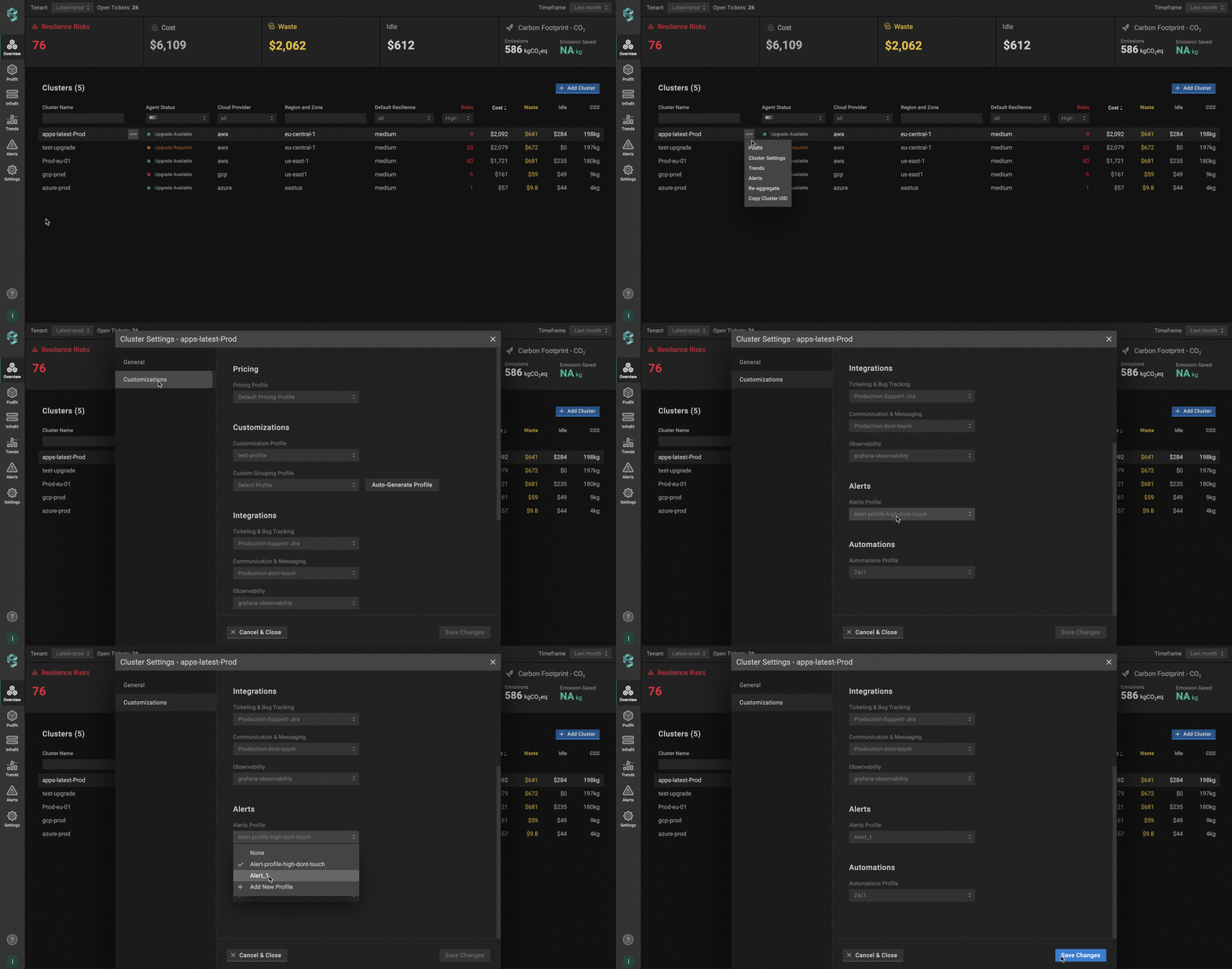
Applying resiliency alerts profile to a single cluster
Apply to multiple clusters
To apply the profile to multiple clusters from a single view, use the Manage Assignments feature.
Go to the Settings tab on the left panel -> select the Alerts -> click the Manage Assignments button -> apply the profiles for the needed clusters -> click the Save Changes button.
💡NOTE: You can easily manage your profiles (create, delete), but deleting such profiles is impossible if the profile is already connected to the cluster. Change the profile to default or any other, and only after that , remove the current one. If you change the Alert Profile to 'None', it will use the default action for alert generation (detected resilience indicator with a min_risk_level: high).
Configuring resiliency alerts integration with CRD
To enable alerting for resiliency risks using a Custom Resource Definition (CRD), you’ll need to define and apply a Custom Resource (CR) that specifies your alert parameters. This approach allows you to manage alert configurations directly through Kubernetes manifests.
The Custom Resource (CR) must be created in the perfectscale namespace.
Here is an example of the CR configuration:
apiVersion: perfectscale.io/v1
kind: ClusterSettings
metadata:
  name: cluster-settings-main
  namespace: perfectscale
spec:
  profiles:
    resiliency_alerts:
      - name: production-alerts
        assigned: true
        value:
          min_risk_level: high
          ignore_workload: "^(test-.*|dev-.*)"
          ignore_namespace: "^(kube-system|kube-public|kube-node-lease)$"
          ignore_container: "^(istio-proxy|envoy|linkerd-proxy)$"
          ignore_indicator: "CpuThrottling, CpuRequestNotSet"
          active_notification_resend: 'off'
⚙️ CR parameters:
| Parameter | Parameter |
|---|---|
min_risk_level | Specifies the minimum risk level that triggers resiliency alerts.Values: high, medium, low.Example: if set to medium, alerts will be generated for both medium and high risk levels. |
ignore_workloadignore_namespace ignore_container | Specifies the namespaces, workloads, or containers for which alerts are disabled. Use the regex pattern. To ignore multiple entities in one row, list them separated by commas. |
ignore_indicator | Specifies resiliency issues for which alerts will not be generated. Examples: OOM, CpuThrottling, CpuRequestNotSet, MemRequestNotSet, MemLimitNotSet, UnderProvisionedMemRequest, UnderProvisionedCpuRequest, UnderProvisionedMemLimit, UnderProvisionedCpuLimit, OverProvisionedCpuRequest, OverProvisionedMemRequest, RestartsObserved, EvictionsObserved, HPAAtMaxReplicasObserved Leave empty to not ignore any |
active_notification_resend | Specifies the interval for re-sending notifications for active alerts. Values: off (default) - disables re-sending notifications; h - sets hourly interval d - sets daily interval Example: active_notification_resend: '2h' - re-sends notification for active alerts every 2 hours. |