PerfectScale Operator — SaaS
The PerfectScale Operator is a Kubernetes operator that manages the installation and upgrade of PerfectScale components, including the exporter, automation agent, and other components. It is designed to reduce maintenance overhead, minimize manual work, and accelerate feature rollout across your clusters.
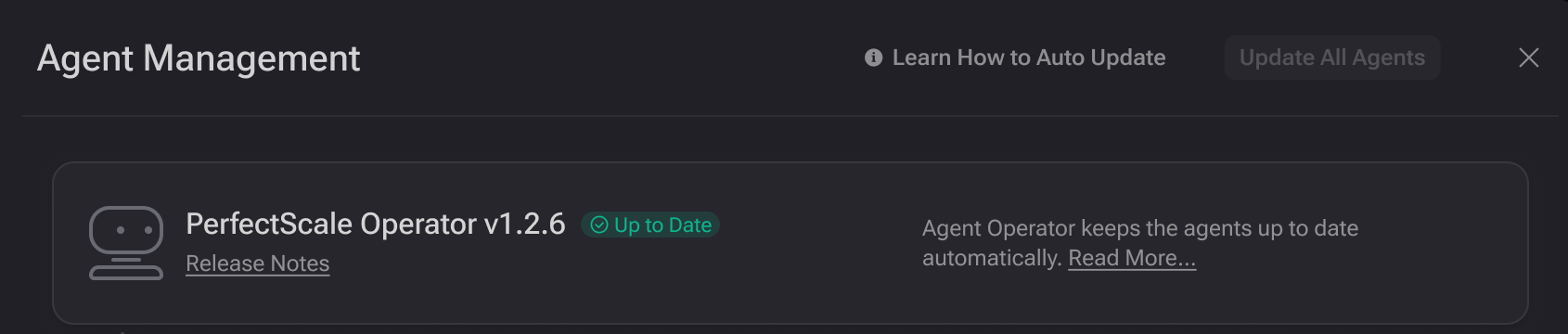
PerfectScale Operator
Installing PerfectScale Operator on a new cluster
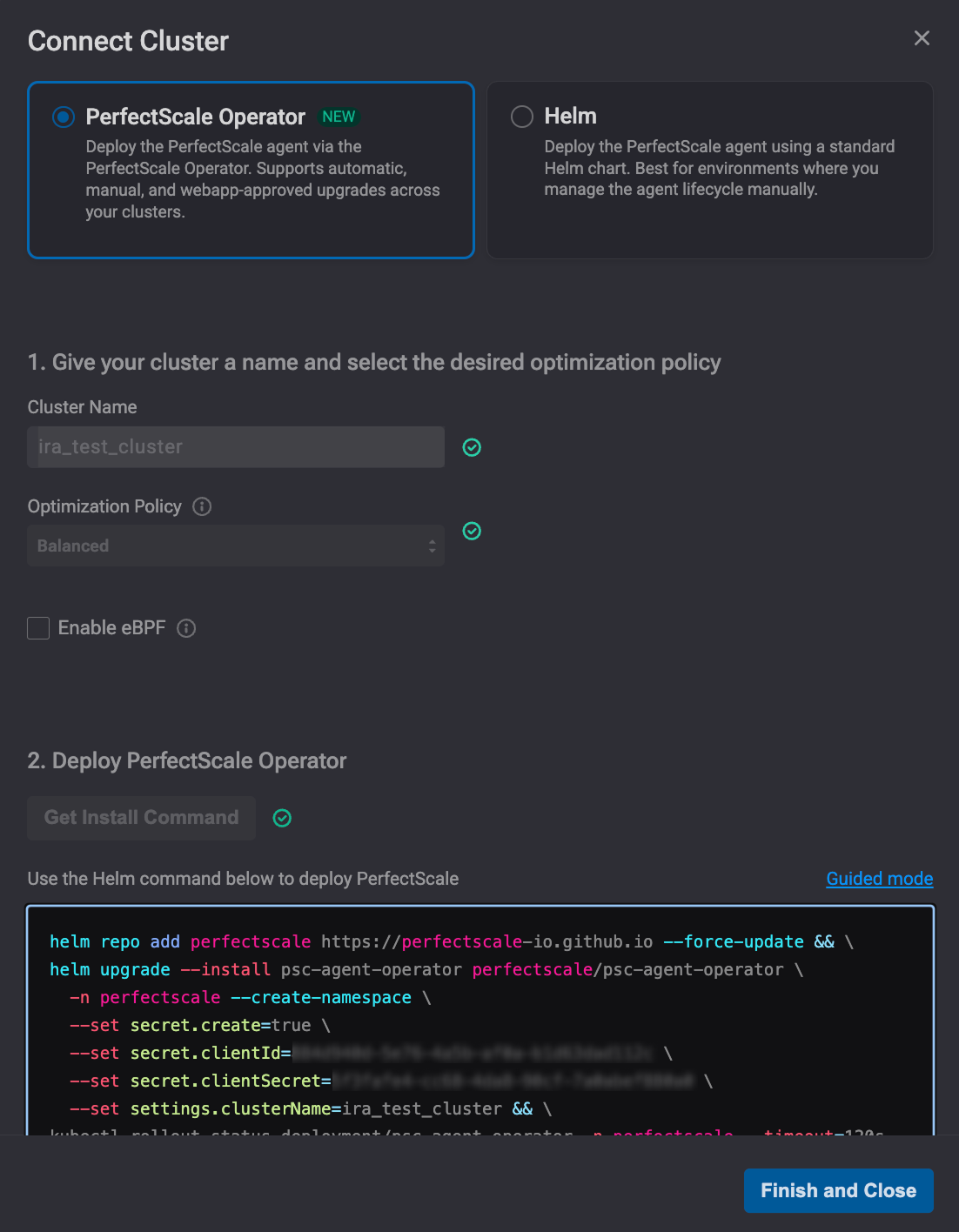
When onboarding a cluster, choose one deployment method: deploy with the PerfectScale Operator or deploy with Helm. Select PerfectScale Operator option to install the operator while onboarding a cluster.
Once you have named your cluster and selected the Optimization Policy, click Get Install Command, so PerfectScale will provide you with the needed installation components.
Connect cluster
Use the following Helm command to deploy PerfectScale:
helm repo add perfectscale https://perfectscale-io.github.io --force-update && \
helm upgrade --install psc-agents-operator perfectscale/psc-agents-operator \
  -n perfectscale --create-namespace \
  --set secret.create=true \
  --set secret.clientId=xxxxxxxx-xxxx-xxxx-xxxx-xxxxxxxxxxxx \
  --set secret.clientSecret=xxxxxxxx-xxxx-xxxx-xxxx-xxxxxxxxxxxx \
  --set settings.clusterName={your-cluster-name} && \
  kubectl rollout status deployment/psc-agent-operator -n perfectscale --timeout=120s && \
kubectl apply -f - <<EOF
apiVersion: perfectscale.io/v1alpha1
kind: Agents
metadata:
  labels:
    app.kubernetes.io/name: psc-agent-operator
  name: agents
  namespace: perfectscale
spec:
  exporter:
    installationMode: "on"
    upgrade:
      mode: auto
  autoscaler:
    installationMode: "on"
    upgrade:
      mode: auto
  promexporter:
    installationMode: "off"
    upgrade:
      mode: auto
EOF
Alternatively, you can install the Operator using Guided mode. Click Guided mode to follow the 3-step installation instructions:
Step 1
Add Helm repo
helm repo add perfectscale https://perfectscale-io.github.io --force-update
Step 2
Deploy PerfectScale Operator
helm upgrade --install psc-agents-operator perfectscale/psc-agent-operator \
  -n perfectscale --create-namespace \
  --set secret.create=true \
  --set secret.clientId=xxxxxxxx-xxxx-xxxx-xxxx-xxxxxxxxxxxx \
  --set secret.clientSecret=xxxxxxxx-xxxx-xxxx-xxxx-xxxxxxxxxxxx \
  --set settings.clusterName={your-cluster-name}
Step 3
Apply CRD
The CR cannot be applied until the agent operator is installed and the rollout is complete. In Guided mode, this wait is not included. The rollout usually takes around 20 seconds.
kubectl apply -f - <<EOF
apiVersion: perfectscale.io/v1alpha1
kind: Agents
metadata:
  labels:
    app.kubernetes.io/name: psc-agent-operator
  name: agents
  namespace: perfectscale
spec:
  exporter:
    installationMode: "on"
    upgrade:
      mode: auto
  autoscaler:
    installationMode: "on"
    upgrade:
      mode: auto
  promexporter:
    installationMode: "off"
    upgrade:
      mode: auto
EOF
Migration of Existing Cluster to Operator
Step 1
Get the cluster name from the existing exporter
To get a clusterName that was passed when the exporter was first installed, run the following command:
helm get values perfectscale -n perfectscale | grep clusterName
You’ll need this exact value when creating the Agents CR.
Step 2
Uninstall the existing agents
To uninstall agents, run the corresponding command only for the agents that are currently installed.
# Exporter
helm uninstall perfectscale -n perfectscale

# Autoscaler
helm uninstall psc-autoscaler -n perfectscale

# PromExporter
helm uninstall psc-prom-exporter -n perfectscale
PerfectScale stores the credentials here:
"helm.sh/resource-policy": keep
As a result, running any of the Helm uninstall commands above will not remove the secret, so your cluster credentials stay preserved.
Step 3
Install the Operator (pointing to the existing secret)
To install the PerfectScale Operator, run the following command:
helm upgrade --install psc-agent-operator perfectscale/psc-agent-operator \
      -n perfectscale --create-namespace \
      --set secret.create=false \
      --set secret.secretName=perfectscale-secret \
      --set settings.clusterName={CLUSTER_NAME}
Since secret.create=false, the operator will not create a new secret. Instead, it will use the existing secret that remained after the uninstall.
Step 4
Create the Agents CR
Create an agents.yaml CR:
apiVersion: perfectscale.io/v1alpha1
kind: Agents
metadata:
  labels:
    app.kubernetes.io/name: psc-agent-operator
  name: agents
  namespace: perfectscale
spec:
  exporter:
    installationMode: "on"
    upgrade:
      mode: auto
  autoscaler:
    installationMode: "on"
    upgrade:
      mode: auto
  promexporter:
    installationMode: "on"
    upgrade:
      mode: auto
Run the following command:
kubectl apply -f agents.yaml
Edge case - mixed managed clusters
If some agents are still managed by a standalone Helm and have not yet been removed, enabling them in the operator CR will prompt the operator to install a new Helm release. That release will then try to create or adopt perfectscale-secret, but the secret is still marked as owned by the old release (for example, perfectscale). This results in:
Secret "perfectscale-secret" exists and cannot be imported into the current release:
annotation validation error: key "meta.helm.sh/release-name" must equal "exporter":
current value is "perfectscale"
Resolution: before enabling an agent with installationMode: on in the CR, first uninstall its standalone Helm release. This is required because the operator manages Helm releases under different release names than the standalone installation.
Understanding PerfectScale Operator CRD
kubectl apply -f - <<EOF
apiVersion: perfectscale.io/v1alpha1
kind: Agents
metadata:
  name: agents # This name cannot be changed and must always remain "agents"
  namespace: perfectscale # CRD should be created in the perfectscale namespace
spec:
  exporter:
    installationMode: "on"
    upgrade:
      mode: auto # (Recommended) Indicates that PerfectScale exporter will be automatically upgraded to the latest version. Select manual or webapp to change
    valuesOverride:
      settings:
        corootNodeAgent:
          enabled: true
  autoscaler:
    installationMode: "on"
    upgrade:
      mode: auto # (Recommended) Indicates that PerfectScale automation agent will be automatically upgraded to the latest version. Select manual or webapp to change
  promexporter:
    installationMode: "off"
    upgrade:
      mode: auto
EOF
Learn more about PerfectScale Operator CRD here.
Updating PerfectScale Operator
To ensure smooth operation, it’s important to keep the PerfectScale Operator up to date.
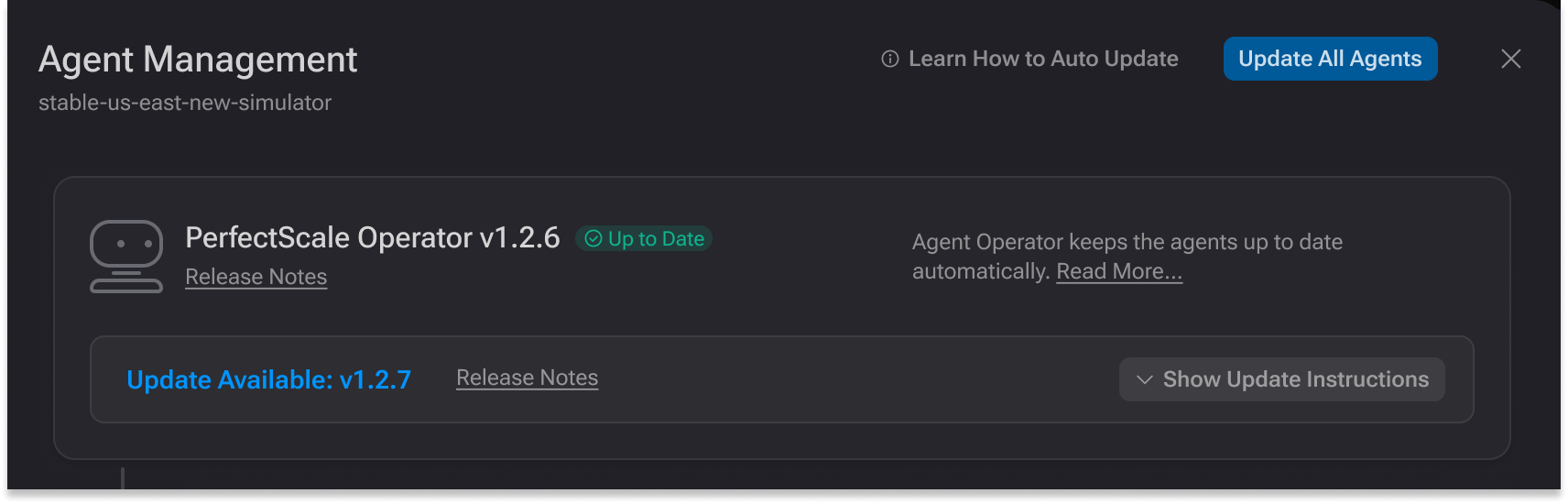
To get started, go to Cluster Settings by clicking the gear icon next to the cluster name, then select Agents. In the Agent Management, you can check the current version of the Agent Operator and review the Release Notes for detailed information about changes and improvements. Clicking Release Notes will take you to GitHub, where you can explore full release details, including updates and assets.
Updating Agents Operator
To upgrade, click Show Update Instructions to access step-by-step guidance. The upgrade process includes two simple steps:
Step 1
Update the Helm repository
helm repo update perfectscale
Step 2
Update the PerfectScale Operator version
helm upgrade --install psc-agent-operator perfectscale/psc-agent-operator \
  -n perfectscale --reset-then-reuse-values
Keeping the PerfectScale Operator updated ensures you benefit from the latest features, improvements, and overall service quality.
Upgrade modes
PerfectScale supports three upgrade modes for agents: auto, webapp, and manual.
Both Admin and PowerUser roles can add and update clusters. Only Admin users can disconnect a cluster. Learn more about roles and permissions here.
Learn more about upgrade modes prerequisites here.
⚡ Auto (recommended)
In this mode, PerfectScale Operator automatically upgrades to the latest version. The operator queries the PerfectScale settings API (/psc-settings) on every reconciliation to retrieve the latest version for the exporter and autoscaler. The version field is omitted, and the operator always upgrades to the newest release. To enable auto mode, you need to configure it in the PerfectScale Operator CRD for exporters and autoscaler.
Example:
spec:
  exporter:
    installationMode: "on"
    upgrade:
      mode: auto
  autoscaler:
    installationMode: "on"
    upgrade:
      mode: auto
Once auto mode is enabled, your agents are always kept up to date automatically. This ensures you have access to the latest features and fixes without interrupting operations or requiring any manual effort from your team.
Webapp
This mode offers semi-automatic upgrades, where you need to approve upgrades in the PerfectScale platform, and then the operator updates to the latest version. This approach gives your team a change-management gate while still automating the process.
To enable webapp mode, you need to configure it in the Agents Operator CRD for exporters and autoscaler.
Example:
    installationMode: "on"
    upgrade:
      mode: webapp
  autoscaler:
    installationMode: "on"
    upgrade:
      mode: webapp
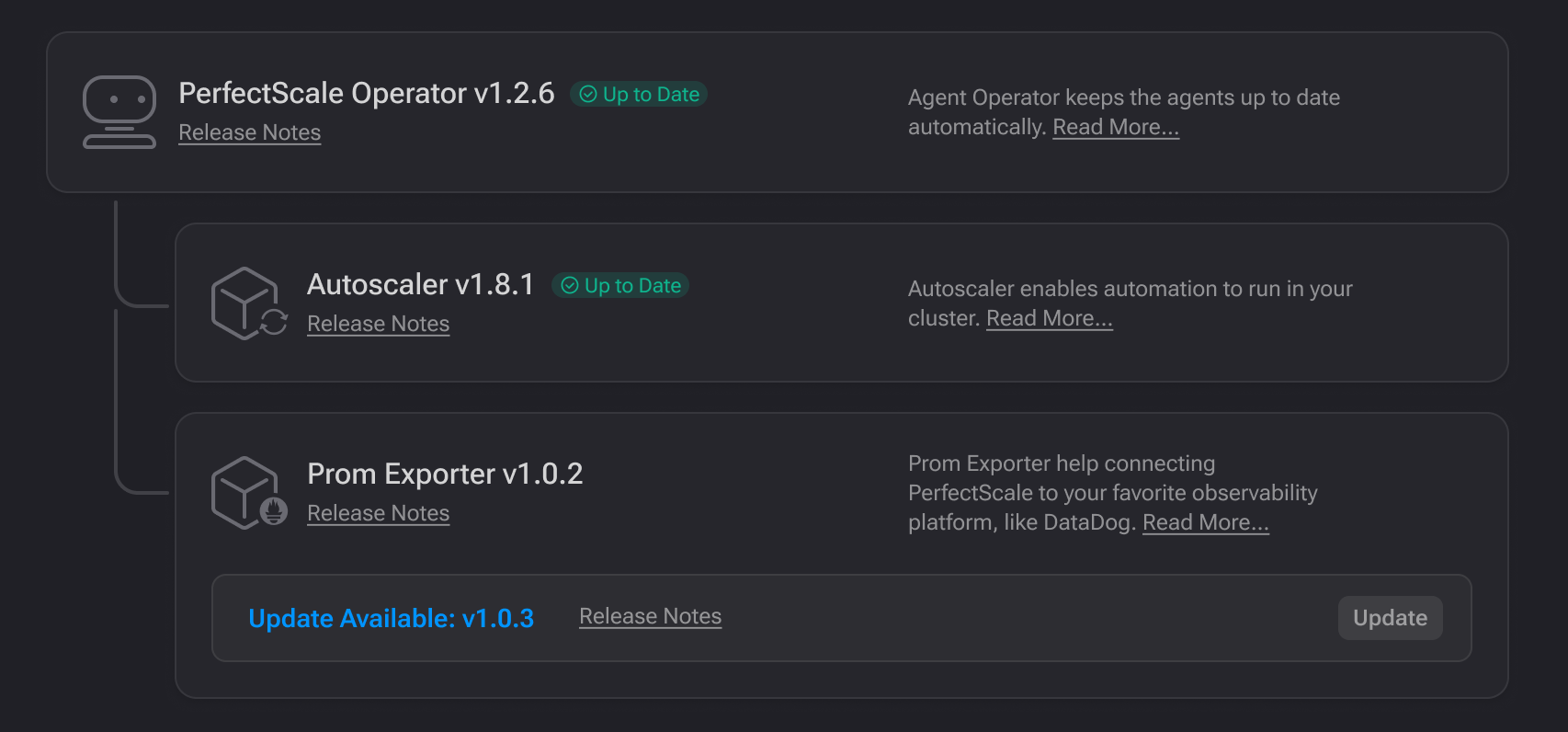
In Cluster Settings (accessed by clicking the gear icon next to the cluster name), select Agents. Click the Update button next to a specific agent to upgrade it to the latest version.
Webbapp upgrade mode
Alternatively, you can upgrade all agents at once with a single click by selecting Update All Agents in the top-right corner, or from the global Agent section (learn more here).
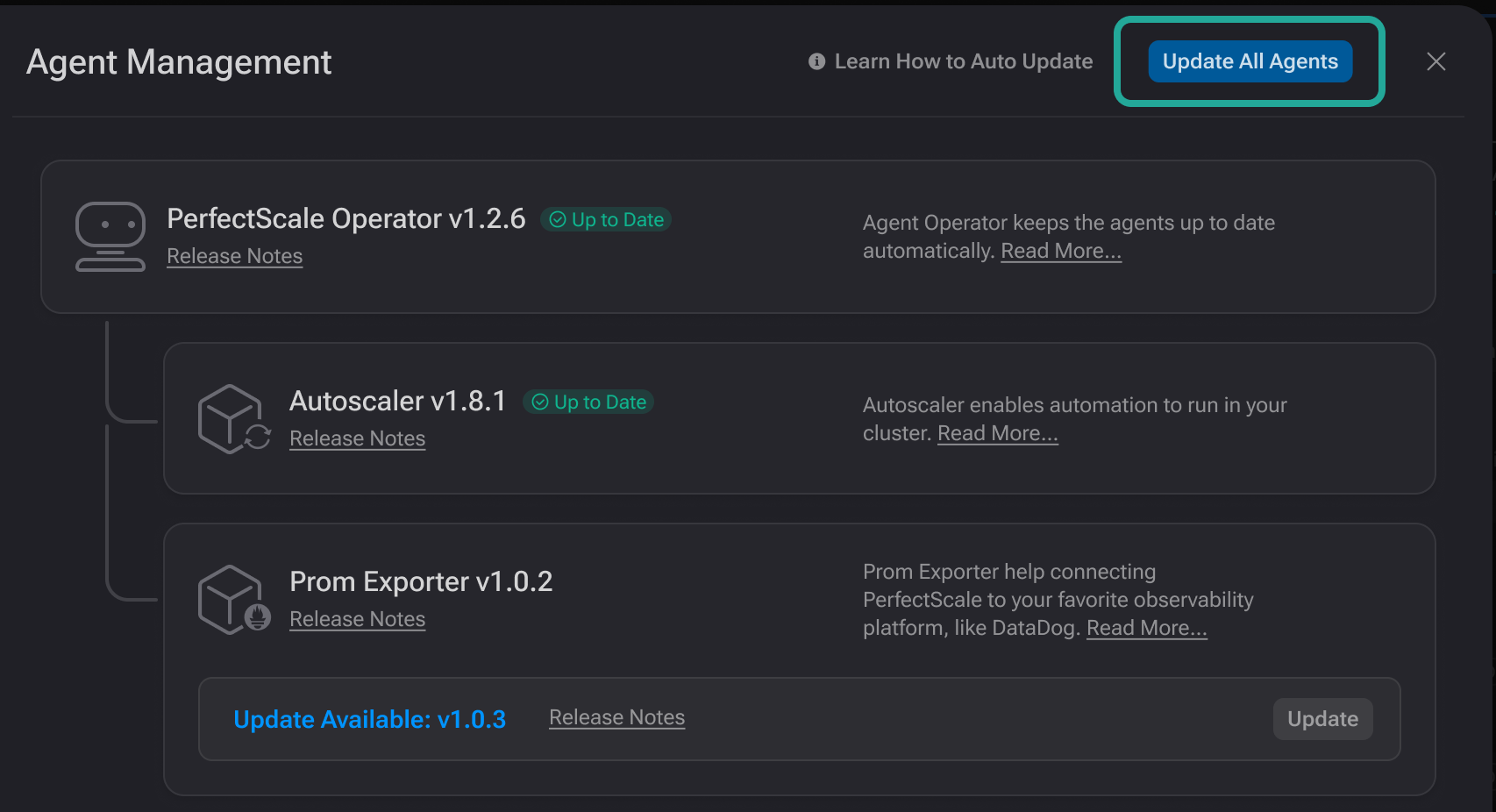
Upgrade all agents
The cluster must be connected to the PerfectScale platform so the operator can receive approval actions from the web app.
Manual
This mode suits the teams that do not want to upgrade agents automatically and prefer manual agent management. To enable manual mode, you need to configure it in the PerfectScale Operator CRD for exporters and autoscaler.
When upgrading agents manually, users must explicitly set the desired version in the CRD to trigger an upgrade. The version field must specify an exact version (e.g., v1.0.0).
To check the latest available version, navigate to Cluster Settings (click the gear icon next to the cluster name) and select Agents. The available version is displayed in the Update Available/Required section.
Here’s an example of what a CRD may look like:
apiVersion: perfectscale.io/v1alpha1
kind: Agents
metadata:
  labels:
    app.kubernetes.io/name: psc-agent-operator
  name: agents
  namespace: perfectscale
spec:
  clustername: your_cluster
  credentials:
    name: perfectscale-credentials
  exporter:
    installationMode: "on"
    upgrade:
      mode: manual
      version: "1.0.83" # The desired exporter version
  autoscaler:
    installationMode: "on"
    upgrade:
      mode: manual
      version: "1.0.34" # The desired autoscaler version
  promexporter:
    installationMode: "on"
    upgrade:
      mode: manual
      version: "0.2.0" # The desired prom exporter version