Datadog Alerts Integration — Self-hosted 2.0
Datadog Alerts Integration enables you to receive PerfectScale Alerts directly into your Datadog dashboard, ensuring you stay informed about any resilience risks identified in your Kubernetes environment, and helping you prioritize tasks to eliminate the issues before they impact performance and user experience.
Datadog Alerts Integration could be enabled in a few simple steps:
- Create an API Key in Datadog.
- Configure Datadog Alerts Profile.
- Apply the profile to the desired cluster(s).
:tools: How to create API Kye in Datadog
-
Log in to your Datadog profile.
-
Hover over your account icon and click API Keys
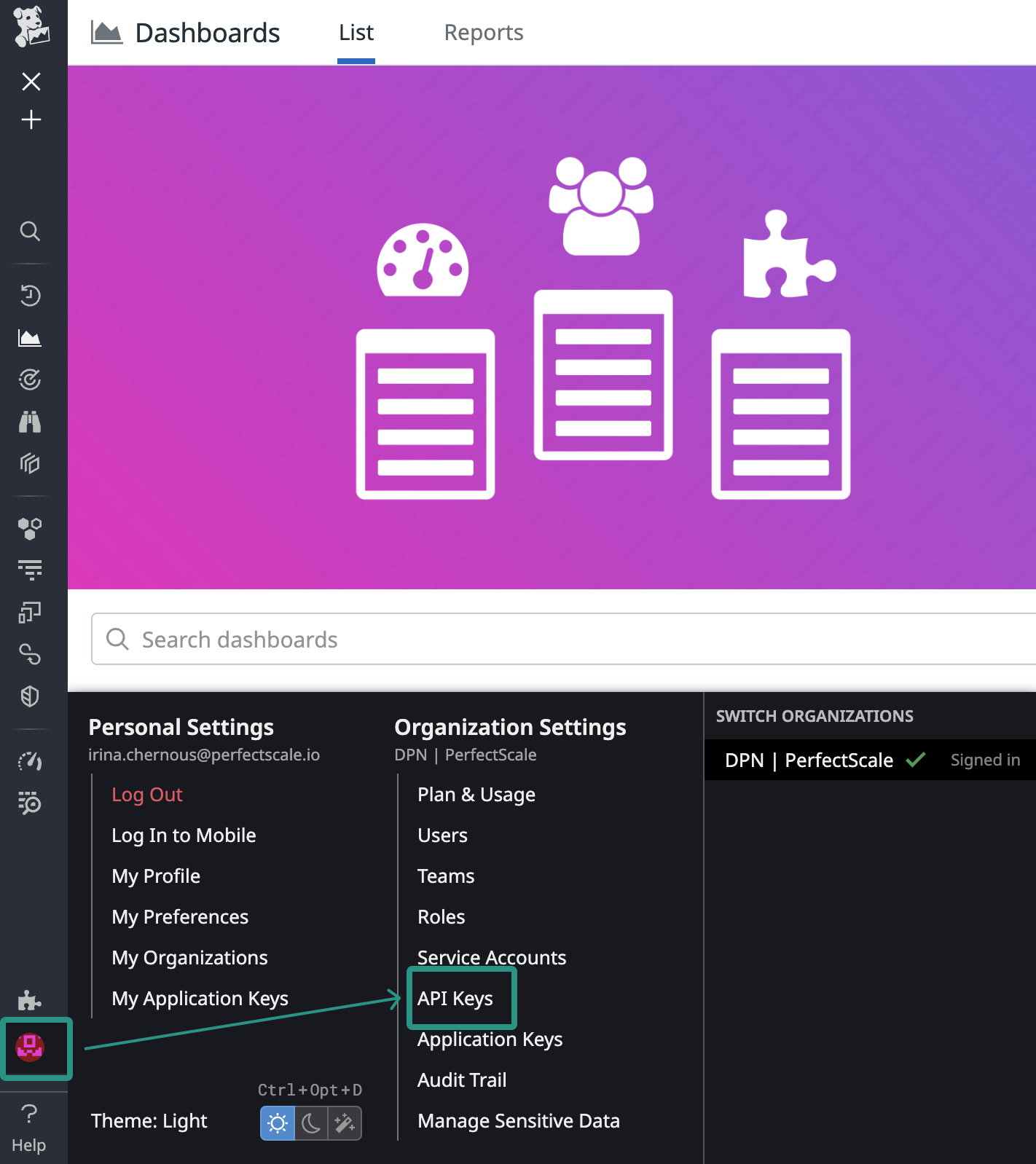
Datadog API key
-
Click
New Keybutton, name your key, and clickCreate Key.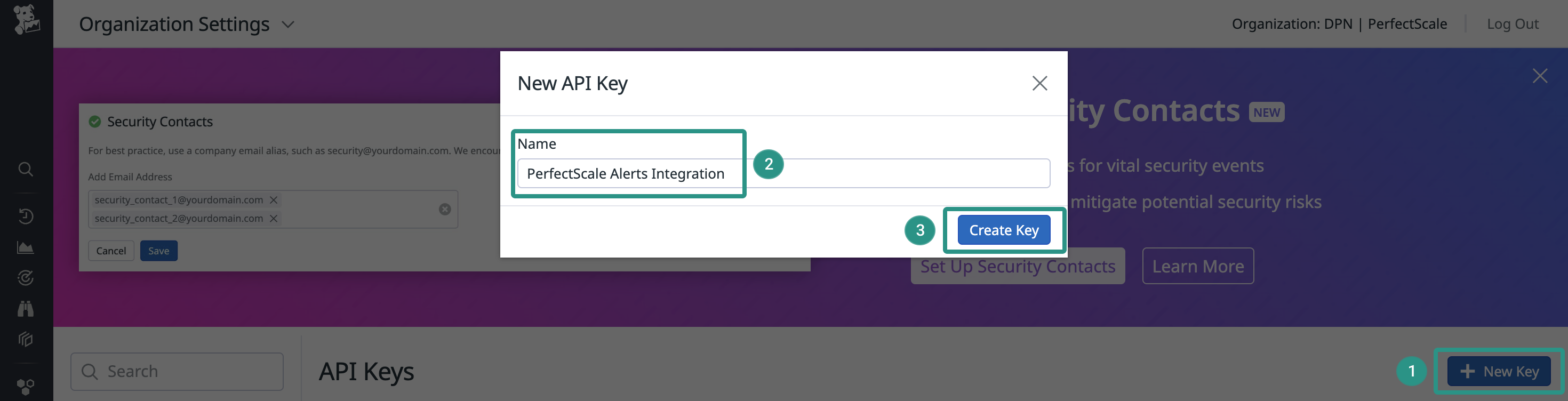
New key1
-
Copy the API Key. You will need it for the Datadog Alerts Profile configuration.
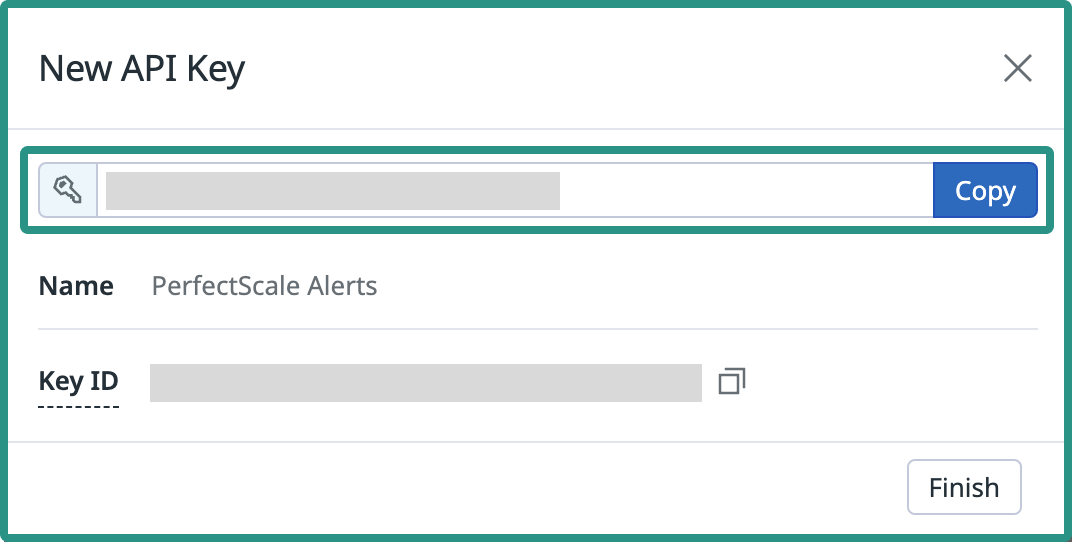
New key2
Configuring Datado integration with the profile
:tools: How to create Datadog Alerts Profile
There are two options for creating a Profile: from the Settings tab or directly from the Overview.
From the Settings tab
Go to the Settings tab on the left panel -> select Integrations -> click the +Add Integration button and select Datadog from the drop-down -> insert the required data.
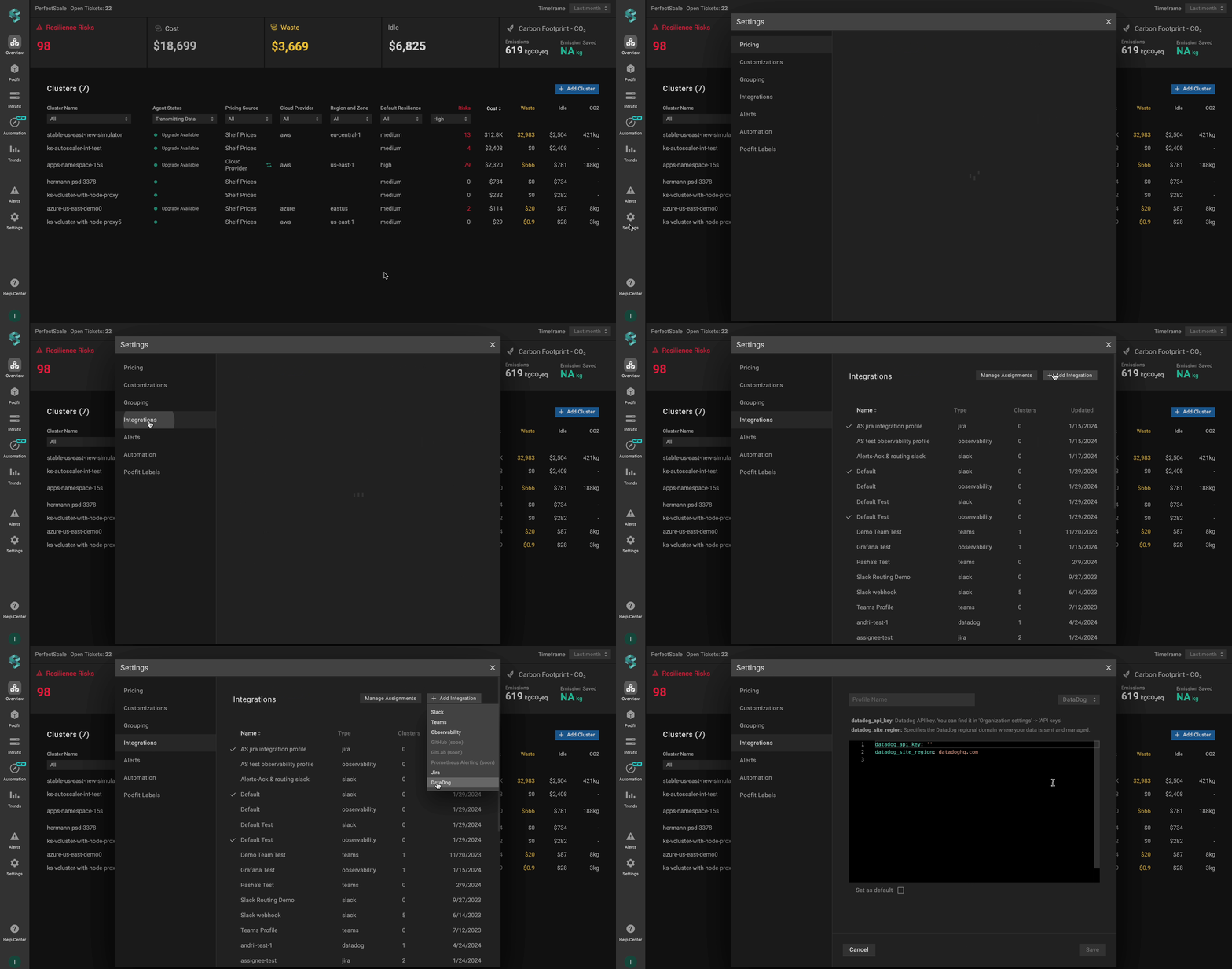
Datadog alerts profile from settings
From the Overview tab
Go to the Overview tab on the left panel -> find the cluster to which you want to apply the Profile and click gear button -> go to Customizations -> find Integrations and click the Monitoring drop-down list -> click the Add New Profile button -> insert the required data.
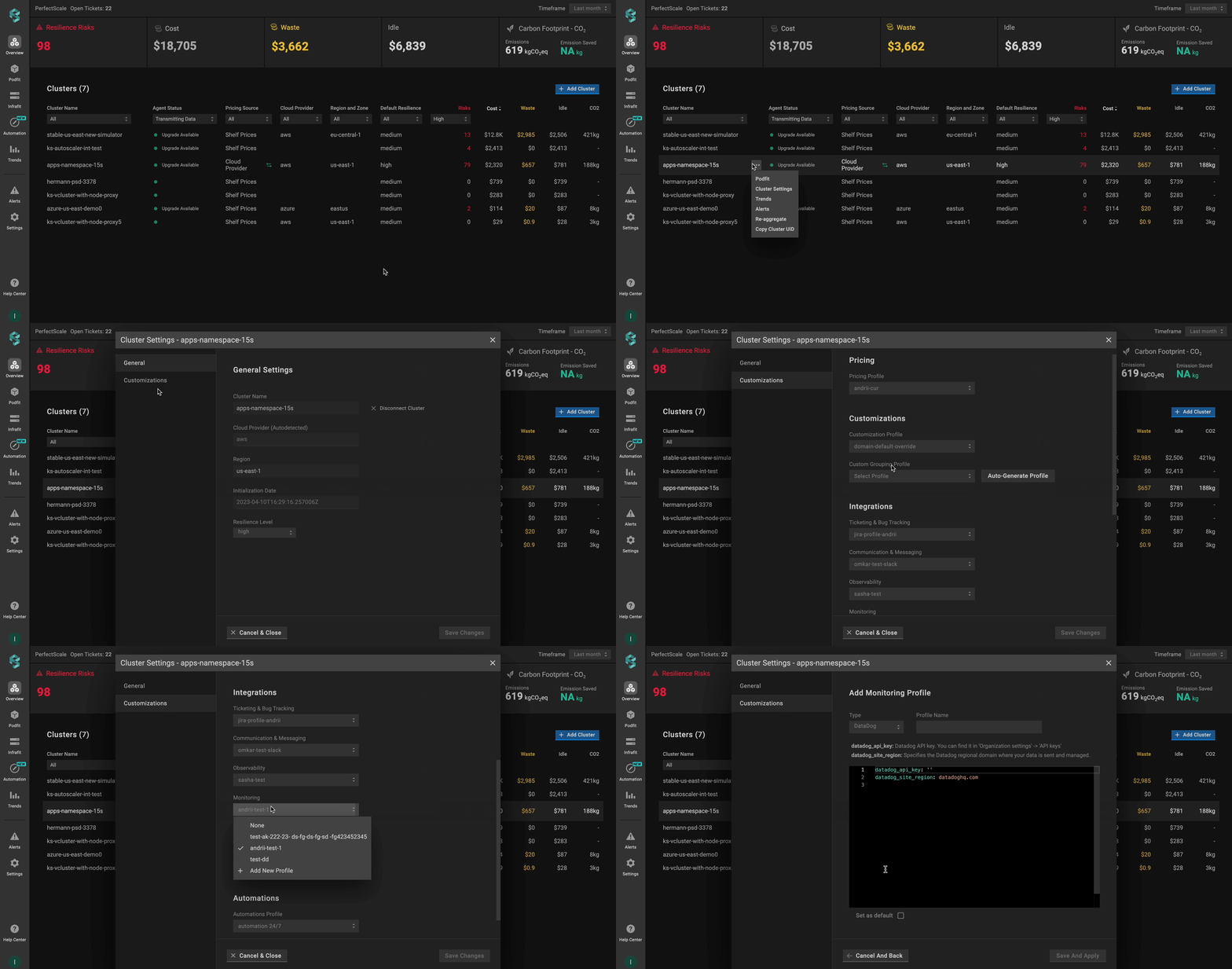
Datadog alerts profile from overview
Datadog alerts Profile Configuration
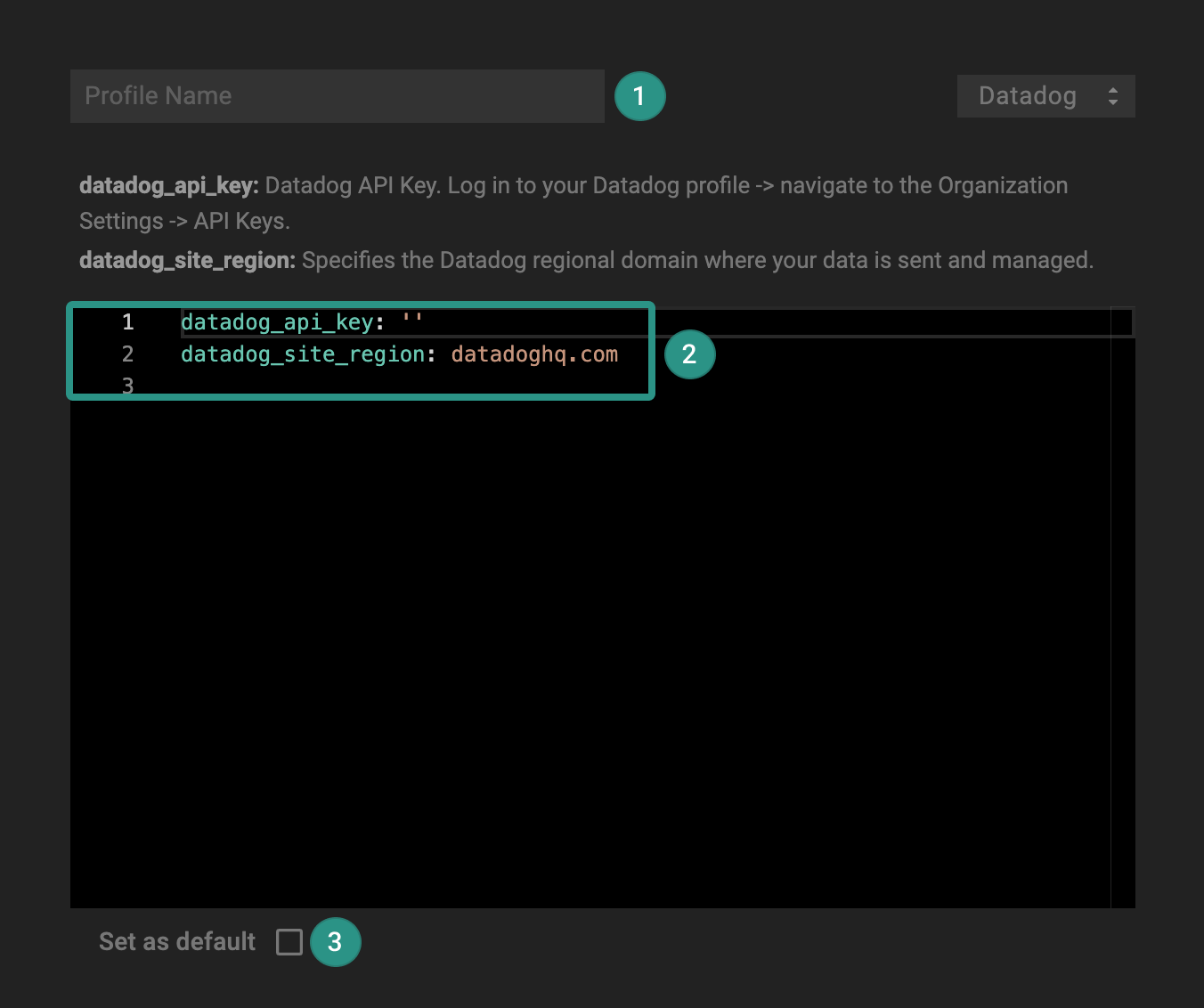
Datadog alerts profile configuration
- Name the Profile
datadog_api_key- Datadog API Key. See the details here.
datadog_site_region- specifies the Datadog regional domain where your data is sent and managed (example: datadoghq.com).
The available datadog_site_region:
| Code | Domain |
|---|---|
| US1 | datadoghq.com |
| US3 | us3.datadoghq.com |
| US5 | datadoghq.com |
| EU | datadoghq.eu |
| AP1 | ap1.datadoghq.com |
| US1-FED | ddog-gov.com |
- Use
Set as defaultcheckbox to automatically assign the profile to the clusters.
💡 NOTE: The manually assigned profile takes priority over the default one.
:tools: How to apply Datadog Alerts Profile
Apply to a single cluster
To apply Datadog Alerts Profile to the cluster, go to the Overview tab on the left panel -> find the cluster to which you want to apply the Datadog Alerts Profile and click gear button -> go to Customizations -> select the needed profile in the Monitoring drop-down list.
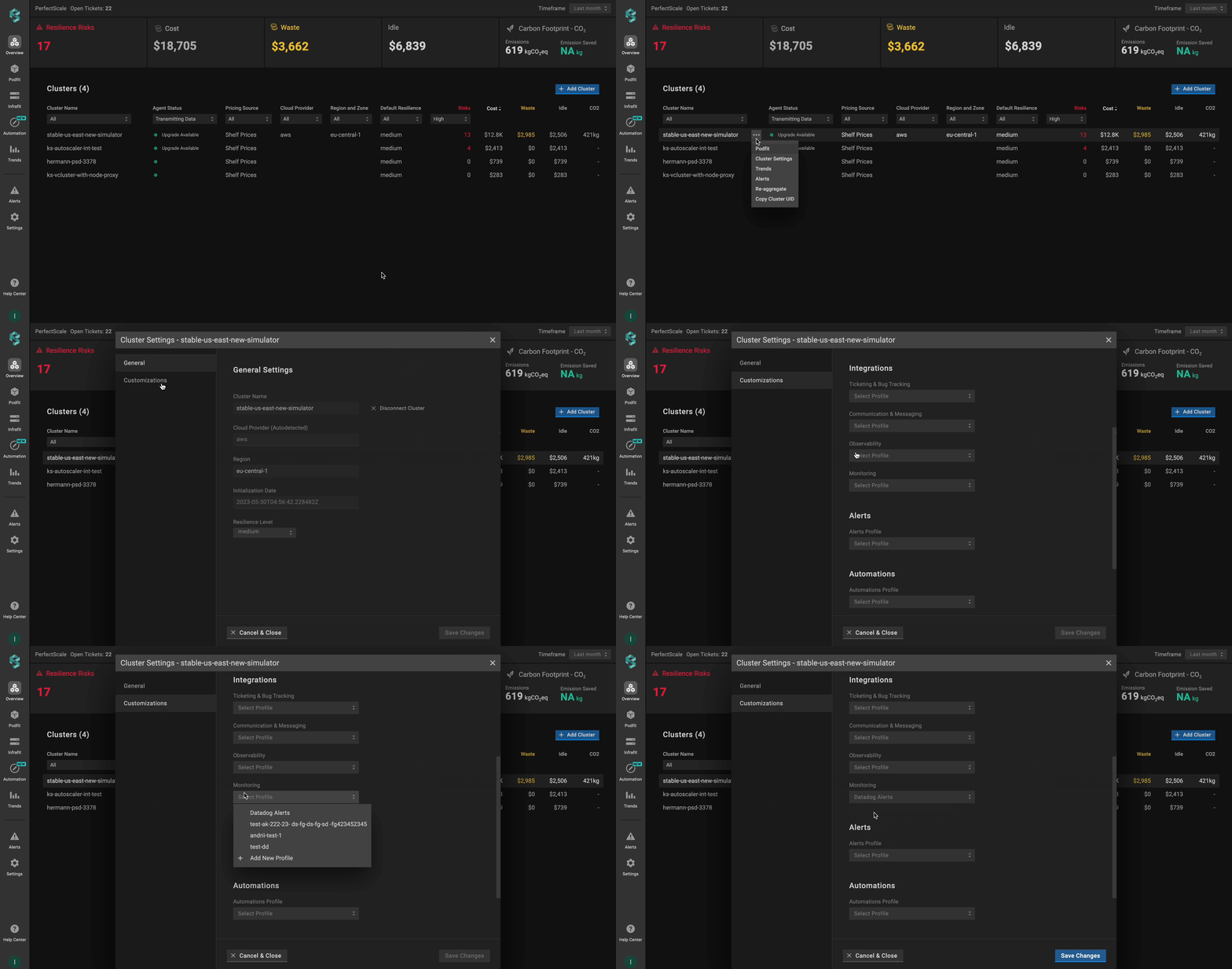
Applying Datadog alerts profile to a single cluster
Apply to multiple clusters
To apply the profile to multiple clusters from a single view, use the Manage Assignments feature.
Go to the Settings tab on the left panel -> select the Integrations -> click the Manage Assignments button -> go to Monitoring section and apply the profiles for the needed clusters -> click the Save Changes button.
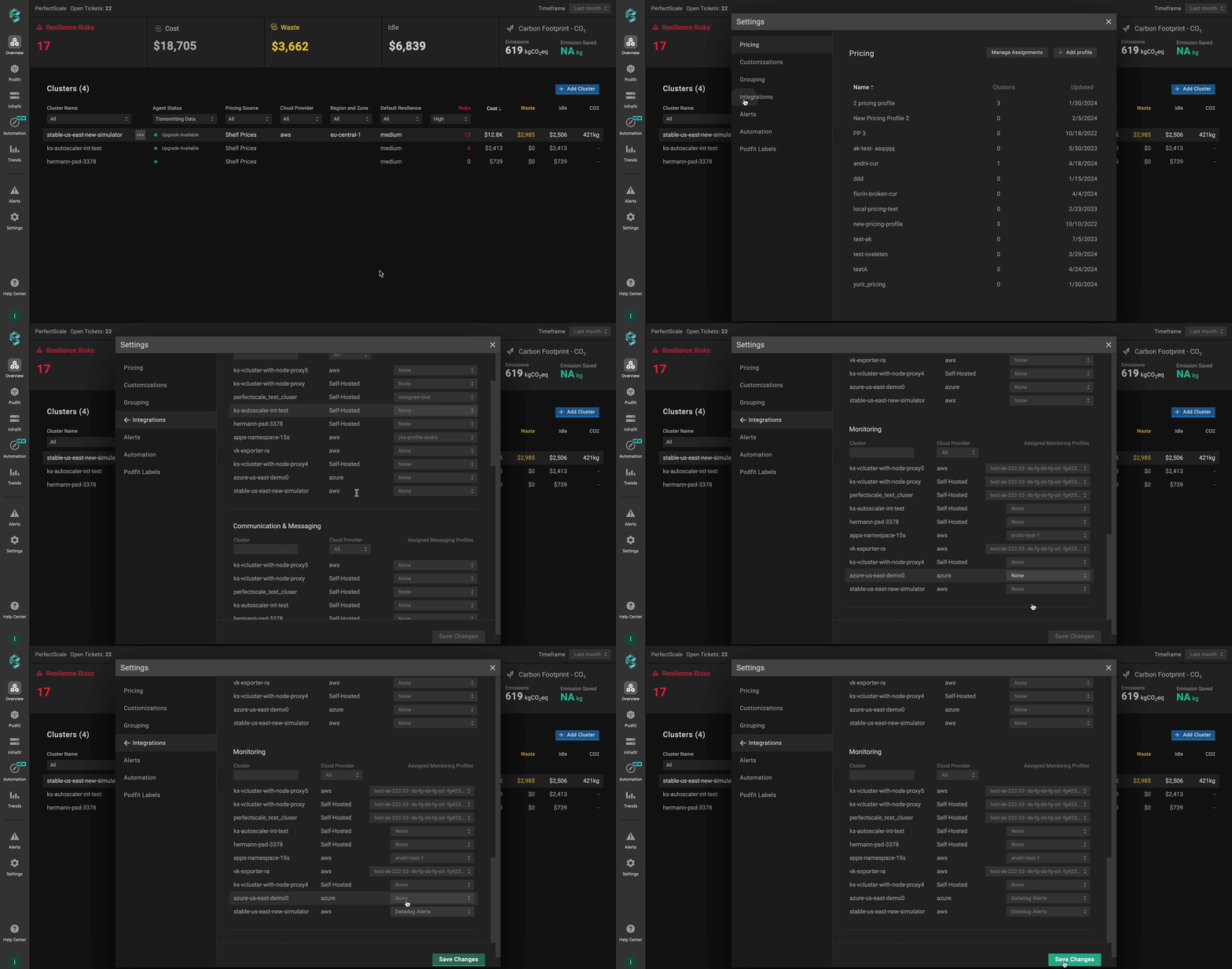
Applying Datadog alerts profile to multiple clusters
How to uninstall Datadog Alerts Integration
In order to stop submitting Alerts to Datadog, the profile should be unassigned from the cluster.
Go to the Settings tab on the left panel -> select the Integrations -> click the Manage Assignments button -> go to Monitoring section and select None for the needed clusters -> click the Save Changes button.
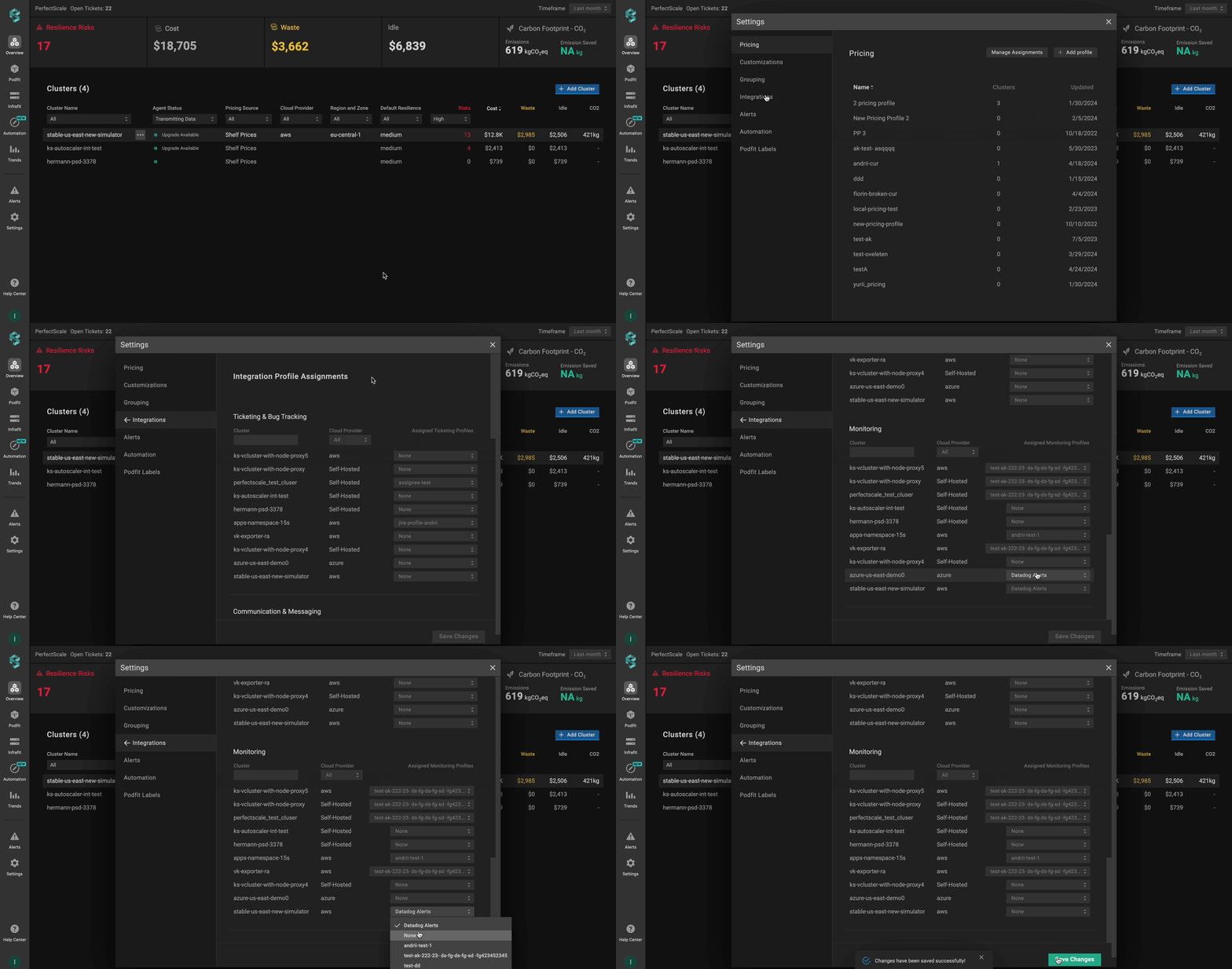
Uninstall Datadog alerts integration
Configuring Datadog integration with CRD
To enable Datadog alerts using a Custom Resource Definition (CRD), you’ll need to define and apply a Custom Resource (CR) with the required parameters. This approach allows you to manage Datadog alerting directly through Kubernetes manifests.
The Custom Resource (CR) must be created in the perfectscale namespace.
Setup instructions
- Log in to your Datadog account.
- Navigate to Organization Settings > API Keys.
- Create or copy an API key.
- Copy the API key (you will need it for the Datadog API Key secret in the next steps).
Apply the Datadog API Key secret first:
apiVersion: v1
kind: Secret
metadata:
  name: datadog-credentials
  namespace: perfectscale
type: Opaque
stringData:
  api-key: "your-datadog-api-key-here"
Ensure that the secret is created in the same namespace as the exporter - perfectscale.
Configure the CR:
apiVersion: perfectscale.io/v1
kind: ClusterSettings
metadata:
  name: cluster-settings-main
  namespace: perfectscale
spec:
  profiles:
    integrations:
      - type: datadog
        name: production-monitoring
        assigned: true
        value:
          datadog_api_key_from:
            secretKeyRef:
              name: datadog-credentials
              key: api-key
          datadog_site_region: "datadoghq.com"
⚙️ CR parameters:
| Parameter | Description |
|---|---|
datadog_api_key_from | A secret that contains a Datadog API Key. Learn more how to create it here. |
datadog_site_region | Specifies the Datadog regional domain where your data is sent and managed. |
Available datadog_site_region values:
- US1: datadoghq.com
- US3: us3.datadoghq.com
- US5: us5.datadoghq.com
- EU: datadoghq.eu
- AP1: ap1.datadoghq.com
- US1-FED: ddog-gov.com