Alerts overview — Self-hosted 2.0
PerfectScale delivers timely and reliable alerts to keep you informed about unusual system activity and detected anomalies. These alerts are specifically designed to highlight changes in key indicators, enabling you to take quick action to address potential issues before they impact your system's efficiency, performance, or stability.
PerfectScale allows you to easily set up resiliency and financial alerts and manage them efficiently by configuring the corresponding alert profile:
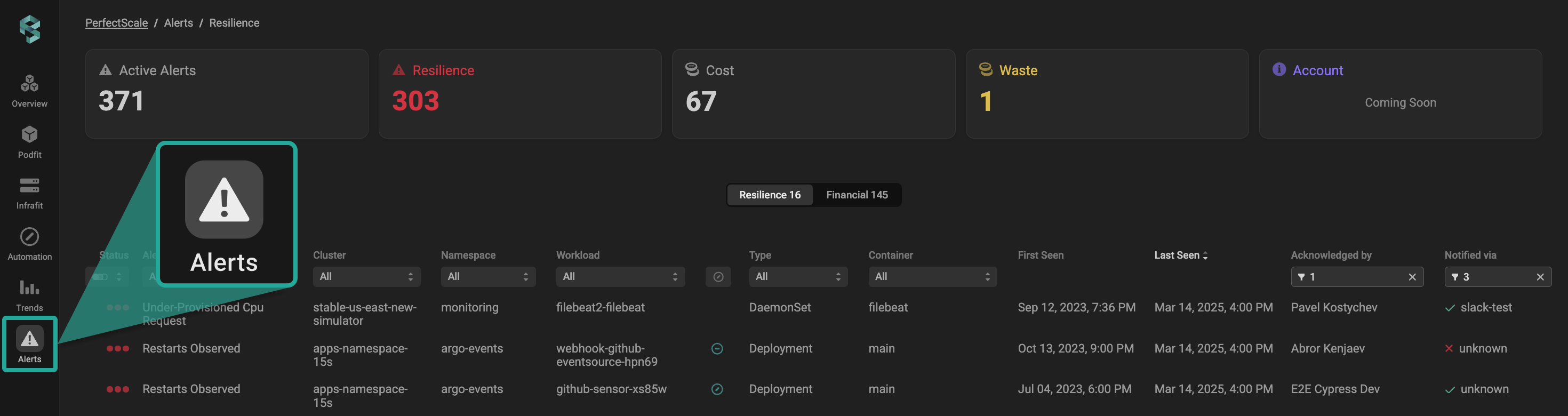
Alerts screen
Alerts summary panel
This panel provides a summarized view of alerts across the account, showing the total number of active alerts along with a breakdown by category, including resilience, cost, and waste alerts.
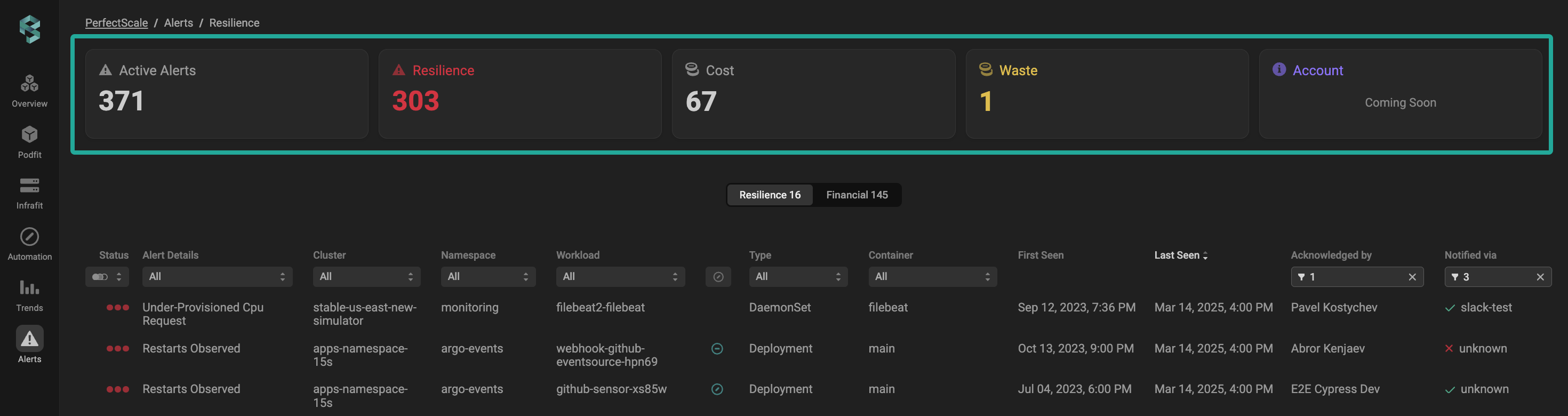
Alerts summary
Alerts details panel
This panel delivers a granular breakdown of alerts, including their status, trigger details (time and location), and whether they have been acknowledged.
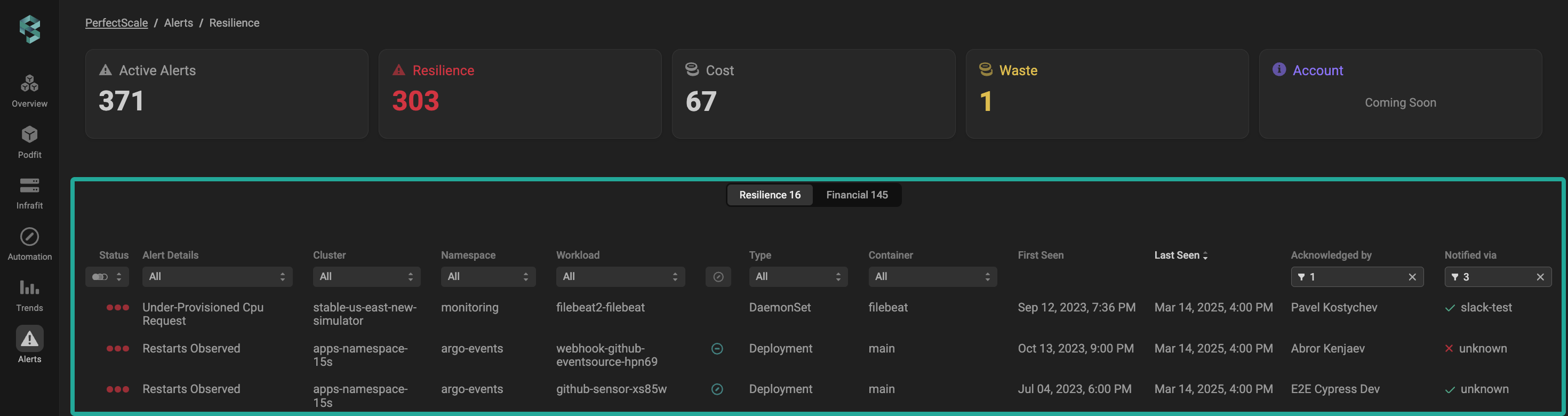
Alerts details
Use the switcher to effortlessly toggle between the resilience and the financial alerts dashboards, ensuring you have quick access to both tools.
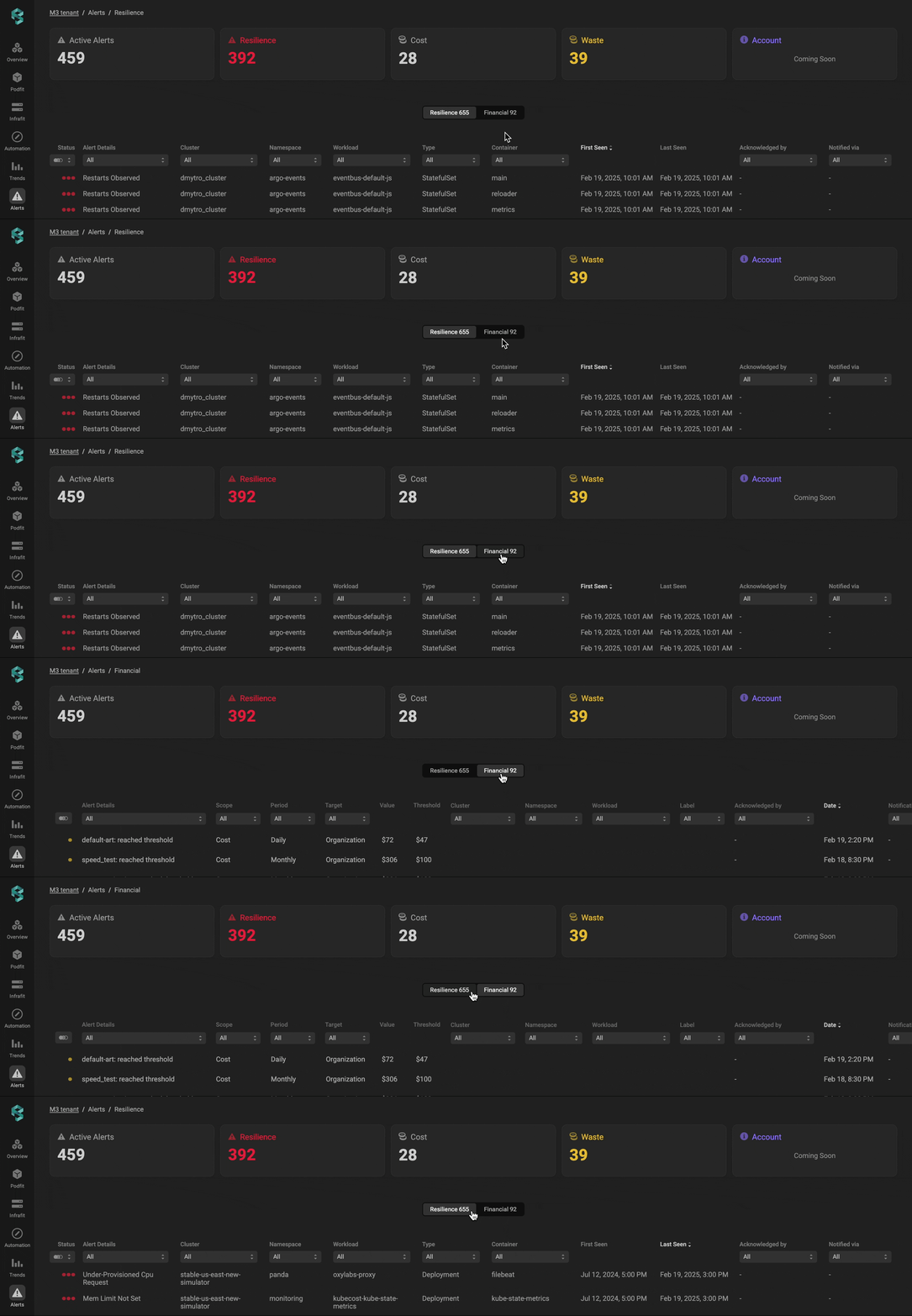
Resilience/Financial alerts switcher
Resilience alerts
PerfectScale provides a flexible, impact-driven issue prioritization, allowing you to configure alerting tailored to your needs. Resilience Alerts are designed to notify users of potential risks that could impact workload stability and availability, inform them about issues such as resource constraints, misconfigurations, scaling limitations, etc., and help teams proactively address risks and maintain optimal cluster performance.
Learn more about resiliency indicators here.
How to configure resilience alerts
By default, PerfectScale generates alerts for every cluster where a resilience indicator with a min_risk_level: high was identified.
To start receiving resilience alerts, create a dedicated profile and link it to the target cluster. Check the following instructions to complete the setup.
Resilience alerts dashboard
Clicking on a specific alert opens the alert investigation window, providing deeper insights for further analysis.

Resilience alerts dashboard
| Column | Description |
|---|---|
| Status | Indicates the risk level (High, Medium, or Low), and alert status (Active or Inactive). Use filters to prioritize issues and focus on the most important alerts seamlessly. Multiselect is available. |
| Alert Details | Displays the indicator that triggered the alert. Filter the data by selecting specific risk types for a more focused analysis. Multiselect is available. |
| Cluster | Displays clusters associated with alerts. Customize the view by selecting a cluster to see relevant alerts. Multiselect is available. |
| Namespace | Displays namespaces associated with alerts. Customize the view by selecting a namespace to see relevant alerts. Multiselect is available. |
| Workload | Displays workloads associated with alerts. Customize the view by selecting a workload to see relevant alerts. Multiselect is available. |
| Automation status | Indicates whether the workload is under Automation and its status at the time of the Alert. Learn more about Automation status here. |
| Type | Displays workload types associated with alerts. Customize the view by selecting a workload type to see relevant alerts. Multiselect is available. |
| Container | Displays containers associated with alerts. Customize the view by selecting a container to see relevant alerts. Multiselect is available. |
| First Seen | Displays the date the alert appeared for the first time. Sortable in ascending/descending order. |
| Last Seen | Displays the date of the alert appeared for the last time. Sortable in ascending/descending order. |
| Acknowledged by | Indicates whether a team member has taken ownership of a particular alert and displays the user's name. Filter and display acknowledged alerts, acknowledged alerts by specific users, or unacknowledged alerts. Multiselect is available. Learn more about Alerts Acknowledgement here. |
| Notified via | Displays the channel through which the notification about the alert was sent. Filter and display of alerts by specific notification channels. Multiselect is available. |
Financial alerts
PerfectScale Financial Alerts allow users to set up cost and waste alerts, notifying them when exceeding thresholds. This enables proactive cost management and resource optimization, helping teams stay within budget and reduce unnecessary spending.
How to configure financial alerts
To start receiving financial alerts, create a Financial Alerts Rule. Check the following instructions to complete the setup.
Financial alerts dashboard
Clicking on a specific alert will navigate you to the trend report, providing deeper insights for further analysis.

Financial alerts dashhboard
| Column | Description |
|---|---|
| Status | Indicates the alert status (Active or Inactive). Use filters to focus on the most important aspects. |
| Alert Details | Displays the name of the financial alert profile. Filter and display of alerts by specific profile name. Multiselect is available. |
| Scope | Indicates the metric (Cost or Waste) for triggering an alert. Use filters to focus on the most important aspects. |
| Period | Indicates the timeframe over which the metric will be evaluated. Filter and display of alerts by specific period. Multiselect is available. |
| Target | Indicates the object for triggering an alert. Filter and display of alerts by specific target. Multiselect is available. |
| Value | Displays the reached $ amount. Sortable in ascending/descending order. |
| Threshold | Displays the defined condition for triggering the alert. Sortable in ascending/descending order. |
| Cluster | Displays clusters associated with alerts. Customize the view by selecting a cluster to see relevant alerts. Multiselect is available. |
| Namespace | Displays namespaces associated with alerts. Customize the view by selecting a namespace to see relevant alerts. Multiselect is available. |
| Workload | Displays workloads associated with alerts. Customize the view by selecting a workload to see relevant alerts. Multiselect is available. |
| Acknowledged by | Indicates whether a team member has taken ownership of a particular alert and displays the user's name. Filter and display acknowledged alerts, acknowledged alerts by specific users, or unacknowledged alerts. Multiselect is available. Learn more about Alerts Acknowledgement here. |
| Date | Displays the alert creation date. |
| Notification | Displays the channel through which the notification about the alert was sent. Filter and display of alerts by specific notification channels. Multiselect is available. |
Workload-level alerts
Workload-level alerts are designed to trigger alerts based on a workload's specific state. Unlike standard alerts, which depend on particular conditions within a container, workload-level alerts are triggered by changes in specific workload indicators. This feature enhances alerting capabilities and introduces new types of alerts, allowing for more comprehensive monitoring and response to resiliency risks identified before they impact users.
- Max HPA Replicas - a workload-level alert indicating that the system can not scale further because the maximum configured HPA replica limit has been reached.
The algorithm for inactive/deleting alerts
To improve visibility and highlight only relevant issues, PerfectScale uses the following algorithm to deactivate or delete irrelevant Alerts.
Inactive Alert
PerfectScales checks the last seen date of the Alert. If the last seen > 3 days, the Alert will be considered inactive, and its marker will be changed to grey.
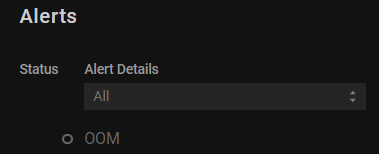
Inactive alert indicator
Alert deleting
With the same scenario mentioned earlier, PerfectScales checks the last seen date of the Alert. If the last seen > 29 days, the Alert will be deleted.
Available notification channels
For faster updates, utilize Slack, MS Teams, or Datadog Integration Profiles to receive notifications when an alert is generated.