MS Teams Integration — SaaS
By integrating Teams, the process of managing Alerts in clusters becomes more efficient. This feature enables users to promptly receive notifications on the designated Teams channel whenever alerts are produced.
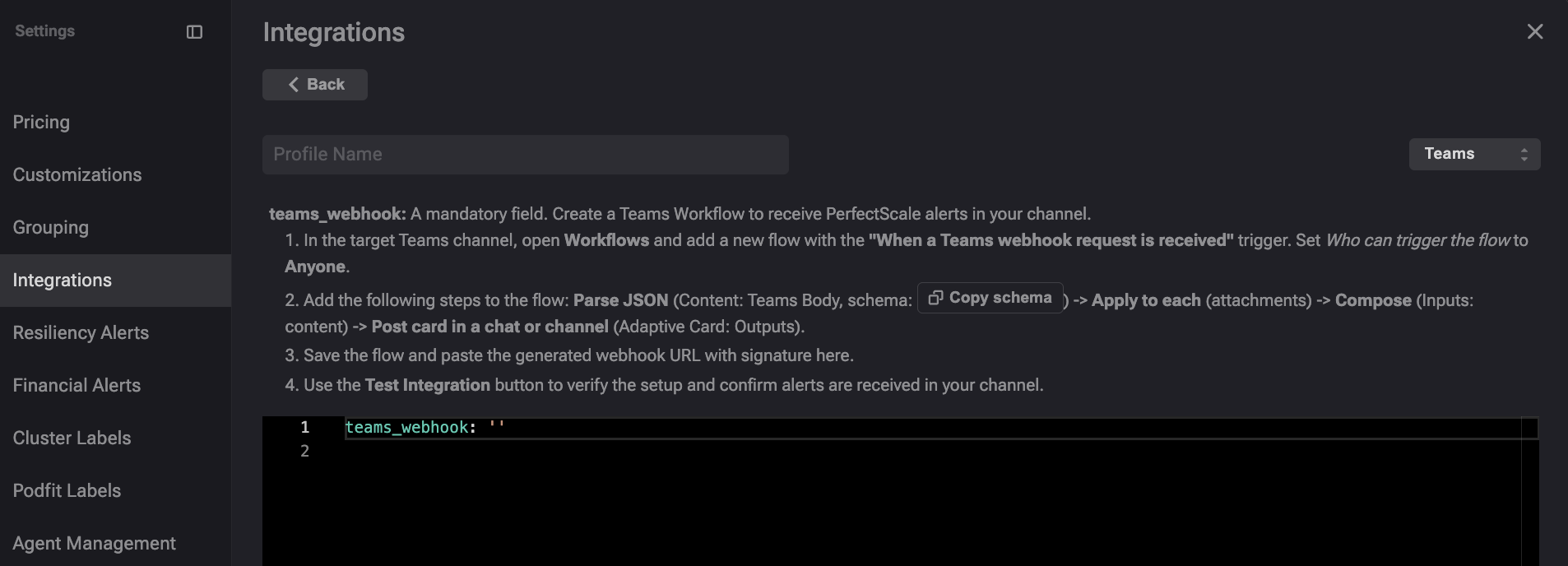
MS Teams profile
Configuring Teams integration with the profile
:tools: How to create Teams Profile
There are two options for creating a Profile: from the Settings tab or directly from the Overview.
From the Settings tab
Go to the Settings tab on the left panel -> select Integrations -> click the +Add Integration button and select Teams from the drop-down -> insert teams_webhook -> click Save button.
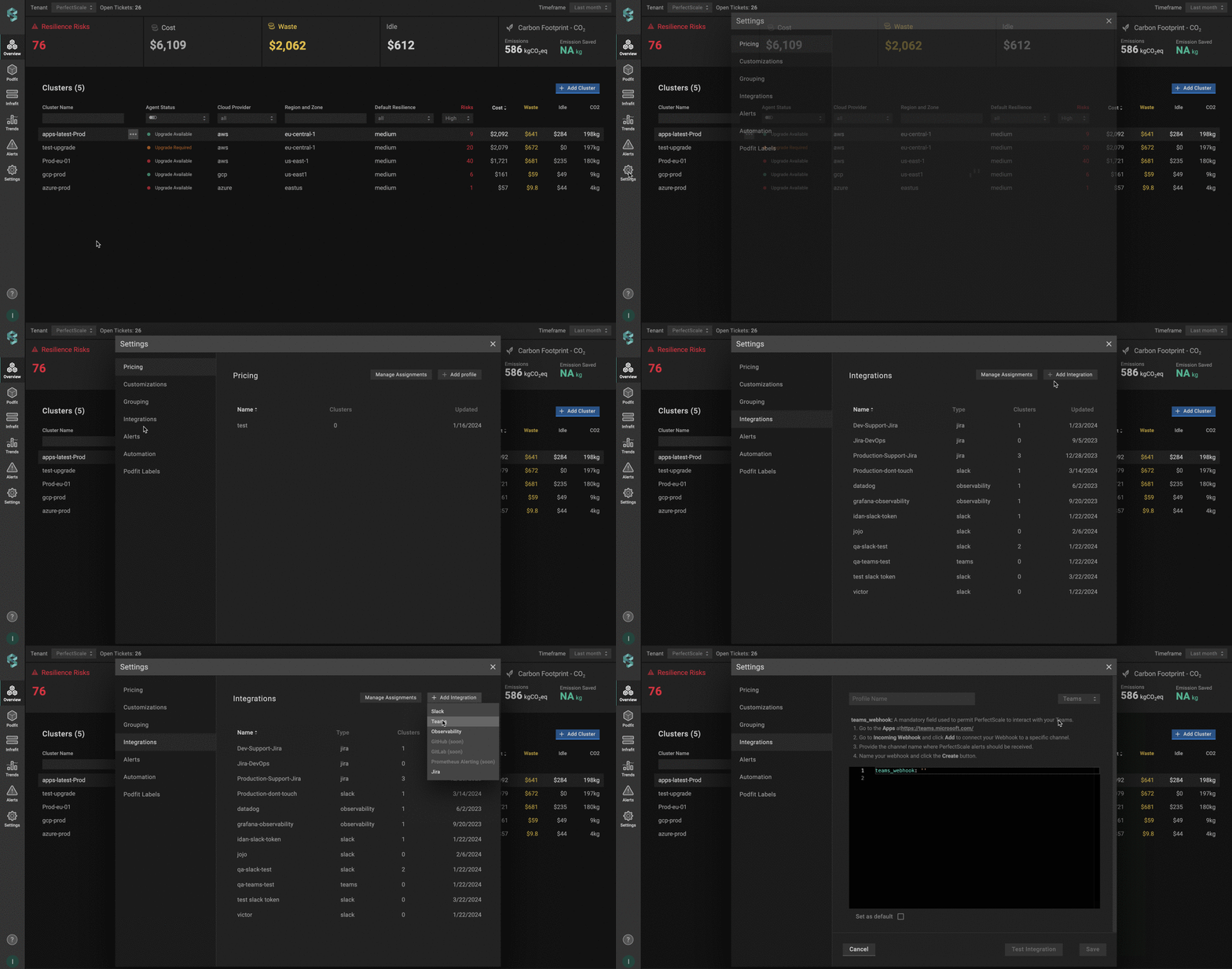
MS Teams profile from settings
From the Overview tab
Go to the Overview tab on the left panel -> find the cluster to which you want to apply the Profile and click gear button -> go to Customizations -> find Integrations and click the Communication & Messaging drop-down list -> click the Add New Profile button and select Teams -> insert teams_webhook -> click Save And Apply button.
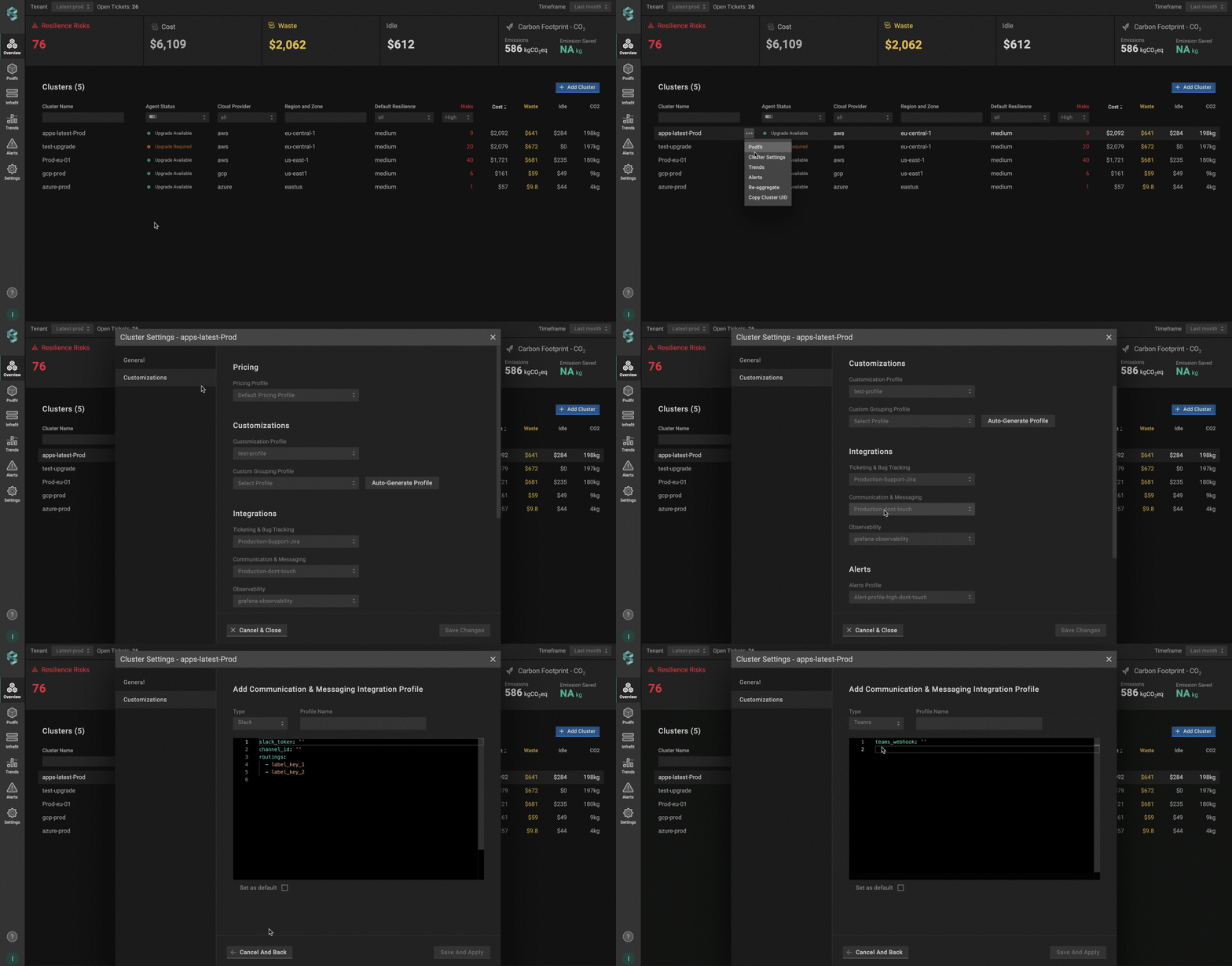
MS Teams profile from overview
:tools: How to apply Teams Profile
Apply to a single cluster
To apply Teams Profile to the cluster, go to the Overview tab on the left panel -> find the cluster to which you want to apply the Teams Profile and click gear button -> go to Customizations -> select the needed profile in the Communication & Messaging drop-down list.
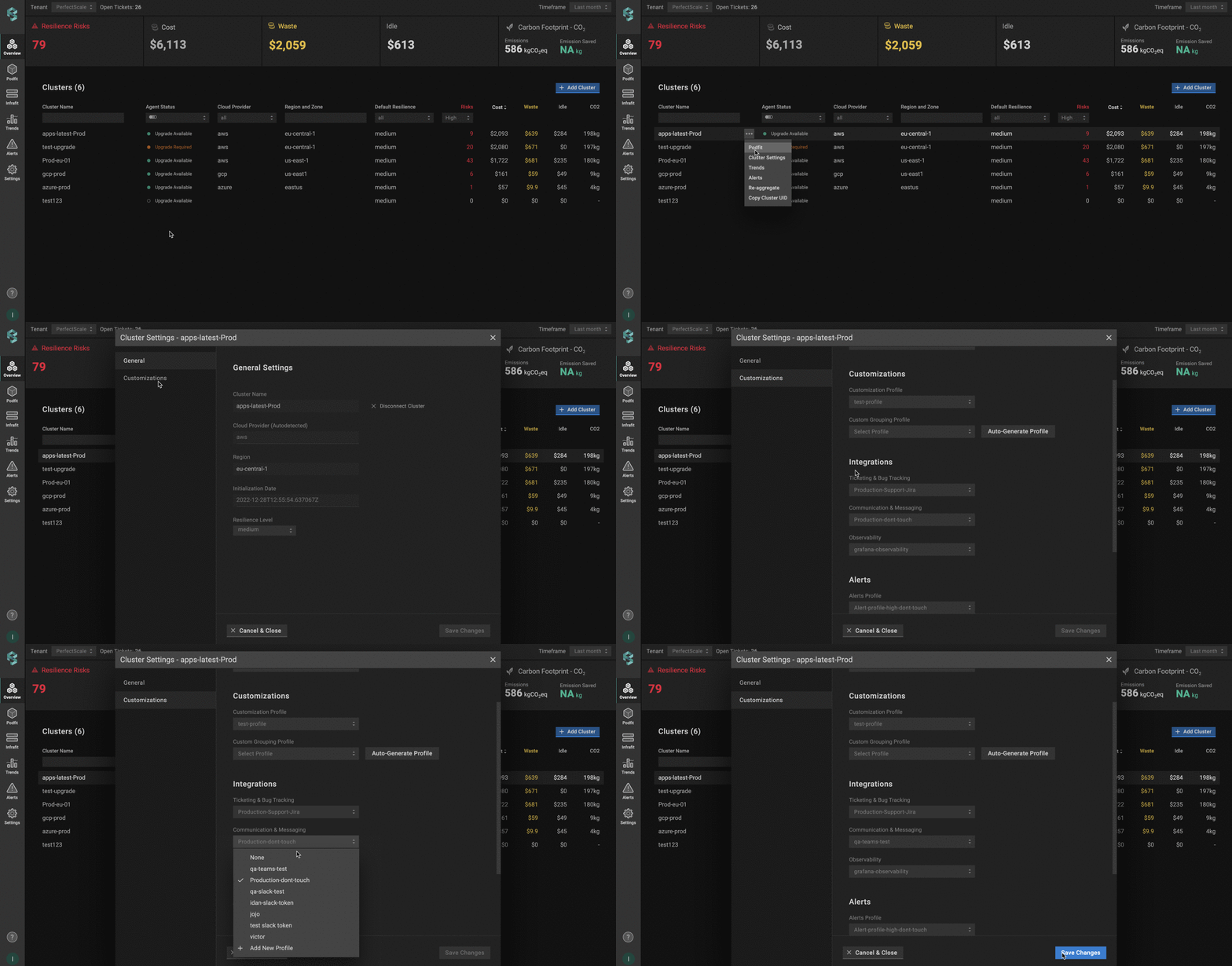
Applying MS Teams profile to a single cluster
Apply to multiple clusters
To apply the profile to multiple clusters from a single view, use the Manage Assignments feature.
Go to the Settings tab on the left panel -> select the Integrations -> click the Manage Assignments button -> go to Communication & Messaging section and apply the profiles for the needed clusters -> click the Save Changes button.
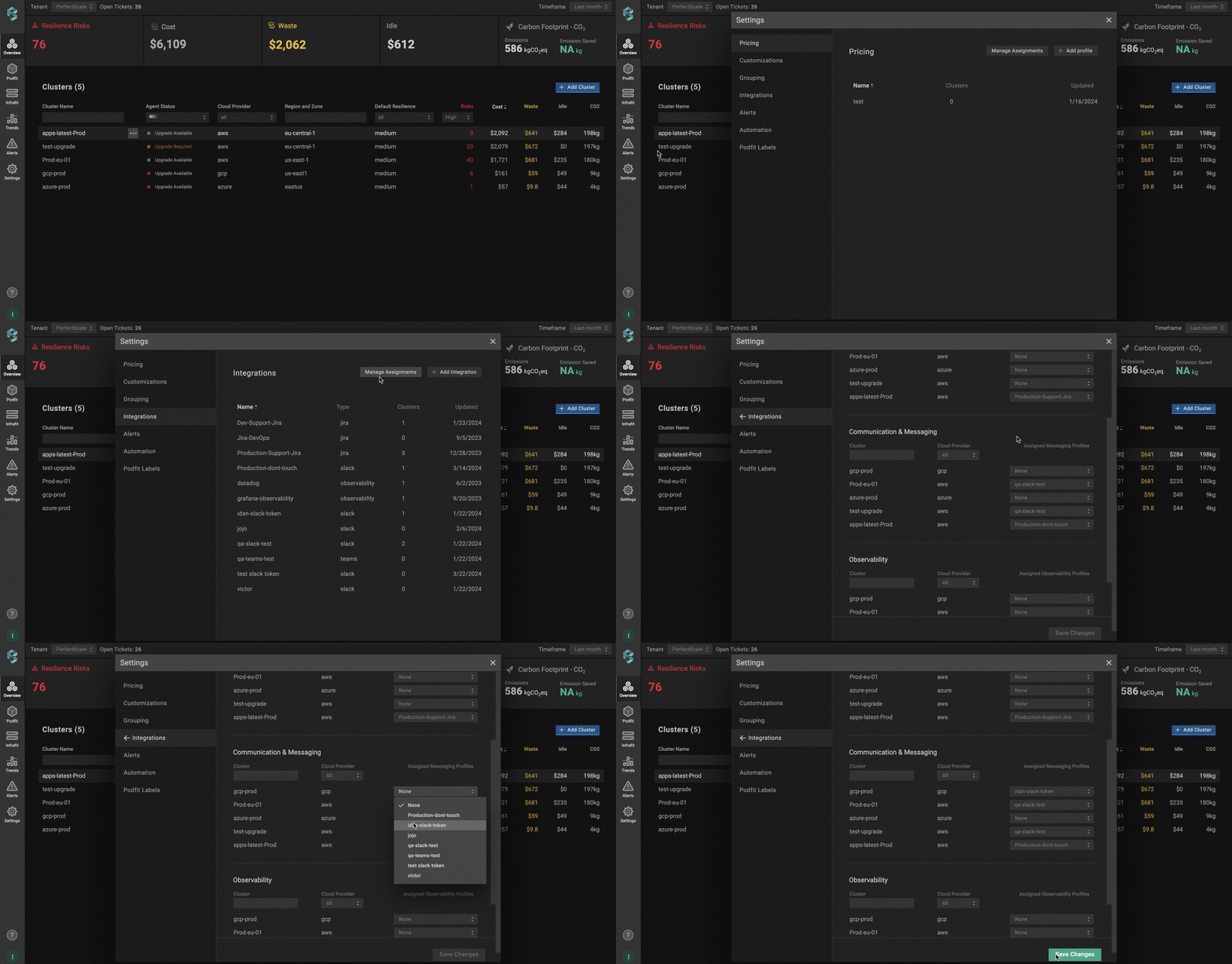
Applying MS Teams profile to multiple clusters
Configuring Teams integration with CR
To enable Teams alerts, you need to define and apply a Custom Resource (CR) with the required parameters. This approach allows you to manage Teams alerting directly through Kubernetes manifests.
The Custom Resource (CR) must be created in the perfectscale namespace.
Setup instructions
Step 1
Configure teams_webhook
If you haven't completed this configuration before, follow the detailed instructions here.
Step 2
Apply teams_webhook
apiVersion: v1
kind: Secret
metadata:
  name: teams-credentials
  namespace: perfectscale
type: Opaque
stringData:
  webhook-url: "https://defaultabc.ab.environment.api.powerplatform.com/abc"
Ensure that the secret is created in the same namespace as the exporter - perfectscale.
Step 3
Configure the CR
apiVersion: perfectscale.io/v1
kind: ClusterSettings
metadata:
  name: cluster-settings-main
  namespace: perfectscale
spec:
  profiles:
    integrations:
      - type: teams
        name: ops-team-notifications
        assigned: true
        value:
          teams_webhook_from:
            secretKeyRef:
              name: teams-credentials
              key: webhook-url
⚙️ CR parameters:
| Parameter | Description |
|---|---|
teams_webhook_from | A secret that permits PerfectScale to interact with your Teams. Learn how to configure teams_webhook here. |
Teams Integration Verification
To verify the accuracy of your MS Teams configuration, simply click on the Test Integration button. When the configuration is correct, you will see the message Teams Configured Correctly. In case of Teams Configured Wrongly response, check and ensure that the teams_webhook URL is correct.
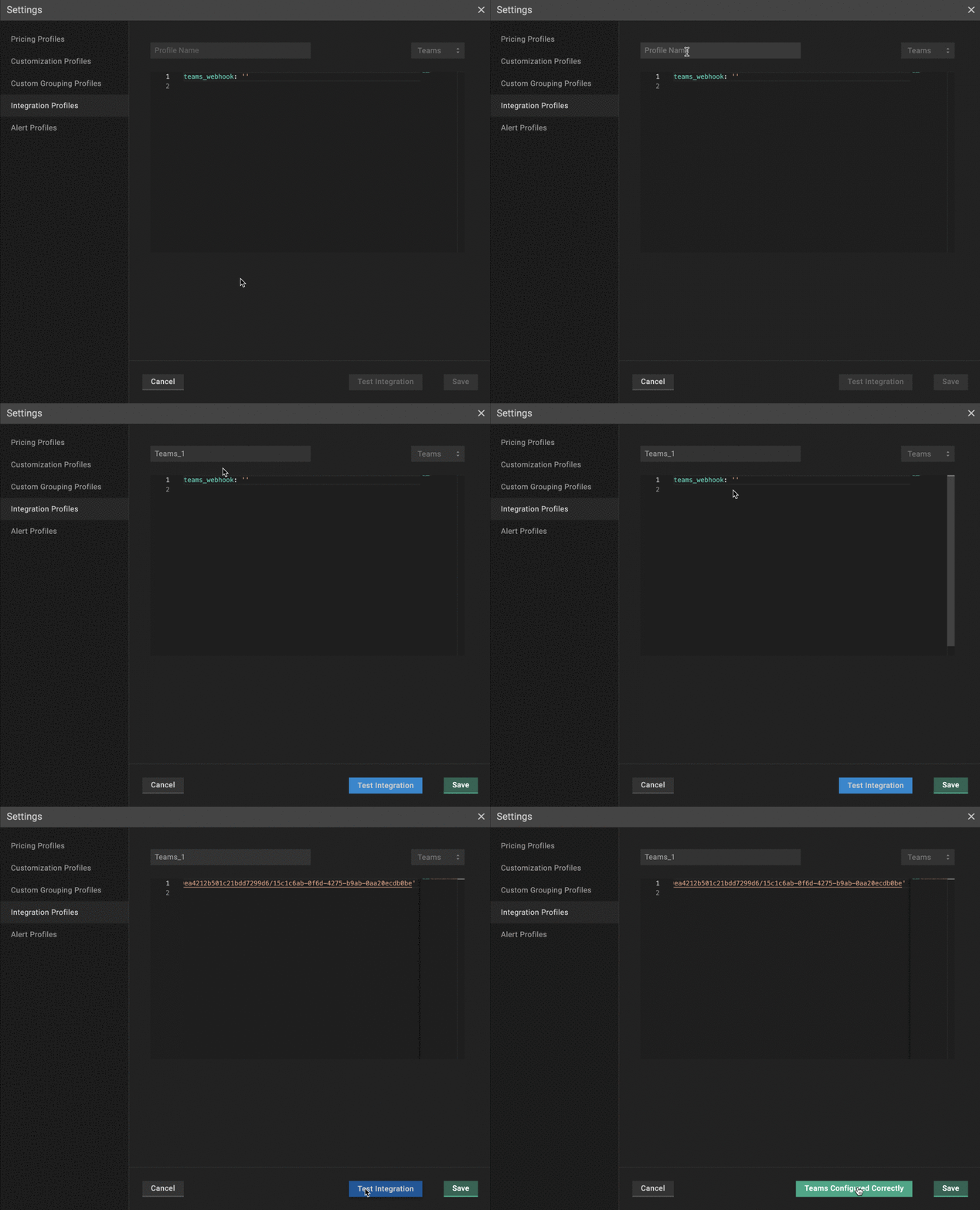
MS Teams integrations verification