Installing exporter with ArgoCD — Self-hosted 2.0
Installing exporter with ArgoCD
To install the exporter with ArgoCD, use the following instructions.
-
Complete 1-5 steps from Onboarding a cluster.
-
Make sure to save the clientId and clientSecret, as we will require it later on.
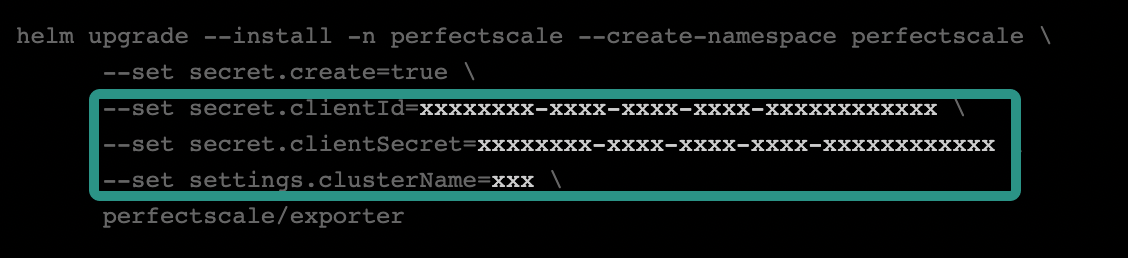
Credentials
-
Download the most recent Helm chart that is used for ArgoCD to your repository (for this guide, we'll be utilizing [email protected]:perfectscale/ps-kube.git).
helm fetch perfectscale/exporter
tar -xf exporter-*.tgz && rm exporter-*.tgz
- Create an additional (for example,
dev.yamlvalue) file with the following content
clusterNameis mandatory. PerfectScale Agent will not work if the cluster name is not provided.
cat > exporter/dev.yaml <<EOF
secret:
  create: true
  name: "perfectscale-secret"
  clientSecret: "xxxxxxxx-xxxx-xxxx-xxxx-xxxxxxxxxxxxx"
  clientId: "xxxxxxxx-xxxx-xxxx-xxxx-xxxxxxxxxxxxx"
settings:
  clusterName: "xxx"
EOF
:bulb:Replace clientSecret and clientId with copied before.
If you have already installed the exporter and need to recall the clusterName, clientID, and clientSecret, you can retrieve them using the following commands accordingly:
kubectl -n perfectscale describe deployment perfectscale-exporter | grep CLUSTER_NAME
kubectl -n perfectscale get secret perfectscale-exporter-secret -o jsonpath="{.data.clientId}" | base64 --decode
kubectl -n perfectscale get secret perfectscale-exporter-secret -o jsonpath="{.data.clientSecret}" | base64 --decode
- Push all the modifications to your git repository, which is accessible by ArgoCD.
There are two methods to add an application to ArgoCD: using the WEB UI or creating a YAML CRD file. You can select the approach that best suits your infrastructure.
WEB UI
-
Login to the ArgoCD Web UI interface and click the
NEW APPbutton.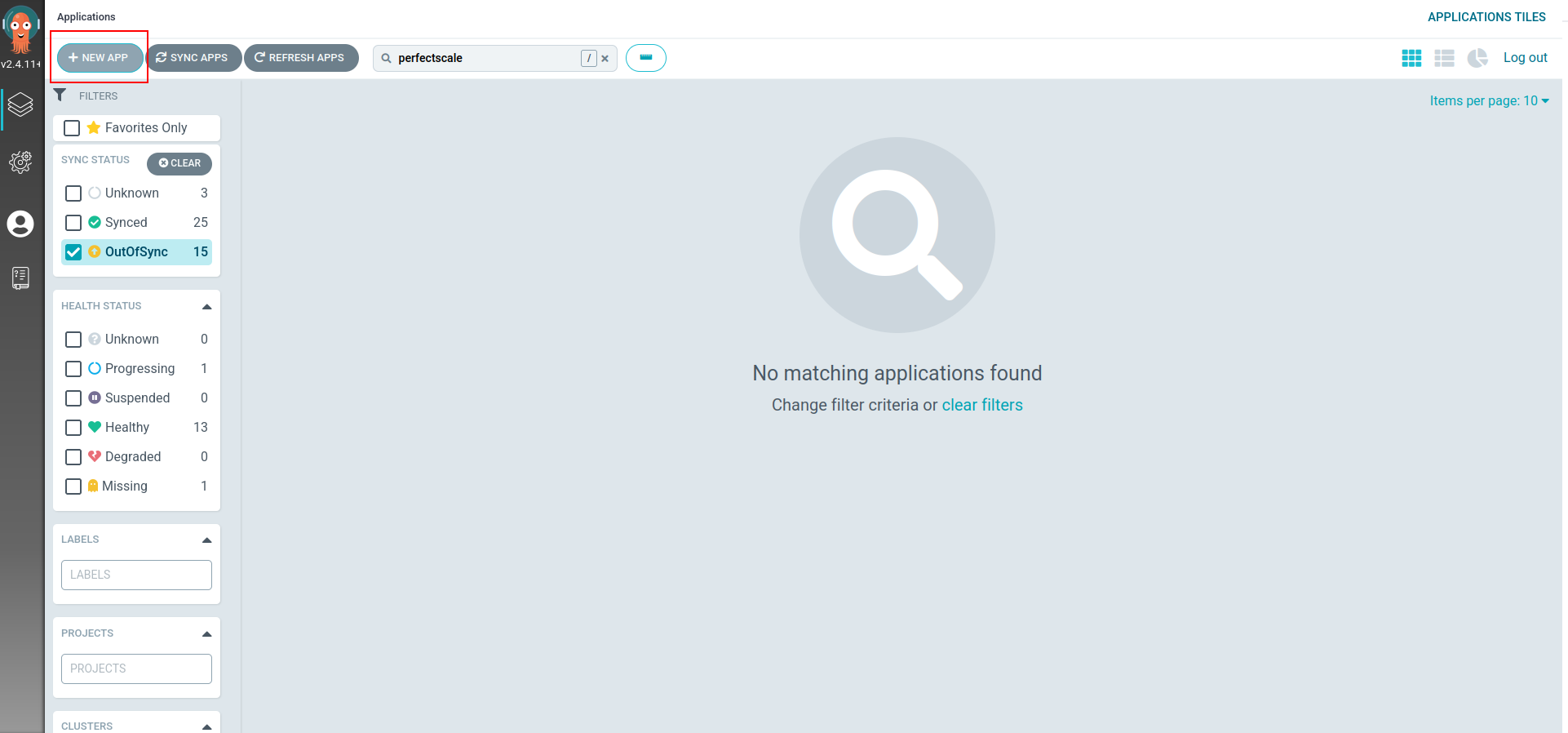
New app ArgoCD
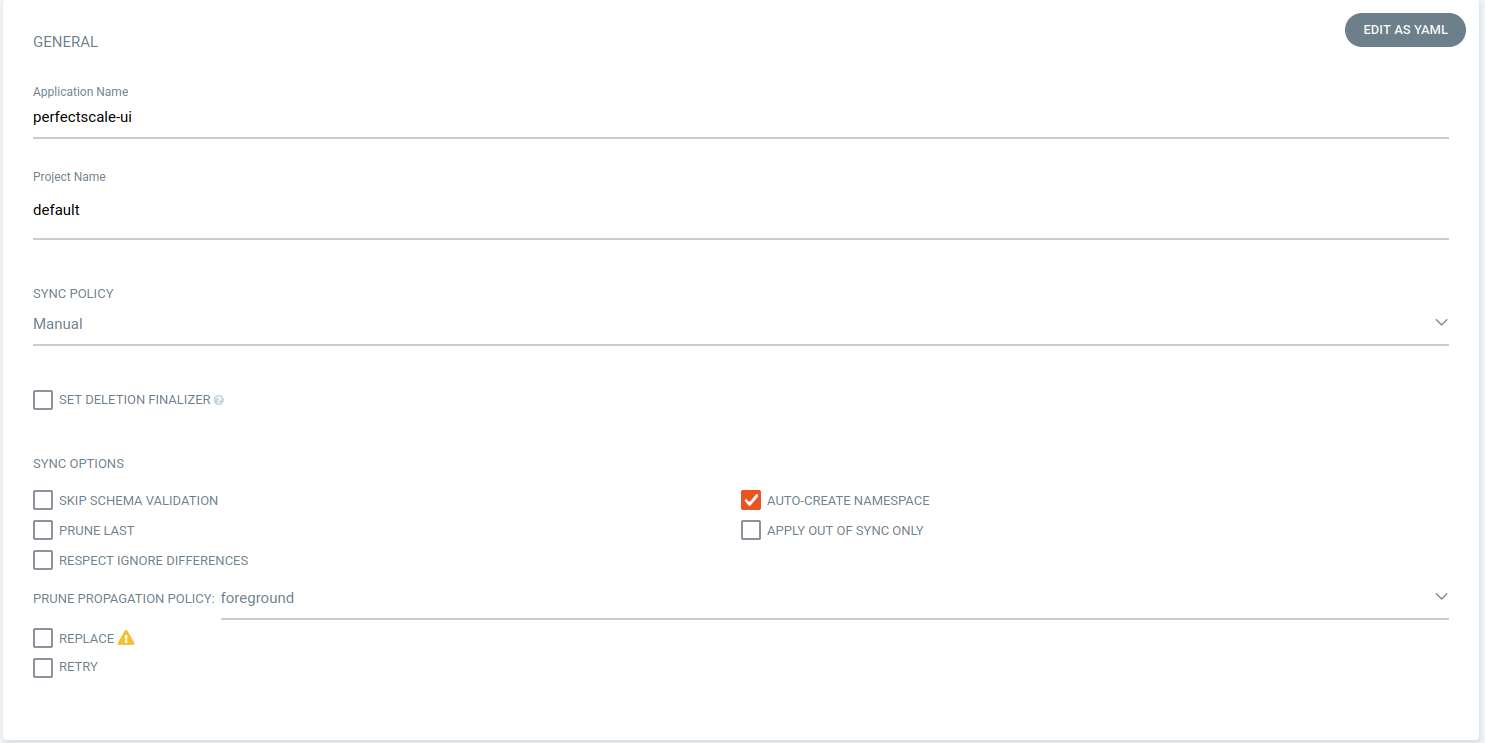
New app form1
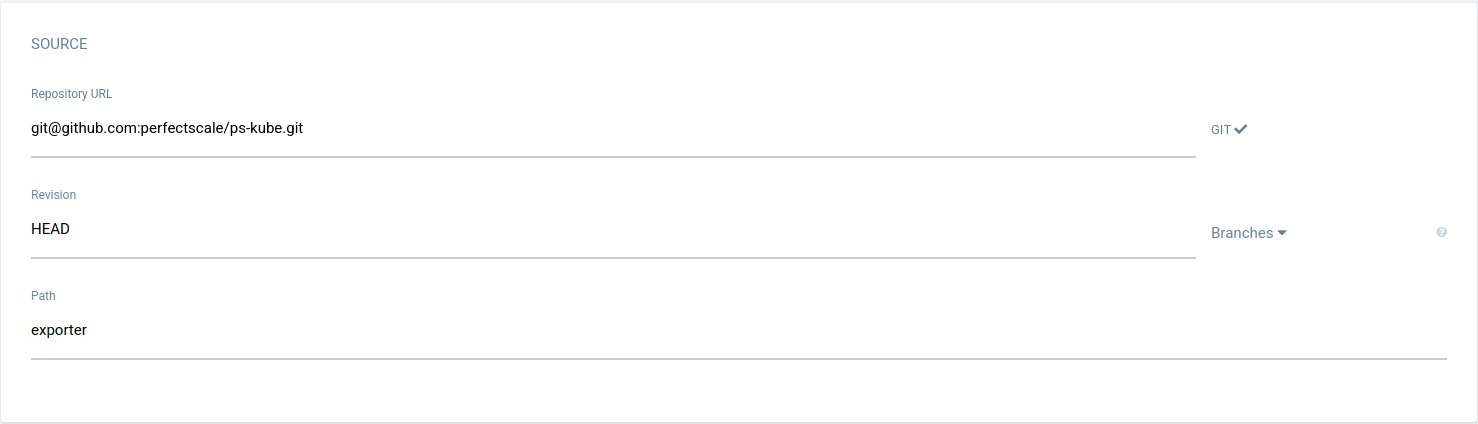
New app form2
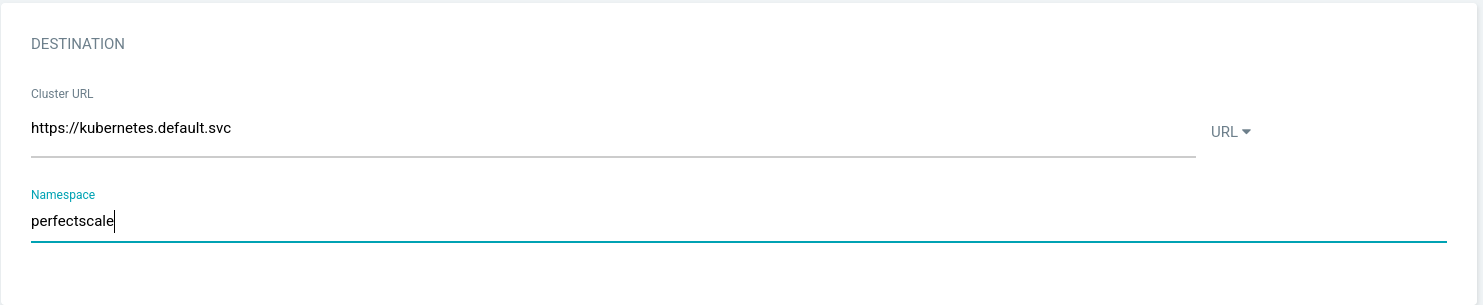
New app form3
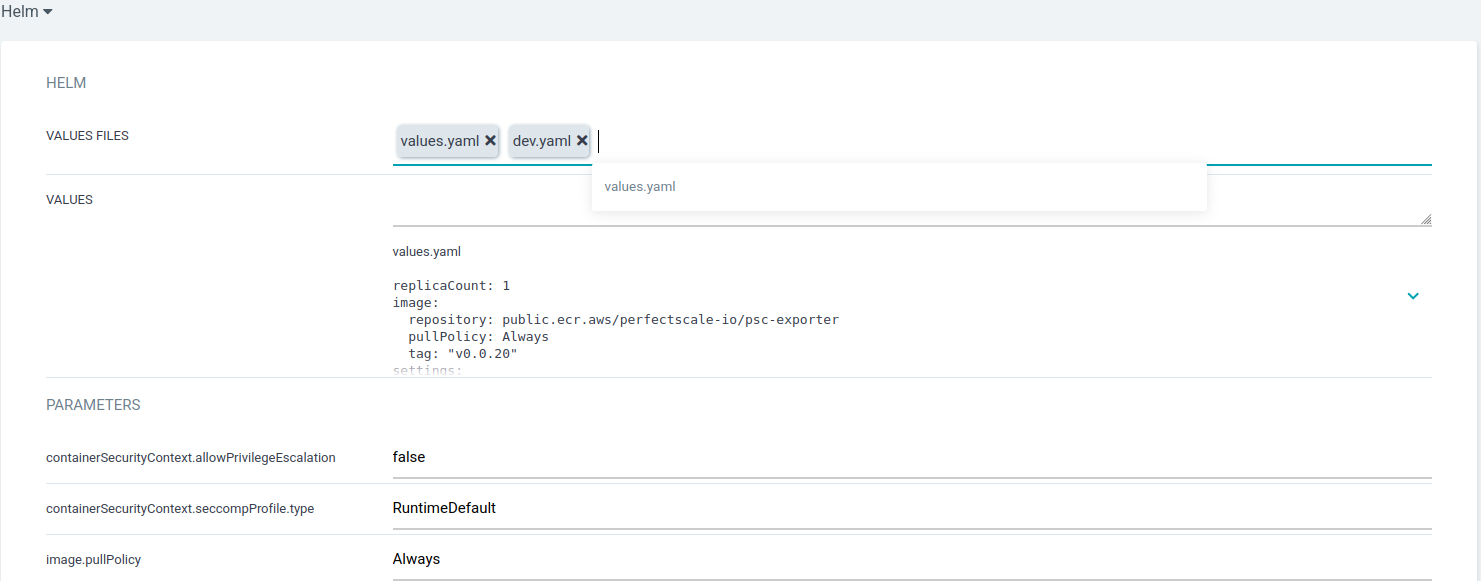
New app form4
-
Once the creation process is completed, you will see the OutOFSync application.
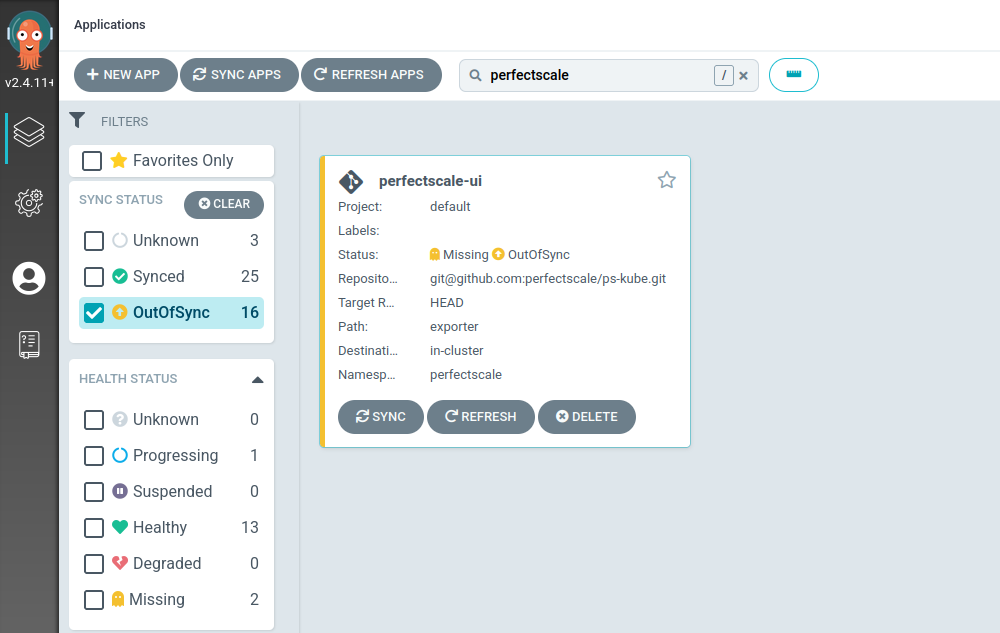
OutOFSync application
-
Synchronize the application.
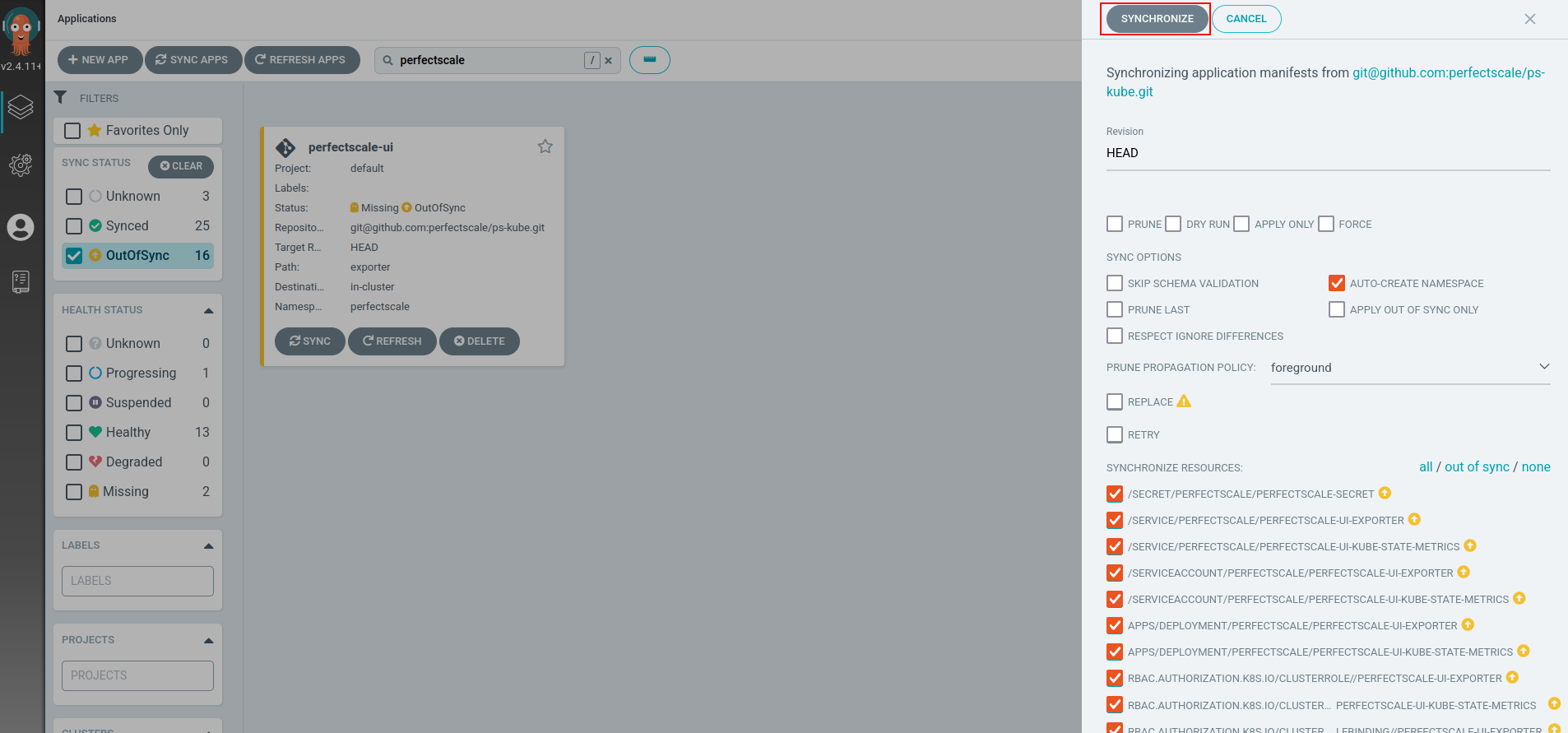
Application synchronization
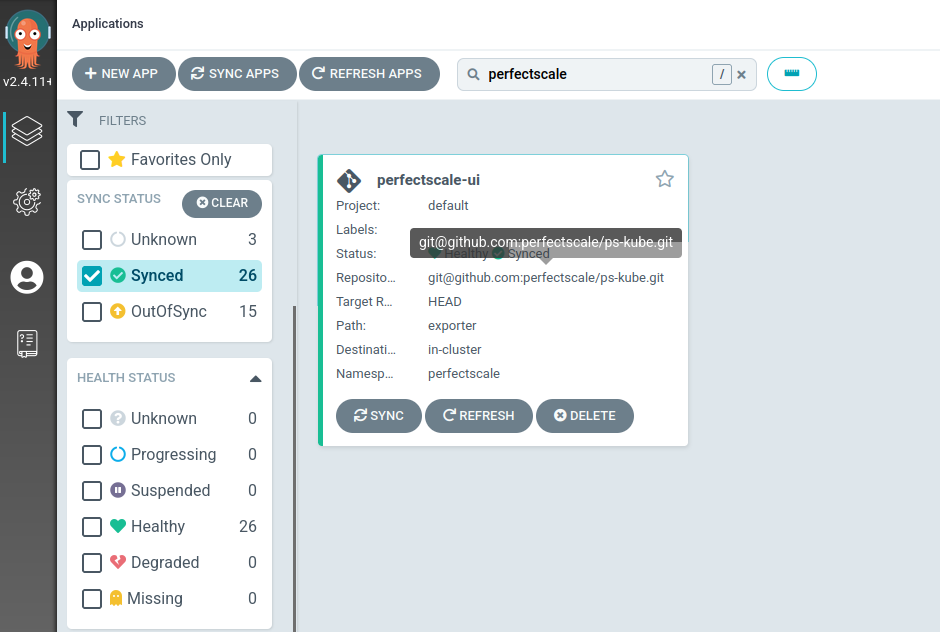
Synchronized application
-
Ensure that all pods are running.

Check running pods1
CRD
- Create a Custom Resource Definition file for the ArgoCD.
cat > perfectscale.yaml <<EOF
apiVersion: argoproj.io/v1alpha1
kind: Application
metadata:
  labels:
    argocd.argoproj.io/instance: argocd-applications
  name: perfectscale-crd
spec:
  destination:
    namespace: perfectscale
    server: https://kubernetes.default.svc
  project: default
  source:
    helm:
      valueFiles:
      - values.yaml
      - dev.yaml
    path: exporter
    repoURL: [email protected]:perfectscale/ps-kube.git
    targetRevision: HEAD
  syncPolicy:
    syncOptions:
    - CreateNamespace=true
EOF
- Apply the following command in the cluster application.
kubectl apply -f perfectscale.yaml -n argo-cd
💡 Replace the namespace for argo-cd with the one where you have stored all of your applications.
-
Check a new application in the ArgoCD.
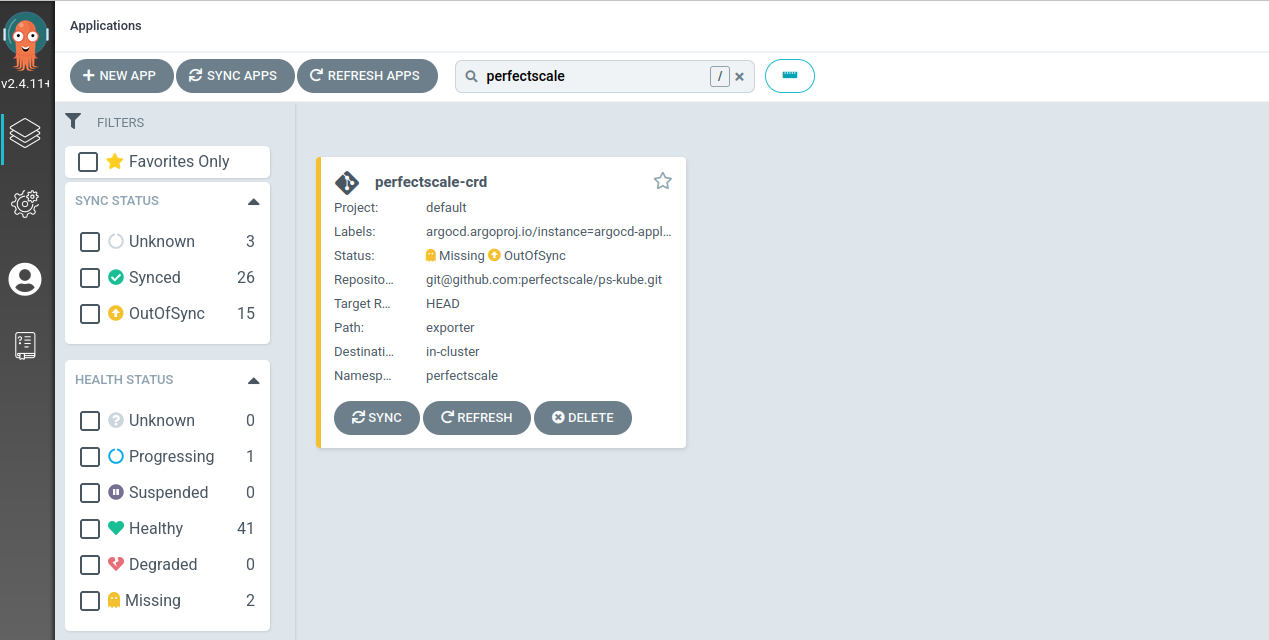
New application in ArgoCD
-
Synchronize the application.
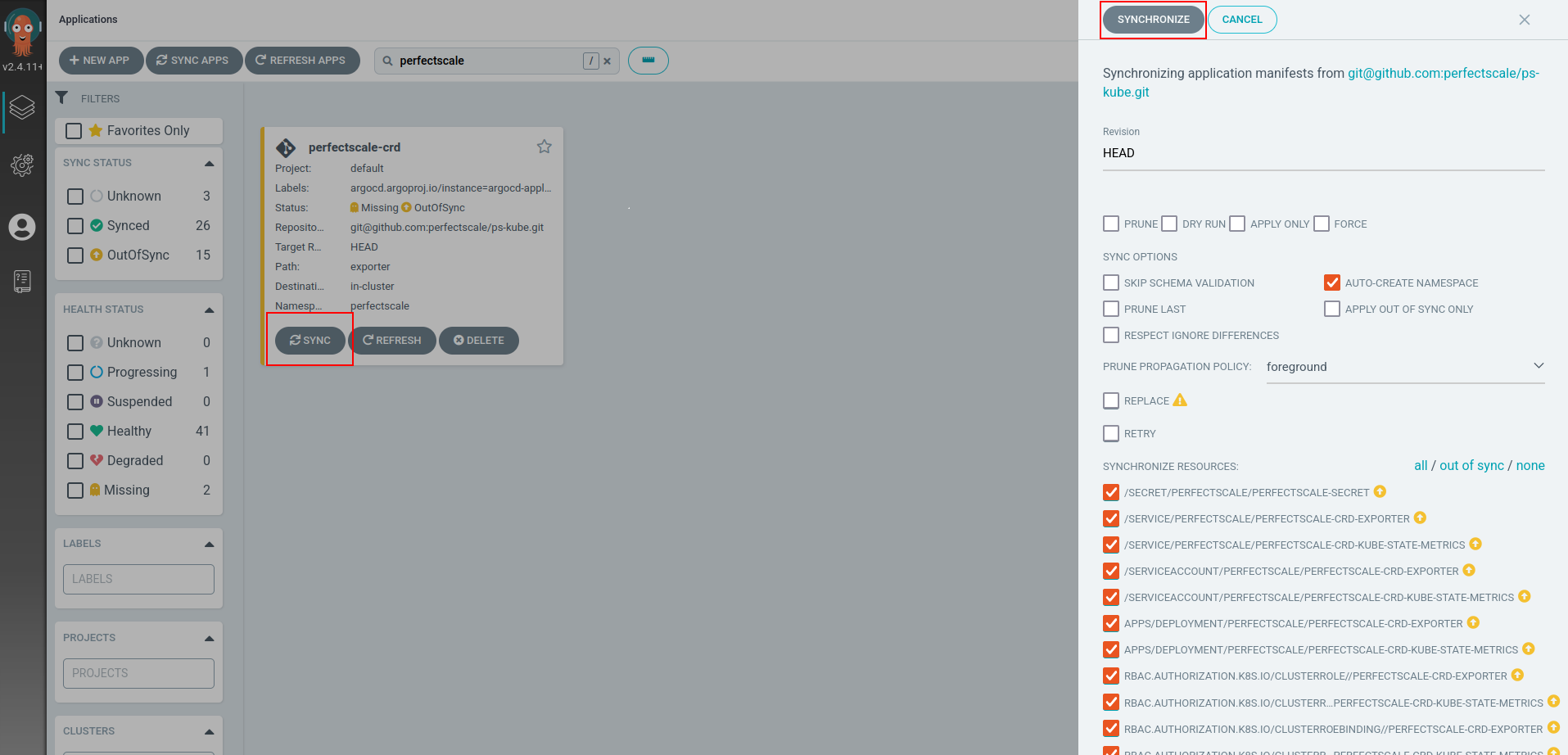
Sync the application
-
Ensure that all pods are running.

Check running pods2