User management — Self-hosted 2.0
As an Admin, you have full control over user management — including inviting new users, removing existing ones, and adjusting their settings. Non-admin users, on the other hand, can manage only their own profile settings.
To access user management, go to Zitadel by selecting Organization Settings from the profile button located at the bottom left.
The Zitadel Identity provider for OKTA should be created first.
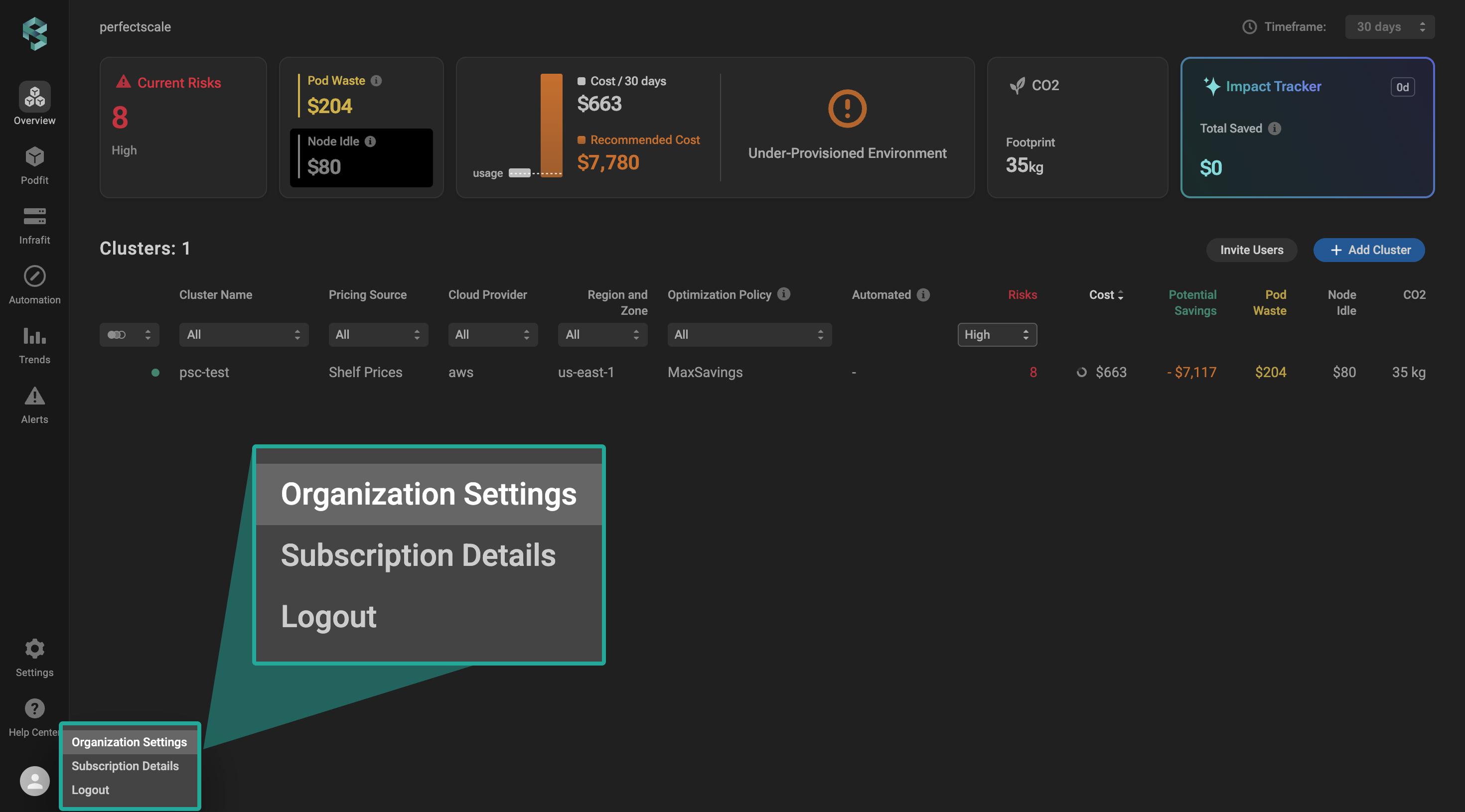
Organization settings
To access user information in Zitadel, navigate to the Users tab, where you will find a comprehensive list of all registered users.
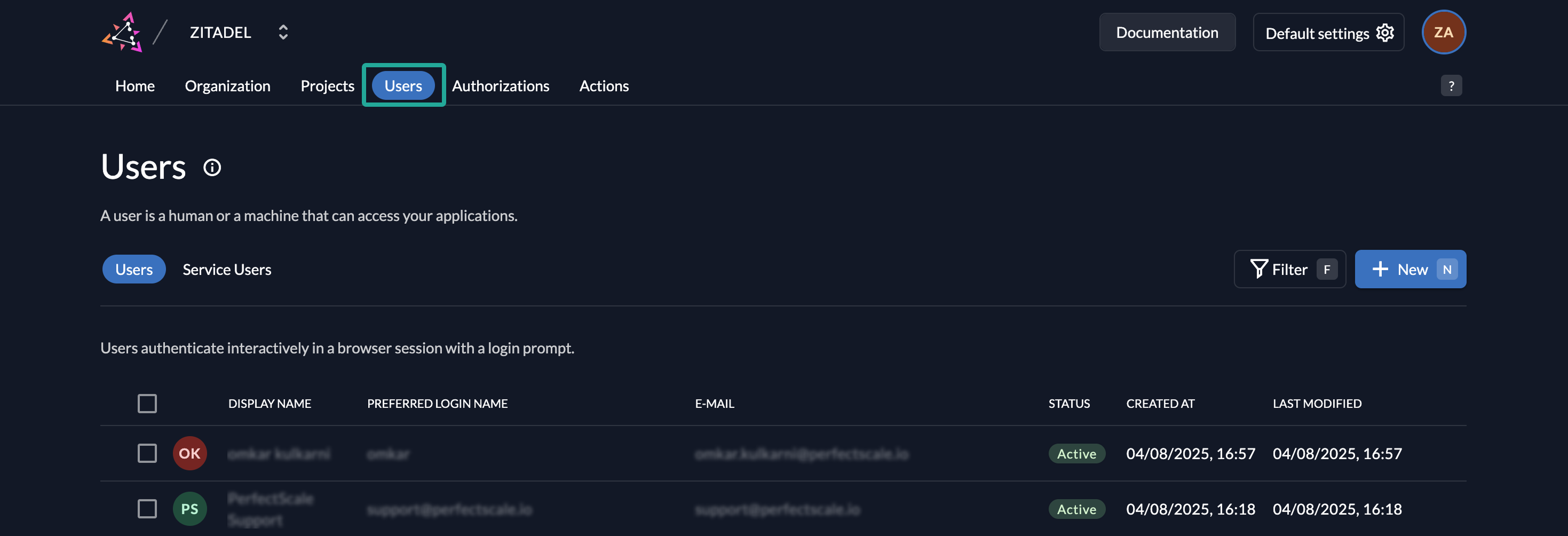
User management
Here, you can seamlessly deactivate, delete, and modify the existing users as well as invite a new one.
Invite user
To invite a new user to your account, click the +New button on the Zitadel user menu.
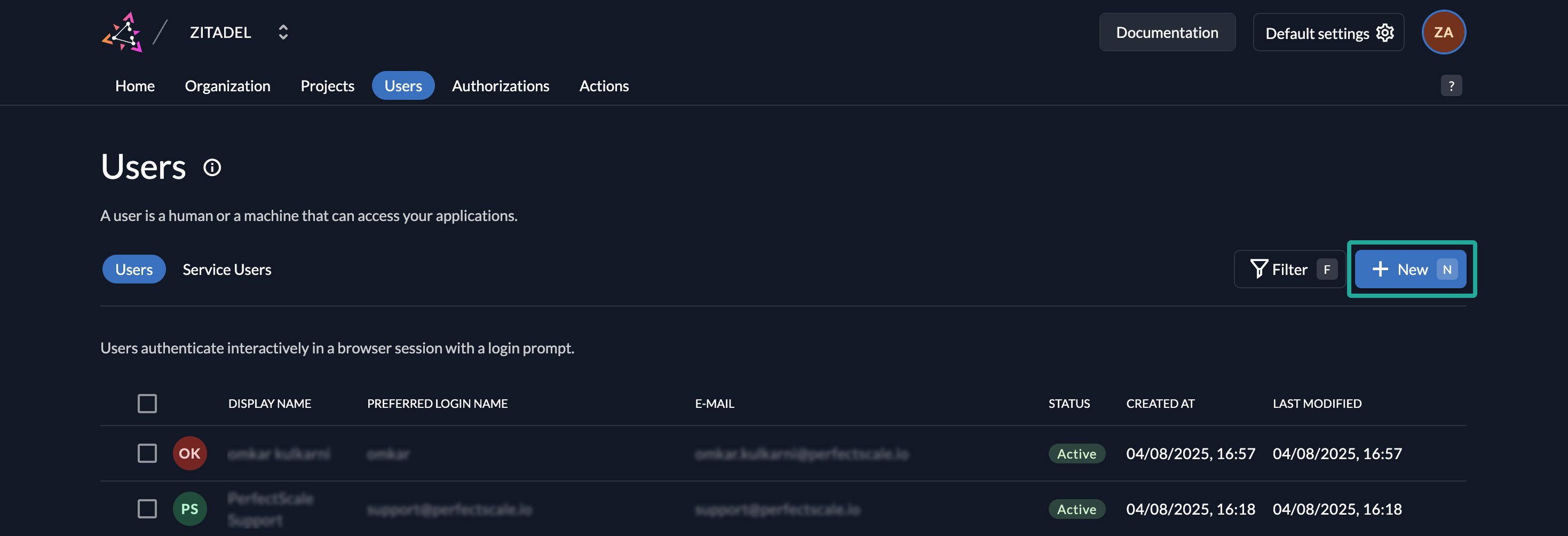
Invite user
To create a new user, complete all required fields and click the Create button. This will send an invitation to the email address you specified.
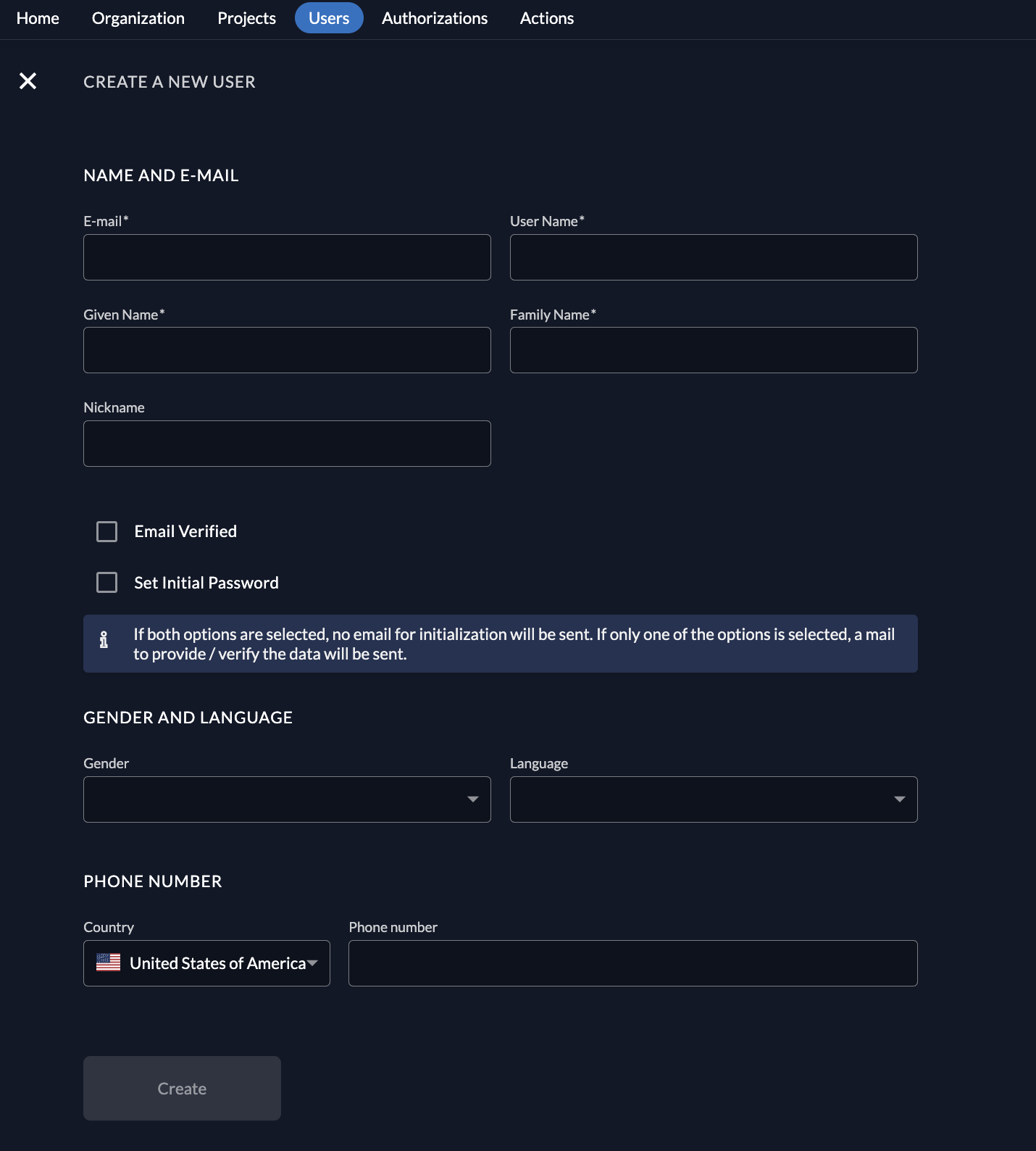
Create user form
Deactivate user
To deactivate a user, first check the box next to their name. This action will reveal the Deactivate button. Once you click the Deactivate button, the status will change to Initial, and the user will no longer be active.
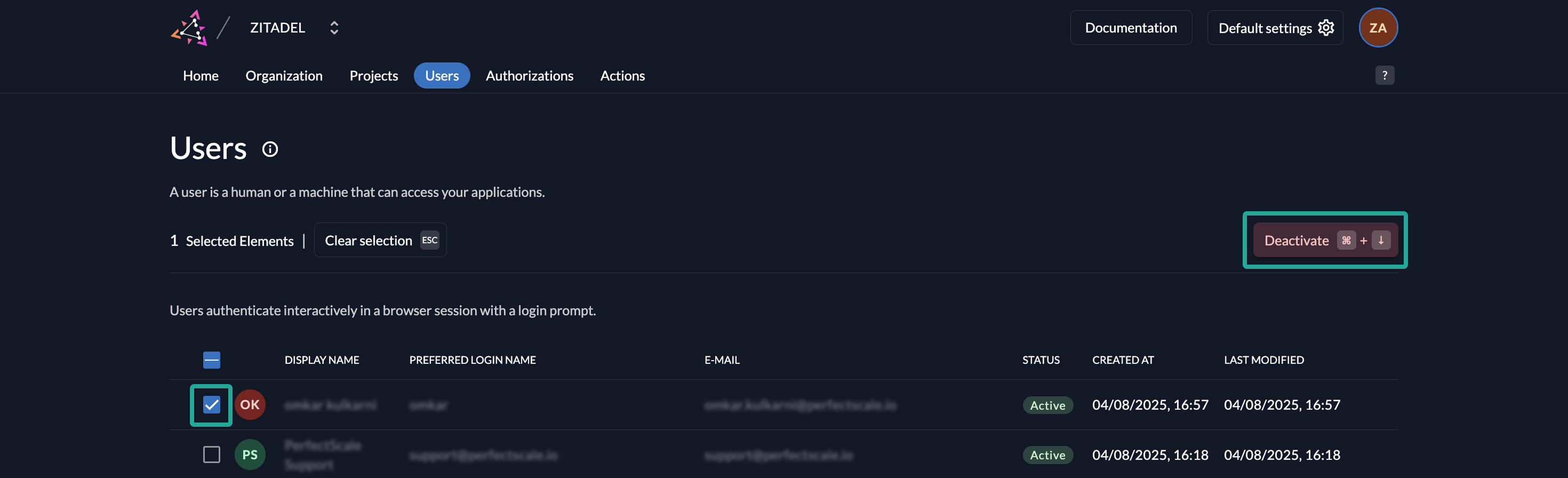
Deactivate user
Delete user
To remove a user, simply hover over their name and select the trash can icon.
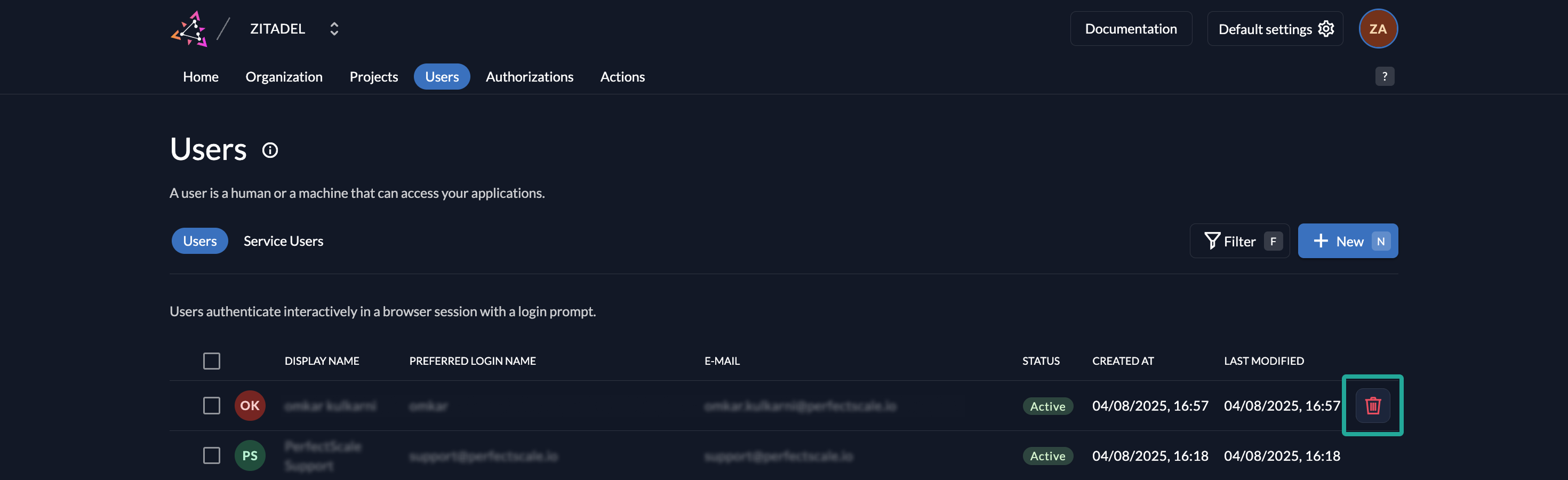
Delete user