Connecting Azure Cost Management — SaaS
In order to provide PerfectScale with access to your Azure pricing using default authentication with the Azure SDK, the following data should be provided:
azure_client_id
azure_tenant_id
azure_client_subscription
PerfectScale has created a detailed guide to help you access the credentials effortlessly.
How to get client_id and tenant_id
-
Sign in to the Azure Portal.
-
In the left-hand menu, navigate to Microsoft Entra ID.
-
Under Manage, select App registrations.
-
Click + New registration at the top.
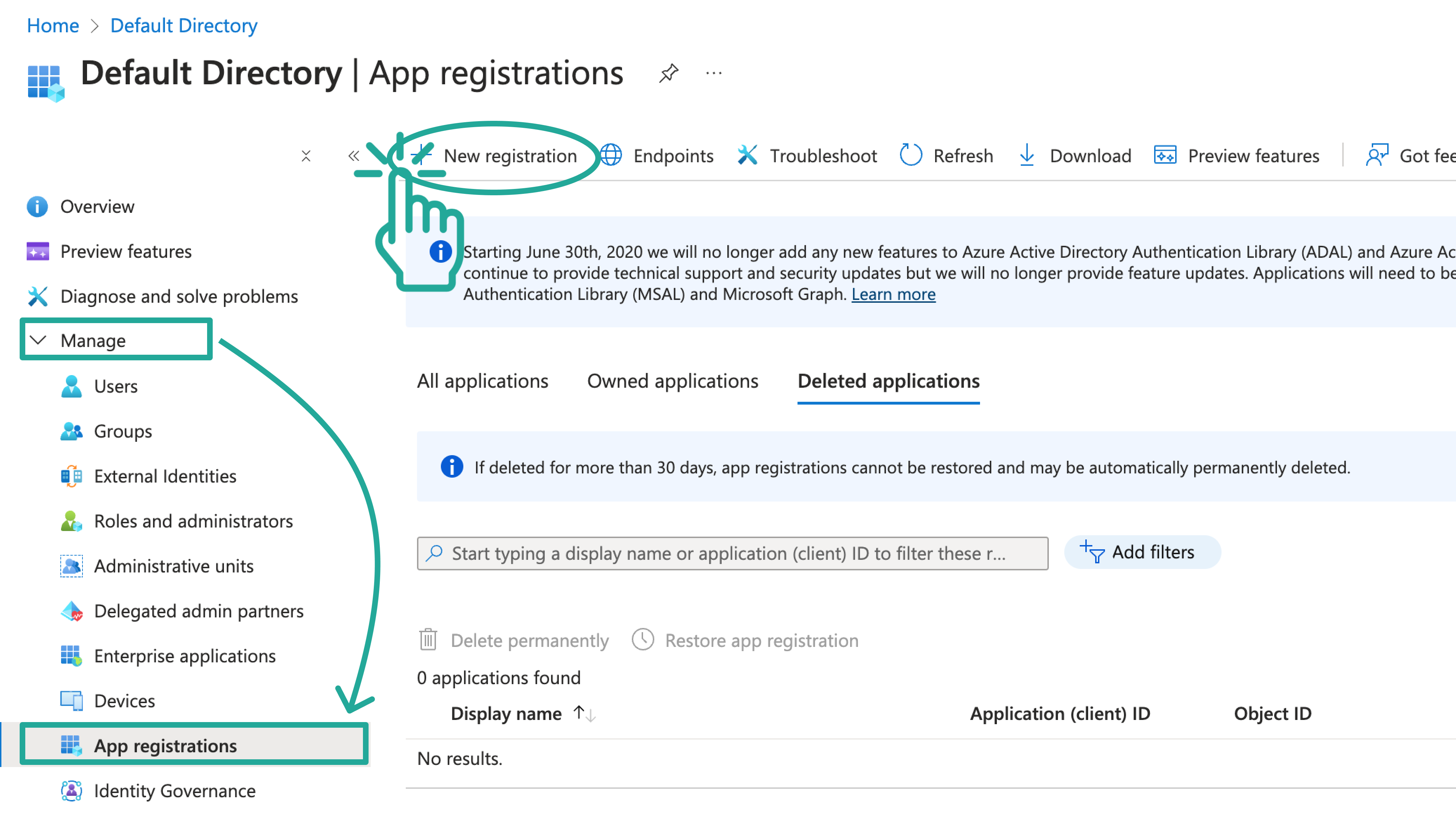
New app registration
-
Enter a name for your application, for example, MyAppPerfectScale.
-
Choose the supported account type. Typically, a Single tenant is used.
-
Click Register.
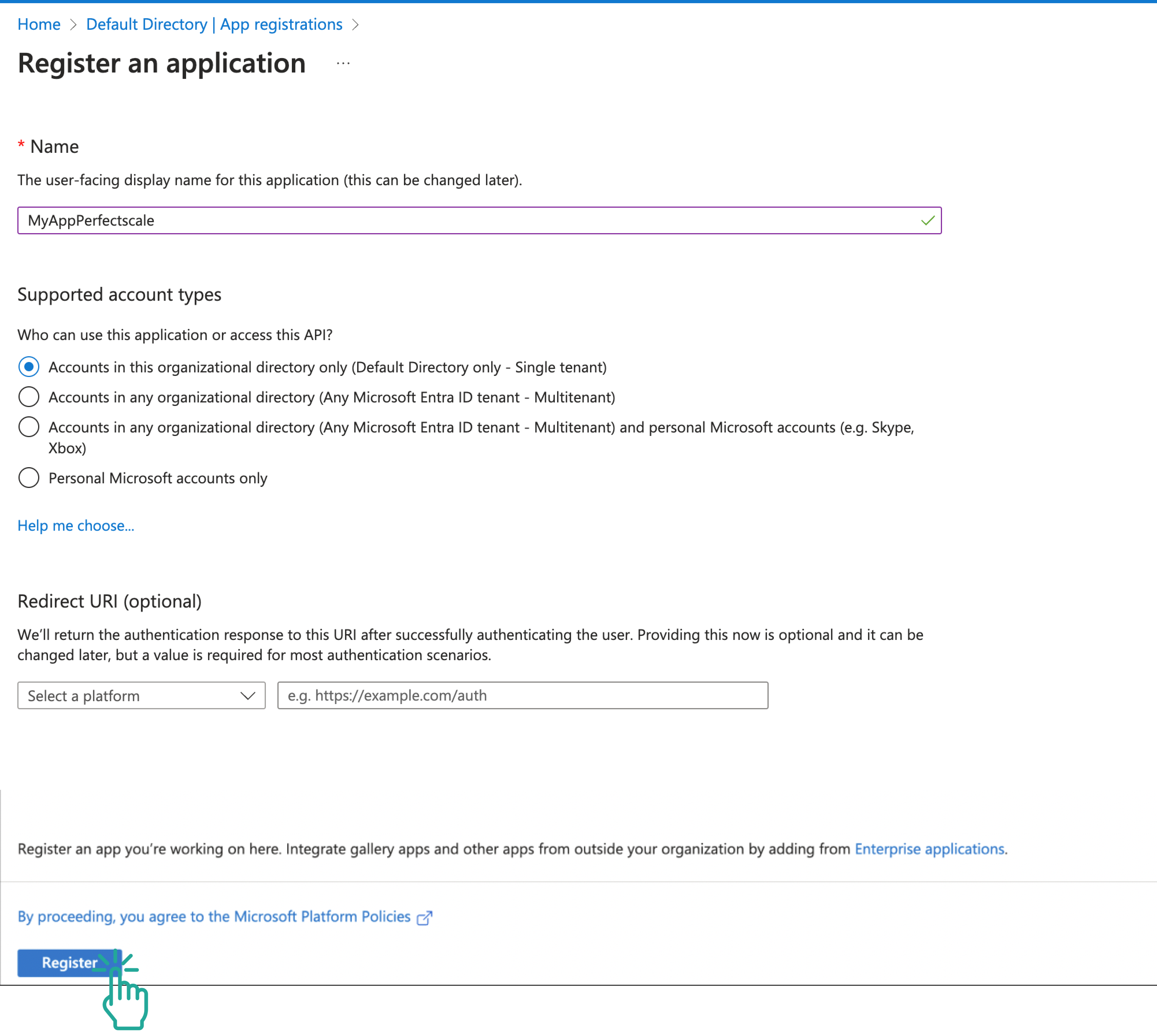
New app registration form
-
After registering, you’ll be redirected to the application overview page.
- Copy the Application (client) ID – this is your
azure_client_id. - Copy the Directory (tenant) ID – this is your
azure_tenant_id.
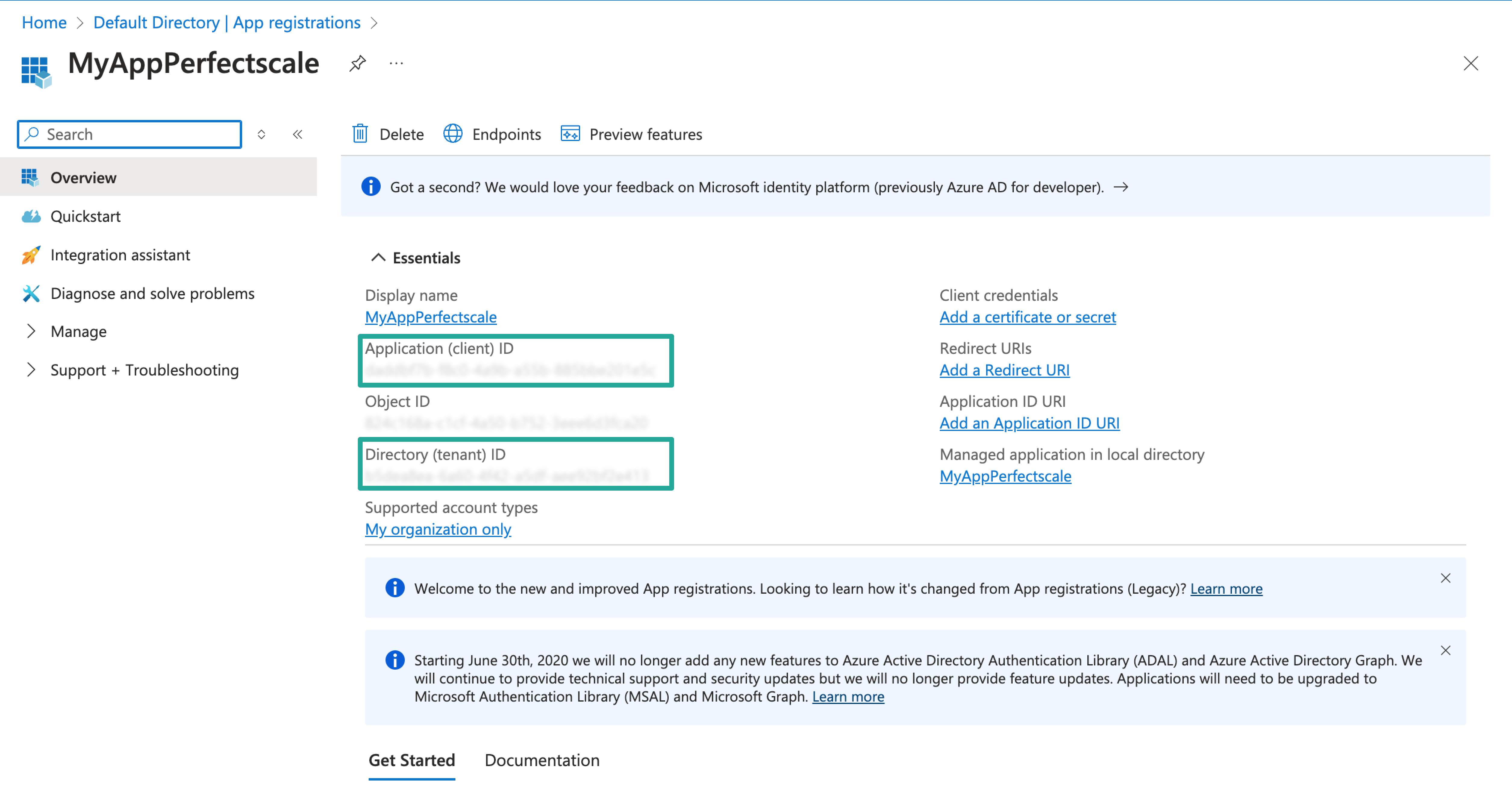
Credentials
- Copy the Application (client) ID – this is your
How to get client_subscription
-
In the Azure Portal, navigate to Subscriptions in the left-hand menu.
-
Select the subscription you want to use.
-
Copy your Subscription ID (
azure_client_subscription) from the overview page.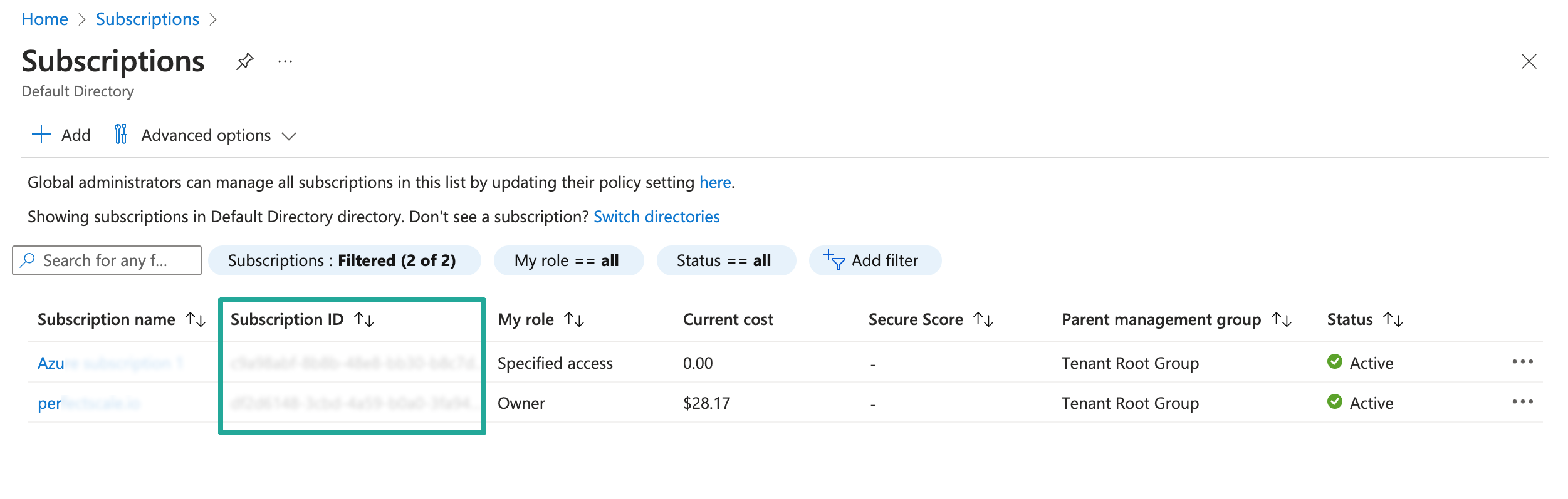
Subscription ID
How to configure access to Azure without secrets
-
In the application’s Certificates & secrets section, go to Federated credentials and click +Add credential.
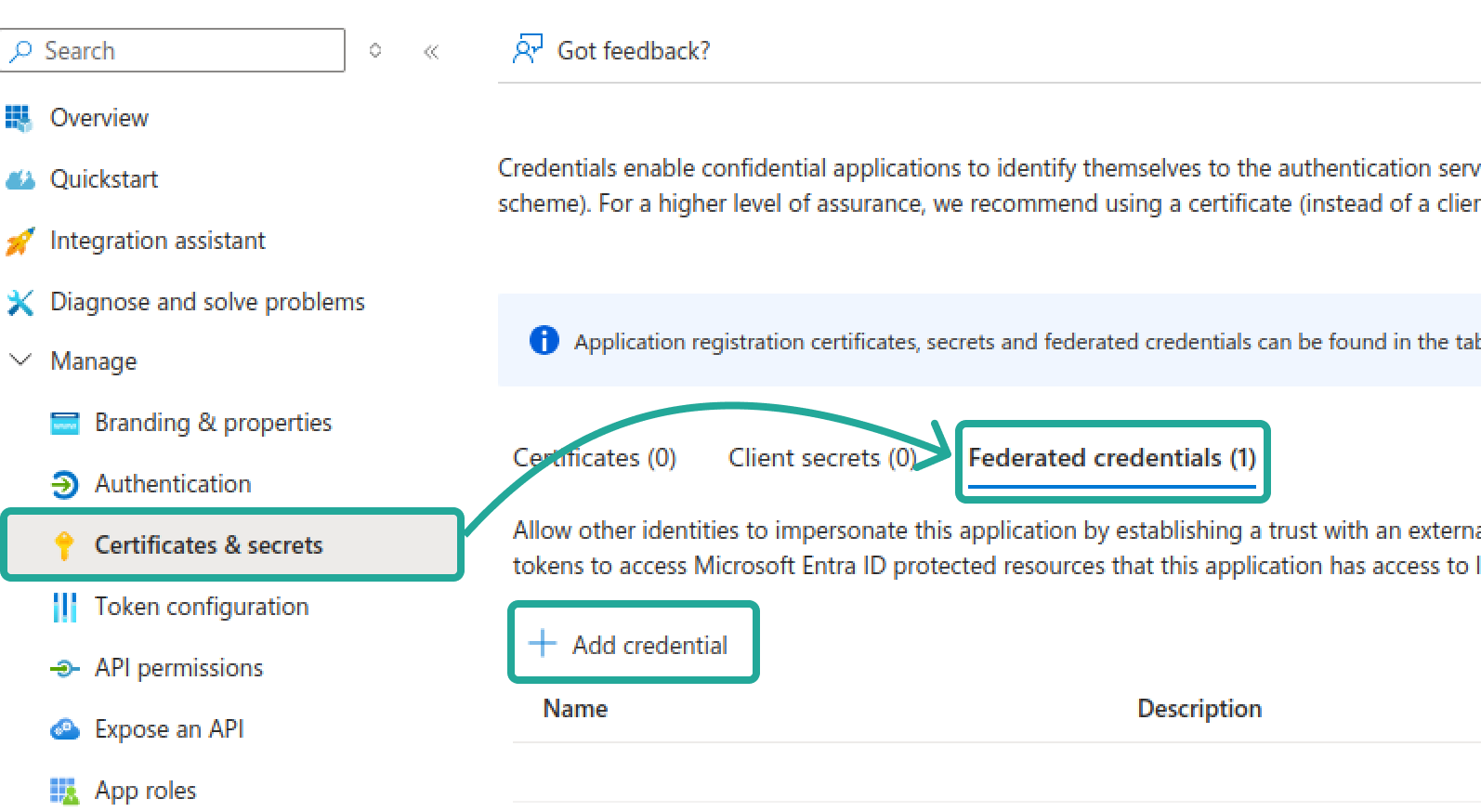
Add credential
-
Configure the following settings:
- Cluster issuer URL: https://oidc.eks.eu-central-1.amazonaws.com/id/8D4D23B7DFF25CCB30F2E2178F078829
- Namespace: apps
- Service account name: psc-pricing
- Name: your name
- Description: your description
- Audience:
api://AzureADTokenExchange
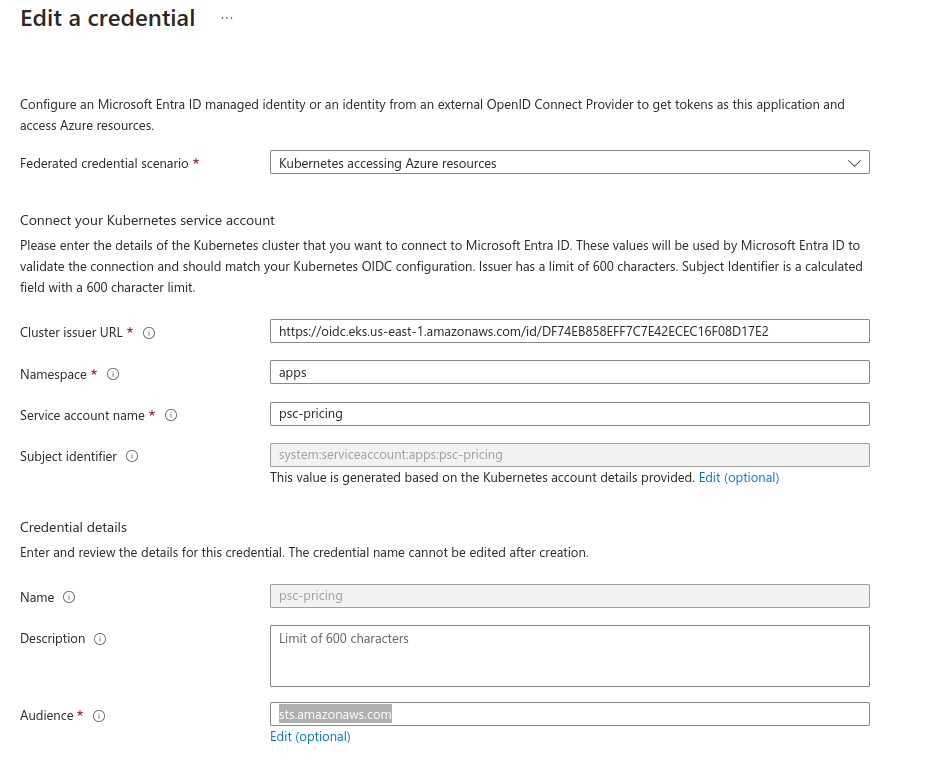
Edit a credential
How to get client_secret
client_secret is the secret key that allows the application to authenticate to Azure AD and get an access token to Azure resources. Follow the instructions below to get the credentials.
-
In the application’s Certificates & secrets section, go to Client secrets.
-
Click + New client secret.
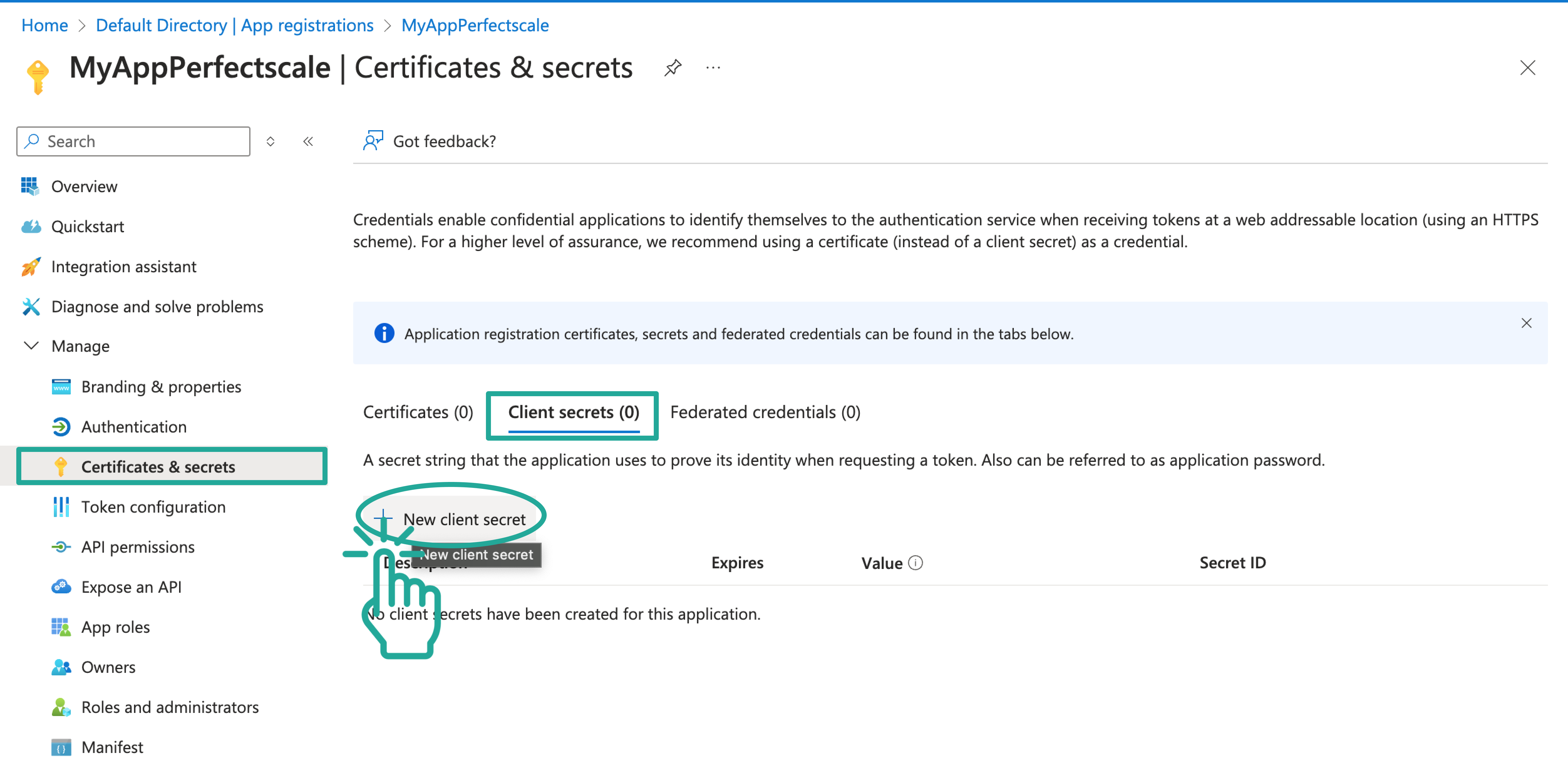
New client secret
-
Add a description, for example, Secret for PerfectScale, and set an expiry period as needed.
-
Click Add.
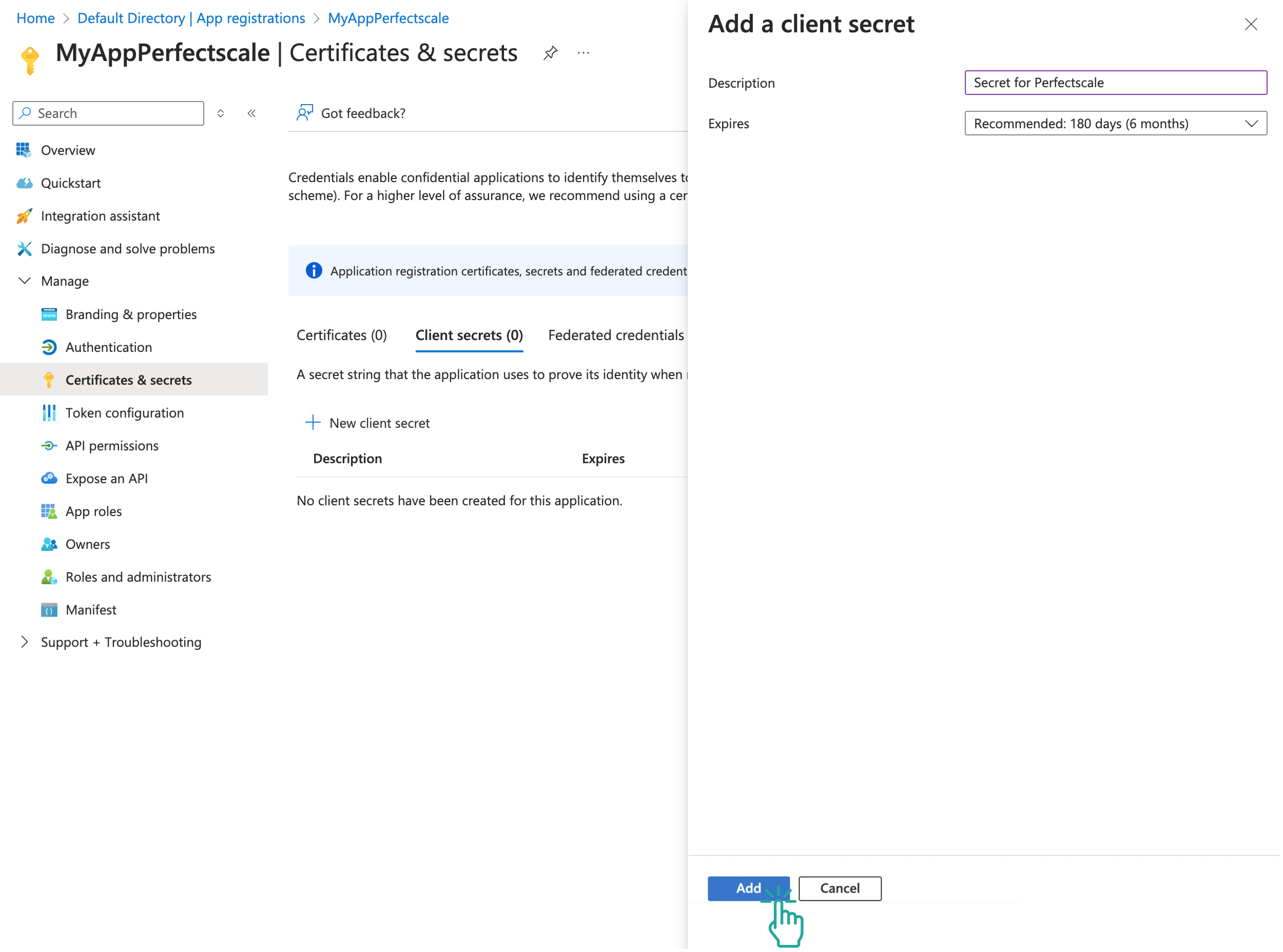
Add a client secret
-
:bangbang:Copy the Value (your azure_client_secret) immediately, as it will only be displayed once‼️
How to grant permissions to your application
Ensure you provide PerfectScale with the necessary permissions, as this step is mandatory.
-
In the Azure Portal, navigate to Subscriptions in the left-hand menu.
-
Select the subscription you want to use.
-
In the left-hand menu, choose Access Control (IAM).
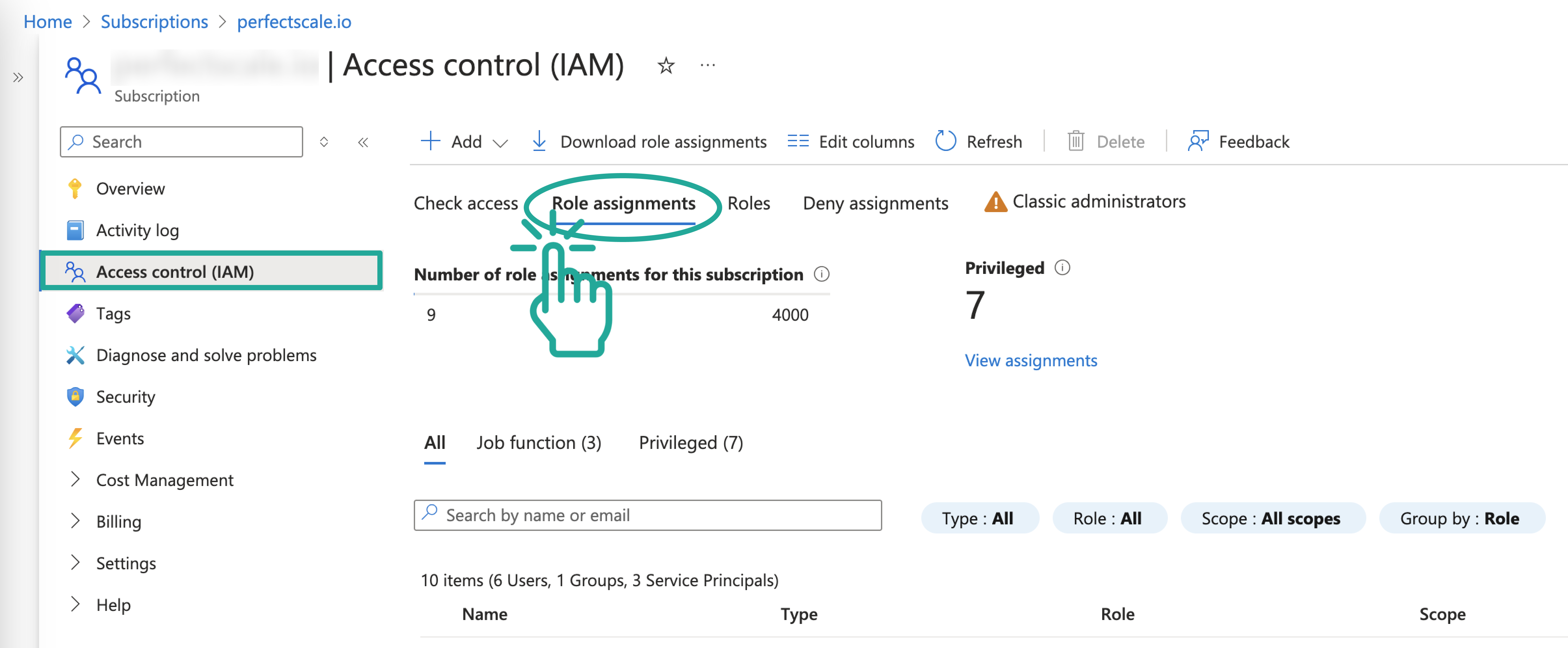
Access control
-
Navigate to Role assignments.
-
Press + Add and choose Add role assignment.
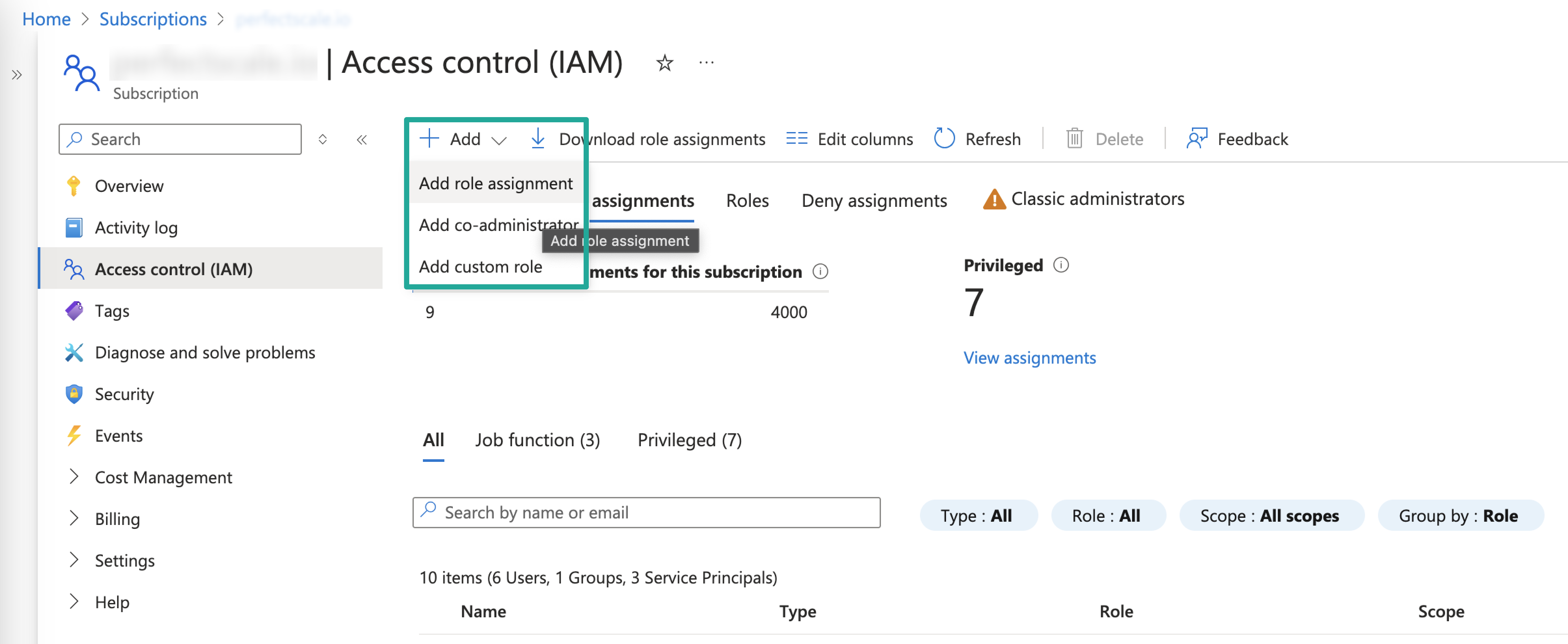
Add role assignment
-
In the Role section, select Reader role and click Next.
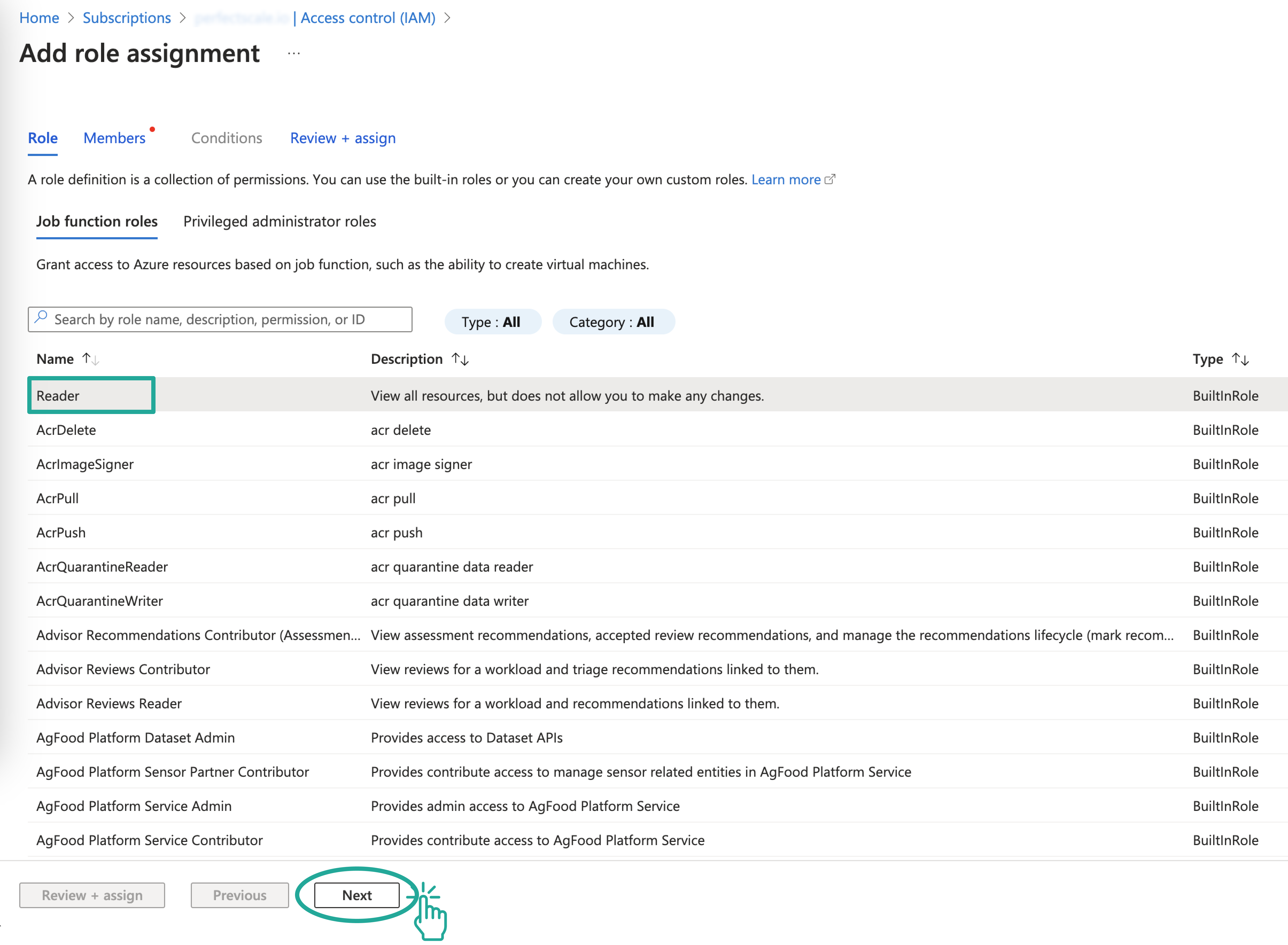
Reader role
-
In the Members section, click Select Members and use the right-hand search menu to find your application (e.g., “MyApp”).
- You can also search the application using Object ID.
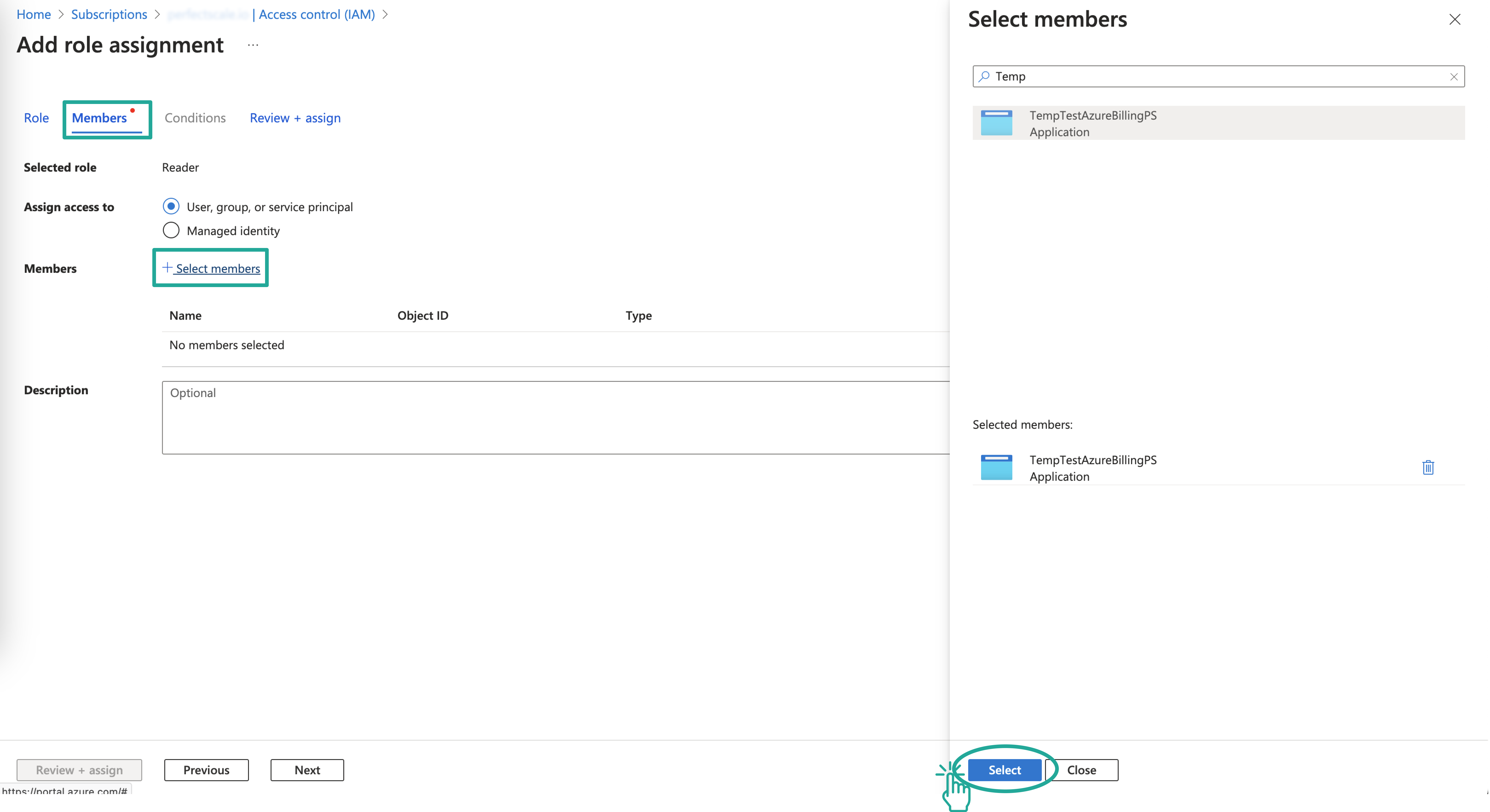
Application search
-
Click Review + Assign.
Once you have all the credentials needed, you need to create an Azure Profile and apply it to the desired cluster.
Configuring Azure pricing integration with Azure profile
:tools: How to create Azure Billing profile
There are two options for creating a Profile: from the Settings tab or directly from the Overview.
From the Settings tab
Go to the Settings tab on the left panel -> select Pricing -> click the +Add Profile button -> select Azure Billing -> name the profile and put the needed values in the relevant fields -> click Save button.
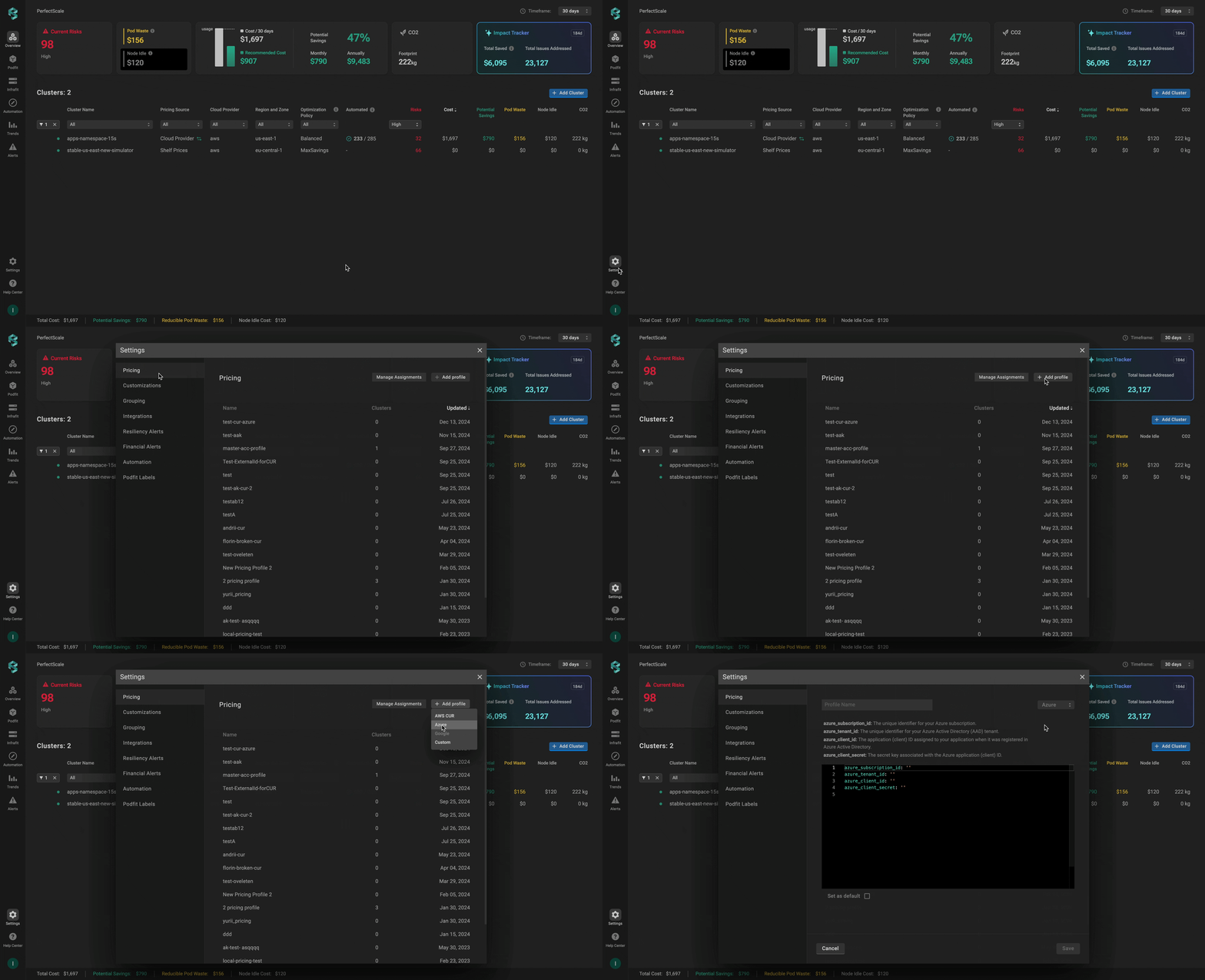
Azure profile from the settings
From the Overview tab
Go to the Overview tab on the left panel -> find the cluster to which you want to apply the Azure Profile and click gear button -> go to Customizations -> click on Add New Profile in the Pricing Profile drop-down list -> select Azure Billing type -> name and configure your profile -> click the Save And Apply button -> click the Save Changes button.
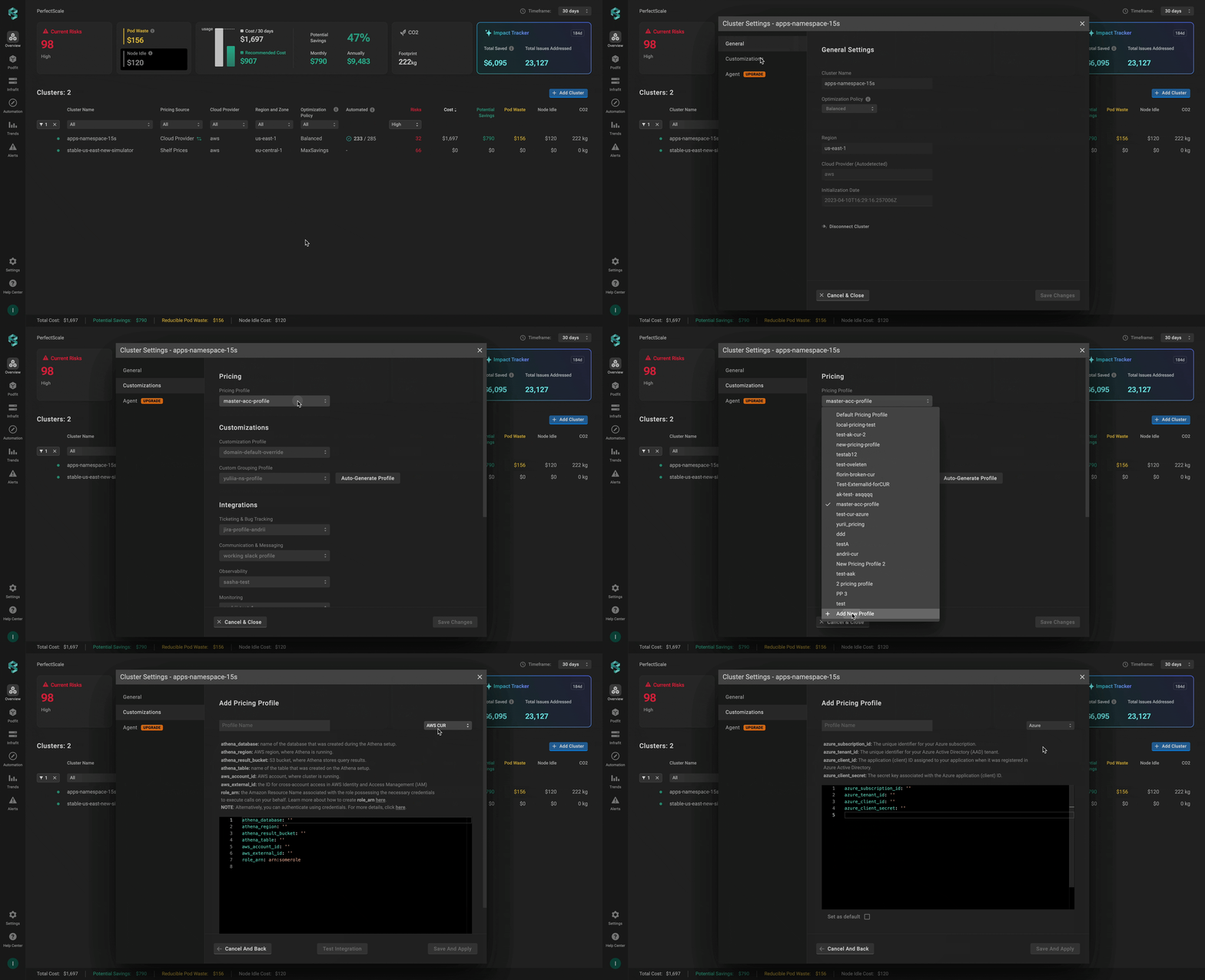
Azure profile from the overview
Azure Billing profile configuration
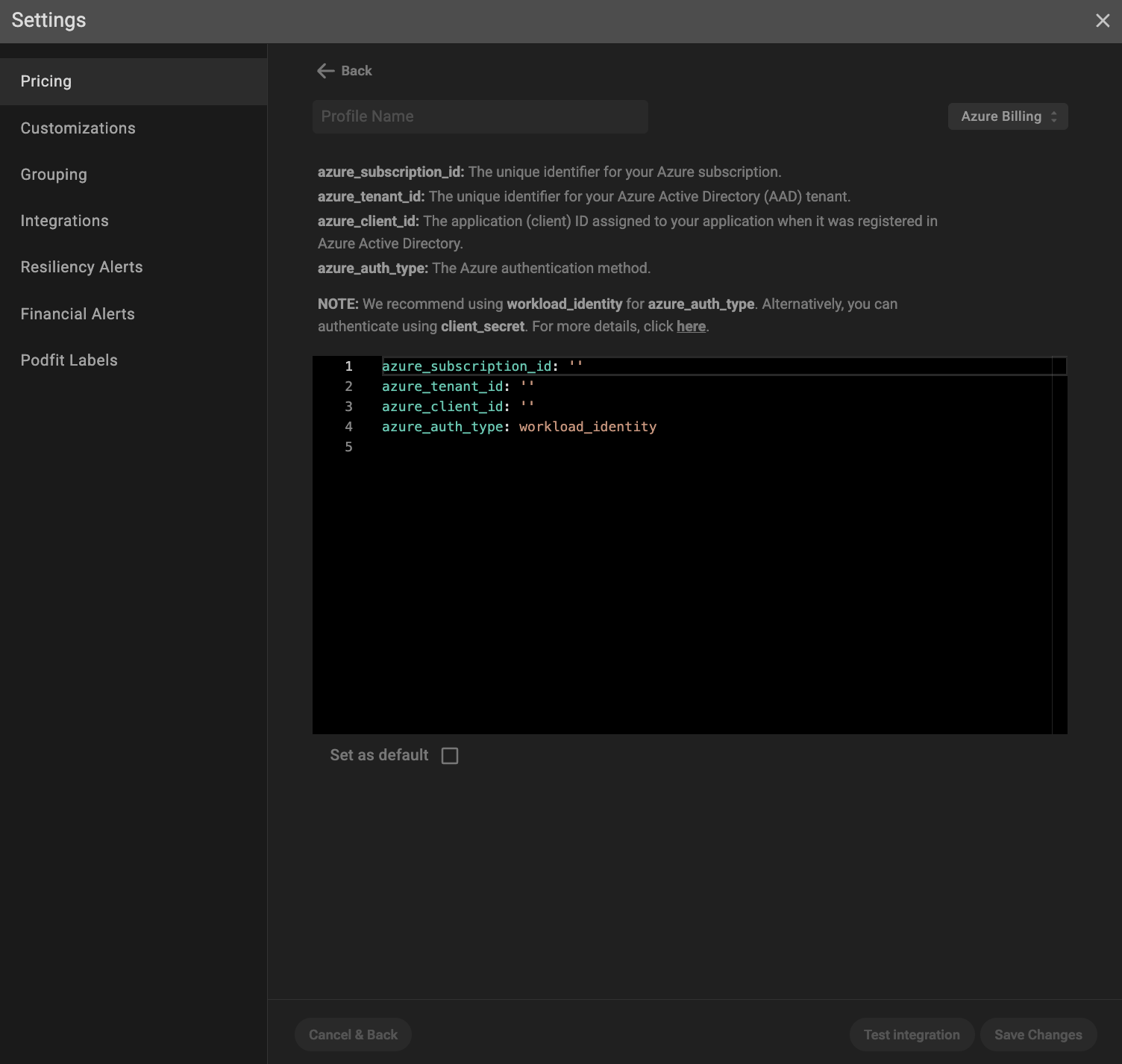
Azure profila configuration
azure_subscription_id: The unique identifier assigned to your Azure subscription that allows PerfectScale to interact with Azure resources within your subscription. Click here to learn how to get it.
azure_tenant_id (Directory (tenant) ID): The unique identifier of the organization in Azure Active Directory that allows Azure to manage authentication within the specific directory. Click here to learn how to get it.
azure_client_id (Application (client) ID): The unique identifier assigned to your application that allows it to access Azure resources. Click here to learn how to get it.
azure_auth_type: The Azure authentication method . By default, PerfectScale specifies workload_identity .
We recommend using workload_identity for azure_auth_type. Alternatively, you can authenticate using client_secret, but you'll also need to specify azure_client_secret. Click here to learn how to get it.
Global discount for on-demand nodes
If you have a global discount for on-demand nodes (from a cloud provider or cloud reseller) that isn’t included in your custom cloud billing, you can apply it in addition to your Azure Cost Management integration.
Add the following parameters to your Azure Billing profile to enable applying the globalDiscount on top of your cloud billing integration:
global_discount (optional block):
percentage- the percentage (0–100, floats supported) of the discount to apply on top of standard on-demand node pricing. This field is required whenglobal_discountexists.start_date(optional) - the effective start date for applying theglobal_discount. If this field is empty, it defaults to today.
If you change the percentage or start_date, only newly generated Trends report will reflect the update. Historical reports will not update automatically. Contact [email protected] if you need them recalculated.
The complete configuration might look like the following example:
global_discount:
  percentage: 15
  start_date: 2025-12-31
azure_auth_type: workload_identity
azure_client_id: ata4ed50-0d03-4752-g6r7-b4bbc5h32e8u
azure_subscription_id: df2d6148-6bdc-4a65-a0b0-3fa54678bb04
azure_tenant_id: c8aed8ae-6a60-4f42-a6bh-aee92bf2e432
Azure Billing configuration verification
To verify if Azure Cost Management is configured properly, click the Test Integration button.
:green_circle: When the configuration is correct, you will see the message Azure Configured Correctly.
:red_circle: In case of Azure Configured Wrongly response, check the Show integration failure details dropdown and fix the displayed issues.
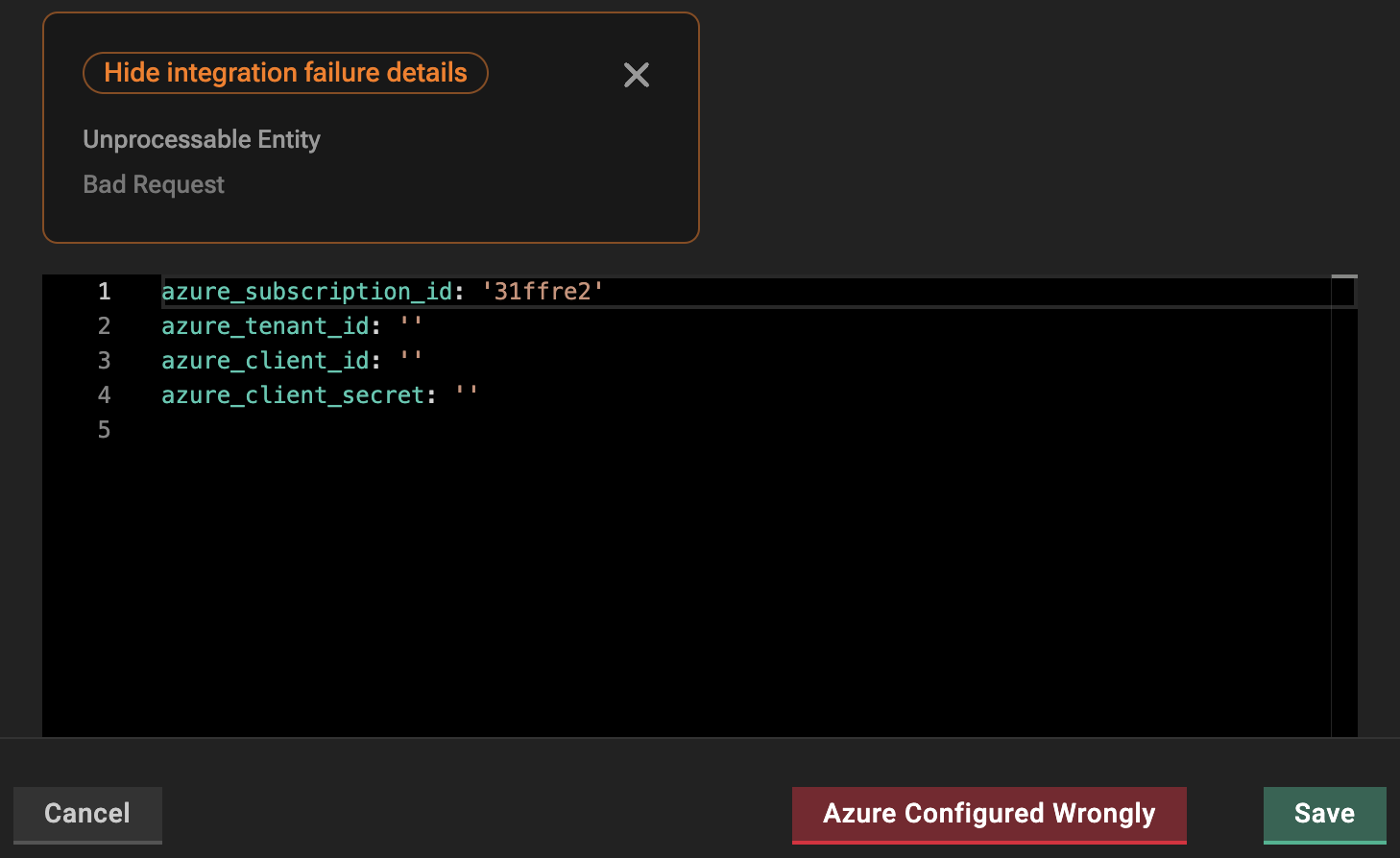
Wrong Azure profile configuration
:tools: How to apply Azure Billing profile
Apply to a single cluster
To apply Azure Billing Profile to the cluster, go to the Overview tab on the left-hand panel -> find the cluster to which you want to apply the Azure Billing Profile and click gear dots button -> go to Customizations -> select the needed profile in the Pricing Profile drop-down list.
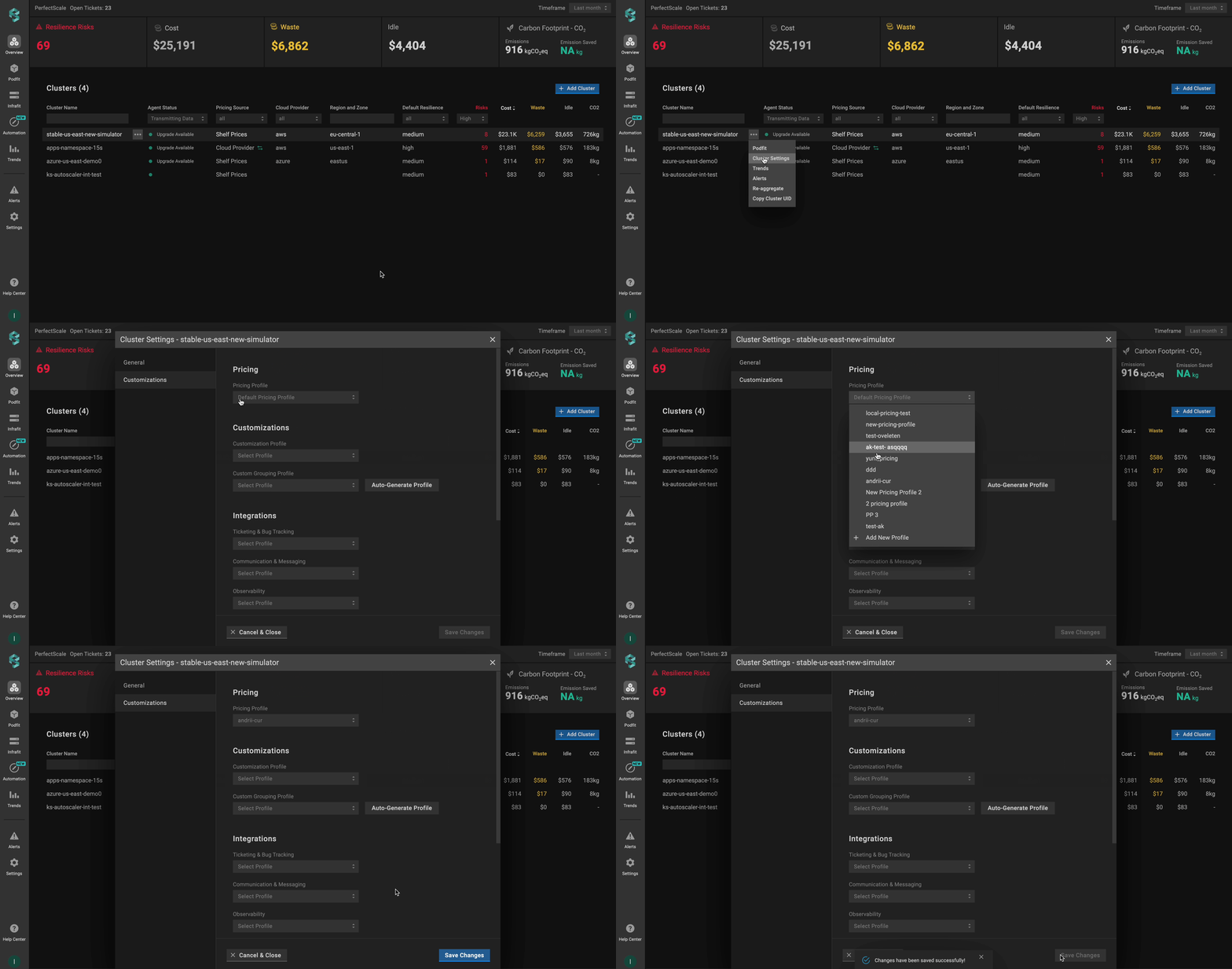
Applying a single Azure profile to the cluster
Apply to multiple clusters
To apply the profile to multiple clusters from a single view, use the Manage Assignments feature.
Go to the Settings tab on the left-hand panel -> select the Pricing -> click the Manage Assignments button -> apply the profile for the needed clusters -> click the Save Changes button.
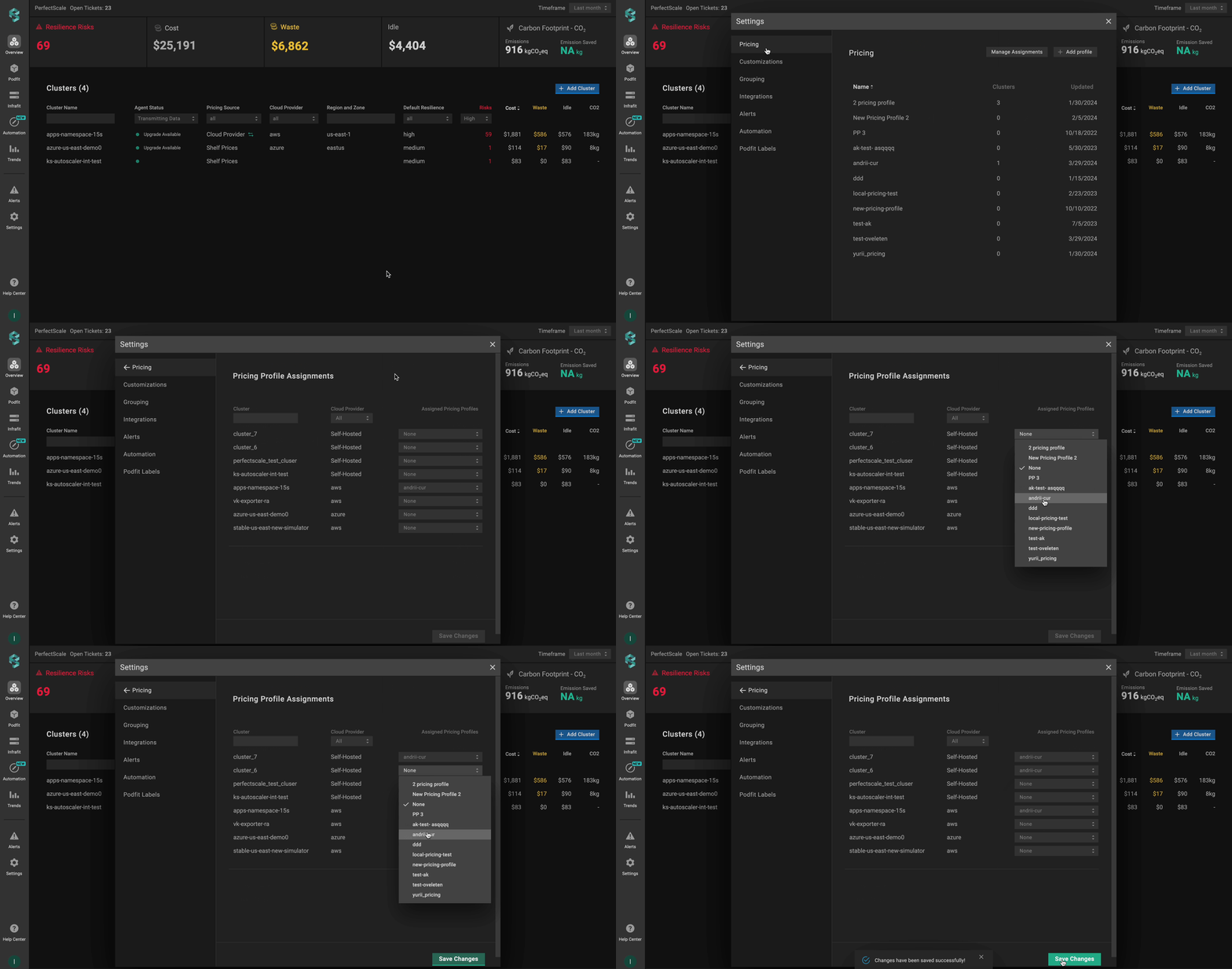
Applying Azure profile to multiple clusters
Configuring Azure pricing integration with CR
To configure Azure pricing, you need to define and apply a Custom Resource (CR) that specifies your unique billing conditions. This approach allows you to manage accurate pricing directly through Kubernetes manifests.
The Custom Resource (CR) must be created in the perfectscale namespace.
Setup instructions
- Set up Azure billing export in your subscription.
- Create an Azure AD application and service principal.
- Grant the application the necessary permissions to access billing data.
- Generate a client secret for the application (if using client_secret authentication).
- Copy the client ID, tenant ID, subscription ID, and client secret to the configuration below.
Recommended CR configuration
We recommend configuring a CR using workload_identity for azure_auth_type.
Configure the CR:
apiVersion: perfectscale.io/v1
kind: ClusterSettings
metadata:
  name: cluster-settings-main
  namespace: perfectscale
spec:
  profiles:
    pricing:
      - type: azure_billing
        name: azure-billing-export
        assigned: true
        value:
          global_discount:
            percentage: 7.5
            start_date: 2025-12-31
          azure_auth_type: workload_identity
          azure_client_id: "your-azure-client-id-here"
          azure_subscription_id: "your-azure-subscription-id-here"
          azure_tenant_id: "your-azure-tenant-id-here"
⚙️ CR parameters:
| Parameter | Description |
|---|---|
global_discount (optional block) | The discount to apply on top of standard on-demand node pricing.percentage - the percentage (0–100, floats supported) of the discount. This field is required when global_discount exists.start_date (optional) - the effective start date for applying the global_discount. |
azure_auth_type | The Azure authentication method. |
azure_client_id | The application (client) ID assigned to your application when it was registered in Azure Active Directory. |
azure_subscription_id | The unique identifier for your Azure subscription. |
azure_tenant_id | The unique identifier for your Azure Active Directory (AAD) tenant. |
If a global_discount percentage is provided without a start_date in the CR profile, we won’t default to today’s date as we do for profiles configured in the UI, and the discount will not be applied. The pricing profile appears broken in the UI.
Alternative CR configuration (not recommended)
Alternatively, you can configure a CR using the client_secret.
Apply the Azure Client Secret first (only needed for authentication with client_secret):
apiVersion: v1
kind: Secret
metadata:
  name: azure-credentials
  namespace: perfectscale
type: Opaque
stringData:
  client-secret: "your-azure-client-secret-here"
Ensure that the secret is created in the same namespace as the exporter - perfectscale.
Configure the CR:
piVersion: perfectscale.io/v1
kind: ClusterSettings
metadata:
  name: cluster-settings-main
  namespace: perfectscale
spec:
  profiles:
    pricing:
      - type: azure_billing
        name: azure-billing-export
        assigned: true
        value:
          global_discount:
            percentage: 7.5
            start_date: 2025-12-31
          azure_auth_type: client_secret
          azure_client_id: "your-azure-client-id-here"
          azure_client_secret_from:
            secretKeyRef:
              name: azure-credentials
              key: client-secret
          azure_subscription_id: "your-azure-subscription-id-here"
          azure_tenant_id: "your-azure-tenant-id-here"
⚙️ CR parameters:
| Parameter | Description |
|---|---|
global_discount (optional block) | The discount to apply on top of standard on-demand node pricing.percentage - the percentage (0–100, floats supported) of the discount. This field is required when global_discount exists.start_date (optional) - the effective start date for applying the global_discount. |
azure_auth_type | The Azure authentication method. |
azure_client_id | The application (client) ID assigned to your application when it was registered in Azure Active Directory. |
azure_subscription_id | The unique identifier for your Azure subscription. |
azure_tenant_id | The unique identifier for your Azure Active Directory (AAD) tenant. |
azure_client_secret_from | The client secret for authentication (when using client_secret authentication type). |
If a global_discount percentage is provided without a start_date in the CR profile, we won’t default to today’s date as we do for profiles configured in the UI, and the discount will not be applied. The pricing profile appears broken in the UI.