Connecting AWS CUR — SaaS
PerfectScale has created a detailed guide to help you effortlessly enable AWS CUR.
In order to start using AWS CUR, follow the steps provided below:
Create Cost and Usage Reports
-
Sign in to the Billing and Cost Management console.
-
Go to
Data Exportsin the navigation pane and chooseCreate. -
In the Export type choose
Legacy CUR export. -
Enter a
Report namefor your report (for example:cur-perfectscale-example). -
Select
Refresh automaticallyin the Export Content / Data refresh settings. -
In the Data export delivery options for Report data time granularity choose one of the following options:
Hourlyto aggregate the line items in the report by hour.Dailyto aggregate the line items in the report by day.Monthlyto aggregate the line items in the report by month.
To get more detailed data, PerfectScale recommends aggregating the line items in the report
Hourly. -
For Report data integration choose Amazon Athena.
-
In the Data export storage settings, configure the section following one of these steps:
- Select the existing bucket (if you already have S3 bucket).
- Select Create a bucket, enter a bucket name, and choose the Region for the new bucket.
-
For the S3 path prefix, enter the report path prefix you want to prepend to the name of your report.
-
Add Tags if needed.
-
Review the settings for your report and click
Create report.
It can take up to 24 hours for AWS to deliver your first report to your Amazon S3 bucket.
CUR master account support
If your AWS account is a part of an AWS Organization or if you manage multiple AWS accounts within the same organization, you can centralize billing data using the management (primary) account of the AWS Organization. This setup allows you to configure AWS CUR only once and get a detailed view of costs and usage across all accounts, enabling better cost management across your entire organization.
When CUR is enabled at the organization level, it automatically collects cost and usage data from all member accounts, simplifying expense tracking and management across multiple accounts in a centralized way. This setup allows you to utilize a single AWS CUR for all pricing profiles, requiring only a change in the region where your Kubernetes cluster is installed.
If you are setting up CUR in the master account, ensure that all subsequent configurations (CUR, Athena, and IAM) are also completed in this account.
Set up Amazon Athena
Set up Amazon Athena using AWS CloudFormation templates.
AWS CloudFormation doesn't support cross-region resources. In order to use an AWS CloudFormation template, all the resources should be created in the same AWS Region. The Region must support the following services:
- AWS Lambda
- Amazon Simple Storage Service (Amazon S3)
- AWS Glue
- Amazon Athena
-
Go to the Amazon S3 console.
-
In the S3 bucket that you opted to receive the AWS CUR report (cur-perfectscale-example) in the folder report path prefix(your-report-path-prefix)/report name (your-report-name) you will find template file crawler-cfn.yml.
AWS generate automatically template file and it can take up to 24h to generate from creating CUR
-
Go to Object actions, and click
Download as. -
Navigate to the AWS CloudFormation console.
-
In case of using AWS CloudFormation for the first time, select
Create New Stackand clickWith new resources (standard)in the dropdown list.
Create new stack
Otherwise -
Create Stack. -
Select
Choose an existing templatein Prerequisite - Prepare template. -
Select
Upload a template filein Specify template. -
After clicking
Choose fileselect the downloaded.ymltemplate, and clickOpen. -
As a next step, enter the Stack name for your template, name
cur-perfectscale-example, add tags, if needed, and go to the next page. -
Tick the check box at the bottom of the page and click
Submit.
:white_check_mark: I acknowledge that AWS CloudFormation might create IAM resourcesThe template creates the following resources:
- Three IAM roles
- An AWS Glue database
- An AWS Glue crawler
- Two Lambda functions
- An Amazon S3 notification
-
To ensure the template is configured properly, check the
statusinstack info.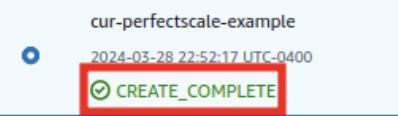
Template status
Run Amazon Athena queries
-
Go to the Amazon Athena service and select Query editor.
-
Click
Edit settingson the top right corner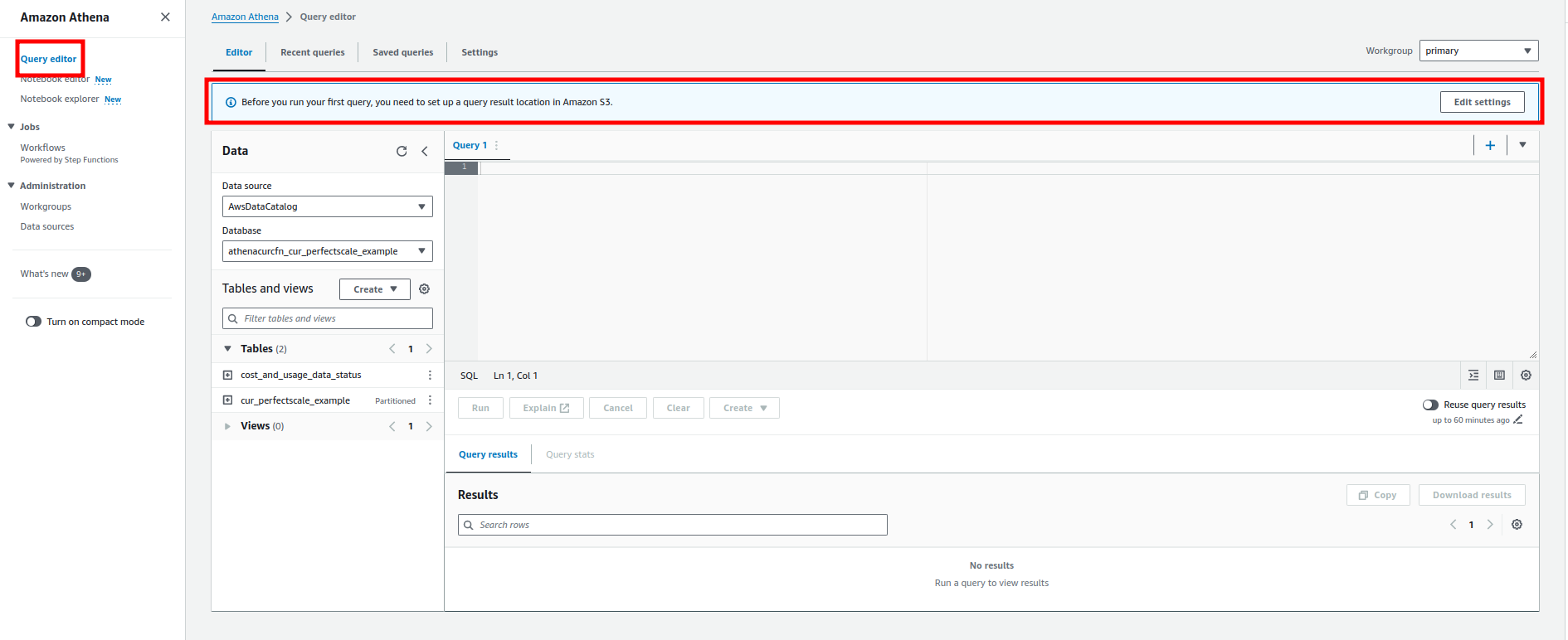
Amazon Athena settings1
-
In the
Query result location and encryptionwrite down the path to the created for the CUR bucket, or use another bucket (for example,s3://cur-perfectscale-example/athena/) and clickSave.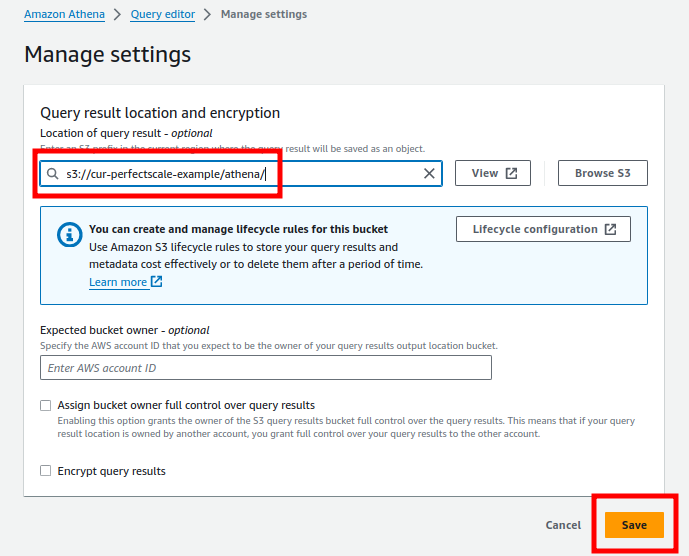
Amazon Athena settings2
-
Return to the Query editor and run the following query to ensure the configuration works properly:
select status from cost_and_usage_data_status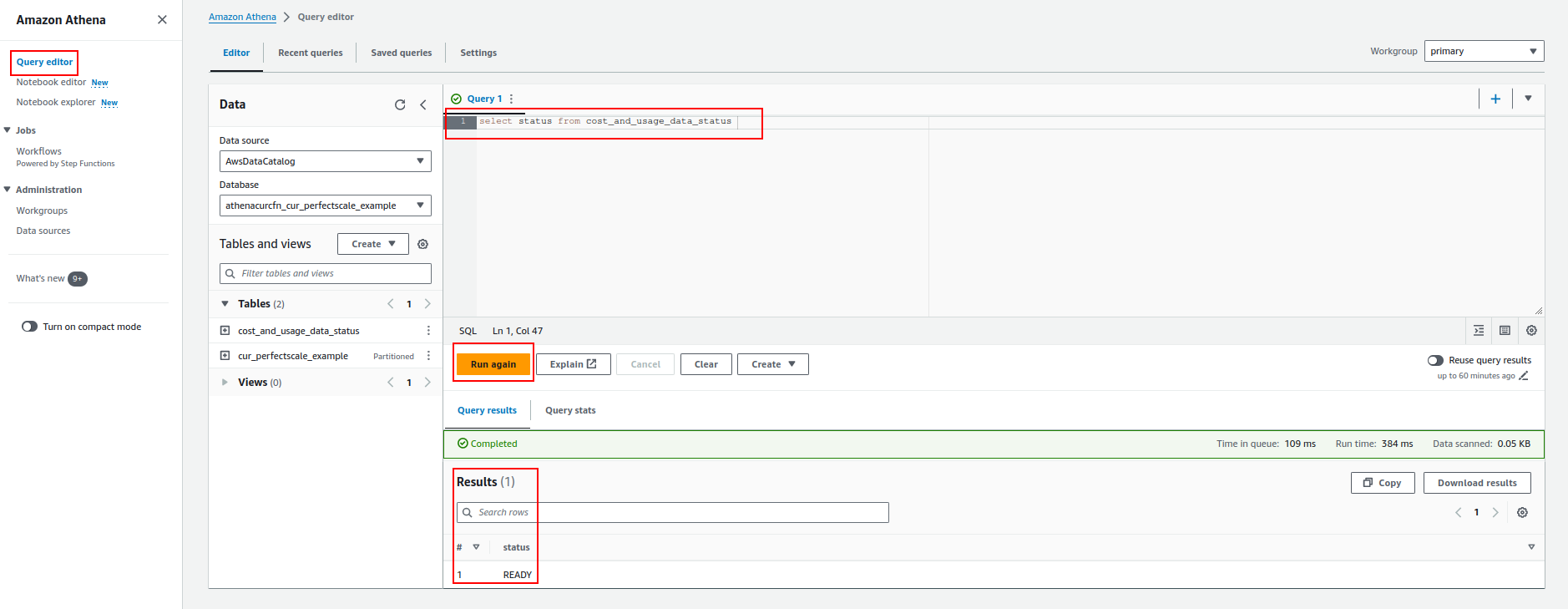
Amazon Athena settings3
Configure the authentication method
There are two ways to grant us access to your CUR:
- Delegate access across AWS accounts using IAM roles (recommended).
- Create a separate IAM user.
How to delegate access with IAM roles
- Go to AWS IAM service
- Chose
Policyand clickCreate Policy. - Add the following JSON permissions to the policy.
Replace {{S3_BUCKET_NAME}} line 62 and {{ATHENA_DATABASE_NAME}} line 12,44,45 with your values in the JSON policy below, where ATHENA_DATABASE_NAME is the name of your Athena database created by the CloudFront script.
Example:
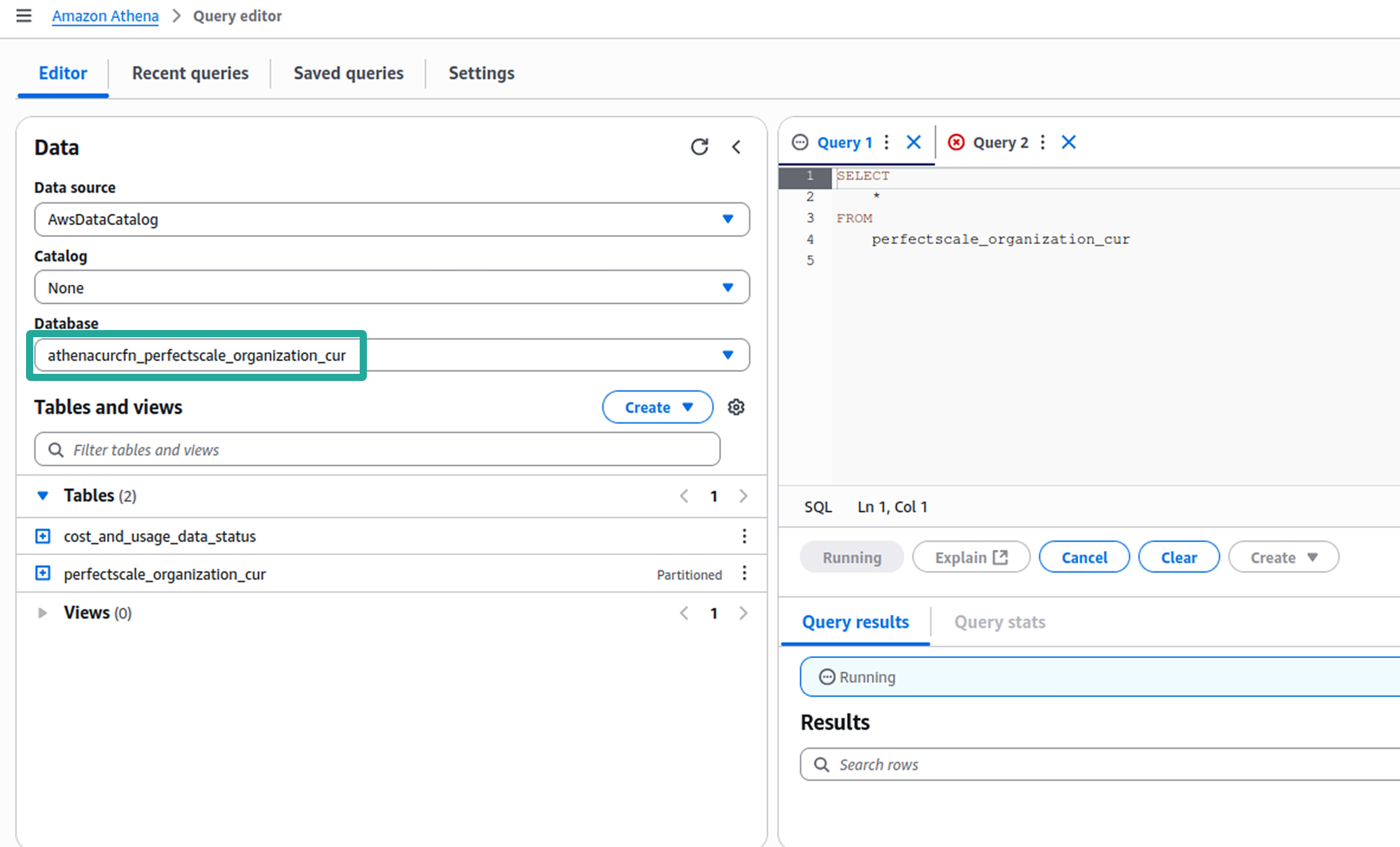
💡 NOTE: There is no “-“ in the name of Athena. AWS replaces all “-“with “_“.
Add JSON permissions to the policy
{
    "Version": "2012-10-17",
    "Statement": [
        {
            "Sid": "BaseAthenaPermissions",
            "Effect": "Allow",
            "Action": [
                "athena:*"
            ],
            "Resource": [
                "arn:aws:athena:*:*:workgroup/primary",
                "arn:aws:athena:*:*:datacatalog/{{ATHENA_DATABASE_NAME}}"
            ]
        },
        {
            "Sid": "BaseGluePermissions",
            "Effect": "Allow",
            "Action": [
                "glue:GetDatabase",
                "glue:GetDatabases",
                "glue:GetTable",
                "glue:GetTables",
                "glue:GetPartition",
                "glue:GetPartitions",
                "glue:BatchGetPartition",
                "glue:StartColumnStatisticsTaskRun",
                "glue:GetColumnStatisticsTaskRun",
                "glue:GetColumnStatisticsTaskRuns"
            ],
            "Resource": [
                "arn:aws:glue:*:*:catalog",
                "arn:aws:glue:*:*:database/{{ATHENA_DATABASE_NAME}}",
                "arn:aws:glue:*:*:table/{{ATHENA_DATABASE_NAME}}/*"
            ]
        },
        {
            "Sid": "BaseQueryResultsPermissions",
            "Effect": "Allow",
            "Action": [
                "s3:GetBucketLocation",
                "s3:GetObject",
                "s3:ListBucket",
                "s3:ListBucketMultipartUploads",
                "s3:ListMultipartUploadParts",
                "s3:AbortMultipartUpload",
                "s3:PutObject",
                "s3:PutBucketPublicAccessBlock"
            ],
            "Resource": [
                "arn:aws:s3:::{{S3_BUCKET_NAME}}",
                "arn:aws:s3:::{{S3_BUCKET_NAME}}/*"
            ]
        },
        {
            "Sid": "BaseS3BucketPermissions",
            "Effect": "Allow",
            "Action": [
                "s3:ListBucket",
                "s3:GetBucketLocation",
                "s3:ListAllMyBuckets"
            ],
            "Resource": [
                "*"
            ]
        },
        {
            "Sid": "BasePricingPermissions",
            "Effect": "Allow",
            "Action": [
                "pricing:GetProducts"
            ],
            "Resource": [
                "*"
            ]
        }
    ]
}
-
Choose
Rolesand then choose toCreate a Rolein the navigation pane. -
Choose the
An AWS accountrole type. -
Select
Another AWS account. -
For
Account ID, enter 888061904880. -
In the Options, choose
Require external IDand write down your External IDExternal ID is a unique, user-defined string used when setting up cross-account access in AWS Identity and Access Management (IAM). This additional security measure ensures that only trusted third-party entities can assume a specific role.
The external ID can be any string you define (a combination of random numbers, letters, or both).
Examples:
YourCompanyName-Partner-2024-UniqueString
3JdpNfwvkpw4rs1sGsdrF0rM1R2
f47ac10b-58cc-4372-a567-0e02b2c3d479 -
Choose
Next: Permissionsto set the permissions associated with the role. -
Select the check box next to the policy you created before.
-
Name the user and click
Next. -
(Optional) Add description and metadata to the role by attaching tags as key-value pairs (you may need it for more information about using tags in IAM).
-
After reviewing the role, choose
Create role. -
You should now obtain the role's Amazon Resource Name (ARN), a unique identifier for the role you need to add to the PerfectScale AWS CUR Profile.
Example: arn:aws:iam::989068116150:role/access-perfectscale-account-to-cur).
How to create IAM user for CUR integration
- Go to AWS IAM service.
- Go to
Policyand clickCreate Policy. - Add the following JSON permissions to the policy and move to the next step.
Replace {{S3_BUCKET_NAME}} line 62 and {{ATHENA_DATABASE_NAME}} line 12,44,45 with your values in the JSON policy below, where ATHENA_DATABASE_NAME is the name of your Athena database created by the CloudFront script.
Example:
💡 NOTE: There is no “-“ in the name of Athena. AWS replaces all “-“with “_“.
Add JSON permissions to the policy
{
    "Version": "2012-10-17",
    "Statement": [
        {
            "Sid": "BaseAthenaPermissions",
            "Effect": "Allow",
            "Action": [
                "athena:*"
            ],
            "Resource": [
                "arn:aws:athena:*:*:workgroup/primary",
                "arn:aws:athena:*:*:datacatalog/{{ATHENA_DATABASE_NAME}}"
            ]
        },
        {
            "Sid": "BaseGluePermissions",
            "Effect": "Allow",
            "Action": [
                "glue:GetDatabase",
                "glue:GetDatabases",
                "glue:GetTable",
                "glue:GetTables",
                "glue:GetPartition",
                "glue:GetPartitions",
                "glue:BatchGetPartition",
                "glue:StartColumnStatisticsTaskRun",
                "glue:GetColumnStatisticsTaskRun",
                "glue:GetColumnStatisticsTaskRuns"
            ],
            "Resource": [
                "arn:aws:glue:*:*:catalog",
                "arn:aws:glue:*:*:database/{{ATHENA_DATABASE_NAME}}",
                "arn:aws:glue:*:*:table/{{ATHENA_DATABASE_NAME}}/*"
            ]
        },
        {
            "Sid": "BaseQueryResultsPermissions",
            "Effect": "Allow",
            "Action": [
                "s3:GetBucketLocation",
                "s3:GetObject",
                "s3:ListBucket",
                "s3:ListBucketMultipartUploads",
                "s3:ListMultipartUploadParts",
                "s3:AbortMultipartUpload",
                "s3:PutObject",
                "s3:PutBucketPublicAccessBlock"
            ],
            "Resource": [
                "arn:aws:s3:::{{S3_BUCKET_NAME}}",
                "arn:aws:s3:::{{S3_BUCKET_NAME}}/*"
            ]
        },
        {
            "Sid": "BaseS3BucketPermissions",
            "Effect": "Allow",
            "Action": [
                "s3:ListBucket",
                "s3:GetBucketLocation",
                "s3:ListAllMyBuckets"
            ],
            "Resource": [
                "*"
            ]
        },
        {
            "Sid": "BasePricingPermissions",
            "Effect": "Allow",
            "Action": [
                "pricing:GetProducts"
            ],
            "Resource": [
                "*"
            ]
        }
    ]
}
- Name your policy and click
Create Policy. - Go to User and click
Create User. - Name the user and click
Next. - Select your policy in the
Attach policies directlyand move to the next step. - Create User
- Select just created user, go to Security_credentials, and click
Create access key. - Copy the generated Access key/Secret access key and paste it into the CUR profile.
Visit the official AWS documentation for more details
| Creating Cost and Usage Reports | |||
| Setting up Athena using AWS CloudFormation templates | |||
Querying Cost and Usage Reports using Amazon Athena - AWS Data Exports |
Configuring AWS pricing integration with AWS CUR profile
After enabling CUR, in order to start using the integration, you need to create an AWS CUR Pricing Profile and apply it to the desired cluster.
:tools: How to create AWS CUR profile
There are two options for creating a Profile: from the Settings tab or directly from the Overview.
From the Settings tab
Go to the Settings tab on the left panel -> select Pricing -> click the +Add Profile button -> select AWS CUR -> name the profile and put the needed values in the relevant fields -> click Save button.
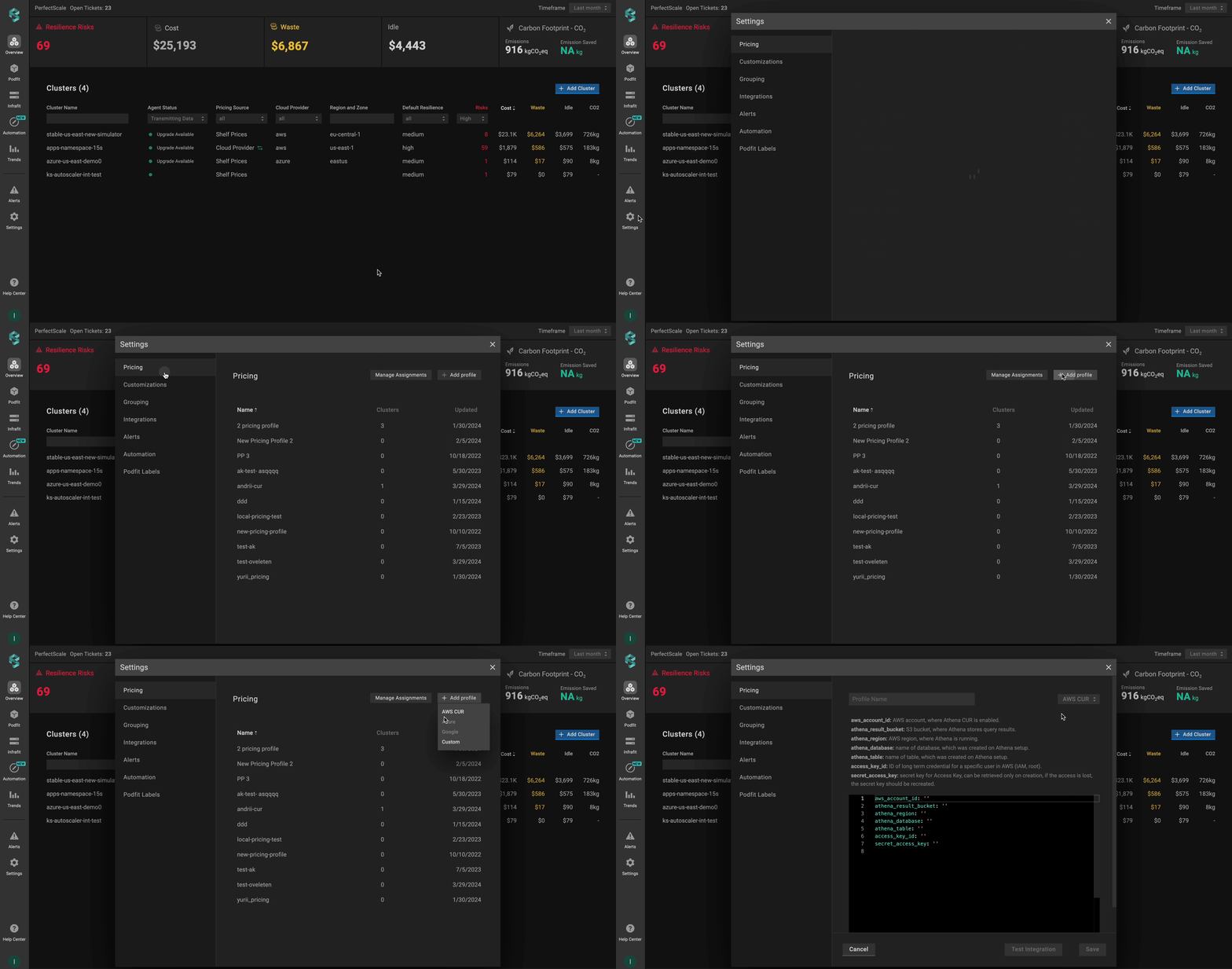
AWS CUR profile from the settings
To verify the accuracy of your AWS CUR Profile configuration, simply click on the Test Integration button. When the configuration is correct, you will see the message AWS CUR Configured Correctly . In case of AWS CUR Configured Wrongly response, check, and ensure the correctness of the data.
From the Overview tab
Go to the Overview tab on the left panel -> find the cluster to which you want to apply the custom Pricing Profile and click three dots button -> select Cluster Settings -> go to Customizations -> click on Add New Profile in the Pricing Profile drop-down list -> select AWS CUR type -> name and configure your profile -> click the Save And Apply button -> click the Save Changes button.
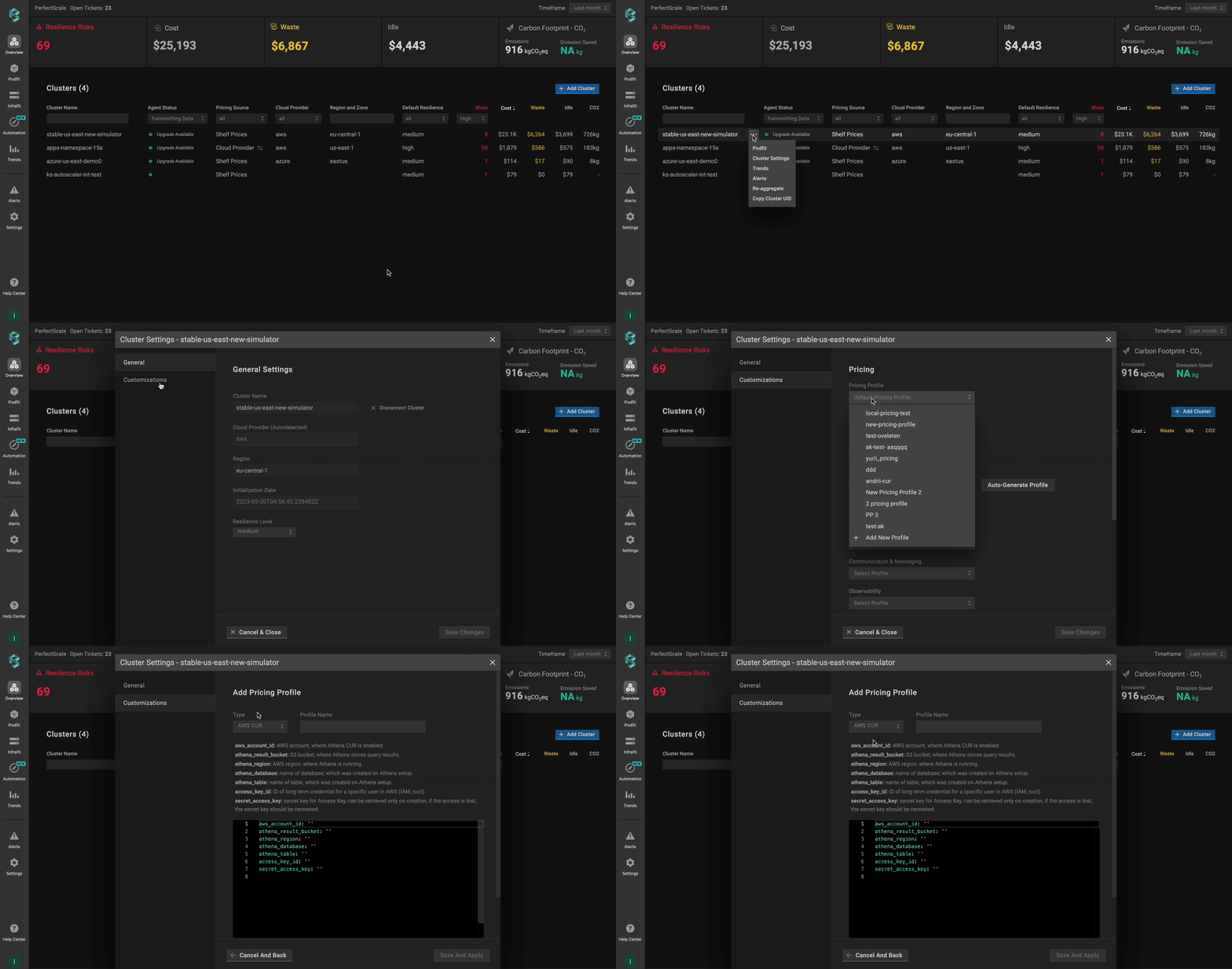
AWS CUR profile from the overview
AWS CUR profile configuration
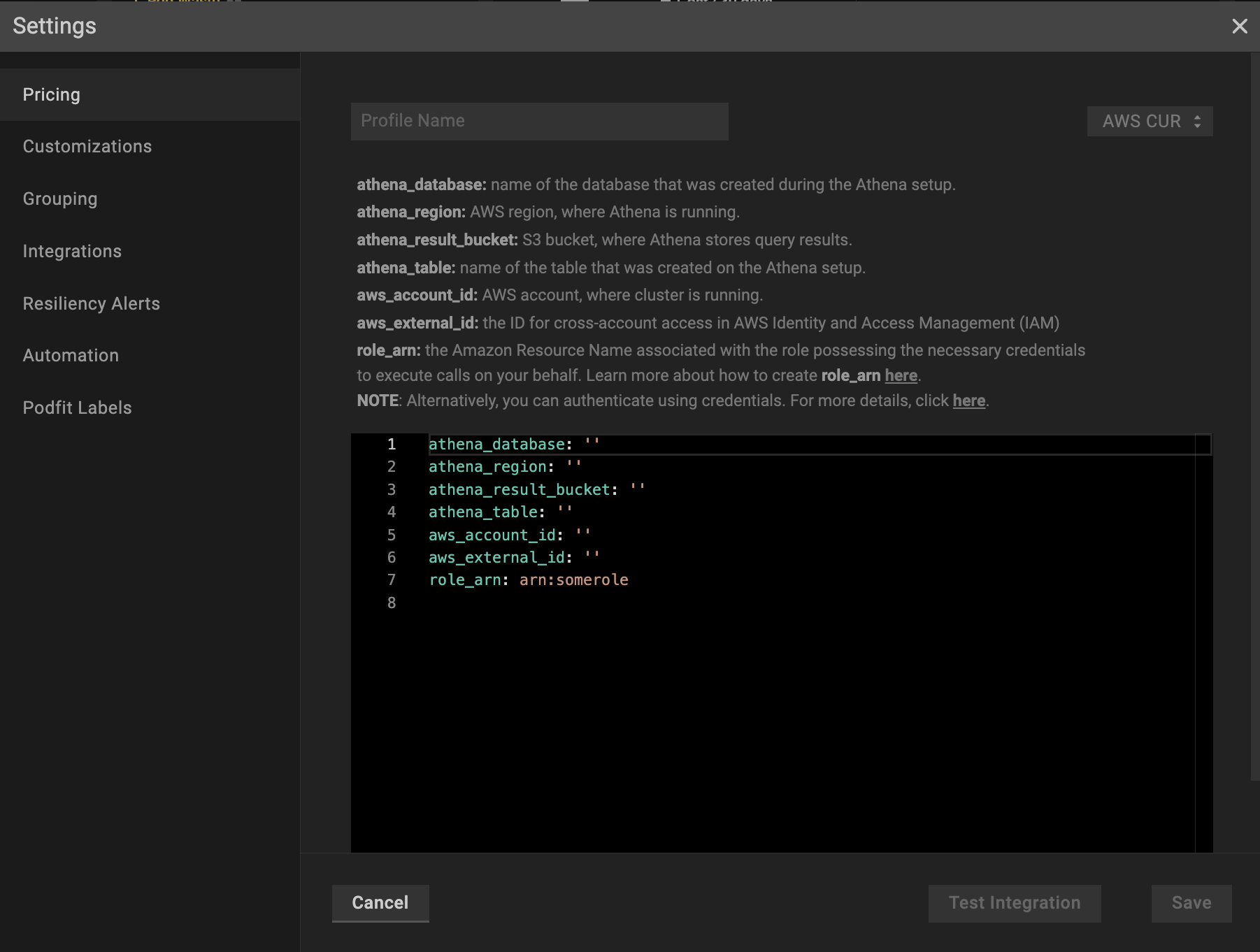
AWS CUR profile configuration
athena_result_bucket: the S3 bucket, where Athena stores query results.
athena_region: the AWS region where Athena is running.
athena_database: the name of the database created on Athena setup.
athena_table: the name of the table, created on Athena setup.
aws_account_id: AWS account, where the cluster is running.
aws_account_id refers to the account where the cluster is running, NOT the AWS billing account ID.
aws_external_id: the ID for cross-account access in AWS Identity and Access Management (IAM).
asw_external_id is a unique, user-defined string used when setting up cross-account access in AWS Identity and Access Management (IAM). This additional security measure ensures that only trusted third-party entities can assume a specific role.
The external ID can be any string you define (a combination of random numbers, letters, or both).
Examples:
YourCompanyName-Partner-2024-UniqueString
3JdpNfwvkpw4rs1sGsdrF0rM1R2
f47ac10b-58cc-4372-a567-0e02b2c3d479
role_arn: the Amazon Resource Name associated with the role possessing the necessary credentials to execute calls on your behalf.
The complete configuration might look like the following example:
athena_database: athenacurcfn_access-perfectscale-account-to-cur
athena_region: us-east-1
athena_result_bucket: s3://access-perfectscale-account-to-cur/
athena_table: access-perfectscale-account-to-cur
aws_account_id: '888061904880'
aws_external_id: f47ac10b-58cc-4372-a567-0e02b2c3d479
role_arn: arn:aws:iam::693587426073:role/access-perfectscale-account-to-cur
NOTE: Alternatively, you can authenticate using credentials. To authenticate with the credentials, replace role_arn with the two following fields in the configuration above:
access_key_id: the ID of a long-term credential for a specific user in AWS (IAM, root).
secret_access_key: the Secret Key for an Access Key (can only be retrieved upon creation). If the access is lost, the secret key must be recreated.
As a result, your configuration will look like this:
aws_account_id: ''
aws_external_id: ''
athena_result_bucket: ''
athena_region: ''
athena_database: ''
athena_table: ''
access_key_id: ''
secret_access_key: ''
Global discount for on-demand nodes
If you have a global discount for on-demand nodes (from a cloud provider or cloud reseller) that isn’t included in your custom cloud billing, you can apply it in addition to your AWS CUR integration.
Add the following parameters to your AWS CUR profile to enable applying the globalDiscount on top of your cloud billing integration:
global_discount (optional block):
percentage- the percentage (0–100, floats supported) of the discount to apply on top of standard on-demand node pricing. This field is required whenglobal_discountexists.start_date(optional) - the effective start date for applying theglobal_discount. If this field is empty, it defaults to today.
If you change the percentage or start_date, only newly generated Trends report will reflect the update. Historical reports will not update automatically. Contact [email protected] if you need them recalculated.
The complete configuration might look like the following example:
global_discount:
  percentage: 15
  start_sate: 2025-31-12
athena_database: athenacurcfn_access-perfectscale-account-to-cur
athena_region: us-east-1
athena_result_bucket: s3://access-perfectscale-account-to-cur/
athena_table: access-perfectscale-account-to-cur
aws_account_id: '888061904880'
aws_external_id: f47ac10b-58cc-4372-a567-0e02b2c3d479
role_arn: arn:aws:iam::693587426073:role/access-perfectscale-account-to-cur
AWS CUR configuration verification
To verify if AWS CUR is configured properly, click the Test Integration button.
:green_circle: When the configuration is correct, you will see the message AWS CUR Configured Correctly.
:red_circle: In case of AWS CUR Configured Wrongly response, check the Show integration failure details dropdown and fix the displayed issues.
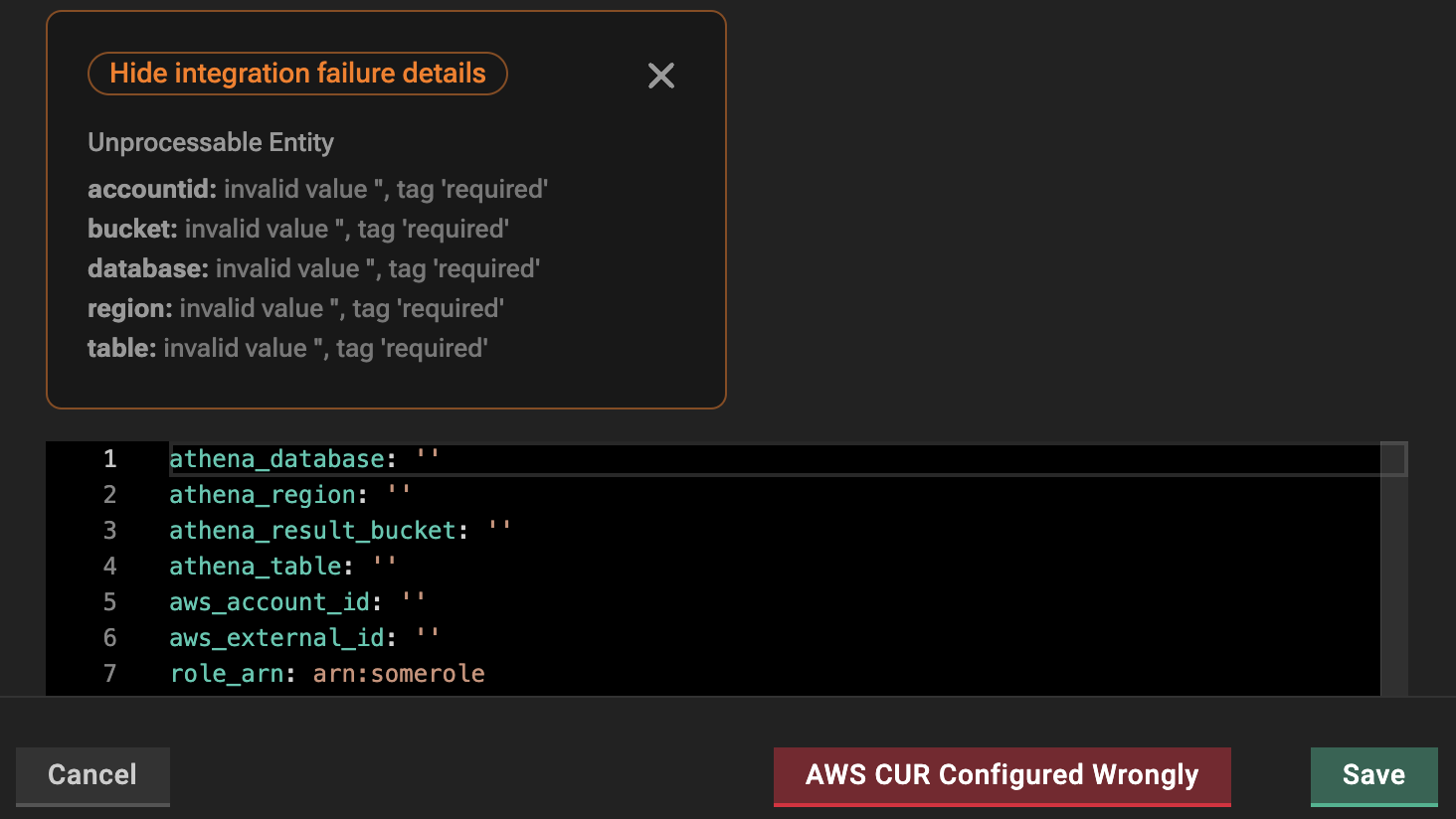
Wrong AWS CUR profile configuration
:tools: How to apply AWS CUR profile
Apply to a single cluster
To apply AWS CUR Pricing Profile to the cluster, go to the Overview tab on the left panel -> find the cluster to which you want to apply the AWS CUR Pricing Profile and click three dots button -> select Cluster Settings -> go to Customizations -> select the needed profile in the Pricing Profile drop-down list.
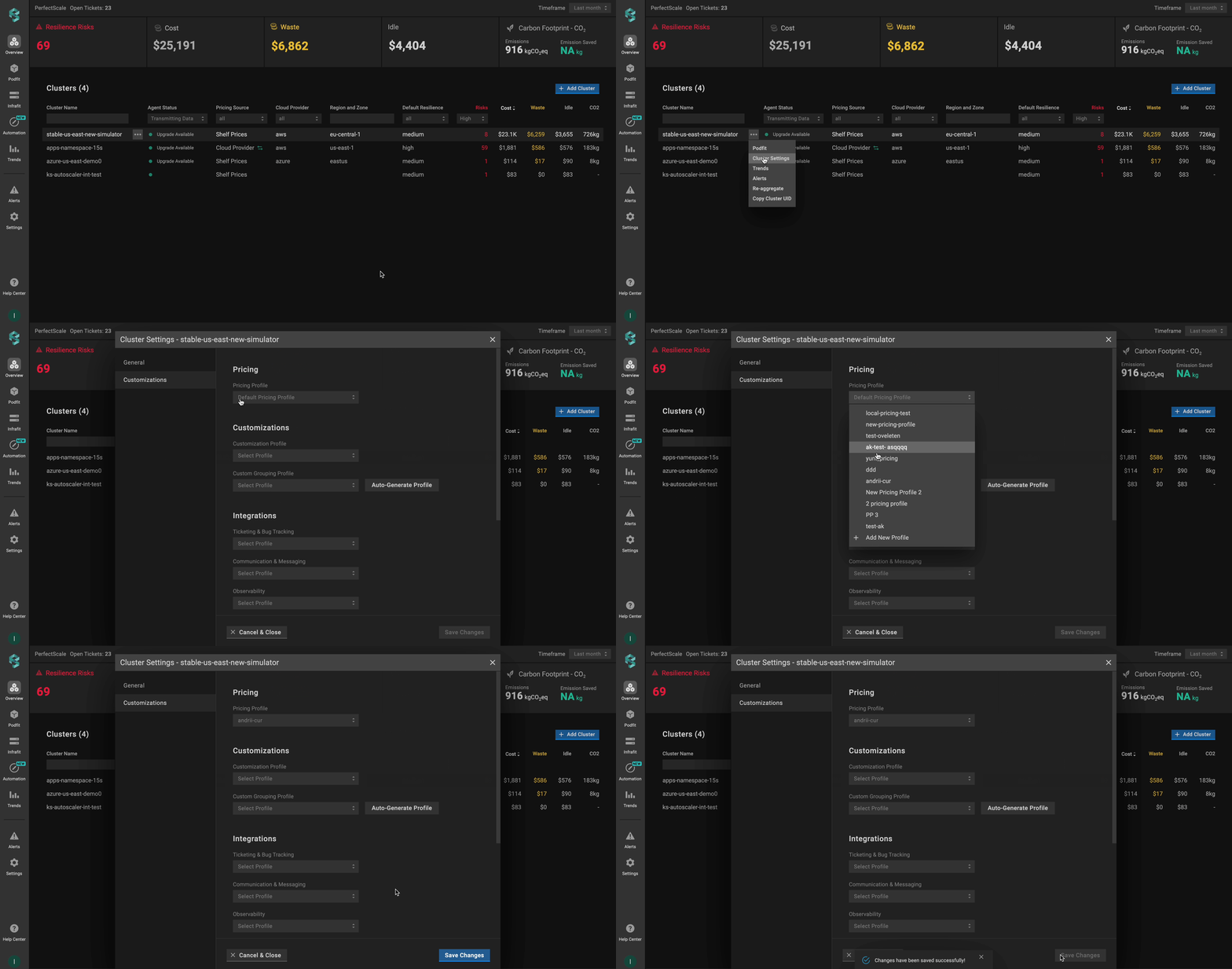
Applying a single AWS CUR profile to the cluster
Apply to multiple clusters
To apply the profile to multiple clusters from a single view, use the Manage Assignments feature.
Go to the Settings tab on the left panel -> select the Pricing -> click the Manage Assignments button -> apply the profiles for the needed clusters -> click the Save Changes button.
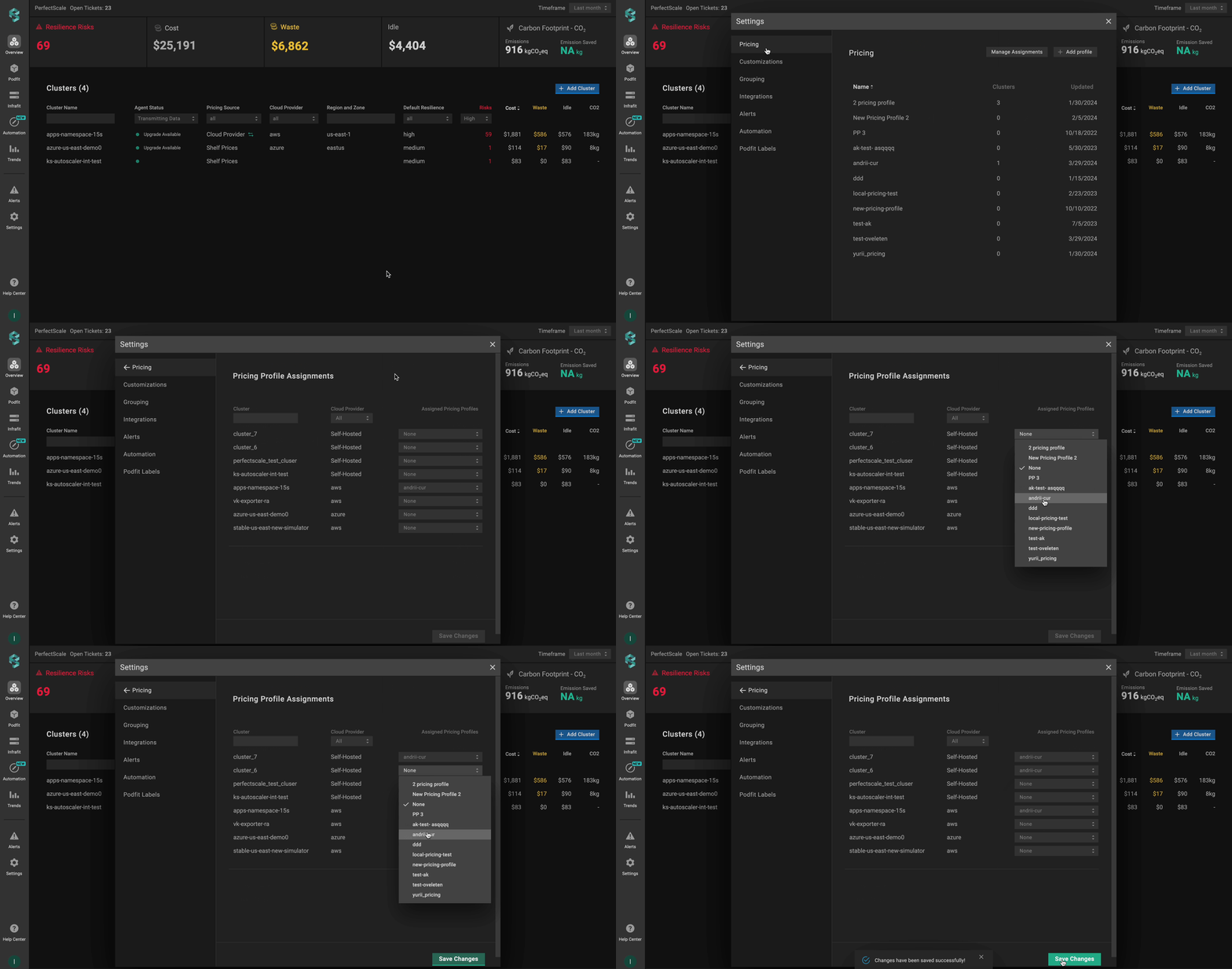
Applying AWS CUR profile to multiple clusters
Configuring AWS pricing integration with CR
To configure AWS CUR pricing, you need to define and apply a Custom Resource (CR) that specifies your unique billing conditions. This approach allows you to manage accurate pricing directly through Kubernetes manifests.
The Custom Resource (CR) must be created in the perfectscale namespace.
Setup instructions
- Enable the AWS CUR in your AWS account.
- Set up the report to export data to an S3 bucket and integrate it with AWS Athena.
- Create an IAM Role for cross-account access (recommended) or an IAM User with the required permissions.
- Configure the CR.
Recommended CR configuration
We recommend configuring a CR using the IAM Role authentication method.
apiVersion: perfectscale.io/v1
kind: ClusterSettings
metadata:
  name: cluster-settings-main
  namespace: perfectscale
spec:
  profiles:
    pricing:
      - type: aws_cur
        name: aws-cur-integration
        assigned: true
        value:
          global_discount:
            percentage: 7.5
            start_date: 2025-12-31

          # Authentication - IAM Role (recommended)
          role_arn: "arn:aws:iam::your-account-id:role/your-role-name"
          aws_external_id: "your-unique-external-id-here"

          # Athena Configuration
          athena_database: athenacurcfn_perfectscale_cur_report
          athena_region: us-east-1
          athena_result_bucket: s3://perfectscale-cur-results/
          athena_table: perfectscale_cur_report_hourly

          # AWS Account ID (where cluster is running, NOT billing account)
          aws_account_id: "your-aws-account-id-here"
⚙️ CR parameters:
| Parameter | Description |
|---|---|
global_discount (optional block) | The discount to apply on top of standard on-demand node pricing.percentage - the percentage (0–100, floats supported) of the discount. This field is required when global_discount exists.start_date (optional) - the effective start date for applying the global_discount. |
role_arn | The Amazon Resource Name associated with the role possessing the necessary credentials to execute calls on your behalf. |
aws_external_id | The ID for cross-account access in AWS Identity and Access Management (IAM). |
athena_database | Name of the database that was created during the Athena setup. |
athena_region | AWS region where Athena is running. |
athena_result_bucket | S3 bucket where Athena stores query results. |
athena_table | Name of the table that was created on the Athena setup |
aws_account_id | AWS account where cluster is running, NOT billing account |
If a global_discount percentage is provided without a start_date in the CR profile, we won’t default to today’s date as we do for profiles configured in the UI, and the discount will not be applied. The pricing profile appears broken in the UI.
Alternative CR configuration
Alternatively, you can configure a CR using the IAM User authentication method.
apiVersion: perfectscale.io/v1
 kind: ClusterSettings
 metadata:
   name: cluster-settings-main
   namespace: perfectscale
 spec:
   profiles:
     pricing:
       - type: aws_cur
         name: aws-cur-integration-user
         assigned: true
         value:
           global_discount:
            percentage: 7.5
            start_date: 2025-12-31

           # Authentication - IAM User (alternative)
           access_key_id: "your-aws-access-key-id-here"
           secret_access_key_from:
             secretKeyRef:
               name: aws-credentials
               key: secret-access-key

           # Athena Configuration
           athena_database: your_athena_database_name
           athena_region: us-east-1
           athena_result_bucket: s3://your-athena-results-bucket/
           athena_table: your_athena_table_name

           # AWS Account ID (where cluster is running, NOT billing account)
           aws_account_id: "your-aws-account-id-here"
If a global_discount percentage is provided without a start_date in the CR profile, we won’t default to today’s date as we do for profiles configured in the UI, and the discount will not be applied. The pricing profile appears broken in the UI.
To configure AWS CUR pricing with IAM User authentication, a secret is required:
piVersion: v1
 kind: Secret
 metadata:
   name: aws-credentials
   namespace: perfectscale
 type: Opaque
 stringData:
   secret-access-key: "your-aws-secret-access-key-here"
Ensure that the secret is created in the same namespace as the exporter - perfectscale.