User management — SaaS
Invite more users to your team
For safety reasons, users can only be added to an existing account through the Invite User feature in the app. Any other method will fail.
Invite the user from the Overview
By clicking Invite Users on the Overview screen, you will access the user management window.
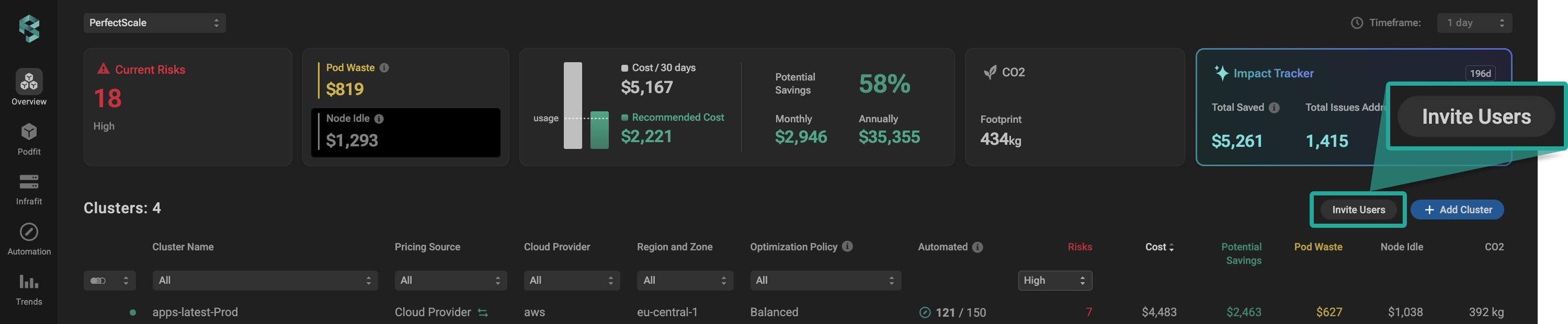
Invite users from overview
Once you are there, click the Invite User button and select the role from the drop-down list (Admin, Read Only, etc.). Ensure you have entered information in all the mandatory fields (Email, Full Name) and click Invite.
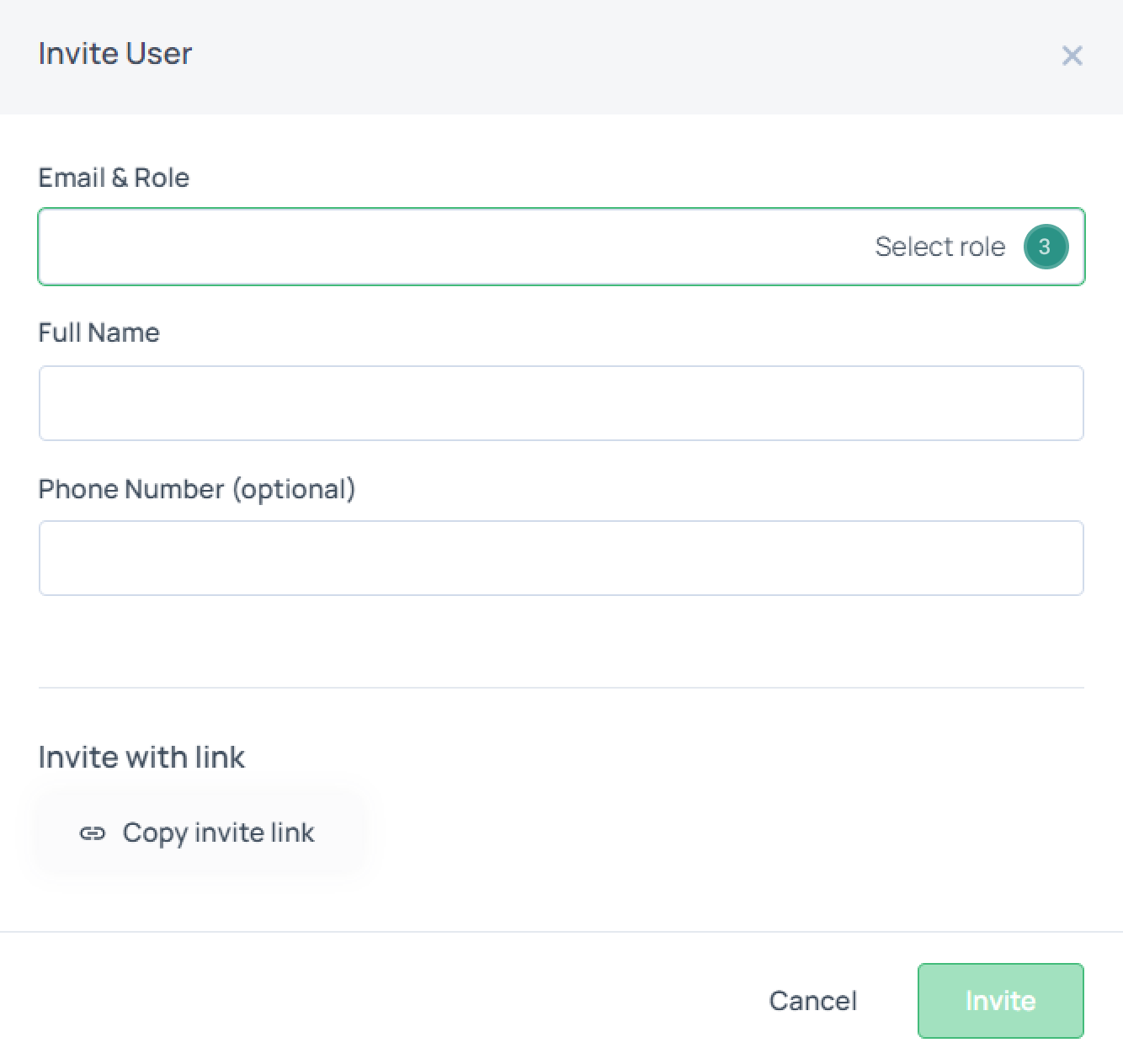
Invite user form
Once all the steps are completed, the user will receive an invitation link.
Invite the user from the Organization Settings
Click on the Profile button in the bottom left corner and select Organization Settings. In the Users tab and click the Invite User button.
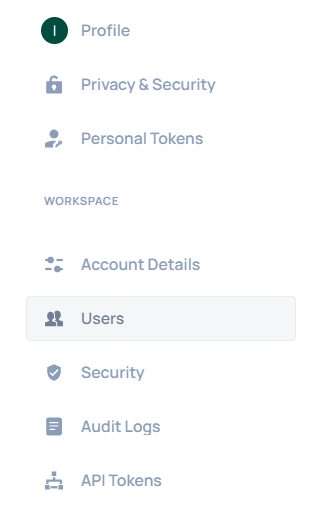
Invite users from org settings
Once you are there, select the role from the drop-down list (Admin, Read Only, etc.). Ensure you have entered information in all the mandatory fields (Email, Full Name) and click Invite.
Invite user form
Once all the steps are completed, the user will receive an invitation link.