Partner report templates
Distributors and resellers can save a Cloud Analytics report as a partner template and share it with their direct customer tenants.
-
Partner report templates support AWS billing data only. The report always runs on the customer's own data.
-
Partner report templates are visible only to direct child tenants and do not cascade through tiers.
-
Only report settings that work across tenants can be saved to a shared template.
Required permissions
- To create, edit, or delete partner report templates, you need the Cloud Analytics Admin permission in a distributor or reseller tenant.
Create a partner template
To create a partner template:
-
Open an existing report or create a new one.
-
Select the kebab menu (⋮) in the report header, and then select Create template.
You can also select Create new template at the top of the Report library page to create one from scratch, following the same instructions below.
-
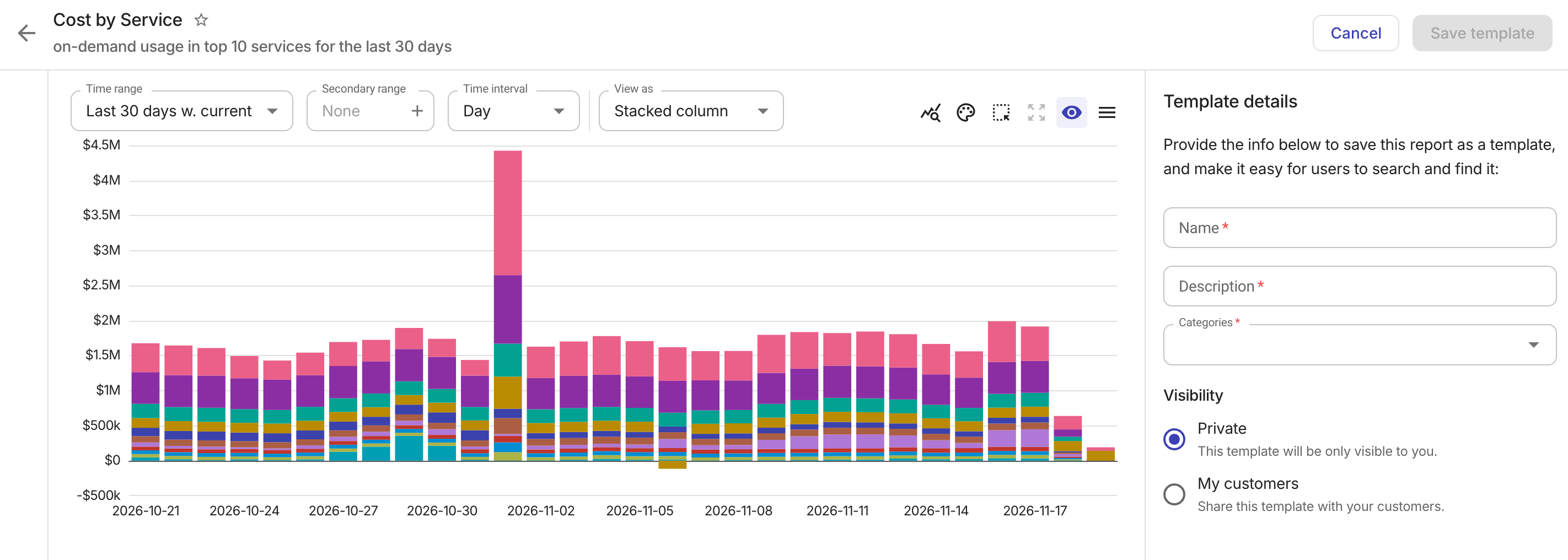
Enter a name, description, and select a category for the template.
-
Specify the visibility of the template.
-
Private: Visible only to you.
-
My customers: Visible to your direct child tenants.
-
-
If you selected My customers, the template must pass a portability check to ensure settings resolve correctly before it can be saved. Resolve any blocked settings listed in the alert before continuing.
-
Select Save template to publish it. The published template appears in the Report library of your direct customers alongside DoiT templates.
You can restrict which customers receive shared templates by changing Manage visibility later.
Manage partner templates
To manage your partner templates:
-
In the DoiT console, select Reporting and analytics > Reports from the top navigation mega menu, then select Report library in the header bar.
-
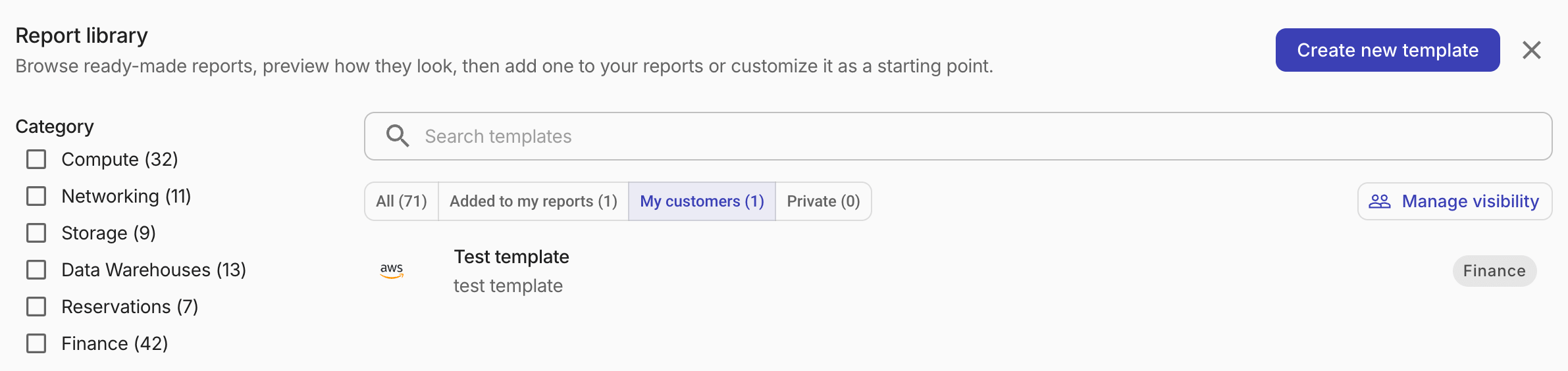
Select the My customers tab for templates shared with your customers, or select the Private tab for templates visible only to you.
Manage visibility
By default, all direct child tenants receive your shared templates, including tenants you add later.
To restrict which customers see the shared templates:
-
Select Manage visibility in the My customers tab.
-
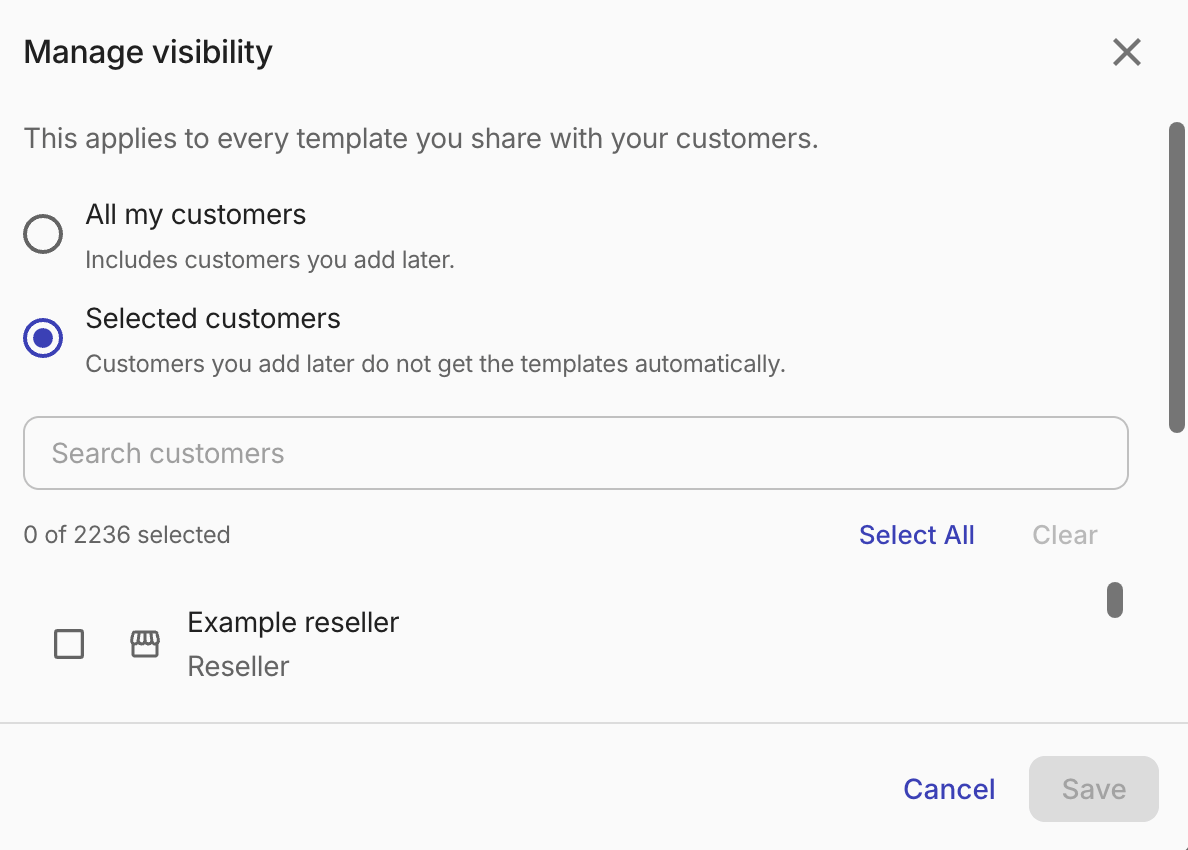
Choose your option:
-
All my customers: This is the default setting.
-
Selected customers: Only the selected customers receive the shared templates. Tenants you add later are not included automatically.
This setting applies to all shared templates.
-
Edit or delete a template
Open the template of interest and choose the action to take:
-
Edit this template: Edit the underlying report and save the template again. Changes take effect immediately for every customer that has added the template.
-
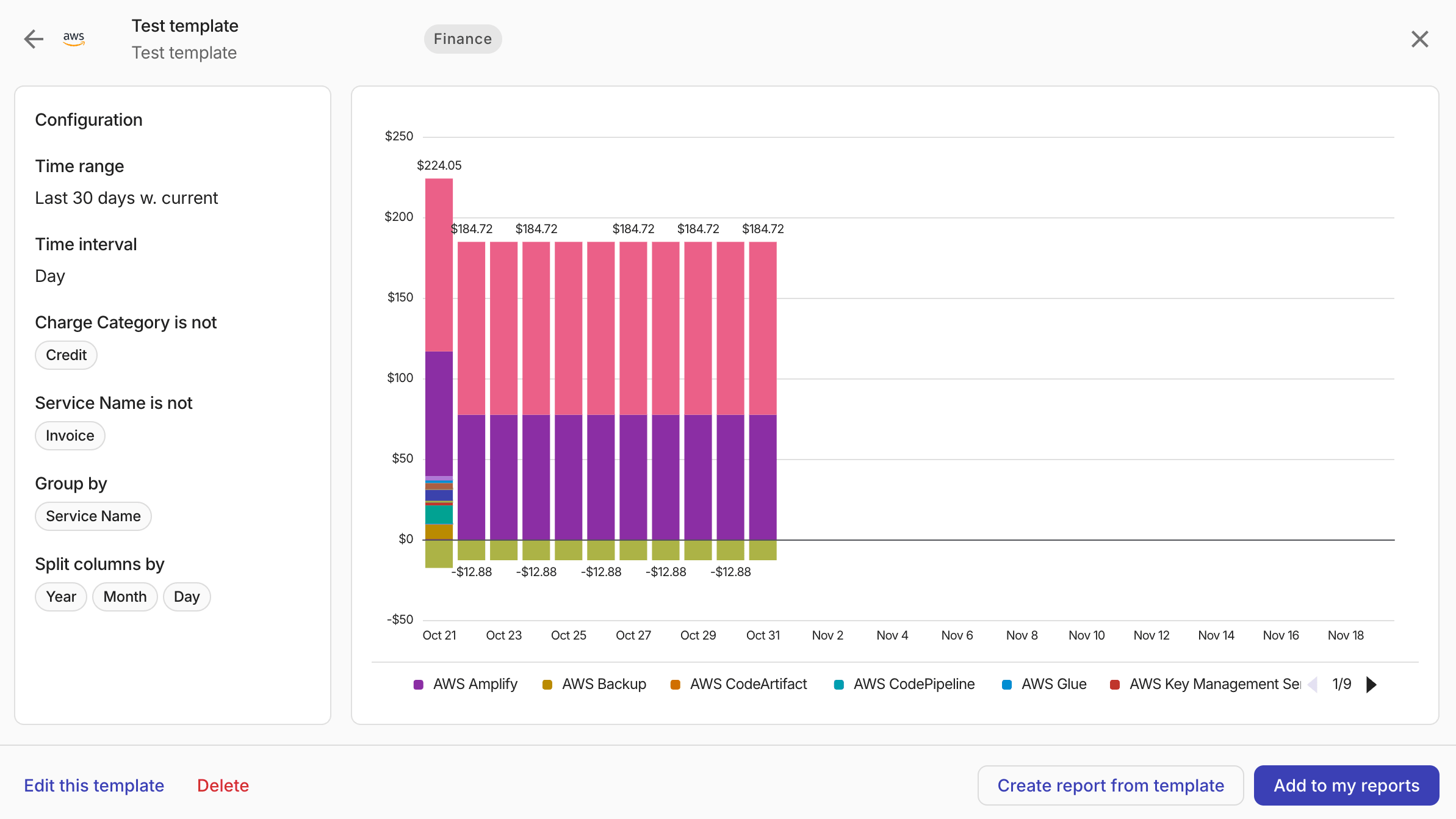
Delete: Deleting a shared template removes it from your customers' library and from any reports where they added it.